Close Same-day Rental Bookings
A same-day cutoff stops new online rental bookings for the rest of the day once your chosen time passes. It uses your business's time zone.
Set the closing time
- Open Settings, then Rentals.
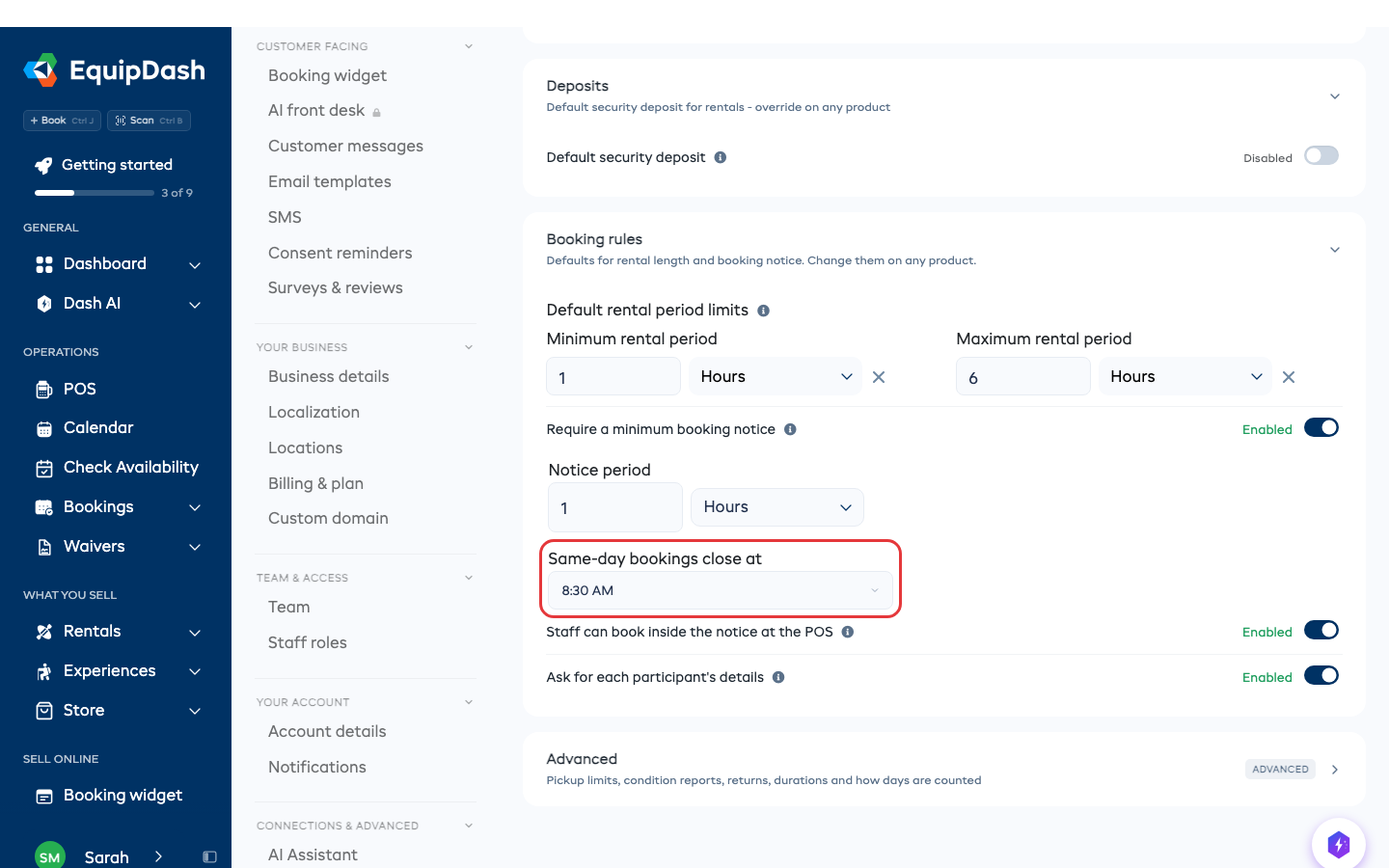
- Open Booking rules and turn on Require a minimum booking notice.
- Choose a time in Same-day bookings close at. Leave Notice period blank if you only need a closing time.
Changes save automatically. Reopen the page to check the saved time.
Check the customer result
Before the cutoff, a customer can choose an available pickup later today. Once the cutoff passes, today's online bookings are blocked. Customers can choose a later date that meets your other booking rules.
For example, an 8:30 AM cutoff closes same-day online bookings once 8:30 AM passes. Tomorrow's bookings still follow their usual availability and booking rules.
Notice periods and counter bookings
You can use a notice period and a cutoff together. The stricter rule wins. A two-hour notice can close an early pickup before the daily cutoff arrives.
Staff can book inside the notice at the POS controls whether your team can still take a counter booking inside the notice. Turn it off if counter bookings should follow the same rule as online bookings.
An item can have its own notice. Open the item and check Minimum booking notice when it needs a different rule.
For pickup times, deposits and rental lengths, see Rental Settings.