Learn EquipDash
Your training starts with lessons for the work you do in EquipDash. Dash uses your saved setup and the work you can access to choose a short path. You don't need to answer the setup questions again.
Open your training
- Open Help in the app header and choose Training.
- On Settings, choose Training in the help box.
- From the Help Centre home, choose Your training.
Training stays available after you finish Getting started. While you're setting up, Getting started shows a Learn EquipDash card under Dash with the video and your next lessons. A setup step with a video also has a Watch button, which opens the video beside the step.
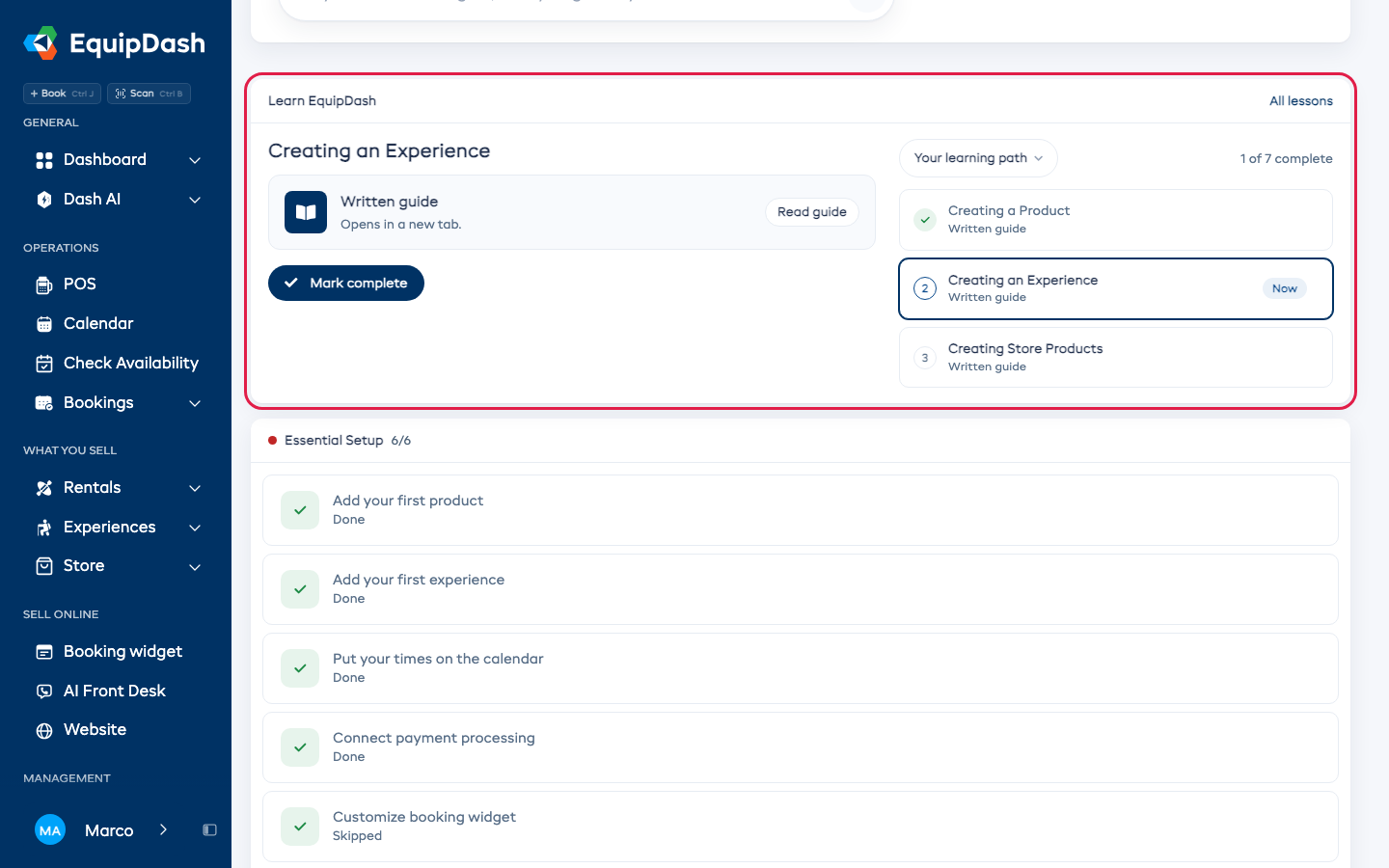
Choose a lesson and save your progress
- Click a lesson title in your path. Its video or guide opens beside the list, or above it on your phone.
- Play the video or choose Read guide. If the video isn't available, use the written guide. Ask Dash opens help for your question.
- Choose Mark complete under the video when you've finished the lesson. It gets a green tick in your list, and your saved count updates.
You can return to any lesson, including one you've completed. A completed lesson shows Completed; choose Undo to mark it unfinished again. Videos remember where you stopped while that version remains available.
To see lessons from another part of the Help Centre, choose the menu above the list, such as Rentals or Bookings. Your learning path brings back the lessons Dash picked for you.
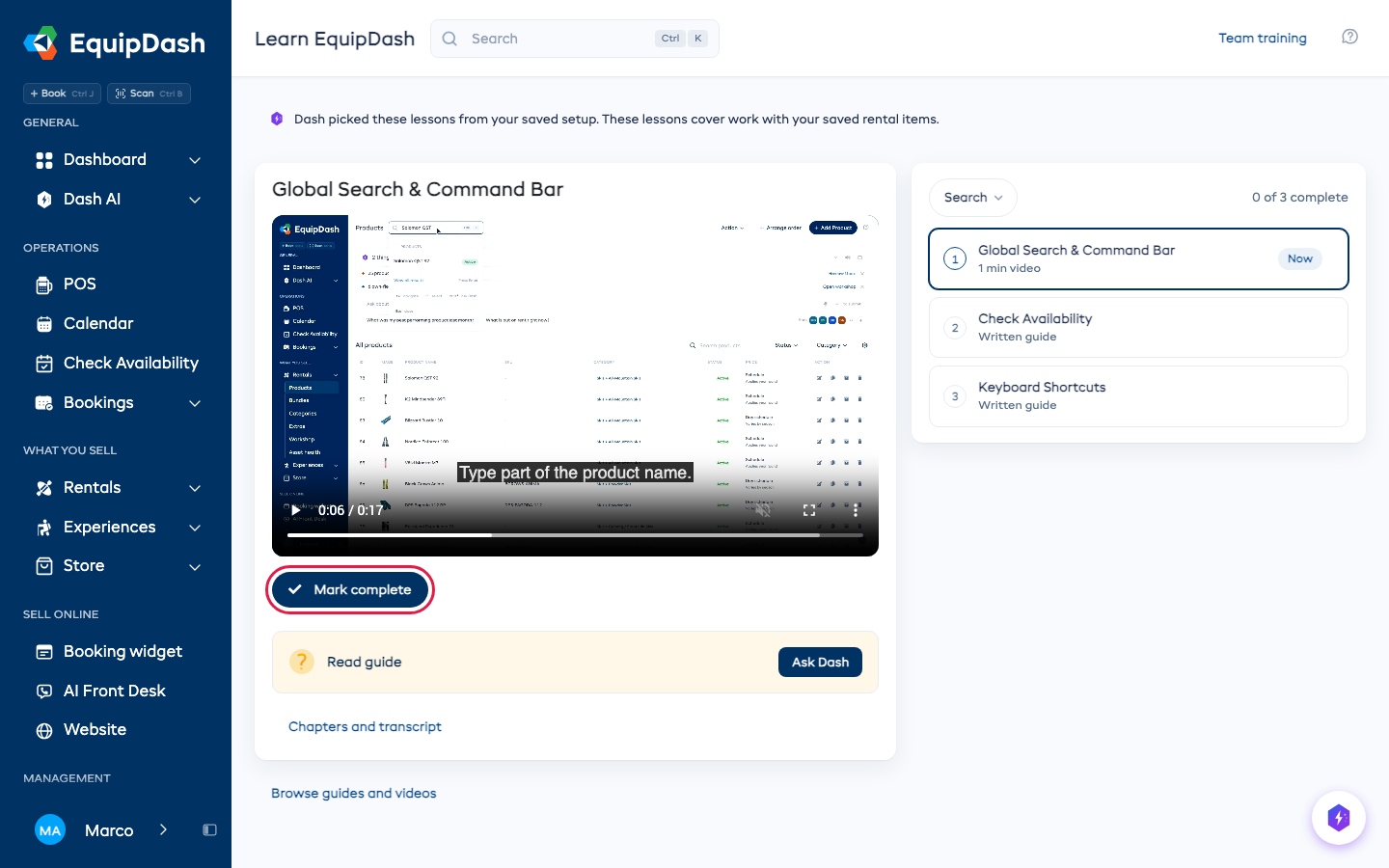
Choose Browse guides and videos to find another lesson. The library shows resources for the work you can access.
Create a path for staff
Staff managers can choose the lessons their team needs. Other staff see their own assigned learning and progress.
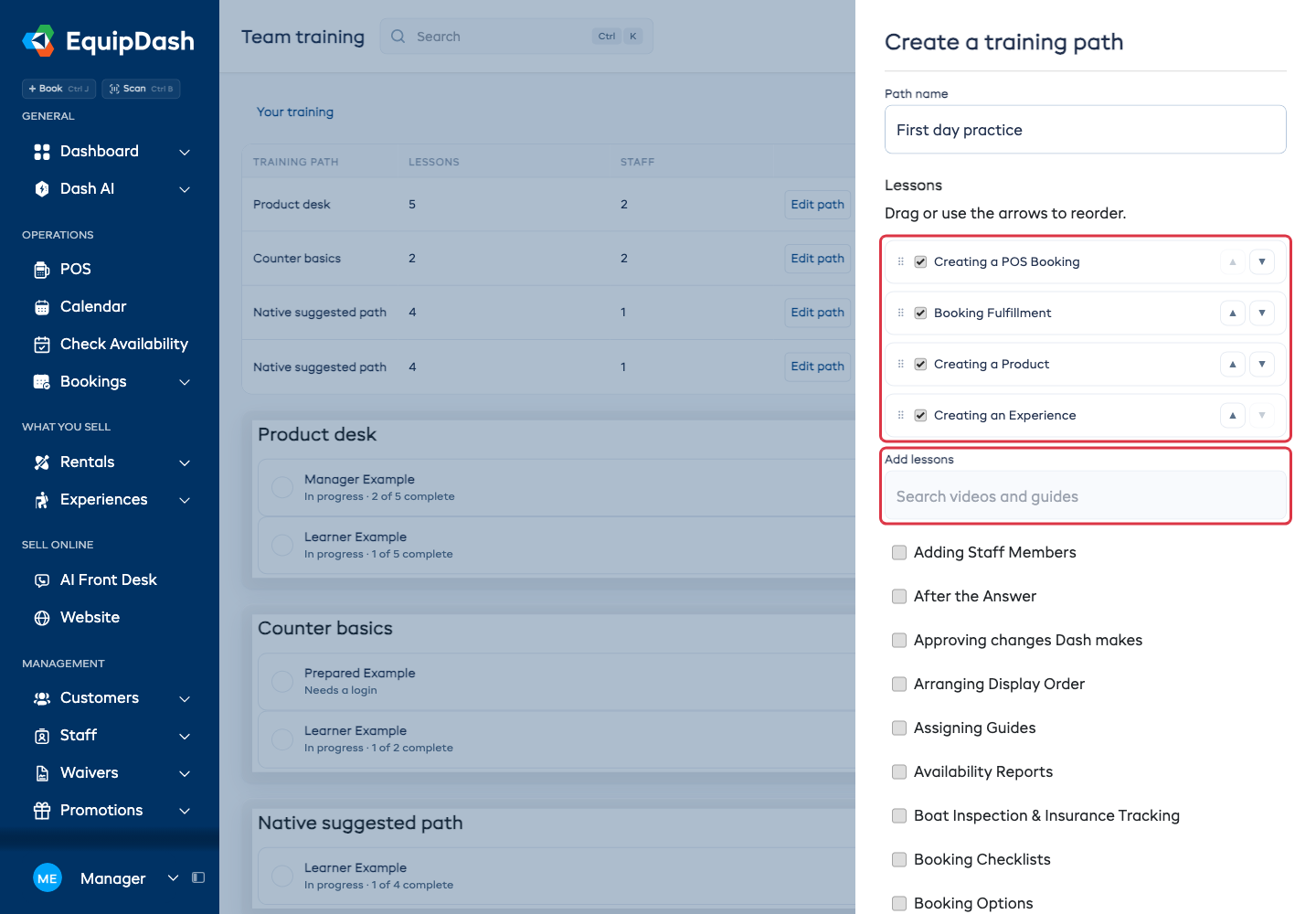
- Open Team training, then choose Create path.
- Keep or change the suggested Path name. Tick lessons to include, use Add lessons to find more, and drag or use the arrows to reorder them.
- Choose Next: assign staff.
- Select staff, optionally enter a Due date, and choose Assign path. You can save a path without assigning anyone yet.
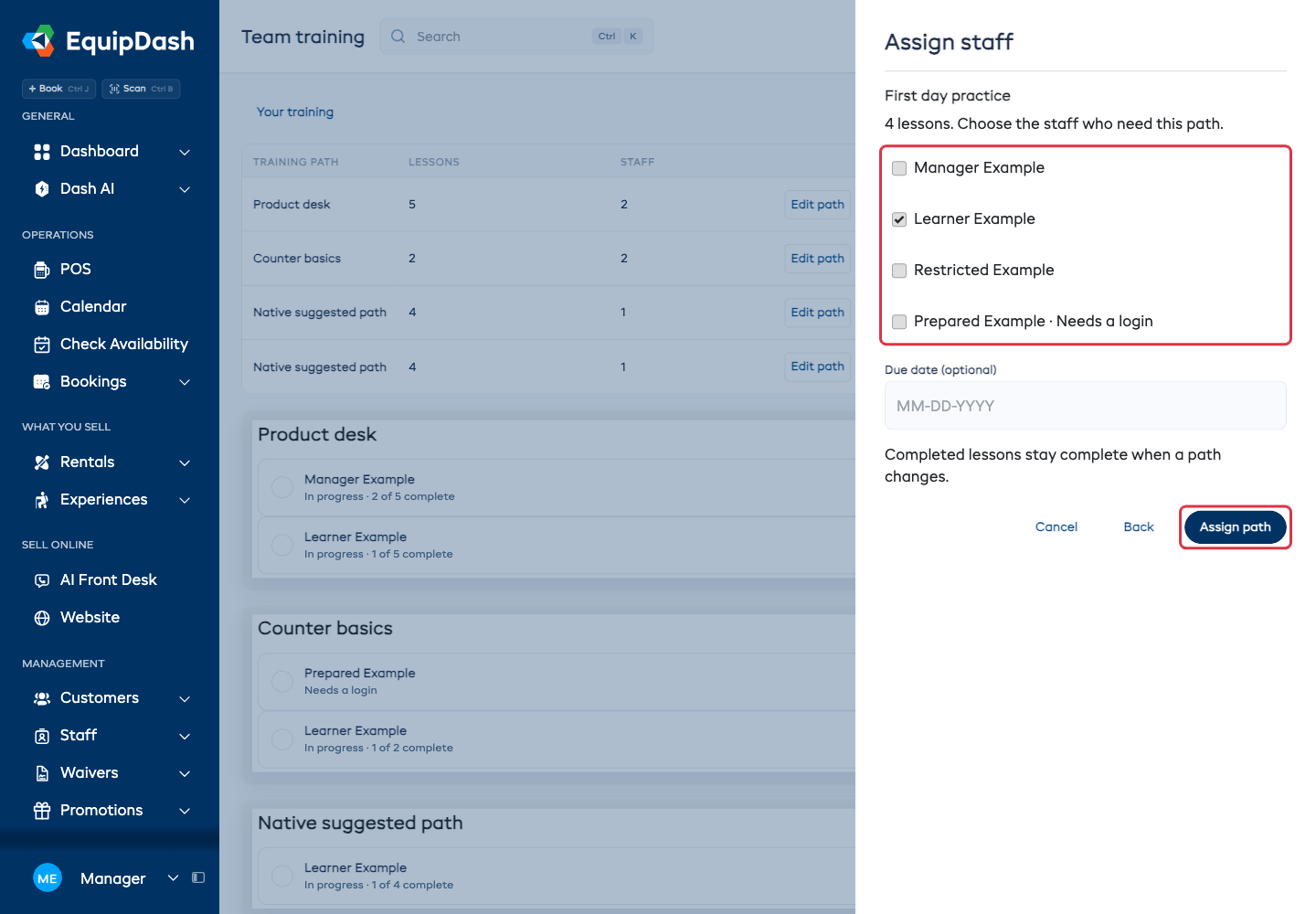
Staff without an account show Needs a login. Assigning a path doesn't create an account or send an invitation.
Edit a path or change its staff
Choose Edit path, make your changes, then choose Save changes. The updated path reaches its assigned staff automatically. Completed lessons stay complete; new lessons start unfinished. Removing a lesson removes it from the current count without deleting its saved learning history.
Choose Assign staff to change who gets the path. Team training shows each person's saved count and next lesson. You can't mark lessons complete for someone else.
If someone's work access changes, unavailable lessons say Access changed. Update their path to include the work they can do.
Related guides: Quick Start Guide, First-Time Tips, and Staff.