Waivers & Forms Overview Growth+This feature requires the Growth+ plan or higher
Waivers & Forms lets you create digital documents that your customers fill out before, during, or after their booking. Whether you need a liability waiver signed before an activity or a health questionnaire completed ahead of time, this is where you set it all up.
Looking for your rental agreement?
Waivers are about the people on a booking — one per person, and only on the bookings you attach them to. The terms for the booking itself (the items, the dates, the money, the deposit) are the rental agreement: one set of wording, on every booking, filled in automatically and emailed as soon as someone books. Most businesses use both.
What You Can Do with Waivers & Forms
- Create waivers and forms — Build digital liability waivers, health questionnaires, and any other form your business needs.
- Assign to products and experiences — Link forms to specific bookable items so they are automatically sent to customers at the right time.
- Or keep a form standalone — A form that isn't tied to anything you sell, sent on its own or attached to a quote as the agreement. See Standalone forms.
- Collect responses — View, filter, and manage all responses from a single table.
- Share standalone links — Generate a public link and QR code for any form so it can be shared via email, social media, or printed at your front desk.
- See who still hasn't signed — The Consent tracker lists every upcoming booking with an outstanding signature, and chases them for you.
Getting to Waivers & Forms
- Click Waivers & Forms in the left sidebar. It opens into two pages:
- Waivers & forms — the list of every form you have built. This is where you start.
- Consent tracker — every upcoming booking still waiting on a signature.
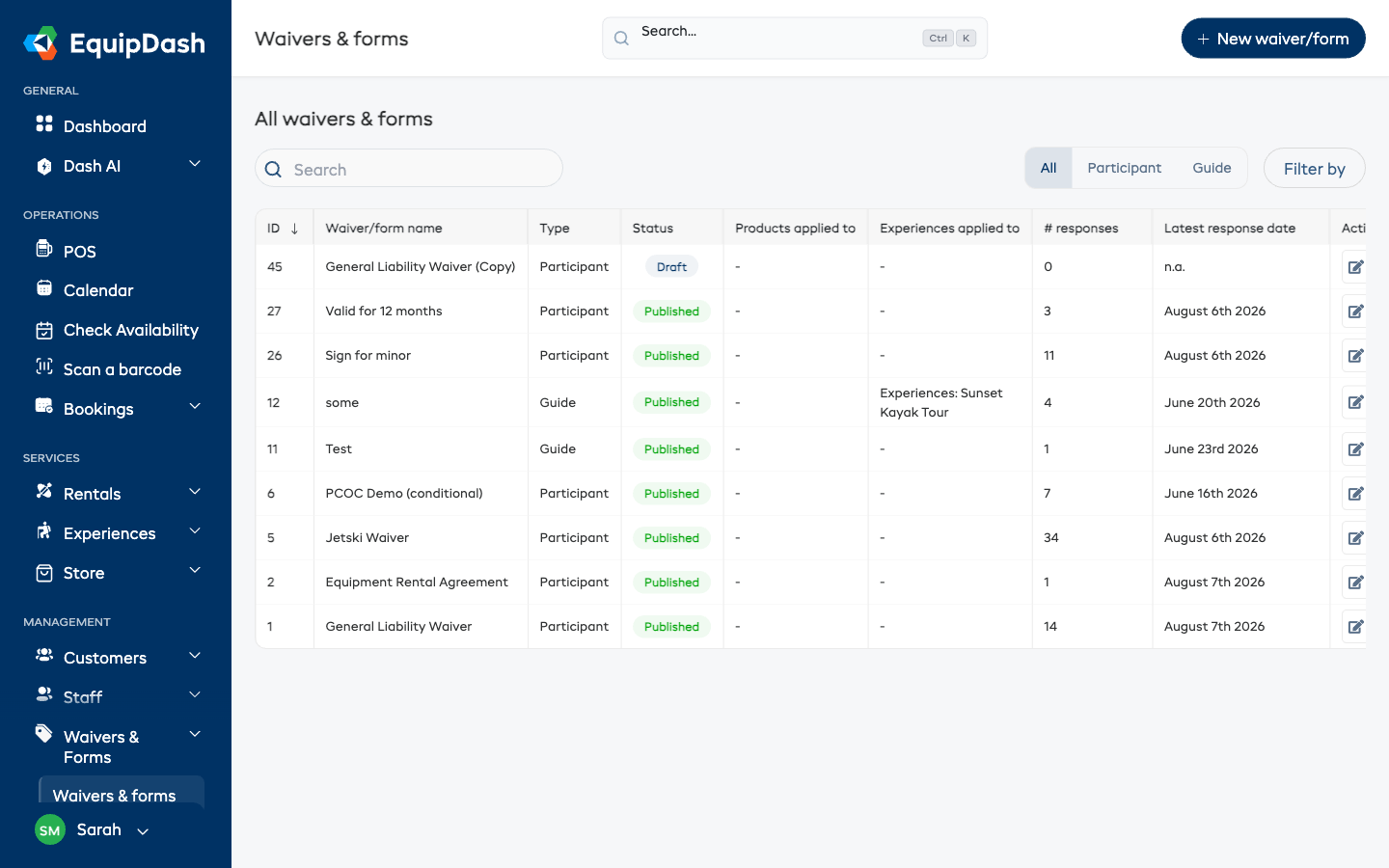
- Click Waivers & forms and you will land on the page that lists all your forms and waivers.
Understanding the Table
The table section is titled "All waivers & forms" and has a Search box and Filter by button above it.
| Column | What It Shows |
|---|---|
| ID | A unique identifier for the form |
| Waiver/form name | The name of the form or waiver |
| Type | Participant (your customer signs it) or Guide (your staff fill it in). Only shown when Experiences is switched on — see Guide Forms |
| Status | Whether the form is New, Draft, or Published |
| Products applied to | Which products the form is linked to (or "-" if none, including standalone forms) |
| Experiences applied to | Which experiences the form is linked to (or "-" if none, including standalone forms) |
| # responses | The number of completed responses |
| Latest response date | The date of the most recent response (or "n.a." if none) |
| Action | Edit (pencil icon) and Delete (trash icon) buttons |
Navigating from the Table
- Click any row (except the Action column) to go to that form's Responses page.
- Click the edit icon (pencil) in the Action column to open the form builder and edit the form.
- Click the delete icon (trash) in the Action column to delete the form.
Quick Actions
From the Waivers & Forms page you can:
- Click + New waiver/form (top-right) to create a new waiver or form.
- Use the Search box to find forms by name.
- Click Filter by to filter forms by product, product category, experience, or experience category.