Exporting Customers
You can export your active customer list from EquipDash as a CSV file. This is useful for creating backups, importing into email marketing tools, doing analysis in a spreadsheet, or migrating data to another system.
How to Export
- Click Customers in the sidebar to open the customer table.
- Click the Action dropdown near the top-right of the page.
- Click Export.
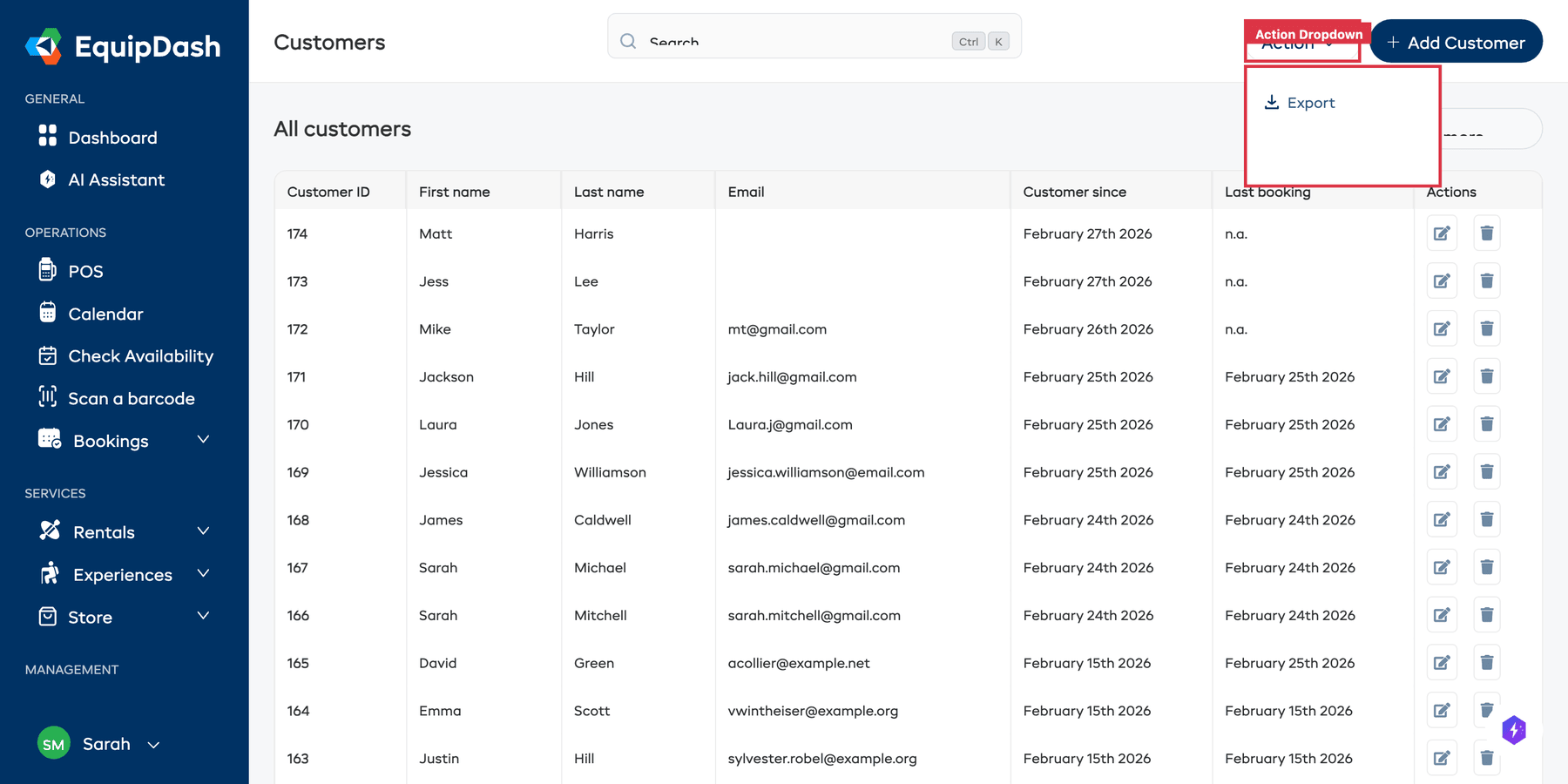
The CSV file will begin downloading automatically. You will see a confirmation message once the download starts.
Export Only Some Customers
- Tick the checkbox on each customer you want.
- Click Export on the dark bar that appears above the list.
The file has the same columns, with just the customers you ticked. See Archiving and Deleting Customers for the other actions on that bar.
What Is Included
The exported CSV file contains one row per customer with the following columns:
| Column | Description |
|---|---|
Customer ID | The internal EquipDash customer ID |
First name | Customer's first name |
Last name | Customer's last name |
Email | Email address |
Country code | Phone country code (e.g. +61) |
Phone number | Phone number |
Address line 1 | Street address |
Address line 2 | Apartment, suite, or unit |
City | City or town |
State | State, province, or region |
Zip/post code | Postal or zip code |
Country | Country name |
Customer since | The date the customer was first added |
Last booking | The date of their most recent booking |
What Is Not Included
The export includes contact information and basic activity dates. It does not include:
- Booking details or amounts (use Reports for financial data).
- Customer notes.
- Custom field values.
- Waiver or survey responses.
Using the Exported Data
In a Spreadsheet
Open the downloaded .csv file in any spreadsheet application (Google Sheets, Microsoft Excel, Apple Numbers). The data will be organized into columns automatically.
In an Email Marketing Tool
Most email marketing platforms (like Mailchimp, Brevo, or ActiveCampaign) let you import contacts from a CSV file. Map the exported columns to the fields in your email tool.
For Re-Importing
The export format is similar to but not identical to the import format. If you want to re-import exported data (e.g. after editing in a spreadsheet), you may need to adjust the column headers to match the import format:
| Export Header | Import Header |
|---|---|
First name | First Name |
Last name | Last Name |
Email | Email |
Country code | Phone Country Code |
Phone number | Phone Number |
Address line 1 | Address Line 1 |
Address line 2 | Address Line 2 |
City | City |
State | State |
Zip/post code | Postcode |
Country | Country |
Export Scope
Action > Export includes all active customers in your account, even if you have narrowed the table with search or filters. Archived customers are left out.
To export fewer customers, tick their checkboxes and use Export on the selection bar. This download includes only the selected rows. You can use the Archived filter to find archived customers and select the ones you need.