Importing Customers
If you have an existing customer list in a spreadsheet or another system, you can import it into EquipDash from a CSV file. The import walks you through three quick steps — upload your file, check the column matching, and import — so you don't have to reformat your spreadsheet to fit EquipDash.
Step 1 — Upload your CSV
- Click Customers in the sidebar.
- Click the Action dropdown near the top-right of the page.
- Click Import customers.
- Click Choose file and pick your CSV file.
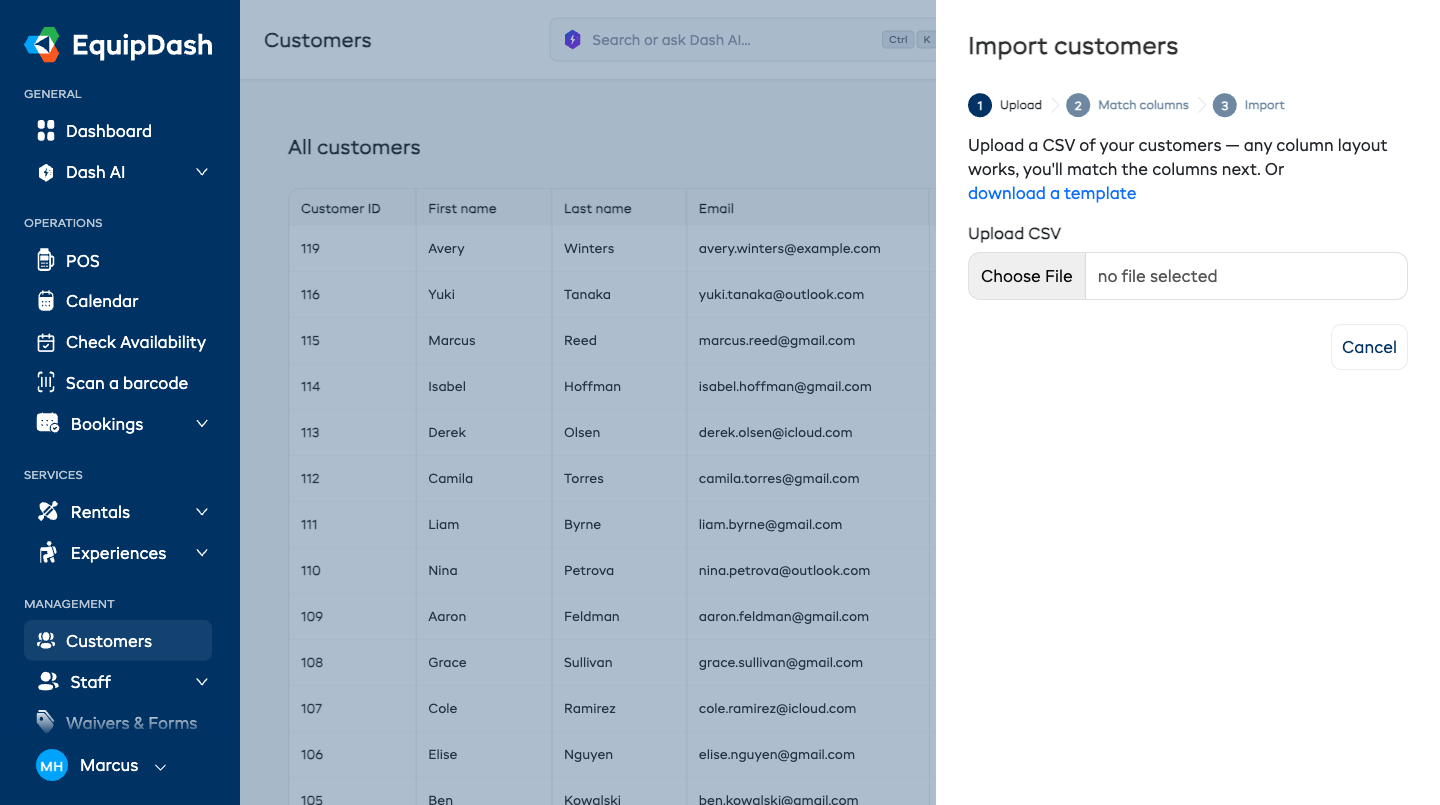
Any column layout works. Your file just needs a header row (the first row naming each column) and one row per customer. Exports from other booking systems, contact apps, and Excel work as-is — including files that use semicolons instead of commas.
If you're starting from scratch, click download a template in the panel to get a ready-made file with all the columns EquipDash can import.
File requirements: CSV format (.csv or .txt), up to 16 MB, and up to 1,000 customers per file.
If your file has more than 1,000 customers, EquipDash tells you how many it found and asks you to split it — save it as smaller files of 1,000 or fewer and upload them one after another. Nothing is imported until you do, so no part of the list is left half-done.
Step 2 — Match your columns
As soon as your file uploads, EquipDash reads it and matches your columns to its customer fields automatically. You'll see how many customers were found, and a row for each EquipDash field showing which of your columns feeds it — with a real example value from your file so you can spot a mismatch at a glance.
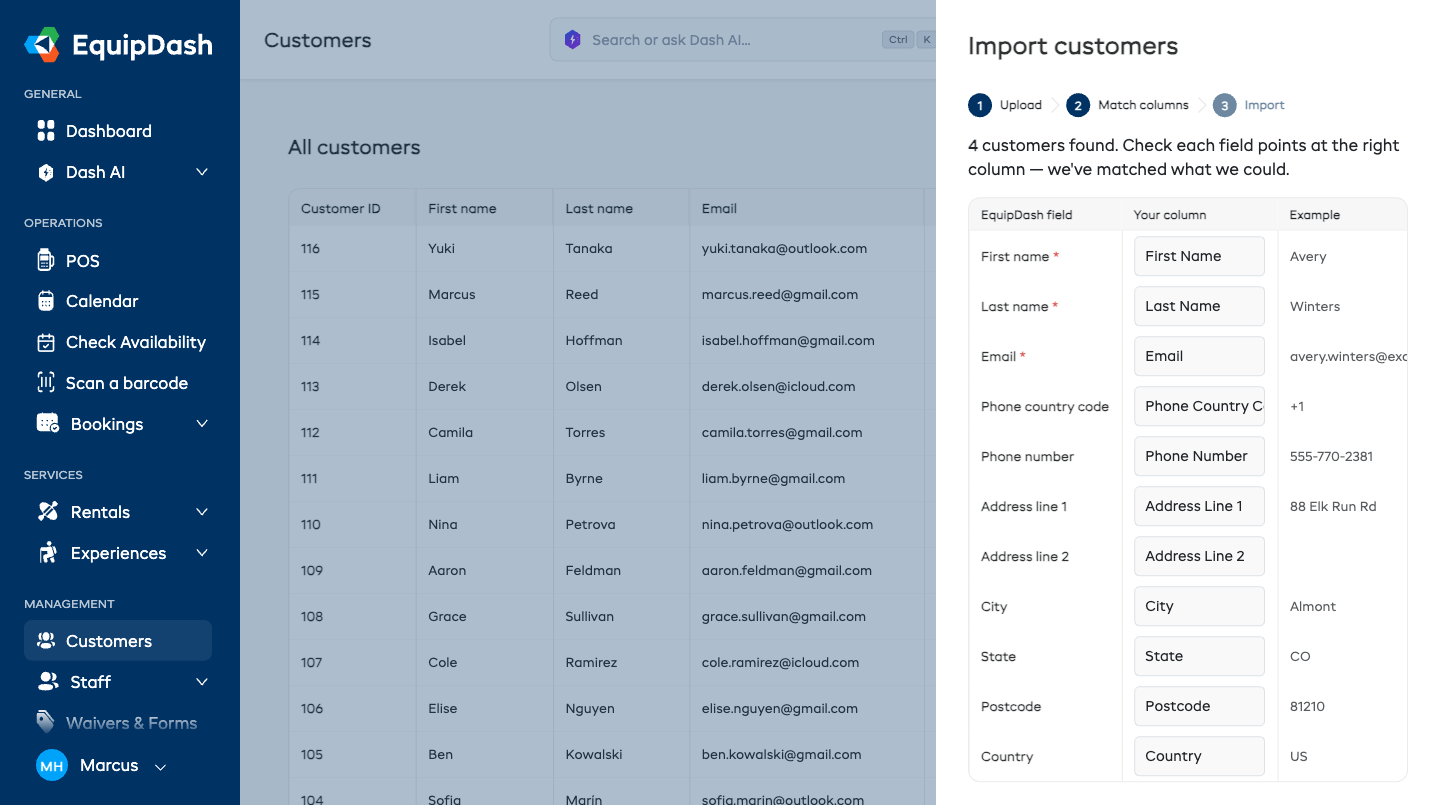
- Common column names are matched for you — "Surname", "ZIP Code", "Mobile", and similar variations are recognized automatically.
- To change a match, pick a different column from the dropdown. Pick Don't import to leave a field out.
- First name, Last name, and Email are required — the import won't start until each has a column.
When everything looks right, click Import N customers.
Step 3 — Import and review the results
A progress bar shows the import as it runs — keep the window open until it finishes. You'll then see a summary:
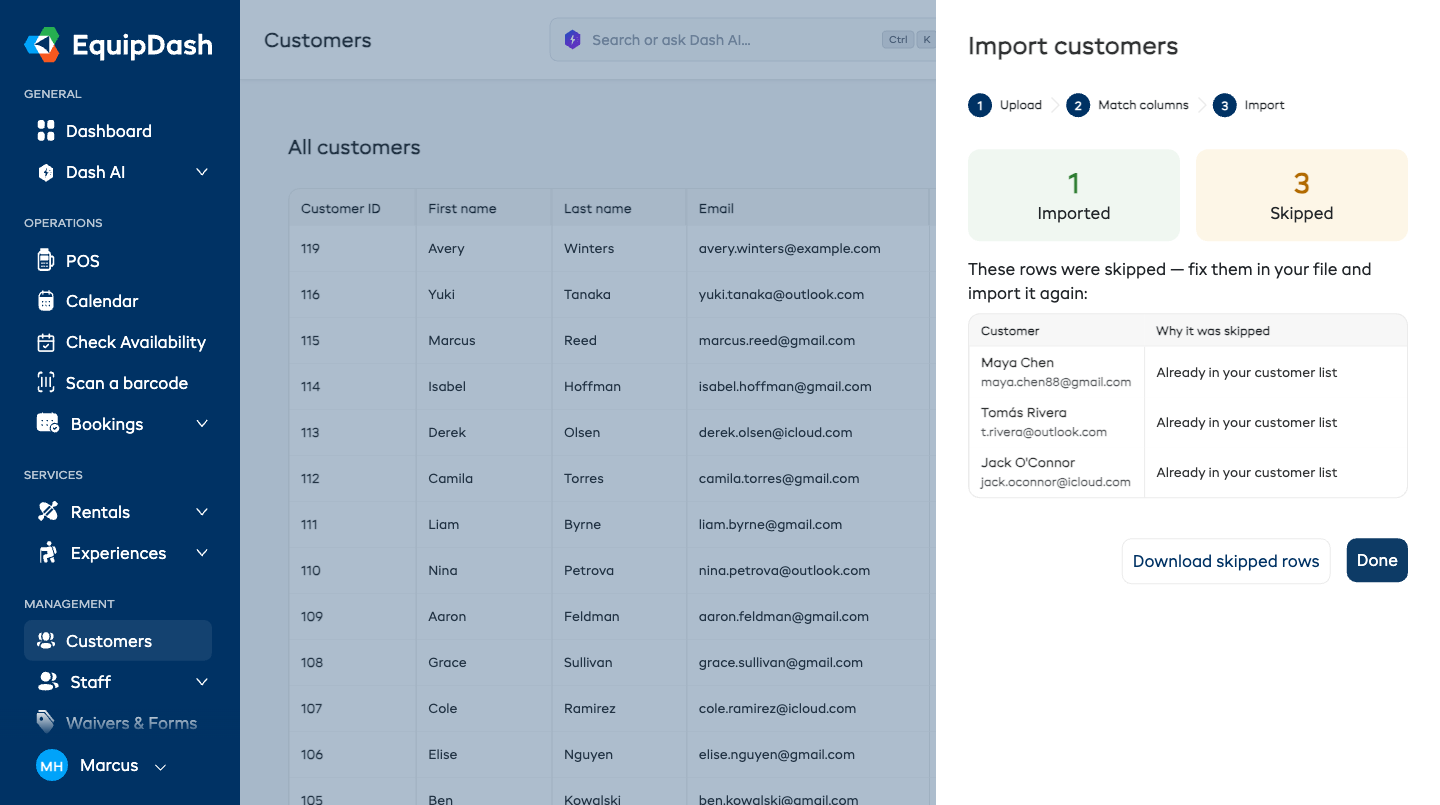
- Imported — new customer profiles created.
- Skipped — rows that couldn't be imported, listed with a plain-English reason for each (for example "Already in your customer list").
- Click Download skipped rows to get just those rows as a CSV — with a "Why it was skipped" column added — so you can fix them and import that file again. Rows that already imported won't be duplicated if you re-run the file.
The fields you can import
| Field | Notes |
|---|---|
| First name | Required |
| Last name | Required |
| Required — must be a valid email address | |
| Phone country code | Dial code such as +1 or 44 (the + is added for you) |
| Phone number | |
| Address line 1 | |
| Address line 2 | Apartment, suite, or unit |
| City | |
| State | State, province, or region |
| Postcode | Postal or ZIP code — letters and spaces are fine (for example SW1A 1AA) |
| Country | Name or 2-letter code, in any case — US, us, United States, USA, and UK all work |
Why a row might be skipped
| Reason shown | What it means | How to fix it |
|---|---|---|
| The first name / last name / email field is required | The value is blank in that row | Fill in the missing value and re-import |
| The email must be a valid email address | The email is mistyped | Correct it and re-import |
| Already in your customer list | A customer with the same name and email (or phone) already exists | Nothing to fix — the customer is already there |
| Country "…" not recognized | The country value isn't a country name or code | Use a name like "United States" or a code like "US" |
Skipped rows never block the rest of the file — everything else still imports.
Tips
- Start with a small test. For a large file, try a handful of rows first to check the column matching looks right.
- Big list? Split it into batches of 1,000. Each upload picks up where the last left off, and anyone already imported is skipped rather than duplicated.
- Re-importing is safe. Customers already in your list are skipped, not duplicated — so you can fix the skipped rows and run the same file again.
- Column names don't need to be exact. EquipDash matches common spellings automatically, and you can correct any match by hand on the matching step.