Book a Time With Someone
Some services happen with the customer there: a fitting, a consultation, a lesson. Set one up as Pick a time and customers book a day and a time, with Anyone or a person they choose.
Set one up
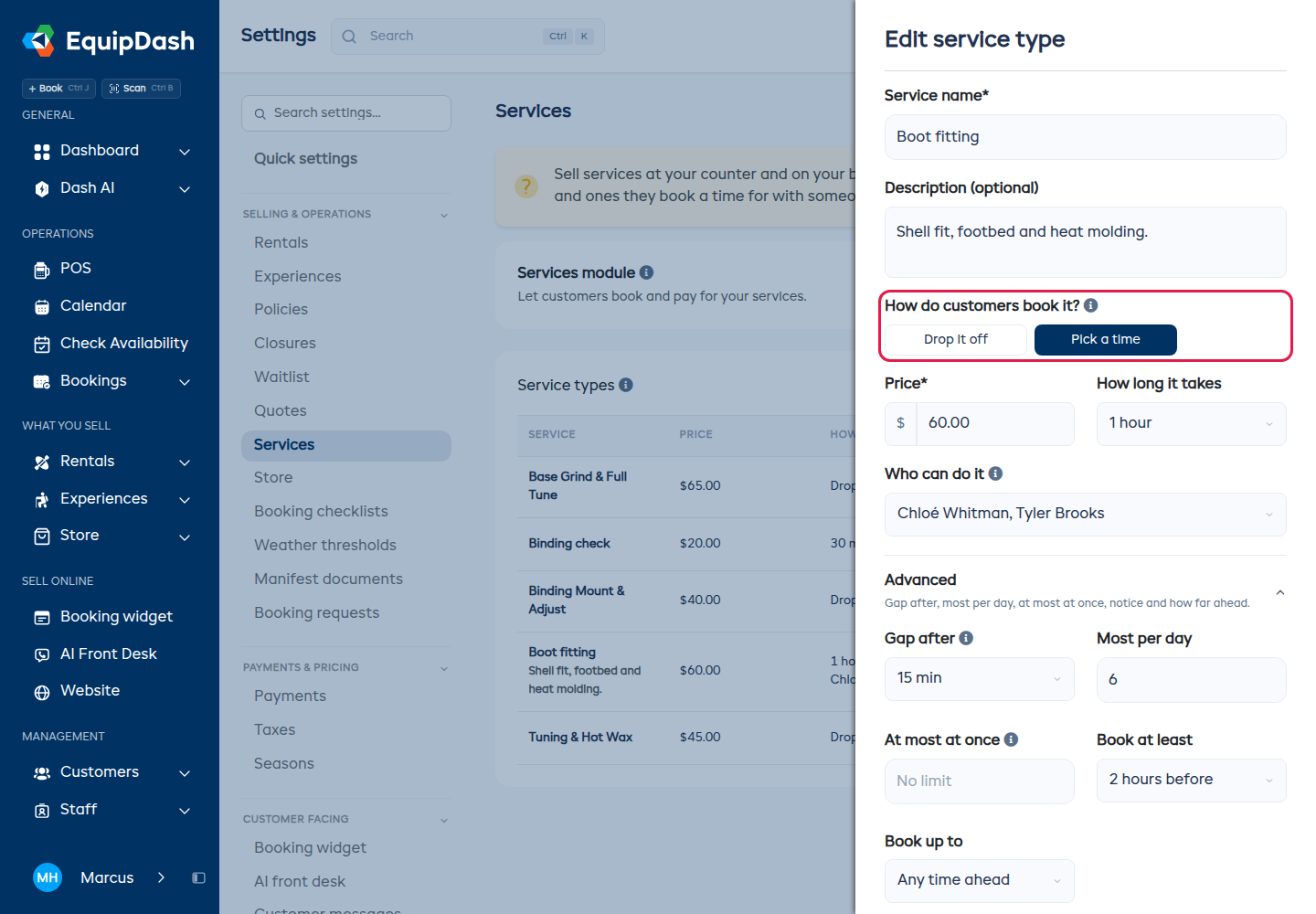
- Go to Settings → Services and click New service type (or edit one).
- Under How do customers book it?, pick Pick a time.
- Set the Price and How long it takes.
- In Who can do it, pick the people who do this service. Leave it empty if anyone on your team can.
- Click Create.
Advanced
Open Advanced for the rarer settings:
- Gap after - time to tidy up before the next one. Customers do not see it.
- Most per day - the most of this service in one day, at each location.
- At most at once - use it when one room, bench or station limits how many you can do together.
- Book at least - how much notice customers must give. At the counter you can still book inside it: POS shows a warning line and lets you continue.
- Book up to - how far ahead customers can book.
When a time is free
A time shows when at least one person who does the service is free for the whole appointment:
- not on approved time off,
- not on another appointment or leading a session,
- on a shift that covers it, or, on a day you do not roster, inside the hours they gave you.
Your opening hours and closures apply too. Nothing to keep up to date: change someone's shift or time off and their times follow.
What customers see
On your booking page, the service opens with Who would you like?. Anyone is picked already and shows the most times. They pick a day, then a time, and book.
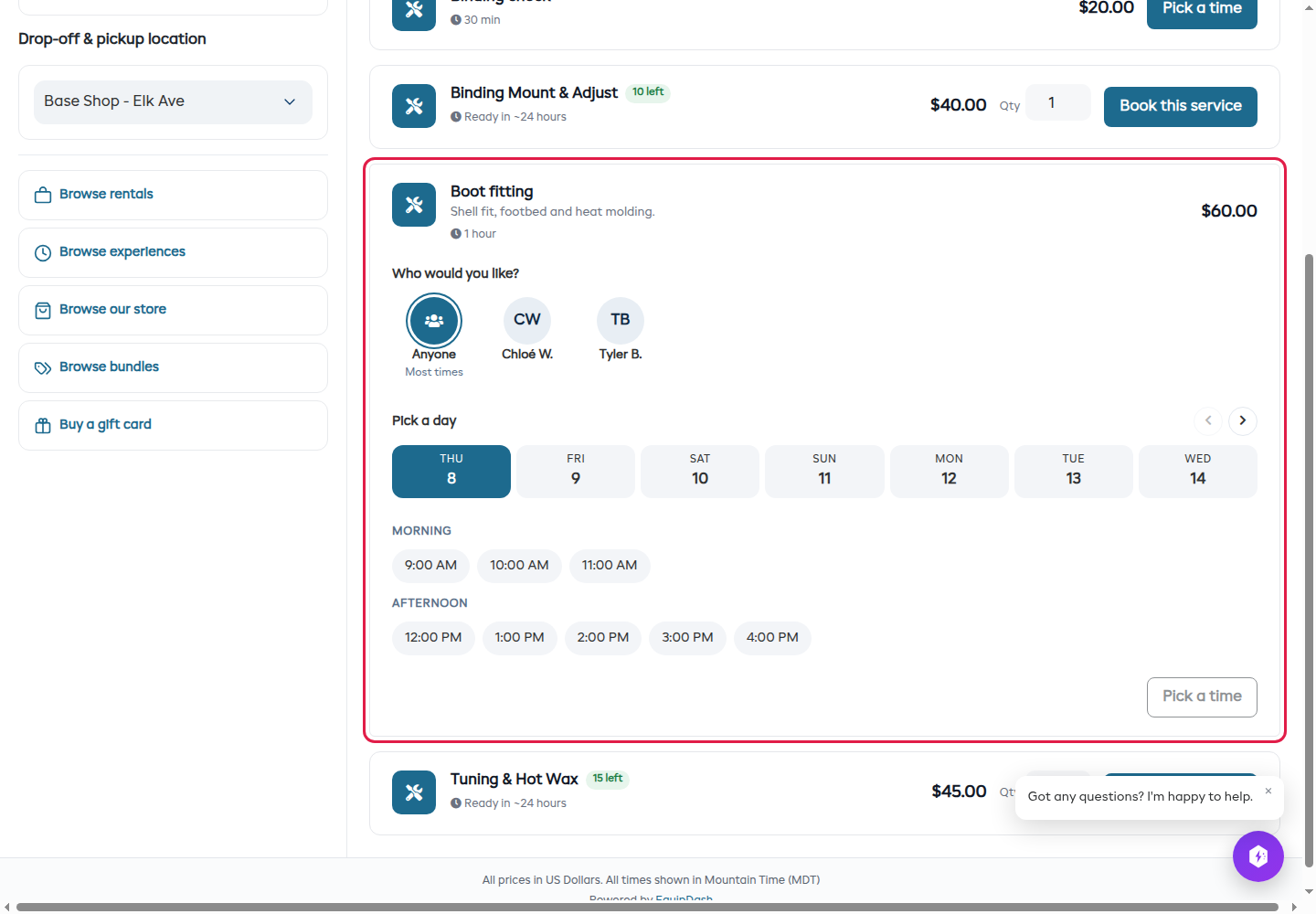
When a customer picks Anyone, the booking goes to the person they saw last if that person is free, otherwise to whoever has the least booked that day.
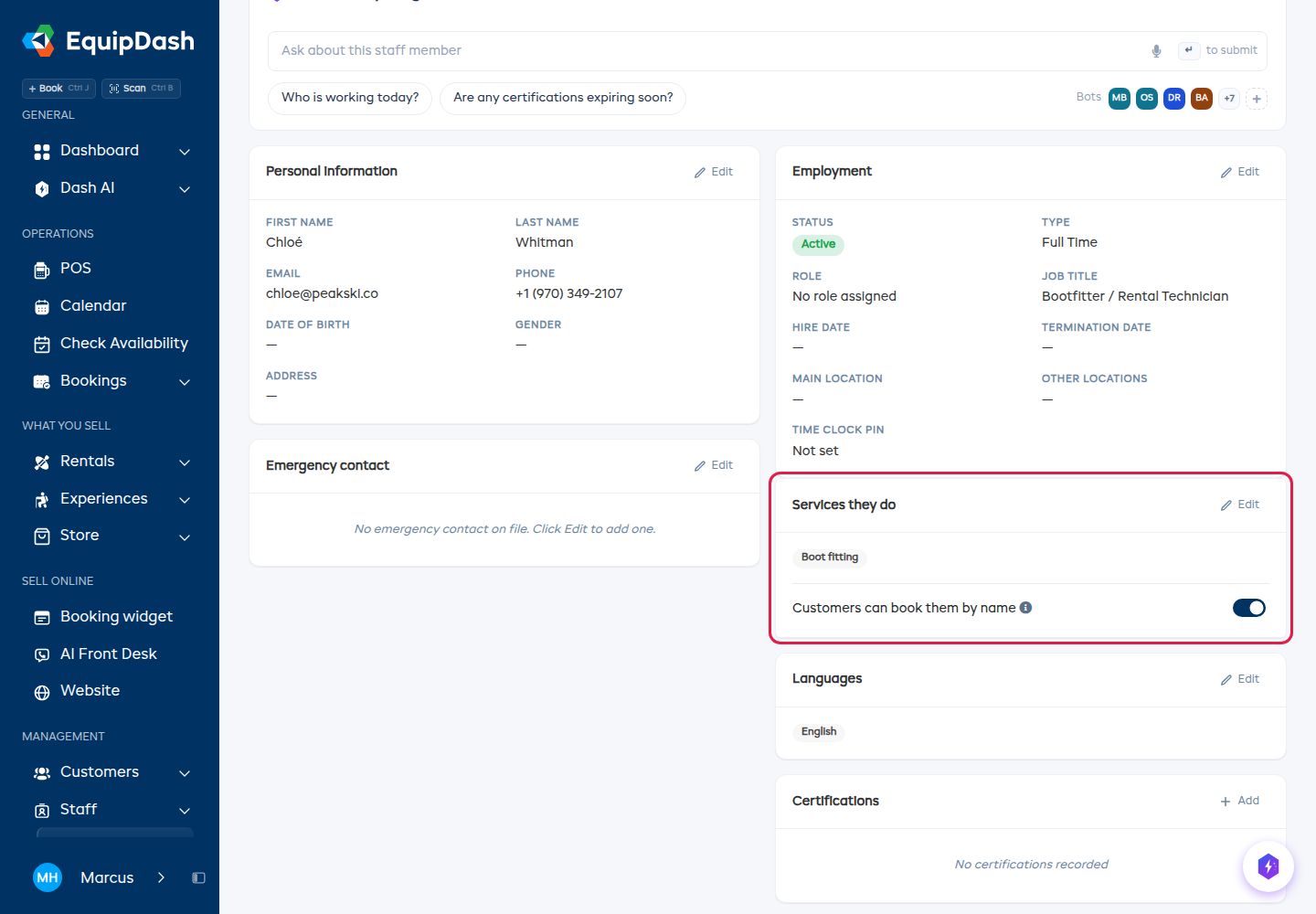
To keep someone bookable only through Anyone, open them in Staff and turn off Customers can book them by name on the Services they do card. That card also sets which services they do.
At the counter
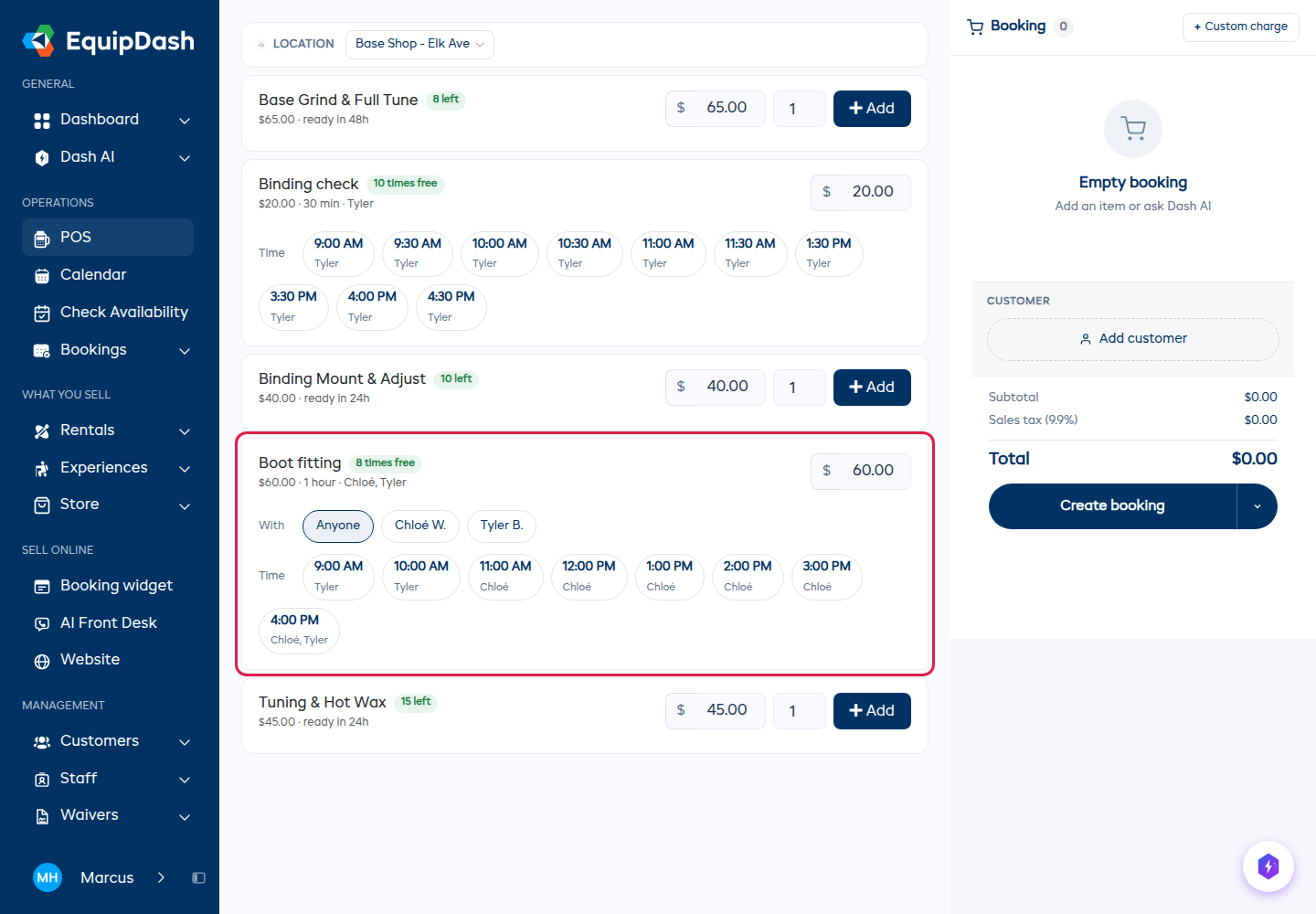
In POS, pick Service. A time-booked service shows With and Time for the date at the top. Each time says who is free. Tap a time to add it.
On the day
- Calendar → Services shows a row for each person, with their appointments at their times.
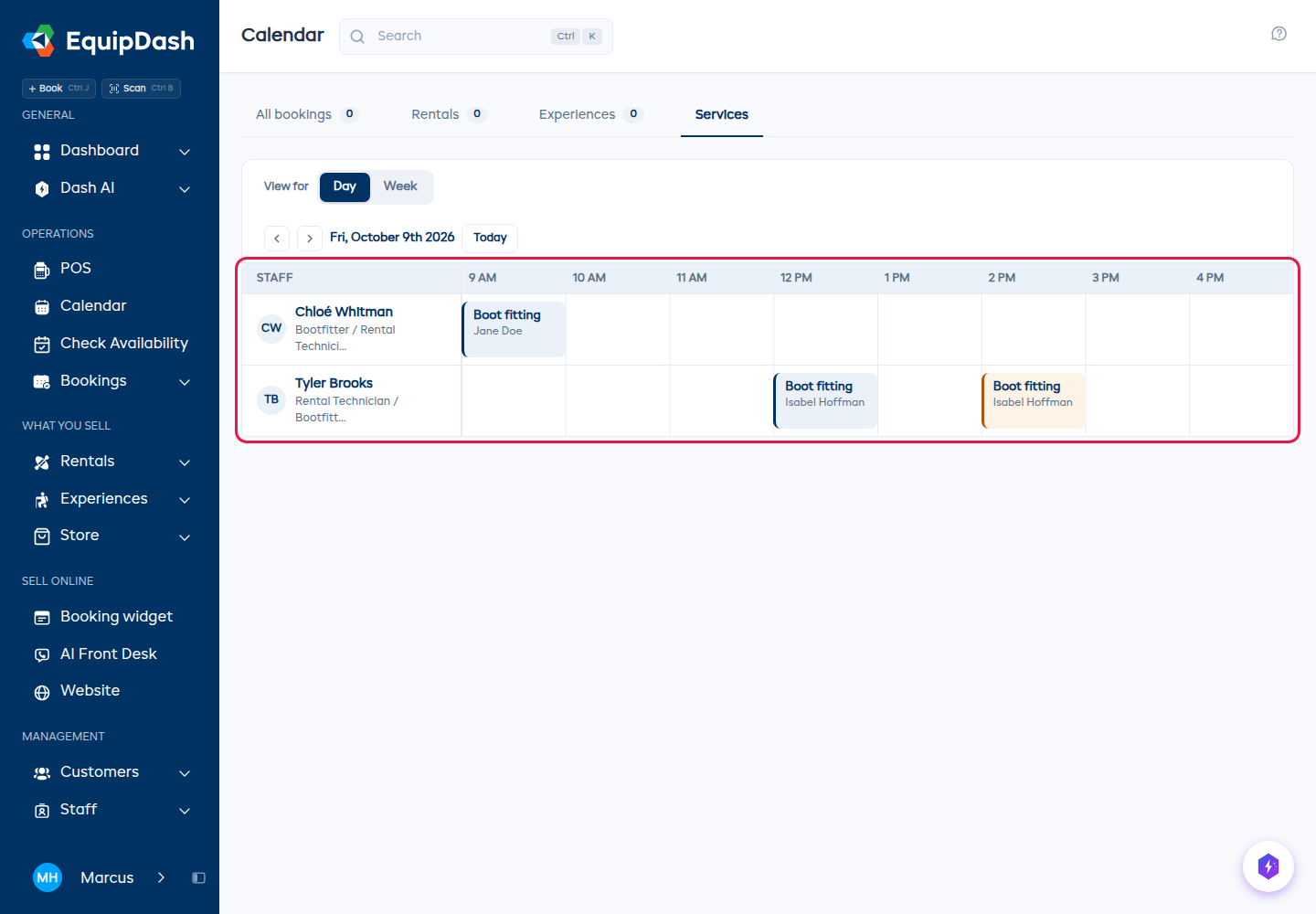
- Today lists the day's appointments with Check in. Once checked in, an appointment stays there with Complete until you finish it.
- On the booking, Check in when the customer arrives and Complete when you are done. Change next to the time moves it to another time or person.
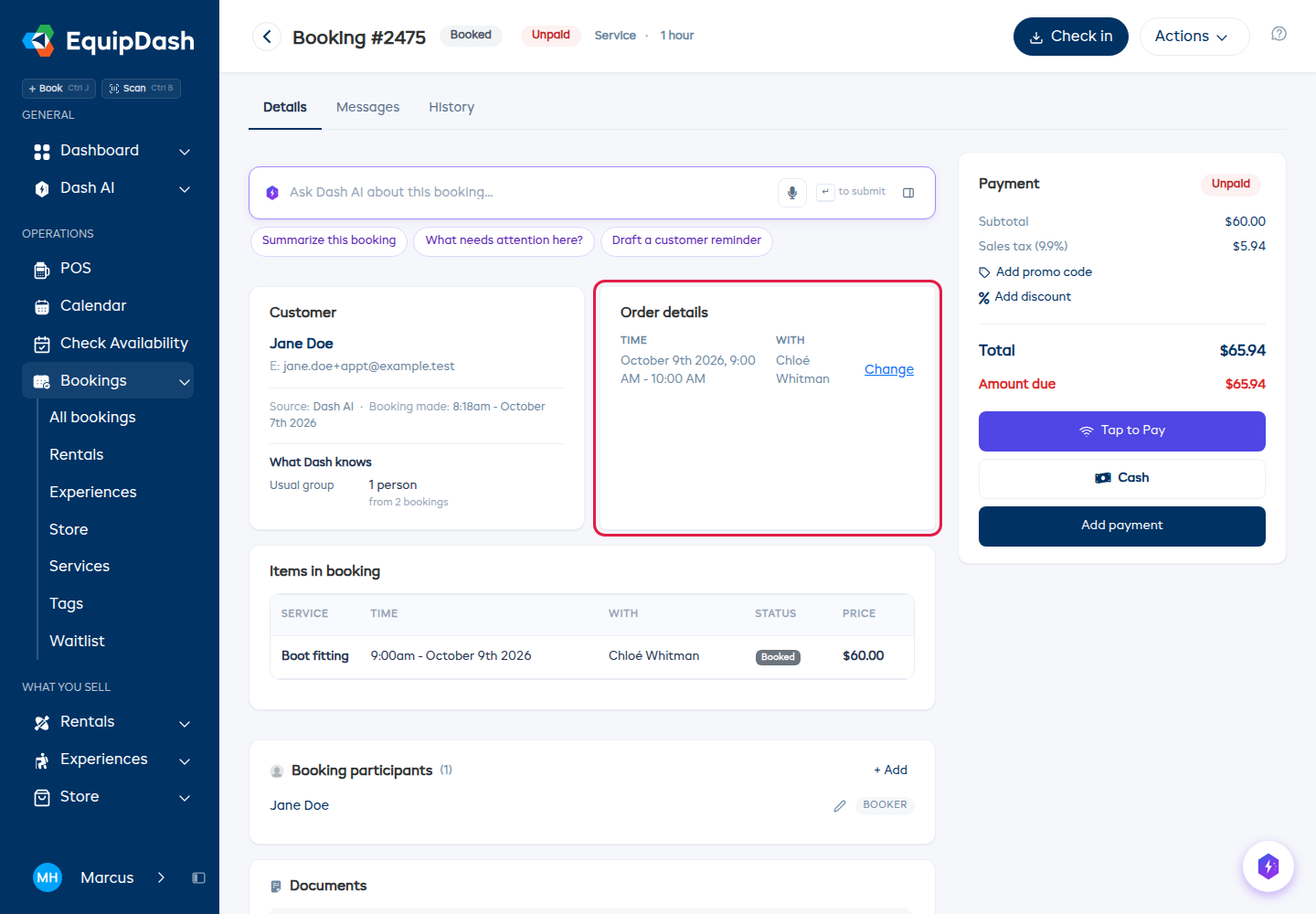
Customers can move their own appointment from the link in their confirmation email, the same way they reschedule other bookings, as long as your reschedule policy allows it. A booking with more than one appointment asks them to contact you instead.