Surveys Overview Growth+This feature requires the Growth+ plan or higher
Surveys turn every finished booking into two things your shop runs on: honest feedback and online reviews. You set it up once — EquipDash then emails the customer after their booking, collects their answers, invites them to review you on Google or TripAdvisor, and taps you on the shoulder the moment someone is unhappy.
What an After-Booking Survey Does for You
Once a survey is published and set to send After booking, all of this happens on its own:
- Every customer gets your survey by email once their booking wraps up — no remembering, no manual work. (You can also send it by text.)
- One-tap rating in the email — when your survey includes a 0–10 rating question, the email itself shows the scale. The customer taps a number, the survey opens with that score already selected, and one more tap submits it.
- Every customer sees your review links on the thank-you page, whatever score they leave. That's not just polite — only showing review links to happy customers is called "review gating" and is banned by Google, TripAdvisor, and the FTC. See Getting More Google & TripAdvisor Reviews — the Right Way.
- Unhappy customers become your early warning — a low score shows them a "we'll make it right" message and emails you instantly, so you can fix things before they become a public review.
- A gentle reminder goes out 7 days later to customers who haven't responded — one reminder, ever. Never a nagging sequence.
- The wrong customers are skipped automatically — canceled bookings, no-shows, and guests who booked through an OTA (GetYourGuide, Viator, Manawa) never get a survey. OTA guests belong to the OTA's own review system.
- A thank-you code for their next booking - after a visit or a finished survey, plus a code customers share with friends. A survey reward is for the feedback, never for leaving a review. See Thank-You Codes and Bring a Friend.
The Surveys Page
Click Surveys in the left sidebar. Every survey you have lives in one list — there's no separate card or "special" survey.
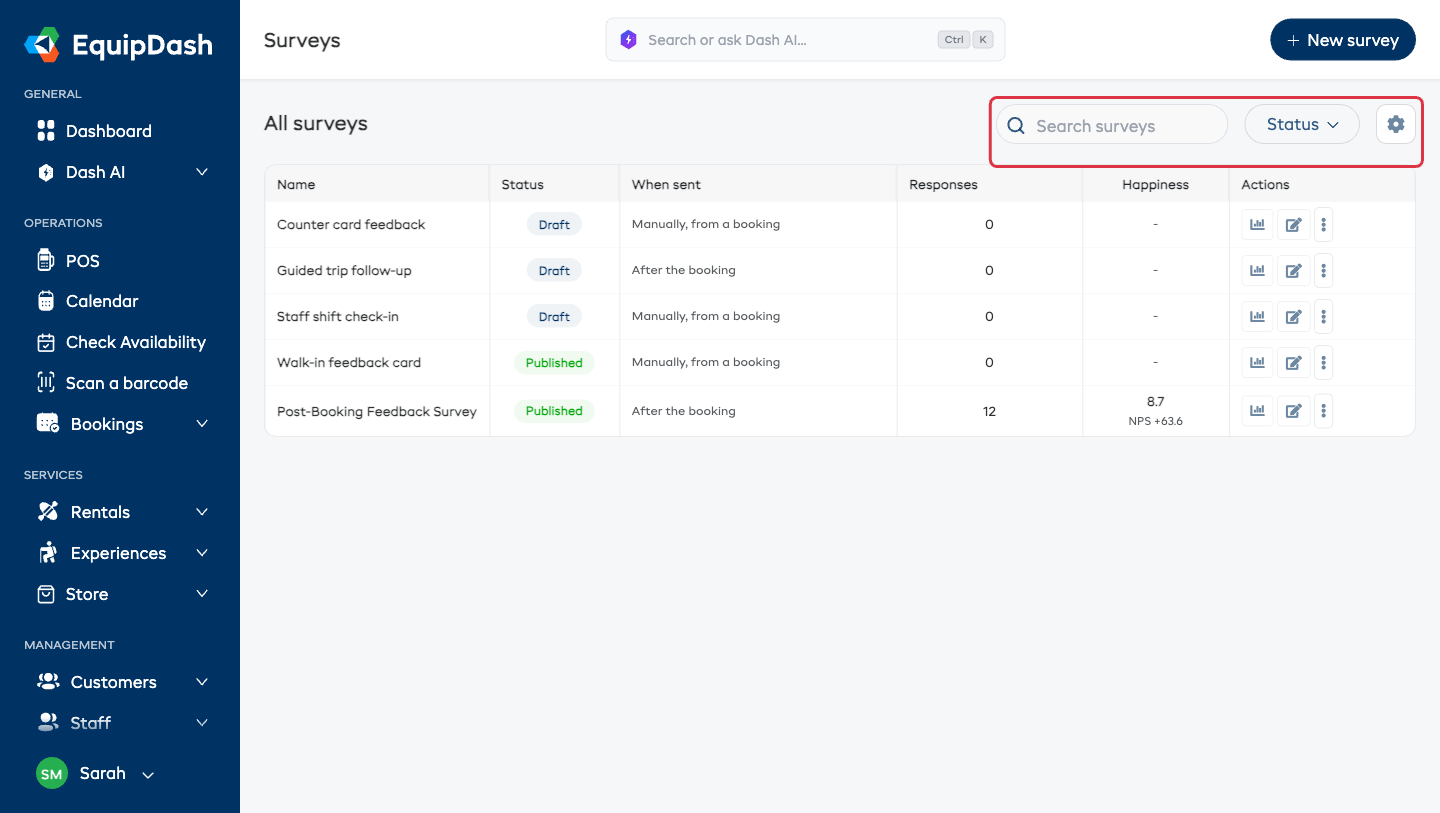
Across the top of the list:
- All surveys — the list title.
- Search surveys — a compact search box that filters by name as you type.
- Status — filter by Draft, Published, New, or Archived. Archived surveys are hidden from the list until you pick this filter.
- Gear icon — the column manager.
- Clear filters appears next to the search box as soon as a search or filter is active.
+ New survey sits in the page header, top right.
The Columns
| Column | What it shows |
|---|---|
| Name | The survey's name. Click it to open the survey's analytics page. |
| Status | Draft, Published, or Archived. Only a Published survey is ever sent automatically. |
| When sent | After the booking or Manually, from a booking. |
| Responses | How many customers have completed it. |
| Happiness | The average 0–10 rating, with your NPS underneath as a secondary number. See Happiness Scores (NPS). |
| Actions | The three row actions below. |
Row Actions
- View analytics (chart icon) — opens the survey's analytics, responses, and send log.
- Edit survey (pencil icon) — opens the survey builder.
- ⋯ More actions — Duplicate (the copy is created as a draft, so it can't start sending by accident), Archive (hides it from the list and stops it sending — reversible with Unarchive), and Delete (permanent; it warns you if the survey has responses).
Choose Your Columns
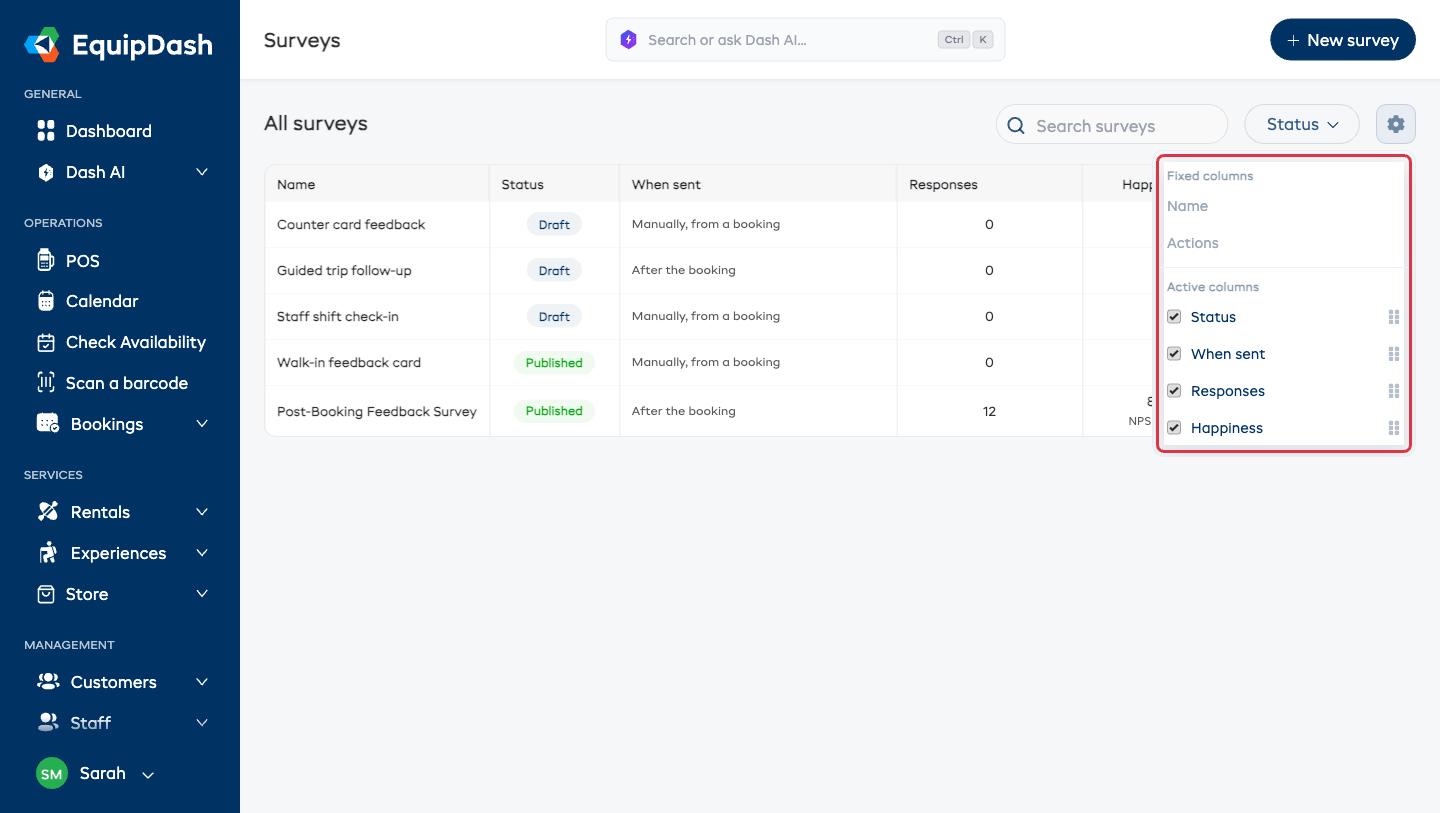
Click the gear icon above the table to customize the list:
- Untick a column under Active columns to hide it.
- Tick one under Available columns to show it (this group only appears once you've hidden something).
- Drag the handle on an active row to reorder columns.
- Name and Actions are locked as Fixed columns.
Your layout saves automatically and is shared with your whole team.
When the List Is Empty
- No surveys yet — with a New survey button, the first time you visit.
- No surveys match your filters — when a search or status filter matches nothing. Clear the filter to see everything again.
Set Up in a Couple of Minutes
- Click Surveys in the left sidebar, then + New survey.
- Give the survey a name (customers don't see this — "Post-booking feedback" is fine).
- Leave Applies to on All Products / All Experiences so it covers your whole shop.
- Leave When to send on After booking (recommended) and the timing on 2 hours.
- Click Create (open builder), add your questions, then flip Status to Active.
- Add your Google review URL under Settings → Surveys & reviews so finishers have somewhere to leave a review.
Full walkthrough: Creating a Survey.
An after-booking survey assigned to everything covers your whole shop. You only need extra surveys for special cases — a different set of questions for one experience, a counter-card survey, a staff-only form, and so on.
Shop Defaults: Set Once, Applies Everywhere
Business-wide survey settings live in one place: Settings → Surveys & reviews (under Connections & advanced).
- Your review pages — the Ask customers to leave a review switch plus your Google review URL and TripAdvisor URL, each with a "where do I find this?" hint underneath. Facebook, Yelp, Instagram and a custom platform sit behind More platforms. If a pasted link doesn't look like it belongs to that platform, you'll see a gentle warning — nothing breaks, it just nudges you to double-check.
- Default send delay (hours) — the timing a survey uses when it's set to Shop default.
- Email me when a customer is unhappy — the business-wide alert switch.
- Thank-you reward and Bring a friend - the codes customers get after a visit or a survey, and the code they share. See Thank-You Codes and Bring a Friend.
Any survey left on Shop default follows these — change them once instead of editing surveys one by one.
Keeping an Eye on Results
You don't have to log in to know how you're doing:
- Your week in feedback — every Monday morning you get a short email: responses, your Happiness, anything that needs your reply, and your review-link clicks. See Your Weekly Feedback Digest.
- The analytics page — click any survey for the full picture: Happiness and its trend, the Happy / Okay / Unhappy breakdown, per-question stats, review clicks, individual responses, and a Needs your reply count. See Survey Analytics & Reports.
Permissions
Survey access is controlled by two permissions:
| Permission | Who Has It by Default |
|---|---|
| View Surveys | Admin, Manager, Staff |
| Manage Surveys | Admin, Manager |
Without Manage Surveys you can still open a survey and read its results, but the New survey button, the row's edit and ⋯ actions, and the Share button are hidden.
If you do not see the Surveys section in the sidebar at all, ask your account Admin to check your permissions under Settings → Team.