Channels, Marketing Bots and the Offer Bar ProThis feature requires the Pro plan
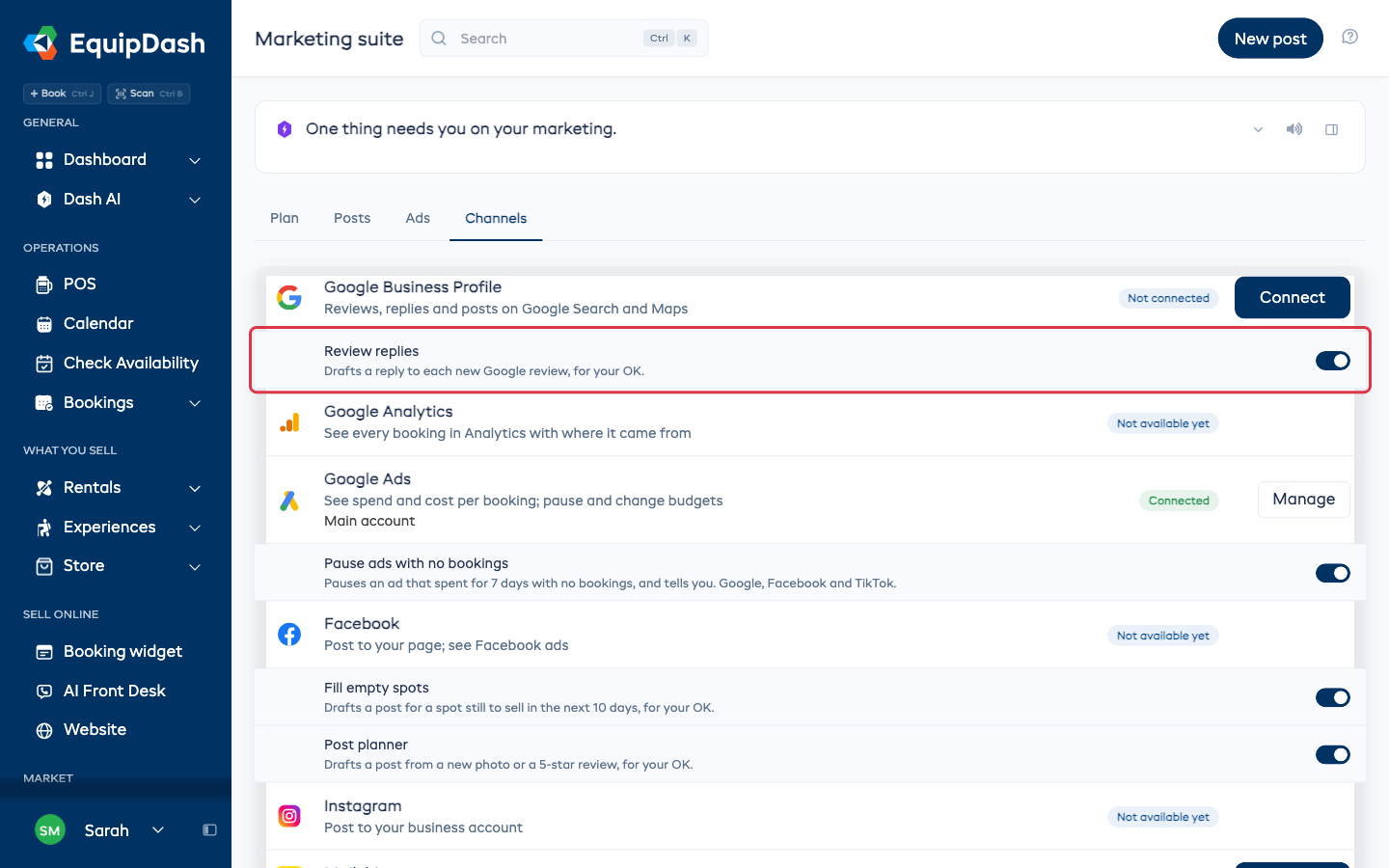
The Channels tab lists every outside account the Marketing suite works with. Under each one are its marketing bots, which do one job for you each.
Your accounts
Each row shows the account, what it is used for, its state, and one button.
| State | What it means |
|---|---|
| Connected | It is working. Click Manage to change it. |
| Not connected | Click Connect to set it up. |
| Ready | Nothing to set up. |
| Needs attention | Something stopped working, such as the sign-in. Click the button to fix it. |
| Not available yet | EquipDash cannot connect to this service yet. There is no button. |
The accounts are Google Business Profile, Google Analytics, Google Ads, Facebook, Instagram, Mailchimp, TikTok, your website, and Emails and texts (the campaigns you send from Promotions).
Connect an ad account
- Click Connect on the account.
- Sign in with the account you use for it, such as your Google sign-in.
- Pick the account to use from the list.
- Answer Who runs these ads? Pick I do, or An agency or someone else. If someone else runs them, you see the numbers but nothing in EquipDash can pause or change them.
- If you run them, Set a monthly limit. EquipDash never spends past it.
- Click Continue.
To change the limit later, click Manage. To stop using the account, click Manage, then Disconnect.
Marketing bots
A marketing bot does one job for you. Switch each one on or off with its switch.
| Bot | Under | What it does |
|---|---|---|
| Review replies | Google Business Profile | Drafts a reply to each new Google review, for your OK |
| Pause ads with no bookings | Google Ads | Pauses an ad that spent for 7 days with no bookings, and tells you |
| Fill empty spots | Drafts a post for a spot still to sell in the next 10 days, for your OK | |
| Post planner | Drafts a post from a new photo or a 5-star review, for your OK | |
| Article writer | Your website | Drafts a website article once a month, for your OK |
| Win back last season | Emails and texts | Emails customers who have not booked in 6 months, once each |
| Unfinished booking reminder | Emails and texts | Emails someone who started a booking and did not finish |
| Weekly brief | Emails and texts | Emails you what marketing booked and what is still to sell, every Monday morning |
Review replies, Pause ads with no bookings, Fill empty spots and Post planner start switched on. The others start off.
The bots that draft something wait for your OK. Their drafts show on the Posts tab and in the Dash card at the top of the page.
Emails and texts
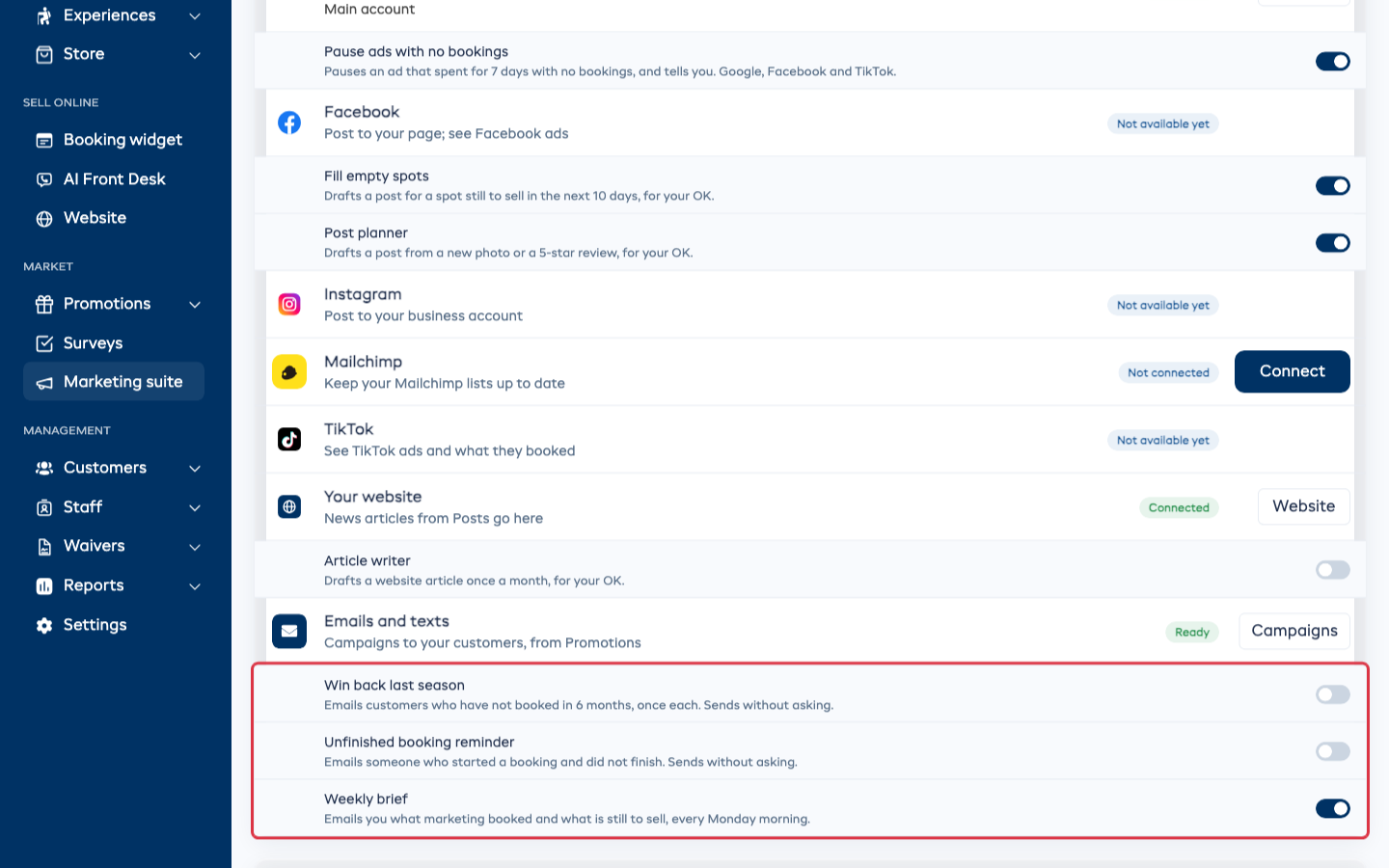
Win back last season and Unfinished booking reminder send emails to customers on their own, without asking you. They are the same switches as the automations in Promotions > Campaigns, so turning one on here turns it on there too. See Campaign Automations.
Both skip anyone who already had a marketing message from you this week.
Weekly brief emails only you, not your customers.
Offer bar
The offer bar is one line across the top of your booking page or website, on the dates you pick. Use it for a sale or a promo code.
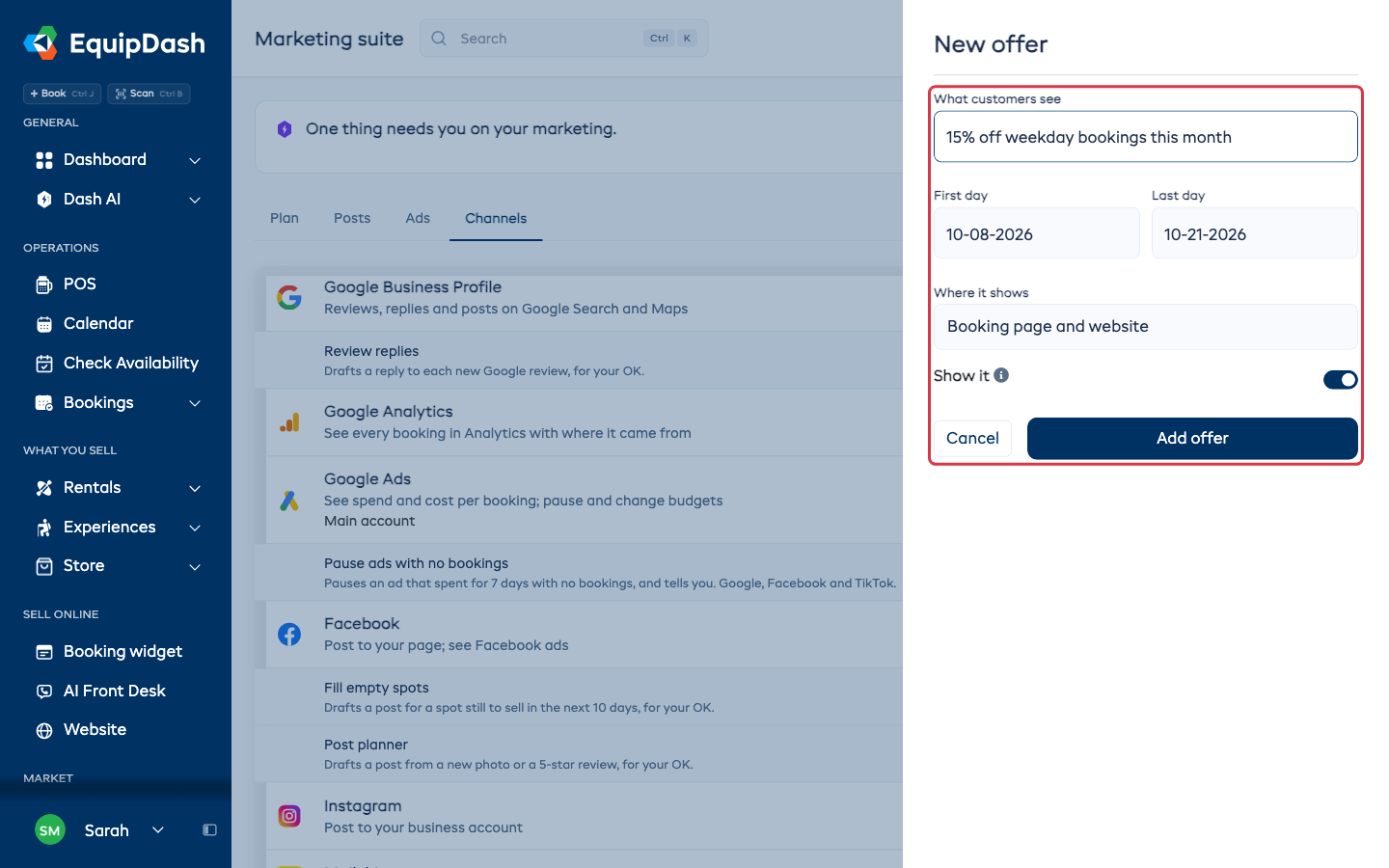
- Scroll down to Offer bar and click New offer.
- Under What customers see, type the line, such as 15% off weekday bookings this month.
- Pick a Code if you want one to go with it.
- Pick the First day and Last day.
- Under Where it shows, pick Booking page and website, Booking page or Website.
- Leave Show it on. Turn it off to keep the offer without showing it.
- Click Add offer.
The offer never shows on a day you are closed. Use the pencil to change an offer, or the bin to remove it. Removing an offer leaves its promo code as it is.