Download Your Sales for MYOB Growth+This feature requires the Growth+ plan or higher
EquipDash gives you your sales, payments and customers as files you import into MYOB AccountRight. You don't connect a MYOB account and there is nothing to install.
This works with MYOB AccountRight plans (AccountRight Plus and above). MYOB Lite, Pro and Solo cannot import sales from a file.
Set it up once
-
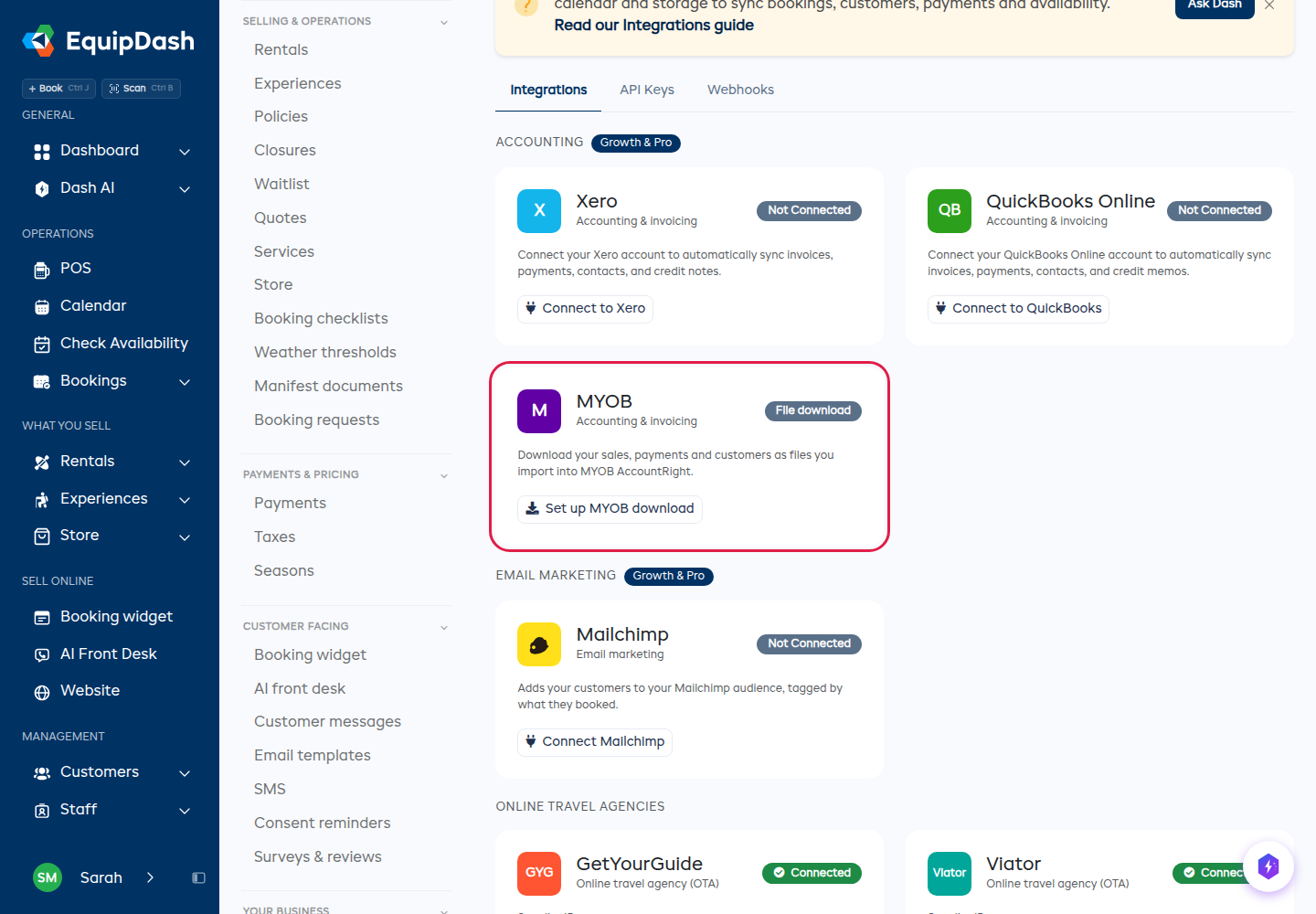
Go to Settings > API & Integrations and press Set up MYOB download on the MYOB card.
-
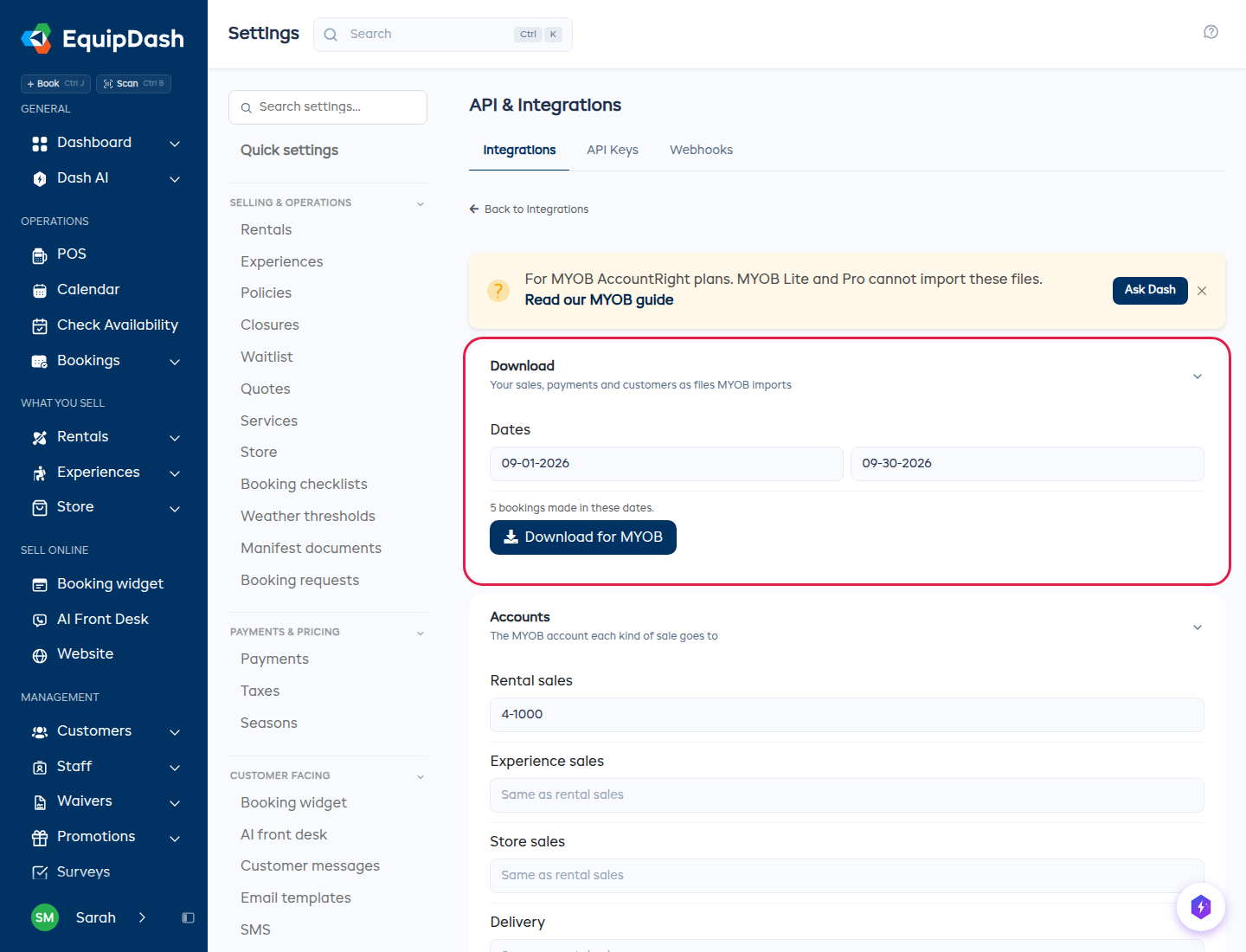
Under Accounts, type the MYOB account number each kind of sale goes to, the way MYOB shows it (for example 4-1000). Leave a box empty to use Rental sales.
-
Payments go to is the account your payments land in, usually Undeposited Funds.
-
Under Tax codes, check the MYOB code for each of your taxes. Australian shops start on GST and FRE, New Zealand shops on S and Z.
Changes save as you go.
Download
- Under Download, the dates start the day after your last download, so nothing goes into MYOB twice. Your first download covers last month.
- Press Download for MYOB. You get one zip file. A big download is made in the background and appears on Settings > Downloads.
If you pick dates you already downloaded, the page warns you. MYOB does not notice a sale that was imported twice.
What is in the zip
| File | What MYOB makes from it |
|---|---|
1-customers.txt | A customer card for everyone on these sales and payments |
2-sales.txt | One service sale per booking, one line per item |
3-payments.txt | The payments, each applied to its booking's sale |
4-money-out.txt | Refunds, and card fees if you turned them on |
5-payouts.txt | Stripe payouts, if you turned them on |
A security deposit you are only holding is never a sale. A deposit you kept for damage is.
Import into MYOB
Import the files in number order, because a sale needs its customer card first.
- In MYOB AccountRight, choose File > Import Data.
- Pick the kind of record:
1-customers.txt: Cards > Customer Cards2-sales.txt: Sales > Service Sales3-payments.txt: Receive Payments4-money-out.txt: Spend Money5-payouts.txt: General Journal Entries
- Choose the file, set the file format to Tab-delimited and the first record to Header Record.
- Press Auto Match, check the fields lined up, then press Import.
- Read MYOB's import log. It names any row it skipped, for example an account number that does not exist in your file.
MYOB offers a backup before each import. Take it, so a wrong account number is easy to undo.
Card fees and payouts
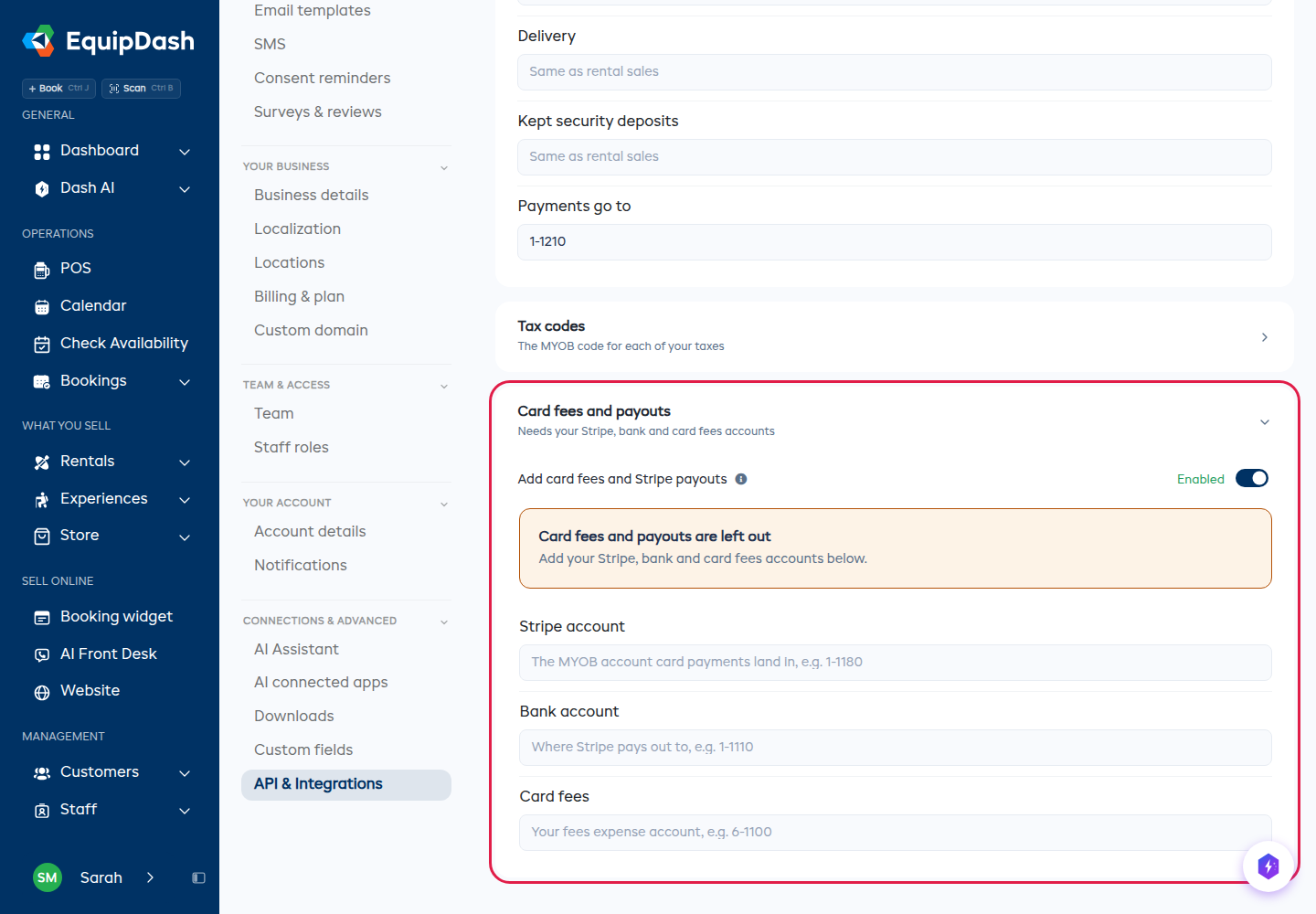
Turn on Add card fees and Stripe payouts to have the download record what Stripe takes and what it pays you:
- Card payments land in a Stripe account you set up in MYOB (a bank-type account).
- Card fees come off that account, into your Card fees expense account.
- Each payout moves money from the Stripe account to your Bank account.
Until all three accounts are filled in, the section says card fees and payouts are left out, and the download leaves them out.
If your MYOB bank feed already brings in your Stripe payouts, leave this off. Otherwise each payout is counted twice: once from the feed and once from the file.
Good to know
- Booking changed after you downloaded it? The new total is not sent again. Fix that sale in MYOB by hand.
- Gift card sales and membership renewals are not in the download yet.
- Using Xero or QuickBooks instead? Those connect and sync by themselves. See Card Fees and Payouts in Your Books.