Your OTAs page Growth+This feature requires the Growth+ plan or higher
OTAs in the sidebar, under Sell online, shows every OTA you can sell your experiences on: Viator, GetYourGuide, and Manawa for shops in New Zealand. It shows whether each one is working, what each one brought in this month and anything that went wrong in the last 7 days.
You see it when your shop sells experiences and your role can view integrations. Admins and managers can by default.
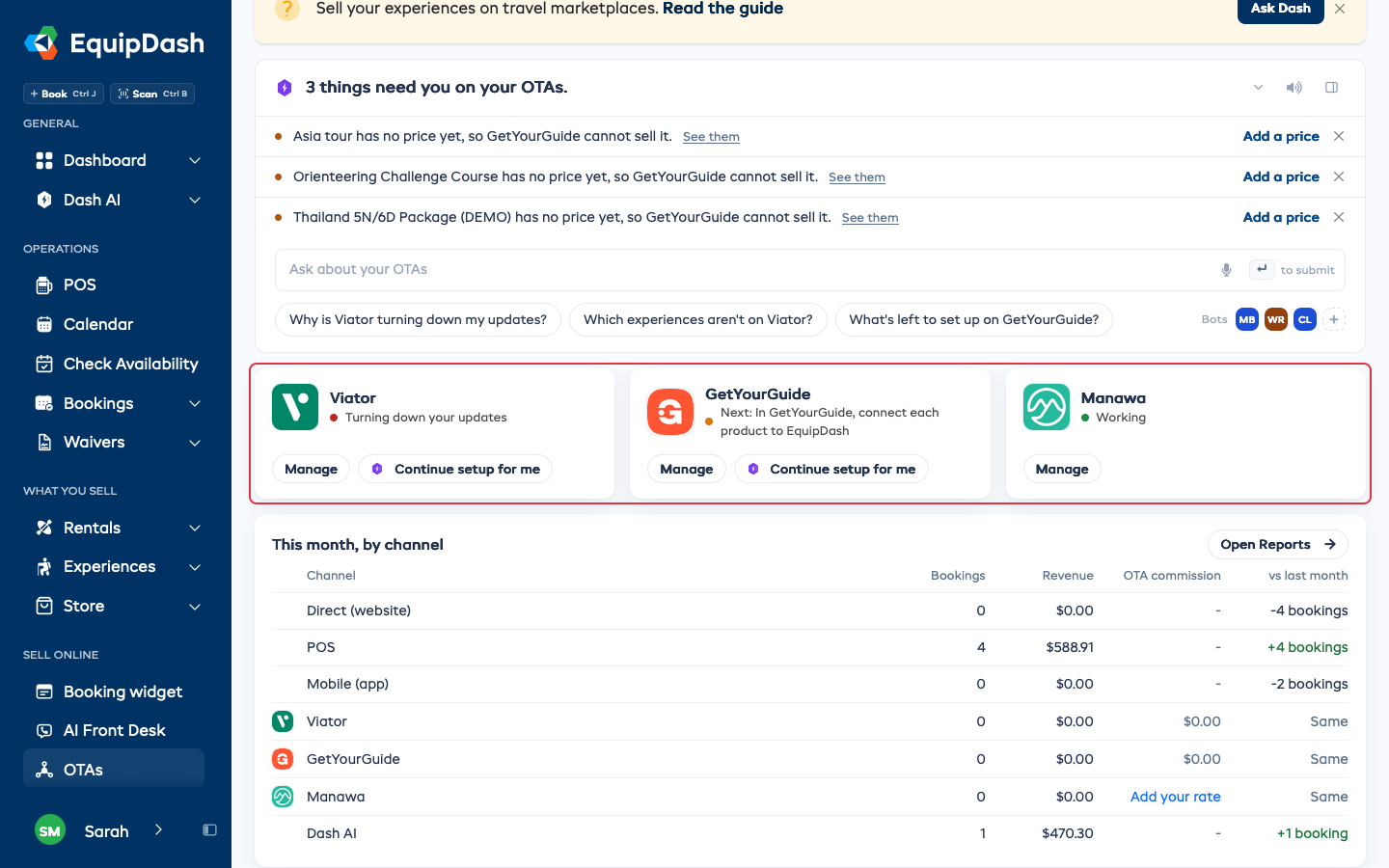
Each OTA's card
A connected OTA shows a dot and one line:
| Dot | What it means |
|---|---|
| Green, Working | It is taking bookings and nothing is stopping it. |
| Orange, Next: ... | It is connected, and the line says the next setup step. Most of them are done on the OTA's own site. |
| Red, Turning down your updates | The OTA is refusing your new times and prices, so it may sell a time you have closed. Click Manage to see what to check on the OTA's own site. |
Manage opens that OTA's own page, where you change its settings.
While a connected OTA still has setup steps left, its card also has Continue setup for me. It opens Dash, which shows your next step on a card with exactly where to do it on the OTA's own site. For Viator, that's Account > Connectivity, then Connect Now and EquipDash in Viator's Management Center. Under the card, Dash names the steps that come after it.
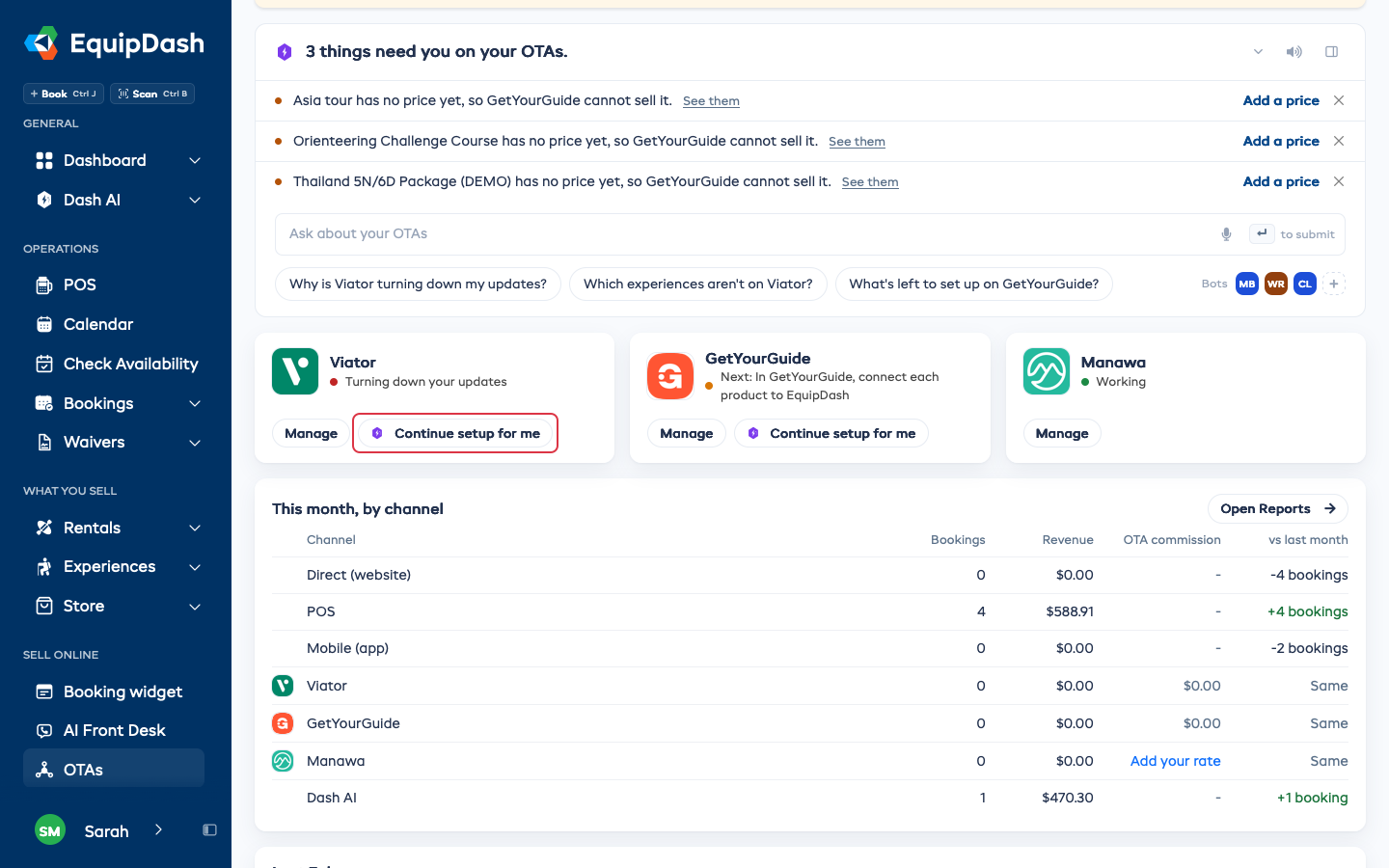
Set one up
On an OTA you are not on yet, you have two ways to start:
- Connect opens that OTA's page, with its setup steps across the top. See Sell on Viator and Sell on GetYourGuide.
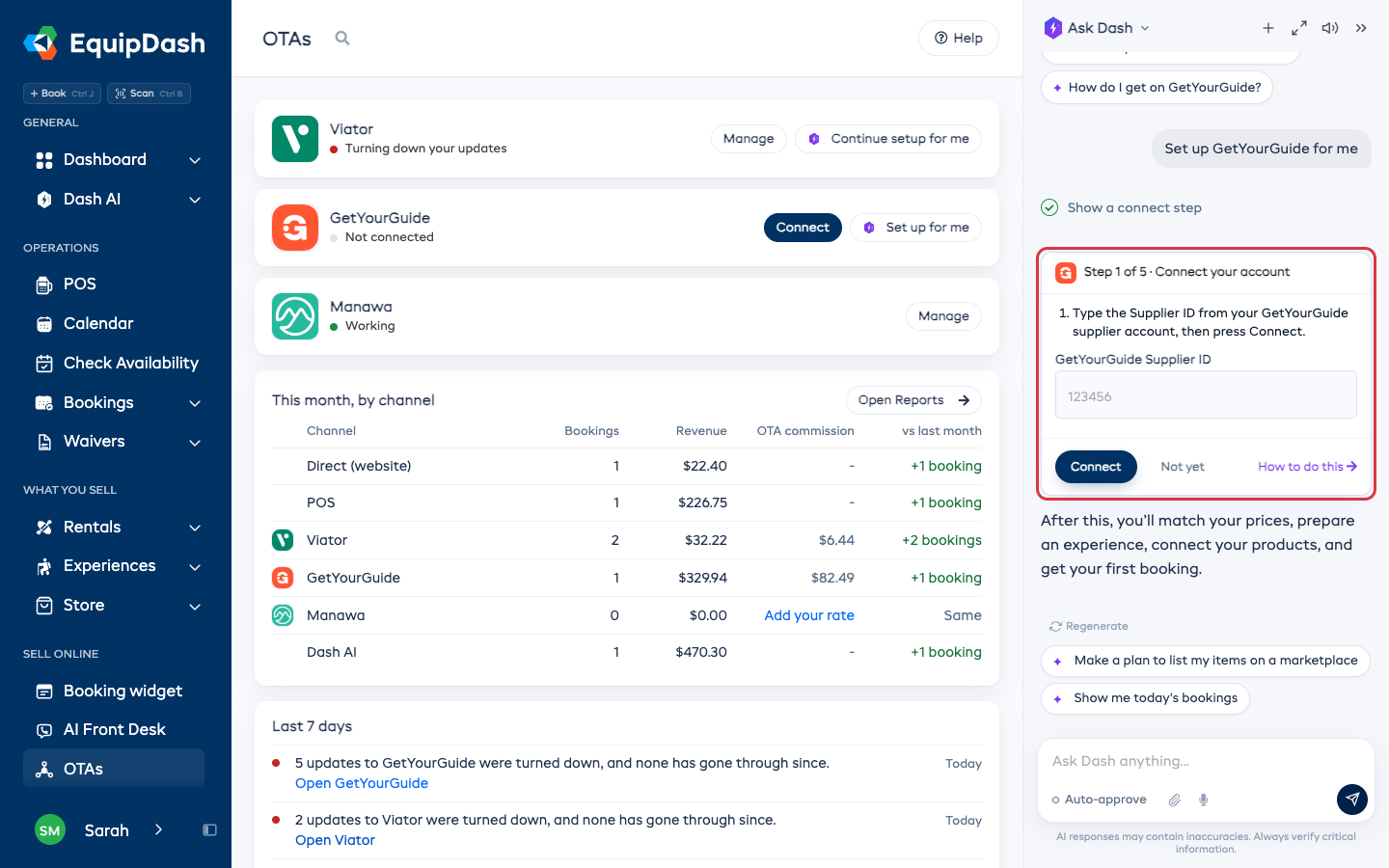
- Set up for me opens Dash beside the page. Dash checks where your setup stands, then shows you one step at a time, each on its own card.
Each card says what to do and where, and asks for the one thing that step needs, such as your GetYourGuide Supplier ID. Click the step's button (for example Connect) when you're ready, and Dash shows the next step. Not yet leaves the step for later, and How to do this opens the help for that step. Nothing changes until you click the step's button.
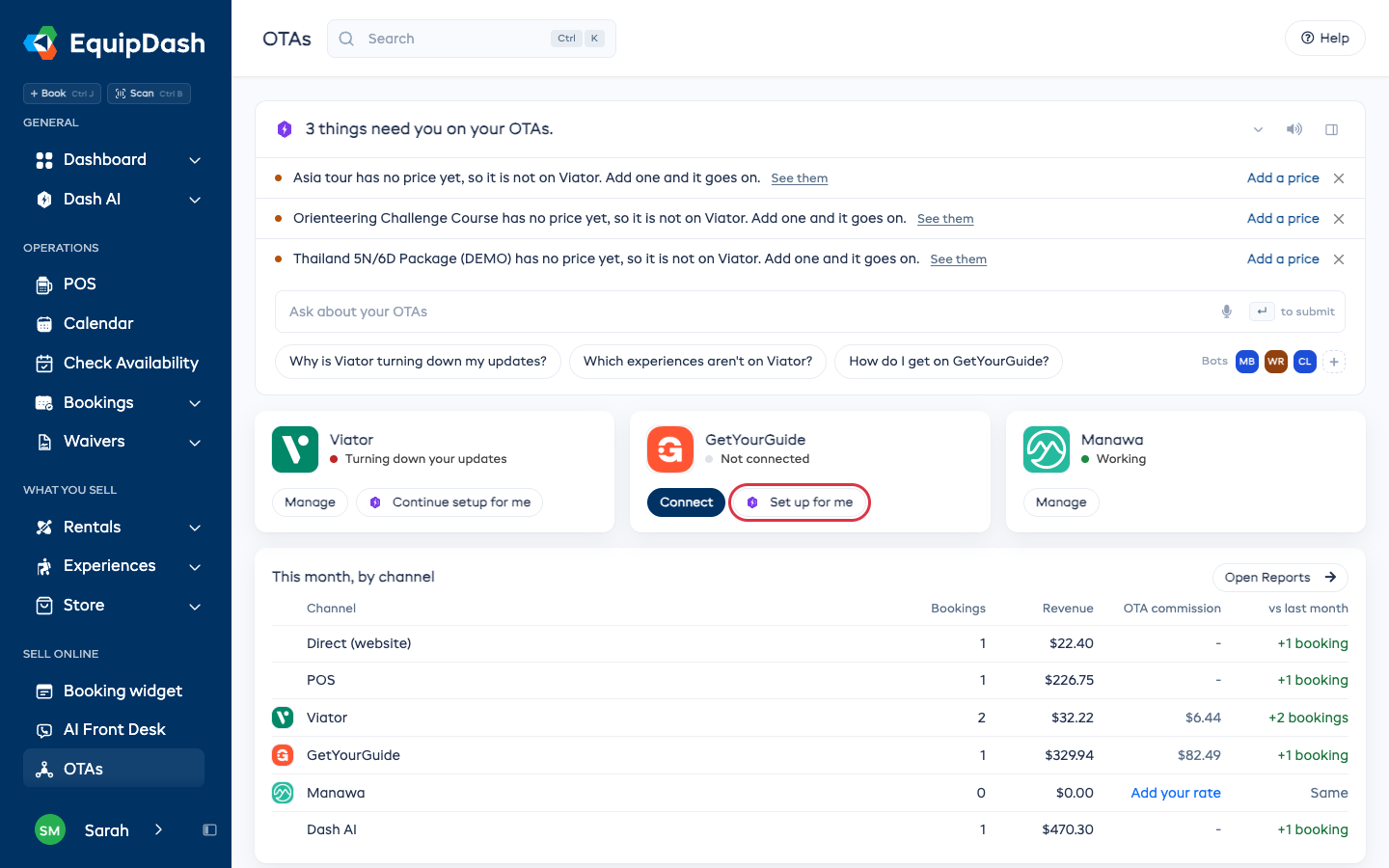
This month, by channel
Each OTA sits beside your own booking page and your counter sales, so you can compare them. For each one you see this month's bookings, the revenue, what the OTA kept and the change from the same days last month. Open Reports opens the full reports.
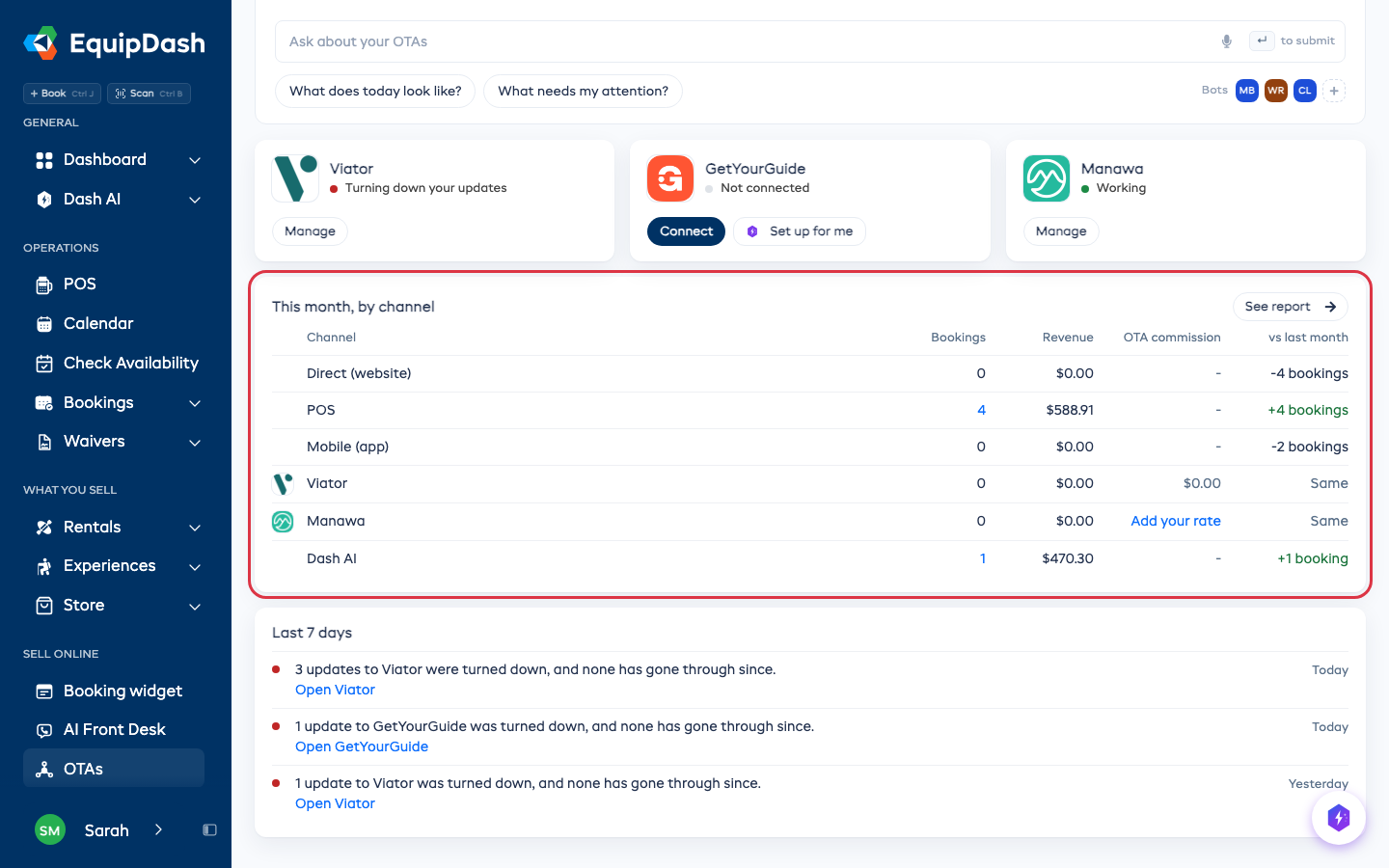
Revenue and commission show only to people who can see revenue in Reports.
Set what each OTA takes
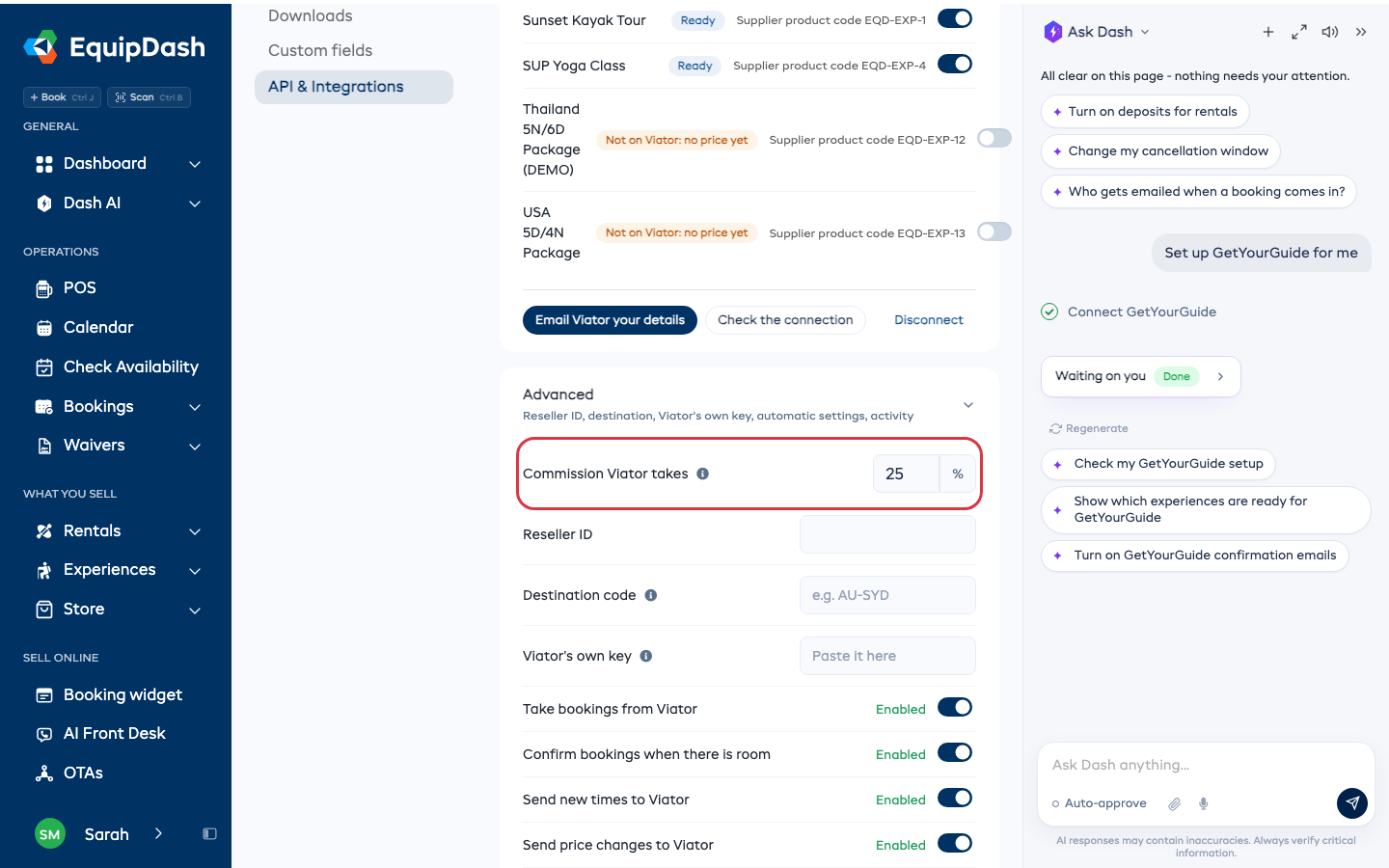
OTAs do not tell us their commission, so the page uses each OTA's usual rate: 20% for Viator and 25% for GetYourGuide. Manawa has no usual rate, so its row says Add your rate.
To change it, open the OTA's page, open Advanced and type your rate into Commission ... takes. It saves when you click away.
Last 7 days
What happened on your OTAs this week: updates an OTA turned down, and whether a later one went through, and the bookings each OTA sent. Click Open on an update that has not gone through to go to that OTA's page.
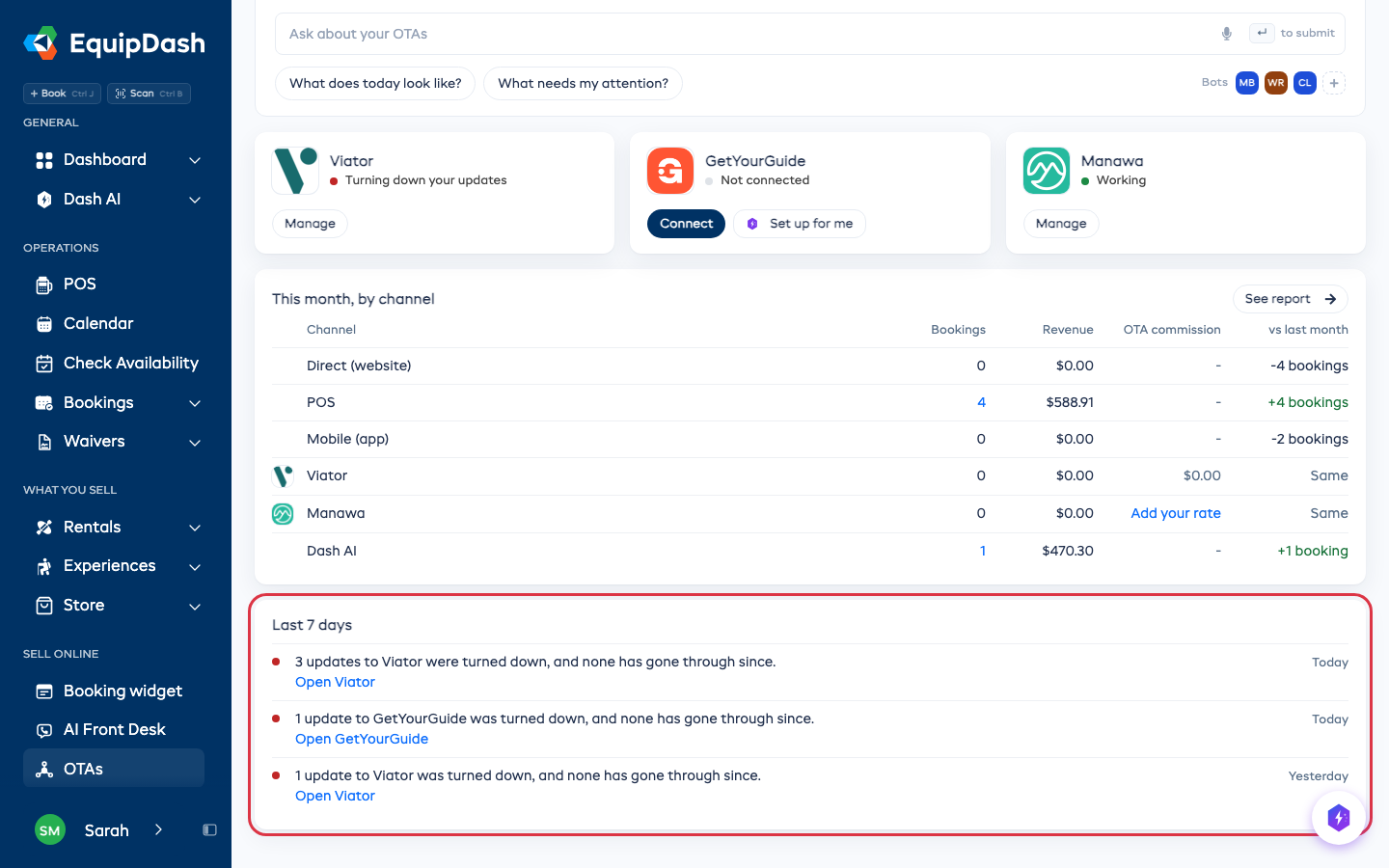
If an OTA turns down every update for 3 hours, people who can change integrations get an email. Turn it off under Settings > Notifications > An OTA is turning down your updates.