See who changed what
The activity log shows each change made in your account: who made it, when, and from where (the portal, POS, the phone app, Dash, an API key, your booking page, or a link you sent a customer). Changes are kept for 12 months.
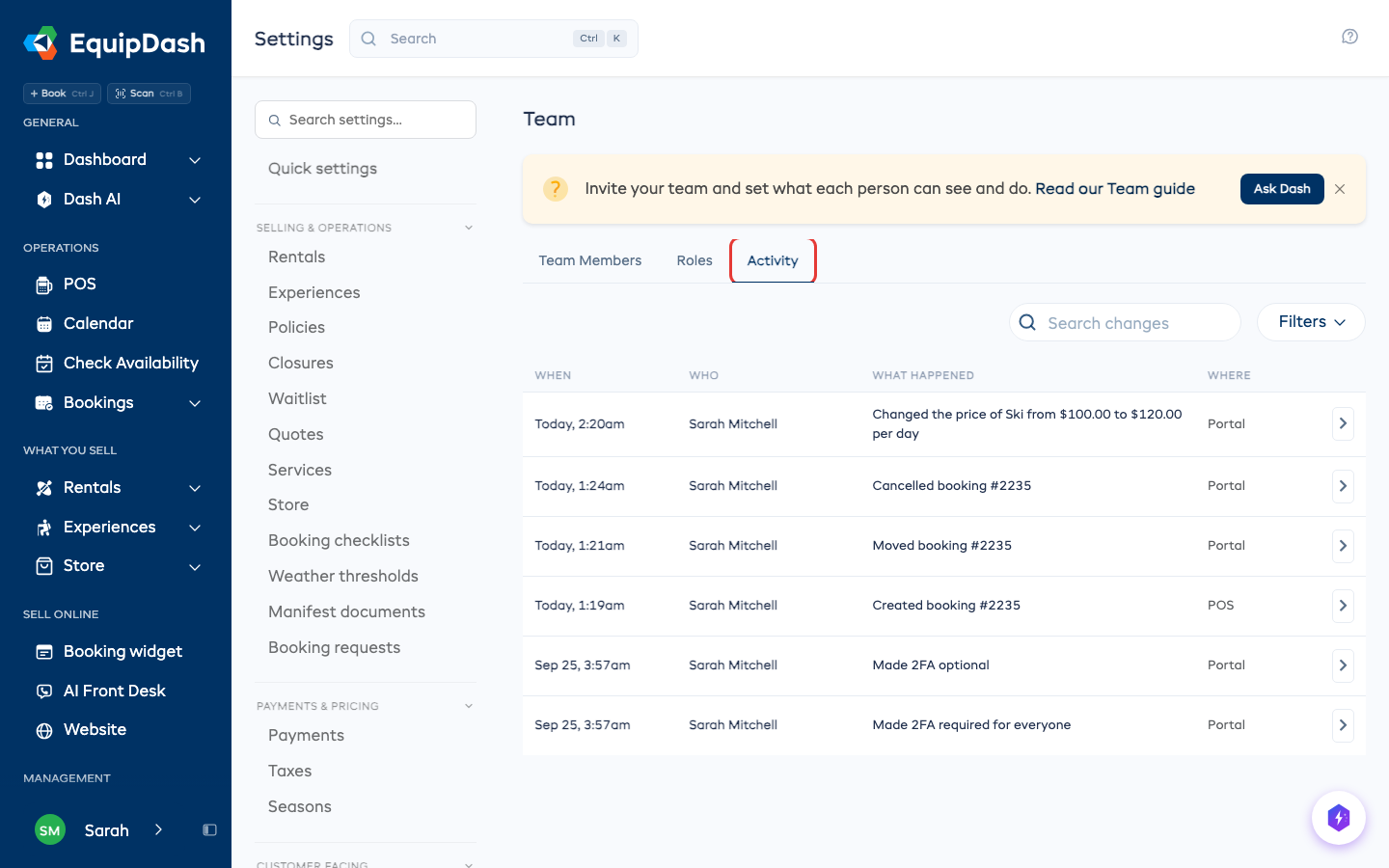
See every change
- Click Settings in the sidebar.
- Select Team from the settings menu. On a phone, open All settings first.
- Click the Activity tab.
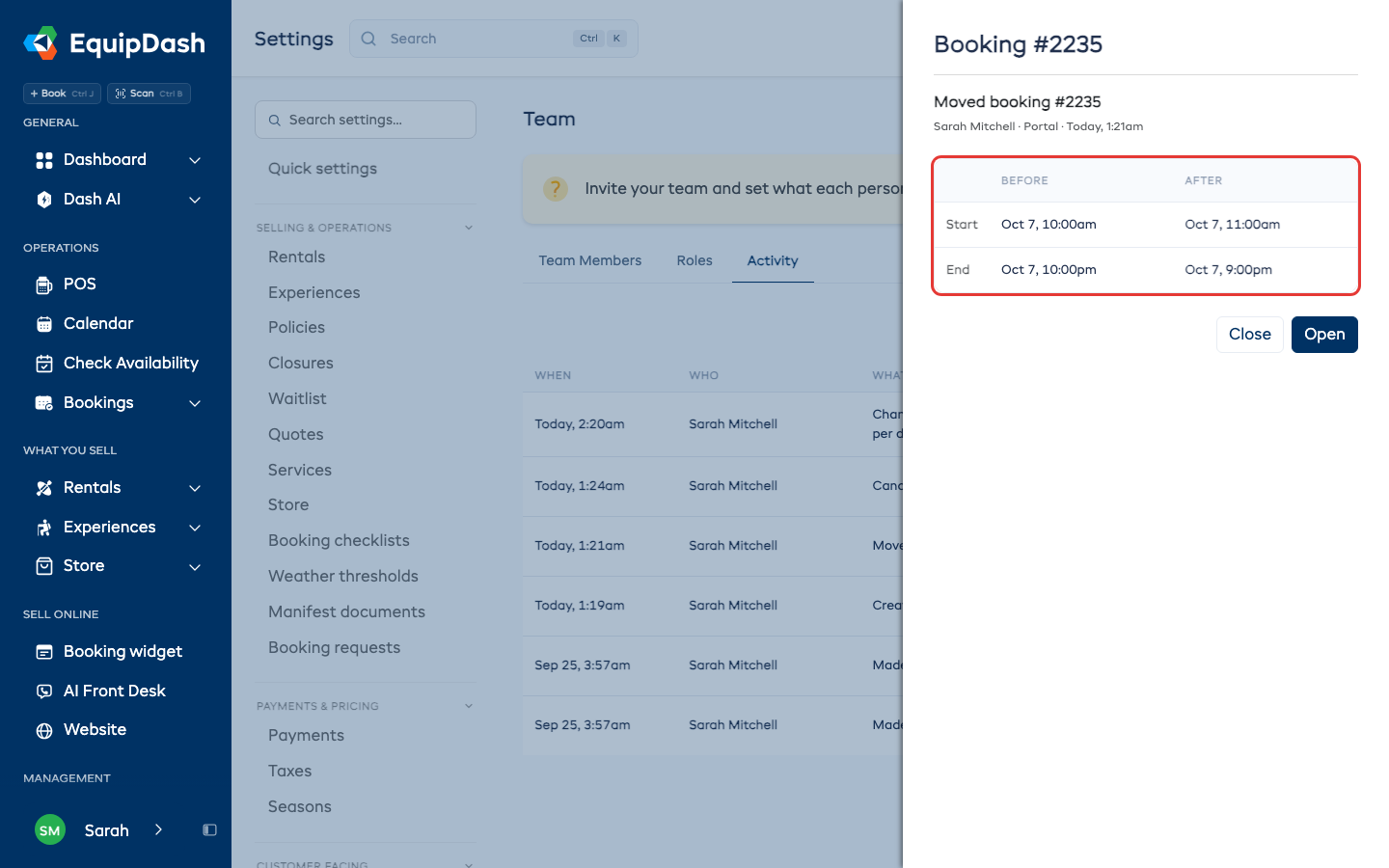
The newest change is at the top. Click a row to see Before and After. If Open appears, click it to go to the booking, customer or item.
Find one change
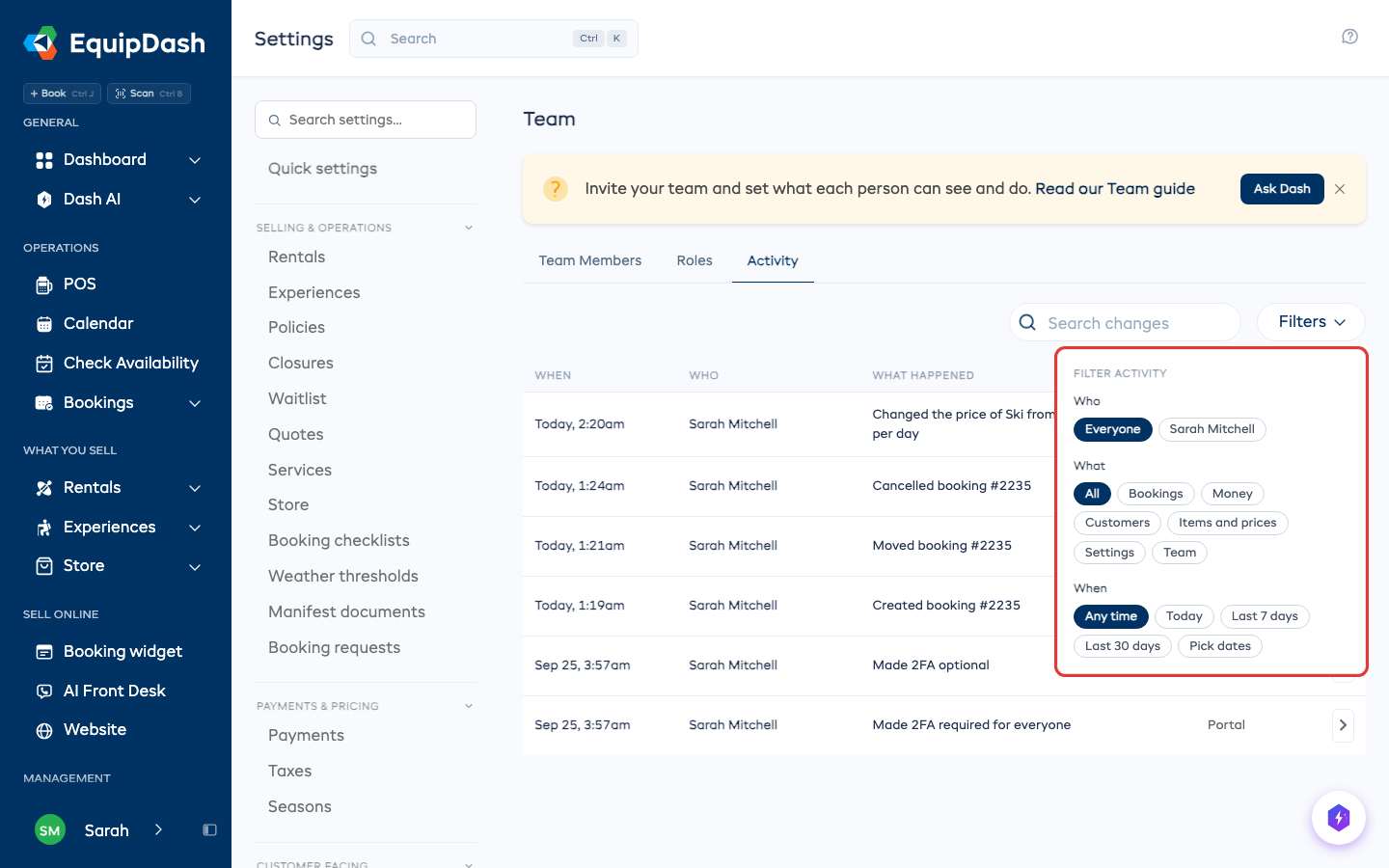
- Type in Search changes, for example a booking number or an item name.
- Click Filters and pick Who, What (Bookings, Money, Customers, Items and prices, Settings or Team) and When.
- Click Clear filters to remove the search and selected filters.
See the history of one booking or item
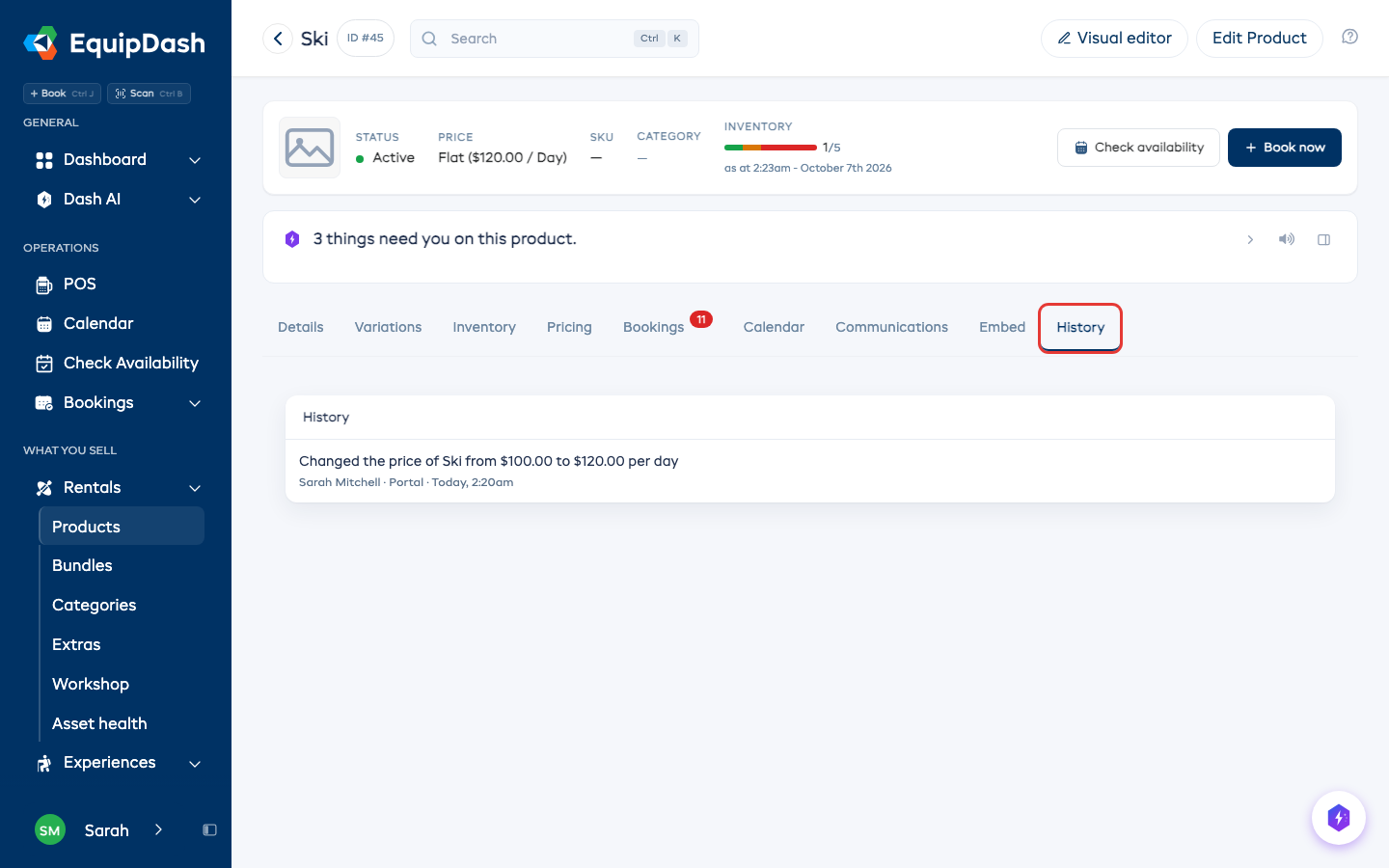
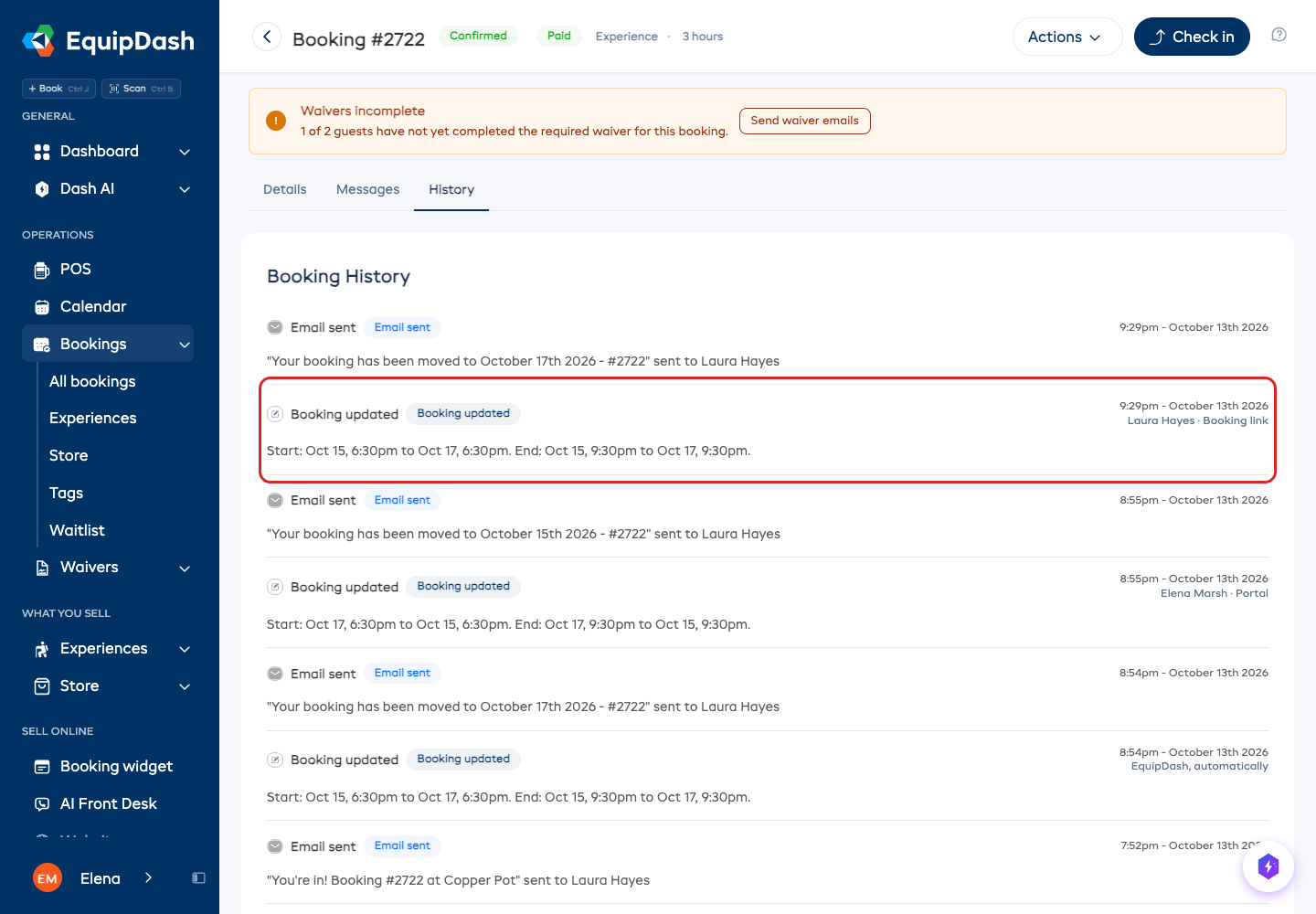
Each booking, customer, rental item, experience, store item, bundle and program has its own history:
- Open the booking or item.
- Click the History tab.
Each line says what changed, then who did it and where.
Who can see it
Admins can see the activity log. To let someone else see it, give their role View activity (who changed what) - see Custom roles.
Good to know
-
A customer's email, phone and address are never copied into the log. A change to one reads "Changed the email".
-
A change Dash made reads Dash AI for and the name of the person who asked.
-
A change a customer made from a link you sent them, such as moving or cancelling their booking, reads their name and Booking link.
-
You can also ask Dash, for example "who refunded booking 1234?".