Ads - What Your Ads Cost and Booked ProThis feature requires the Pro plan
The Ads tab puts your Google, Facebook and TikTok ads in one list. You see what each one spent and how many bookings it brought in.
Ads show here once you connect an ad account on the Channels tab. Until then the tab says No ad accounts yet with a Go to Channels button.
Your monthly limit
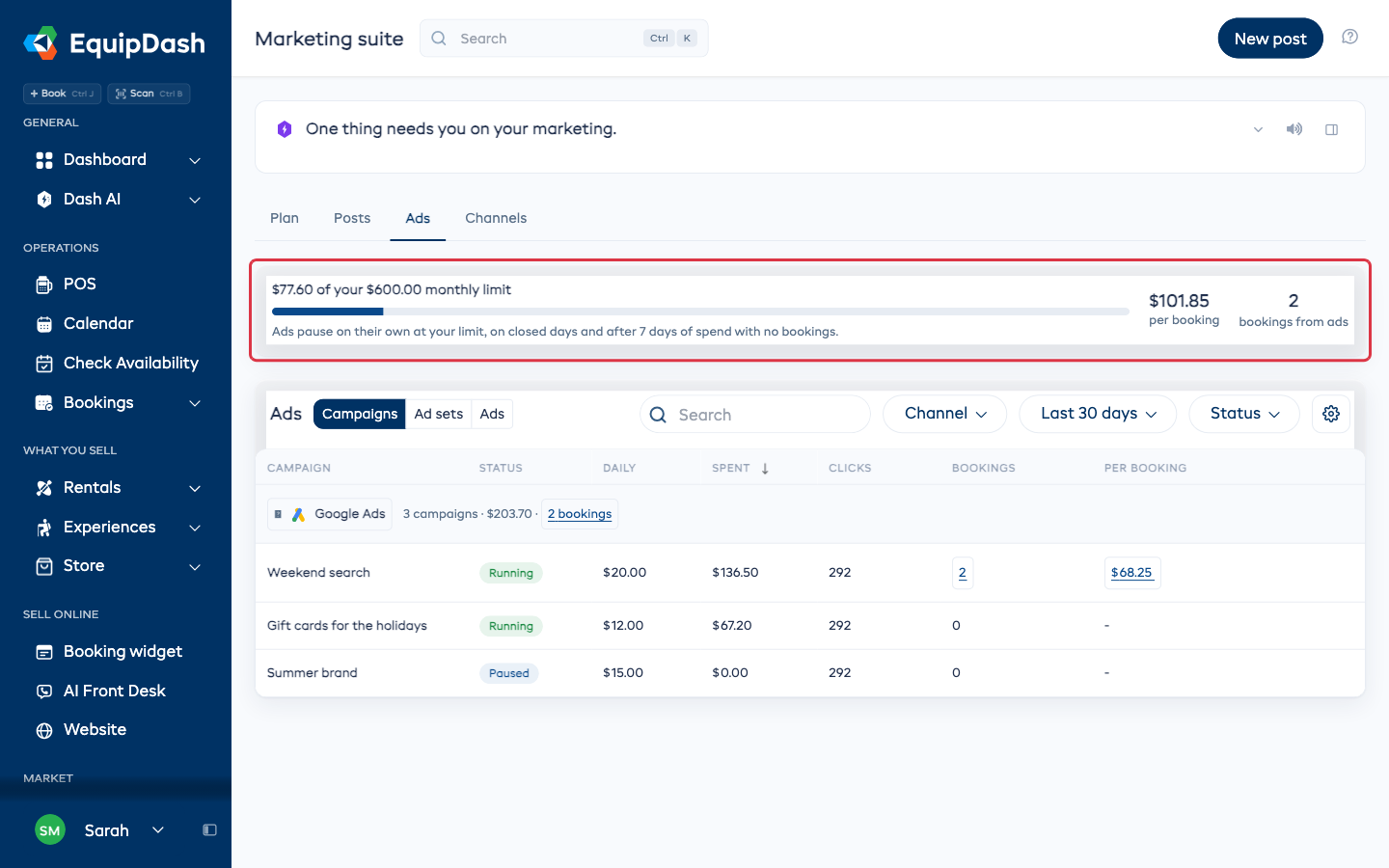
The card at the top shows what you have spent on ads this month against the monthly limit you set when you connected the account. Next to it are your cost per booking and how many bookings came from ads.
Ads pause on their own:
- when this month's spend reaches your limit,
- on days you are closed,
- after 7 days of spending with no bookings.
You can switch the last one off: it is the Pause ads with no bookings bot on the Channels tab.
The ads list
- Pick Campaigns, Ad sets or Ads to choose how much detail to see.
- Narrow the list with Search, Channel, the date range (such as Last 30 days) and Status.
- Use the gear to show, hide or reorder columns.
Each account has a header row with its number of campaigns, total spend and bookings. Each row shows the status, daily budget, amount spent, clicks, bookings and cost per booking. Click a bookings number to see the bookings behind it.
Pause, run or change a budget
When the ad account is connected and you run it yourself, each row has buttons to:
- Pause an ad that is running, or Run again one that is paused.
- Change its Daily budget.
You confirm each change before it goes to the ad service. A daily budget that could take you past your monthly limit is refused. If an agency or someone else runs the account, its rows say View only and nothing here can change them. You need the Publish marketing and spend on ads permission to make changes.
Promote something
With an ad account connected, Promote something starts a new ad:
- Pick What to promote and Where.
- Set Spend up to, each day, a First day and a Last day.
- Write headlines and descriptions, one a line, or click Draft with Dash.
- Click Create. You see the total it can spend, and nothing is made until you confirm.
On the phone app
The Ads screen in the phone app shows the same ads, and lets you pause or run one.