Posts - Make Posts with Dash ProThis feature requires the Pro plan
On the Posts tab you tell Dash what you want to say, and Dash writes the post. You check it, change anything you like, and post it.
Make a new post
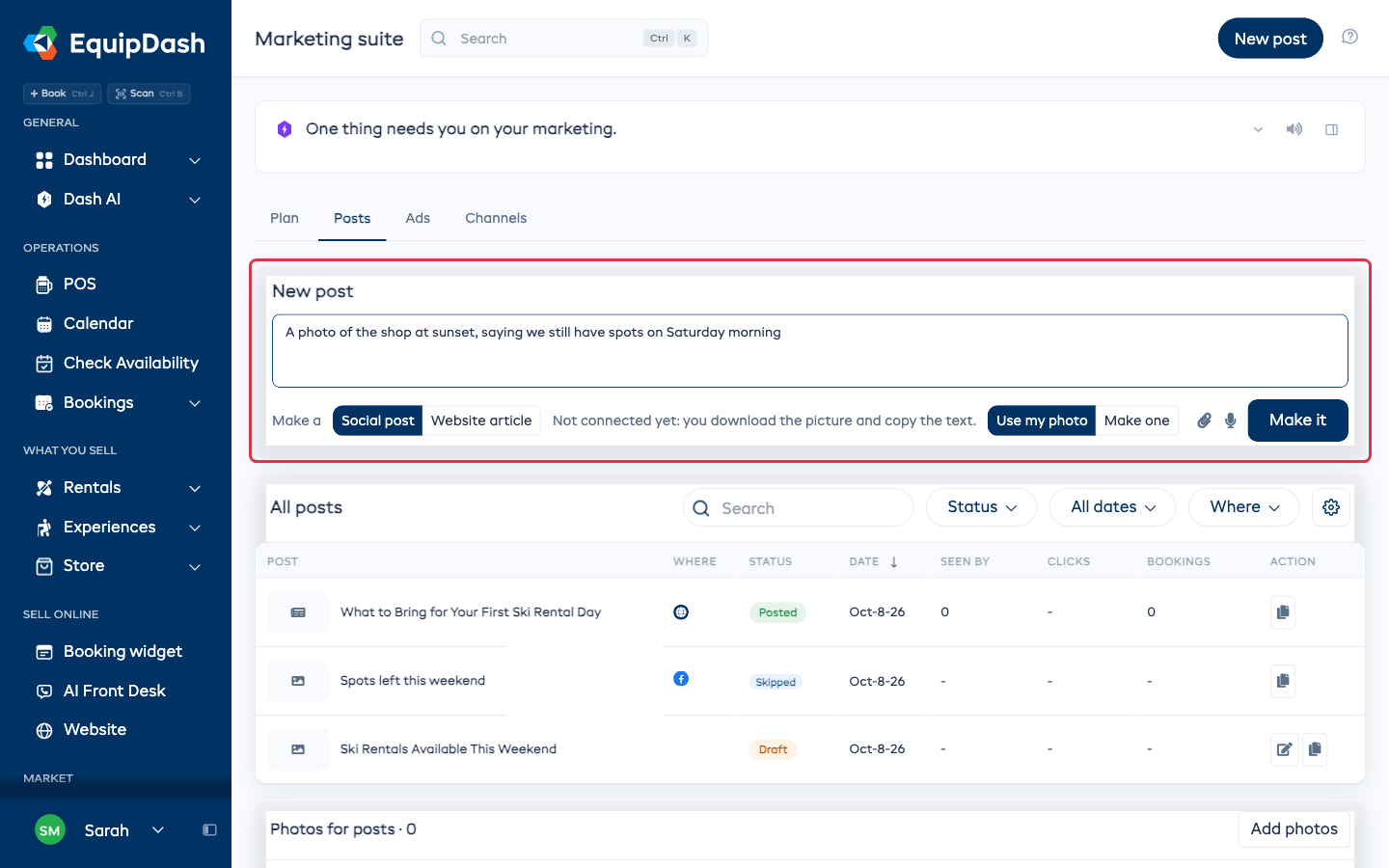
- Go to Marketing suite > Posts, or click New post at the top of the page.
- In the New post box, tell Dash what to post. For example: "A photo of the shop at sunset, saying we still have spots on Saturday morning".
- To speak instead of typing, click the microphone.
- To give Dash photos or a flyer to work from, click the paperclip and attach photos or a PDF.
- Pick Social post or Website article.
- For a social post, tick the accounts to post to. If none are connected yet, you download the picture and copy the text yourself.
- Pick Use my photo or Make one (Dash makes a picture).
- Click Make it.
The post opens so you can check it.
Check and send a post
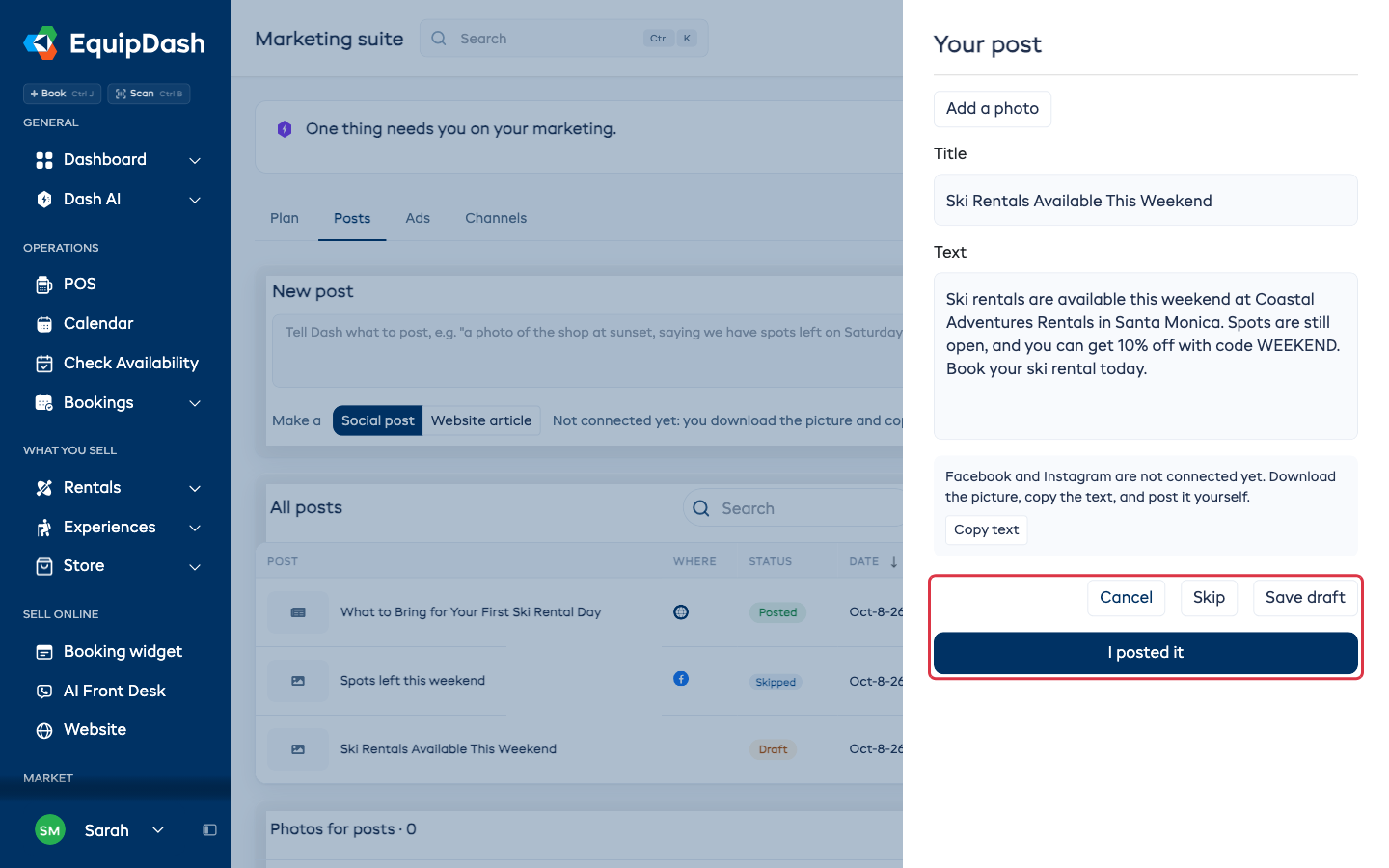
- Read the Title and Text and change anything you want.
- Add a photo with Add a photo if it has none.
- Choose what to do:
- Post sends it to the accounts you ticked. Pick a date and time under When to post it later.
- Publish puts a website article on your website.
- Save draft keeps your changes for later.
- Skip drops it.
When Facebook and Instagram are not connected, the button reads I posted it. Use Download picture and Copy text, post it yourself, then click I posted it so the post is counted.
A picture Dash made is marked Picture made by Dash, not a photo of your shop.
Posts Dash suggests
Every Monday morning Dash suggests posts for the week, based on what you still have to sell. They show in the Dash suggests card above your posts.
- Click a suggestion to open it, edit it and post it.
- Click Approve all to post them all as written.
- A draft you do not act on expires after 7 days, or at the end of the day it is about.
After you approve 5 of Dash's posts in a row without changing them, Dash asks Post these without asking? Click Post without asking to let Dash post its suggestions on its own, or Keep asking. You can switch back any time with Ask me first.
All posts
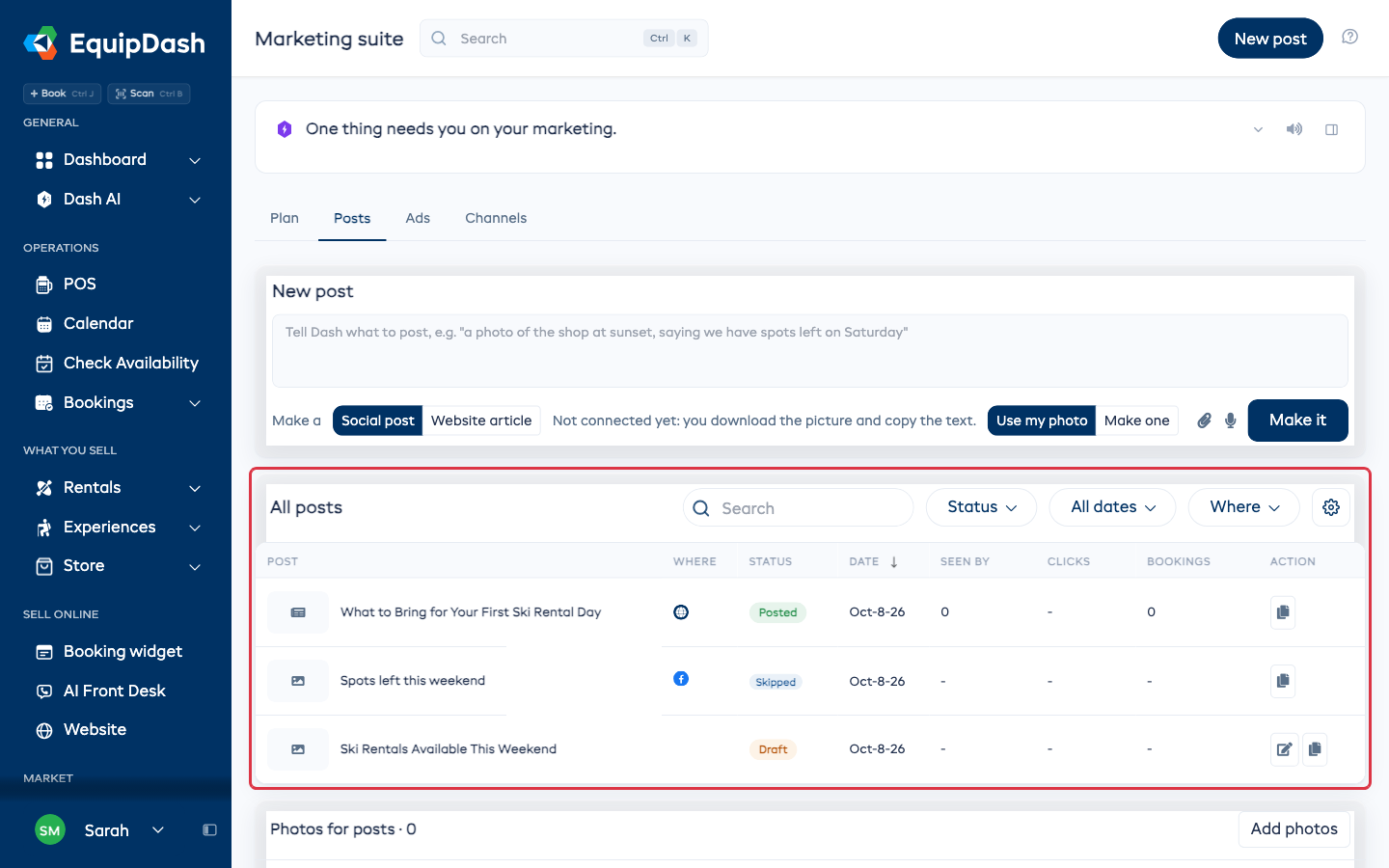
All posts lists every post with where it went, its status, the date, how many people saw it, clicks and bookings.
- Search by title.
- Filter by Status, date or Where it went.
- Use the gear to show, hide or reorder columns.
- Use the edit icon to open a draft, or the copy icon to make a new post from an old one.
Photos for posts
Under Photos for posts, click Add photos to add photos from the shop. Dash uses them in its suggestions. Staff can add photos from their phones too.