Marketing Suite Overview ProThis feature requires the Pro plan
The Marketing suite shows what you still have to sell and helps you fill it. Open it from Marketing suite in the left menu.
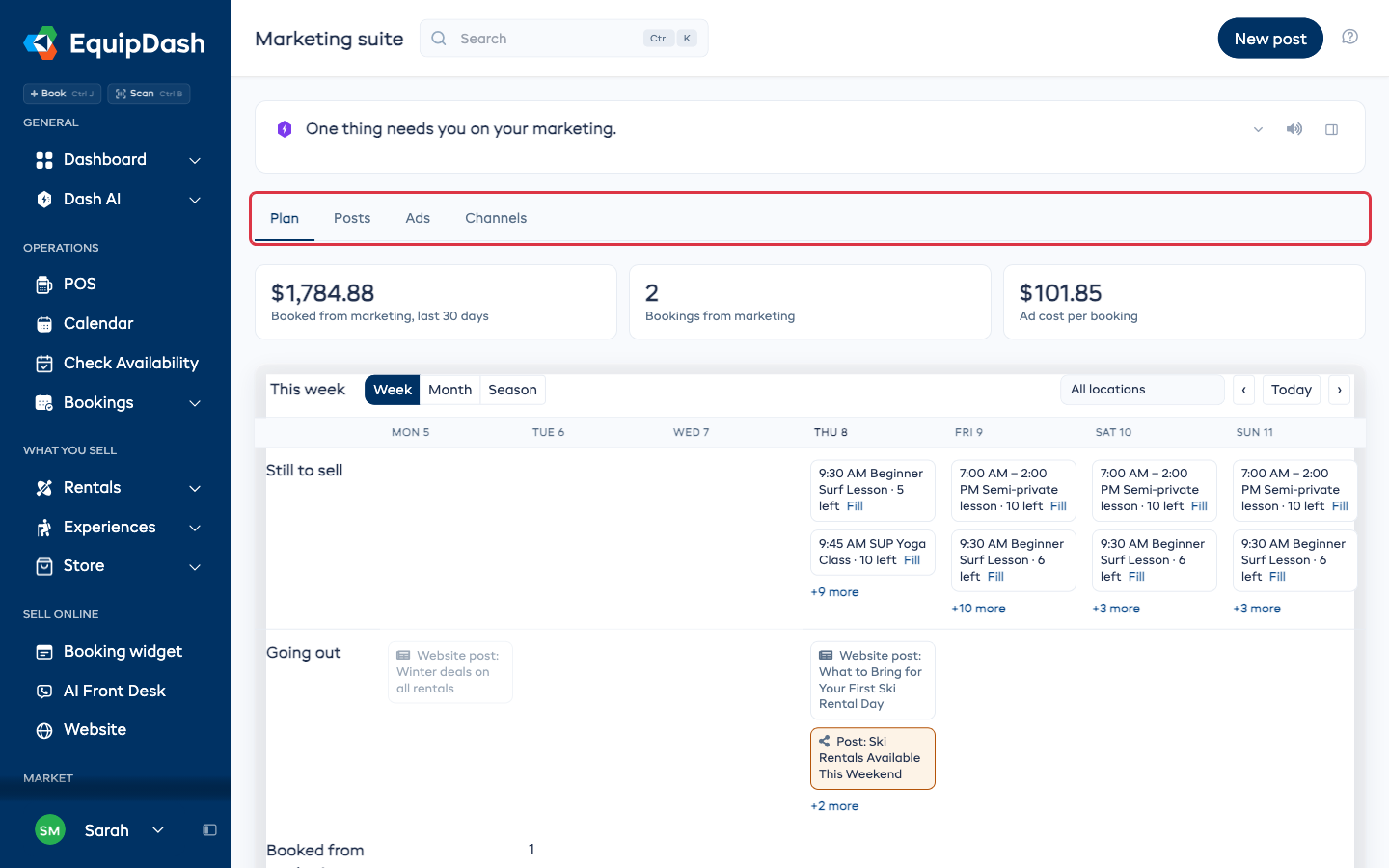
The four tabs
| Tab | What you do there |
|---|---|
| Plan | See the sessions and items still to sell, what is going out, and what marketing booked. More on Plan |
| Posts | Tell Dash what to post, edit its drafts, and see where each post went. More on Posts |
| Ads | See your Google, Facebook and TikTok ads with what they cost and booked. More on Ads |
| Channels | Connect your accounts, switch marketing bots on or off, and run an offer bar. More on Channels |
The New post button at the top right takes you straight to the New post box on the Posts tab.
The Dash card above the tabs lists anything that needs you, such as a post waiting for your OK.
One marketing message per customer per week
A customer gets at most one marketing message from you each week. Campaigns, automations and marketing bots all skip anyone who already had one that week.
When you pick who gets a campaign, the audience step shows how many people will actually get it and how many already had a message this week. See Selecting Recipients.
Who can do what
Three permissions control the Marketing suite. Set them under Settings > Team.
| Permission | What it allows |
|---|---|
| View marketing | See the Plan, posts, ads and channels |
| Draft marketing posts | Make and edit drafts, and add photos for posts |
| Publish marketing and spend on ads | Post, publish articles, connect accounts, and change ad budgets |
Managers can view and draft by default. Publishing and ad spend stay with the owner unless you give them to someone.
On the phone app
- Posts waiting for your OK show in Waiting on you, with Post and Skip.
- The dashboard has a marketing card.
- The Ads screen lets you pause or run an ad.