Train your team
Every job role in your shop gets a short set of lessons, picked by Dash from what you sell and what that role can open. Staff with no job role get the Everyone else lessons. A new staff member sees their lessons on their Dashboard each time they log in, until they finish.
Open Team training
- On Staff, choose Team training at the top of the page.
- In Settings, under Team & access, choose Team training.
- On a staff member's page, choose Change on their Training card.
See the lessons for each job role
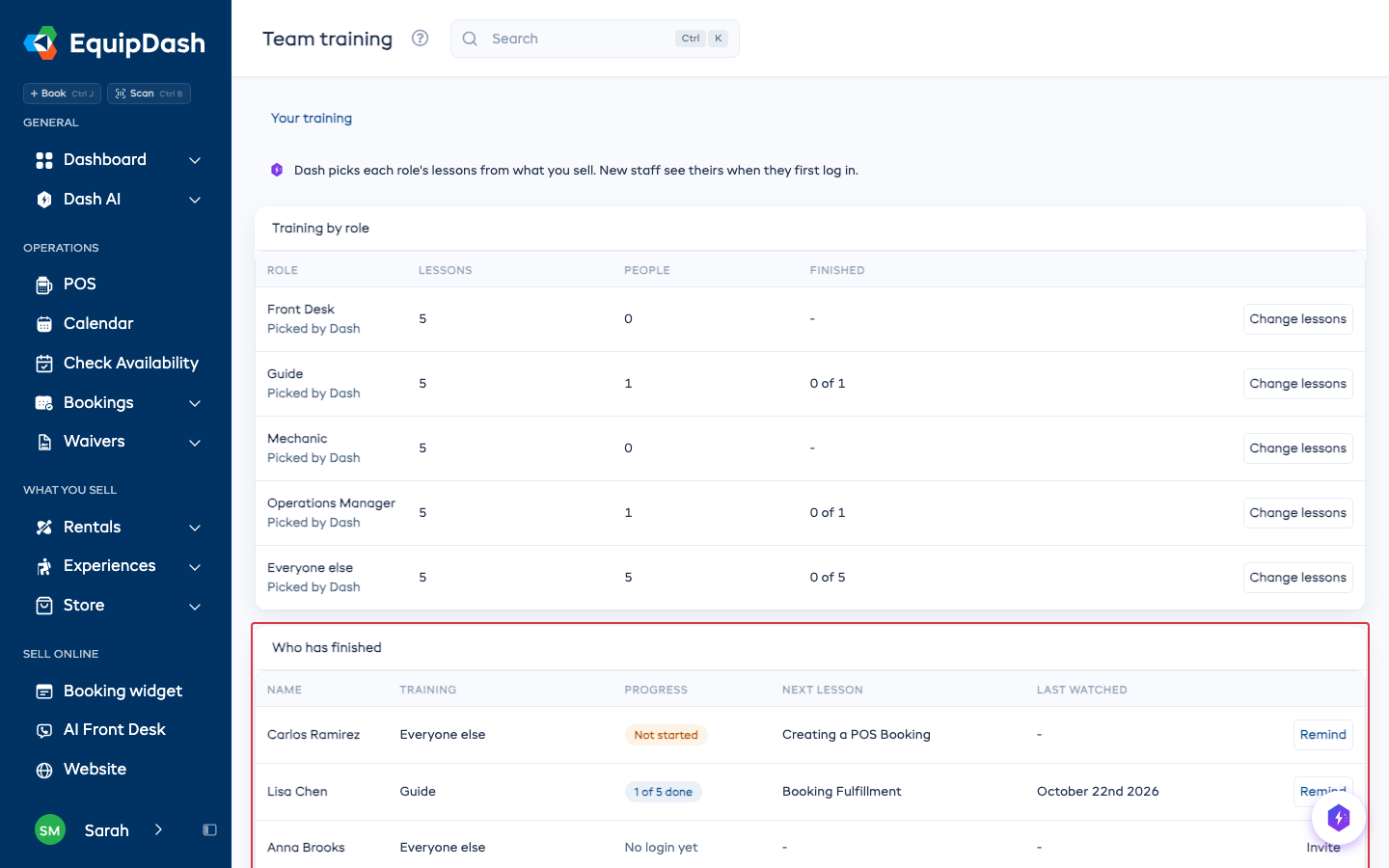
Training by role lists each of your job roles plus Everyone else, with how many lessons each has, how many people get them and how many have finished. Every role already has lessons when you first open the page, so there is nothing to set up.
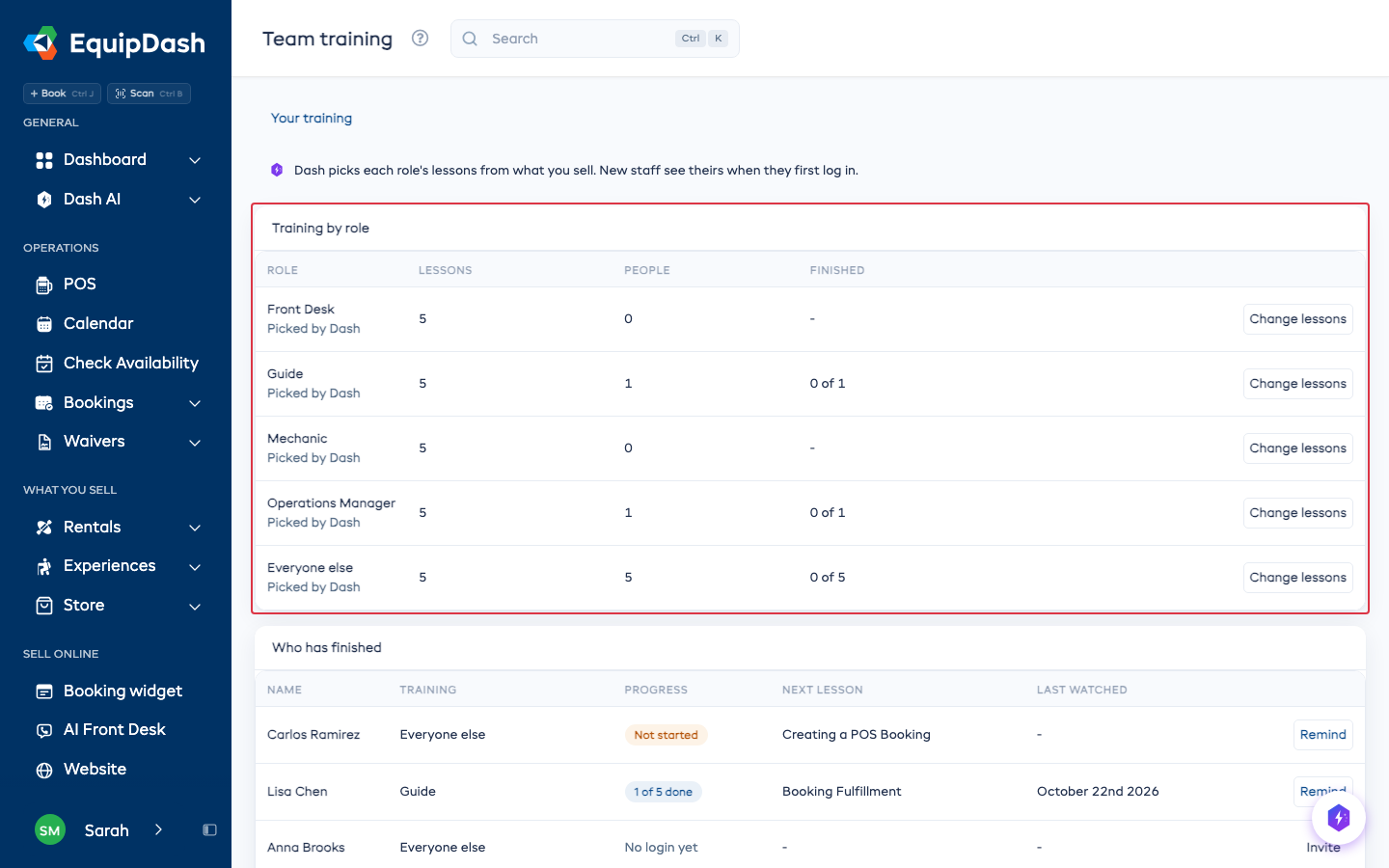
The lessons follow what you sell. A shop that only rents gear gets no lessons about sessions, and the other way round. When you start selling something new, roles you never changed get new lessons by themselves.
Change a role's lessons
- On Team training, choose Change lessons beside the role (or tap the role's name on your phone).
- Untick a lesson to take it off. Use Add lessons to find more, and drag or use the arrows to change the order.
- Choose Save changes.
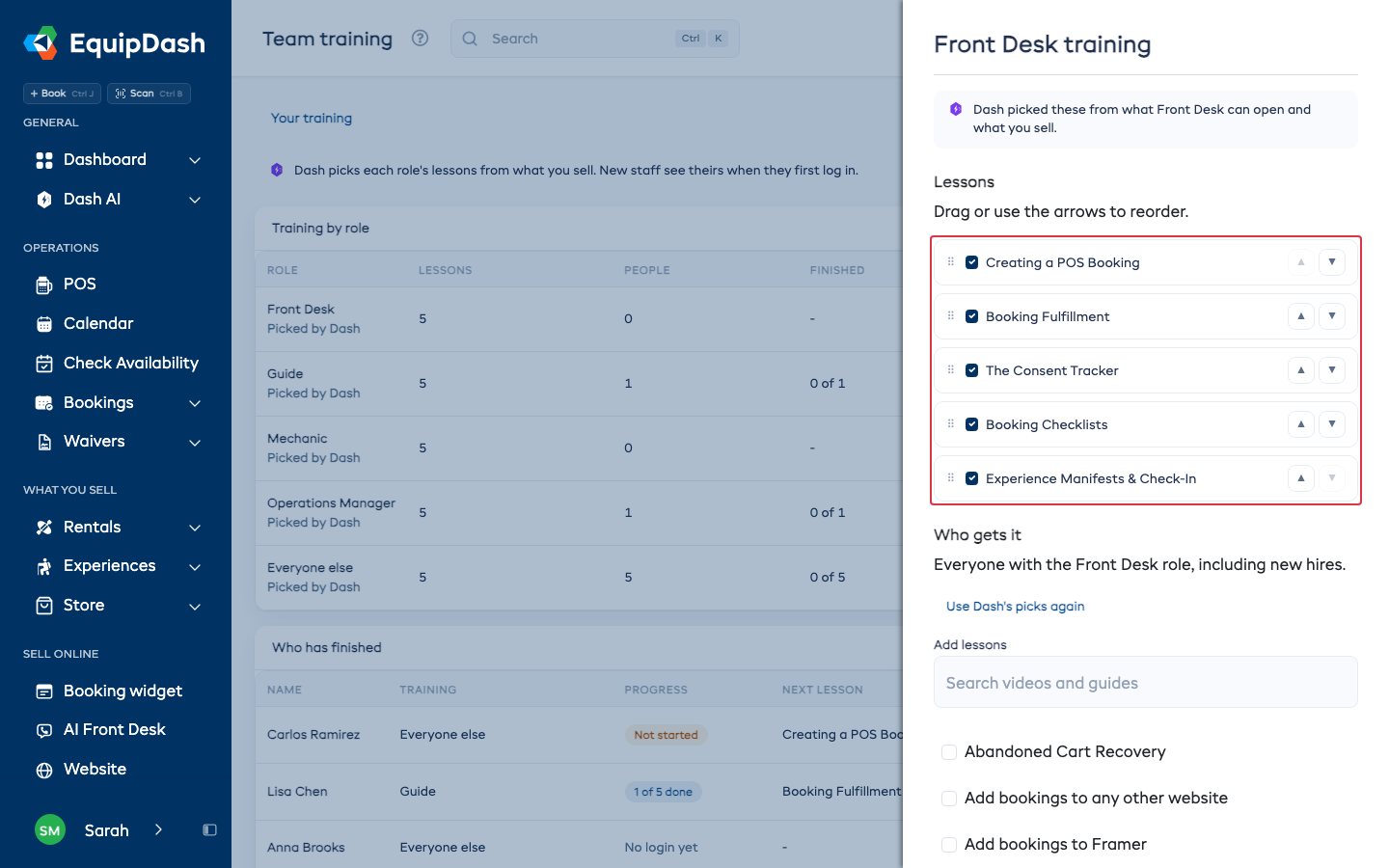
The role then reads Changed by you, and Dash no longer changes its list. If you start selling something new, Team training says how many new lessons fit that role, with Add and No thanks. To go back to Dash's list, open the role, choose Use Dash's picks again, then Save changes.
Lessons people already finished stay finished when you change a role's lessons.
Who gets which lessons
- A staff member gets the lessons of each job role they hold. Take a role away and its lessons leave their Dashboard. Anything they finished stays finished.
- Staff with no job role get Everyone else.
- Progress is kept per login. Someone who cannot log in yet shows No login yet, with Invite.
What a new staff member sees
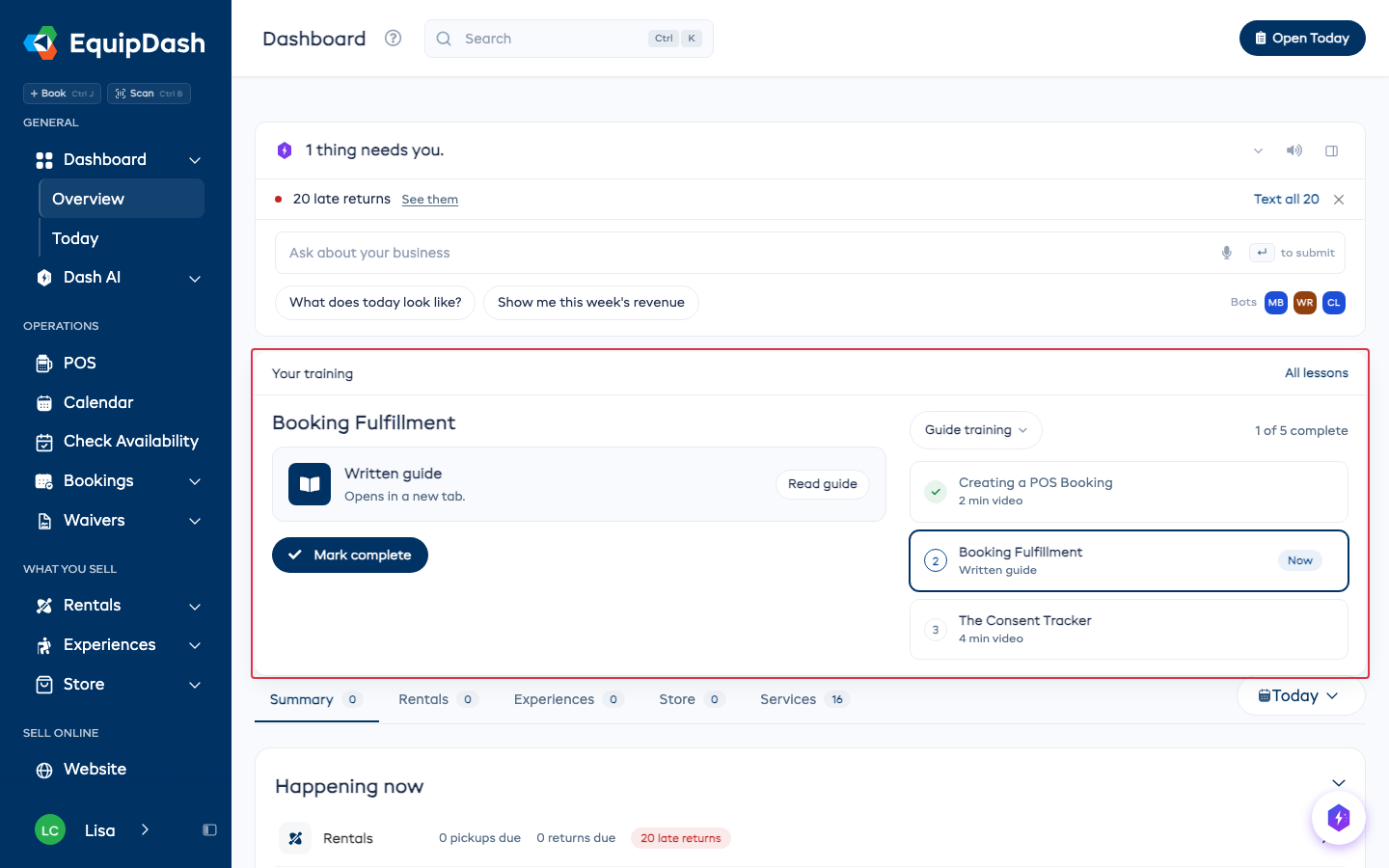
When they log in and open the Dashboard, a Your training card sits at the top with the video for their next lesson, their lesson list and Mark complete. It shows on every visit until they finish, then steps aside. Help > Training always opens their lessons. The phone app shows the same card on its home screen.
See who has finished
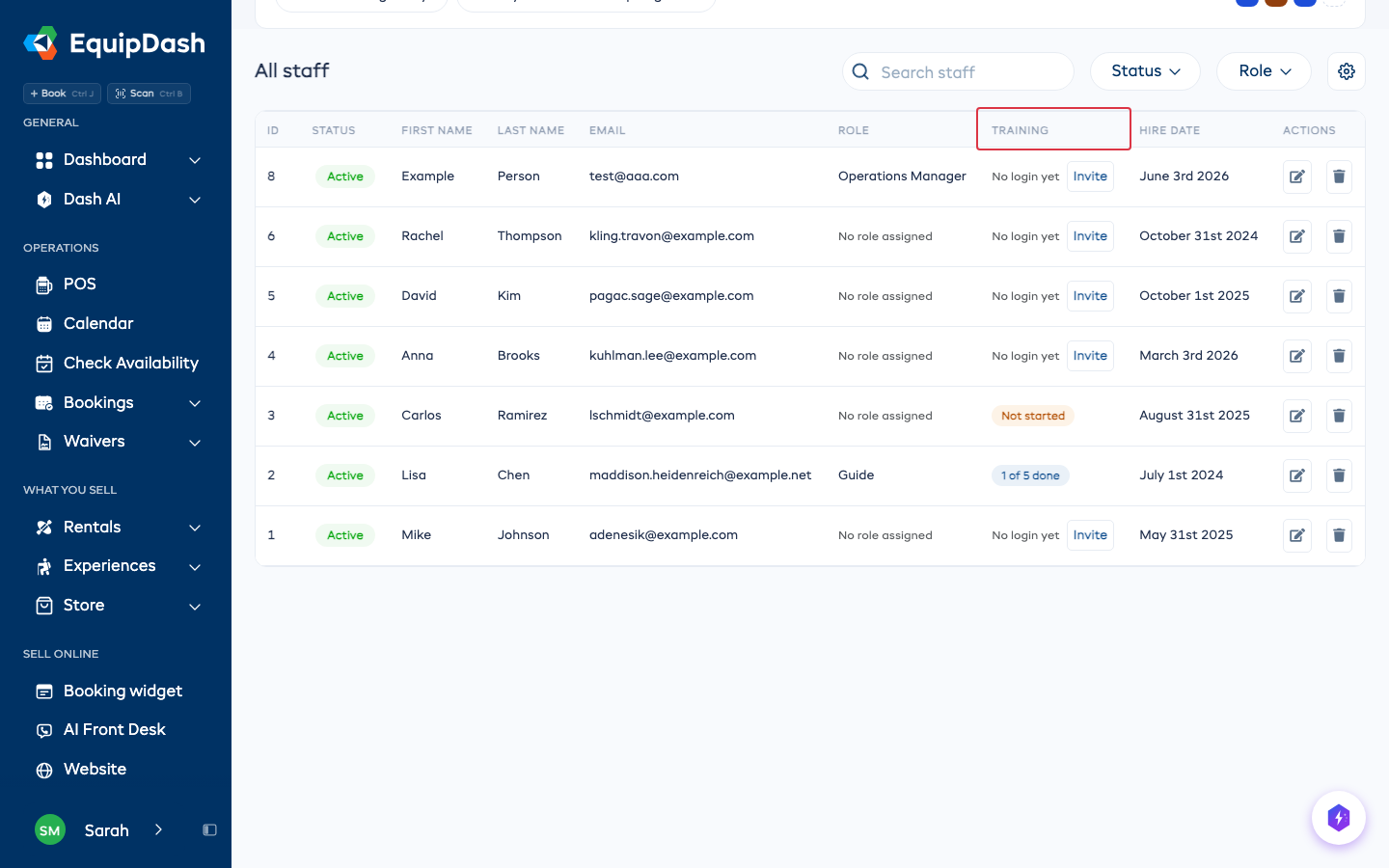
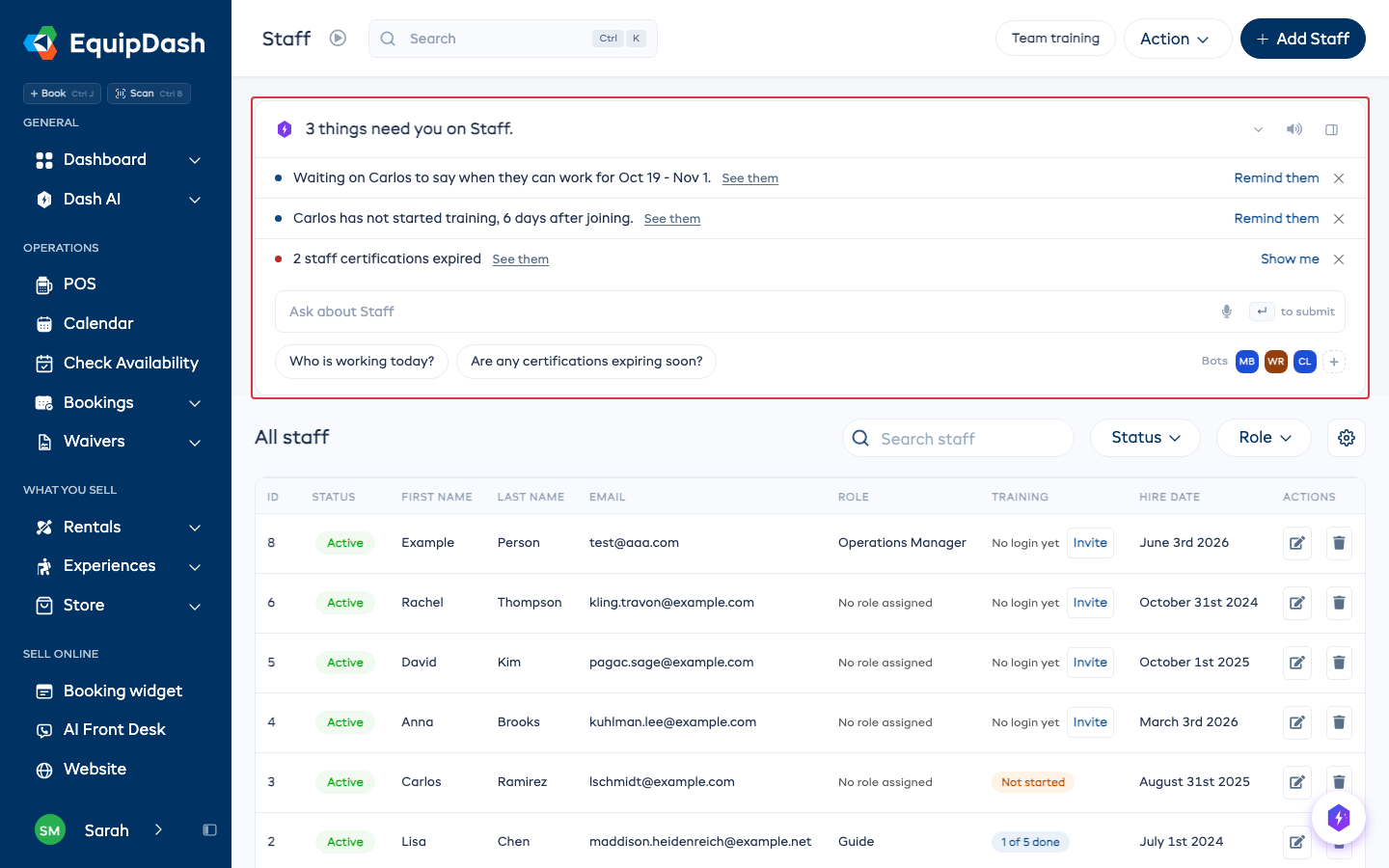
- The Staff list has a Training column: 2 of 5 done, Done, Not started or No login yet.
- Who has finished on Team training lists each person with their lessons, progress, next lesson and when they last watched one. Remind emails them a link to their lessons.
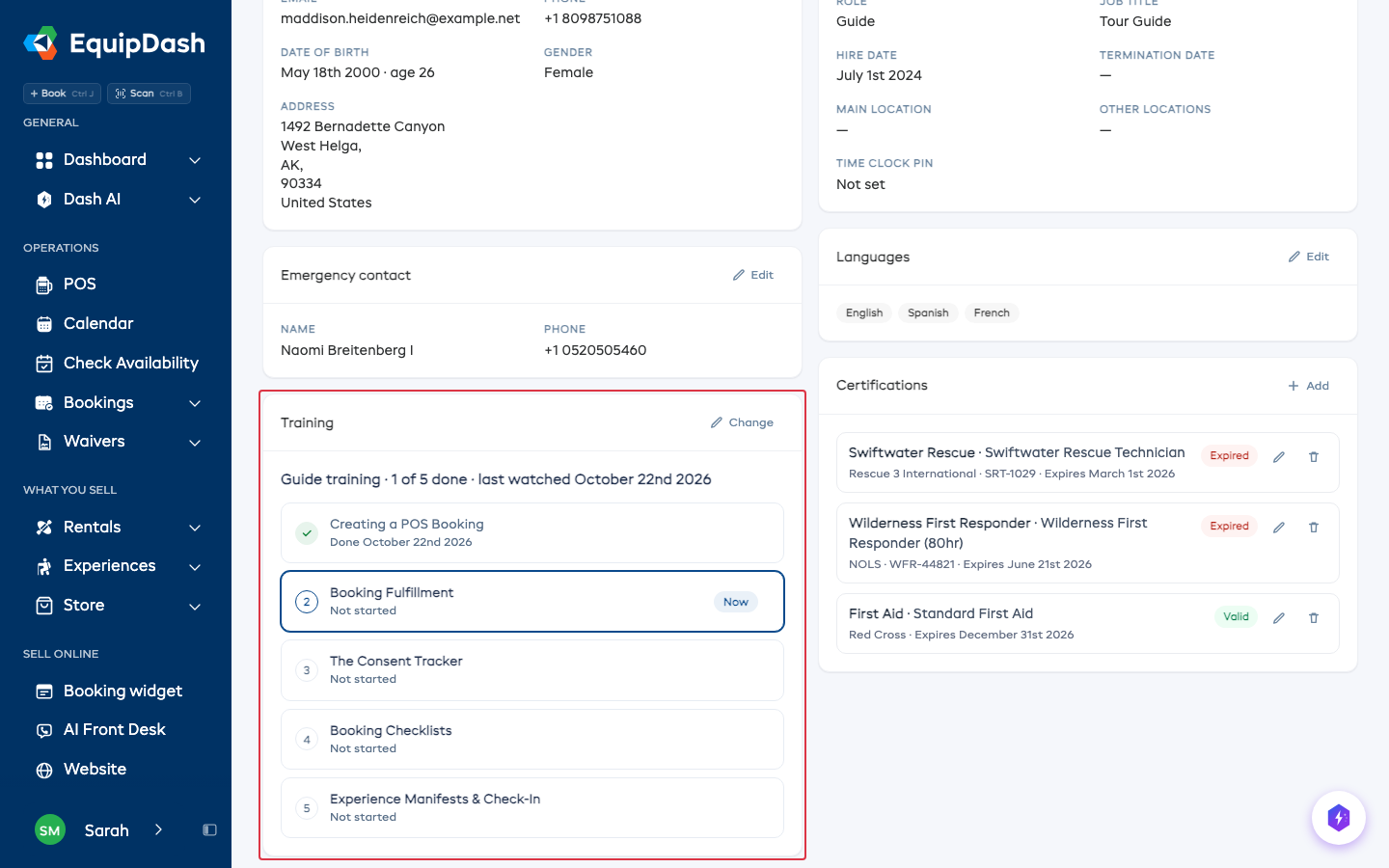
- Each staff member's page has a Training card that ticks off each lesson they have done.
- If someone has not started 5 days after their login was set up, the box at the top of Staff says so, with Remind them.
Extra paths
To teach one job to anyone on top of their role's lessons, choose Create path under Extra paths. Name it, pick the lessons, choose the staff and add a due date if you want one. See Learn EquipDash for the steps.
Related guides: Learn EquipDash, Staff Roles & Access and Adding Staff.