The EquipDash browser extension
The free EquipDash extension for Chrome and Microsoft Edge adds a button to your browser toolbar with three tabs:
- Today: pickups, returns, late items and new online bookings, with a desktop alert when a customer books.
- Import: reads your current website and adds what you sell to EquipDash as drafts.
- Preview: shows your Book now button on your own website before you add the code.
It works on every EquipDash plan.
Install the extension
- Search for EquipDash in the Chrome Web Store and click Add to Chrome. Using Microsoft Edge? Search for EquipDash in Edge Add-ons and click Get.
- Click the Extensions icon in your toolbar and pin EquipDash, so it is always one click away.
Connect your business
- Click EquipDash in your toolbar, then click Connect.
- Sign in to EquipDash, pick your business and click Authorize.
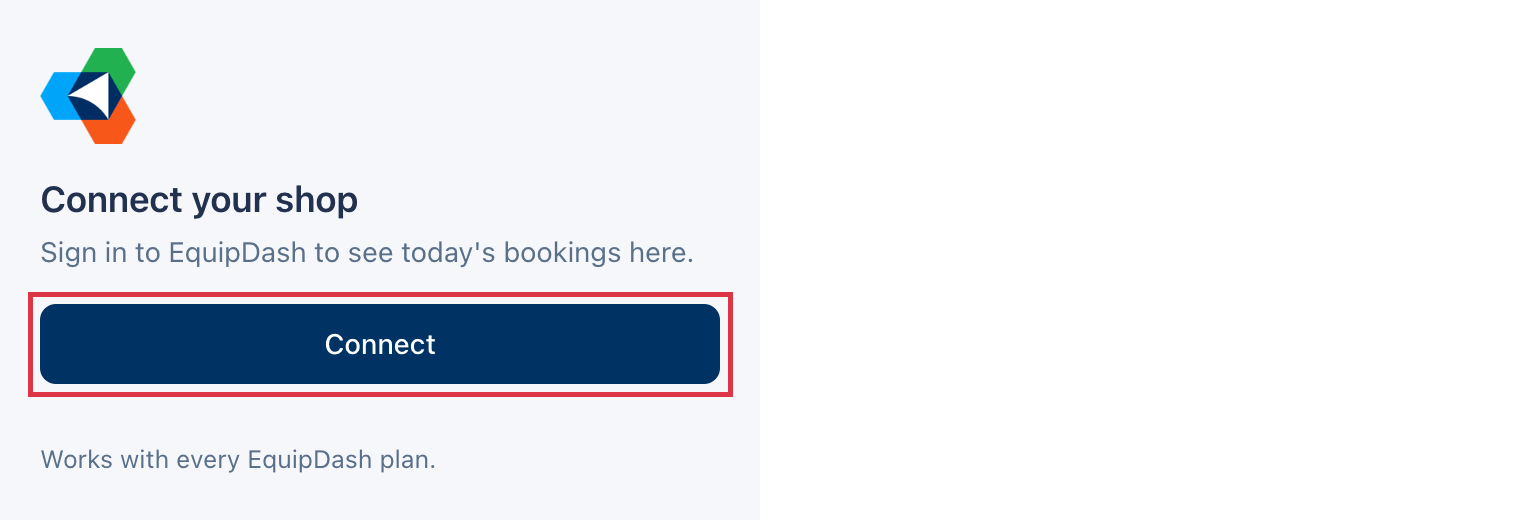
The extension opens on Today. Everyone on your team can connect with their own login, and each person sees only what their role allows in EquipDash.
Today
Today shows how many pickups, returns and late items you have today, then the bookings behind them. Click any booking to open it in EquipDash.
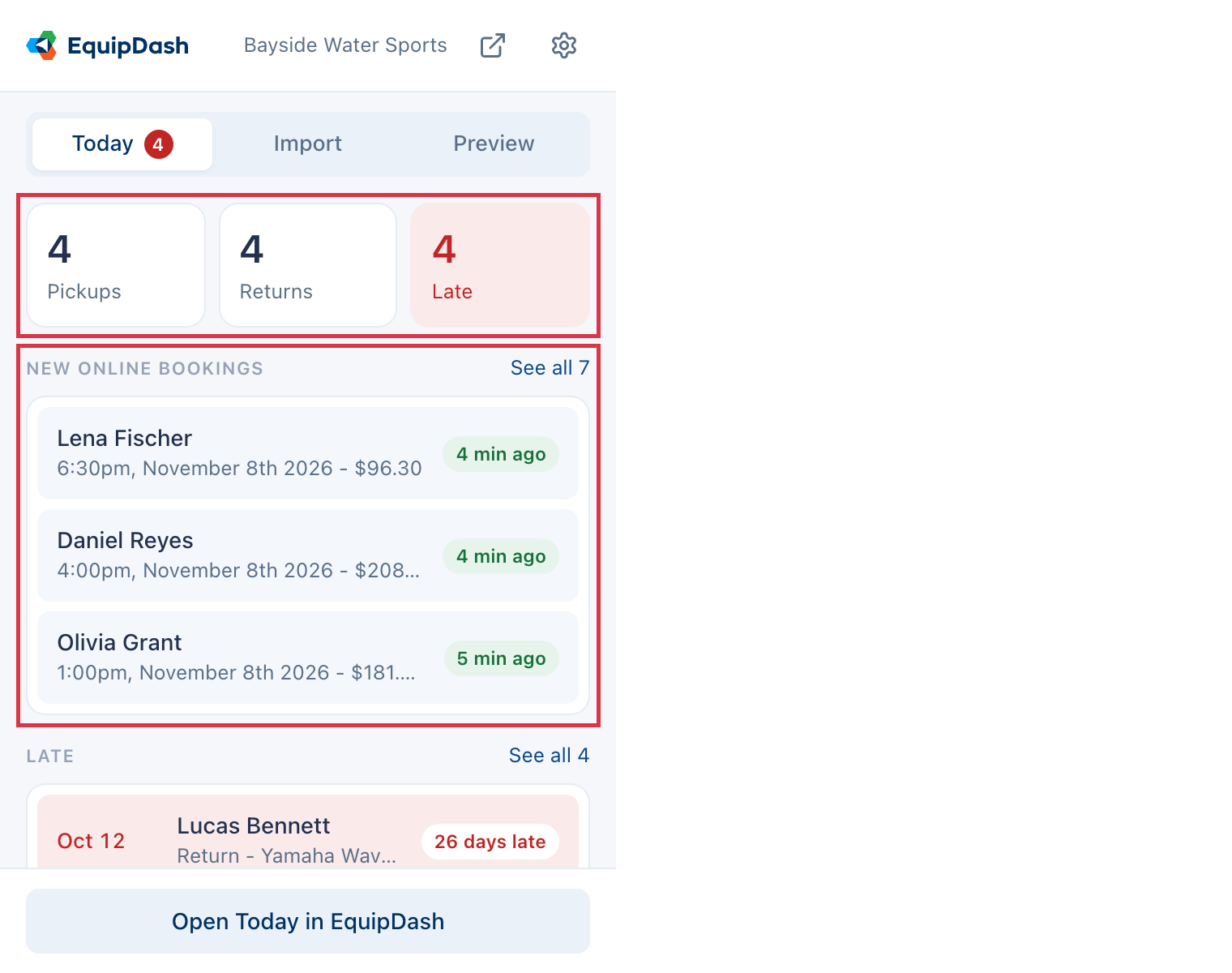
- The number on the toolbar button counts the pickups and returns still to come today. When something is late, it turns red and counts the late items instead.
- New online bookings lists what customers booked themselves in the last 24 hours: on your booking page, through a travel site or through an AI assistant.
- Each new online booking also pops up a desktop alert. To turn alerts off, click the gear icon and switch off Tell me about new online bookings.
Import your items from your website
Moving to EquipDash from another booking system or a website that lists what you sell? Bring your items across without typing them in.
- Open the page of your website that lists what you rent or sell, then click EquipDash in your toolbar.
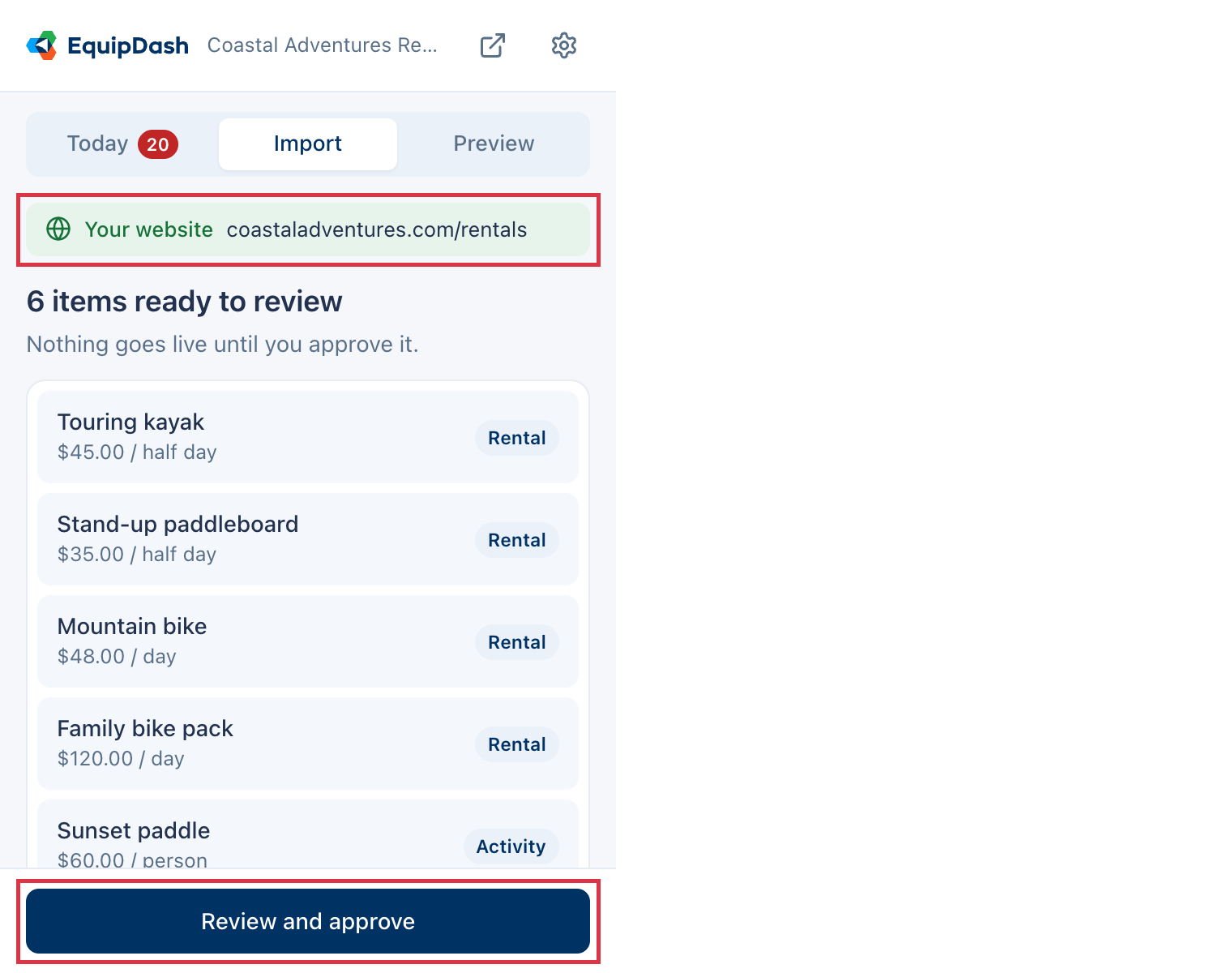
- On your own website the extension opens on Import. Check the Website address and click Import items.
- Wait a minute or two while EquipDash reads the page. You can close the extension and come back.
- Click Review and approve.
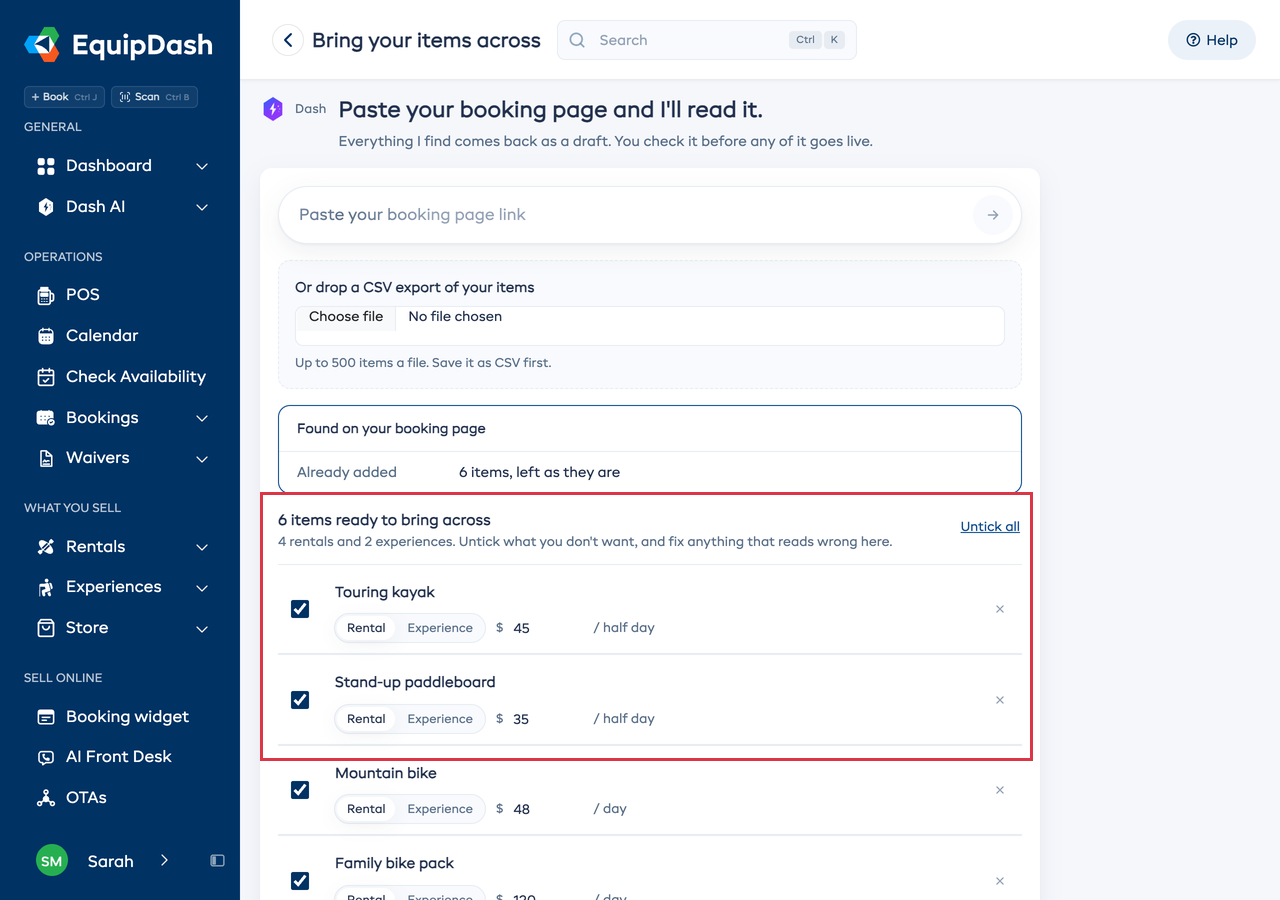
Bring your items across opens in EquipDash with every item ticked. Untick what you don't want, fix any name or price, then approve. Nothing goes live until you do.
See Switching from another system for importing a spreadsheet instead.
Preview your Book now button on your website
- Open any page of your website and click EquipDash in your toolbar.
- Click Preview and switch on Show my Book now button here.
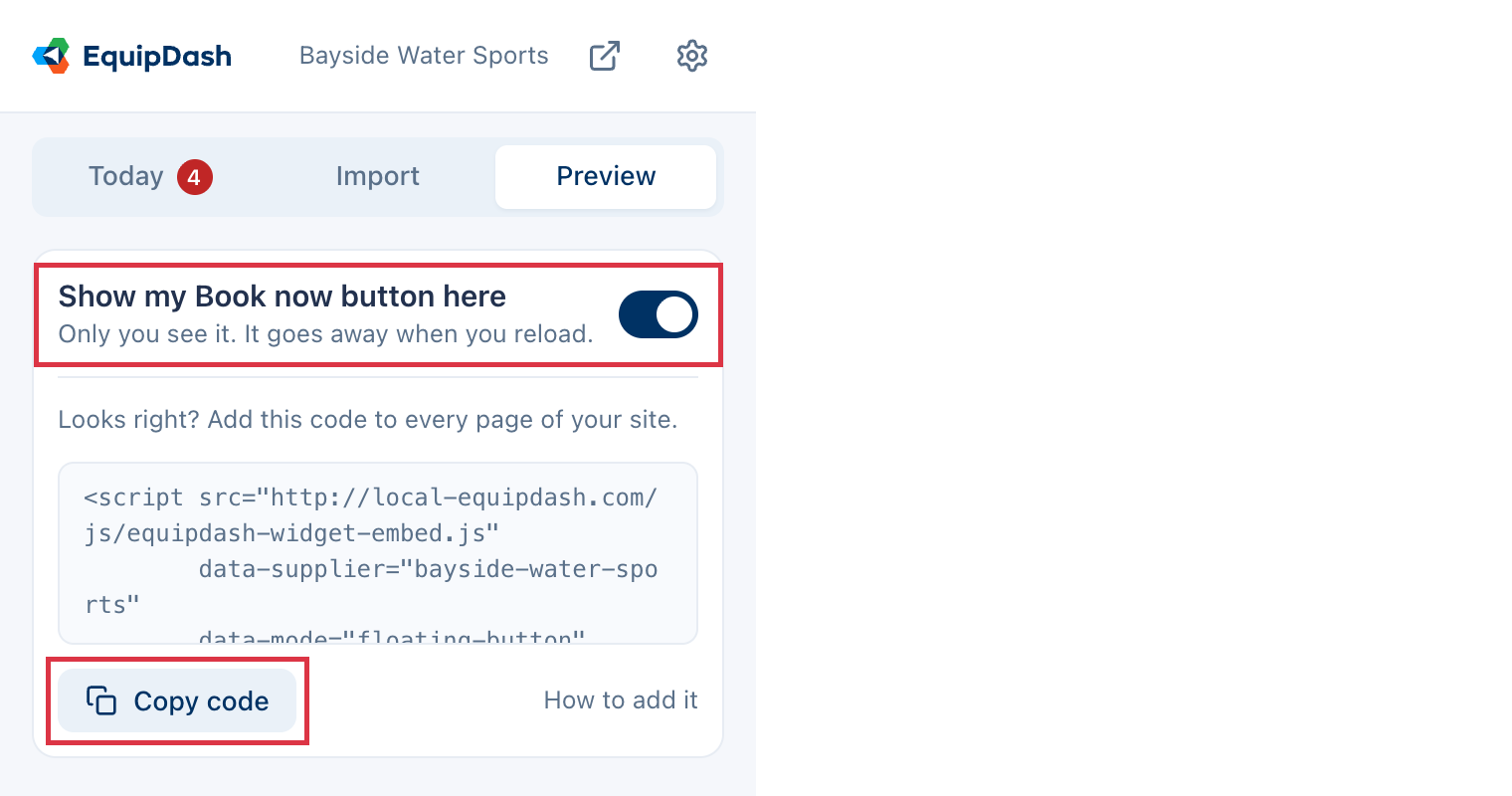
Your Book now button appears on the page, the way customers will see it. Click it to open your booking page. Only you see the preview, and it goes away when you reload the page.
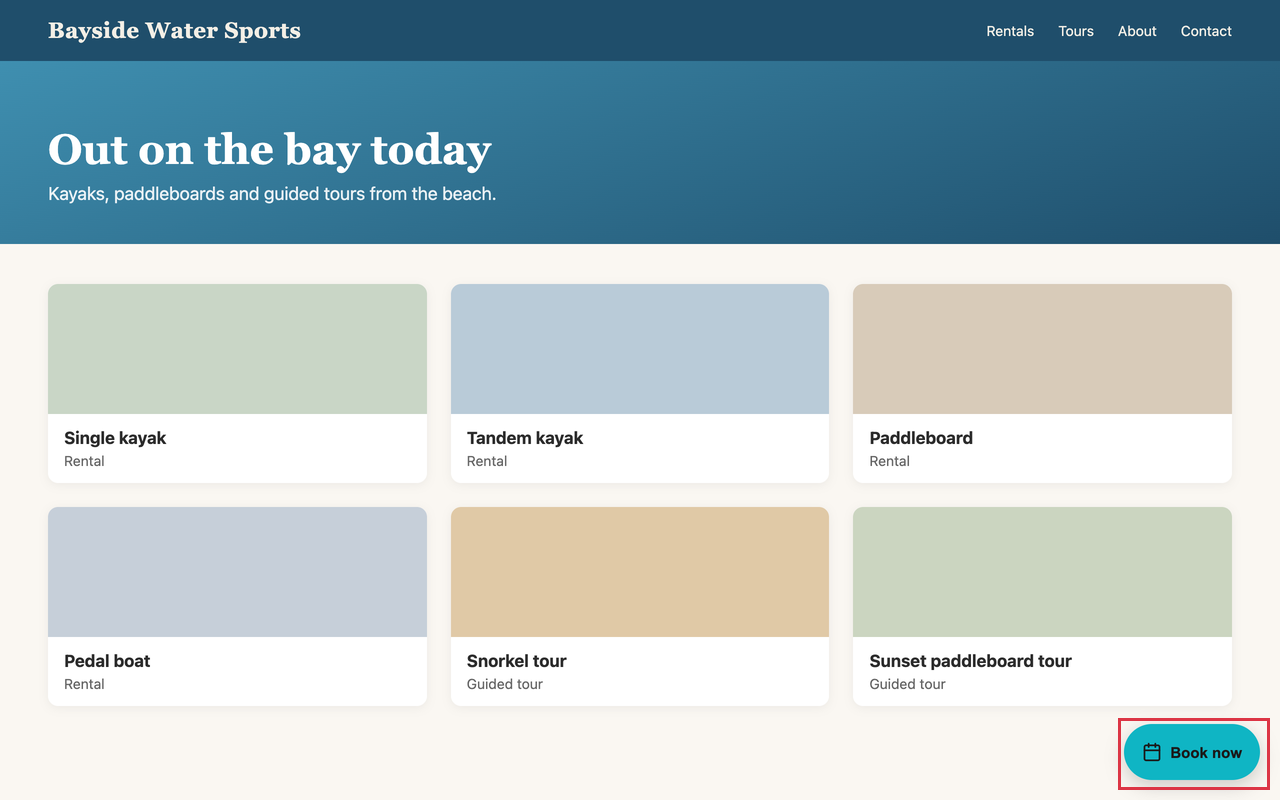
Looks right? Click Copy code and add the code to every page of your site. Add bookings to any other website shows where to paste it. To change the button's text or color, see Floating Book now button.
See or disconnect a browser
Every browser connected to your business shows on the Browser extension card in Settings > API & Integrations > Integrations, under Your website, with who signed in, which browser and when it was last used.
- Click Disconnect on the browser you want to remove.
- Click Disconnect again to confirm.
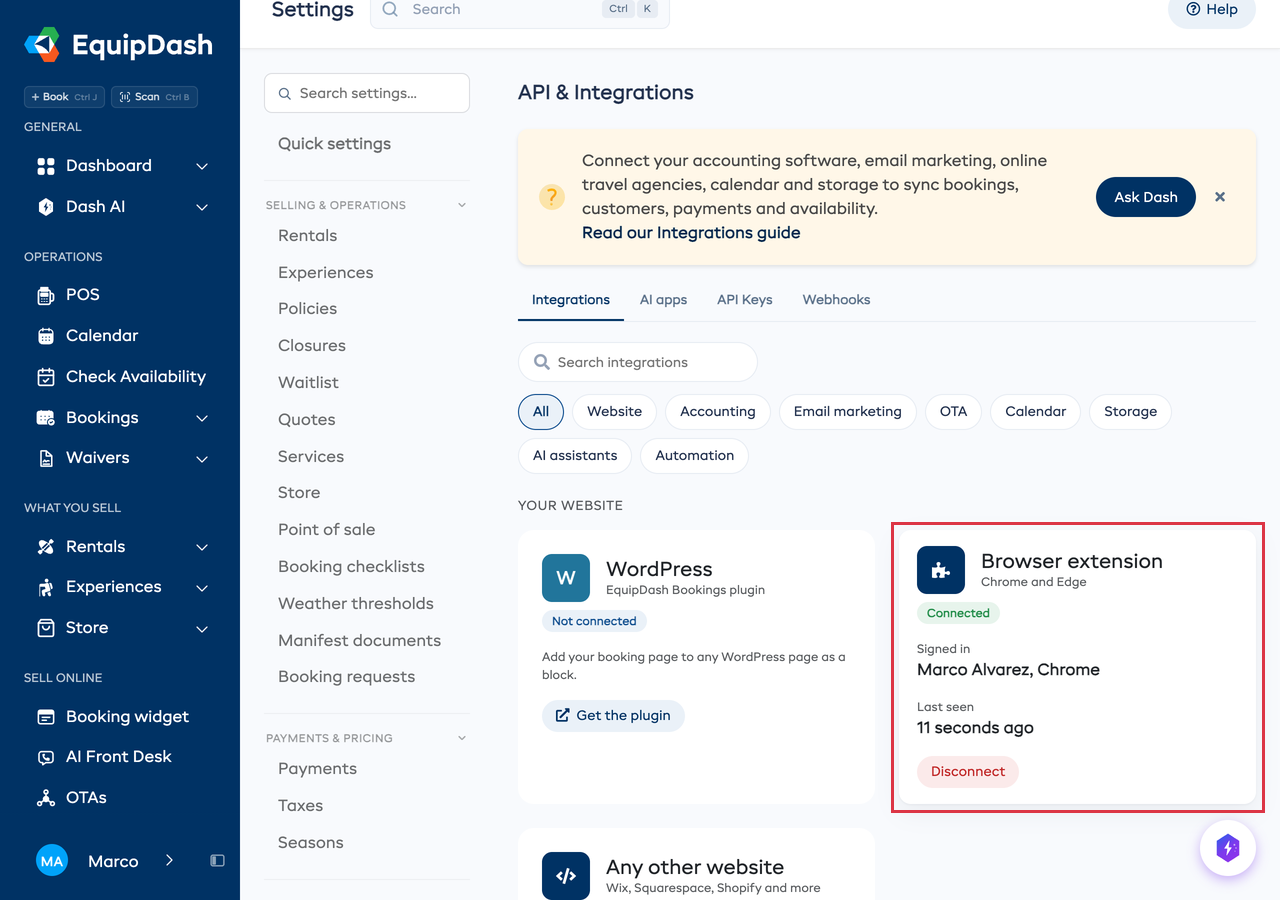
The extension in that browser asks to connect again. You need permission to manage integrations to disconnect a browser. Anyone can disconnect their own browser from the extension: click the gear icon, then Disconnect.
What the extension reads
- Your bookings: today's pickups, returns, late items and new online bookings, read from your EquipDash account. Customer names stay on your computer only until the next check, about once a minute.
- The page you are on: only its address, and only when you open the extension. It is sent to EquipDash only when you click Import items. The extension does not read what is on the page.
- Your sign-in: Connect gives the extension its own key, never your password. Disconnecting deletes it.
The extension talks only to EquipDash. It does not sell or share your data.