Post news on your website ProThis feature requires the Pro plan
Closed for the weather, winter hours, a new season, an offer - post it once and it shows on your site straight away.
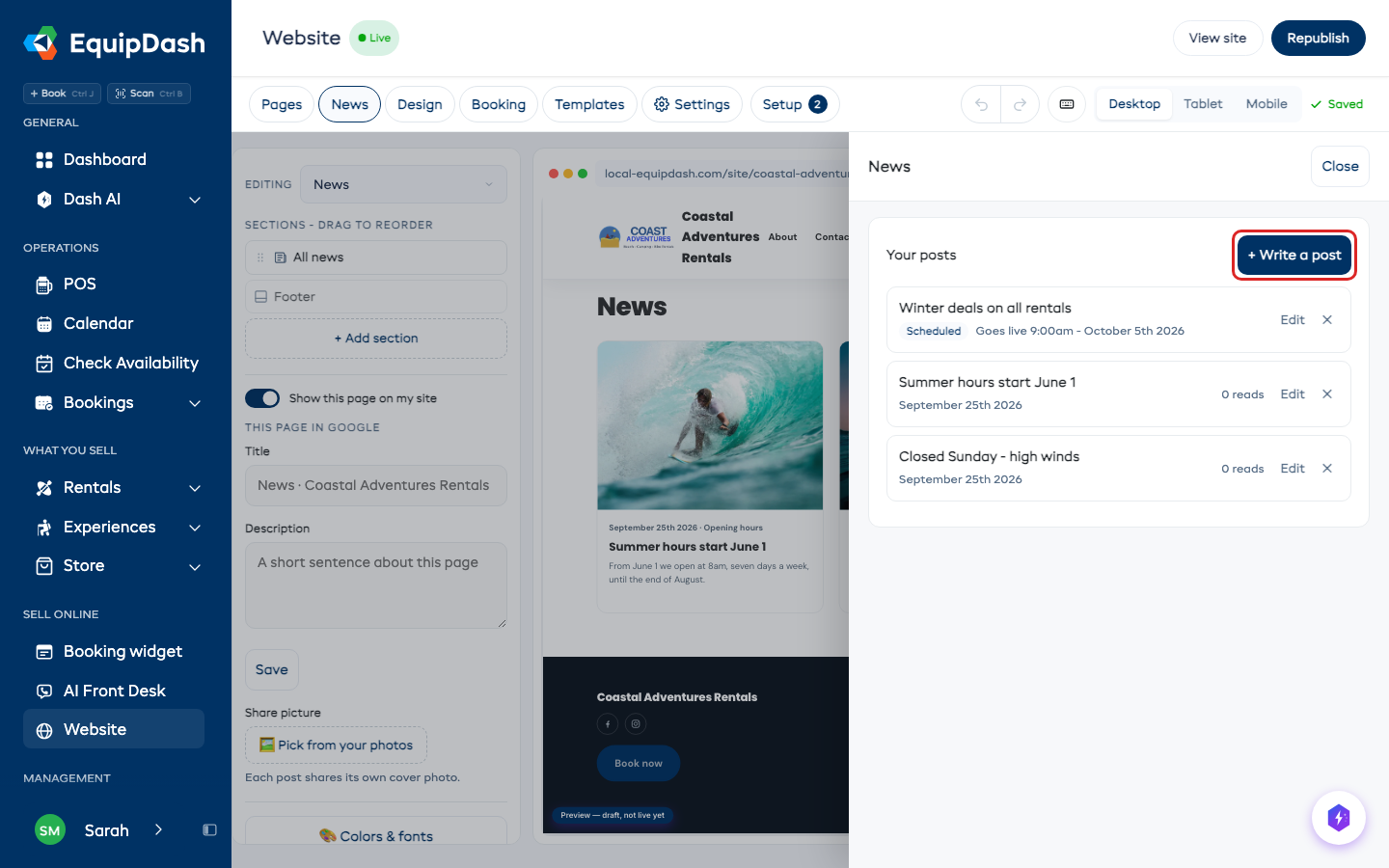
Write a post
- Open Website and click News in the toolbar.
- Click + Write a post.
- Give it a title, a cover photo if you have one, and the words. Use the buttons above the text for bold, italic, links, lists, headings, photos, tables and dividers.
- Add a Topic if you like, such as "Offers" or "Opening hours". Customers can then show just that topic.
- Click Post it.
The first time you post, a News page is added to your site and your menu. Every post after that goes on it, newest first, and each post gets its own page.
Use Search title and Search description to set what search results show. The cover photo is also the picture used when the post is shared.
To arrange all post pages, choose News post layout from Page to edit; publish the website layout when it is ready.
Post it later
Under When it goes live, choose Later, pick the day and time, and click Schedule. The post stays off your site until then and goes up on its own.
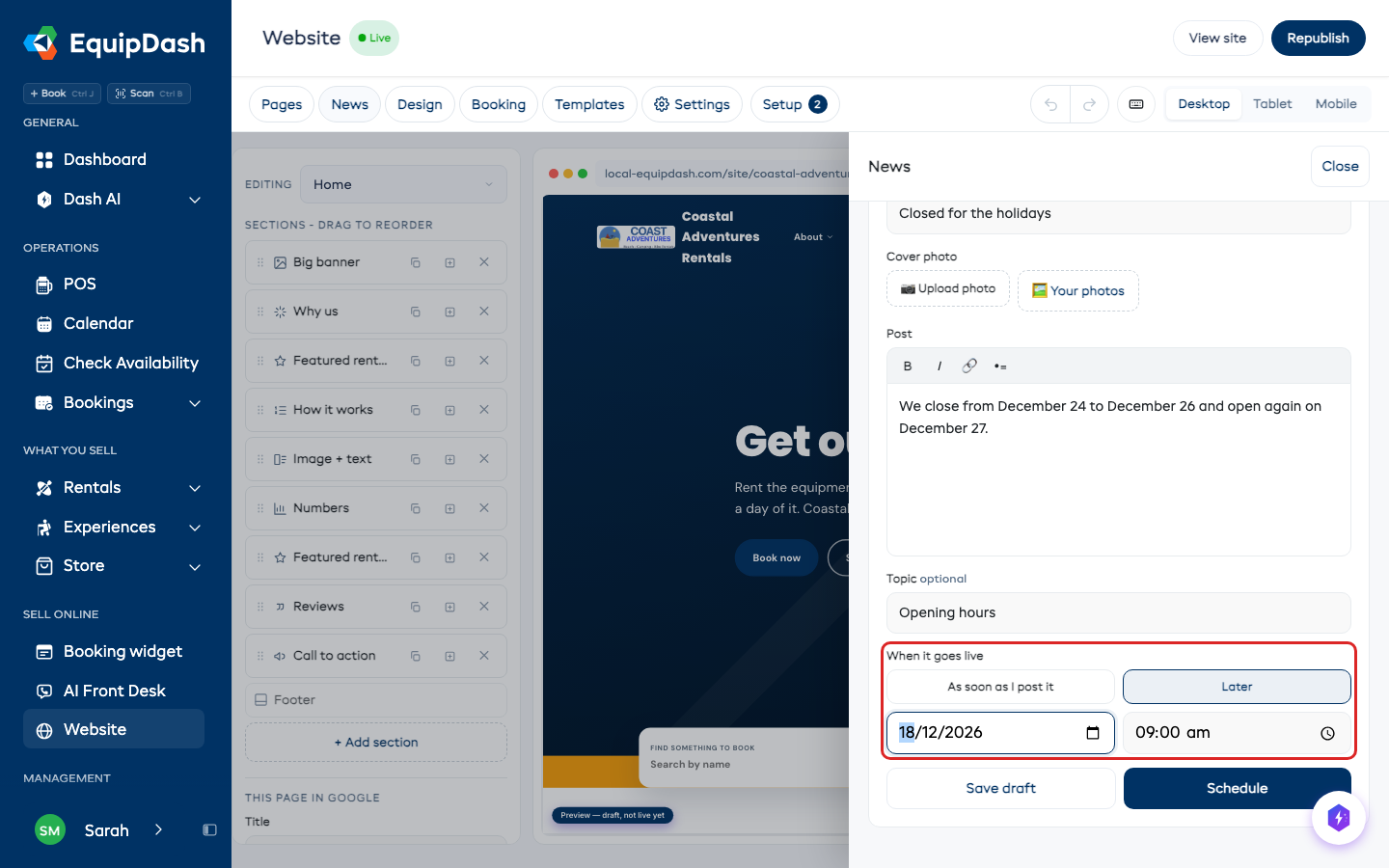
Save draft keeps a post without putting it on your site.
What customers see
Your News page lists every post with its date and topic. Click a post to read it.
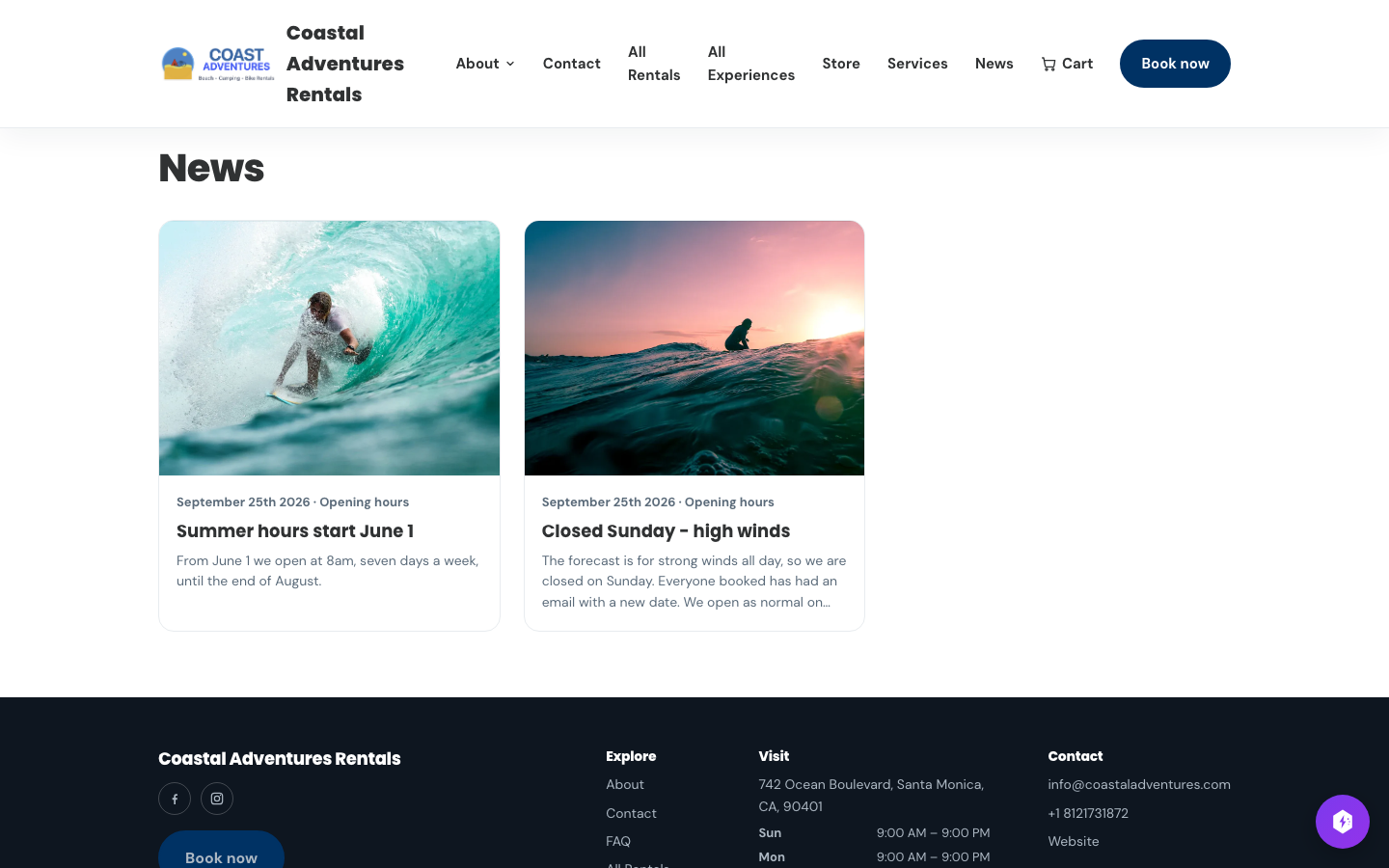
To show your newest posts somewhere else, such as your home page, click + Add section and pick Latest news. It shows your three newest posts with a link to the rest, and hides itself when there are none.
Change or remove a post
- Click Edit on a post to change it, then Save changes. You can change its address; existing links redirect to the new address.
- A post that is already up keeps its date. To give it a new one, choose Change the date.
- To take a post off your site but keep it, open it and click Take off site.
- To delete it for good, click ✕ on the post, then Delete.
The number beside each post is how many people have read it - one per person per day.
Ask Dash
You can also tell Dash, for example "post on our website that we're closed Sunday because of high winds". Dash writes it and shows you the post to approve before it goes up.
Short guides
These silent guides show the controls in the website builder.
Write and format a news post