Edit your booking page visually
The booking page editor shows your real booking page and lets you change it by clicking on it. Click the header, a list of items or the checkout form, and its settings open beside the page. Every change saves straight away.
To change one item (its words, price or photos), use the item's own visual editor instead.
Opening it
- Go to Settings > Booking widget.
- Click Visual editor at the top right. The button is there on a phone too.
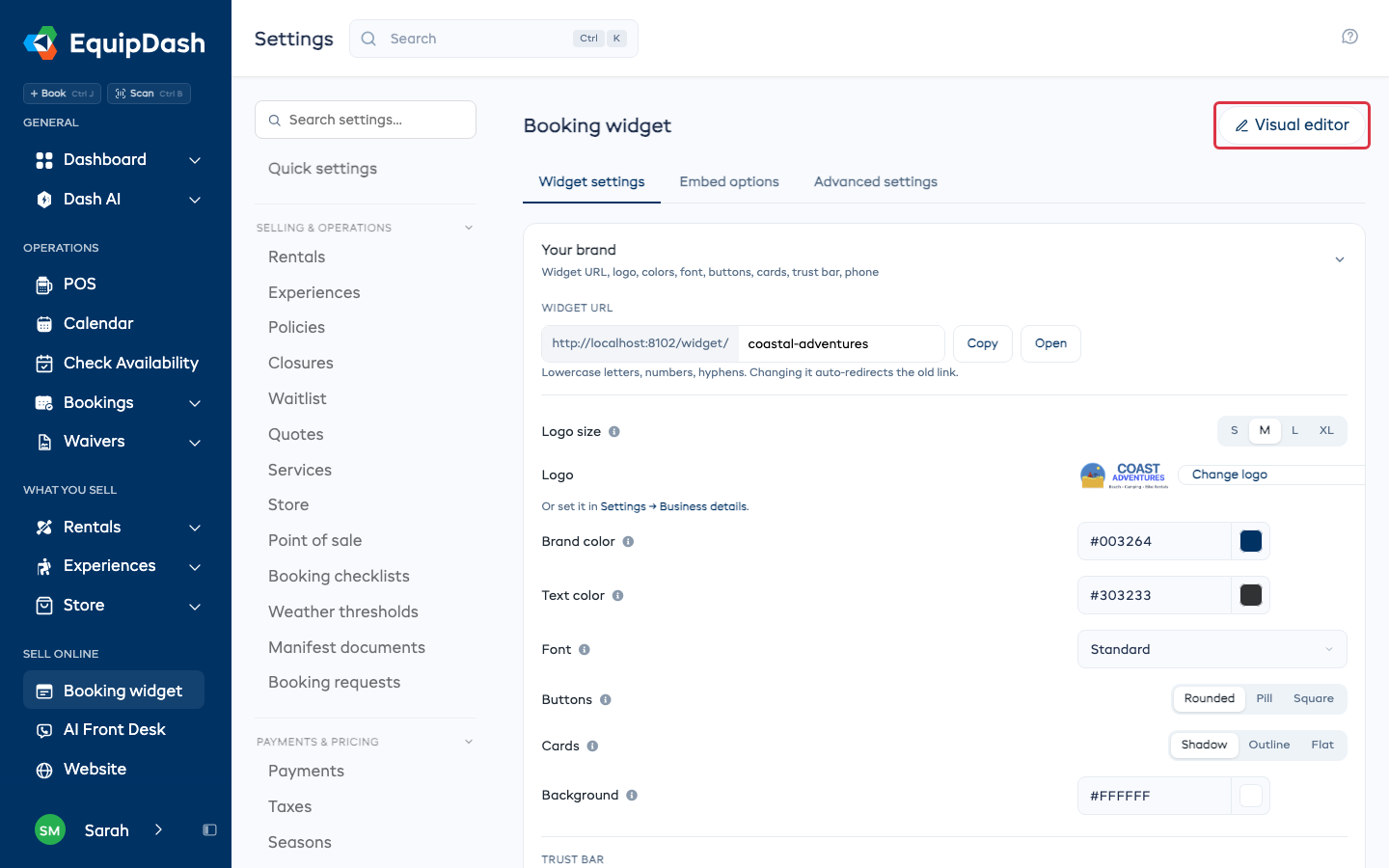
Click Done at the top right when you're finished. It takes you back to Settings > Booking widget.
Picking a page
Use the page menu at the top left to choose the page you want to edit:
- Home
- Each thing you sell, like rentals, experiences, your store, bundles, services and gift cards
- Cart and Checkout
- Each of your collections, then + New collection to start one
If your booking page is in more than one language, a language menu sits next to the page menu. Pick a language to see and edit the page in it.
If you sell only one kind of thing, your booking page has no home page and customers go straight to your list of items. The sections you would put on a home page (cover photo, welcome text, notice, collection and featured item) show at the top of that list instead. In All settings this is called Top of your booking page.
Changing a part of the page
- Click a part of the page, for example the header.
- Click the button that shows under it, for example Change logo, colors and font.
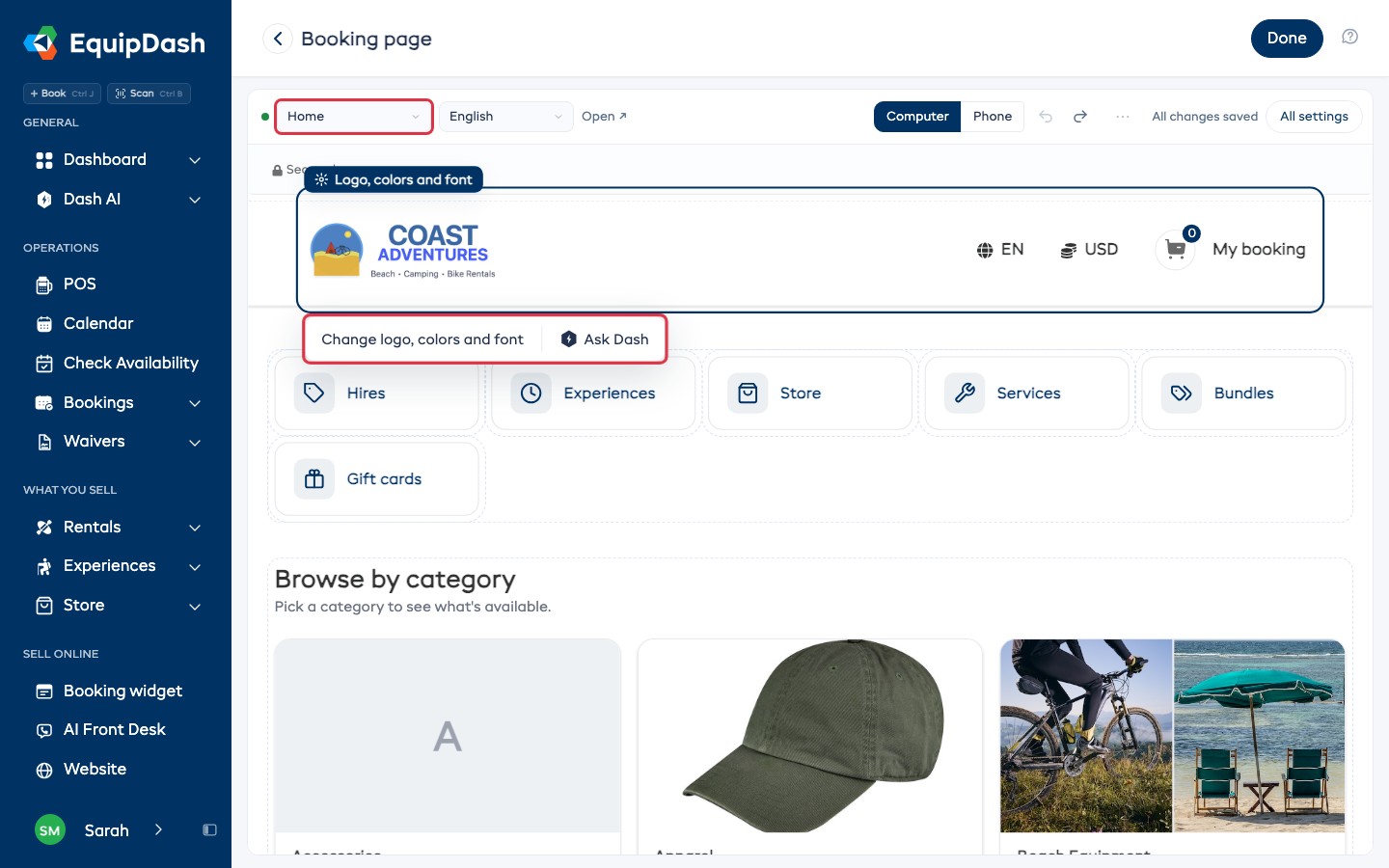
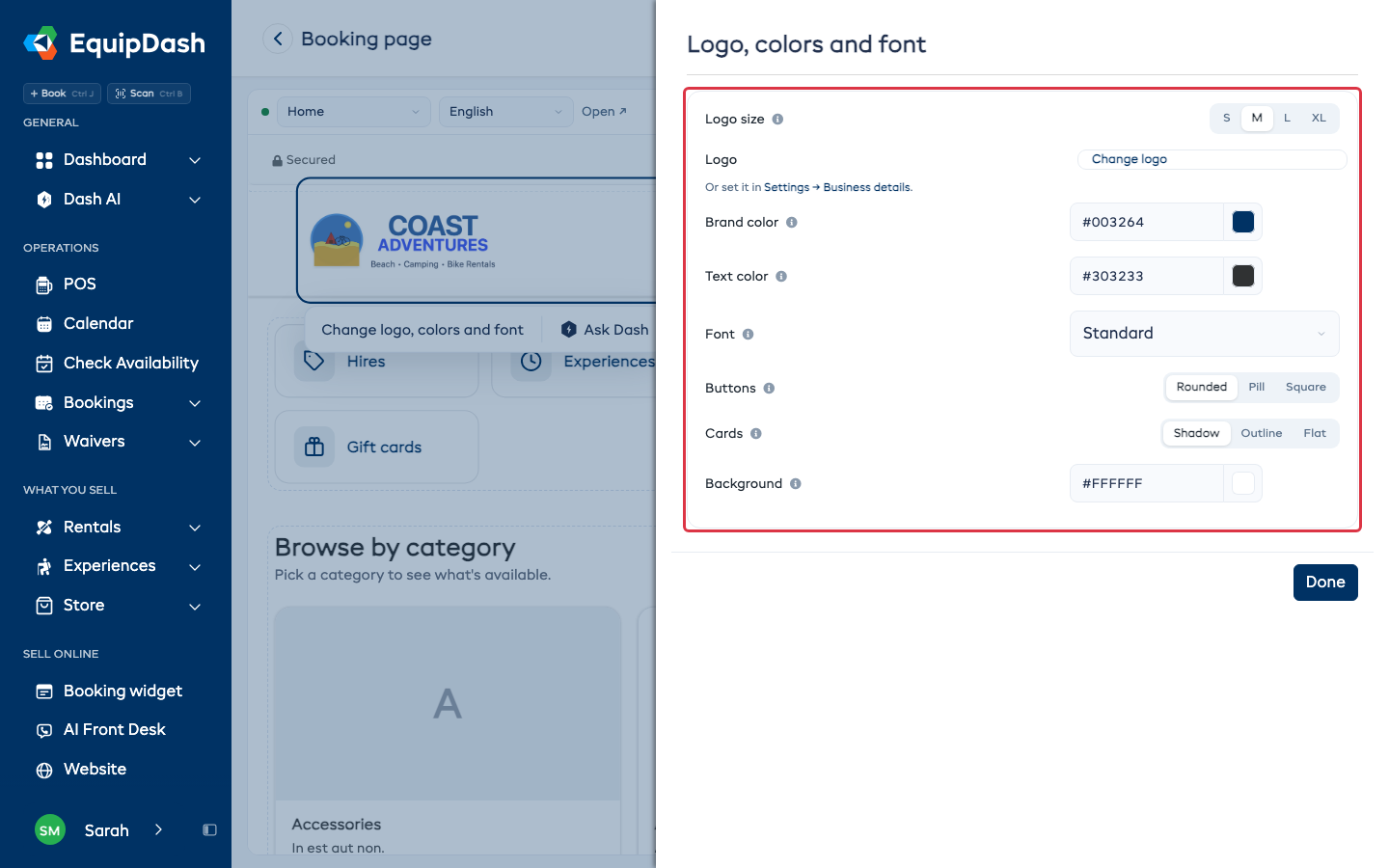
The settings for that part open on the right. They are the same settings you see on Settings > Booking widget, filled in with what you have saved. Each change saves as you make it and shows on the page. Click Done to close the panel.
Undo and redo
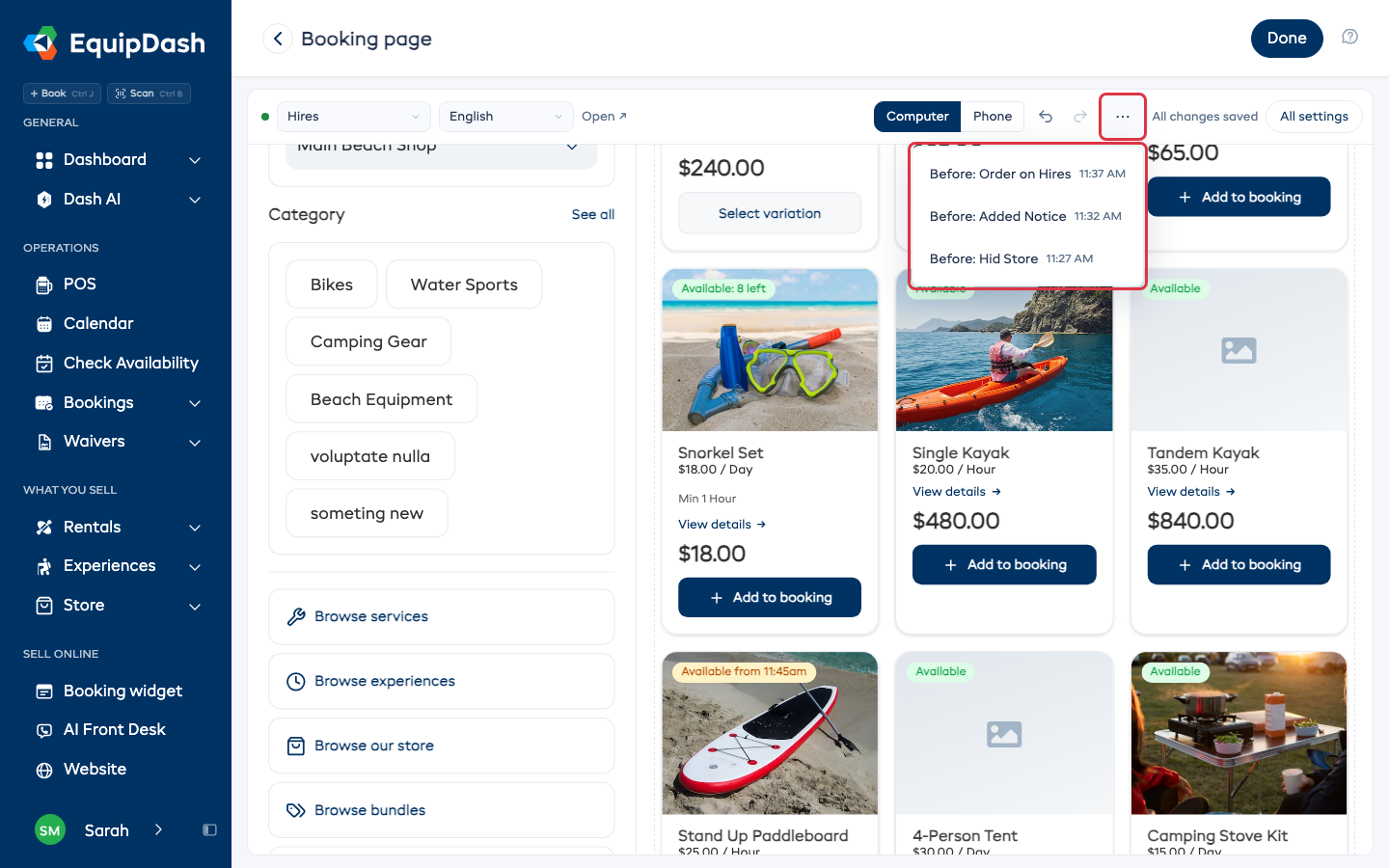
Use the arrows at the top to undo or redo a change.
The ... menu next to the arrows lists the changes you made today by name, for example Hid Store or Order on Hires. Pick one to put the page back to how it was before that change. If that goes back more than one change, the editor tells you how many it put back.
Your home page
Click a section of your home page, like Ways to book or Categories, and a bar shows under it. Use the bar to:
- Move the section with Move up or Move down
- Hide it, or Show it again
- Remove a section you added
If you click words or a tile inside a section, the bar offers Whole ..., for example Whole ways to book. Click it to pick the whole section, so you can move, hide or remove it.
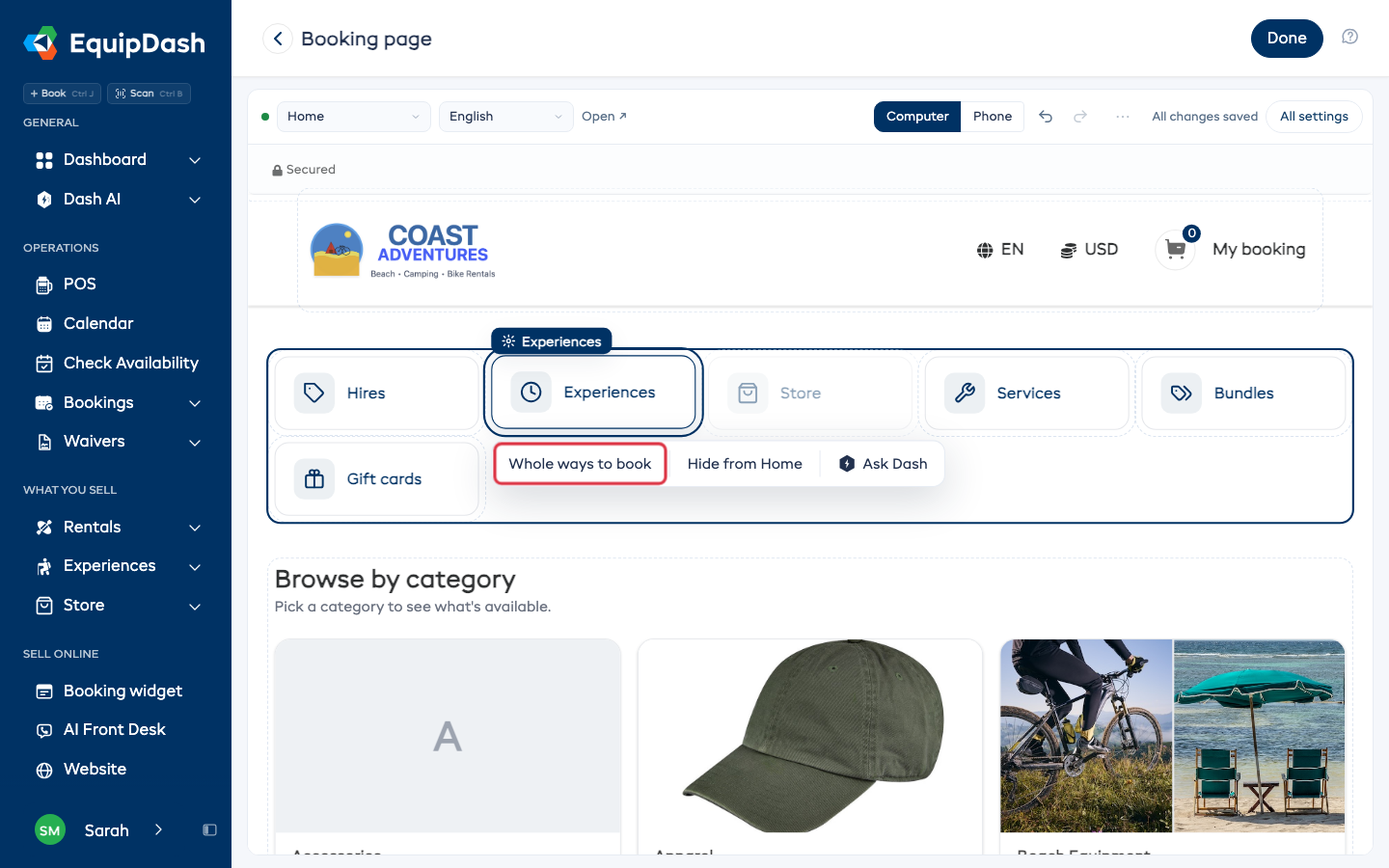
Hiding one Ways to book tile
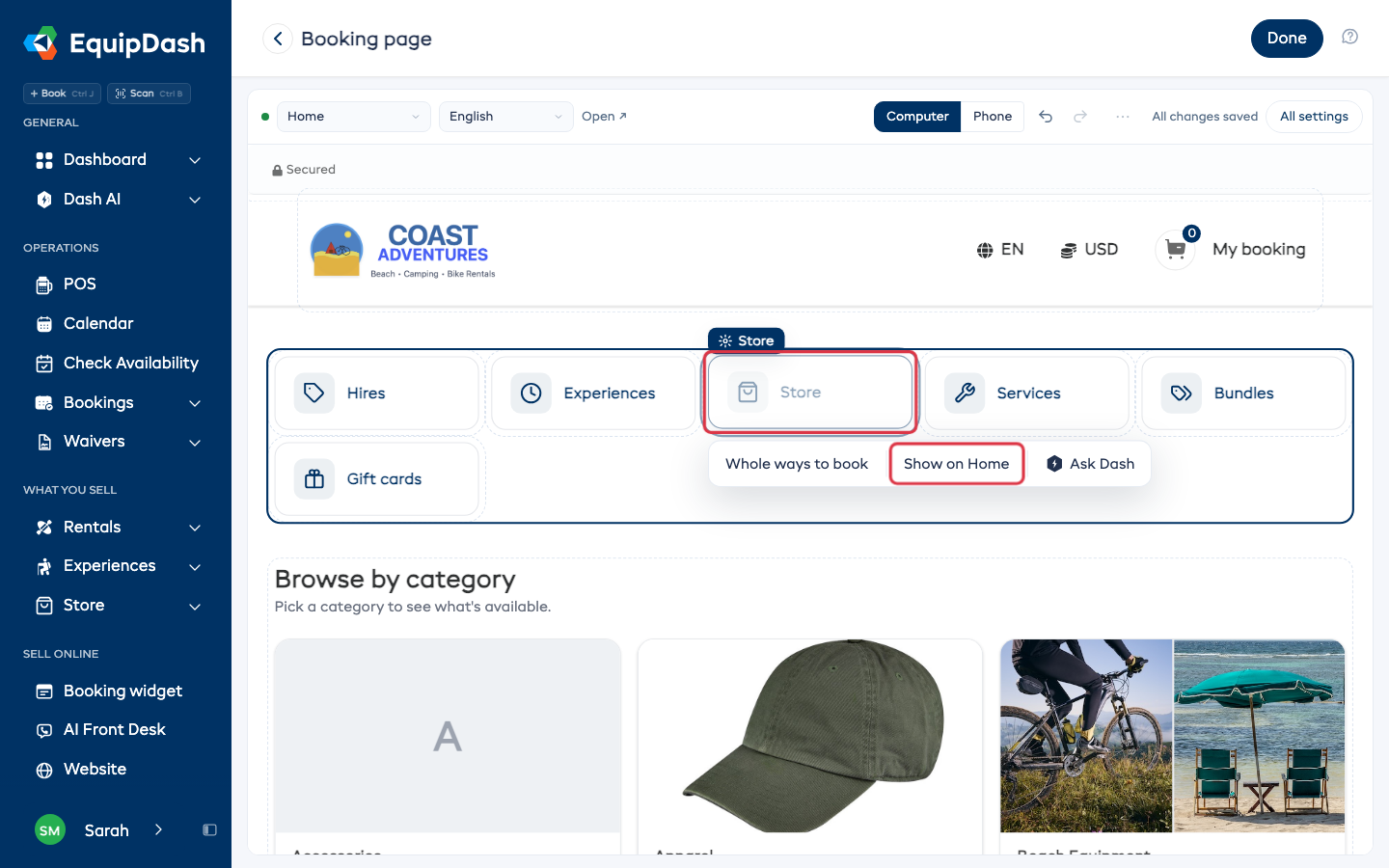
To take one tile off your home page, for example Store:
- Click the tile.
- Click Hide from Home.
The page itself still opens from its own link, so you can share it or put it on your website. In the editor the hidden tile shows greyed out. Click it and click Show on Home to bring it back.
Adding a section
- Point at the space above or between your sections and click + Add section. On a phone or tablet the + Add section lines always show.
- Pick Cover photo, Welcome text, Notice, Collection or Featured item.
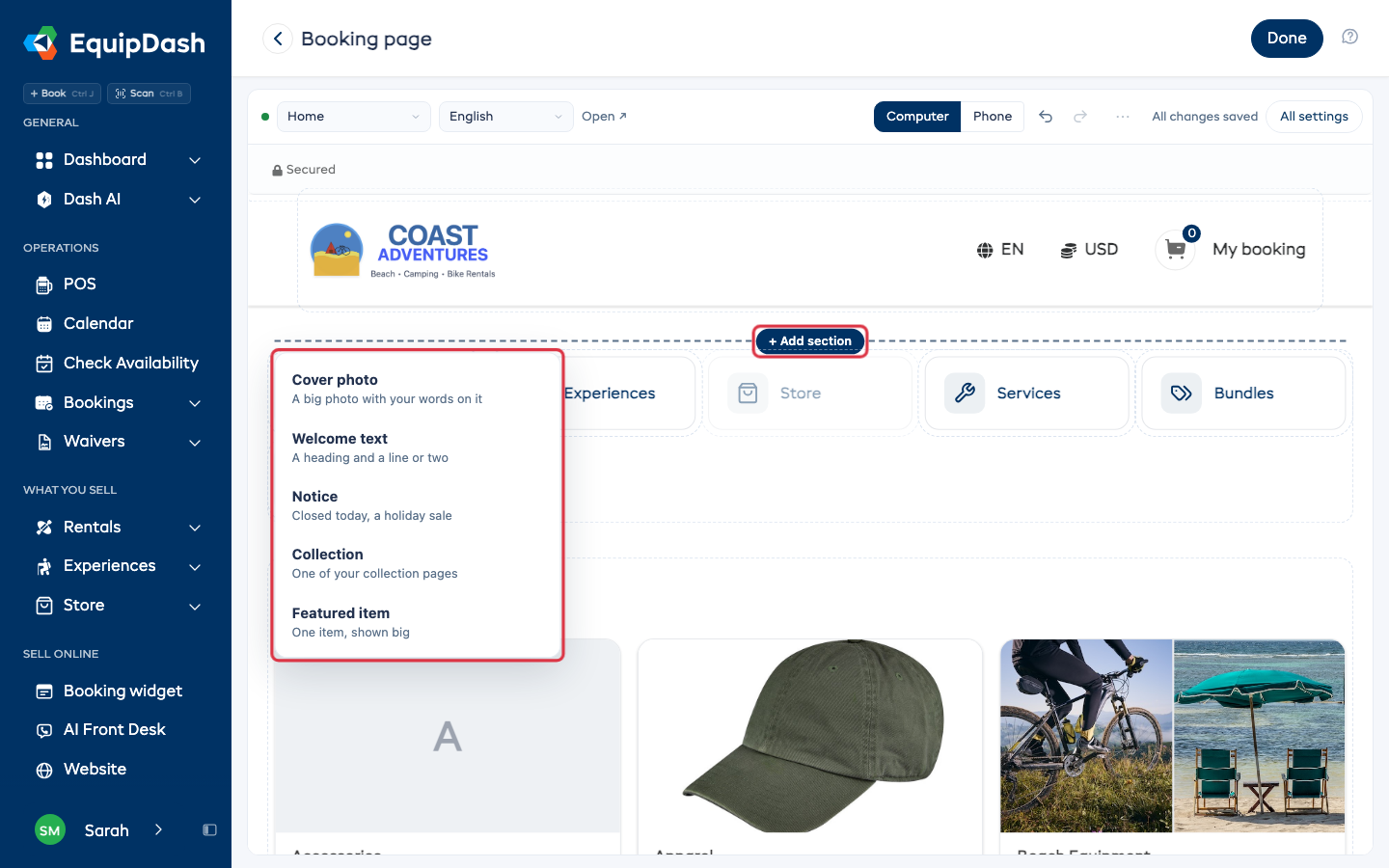
Type the words of a section you added straight on the page.
A Featured item shows the item's price. Only items customers can book are offered to pick from.
Showing a notice for a while
A notice, like a holiday closure, can show only between two dates. Click the notice, click Change notice, then fill in Show from and Until. Leave Until empty to keep it showing.
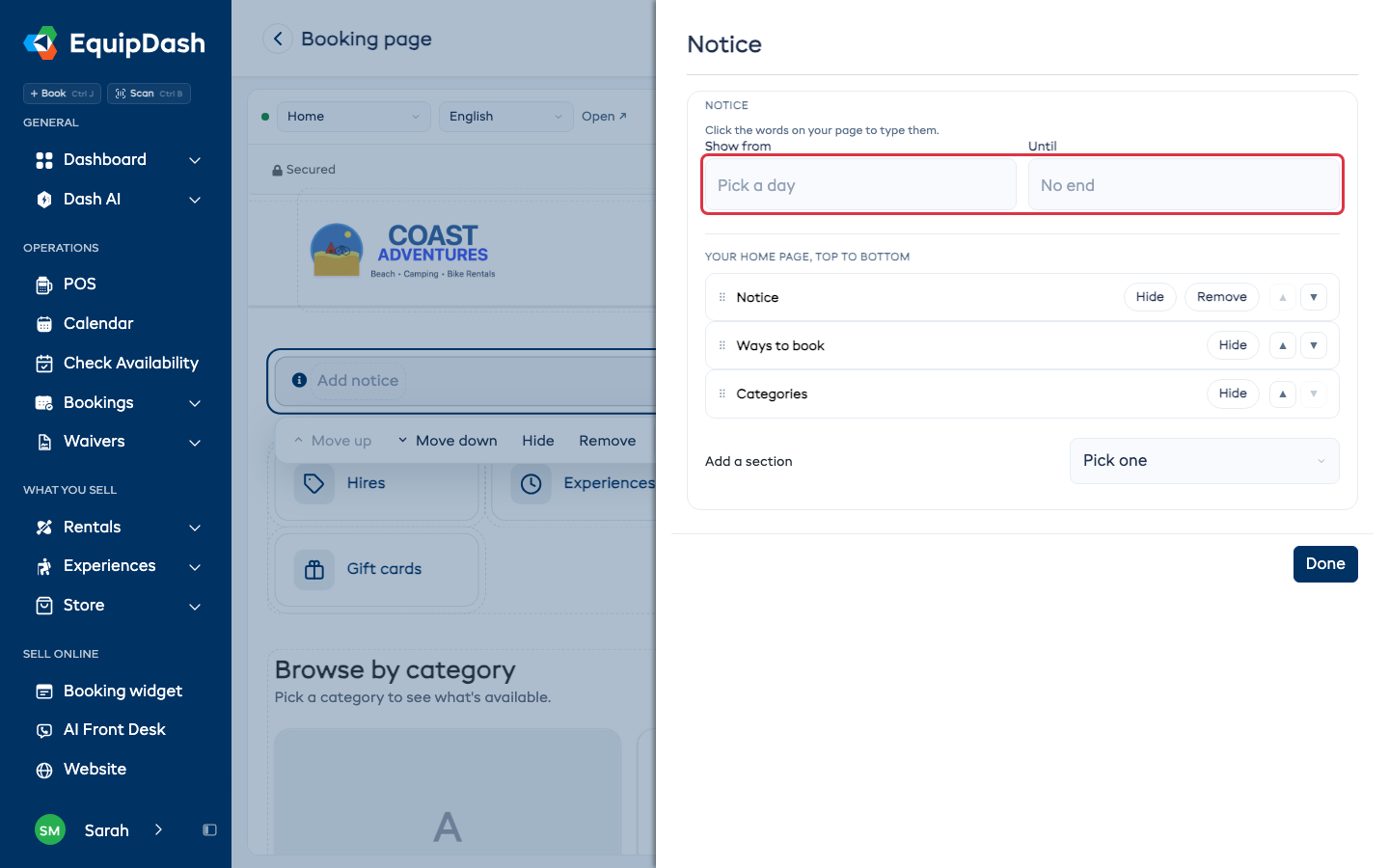
Other sections you add keep these dates under Advanced.
Drag the category cards on your home page to put them in the order you want.
Lists of items
How a page lists its items
On a page that lists items, like rentals, experiences or your store, click the list, then click Change how items are listed. Under How this page lists items, pick a layout. It changes only the page you're on.
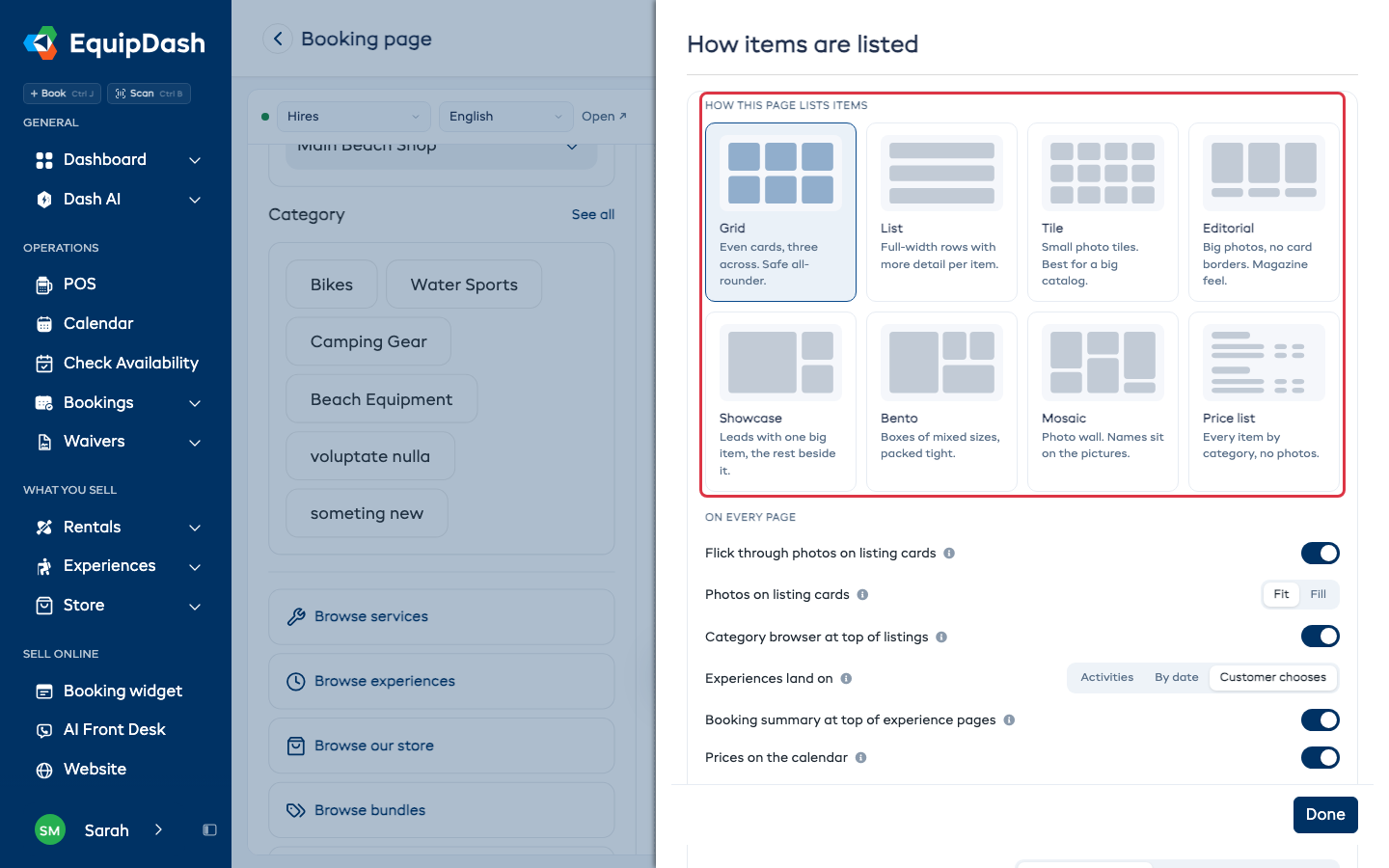
Changing the layout on Settings > Booking widget changes every page at once.
Putting items in order
Customers see your items category by category, so you drag an item within its own category. It is the same order you set with Arrange order.
Click an item's card to see its bar:
- Move to top or Move to bottom puts it first or last in its category in one click
- Edit this item opens the item's own visual editor
- Change how items are listed opens the layout settings for the page
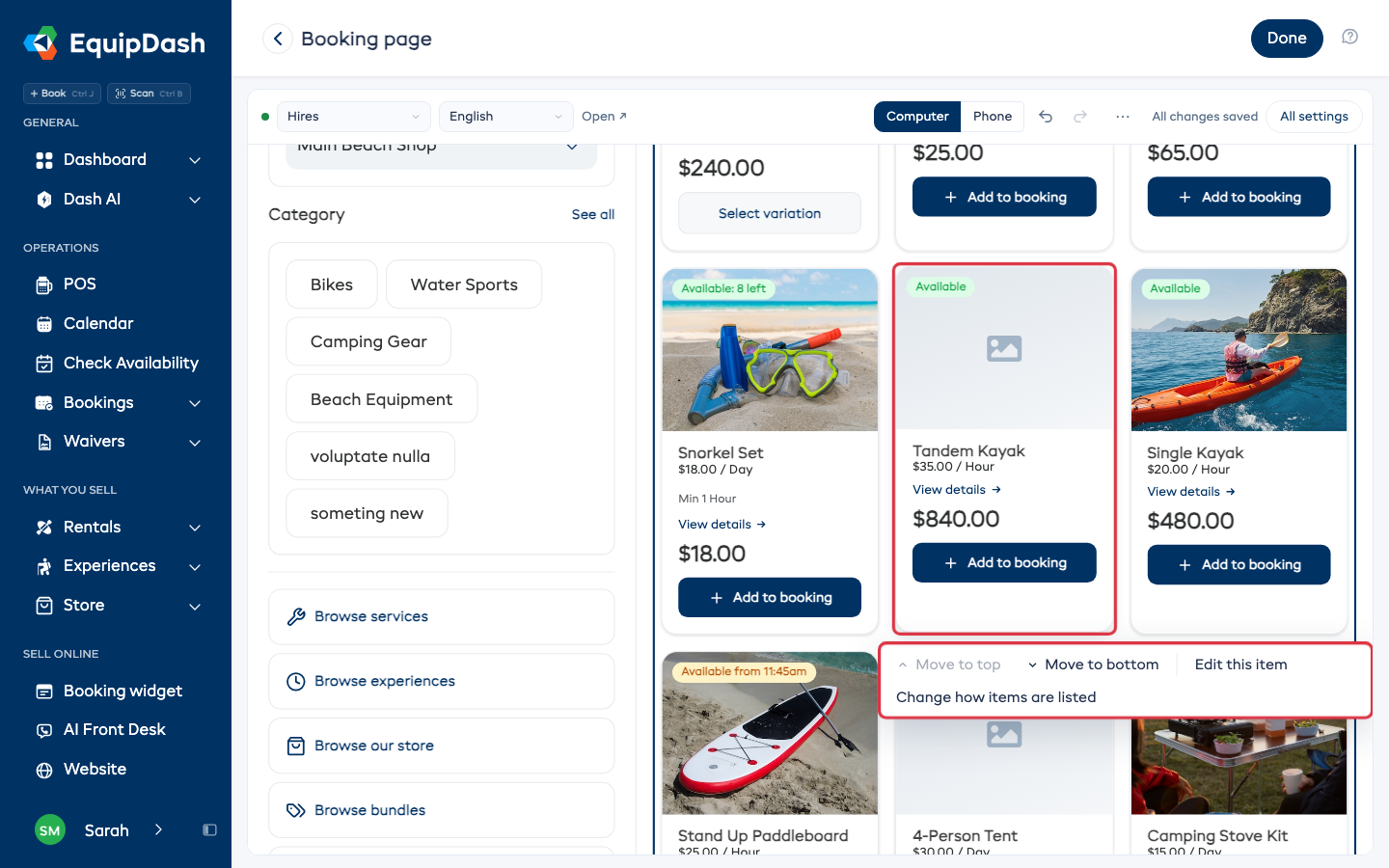
In the editor every item shows on one page (up to 100), so you can reach the end of a long list.
Drag the category buttons above the list to change their order too. On a phone, press and hold a card before you drag it.
Renaming buttons and labels
You can change the fixed words your booking page prints on its buttons and labels, for example Add to booking.
From the page
- Click the part of the page the words are in, for example the list of items.
- Click the words.
- Type your own words under Rename for your shop and click Save.
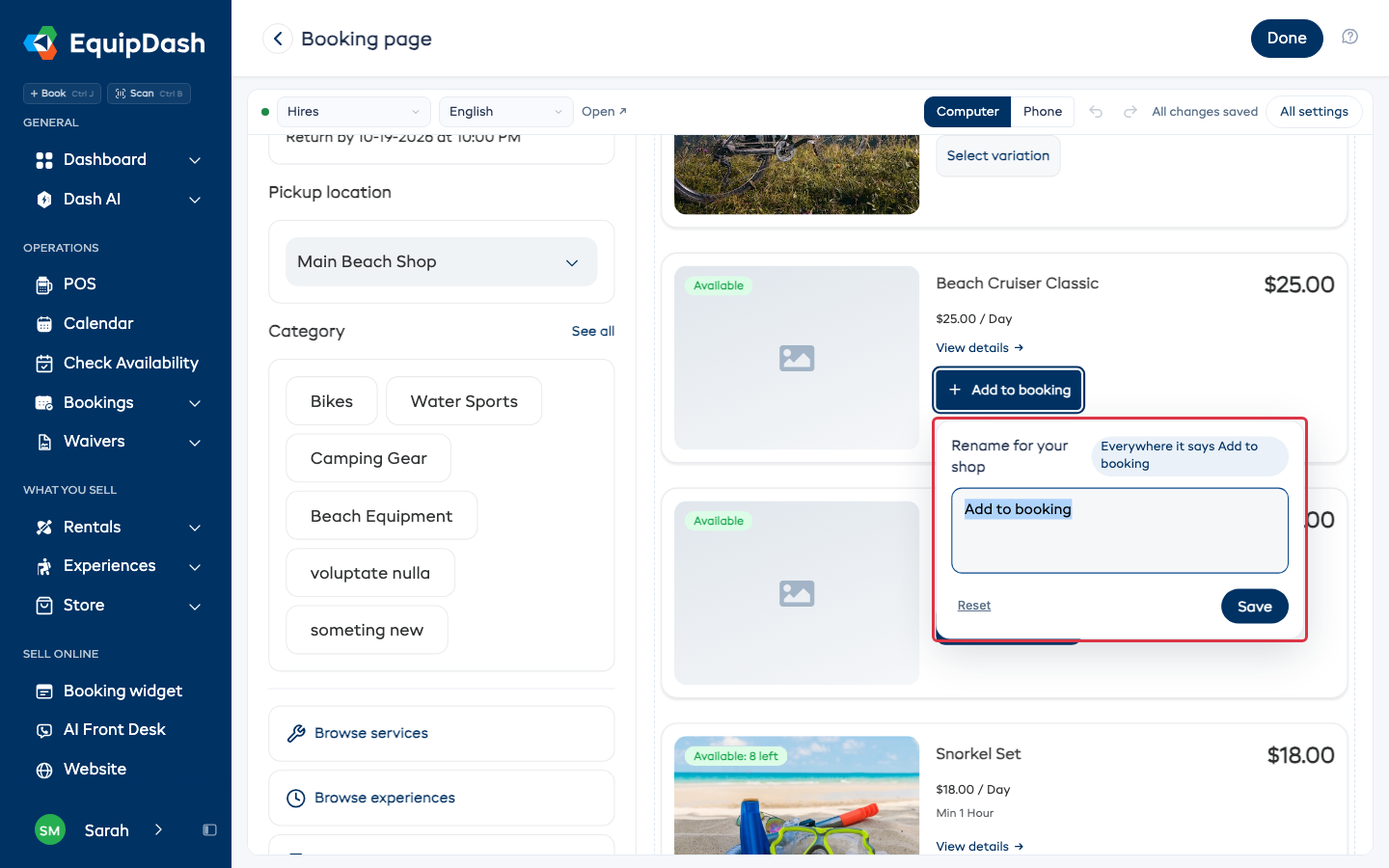
Only words the page can rename offer this box. Words you set yourself, like an item's name, are changed where you set them, for example on the item.
From a list of every word
Some words only show later, like a message after a booking. To rename those:
- Click All settings, then Words on your booking page.
- Search for the word, for example "booking".
- Type your own words in the box under it.
To go back to the original words, clear the box.
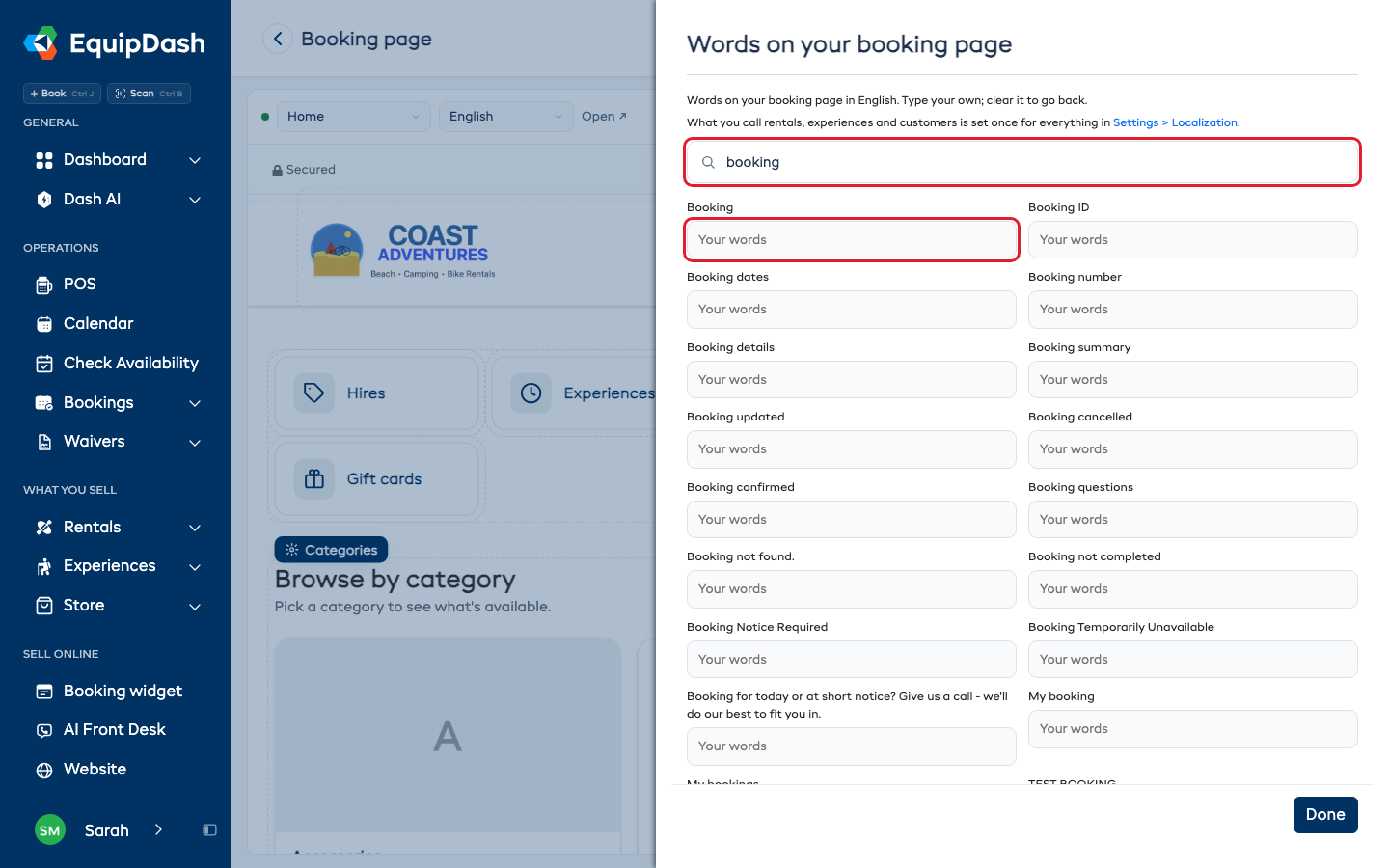
The list edits the words in the language shown at the top of it. Your words show everywhere the booking page says those words, in that language.
What you call rentals, experiences and customers is set once for your whole shop in Settings > Localization.
Collections
Pick a collection in the page menu to edit it. Click a card to make it large, remove it, or drag it to a new spot. Click Change this collection, or the Add to this page tile, to open the collection's settings. See Collections for more.
Checkout
The editor puts a sample item in the cart, so the checkout form is there to click. Nothing goes into a real cart. Drag your own checkout questions into the order you want.
To add or change those questions, click All settings and, under Checkout, click Your own checkout questions ProThis feature requires the Pro plan. It opens Settings > Custom fields. See Custom fields on the widget checkout. If your plan doesn't include them, the row shows a lock and opens the upgrade window.
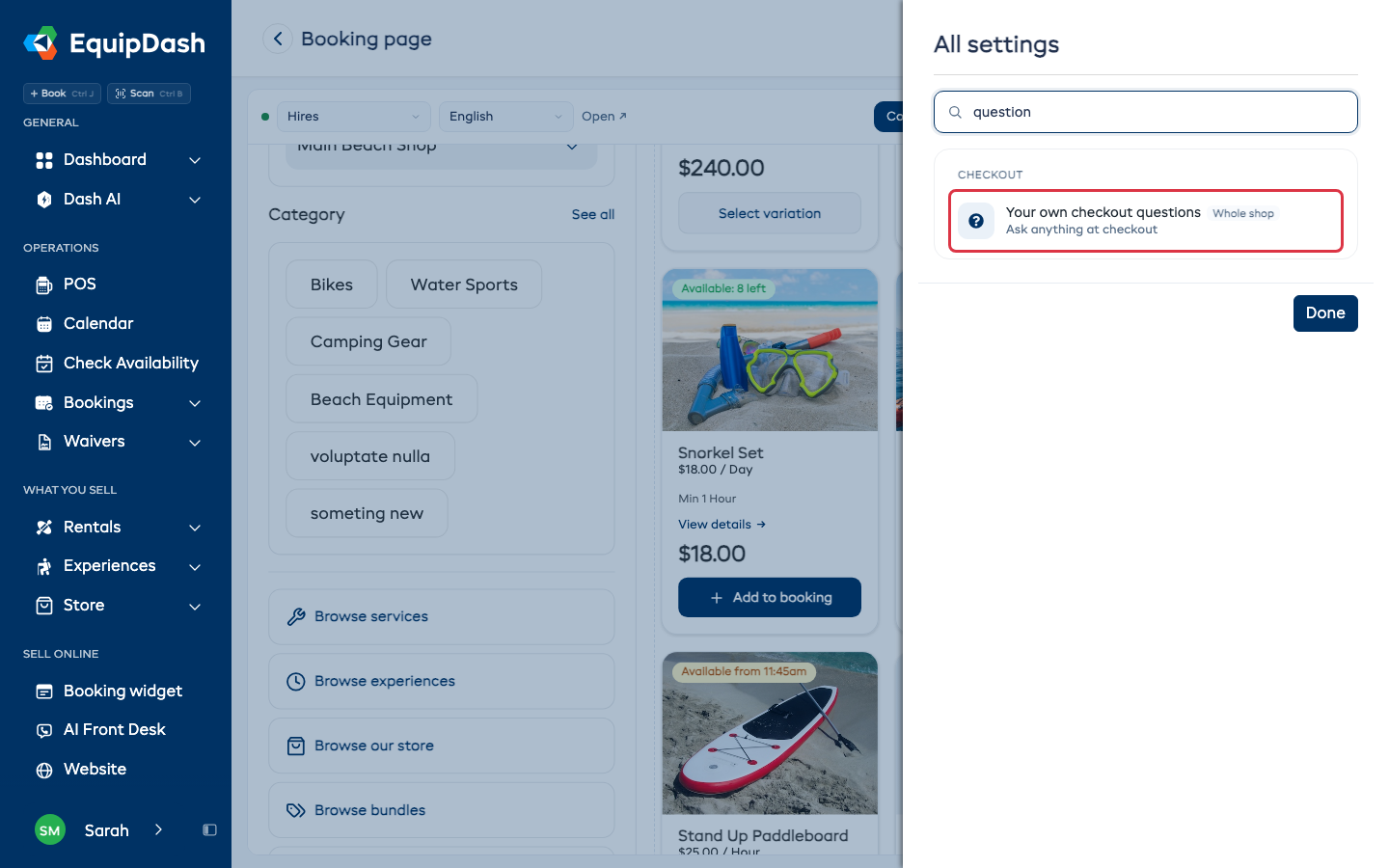
All settings
Click All settings at the top right to see every booking page setting in one list, with what each one is set to now. It includes settings that have no spot on the page, like Tracking, Holding spots and Social sharing. Search the list to find one, then click it to change it.
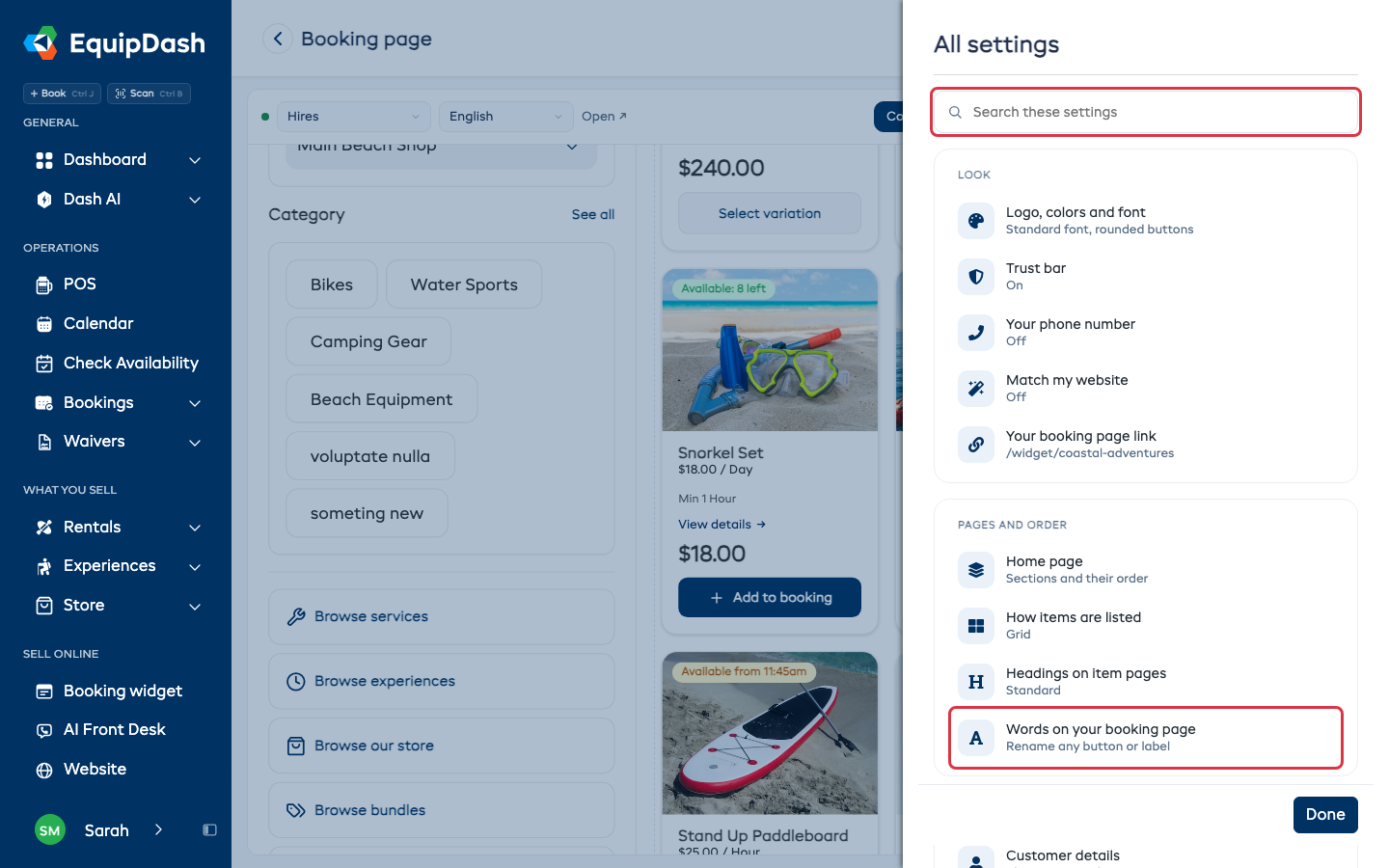
On a phone
The editor works on a phone too. Undo, Redo and the ... menu all show at the top, and All settings has a Done button to close it.
Asking Dash
- Click a part of the page.
- Click Ask Dash.
- Type what you want, for example "Use the green from my website and round the buttons", and press Enter.
Dash opens only when you click Ask Dash.