Embedding on Your Website
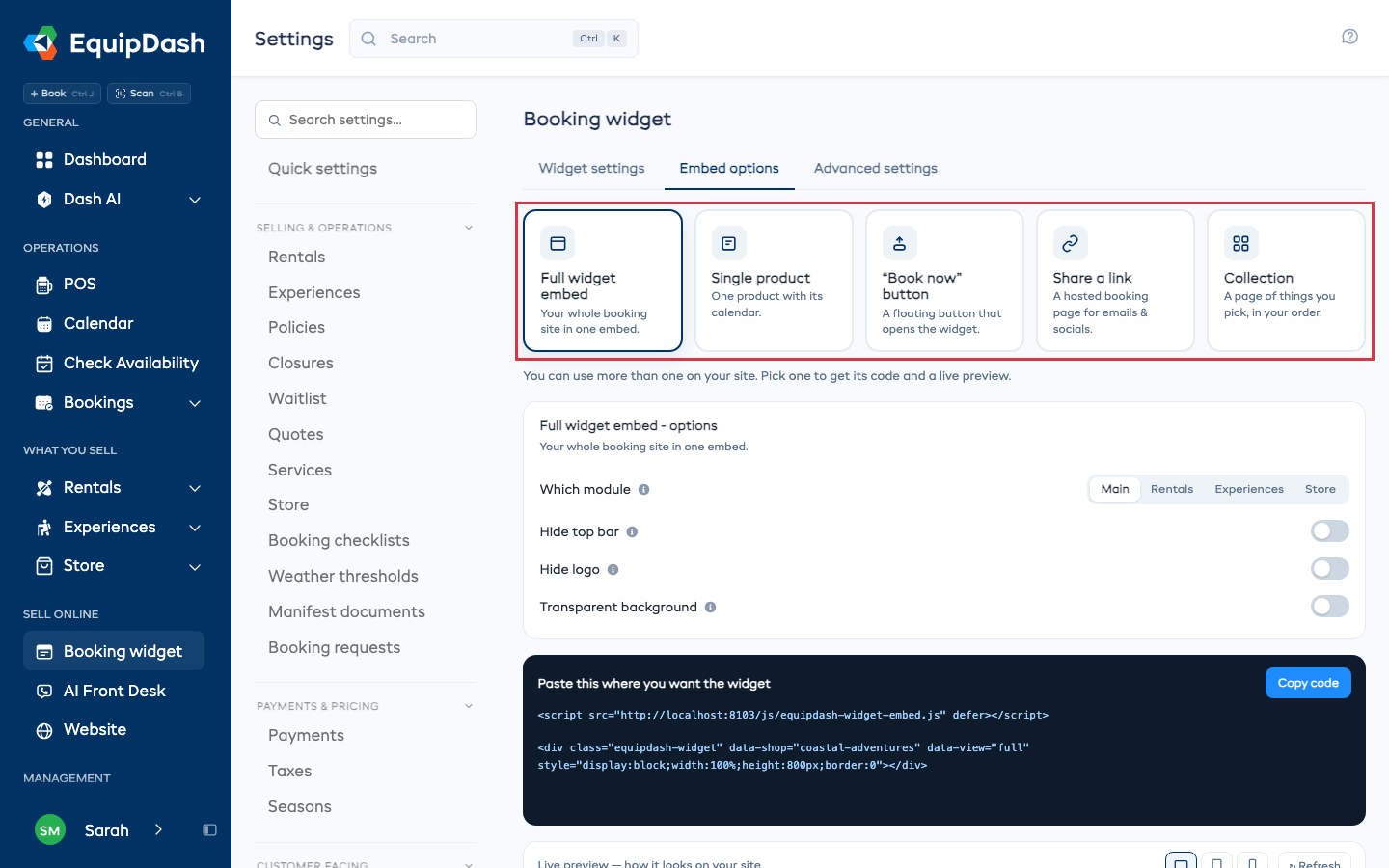
Once your widget looks the way you want, add it to your website so customers can book. Everything you need is on one screen: Settings > Booking widget > Embed options.
Pick how you want it to appear, copy the code (or link), and paste it on your site. You can use more than one — for example a full widget on your "Book" page and a floating button on every other page.
You can also grab the embed for one specific item or category straight from its own page. See Embed a single item from its own page and Embed a category from its page below. Same options, pre-set to that item.
You can also ask Set up with Dash for the complete code. Describe what to show and which enabled language to use, such as a full-page rentals widget in Portuguese. Dash includes the loading script and the language choice. When you add a language through chat, existing item and form text translates in the background; the original wording stays visible until each translation is ready.
The Five Ways to Embed
| Type | What it is | Best for |
|---|---|---|
| Full widget embed | Your whole booking site — browsing, cart and checkout — in one embed | Your main "Book now" page |
| Single product | One item — the full page (photo, price, details + calendar) or just its calendar — embedded inline on your page | A specific product or experience landing page |
| "Book now" button | A floating button on every page that opens the widget in a pop-up | Catching bookings from anywhere on your site |
| Share a link | A hosted booking page you can paste anywhere | Emails, social bios, "Book" menu links |
| Collection | A page of selected items in your chosen order | A curated selection that can mix rentals, experiences, and store items |
All five connect to the same widget and produce the same bookings. Pick whichever suits each page.
How to Get Your Code
During setup, you can tell Dash you already have a website and include its address. You can give other setup instructions in the same message; Dash keeps your website choice and shows those changes for review. Press Save, then ask for the code for the item or page you want to embed.
- Go to Settings > Booking widget.
- Open the Embed options tab.
- Click the type you want: Full widget embed, Single product, "Book now" button, Share a link, or Collection for a hand-picked page of items (see Collections).
- Set any options for that type (they save automatically).
- Click Copy code (or Copy link for a shared link).
- Below the code, the Live preview shows exactly how it will look on a customer's site — click it to open the booking pop-up.
The code you copy is two short lines — a loader script plus a small placeholder. For example, a full widget embed looks like:
<script src="https://app.equipdash.com/js/equipdash-widget-embed.js" defer></script>
<div class="equipdash-widget" data-shop="your-slug" data-view="full"></div>
You don't need to understand the code — just paste both lines where you want the widget.
Your widget uses your business's custom slug (e.g. coastal-adventures) — much more shareable than a numeric ID. If you change your slug later, every old link keeps working via automatic redirect. See Widget URL Slug.
Full Widget Embed
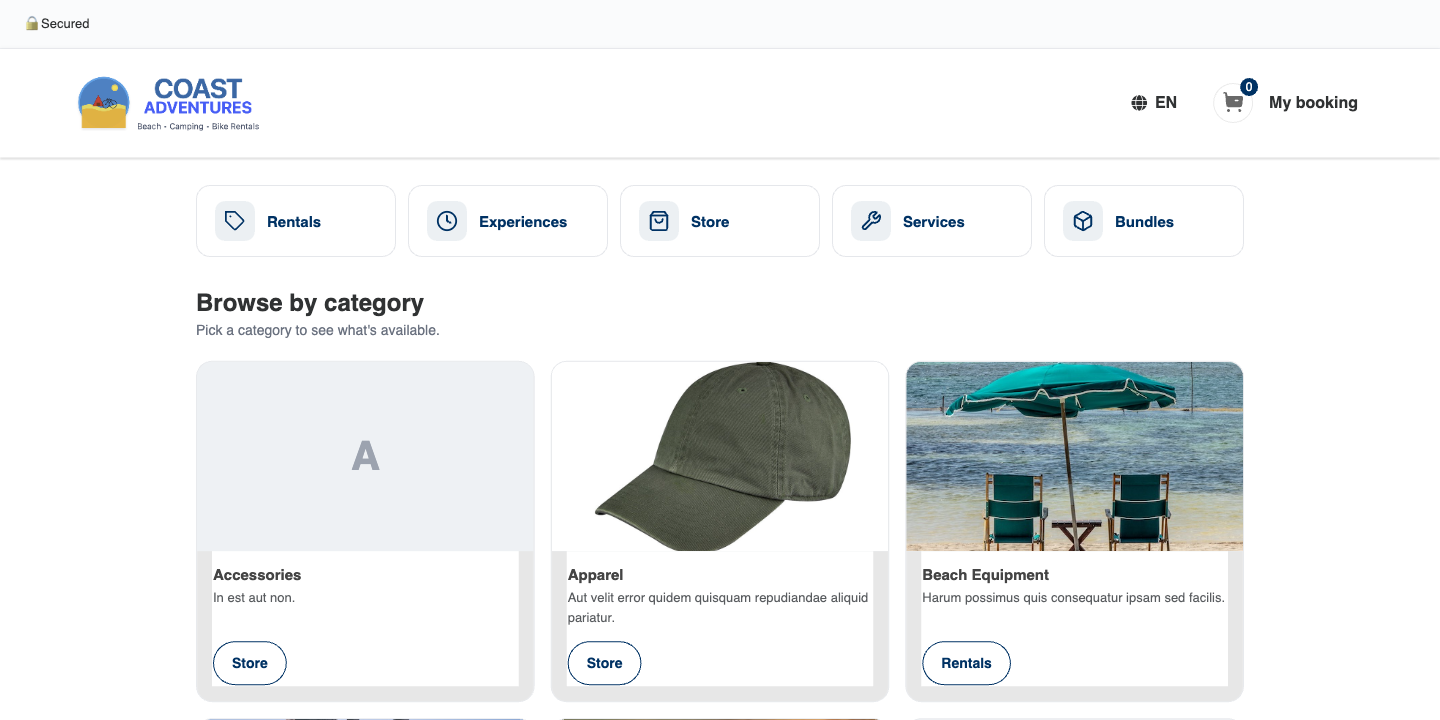
Shows your whole booking site inside your page — customers never leave your website.
-
Choose Full widget embed.
-
Which module — pick what it opens to: your Main page, Rentals, Experiences, or Store (only the ones you run appear).
-
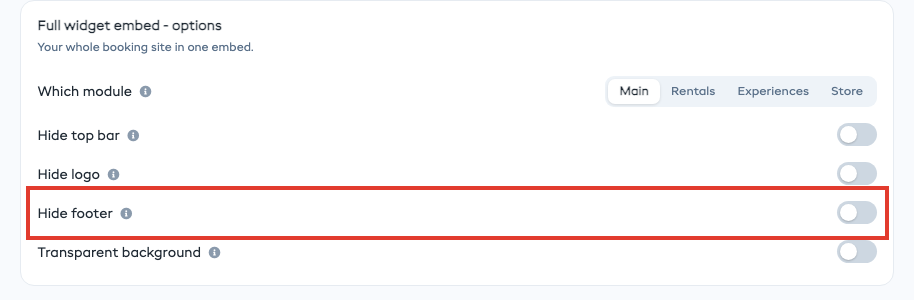
Hide top bar / Hide logo / Hide footer - optional, for a cleaner fit inside your own page. Hide top bar hides the Secured strip, your phone number and the language picker, since your site shows its own. The cart stays. Hide footer hides the prices and times note and Powered by EquipDash under the booking page, so your own footer is the only one.
Under Advanced, Hide header hides the bar with your name and My booking too. Only use it if your site has its own cart icon, so customers can still reach their booking.
With the language picker hidden, the booking page matches your page's language. To choose one yourself, add
data-lang="fr"(oren,es, ...) to the code. -
Click Copy code and paste it on your page (see Where to paste it below).
The booking page grows to its full height on your page, so only your page scrolls, on a phone too. Its pop-ups (the cart, filters, messages) open on the part of the screen your customer is looking at.
Product List
Product list is now Collections: a hand-picked page that can mix rentals, experiences, store products, bundles, programs and gift cards, with headings. Product list codes already on your website keep working.
Single Product
Embeds one item straight onto your page — either its full page (photo, price, description and calendar) or just its booking calendar. Best for a specific product or experience landing page. Customers book right there without leaving your site.

- Choose Single product.
- Show: Rentals or Experiences.
- Which rental or Which experience: start typing to search, then pick it.
- Embed style: Full page (the item's whole page: photo, price, details and calendar), Calendar only (just the booking calendar, best when your page already shows the item's details), or Button.
- With Full page, you can also turn on Hide top bar and Hide footer. A full page embed never shows Back to listings, since it sits on your own page.
- Click Copy code and paste it where you want it to appear.
An Add to booking button on your own product page
Pick Button under Embed style to put the item's booking form on a page that already describes the item: the dates, times and how many it needs, and an Add to booking button. Customers keep browsing your site and pay when they are ready.
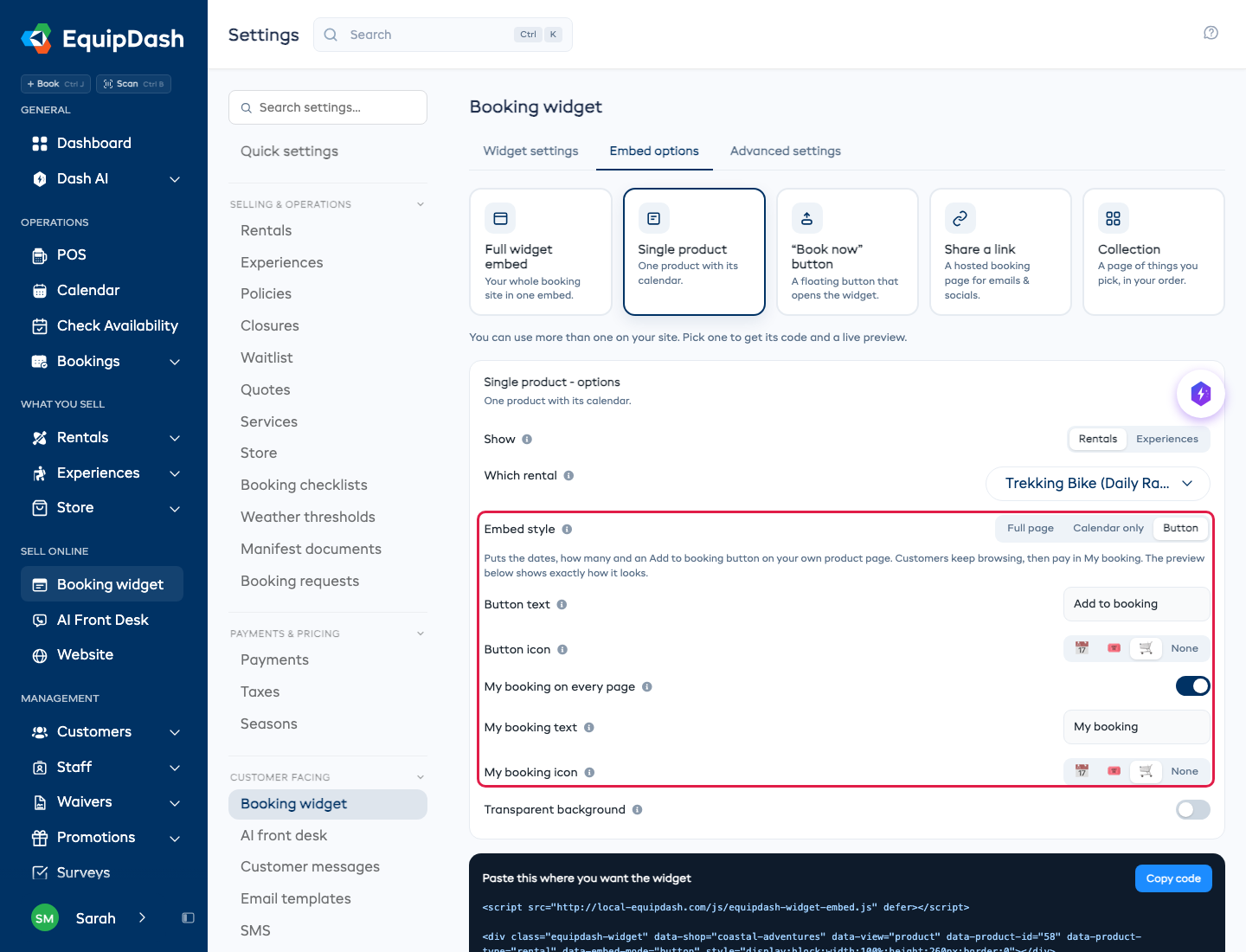
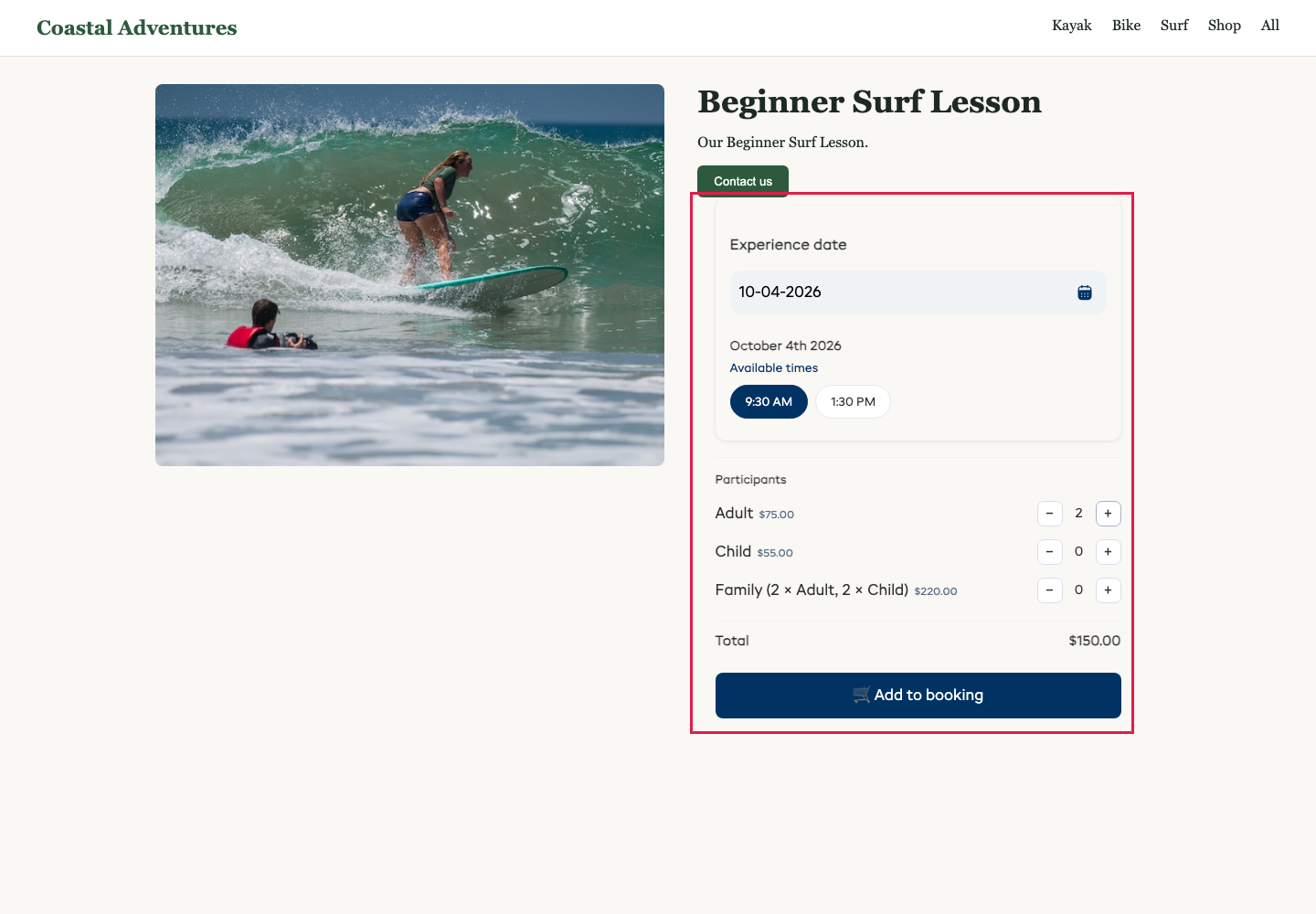
- The form follows how the item is set up: a rental by the day asks for dates, one by the hour asks for a start time and a length, and an experience asks for a time and how many people of each rate. Add to booking puts them straight into My booking, and anything else the experience needs is asked at checkout.
- A bundle or a program shows Book now instead, which opens the whole item in a pop-up.
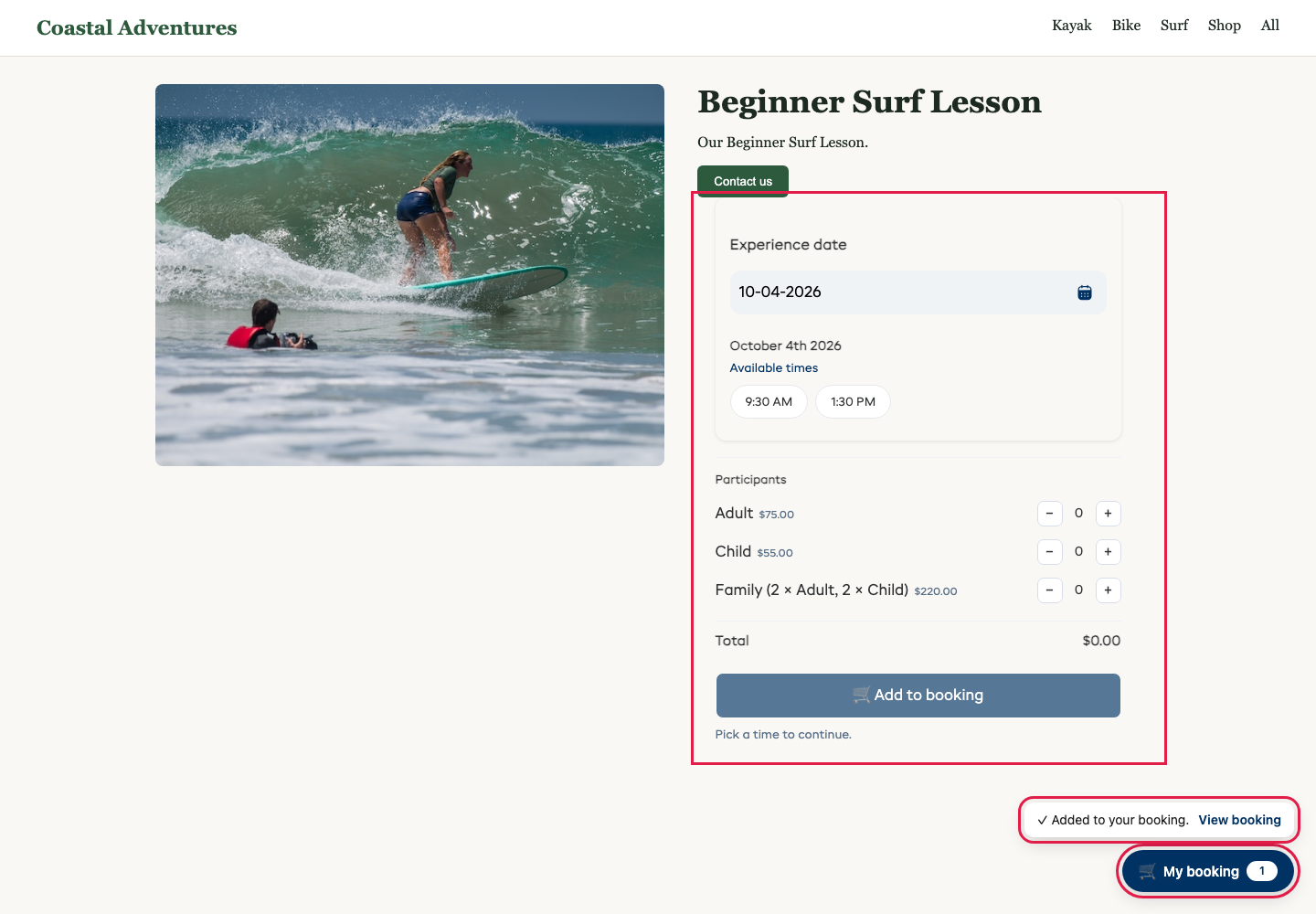
- Once something is added, a My booking button sits in the corner of every page that has your EquipDash code. It opens My booking in a pop-up.
- Change the button text and icon, switch My booking off, or change its text and icon, right under Embed style.
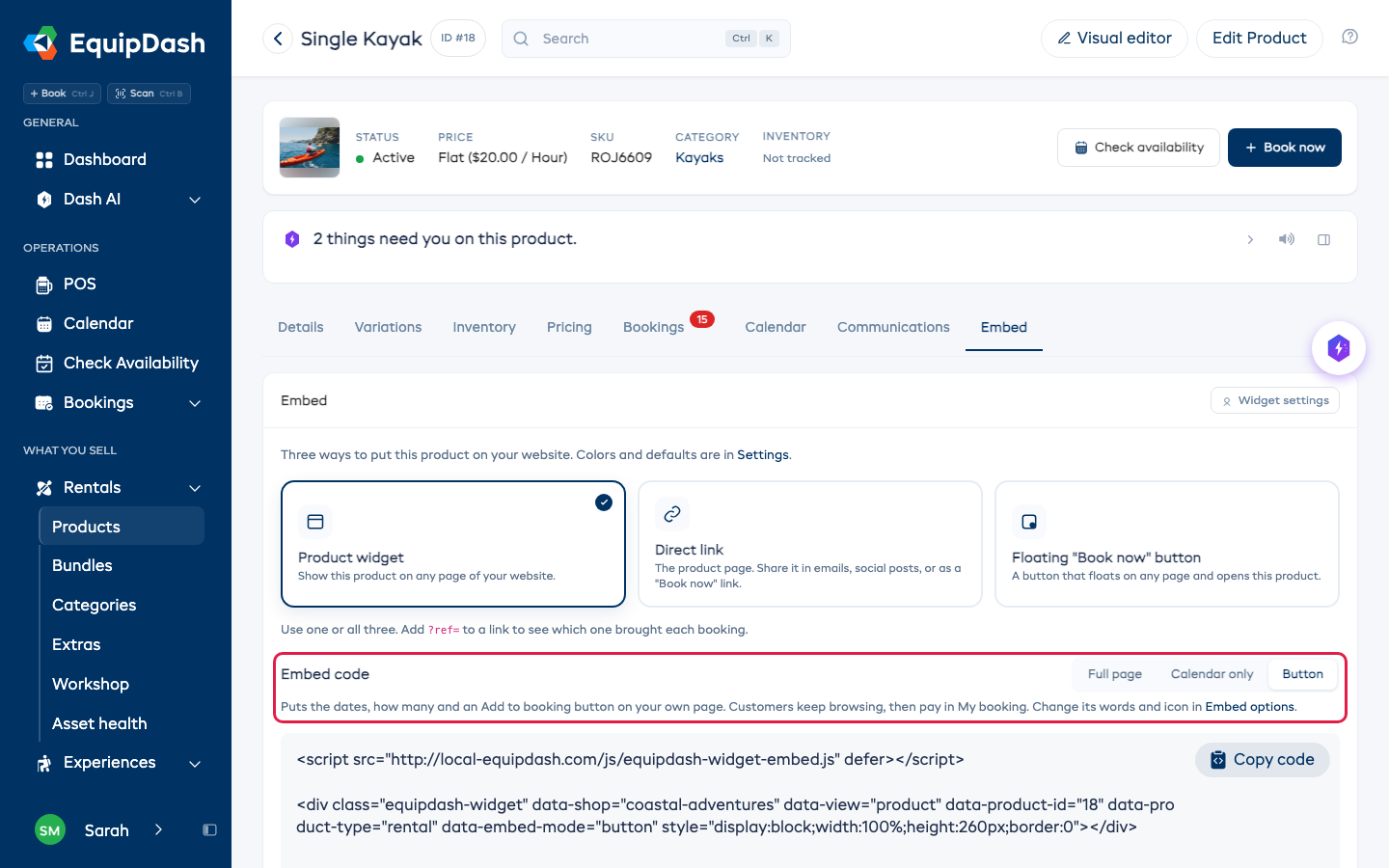
You can also copy the Button code from any item's Embed tab.
Let customers pick people right in the embed
For a single experience with named rates (like Adult and Child), you can let customers choose how many of each — and see a running total — inside the embed, before they ever open the booking pop-up.
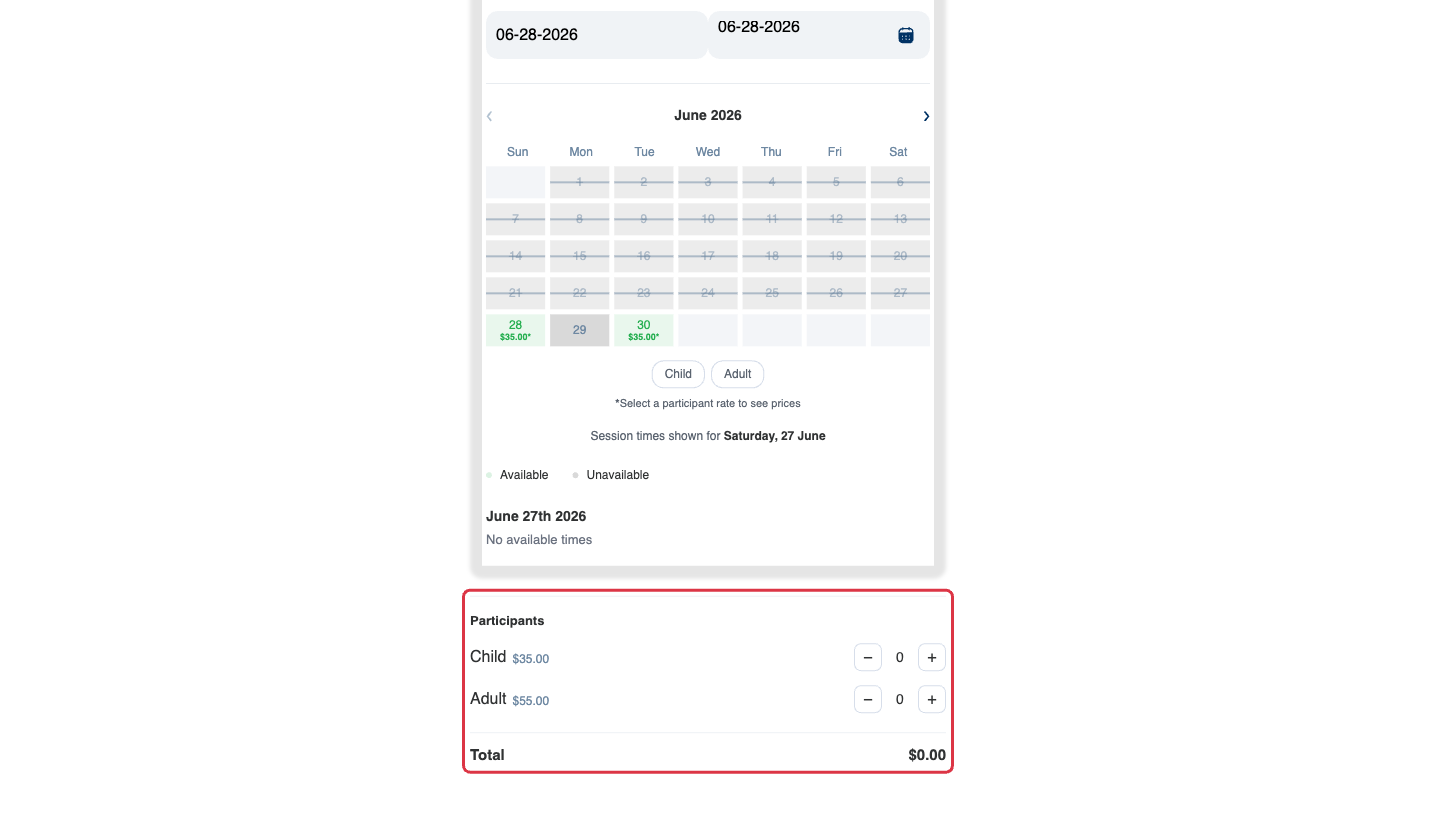
- In Settings → Booking widget, switch on Let customers pick people & see the total in single-item embeds.
- Copy the Single product code as above (with an experience selected). The live preview on the right shows the people pickers right away.
When the customer clicks Book now, the booking opens with their people already filled in — fewer clicks to book. (Extras and any other options are still chosen in the next step.) This applies to experiences that have participant rates; an experience with a single flat price simply shows its normal calendar and Book now.
"Book now" Button
A floating button that sits in a corner of every page and opens the widget in a pop-up.
- Choose "Book now" button.
- Opens — Main, Rentals, Experiences, or Store.
- Set the Button label, Position (bottom-right / bottom-left), and Icon.
- Click Copy code and paste it before the
</body>tag on every page (or in a site-wide footer/custom-code area).
See Floating Book Now Button for more detail.
Share a Link
A hosted booking page — no code at all, just a link.
- Choose Share a link.
- Click Copy link.
- Use it anywhere: a "Book" menu item, an email, an Instagram bio, a QR code. Rich Google results (price, availability) are added automatically.
Embed a Single Item From Its Own Page
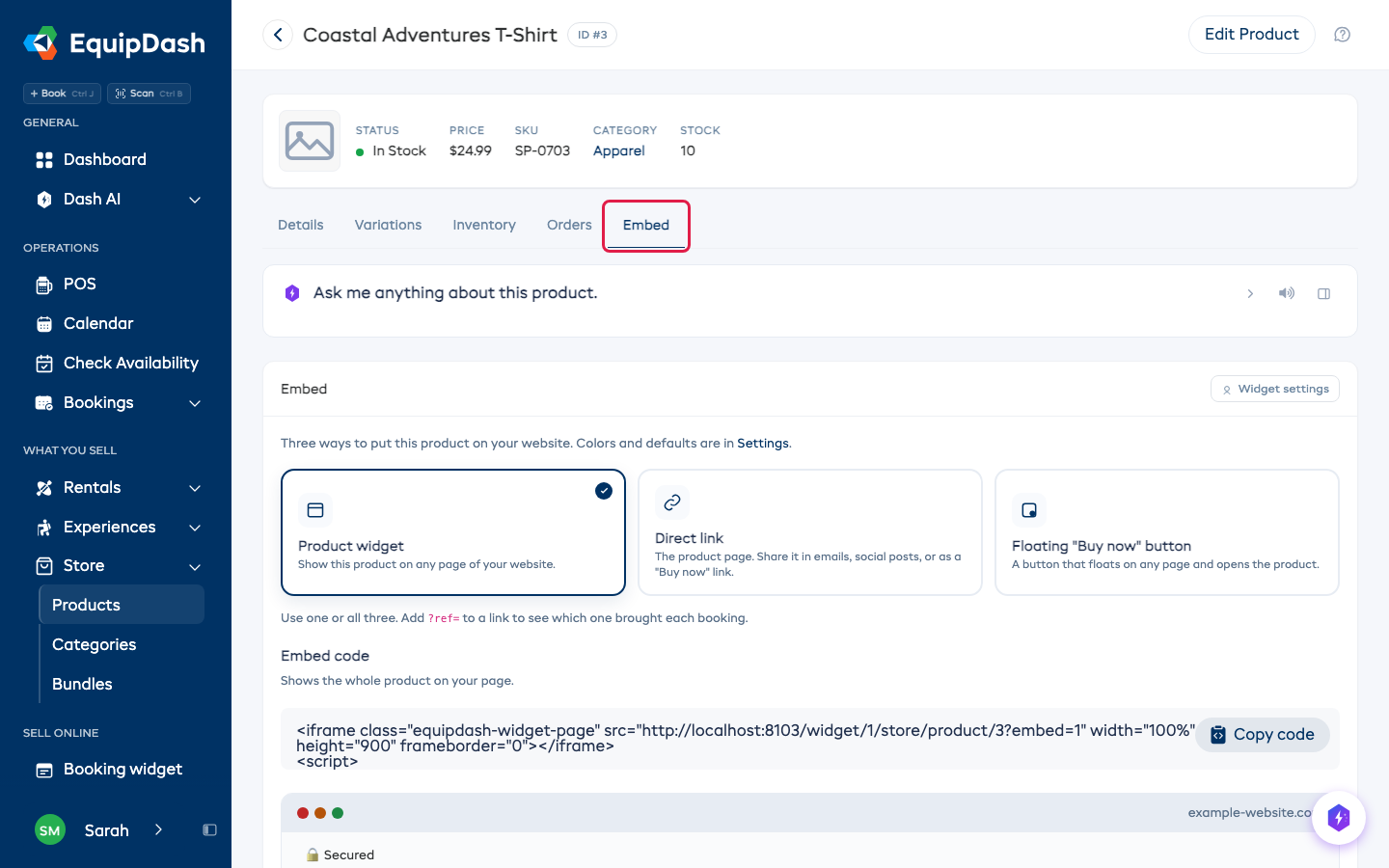
You don't have to go to Settings to embed one thing you sell. Rentals, experiences, store products, bundles and programs each have an Embed tab with the same options, already pointed at that item.
- Open the item: a rental (Rentals > your product), an experience, a store product (Store > Products), a bundle, or a program.
- Click the Embed tab.
- Pick how you want it on your site:
- Product widget (or Experience widget, Bundle widget, Program widget) - that one item on your page. Rentals and experiences can show the full page or just the calendar.
- Direct link - that item's booking page, for emails, social posts, or a "Book now" link.
- Floating button - a button on any page that opens the item in a pop-up. It says Book now, or Buy now for store products and gift cards.
- Click Copy code (or copy the link) and paste it on your site. The Live preview underneath shows how it will look.
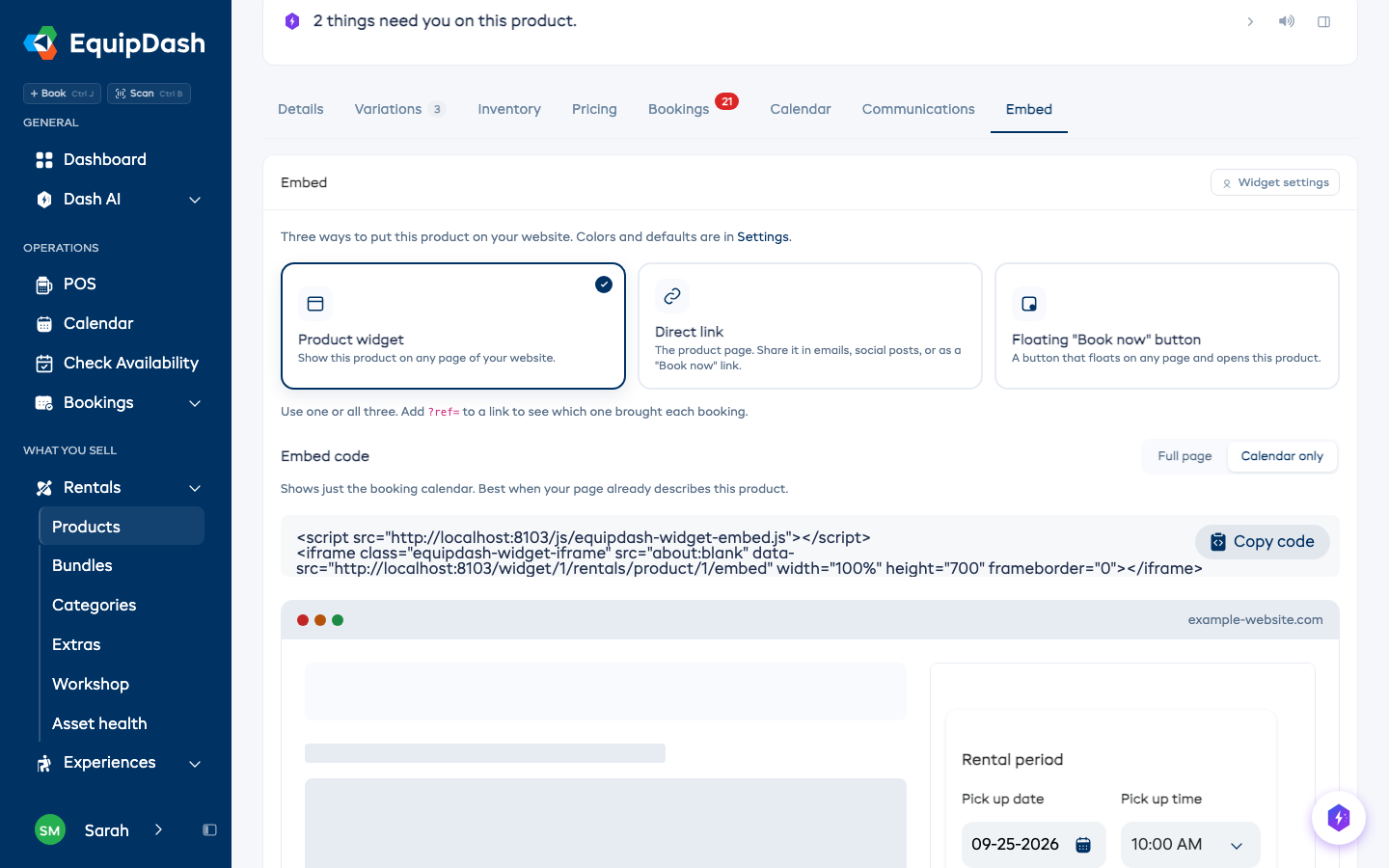
Store products work the same way:
If customers can't buy the item yet (it is switched off, or a program is not selling online), the tab says so above the codes.
Gift cards and services
Gift cards and services each have one page for your whole shop, so their codes live where you manage them:
- Gift cards: Promotions > Vouchers, then click Action > Embed on your website at the top.
- Services: Settings > Services, then click Embed above your service list.
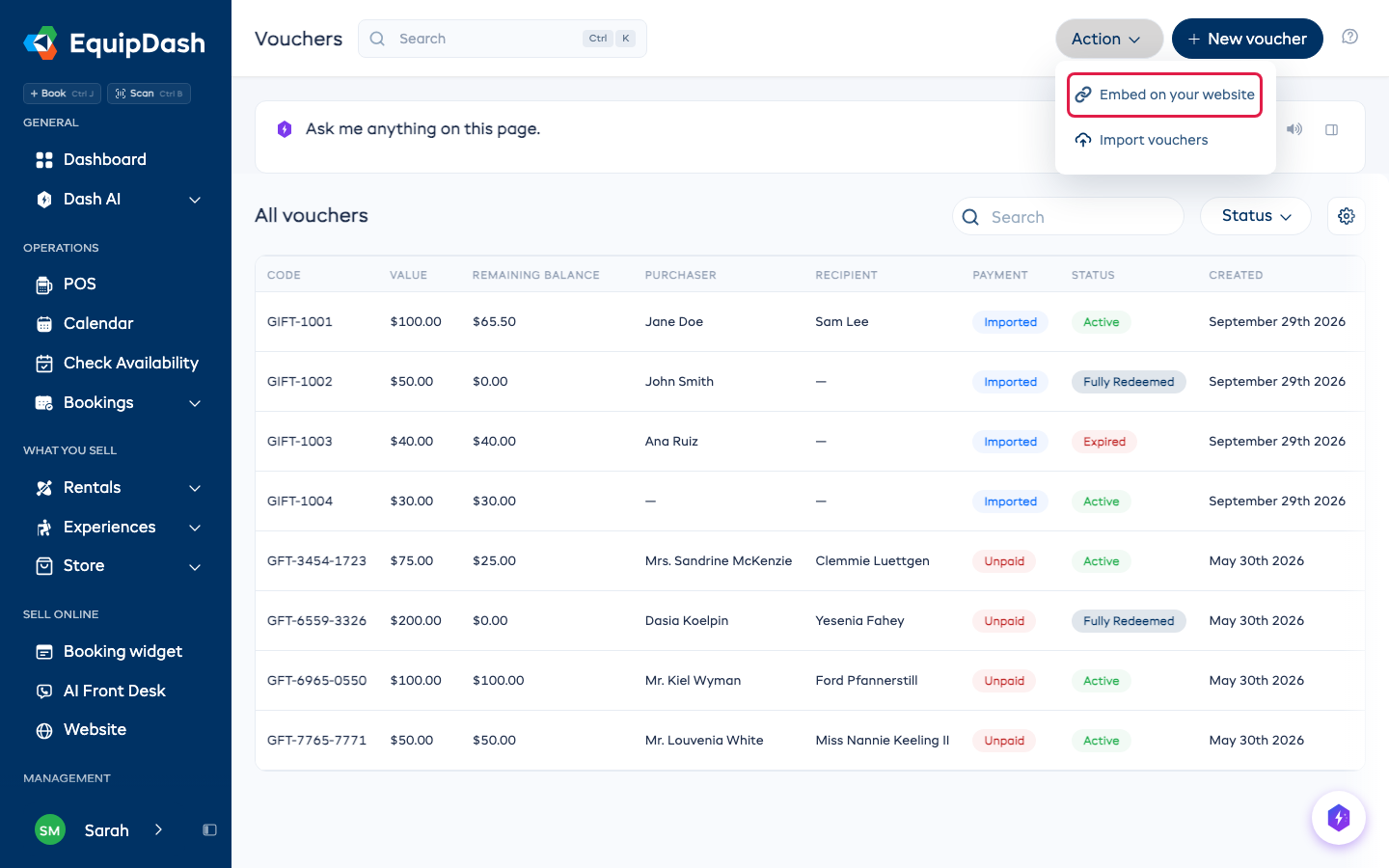
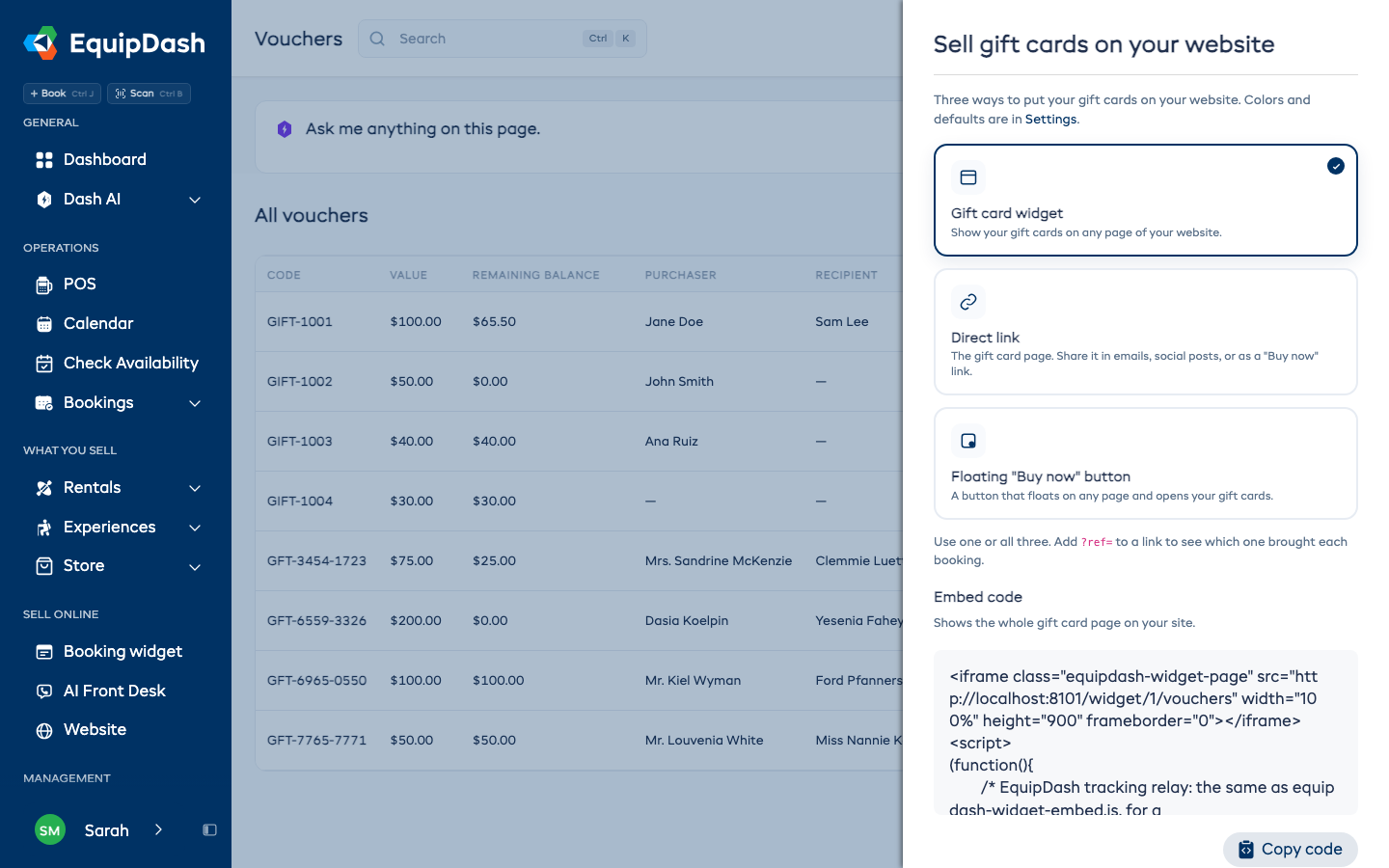
Add ?ref= and a short name to any of these links (for example ?ref=summer-flyer), and the booking shows it as its Link tag. See Tracking in Google Analytics and Meta.
Embed a Category From Its Own Page
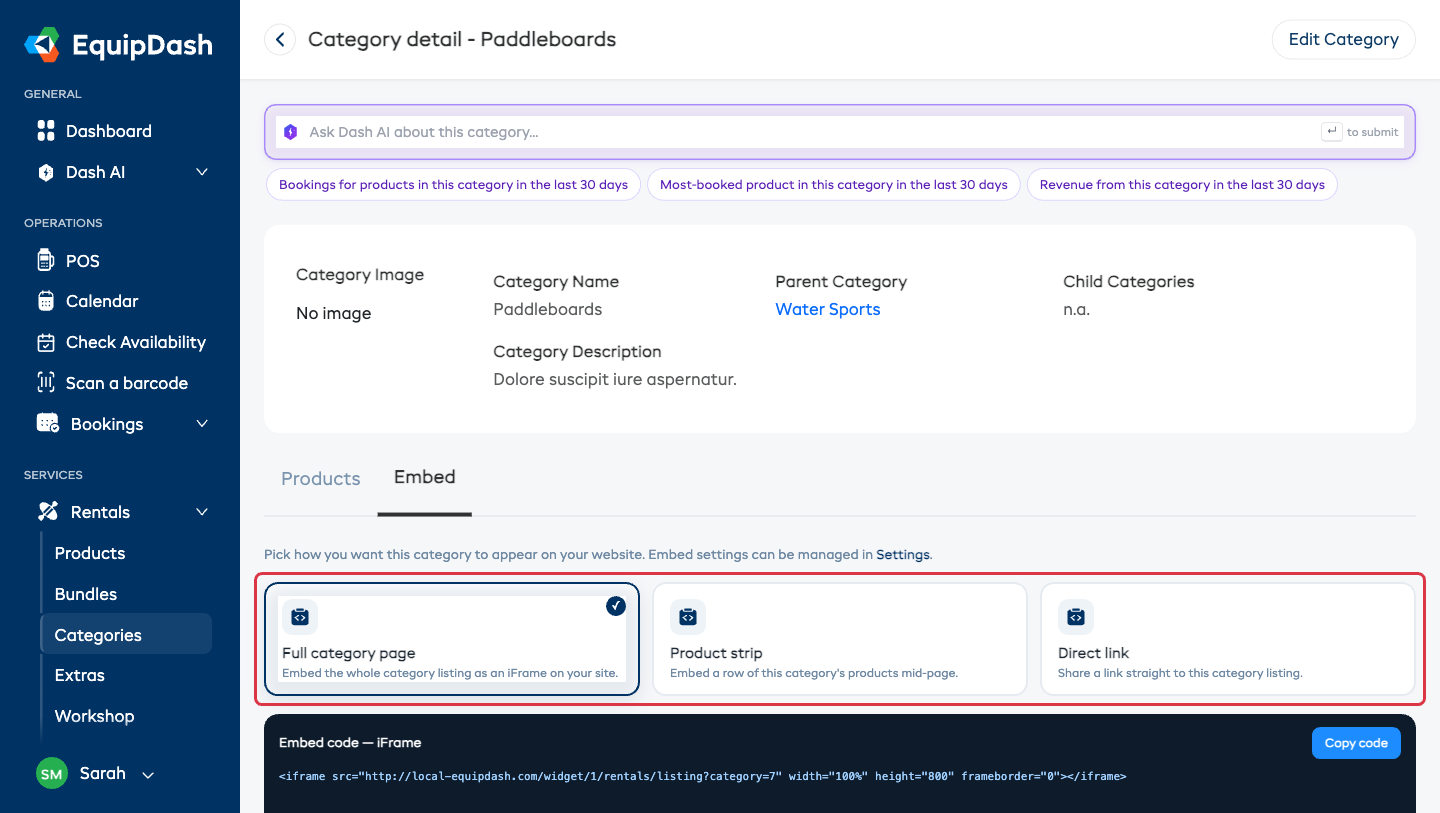
Want to show a whole category — say all your paddleboards, or all your guided tours — on a page of your site? Each category has its own Embed tab too.
- Open a category (Rentals > Categories > your category, or Experiences > Categories > your category).
- Click the Embed tab.
- Pick how you want it on your site:
- Full category page — the whole category listing, as an iFrame on your site.
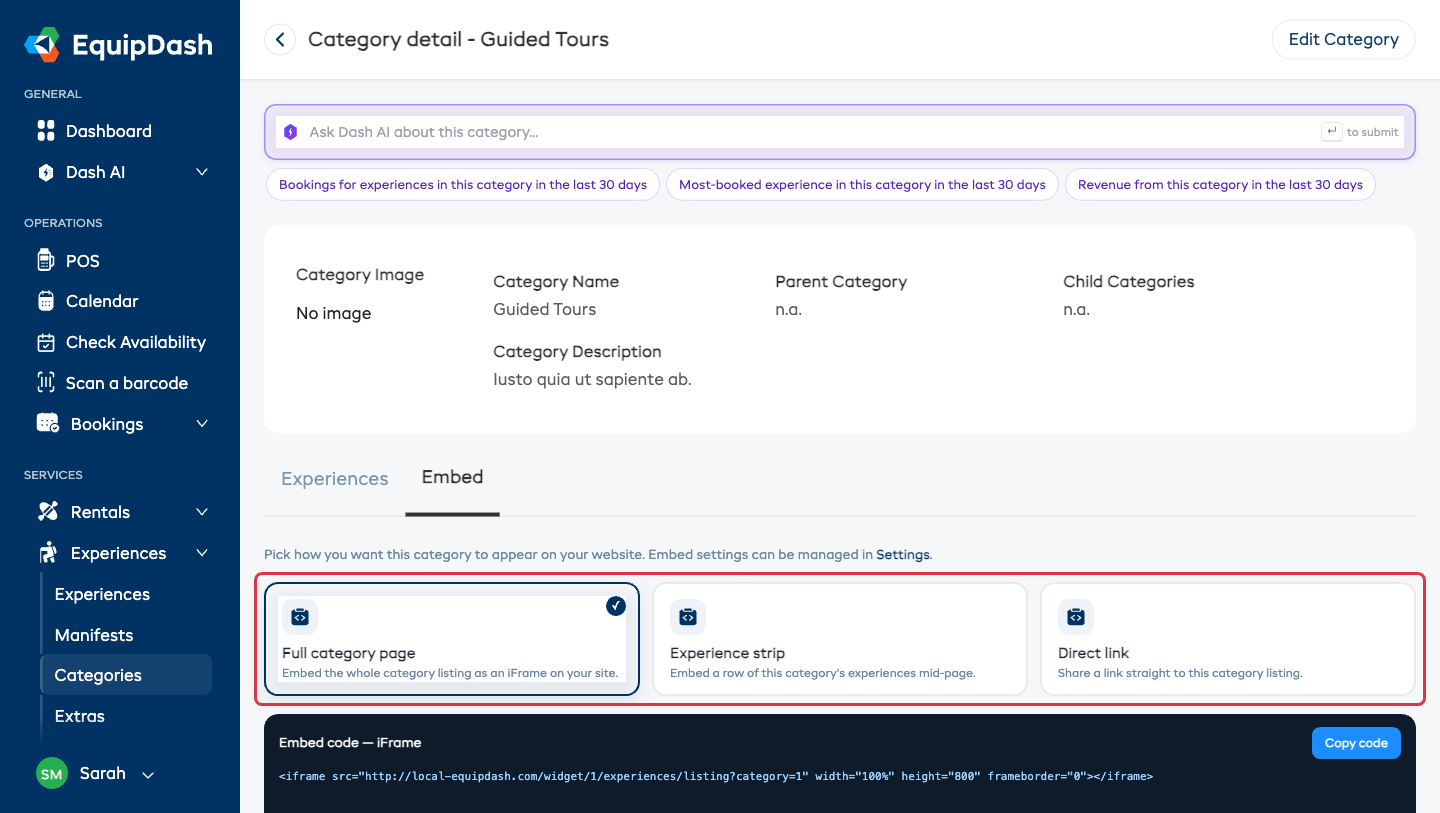
- Product strip (on rental categories) or Experience strip (on experience categories) — a row of that category's items dropped mid-page, perfect for a "Featured" section.
- Direct link — a link straight to that category's listing.
- Click Copy code (or copy the link) and paste it where you want it.
The full category page follows your Hide top bar, Hide logo and Hide footer choices under Settings > Booking widget > Embed options. Turn them on before you copy the code. A strip has no top bar or footer to begin with.
Experience categories are identical — open the category and click Embed:
A strip bakes in the items that are in the category right now, so it's an easy way to feature one group — "Bike rentals" on one page, "Guided tours" on another. For a hand-picked mix, use a collection.
Your Own Cart Icon
If your website's menu already has a cart icon, it can open My booking and show how many items are in it.
You keep your own icon or text. EquipDash only needs to know which link is the cart.
-
Go to Settings > Booking widget > Embed options and pick Full widget embed or "Book now" button.
-
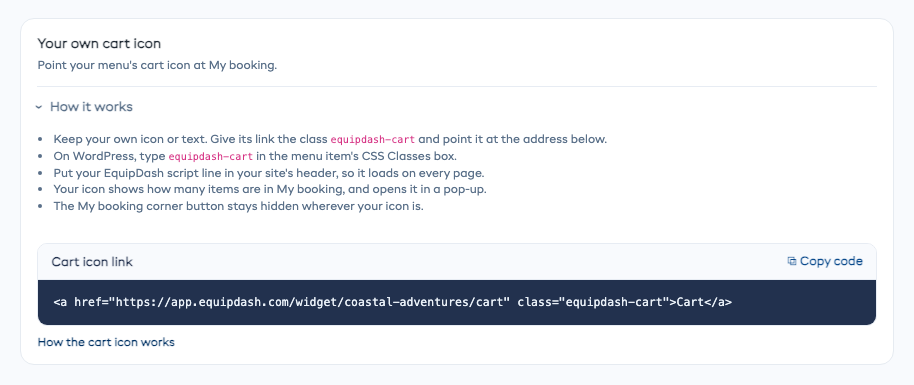
Under Your own cart icon, copy the Cart icon link. How it works there has these steps too.
-
Point your cart icon's link at that address and give it the class
equipdash-cart. On WordPress, add a Custom Link in Appearance > Menus and typeequipdash-cartin its CSS Classes box. -
Put your EquipDash script line in your site's header, so it loads on every page. Most builders have a "code on every page" setting for this.
Your icon then opens My booking in a pop-up on any page, and shows how many items are in it once something is added. The My booking corner button stays hidden wherever your own icon is.
Where to Paste the Code
Each website builder has its own place for it. Pick yours for step-by-step instructions:
- WordPress (with our free plugin)
- Shopify
- Wix, Squarespace, Webflow, GoDaddy, Square Online, Weebly, Joomla, Framer
- Any other website
Paste both lines (the script and the <div>) together. If your builder doesn't allow custom HTML, use Share a link instead.
Tips for a Good Embed
- Use more than one type — a full widget on your "Book" page plus a floating button everywhere else catches the most bookings.
- Match your colors — set your brand color under Settings > Booking widget > Widget settings so the widget blends in.
- Preview before you paste — the Live preview in a browser mock-up shows exactly how it'll look (and the pop-up that opens) on a customer's site.
- Test on mobile — the widget is fully responsive; use the device toggles in the preview to check phone and tablet.