Gift cards on the booking widget
Your customers can buy gift cards straight from your website and spend them on any future booking. They always see them called gift cards; in EquipDash they live under Promotions > Vouchers.
Turning on gift card sales
Before customers can buy gift cards on the widget, turn the feature on:
- Go to Settings > Booking widget.
- Find the Enable gift card/voucher sales toggle.
- Turn it on. The toggle shows "Enabled" when active.
- Click Update.
Once it is on, a Purchase page link appears below the toggle. Put it on your website or share it directly.
Getting the gift card page link
- Go to Settings > Booking widget.
- Find the Purchase page URL shown below the Enable gift card/voucher sales toggle.
- Copy the link to share or use in a button on your site.
The gift card page has its own link, separate from the rentals, experiences and store pages. You can put it on the same page as those or on its own, for example a "Gift cards" page on your website.
The Customer Experience
A gift card goes in the same cart as everything else. A customer can buy a gift card on its own, or add one to a booking and pay for both at once.
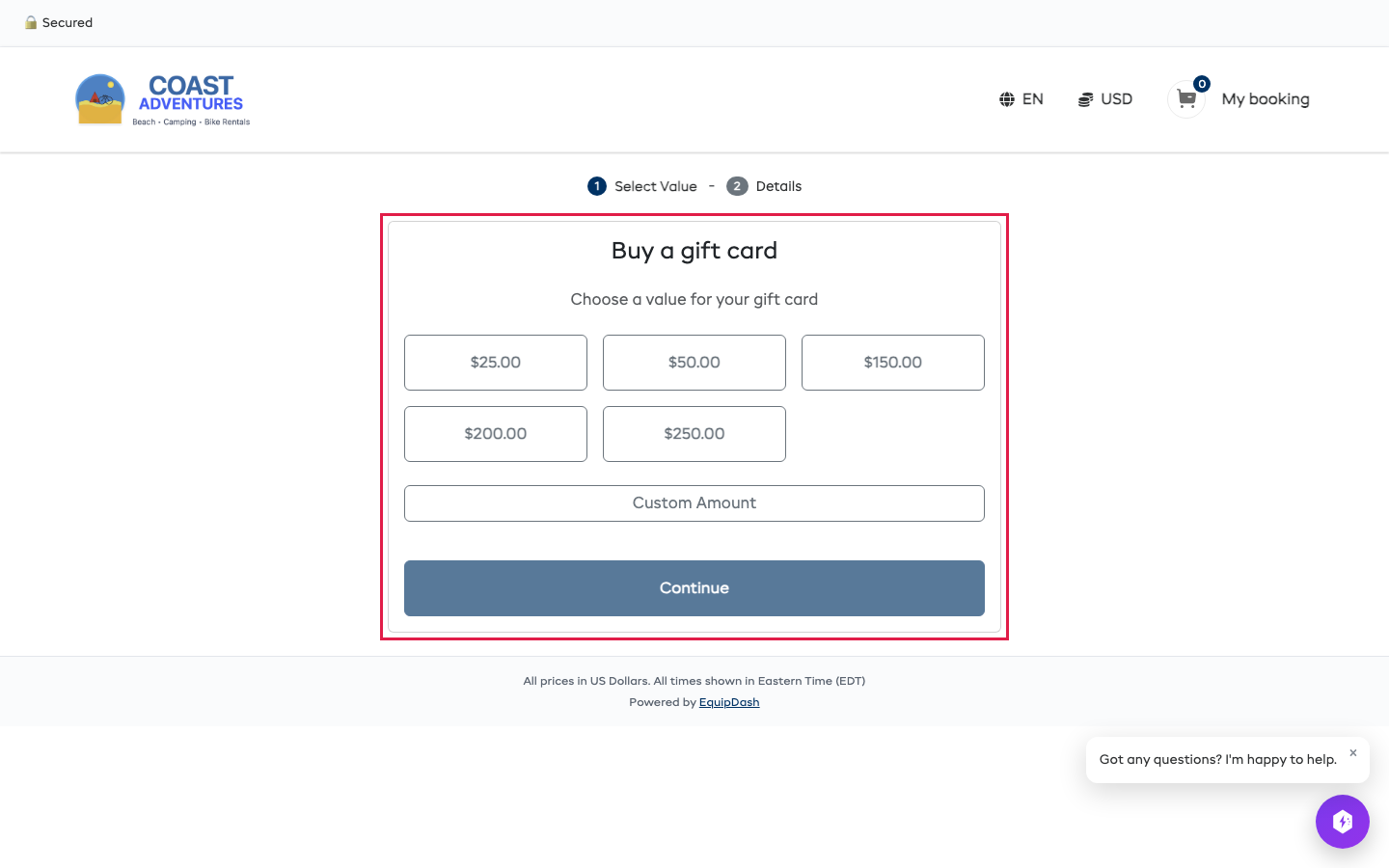
Step 1: Select Value
The customer picks a preset amount (e.g., $25.00, $50.00, $100.00) or types a Custom Amount, then clicks Continue.
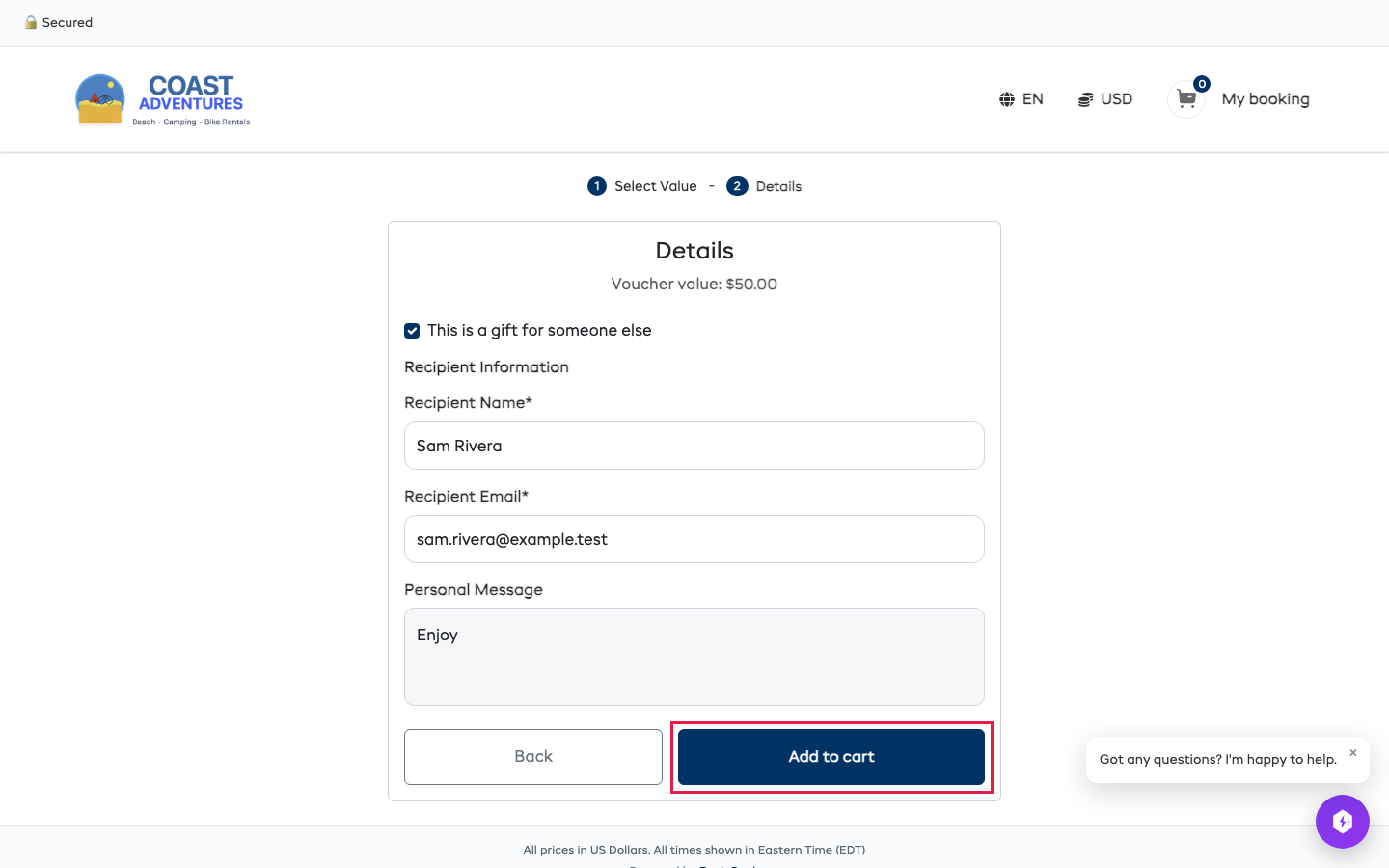
Step 2: Details
If it is for someone else, the customer ticks This is a gift for someone else and adds the recipient's name, email and an optional message. Then they click Add to cart.
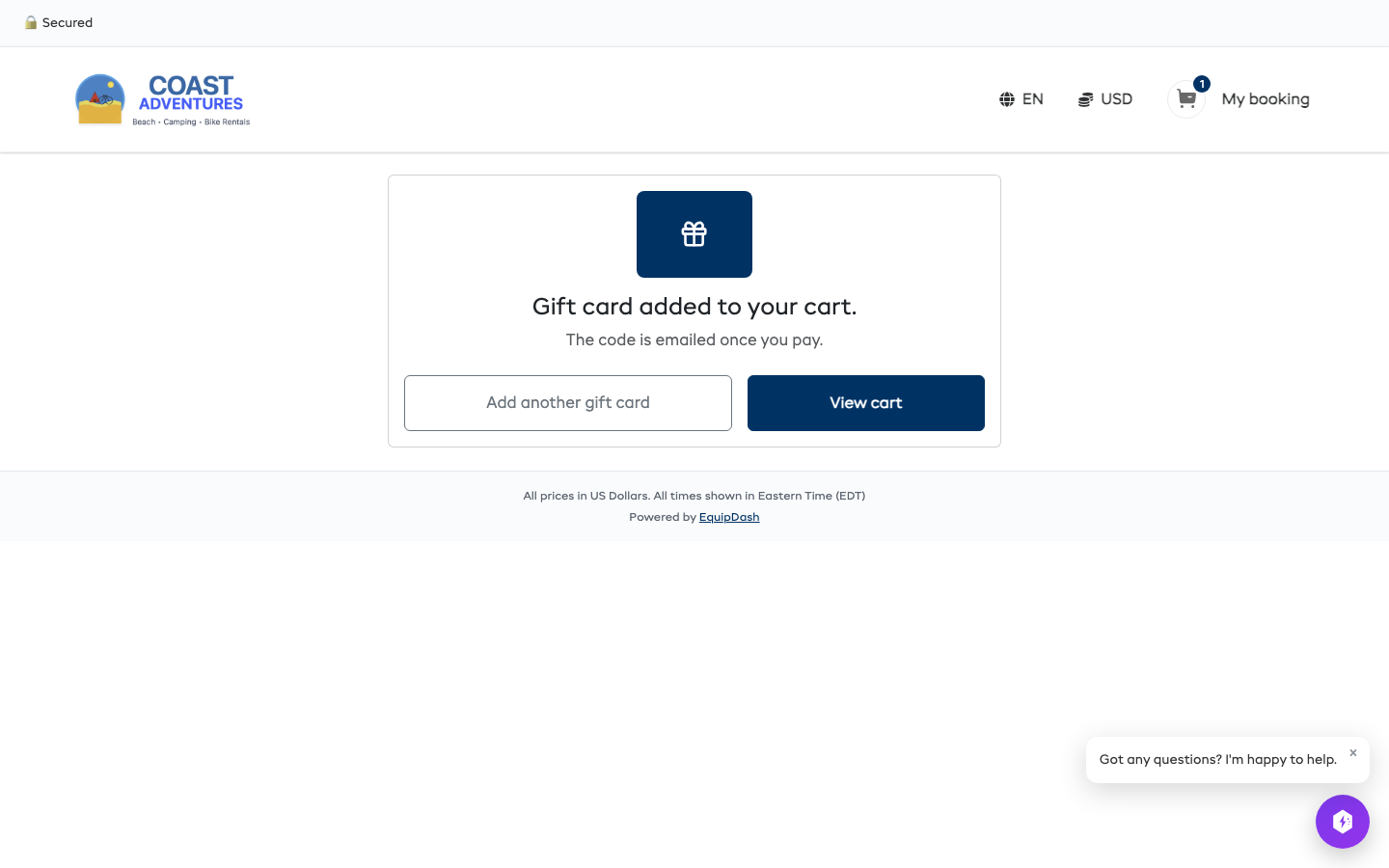
The page confirms the gift card is in the cart, with Add another gift card and View cart.
Paying
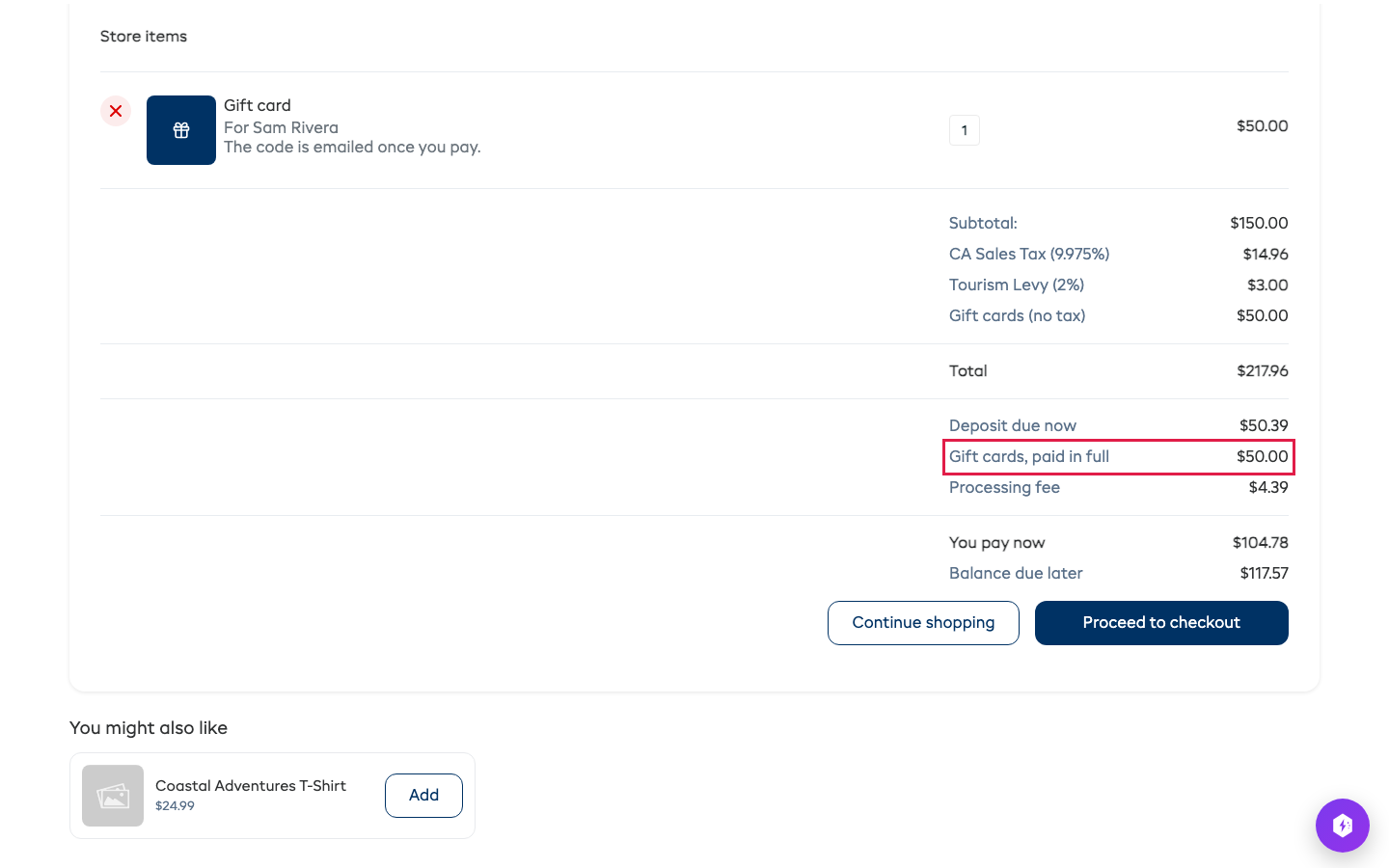
The customer pays at the normal checkout, with the rest of their cart. Gift cards are never taxed or discounted by a promo code.
If your shop takes a deposit, the deposit applies to rentals and experiences only. A gift card is always paid in full, and the cart shows it as its own line in what is paid now.
Customers can only buy gift cards online when your shop takes payments online.
Receiving a gift card
The gift card code is created once the order is paid, then emailed to the recipient (or to the buyer, when it is not a gift). The email is in the language the customer booked in, and includes:
- The gift card code
- The gift card value
- Any personal message from the purchaser
- How to redeem it
The buyer's confirmation page and confirmation email list the gift card as well.
Using a gift card
Allow vouchers for online bookings in your payment settings. Customers can then use an existing gift card even when the remaining balance is due at pickup.
Customers use their gift card at checkout:
- At checkout, the customer finds the Promo or gift card code field.
- They type the gift card code.
- The gift card amount comes off the booking total.
- If the gift card covers the full amount, there is nothing more to pay.
- If the booking costs more than the gift card, the customer pays the rest.
A gift card can be spent over several bookings: whatever is left after one booking stays on the card for the next.
Managing gift cards in EquipDash
Every gift card bought on the widget appears under Promotions > Vouchers once the order is paid. The booking the gift card was bought on lists it under Passes and gift cards, with its code. From there you can:
- See every active, used and expired gift card
- Check what is left on any gift card
- See when it was bought and where it was spent
- Create one by hand for a walk-in customer or a promotion
Staff can also sell a gift card at the counter: in POS, add a gift card to the cart like any other item. Its code is sent once the booking is paid.
Selling more gift cards
- Add a "Gift cards" link to your website menu, pointing to the gift card page
- Promote them before holidays and other gift-giving times
- Offer preset amounts that match your popular prices, so one gift card covers a whole booking
- Mention gift cards in your confirmation emails so customers know they can buy one for friends and family