Saved prompts Growth+This feature requires the Growth+ plan or higher
Saved prompts are the questions you ask Dash often, kept on one list so you can ask them again in one tap. Owners and managers can share a prompt with the whole team, so a new hire can ask the right question on their first day.
Open Saved prompts
- Open Dash AI in the sidebar, then click Ask Dash.
- Click Saved prompts under Search chats in the left rail.
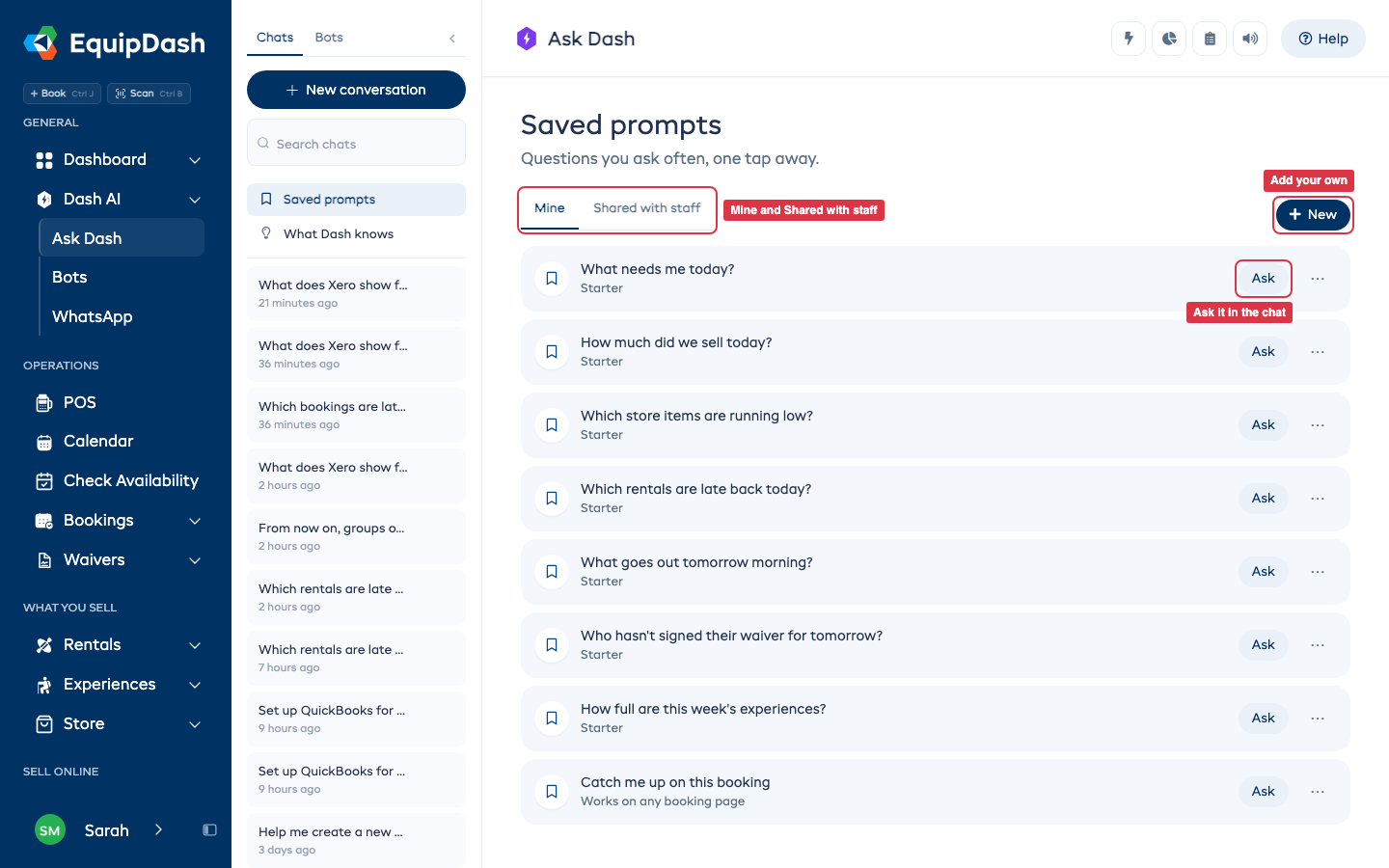
The page has two tabs:
- Mine - your own prompts, the ones you use most at the top.
- Shared with staff - prompts the owner or a manager shared with the team.
The first time you open it, Mine already holds a few starter questions picked for what your shop sells, such as What needs me today? or What goes out tomorrow morning?. Change or delete them like any other prompt.
Ask a saved prompt
- On the Saved prompts page, click Ask beside a prompt. Dash answers it in the chat.
- In any Dash chat, click + under the message box, then Saved prompts, and pick one. It goes into the box, ready to send.
Each prompt shows where it came from (Starter, Saved from a chat, Added by you) and how many times it has been used.
Prompts that fill in the booking you are on
Write this booking or this customer in a prompt, such as Catch me up on this booking. On a booking or customer page, open the Dash panel, click +, then Saved prompts, and pick it. Dash fills in the one you are looking at. These prompts say Works on any booking page or Works on any customer page. Asked from anywhere else, Dash asks you which one you mean.
Save a new prompt
There are three ways to save one:
- On the Saved prompts page, click New, type the question under What to ask Dash, and click Save.
- In a chat, click Save under any question you asked.
- Under an answer, click Save this question. When you have asked the same question three times, Dash offers to save it for you.
Saved prompts go on your Mine tab. Saving the same words twice keeps one prompt.
Share a prompt with your staff
Only the owner and managers can share.
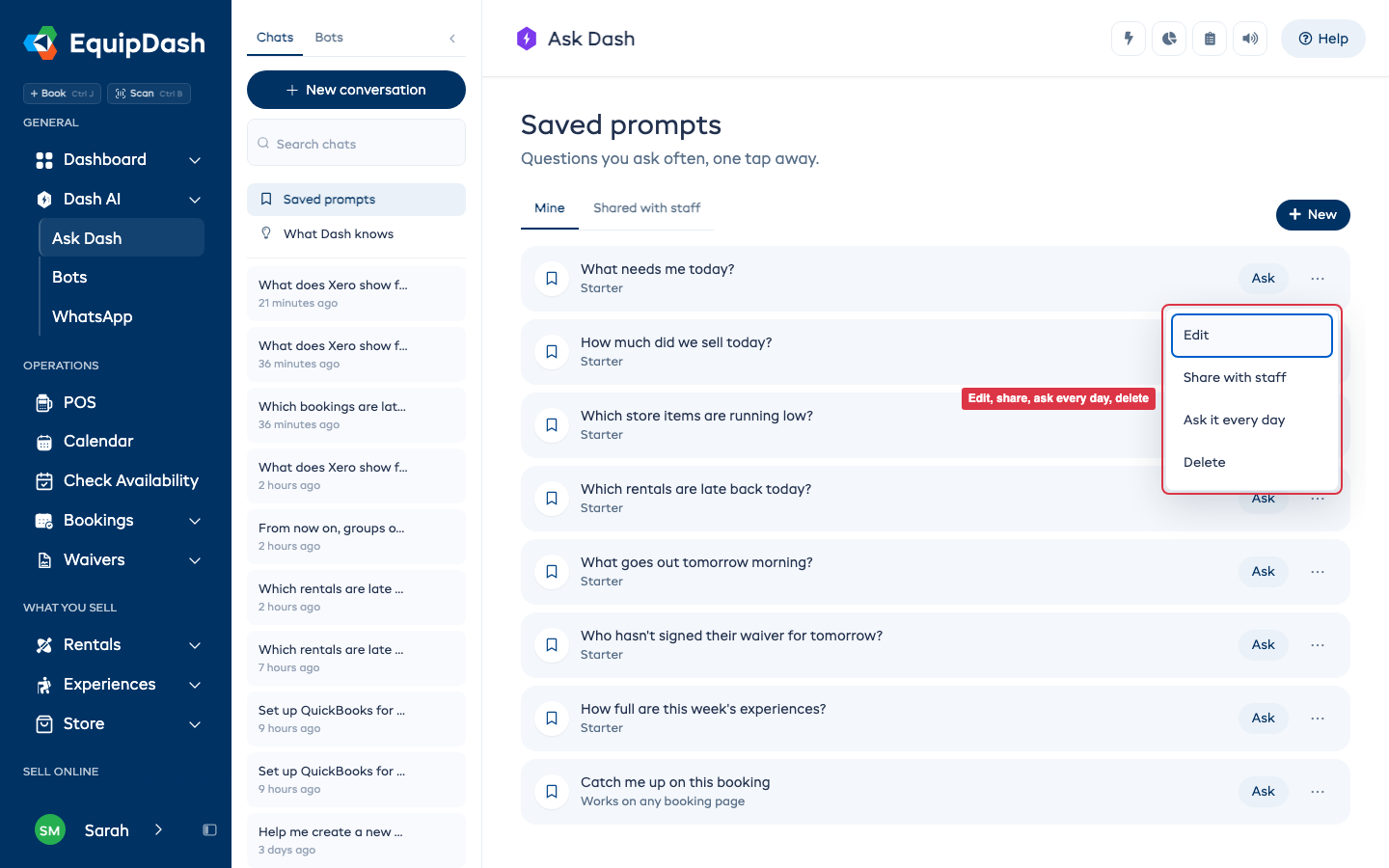
- Click More (the three dots) beside a prompt.
- Click Share with staff.
The prompt shows Shared on your list and appears on everyone's Shared with staff tab. A staff member only sees the shared prompts their role allows, so a question about money stays off the list for someone who cannot see payments. To take it back, click More, then Stop sharing.
Have Dash ask it every day
You need permission to manage bots for this.
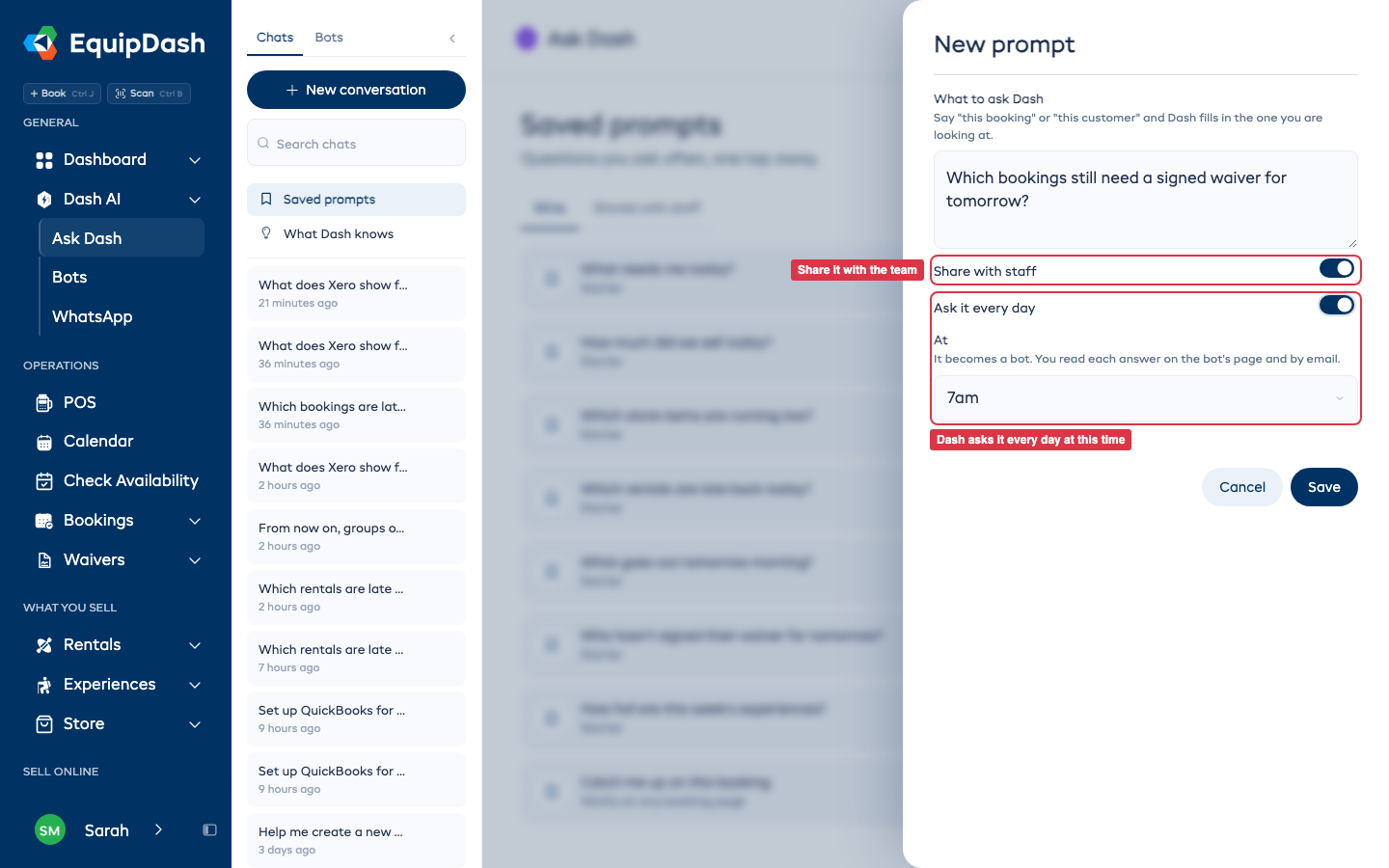
- Click More beside one of your prompts, then Ask it every day. Or turn on Ask it every day when you add a new prompt.
- Pick the time under At.
- Click Save.
The prompt shows Every day at and the time. Dash asks it at that time each day and it becomes a bot, so each answer is on the bot's page and comes to you by email. To change the time, click More, then Change the daily time. To stop it, turn off Ask it every day in the same window. Turning the bot off on the Bots page stops it too.
Change or delete a prompt
- Edit: click More, then Edit, change the words, and click Save.
- Delete: click More, then Delete, and confirm. The prompt comes off your list. If it ran every day, its bot is turned off, and the answers it already gave stay on the bot's page.
You can change your own prompts. The owner can also change or stop sharing a prompt someone else shared, for example one left behind by a manager who has moved on.