What Dash knows Growth+This feature requires the Growth+ plan or higher
What Dash knows puts everything Dash uses to answer you and your customers on one page: what it remembered from your chats, what it answers from, and your instructions for how it writes.
Open What Dash knows
- Open Dash AI in the sidebar, then click Ask Dash.
- Click What Dash knows under Search chats in the left rail.
You can also get here from See everything Dash knows on the Dash Skills page, on the Knowledge tab of AI Front Desk, and in Settings > AI Assistant.
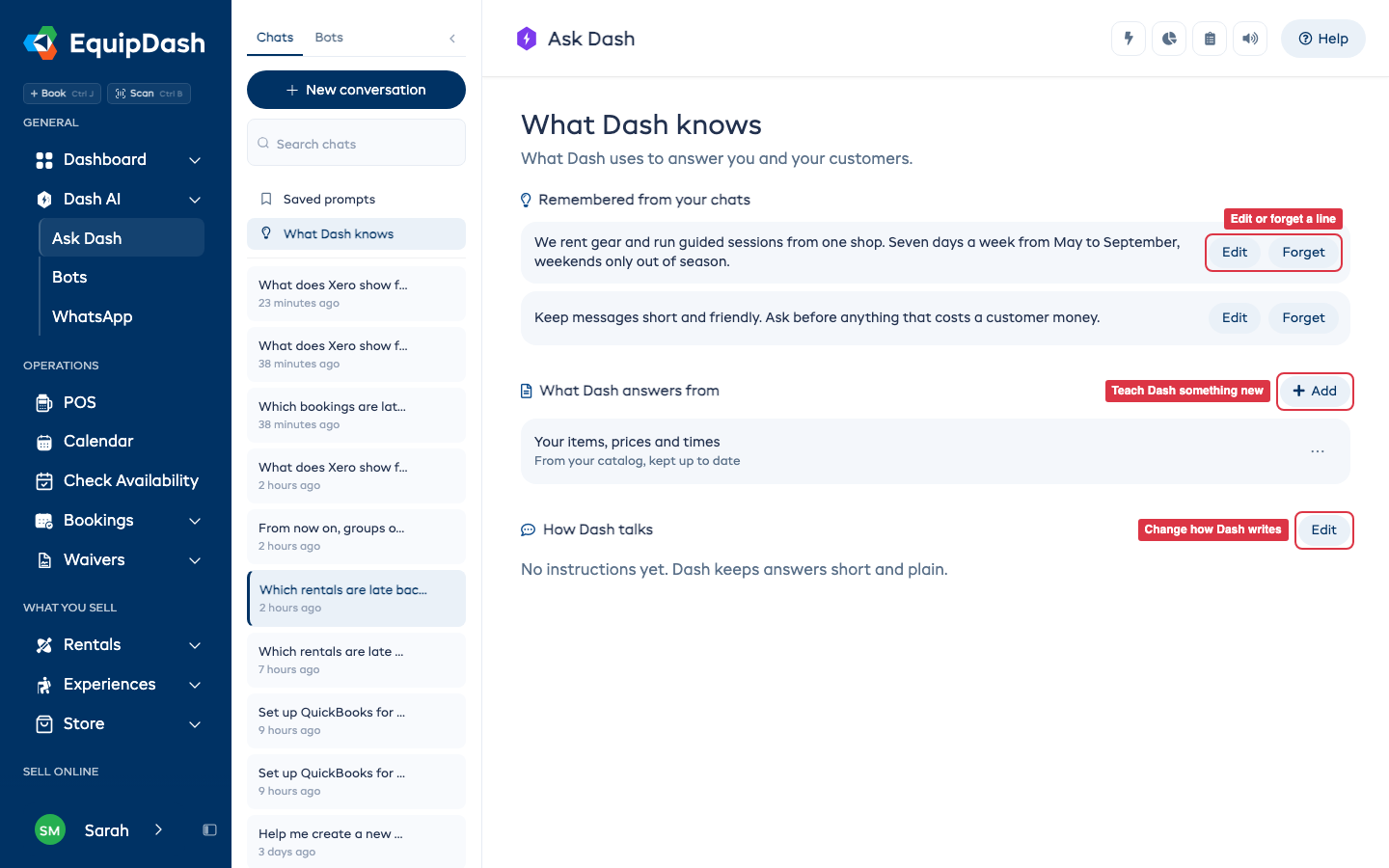
Remembered from your chats
When you tell Dash to remember something in a chat, such as "groups of 10 or more get 10% off, remember that", it saves the line here. A small Remembered line shows under its reply, with Undo if it got it wrong.
When Dash knows the date, a line shows the day you said it or the day a bot learned it. Dash uses these lines when it answers you and when your bots run. They are the same lines as the About your business and How you like things done notes on Dash Skills, so a change on either page shows on both.
- Edit: click Edit beside a line, change the words, and click Save.
- Forget: click Forget. Dash stops using the line straight away.
Anyone who can see your bots can read this list. Changing it needs permission to manage bots or AI settings.
What Dash answers from
This is what Dash reads to answer questions about your shop: your items, prices and times from your catalog (kept up to date by itself), your website, files you added, and the answers you wrote, grouped by topic.
- Click Add to teach Dash something new. It opens the Knowledge tab of AI Front Desk, where you add an answer and check it. See Teaching Dash.
- Click More (the three dots) on a row, then See and change, to open it on the Knowledge tab.
This section shows to people who can manage the customer AI knowledge base.
How Dash talks
Your instructions for how Dash writes, such as "Friendly and short. Call customers by first name." With none, Dash keeps answers short and plain.
- Click Edit.
- Type your instructions.
- Click Save.
These are the same instructions as Model & instructions in Settings > AI Assistant. Only people who can manage AI settings see this section.