Connect apps by asking Dash Growth+This feature requires the Growth+ plan or higher
Ask Dash to connect an app and it shows you one step at a time, each on its own card. It works in any Dash chat: the Dash page, the Dash panel beside any page, and Dash in the phone app. The settings pages still work as before, and both read the same setup, so a step you finish on one shows as done on the other.
Start
- Open Dash.
- Type what you want, for example Connect QuickBooks, Set up Viator for me or Put my bookings in my iPhone calendar.
- Dash shows the first step you haven't done yet.
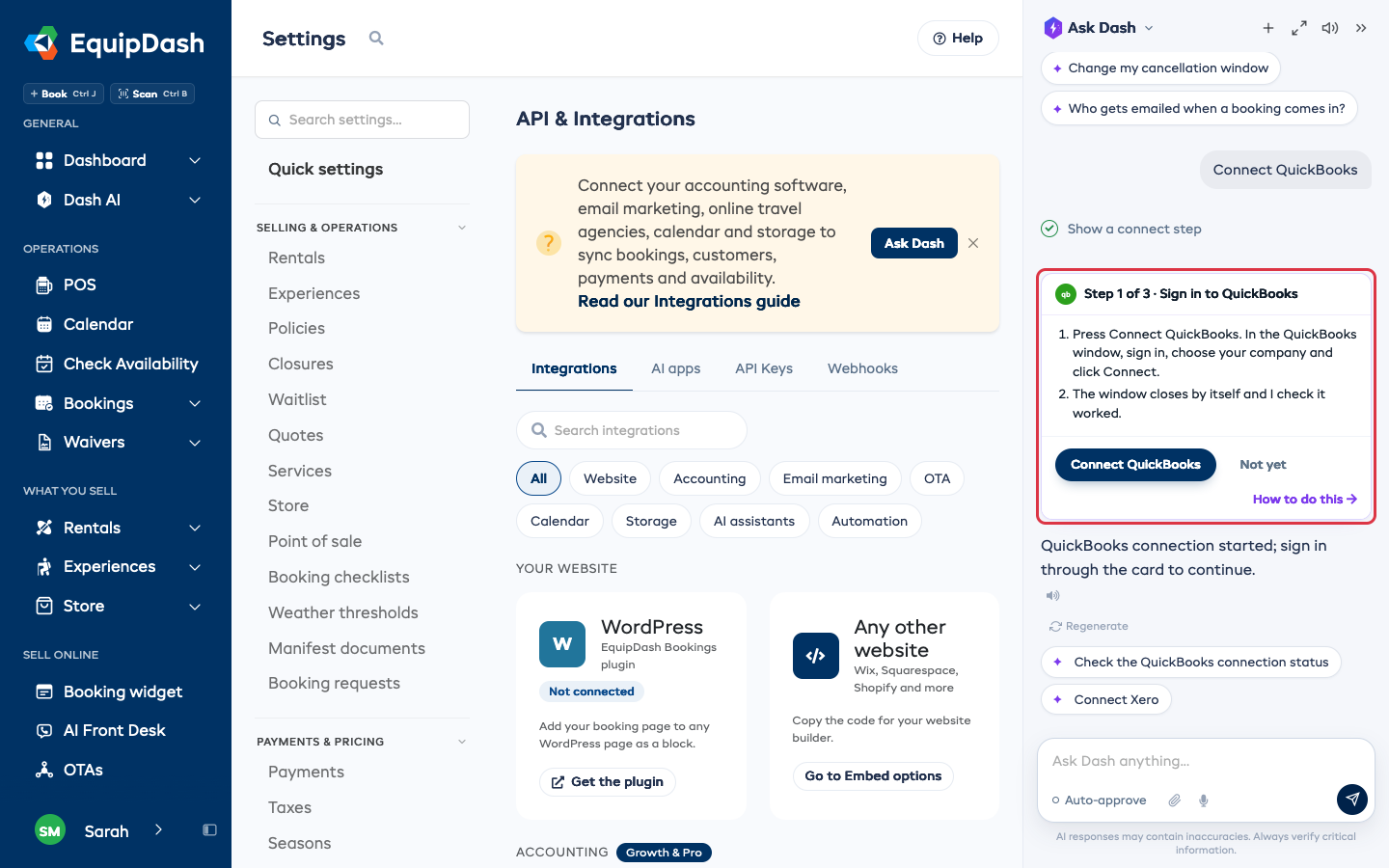
What each card shows
- Step 1 of 3 and the name of the step.
- What to do and where, using the other company's own menu names, such as Account > Connectivity in Viator's Management Center.
- The one thing the step needs: a box to type in, a choice, a switch, a link or key to give the other company, or a sign-in button.
- The step's button, such as Save, Done or Connect QuickBooks.
- Not yet, which leaves the step for later. Ask Dash to carry on when you're ready.
- How to do this, which opens the help for that step.
After you press the step's button, Dash checks that it worked before it shows the next card. A finished step says Done and what was saved, for example Saved what syncs. for Google Calendar. If something didn't save, the card says why and keeps what you typed.
Apps you sign in to
QuickBooks, Xero, Google Calendar, Google Drive and Stripe have you sign in on their own site. Press the card's sign-in button, and their sign-in opens in a small window. Sign in and allow EquipDash. The window closes by itself and the card checks the connection. If it says the app did not connect, press the button again.
Keys and links you give another company
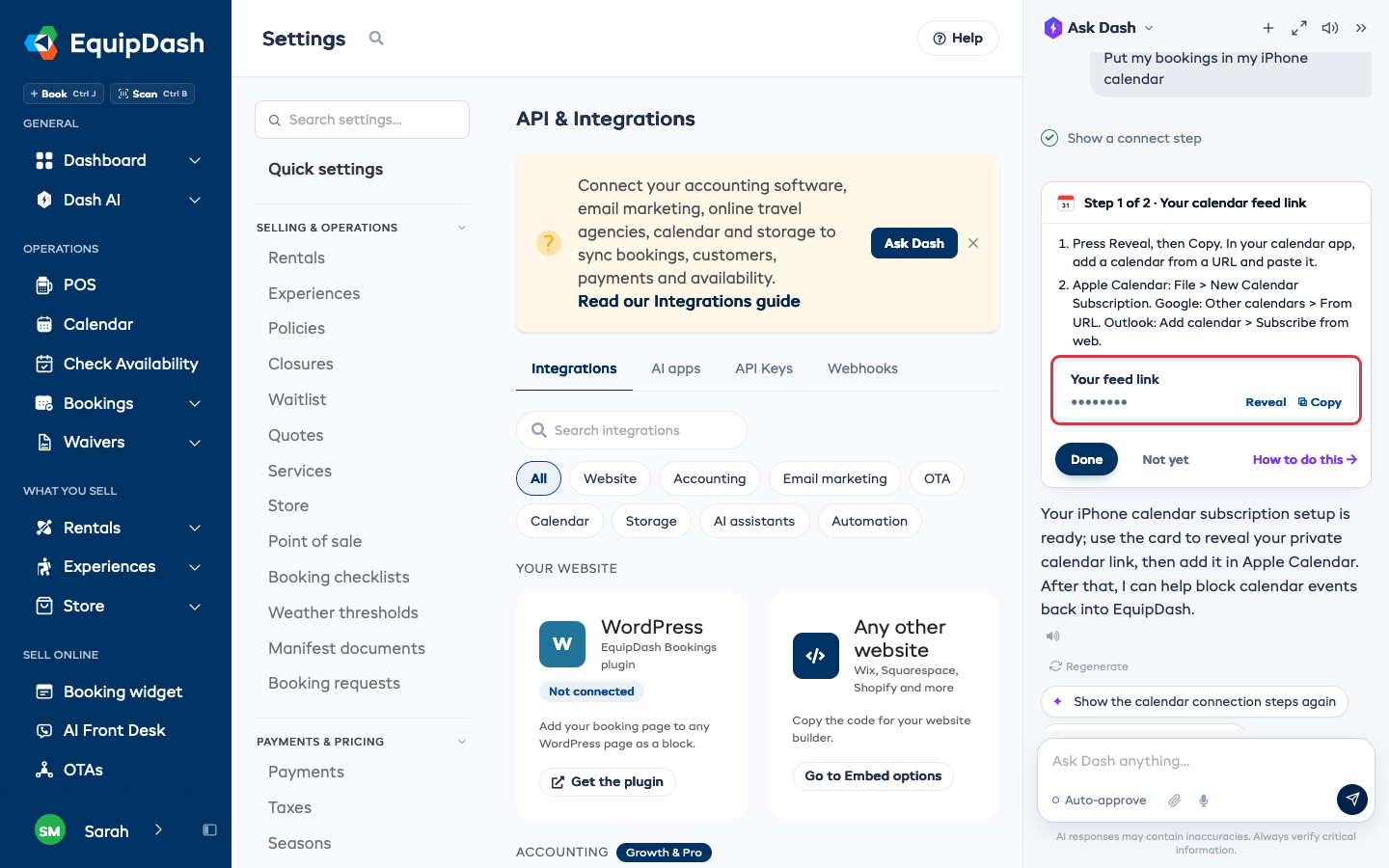
Some apps need something from EquipDash, such as your Viator key or your calendar feed link. The card hides it until you press Reveal. Copy puts it on your clipboard so you can paste it into the other company's site, then press the step's button.
Keys, passwords and tokens you type into a card go straight to EquipDash. They never go into the chat, and Dash never sees them.
On the phone app
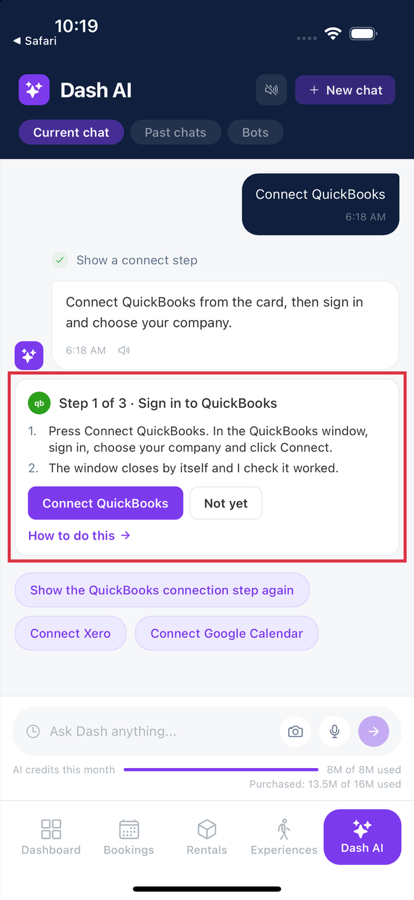
In the phone app, open Dash AI and ask the same way. The cards are the same, with two differences:
- A sign-in opens in your phone's browser. When you're done, tap Open to go back to EquipDash, and the card checks the connection. Afterward, the browser is signed in to EquipDash only if it was before.
- Share takes the place of Copy. Choose Copy in the list that opens.
Who can connect apps
People whose role can manage integrations can do every step. For Stripe and Rapyd, they also need permission to change payment settings. Everyone else sees the app's card with its state and the line Ask an owner to connect it.
Which apps
Viator, GetYourGuide, Manawa, Xero, Xero Payroll, QuickBooks, MYOB, Google Calendar, calendar feed links, Google Drive, Stripe, Rapyd, Muse, the ChatGPT and Claude apps, and custom connectors. Dash only offers the apps your shop can use, which depends on your plan, your country and what you sell. An app your plan doesn't include shows See plans.
To disconnect an app, open its settings page with Manage.