Ask Each Person Their Size
When an experience uses gear that comes in sizes (helmets, wetsuits, boots, bikes), you can ask every person on the booking for their own size at checkout. You can also ask them anything else you need to know before the day, such as a certificate level, a weight or "Can you swim 50m?".
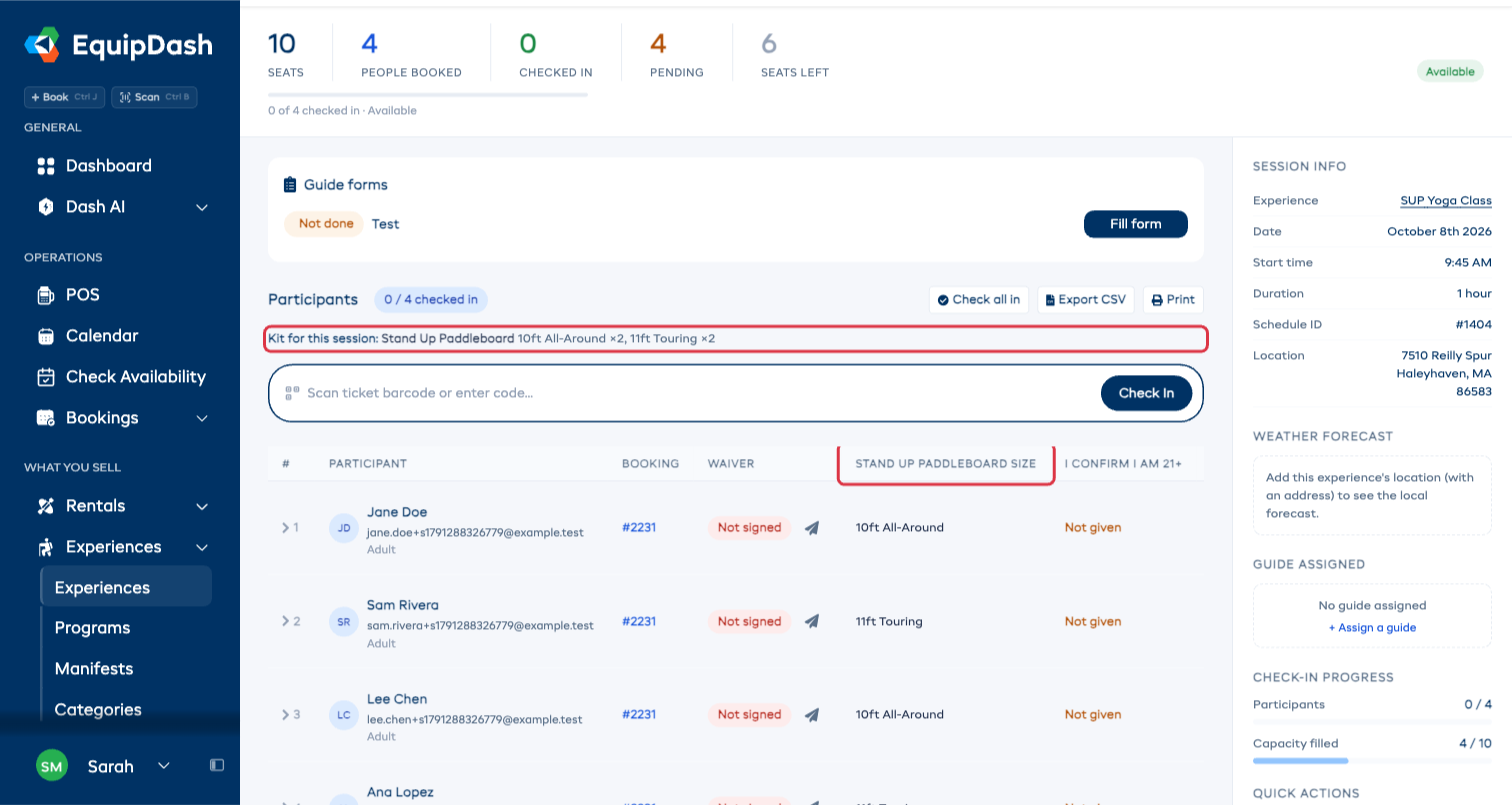
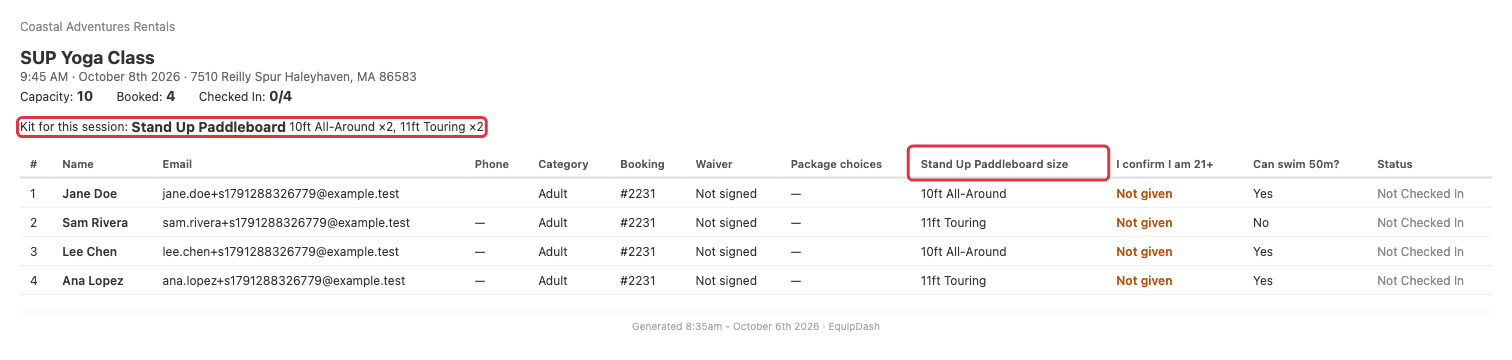
The answers show under each person on the booking, as a column on the session page and the printed manifest, and as a count of what to hand out for the session.
Ask each person their size
The sizes come from the item itself, the same sizes its rentals use, so you set them up once.
- Open the experience and go to the Details tab.
- Next to Gear this uses, click Edit.
- Under the gear item, turn on Ask each person their size. The item's sizes are listed beside it.
- Click Save.
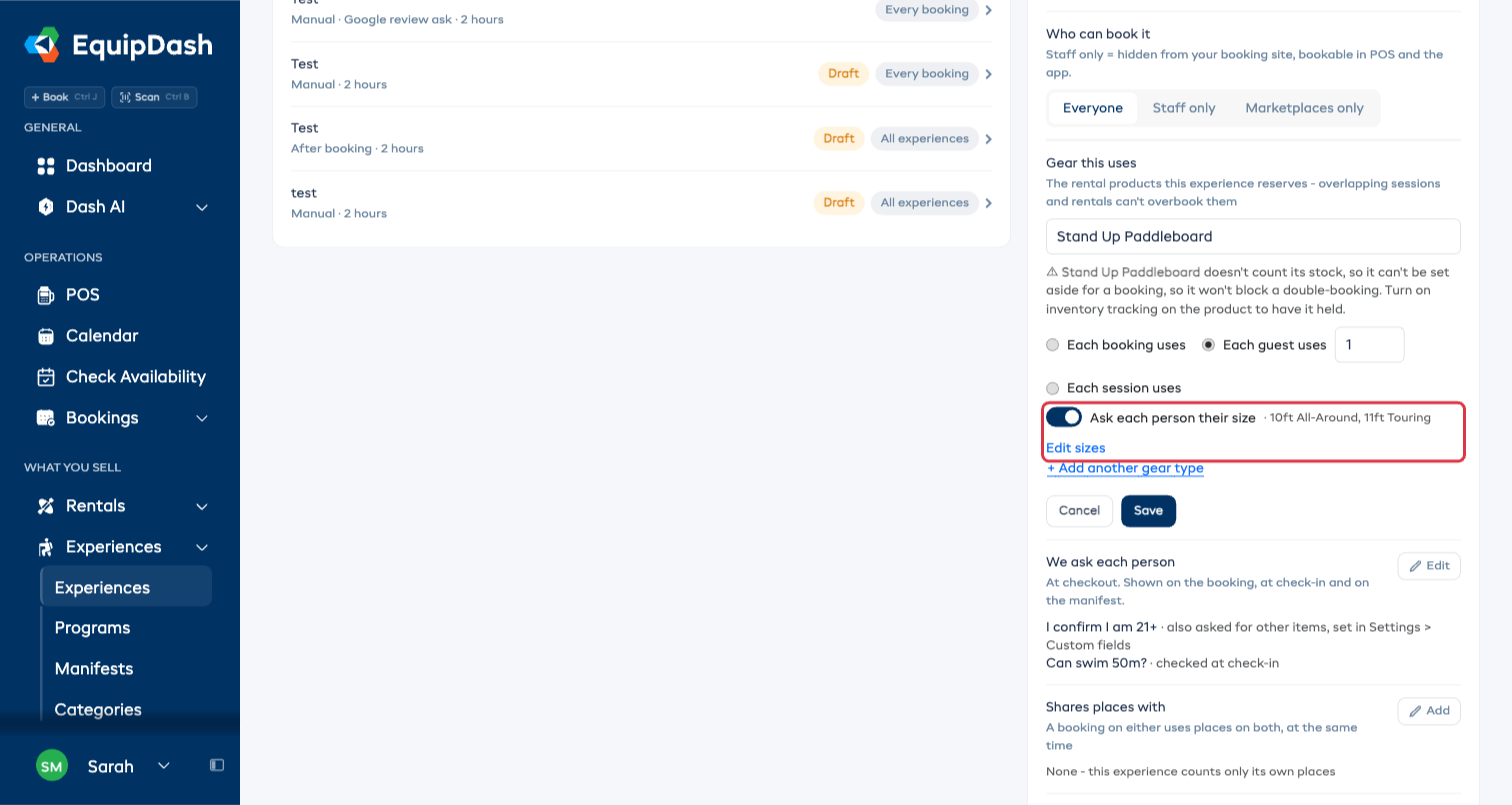
The item has no sizes yet? You see Add sizes instead of the switch. Click it, type the sizes separated by commas (for example S, M, L) and click Add. They are saved on the item, so its rentals use them too.
To change the sizes, click Edit sizes. It opens the item, where you add, rename or remove them.
The experience needs the item in Gear this uses first. See Shared Equipment.
Ask your own questions
The We ask each person row, on the same Details tab, holds everything else you ask each person.
- Next to We ask each person, click Edit.
- Click + Add a question and type the question.
- Choose the kind of answer: Short answer, One choice, Several choices, Number, Yes or no or Date. For One choice and Several choices, type the choices.
- Turn on Must answer if customers can't book without it.
- Turn on Checked at check-in for anything your crew needs to check on the day, such as a certificate.
- Click Save.
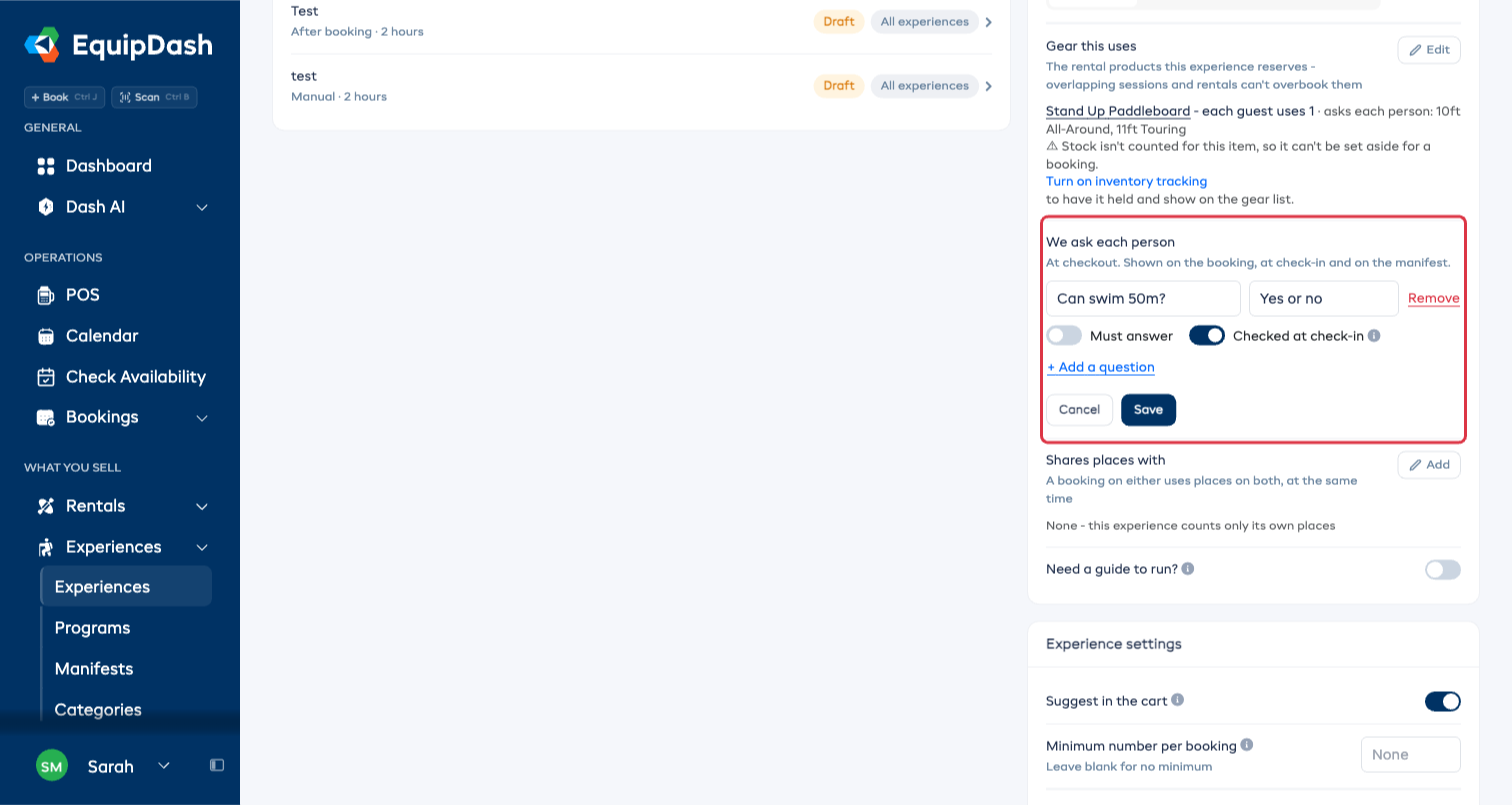
A question you add here is asked on this experience only. A question you also ask on other items shows in the list with a note, and you change it in Settings > Custom fields (Custom Fields).
Checked at check-in never stops anyone checking in. It flags who is missing an answer, so the crew can ask before they head out.
What your customers see
When an experience asks anything of each person, checkout asks every person on the booking, one card each. A booking for four people asks for four sizes.
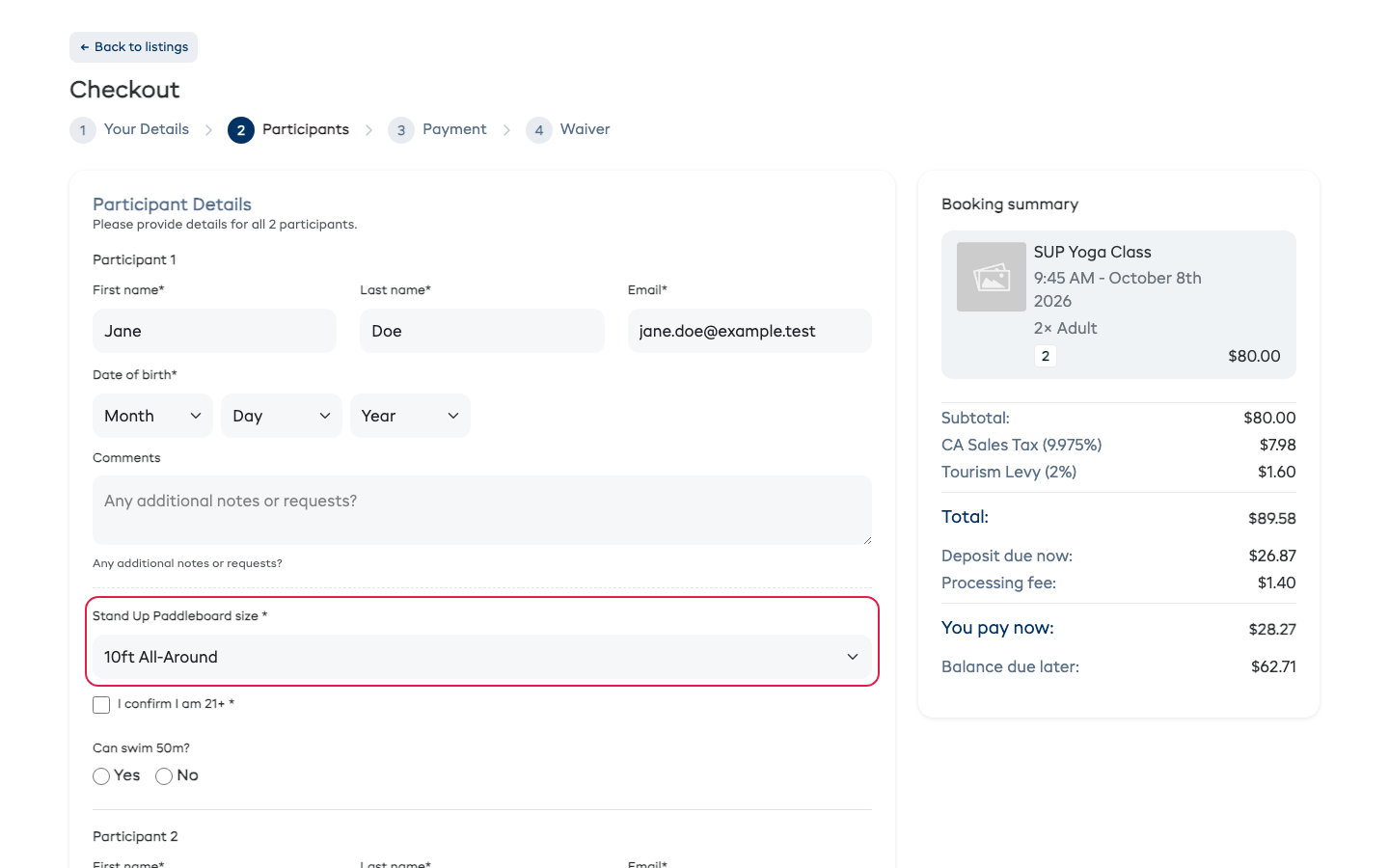
Customers type their answers each time they book. The booking page never fills them in from an earlier booking.
Booking from POS, the booking page or the app
Your team can save a booking with a size still missing and fill it in later, for example at the counter on the day. In POS, picking a returning customer fills in the answers they gave last time.
To add a missing size, open the booking and click the pencil next to the person's name.
See everyone's sizes
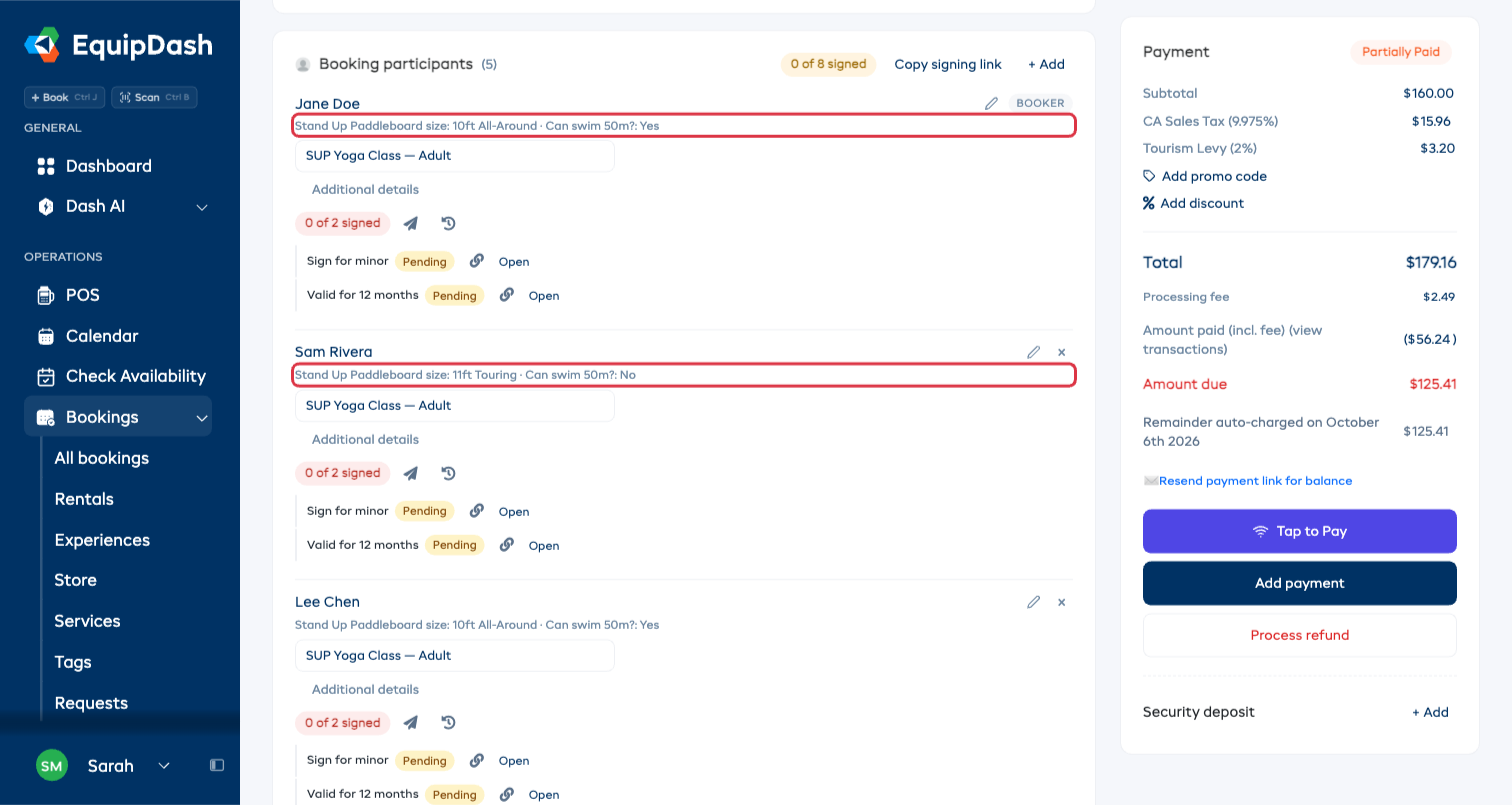
On the booking. Each person's sizes, and the answers your crew checks at check-in, show under their name. A size or checked answer still missing shows in amber as Not given: followed by what is missing.
On the session page. Each size and question has its own column, and a blank answer reads Not given. Above the list, Kit for this session counts what to hand out, for example Helmet M ×2, L ×1, 1 to ask:
- each size, with how many people need it;
- to ask: people who haven't given a size yet;
- a size in brackets, such as (L: 1 short), when more people need it than you own.
On the printed manifest. Print, Download PDF and Export CSV carry the same columns and the same kit line. So do your own manifest documents.
In the mobile app. The session screen shows the same kit card, and flags anyone missing an answer that is checked at check-in.
Ask Dash. Dash can tell you what sizes you need for a session, for example "what sizes do I need for the 9:45 session?", and it can turn on sizes and add questions for you.
Stop asking
Turn off Ask each person their size, or click Remove next to a question, then Save. Answers people already gave stay on their bookings.