Share Equipment Across Experiences and Rentals
Shared equipment connects an experience to the products it needs. Bookings reserve those products from the same stock used by rentals and other experiences, so availability checks both seats and equipment.
How it works
- Create a rental product for each equipment type and add the stock you own. Manage its inventory, workshop jobs, downtime and buffer time from the product page.
- Each experience lists the products it uses and how many each booking, guest, unit booked or session needs.
- A departure can sell up to its seat capacity or the equipment available during its time window, whichever is lower.
- Empty departures hold no equipment. Bookings reserve it, and cancellation releases those reservations.
Link an experience to its equipment
- Open the experience's Details tab and find Gear this uses.
- Select Add, then choose the product.
- Under Set aside for, choose what the quantity applies to, then enter How many:
- Each booking: a fixed quantity for each customer booking, shared by its guests.
- Each guest: a quantity for every guest. One per guest means a three-person booking needs three units.
- Each unit booked: a quantity for each unit sold. Two units with four guests reserve two equipment units when How many is 1.
- The whole session: a fixed quantity for the whole departure, shared across its customer bookings.
- Save and check the gear row. Every departure uses this setup.
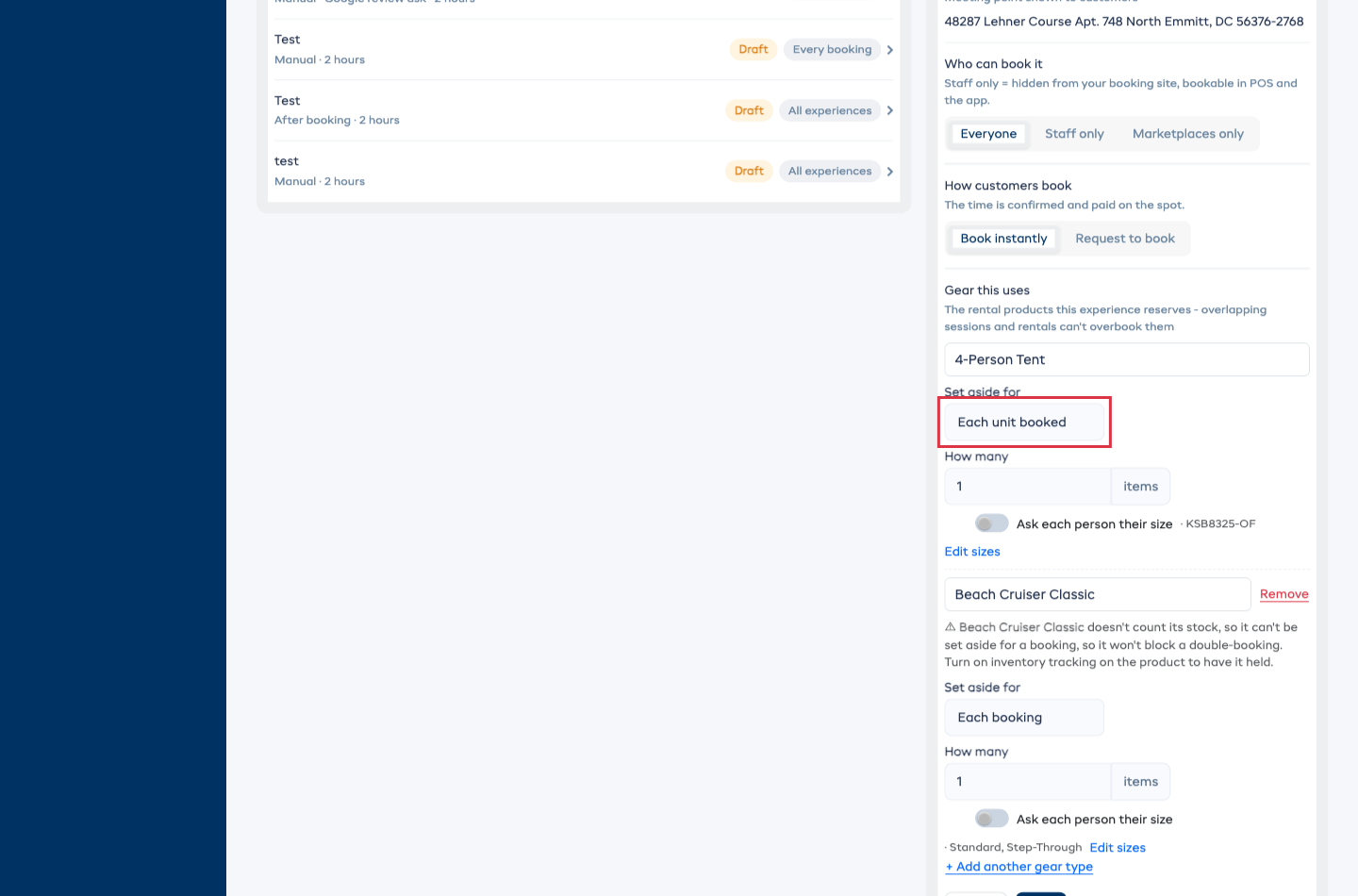
Repeat for each experience that uses the stock. Overlapping departures and standalone rentals share the same pool.
When the item comes in sizes, turn on Ask each person their size under it and checkout asks everyone which size they need. See Ask Each Person Their Size.
If the gear doesn't count its stock
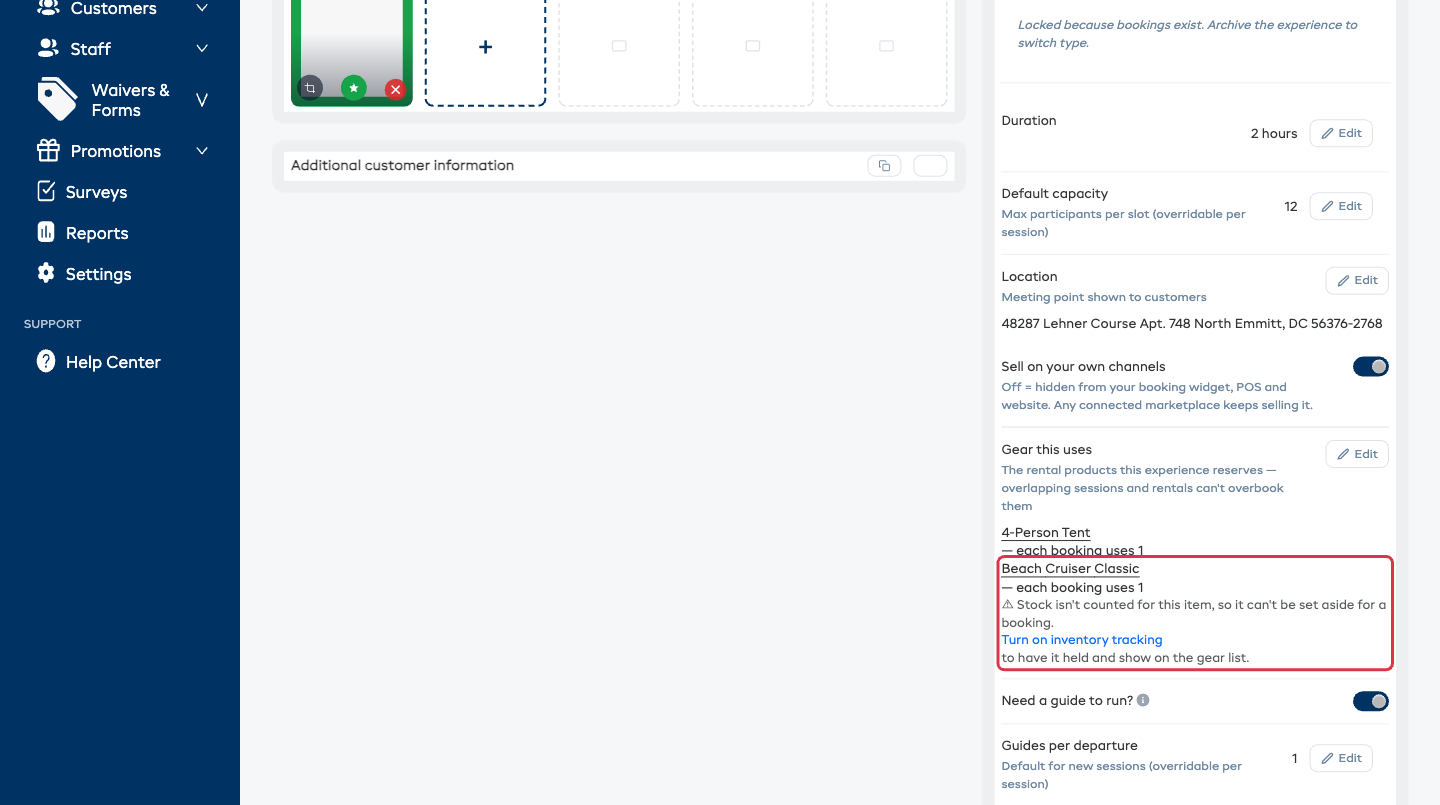
A product with Inventory tracking turned off can appear on the gear list, but nothing is reserved. The setup warning explains this, and the gear list shows Not set aside.
To limit sales by the equipment you own, open the product from Rentals → Products, turn on Inventory tracking, and add stock. See Inventory Units.
Use several gear types
Select Add another gear type for each product the experience needs. For example, each guest could need one item while the whole session shares another equipment type.
Each row uses its own stock pool and booking, guest, sold-unit or session count. Removing a row releases its future holds while keeping the other gear types.
Choose gear for each price
Use this when different prices need different equipment.
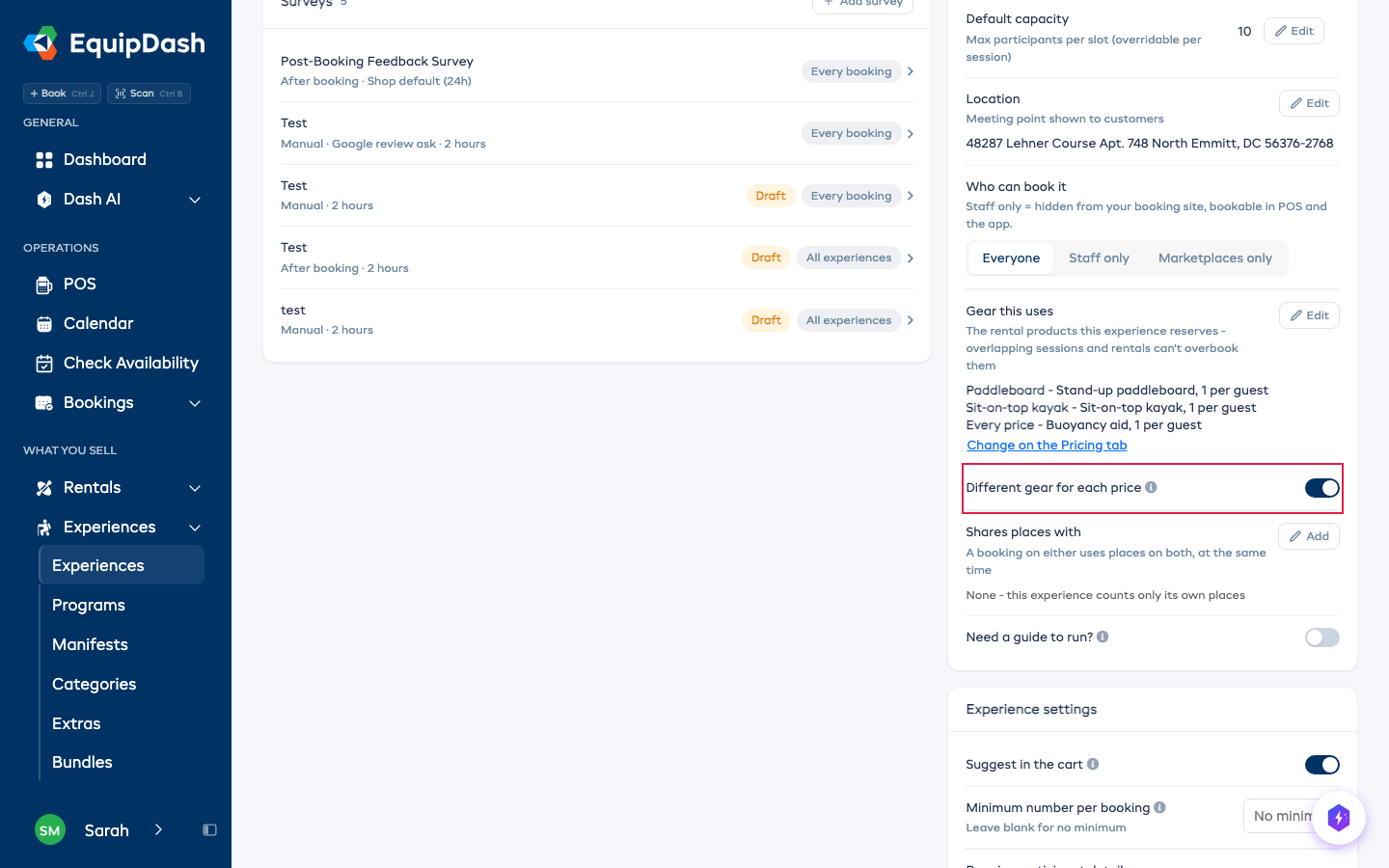
- On Details, turn on Different gear for each price under Gear this uses. The option appears when the experience has at least two prices.
- Open Pricing. Choose a gear item and the quantity each guest uses for each price, then select Save pricing.
- Keep gear that every price needs in Gear this uses on Details.
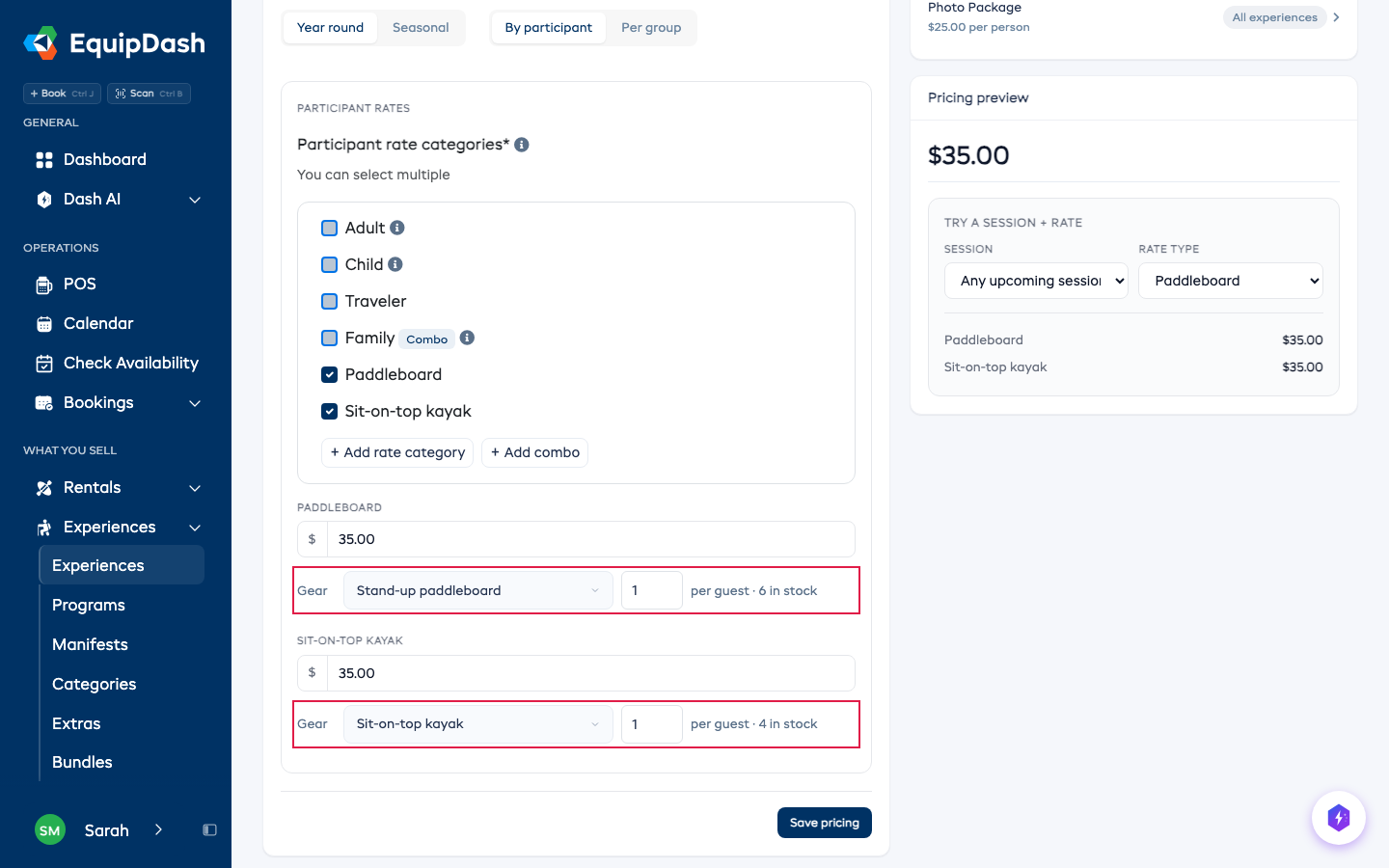
Each price is limited by its own equipment. A price whose equipment is fully booked shows as sold out; another price with available equipment can keep selling. Customers can choose a mix in one booking.
Turning the option off clears gear selected on the prices. Read the confirmation first. Cancel keeps your saved choices.
Why a time is grayed out in POS
When equipment is reserved on another departure, POS keeps the time visible and explains where the equipment is being used. Open the card to see when it returns. Ask Dash about that time to see the same reason. The customer booking page shows the time as sold out.
Keep equipment off standalone rental listings
If customers should only book the equipment through an experience, open its product Details and set Who can book it to Not on its own.
The product stays manageable in your portal and remains linked to its experiences. It has an Equipment only tag on the products list and disappears from standalone rental listings in the widget, POS and app.
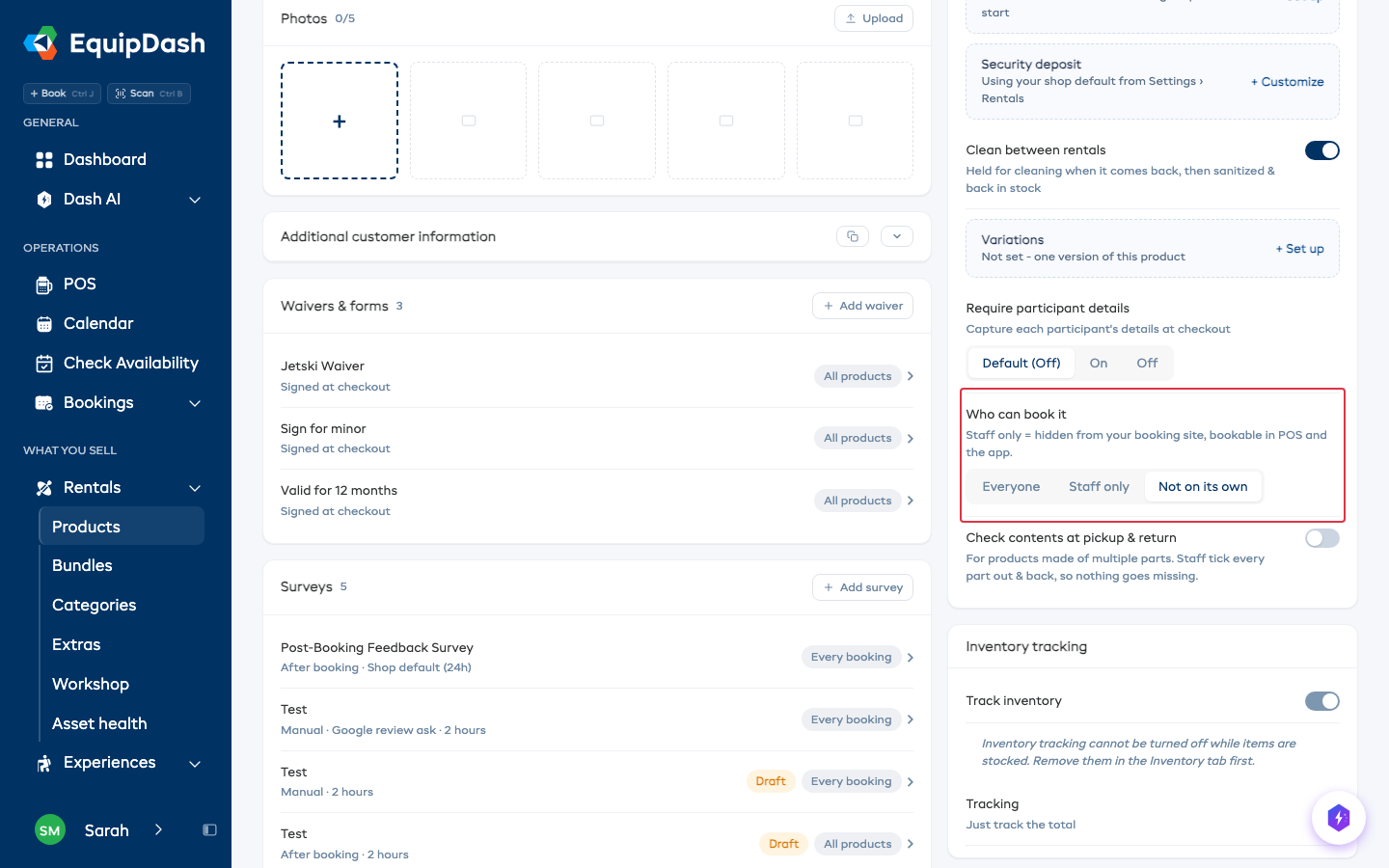
Keep Everyone, or use Staff only, when you also offer standalone rentals. Those rentals and the linked experiences use the same stock.
Allow turnaround time
On the equipment product, set Buffer time for cleaning or preparation between uses. For example, 30 minutes after reserves the equipment for another half-hour after the rental or experience ends.
Check equipment on a manifest
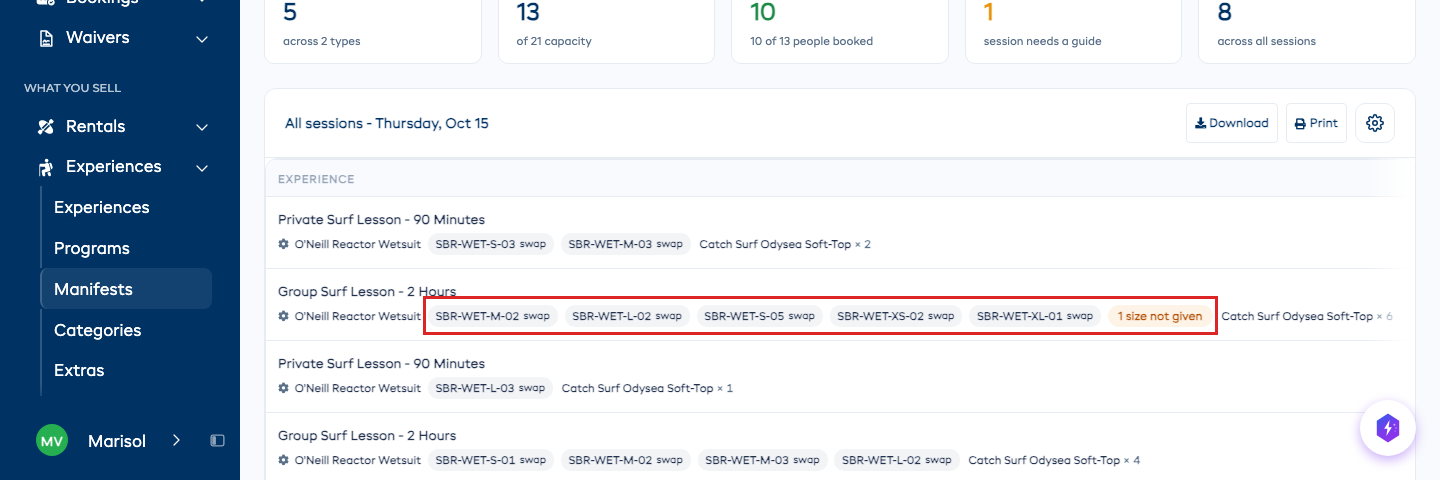
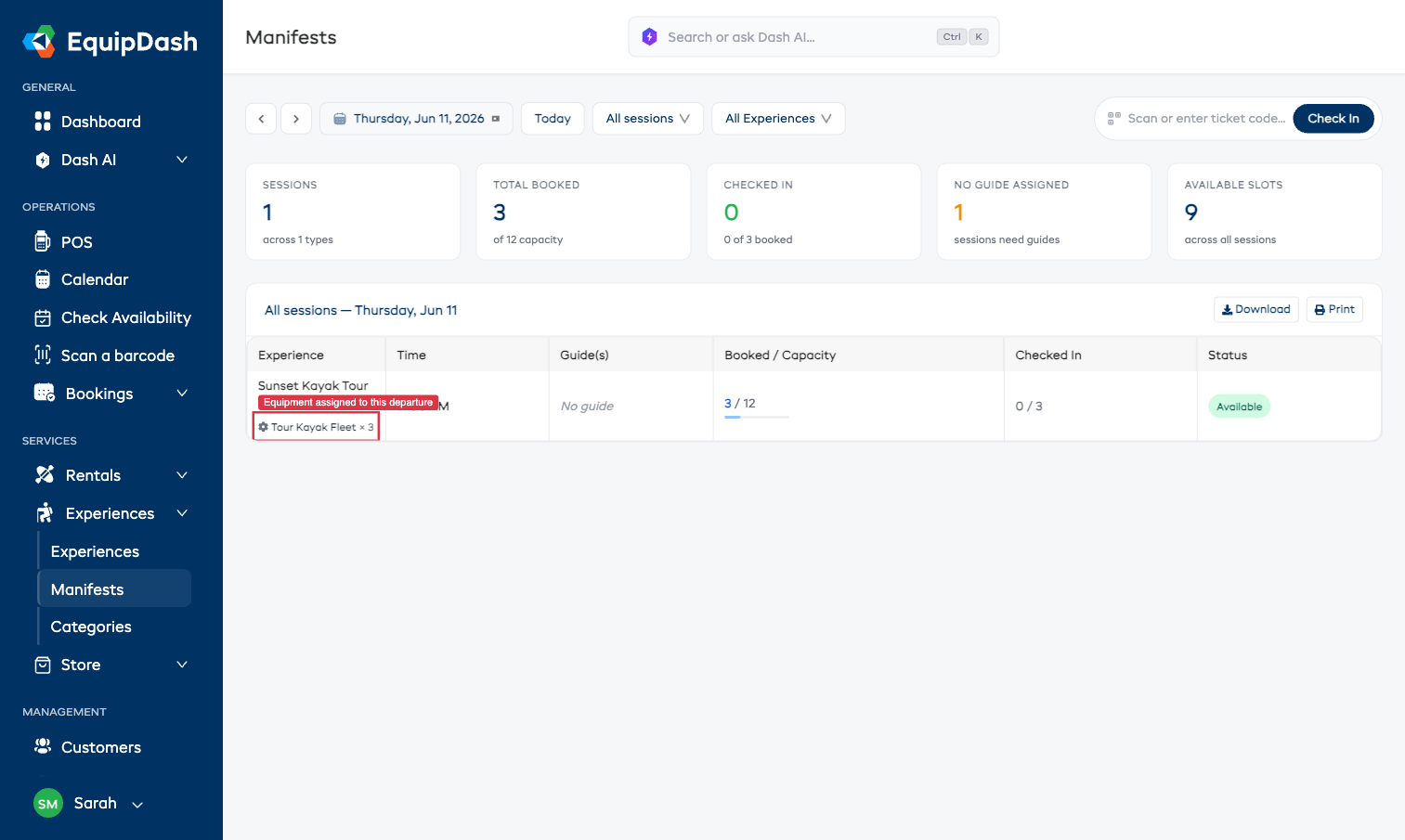
A departure's manifest shows its assigned equipment. Stock counted as a quantity shows the count. Individually tracked stock shows item labels and who is assigned to each item; Swap lets you choose another free unit.
The printed manifest and mobile manifest include this information too.
Gear in sizes. When the experience asks each person their size of an item, each person is given a unit in their own size. Change a size on the booking and their unit changes with it. Someone who has not given a size yet shows as 1 size not given, and a size you have none of left that day shows as, for example, 1 L, none free, so you know what to sort out before they arrive.
Example with overlapping departures
You own five equipment units and offer a two-hour experience and a full-day experience:
- Create one product with five inventory items and a 30-minute buffer after use.
- Link both experiences to it and choose Each booking uses 1.
- Five full-day bookings reserve all units. Overlapping departures have no equipment available.
- A unit used only from 9:00 to 11:00 becomes available again after its buffer ends at 11:30.
Good to know
- Equipment adds a limit; it never increases a departure's seat capacity.
- Adding or changing gear affects new bookings. Existing bookings may need an edit to update their reservations.
- Unlink experiences before deleting an equipment product.
Related guides
- Gear List: check what staff need to prepare and export the list.
- Inventory Units: count stock and label individual items.
- Manifests: check assigned equipment for a departure.