Setting Up Availability
Availability defines when your experience can be booked. Each available time slot is called a session - it has a date, a start time, and a capacity (the maximum number of seats or groups). Customers can only book sessions that you have made available.
Two Approaches to Availability
EquipDash offers two ways to manage when your experience runs:
Manual
You add individual sessions one at a time. This gives you full control over every session — perfect for experiences that run on irregular schedules or special one-off events.
See One-Time Sessions for details.
Recurring
You define a pattern — the days of the week, the time slots, and a date range — and EquipDash generates the sessions automatically. This is ideal for experiences that run on a regular, repeating schedule.
See Recurring Schedules for details.
Choosing Your Approach
Open the experience's Availability tab:
- Click Add session for a single date and time.
- Click Manage schedule to set repeating days and times.
You can use both on the same experience. Adding a one-time session does not replace your recurring schedule.
The Availability Table
Regardless of which approach you use, all sessions appear in the Availability tab on the experience detail page.
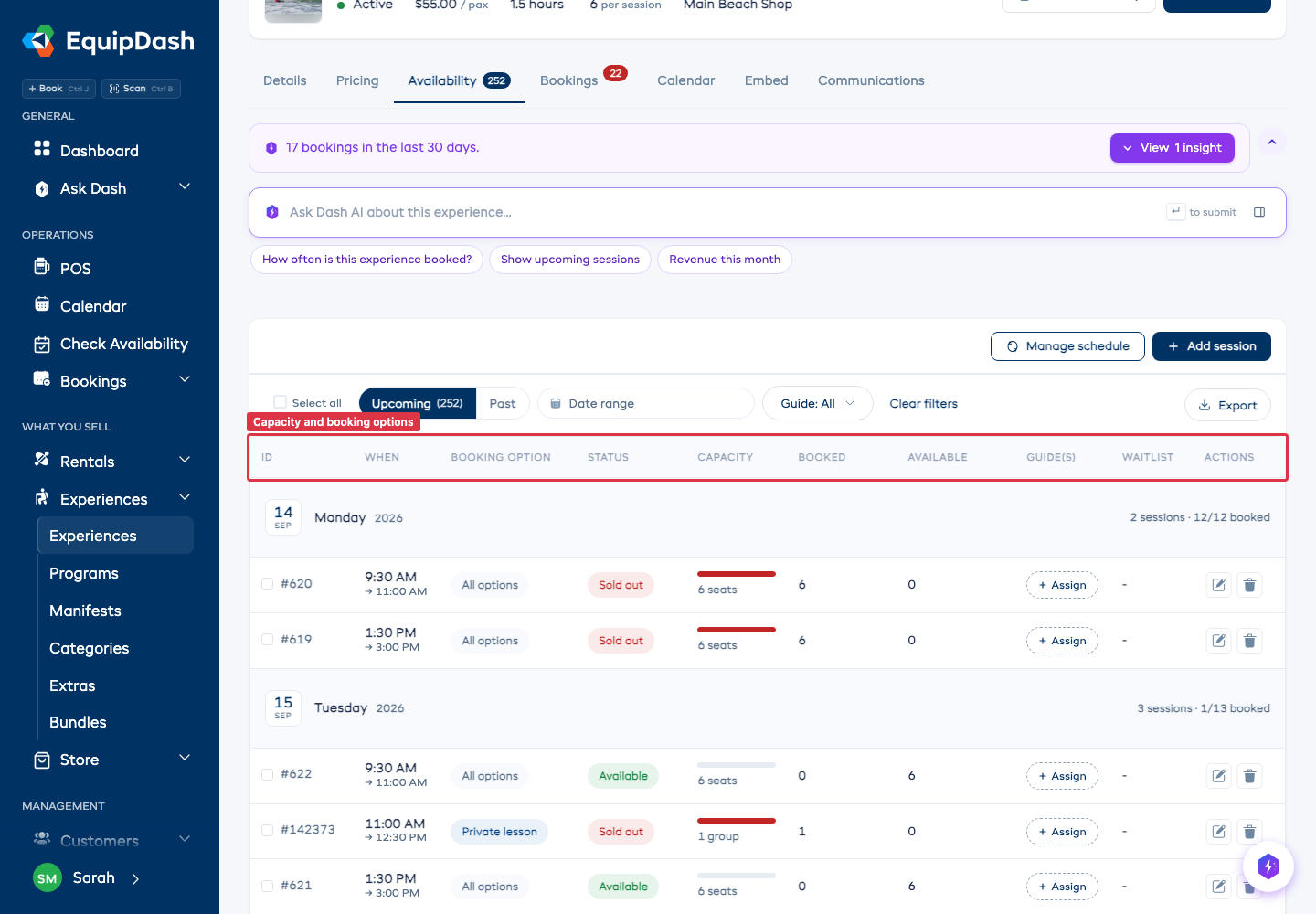
Each row shows:
- ID - The session identifier (e.g.
#1942). - When - The start and end time for the session, sitting under a date-band header that groups every session on the same day.
- Booking option - Only on an experience you sell more than one way. All options means anyone can book that session; a name means it is reserved for that option. See Different Times for Each Option.
- Status - A pill: green Available, amber Filling, red Sold out, gray Past.
- Capacity - A bar showing booked against total, with the number and its unit underneath, so you can see at a glance whether it counts people or parties.
- Booked / Available - Numeric columns alongside the bar.
- Guide(s) - Circular guide-initial chips, or a + Assign call-to-action when no guide is assigned yet.
- Waitlist - A purple count pill when a customer has joined the waitlist for that session (Pro plan only).
- Actions - Edit, duplicate, and delete icons on each row.
Filter Toolbar
A single-row toolbar above the table lets you slice the schedule fast — every change re-runs the query in place, no full reload:
- Upcoming / Past pills — segmented toggle, defaults to Upcoming. Past sessions sort newest-first; Upcoming sort soonest-first.
- Date pill — opens a date picker. Empty by default; pick a date to jump straight to it.
- Guide pill — drop down and pick a guide to show only sessions they're assigned to.
- Location pill — drop down and pick a pickup location to scope the table.
- Clear filters — resets every pill in one click.
- Sort — click any column header to override the default ordering.
Editing a Session
- Click the Edit (pencil) icon on the session row.
- The Edit availability sidebar slides in from the right with the current date, start time, capacity, and guides pre-filled.
- Update what you need and click Save.
You cannot reduce a session's capacity below the number of slots already booked. If 5 customers have booked a session and you try to set capacity to 3, the change is blocked and a warning explains how many bookings are on that session. Cancel the relevant bookings first to free up the slots, then reduce the capacity.
Bulk Actions
Tick the checkbox on any session row (or the header checkbox to select the whole visible page) and an Action ▾ dropdown appears at the top-right of the availability tab. It offers five bulk operations:
| Action | What it does |
|---|---|
| Edit capacity | Sets a new capacity (or unlimited) on every selected session. Sessions whose existing bookings exceed the new capacity are listed and skipped — every other selected session updates normally. |
| Change time | Sets a new start time on every selected session, preserving each session's date and duration. |
| Change duration | Sets how long every selected timed session runs without moving its start. Date-only sessions are skipped. |
| Assign guides | Adds (or replaces) one or more guides across every selected session — see below. |
| Delete | Permanently removes the selected sessions. Sessions with bookings on them are skipped automatically and called out in the result. |
A success / warning toast summarises how many rows updated, how many skipped, and why.
Bulk Editing Capacity
- Use the filter pills to narrow the table.
- Tick the checkboxes on each session you want to update — or use the header checkbox to select every session on the page.
- Click Action ▾ in the top-right and choose Edit capacity.
- Enter the new capacity (or tick No limit (unlimited capacity)) and click Update capacity.
Bulk Changing the Time of Day
Use this when you need to shift several sessions to a different start time without touching the date — for example, your morning surf lessons are moving from 9:00 AM to 8:30 AM for a month.
- Tick the rows you want to shift.
- Click Action ▾ and choose Change time.
- Pick the new Start time and click Update times. Each selected session keeps its current duration.
Bulk Changing Duration
Use this when selected sessions need to run for a different length without changing their start times.
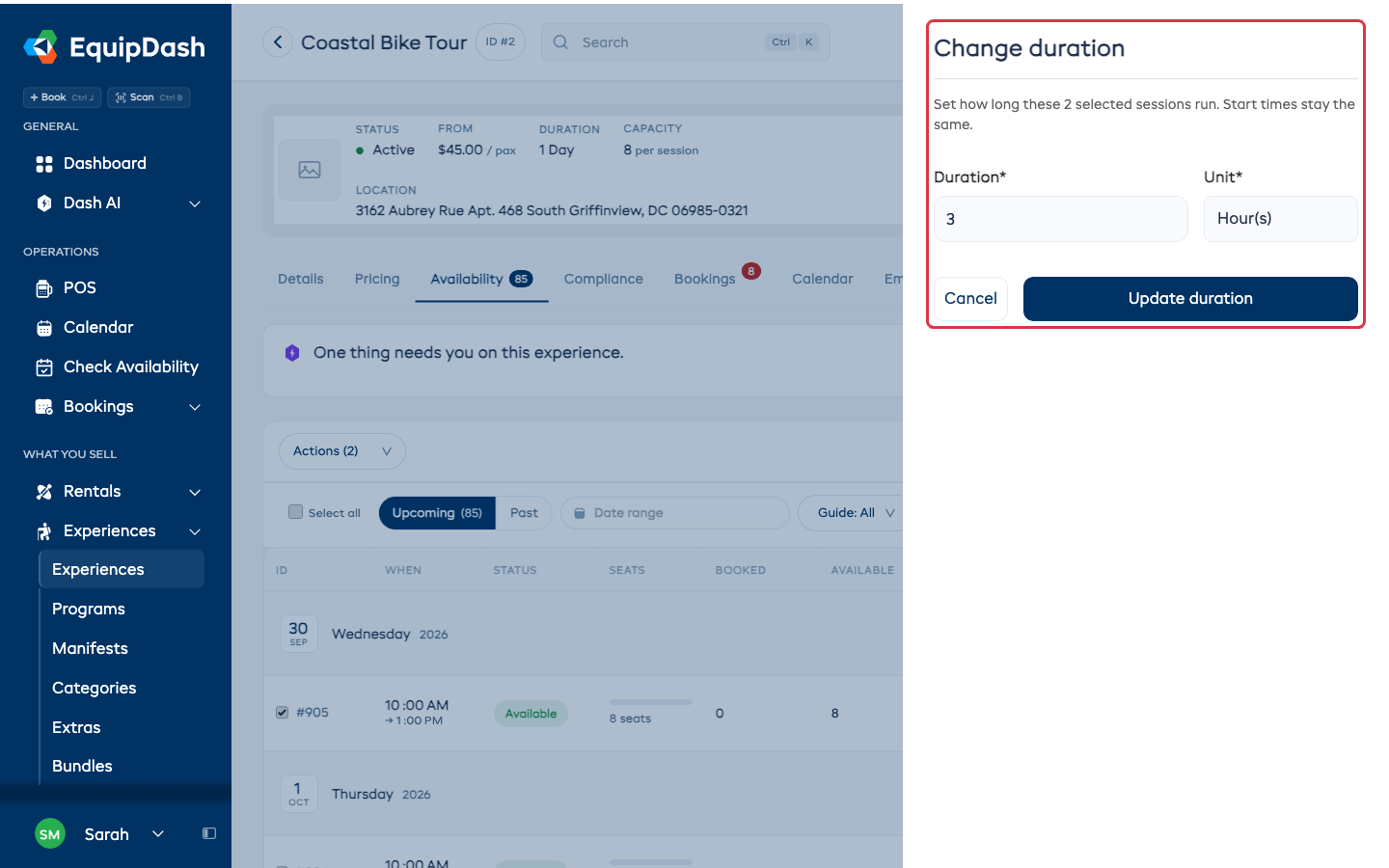
- Tick the rows you want to change.
- Click Action ▾ and choose Change duration.
- Enter the Duration, choose Minutes, Hours, or Days, and click Update duration.
Timed sessions keep their start and get a new finish. Date-only sessions stay unchanged, and the result tells you how many were skipped. This does not change the experience's default duration or its repeating schedule.
Bulk Assigning Guides
- Use the filter pills to narrow the table.
- Tick the checkboxes on each session you want to update — or use the header checkbox to select every session on the page.
- Click Action ▾ in the top-right and choose Assign guides.
- Pick one or more guides from the picker.
- By default, the selected guides are added on top of any existing assignments — duplicates are skipped automatically. Tick Replace existing guides on selected schedules if you'd rather wipe the current assignments and start fresh on each selected session.
- Click Assign guides.
After the run, EquipDash reports how many assignments were created across how many sessions, plus any per-session conflicts (a guide on approved time-off, already guiding another experience at that exact time, etc.) so you know exactly which ones need a follow-up.
Assigning Guides with the Auto-Suggest Picker
When you assign guides to a session — either creating a new session or editing an existing one — EquipDash uses a smart picker that already knows who's available, who's only partially available, and who's blocked. No more cross-checking shift rosters and time-off calendars manually.
- Open the session for editing (or click Add Availability to create a new one).
- Scroll to Guide(s) (optional) and click the search field to open the picker.
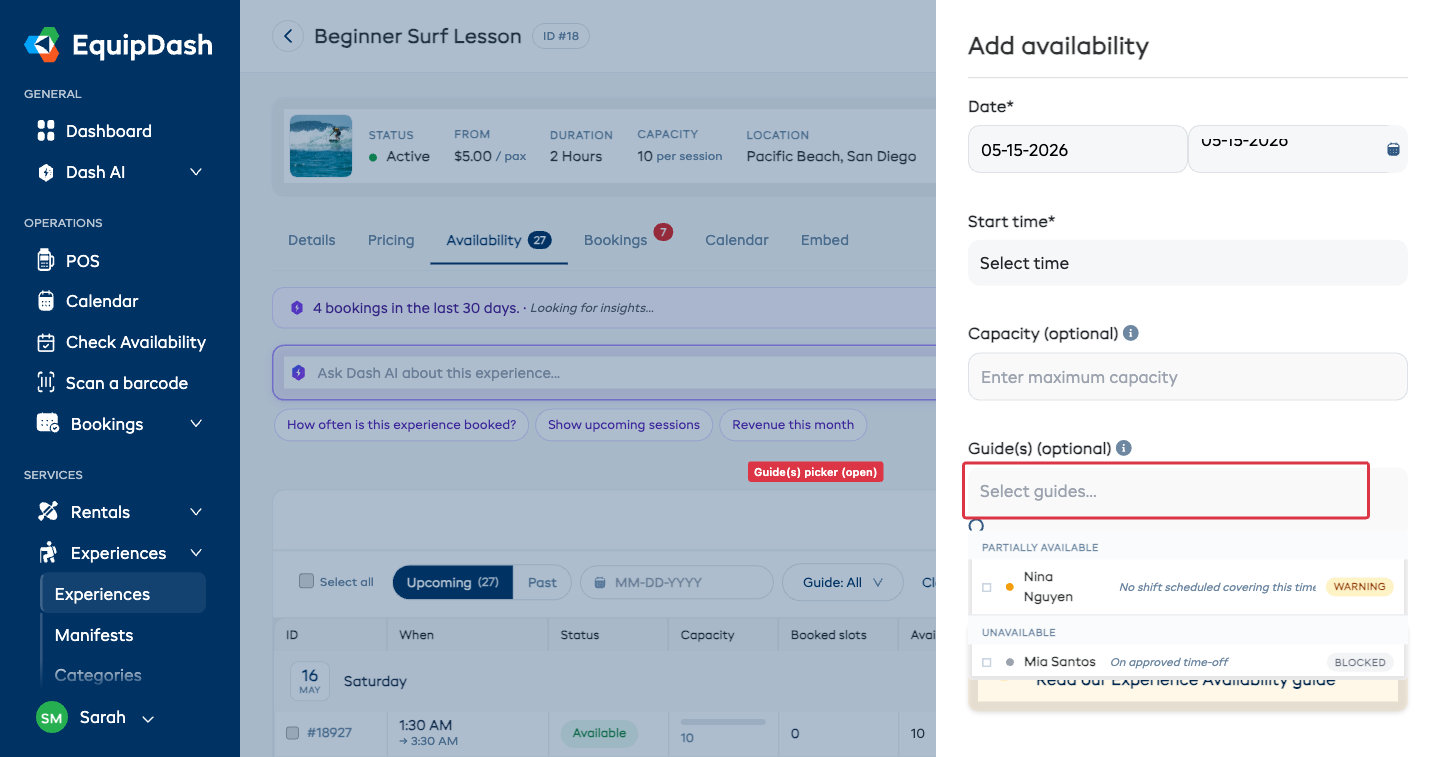
Three Groups of Guides
Guides are sorted into three groups so the most-assignable people show first:
| Group | Indicator | When |
|---|---|---|
| Available | Green dot · "Free" badge | Has a shift covering this time, no conflicts, not on time-off |
| Partially available | Amber dot · "Warning" badge | Soft warning — e.g., no shift covering the exact session time |
| Unavailable | Grey dot · "Blocked" badge | Hard block — on time-off, or already guiding another experience at this time |
Tick the guide(s) you want to assign and click Save. Hard-blocked guides cannot be assigned — the picker prevents the selection at submit time.
Each guide outside the Available group shows a one-line reason next to the name — common ones include No shift scheduled covering this time, On approved time-off, and Already assigned: [other experience].
For the full breakdown of how the picker decides each group, see Booking-Linked Scheduling.
Shift Coverage Prompt
After you assign a guide to a session, EquipDash checks whether the guide has a staff shift that covers the session time. If they don't, a Create shift? prompt appears so you can fix the coverage immediately rather than discovering the gap later.
![Create-shift prompt modal — title 'Create a shift for [Guide]?', body explaining no shift covers this session, plus Skip and Create shift buttons](/help/assets/images/experience-shift-coverage-prompt-8b7fba69b6baeabc3d9fa7fd923ad3fa.png)
Choose Create shift to auto-create a staff shift exactly covering the experience time, or Skip to continue without one. If multiple guides need coverage, prompts appear one at a time.
This means the staff schedule and the experience schedule never drift apart — every assigned guide ends up with a corresponding shift on the staff roster.
Deleting Sessions
Single session: Click the Delete icon on the session row and confirm.
Bulk delete: Select multiple sessions using the checkboxes, click Action ▾ in the top-right, choose Delete, and confirm.
Deleting a session that has existing bookings is blocked — the system skips those rows automatically and tells you which sessions need their bookings cancelled or moved first. To get rid of a session that has bookings on it, cancel or move them first, then re-run the delete.
Seats per session
When you create an experience you can set Seats per session, the number generated recurring sessions start with. For a session added by hand, enter its capacity in the session form. You can change it later under Seats this slot.
The number counts people. On an experience sold by the group where one booking takes the whole slot, there is no seat field at all: you set Max groups per slot instead, and the session asks for Groups this slot. Either way the Availability table says which unit it is showing, and every row repeats it.
Leave the capacity blank for no numerical limit. An option that books out the session still allows only one customer's party.
Next Steps
Depending on which approach you chose:
- Manual — Learn how to add one-time sessions.
- Recurring — Learn how to set up a recurring schedule.
- Both — Learn how to assign guides to your sessions.