Custom Reports ProThis feature requires the Pro plan
Custom reports are reports you build yourself. In EquipDash they live under Reports > My reports. Drag in a chart, a table or a row of totals, drag in what you want to see (sales by item, bookings by day of the week, who still owes money), and the numbers fill in as you go. Save it once and open it any time, export it, or have it emailed to your team.
Who Can Use It
Anyone with the Reports: Overview permission can open saved reports. To build or change them you need Reports: Build, which Admins and Managers have by default. Money (sales, paid, still owed) only shows to people with Reports: Revenue; everyone else sees "hidden for your role" in its place. City only shows to people who can see customer details. Staff who only work at some locations see only those locations' bookings, in the report and in its emails.
Start From a Ready-Made Report
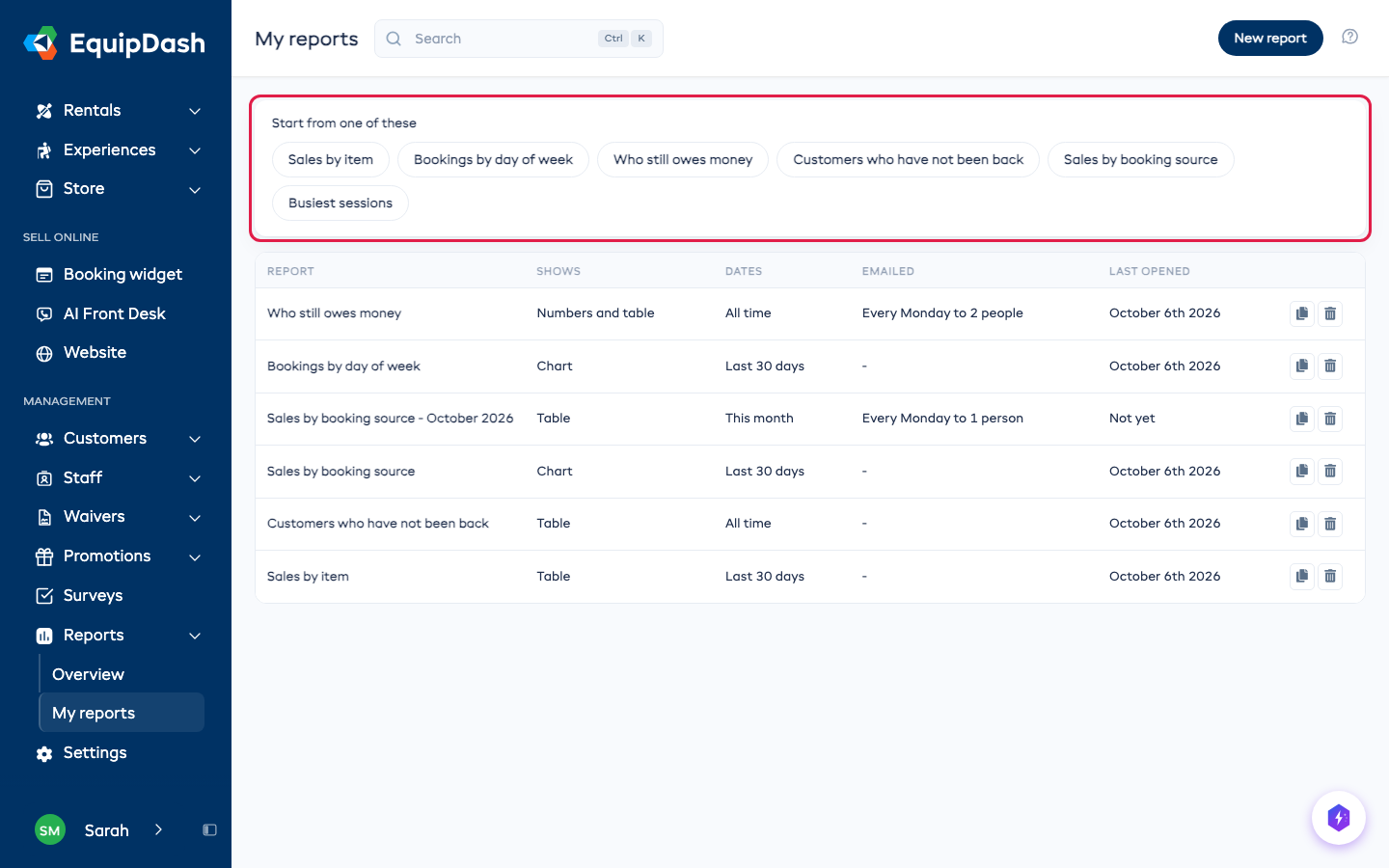
- In the left sidebar, open Reports and click My reports.
- Under Start from one of these, click a report, for example Sales by item or Who still owes money.
- It opens ready to use. Change anything you like; every change saves itself.
Build Your Own
-
Click New report.
-
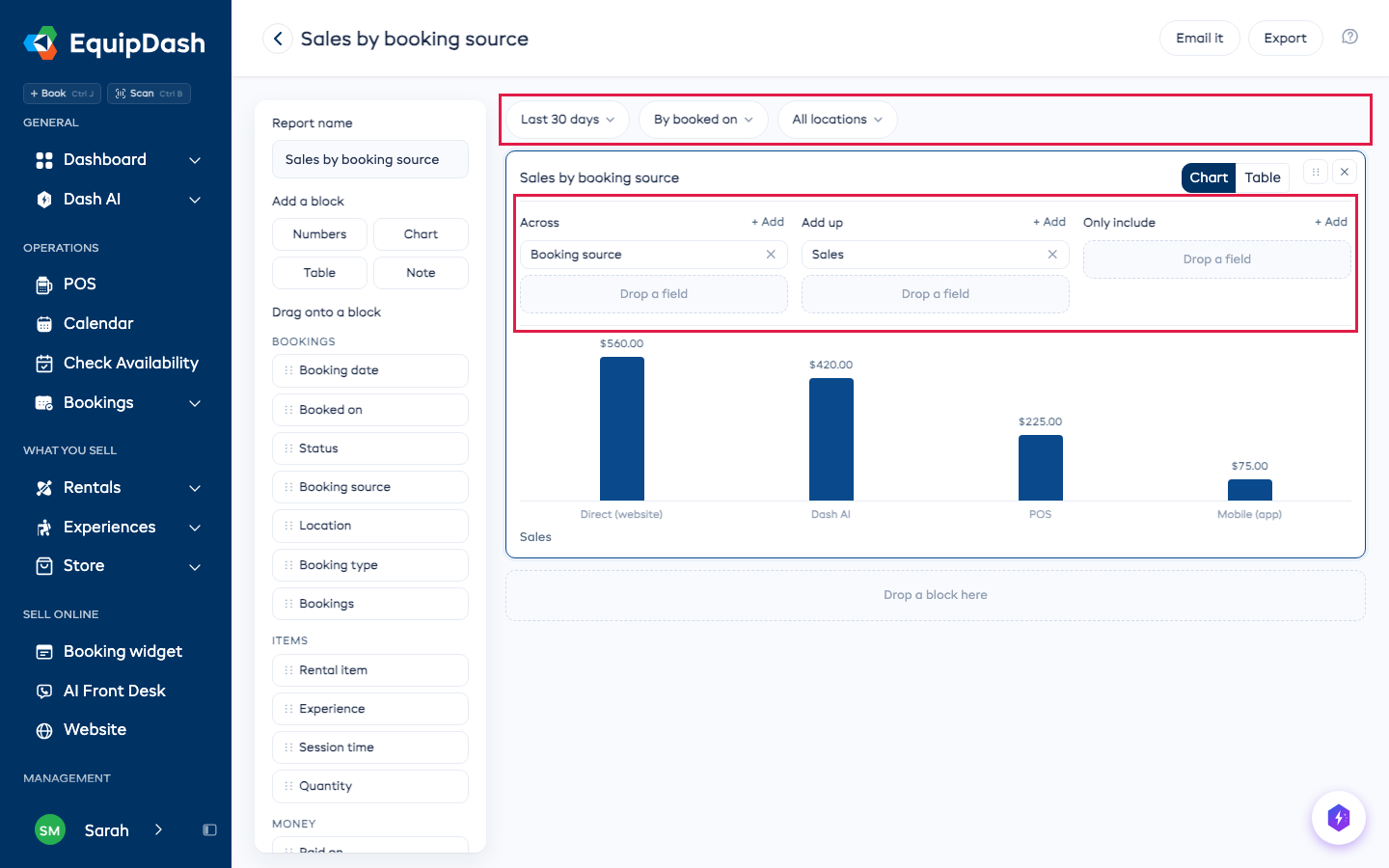
Under Add a block, drag Numbers, Chart, Table or Note onto the page, or click one.
-
Click the block, then drag fields from the left onto it:
- One line for each (or Across on a chart): what each line or bar is, for example Rental item, Booking source or Booked on.
- Add up: the figures, for example Sales, Bookings or Still owed.
- Only include: what to keep, for example Status is Confirmed. Click the field to choose.
No mouse? Click + Add beside a box, then click the field you want on the left.
-
Use the buttons along the top to pick the dates, what to count by and the location. By booked on counts each booking on the day it was made, like the Overview tab. By booking date counts it on the day it is for.
A date field on a chart or table can be grouped by day, week, month, year or day of the week: click it and pick one. Days, weeks and months with nothing in them still show, at zero. Session time shows each session's start time on your shop's clock, so a 12:00 PM and a 12:30 PM session are separate lines. Booking option shows the way each experience was booked, for example "Birthday party" or "Private room". Put it under Only include to count one option, such as every birthday party last month.
Move a block with the arrows at its top right, or drag it. Two customers (or items) with the same name stay on separate lines, and the Total adds up every line, including any not shown.
If you turn off Rentals or Experiences, blocks built from them say so instead of showing figures.
A block made from rental items or experiences says so underneath ("Rental items only"), so its sales are never mistaken for all your sales.
Blocks show Working it out for a moment while their figures are made, then fill in. A new booking or payment can take up to a minute to show in a report. If a block covers a very long stretch of time, it may ask you to narrow the dates.
Export It
Click Export at the top of the report and choose CSV, Excel or PDF. The button says Making file... for a moment, then the file downloads. It has the same figures as the screen. Exporting needs the Reports: Export permission, and each person can download up to 20 reports an hour.
Have It Emailed
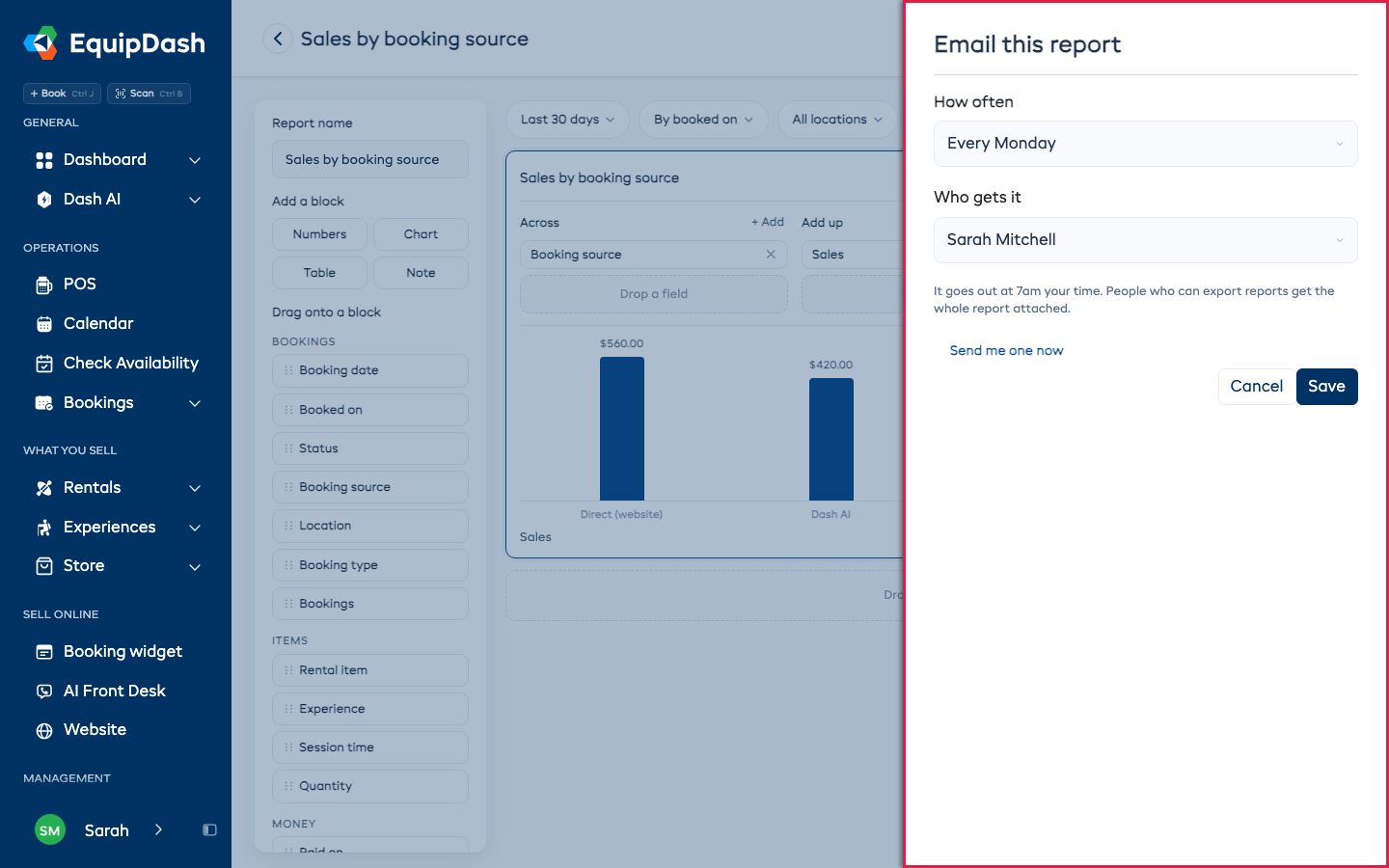
- Click Email it.
- Choose how often: Every day, Every Monday or On the 1st of each month.
- Under Who gets it, tick the people on your team.
- Click Save.
It goes out at 7am your time, with the totals in the email. People with the Reports: Export permission also get the whole report attached as a PDF. Click Send me one now to see it straight away, or Stop sending it to turn it off.
If everyone on the list has left your team or lost access to reports, the report stops going out and Email it says so. Pick someone else and click Save.
Ask Dash
You can ask Dash to build one for you: "Build me a report of sales by booking source for this month and email it to me every Monday." Dash shows what it will save, and you approve it.
On Your Phone
Saved reports open in the EquipDash app and on a phone browser, read top to bottom. Building and changing them is done on a computer.