Connect ChatGPT or Claude to EquipDash
Connect the AI app you already use, and ask it about your shop: today's bookings, who has not signed a waiver, what is free on Saturday. Connecting works on every EquipDash plan, and you do not need an API key. The app can use only what your plan includes. On Starter, for example, it cannot run campaigns, which need Growth.
The app signs in to EquipDash as you, so it can see and do only what your own login can. It never sees your password.
Open AI apps
- Click Settings in the sidebar.
- Select API & Integrations.
- Open the AI apps tab.
The quick way: paste a prompt
- Click Copy prompt.
- Paste it into a new chat in your AI app and send it.
- Follow what the app tells you. When it asks you to sign in, sign in to EquipDash and click Allow.
An app that can add connections itself sets it up for you. A chat app that cannot gives you the steps for that app instead.
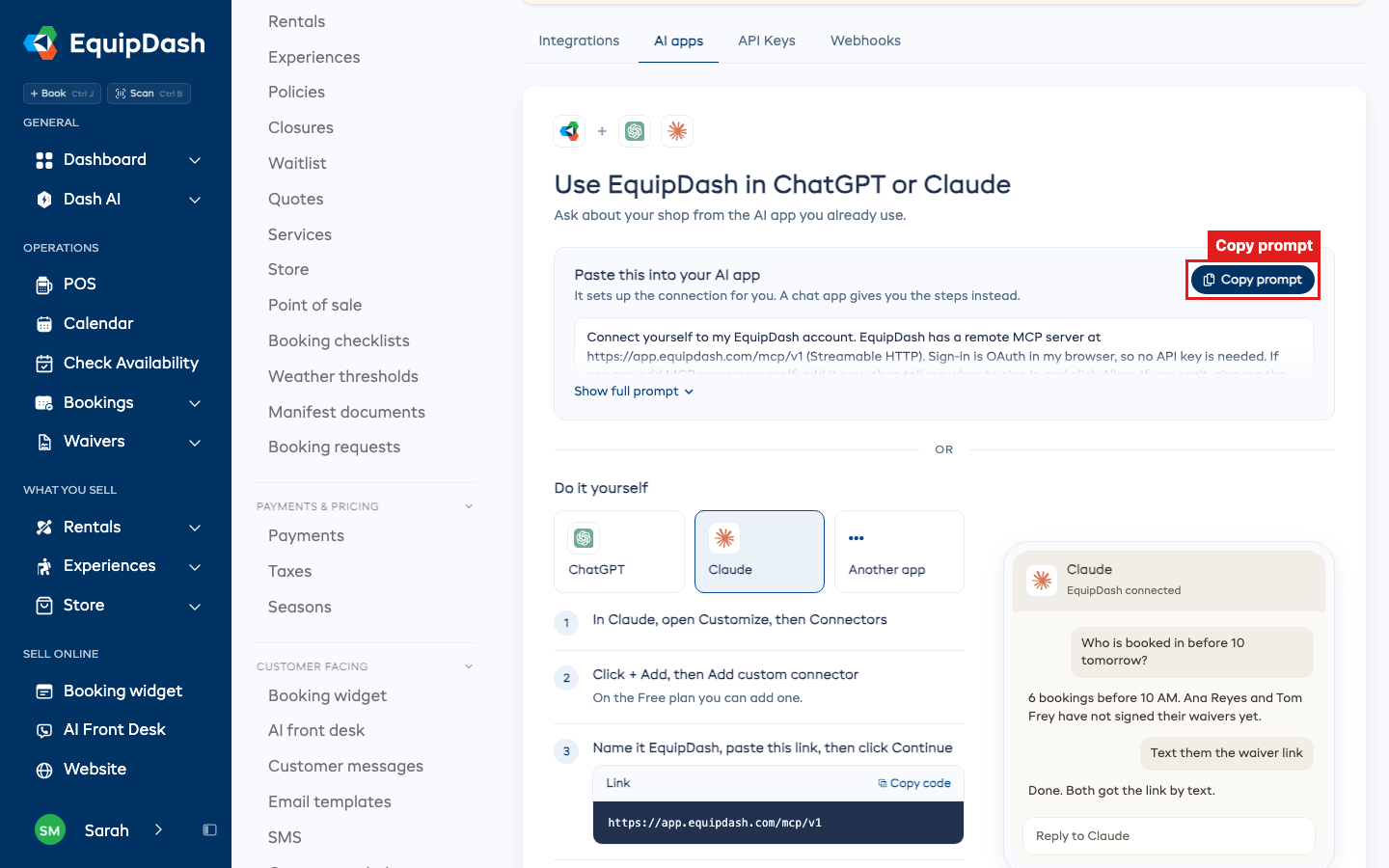
Do it yourself
Under Do it yourself, pick ChatGPT, Claude or Another app. The steps for that app show under it, with the link to paste.
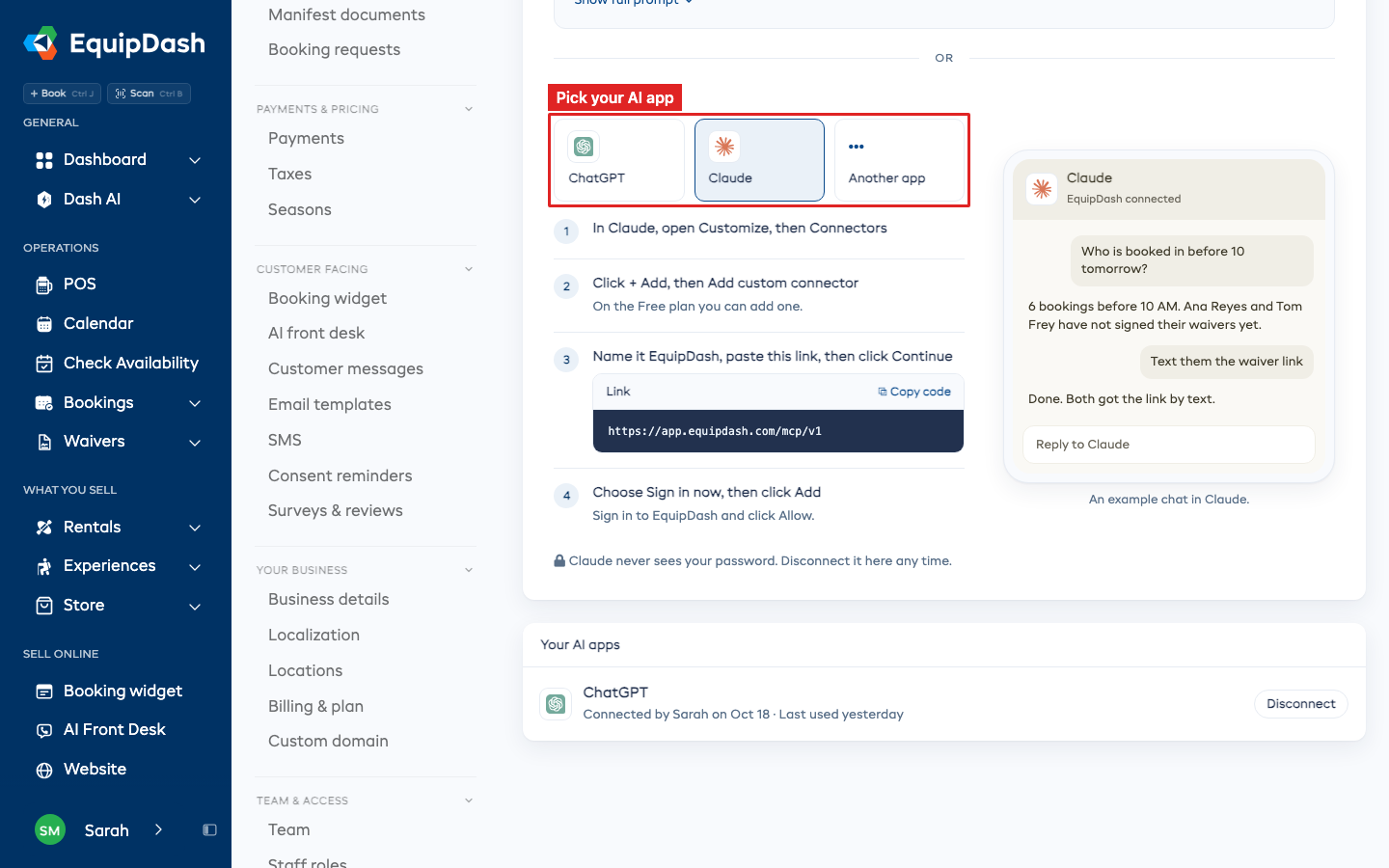
Claude
- In Claude, open Customize, then Connectors.
- Click + Add, then Add custom connector. On Claude's Free plan you can add one.
- Name it EquipDash, paste the link from the AI apps tab, then click Continue.
- Choose Sign in now, then click Add. Sign in to EquipDash and click Allow.
To use it in a chat, click + in Claude's message box, open Connectors and switch EquipDash on.
ChatGPT
ChatGPT connects apps like this on the web, on a paid plan. On a work plan, your admin may need to allow it first.
- In ChatGPT's settings, turn on Developer mode.
- Create a new app and paste the link from the AI apps tab.
- Choose OAuth, then click Create.
- Sign in to EquipDash and click Allow.
To use it in a chat, pick it from the + menu.
Another app
Any AI app that can add a remote MCP server works the same way.
- Open the settings where your AI app adds connectors. It may call them connectors, integrations or MCP servers.
- Add a new one and paste the link from the AI apps tab.
- If it asks how to sign in, choose OAuth.
- Sign in to EquipDash and click Allow.
See and disconnect your AI apps
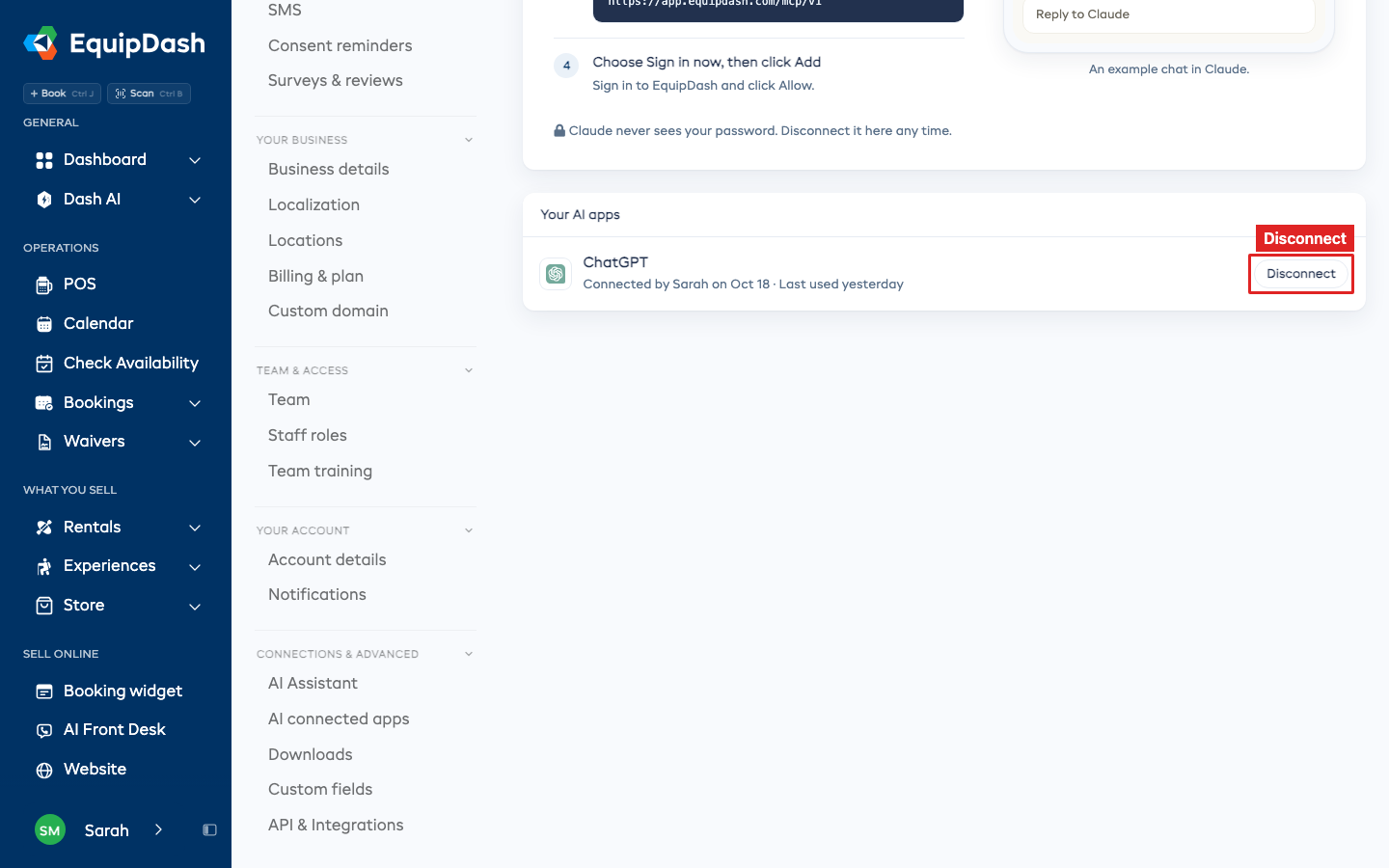
Your AI apps, at the bottom of the AI apps tab, lists every AI app connected to your business, who connected it, and when it was last used.
To stop an app, click Disconnect, then Disconnect again to confirm. It loses access straight away. You can connect it again later.
An app that is not used for 30 days disconnects by itself.
Who can do this
Anyone on your team can connect an AI app for themselves. The app can do only what that person can do in EquipDash, and only what your plan includes.
The AI apps tab, with its list of AI apps, is for people who can open API & Integrations: owners and admins, unless you give a role that access.
Related
- Creating API keys - for your own code or agents (Pro plan)
- Connected apps for Dash agents - apps your Dash AI agents can work with