Connecting Tilopay
Connect your own Tilopay account in EquipDash. Payments go to that account, and your plan commission is billed monthly.
Tilopay appears in Settings > Payments for businesses in Costa Rica, Central America and the Caribbean, where Stripe cannot open an account.
Before You Start
- Open your own Tilopay account at tilopay.com and complete their business approval.
- In your Tilopay admin, open Tilopay Checkout. You need three values from there: the API key, the API user and the API password.
- Disconnect another card payment account before connecting Tilopay.
Connect Your Account
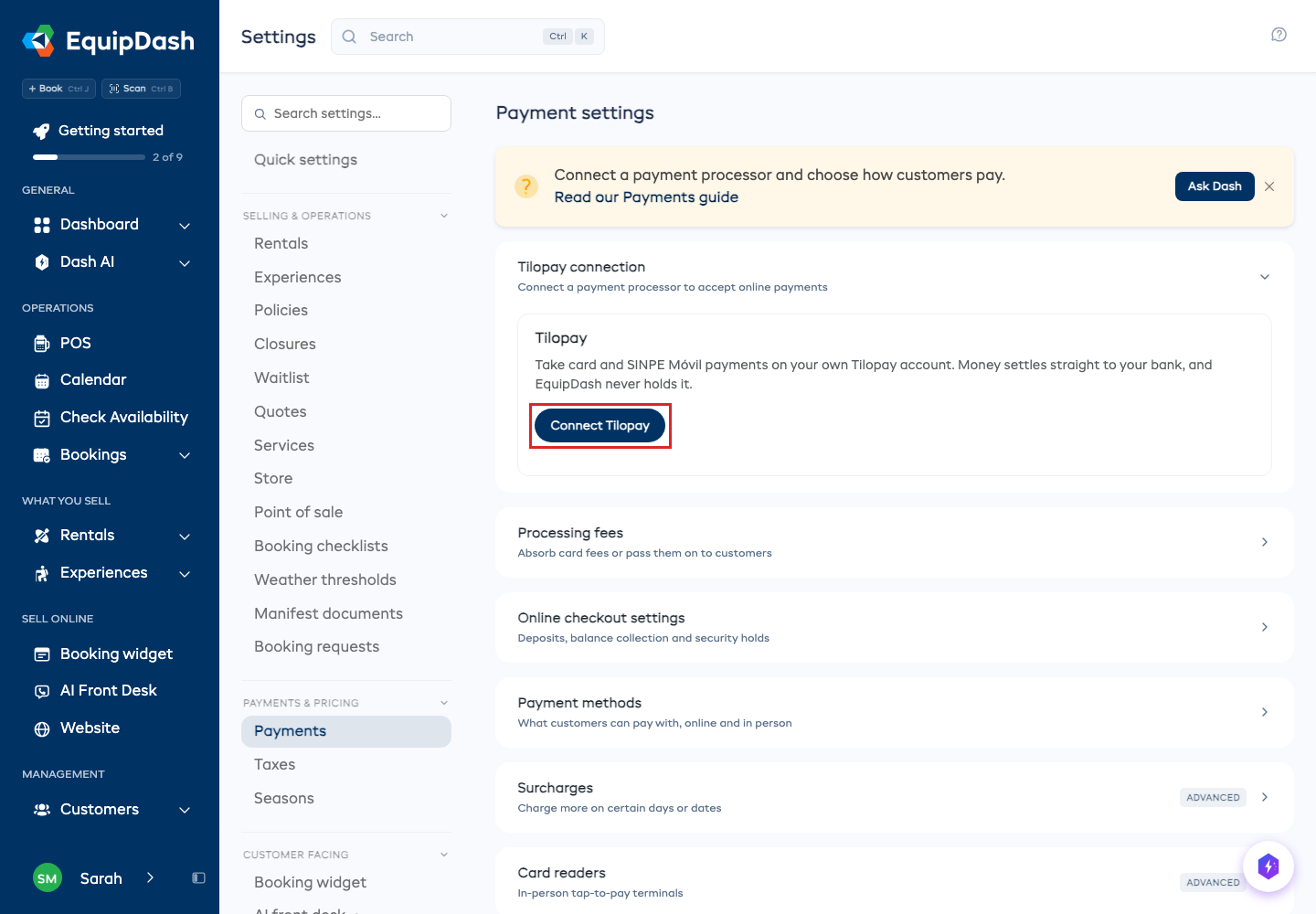
- Click Settings in the sidebar, then Payments.
- Click Connect Tilopay.
- Paste the API key, API user and API password from Tilopay Checkout.
- Click Save and connect.
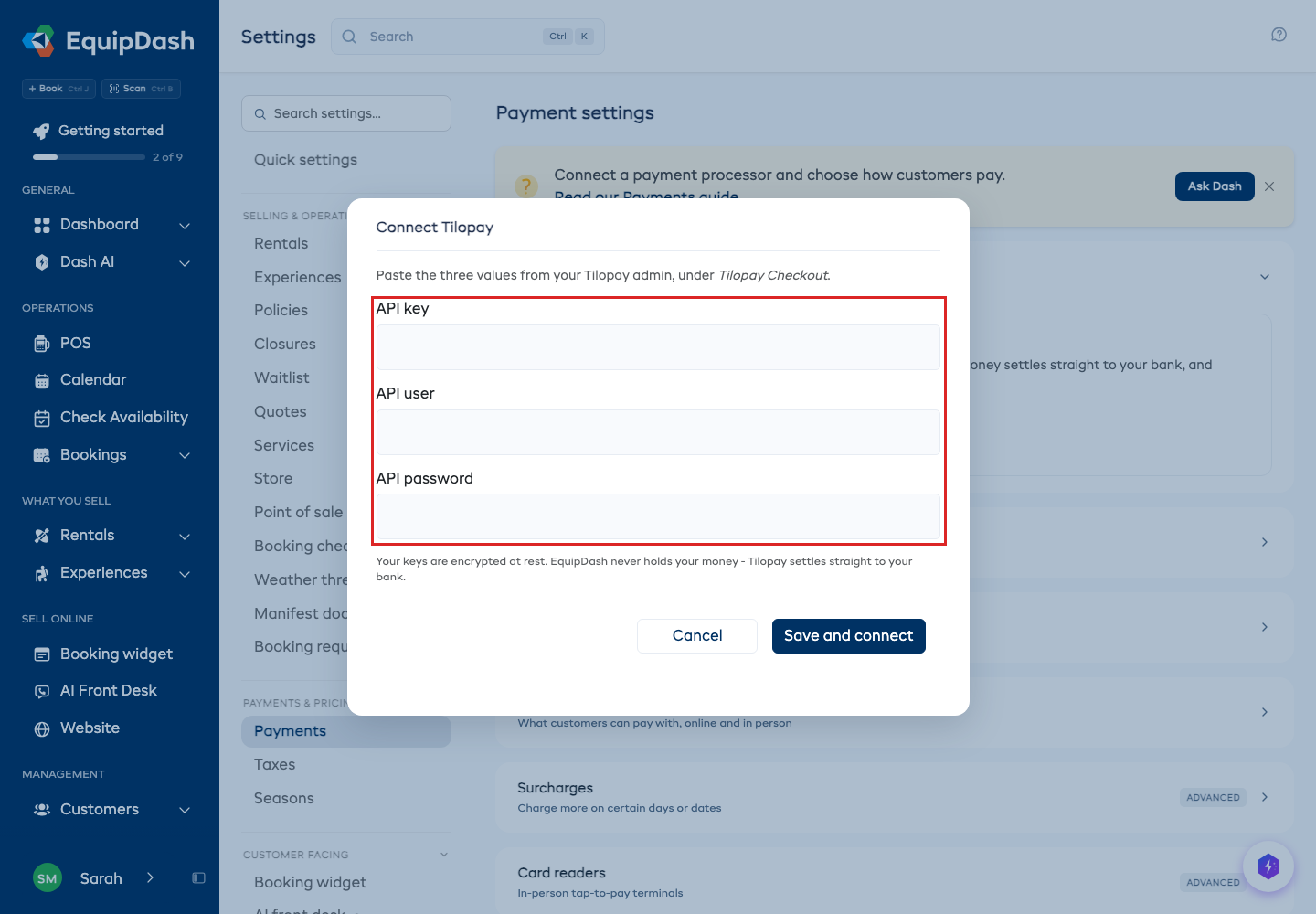
EquipDash checks the keys with Tilopay before saving them. If Tilopay does not accept them, copy all three again. Your working connection stays connected.
How Customers Pay
At checkout, your customers go to Tilopay's secure payment page, pay by card or SINPE Móvil, and come straight back to their booking confirmation. EquipDash checks every payment with Tilopay before it marks a booking paid.
Payment links and gift cards work the same way.
Test Mode
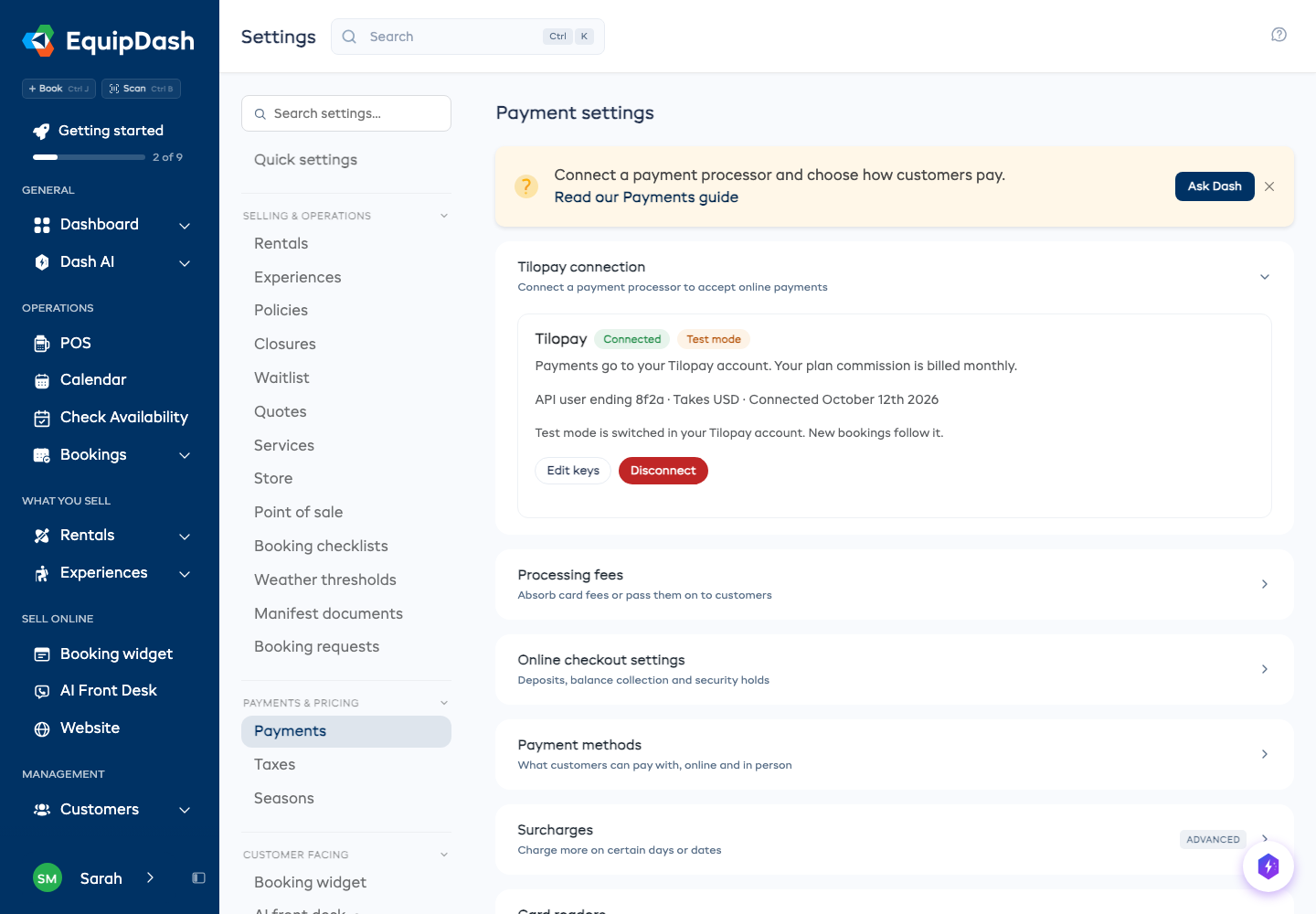
Test mode is switched inside your Tilopay account, not in EquipDash. The Tilopay card in EquipDash shows Test mode while your Tilopay account is in test mode.
To try a test booking:
- Switch your Tilopay account to test mode.
- Book something on your booking page and pay with Tilopay's test card 4111 1111 1111 1111, any future expiration date and any security code.
- Check that the booking is marked as a test. Test purchases are left out of revenue and monthly commission.
Switch your Tilopay account back to live when you want to take real payments.
Security Deposits
Under Settings > Payments > Online checkout settings > Security deposits, choose Hold or Charge.
- Hold reserves the deposit on the customer's card. You can release it or charge some or all of it.
- Charge takes the deposit. You refund it when it is no longer needed.
When a customer pays by card online, the card is saved with Tilopay so the deposit can be held on it later. To take a deposit from a booking, open Security deposit and click Place hold or Charge.
Refund Payments
Refund from the booking page as usual. Tilopay returns the money to the customer.
Change Keys or Disconnect
- Click Edit keys to replace your keys. Use keys from the same Tilopay account.
- Click Disconnect to stop new card payments. Previous records stay visible, and your keys are kept so you can still refund earlier payments and release deposits.
Fees and Card Readers
Your plan commission is added to your monthly EquipDash invoice. It is not taken from each Tilopay payment. Security deposits and test purchases carry no commission.
Tilopay's own processing fees follow your agreement with Tilopay. See Processing fees to choose whether to pass card fees to customers.
Tilopay does not support EquipDash card readers or Tap to Pay. At the counter, send a payment link, or take cash or a bank transfer.