Payment Methods
The Payment methods table is where you decide which ways of paying you actually offer -- both at the counter (in person) and online through your booking widget. You can also offer a small discount when a customer pays you in person by cash, bank transfer, or "other", to save on card fees.
It is one simple table: each method has a tick for POS (in person), a tick for Online, and -- for the offline methods -- an optional Discount.
Opening the Payment Methods table
- Click Settings in the sidebar.
- Select Payments from the settings menu.
- Scroll down to the Payment methods section.
What's in the table
Each row is one way to take a payment:
| Method | What it is |
|---|---|
| Credit / debit card | Card payment -- typed or saved card |
| Tap to Pay (terminal) | Tap-to-pay on a card reader at the counter |
| Payment link | A secure link you send the customer to pay themselves |
| Voucher / gift card | Redeeming a voucher or gift card toward the total |
| Pay at pickup | The customer books online now and pays you when they arrive (online only) |
| Cash | Cash handed over in person (offline) |
| Bank transfer | Money transferred to your bank, including payment after an online booking when enabled |
| Other | Any other in-person method you accept (offline) |
The last three (Cash, Bank transfer, Other) are grouped under Offline payments -- these are the methods where you can offer an in-person discount.
Pay at pickup
Pay at pickup lets a customer book on your booking page without a card. Nothing is charged online; the booking lands in EquipDash as confirmed with the full amount still owing, and you take the money when they arrive - cash, card reader, whatever you normally use.
It is on by default until you connect Stripe (or Paystack). That way a new shop can take bookings on day one, before card payments are set up. Once a card processor is connected the option switches off on its own - tick Online on the Pay at pickup row if you want to keep offering it alongside card payment. Whatever you save stays saved.
What the customer sees
- No card processor connected: the booking page says how much is due at pickup and that nothing is charged now. The button reads Book now, pay at pickup (or Book now, pay on the day for experiences, classes and store orders).
- Stripe connected and Pay at pickup on: the customer chooses Pay now by card or Pay at pickup on the first checkout step. Picking pay at pickup skips the card step.
- The confirmation page and the confirmation email both show the amount and say Due at pickup - nothing has been charged.
What you see
- The new-booking email to your team shows what is owed under the total, such as Due on arrival: $120.00, or Paid when nothing is owed.
- While no card processor is connected, the Dash card on Bookings counts the unpaid online bookings with a line such as 3 online bookings due on arrival, and lists them so you can open each one. If you can change payment settings, it also offers Connect payments.
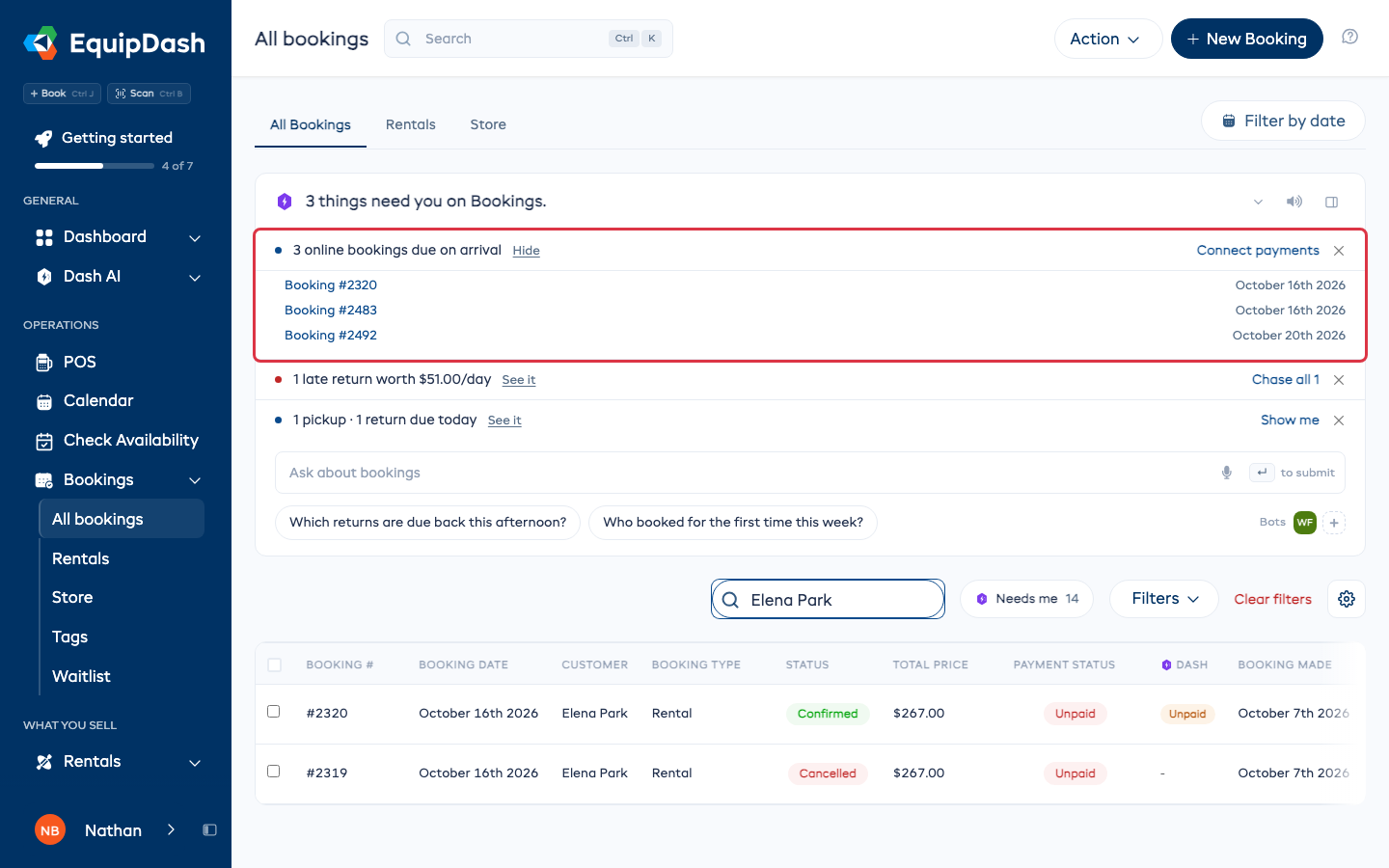
Taking the payment when they arrive
Open the booking, click Record payment, pick the method they are paying with (cash, card reader, bank transfer) and record the amount. The booking goes from Unpaid to Paid (or Partial if they pay some of it), and the customer gets the usual receipt. See Recording a Payment.
Pay at pickup is a checkout choice, not a way to record money, so it has no POS tick and no Discount. It never applies to booking requests - those save a card and charge it only when you approve.
Bank transfer after booking
You can take online bookings and ask customers to send the booking payment to your bank. You do not need a connected card processor for this option. Bank transfer checkout is off until you set it up.
- In Ask Dash or the onboarding conversation, say how much is due when customers book and when the rest is due, such as “Take a 25% deposit by bank transfer, with the balance due three days before.”
- Give Dash the exact bank transfer instructions customers should see, including the bank details and the payment reference to use.
- Review the card. It should show your instructions, Bank transfer on, card payment and Pay in person off, and manual balance collection.
- Click Save, then open your booking page to check the payment amounts and instructions.
You can also set this up under Settings > Payments. In Payment methods, enter Bank transfer instructions below the table, turn Bank transfer on for Online, and turn online card payment and Pay at pickup off. Click Update. These are the same instructions Dash reads and saves.
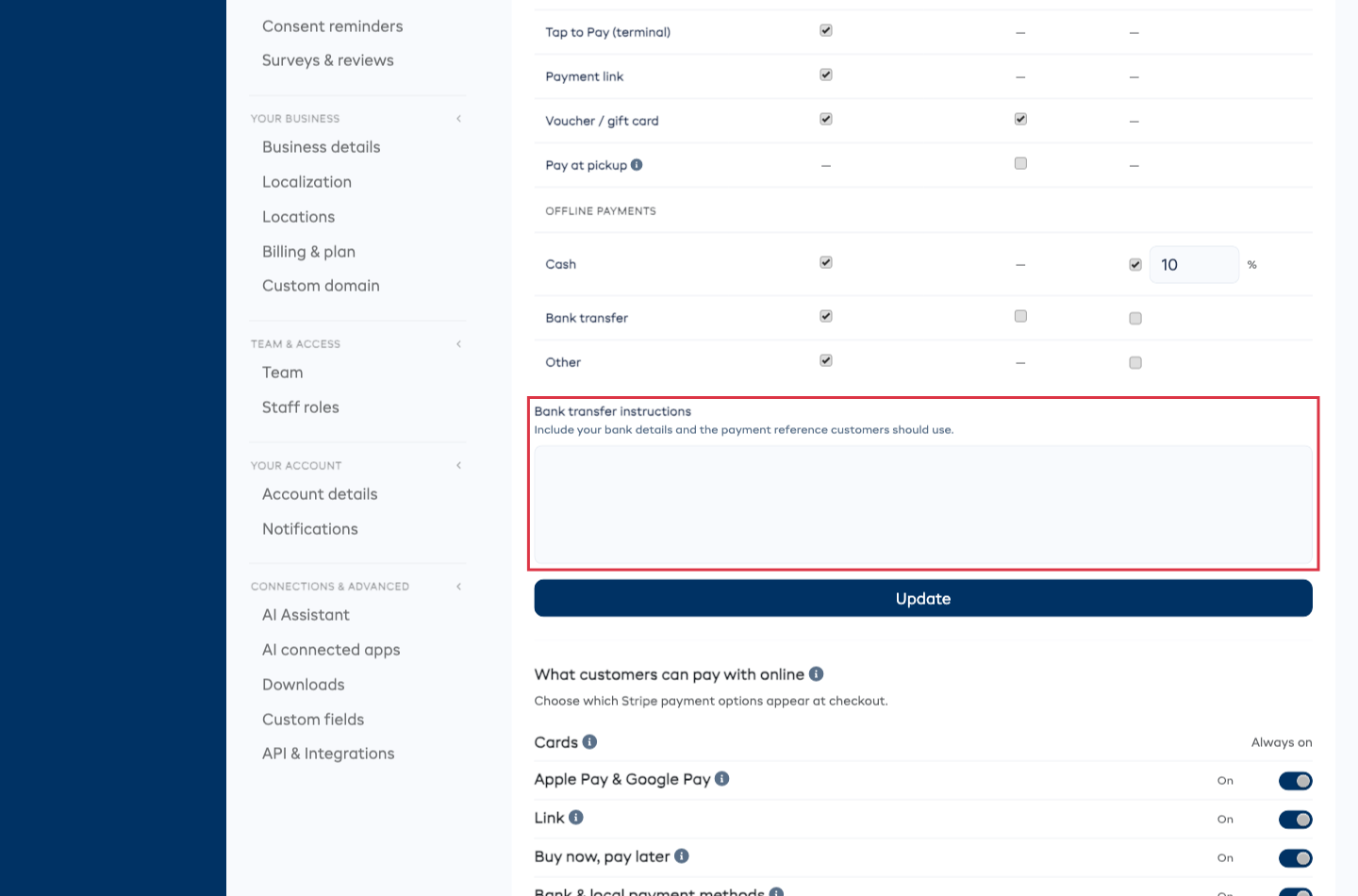
Bank transfer checkout replaces online card payment and pay at pickup. The customer confirms the booking, then sends the transfer using your instructions. The booking holds the items and stays Unpaid until you record money received. Checkout, confirmation and email show what is due now and the remaining balance deadline. EquipDash does not check your bank account for incoming transfers.
When the money arrives, open the booking and use Add payment > Manual payment > Bank Transfer. Record only the amount received. The booking becomes Partial or Paid, and its customer view shows what remains due. See Recording a Payment.
You can review the deposit and deadline under Settings > Payments > Online checkout settings. Choose Collect manually and enter Days before booking (0 for booking day). Existing bookings keep the bank instructions approved when they were made.
If the booking starts inside your balance deadline, the full remaining amount is due by bank transfer now. Booking requests keep their approval and card rules. Monthly memberships still need a card for their recurring payments.
Turning methods on and off
There are two columns of ticks:
- POS -- tick this to offer the method when you (or your staff) take a payment in person on a booking. Untick it to hide that method from the payment screen.
- Online -- tick this to offer the method in your booking widget at online checkout. Untick it to remove it from the widget.
Credit / debit card, Voucher / gift card, Pay at pickup and Bank transfer have an Online option. Bank transfer needs the instructions described above. The other rows show a dash (-) in the Online column because they only make sense in person. Pay at pickup works the other way round: it shows a dash in the POS column, because it is a promise made at online checkout rather than a way to take money at the counter.
To make a change:
- Tick or untick the boxes you want for each method.
- Click Update at the bottom of the page.
In-person methods start on. Bank transfer online starts off. Pay at pickup online switches itself off once you connect a card processor; tick it again if you want to keep it.
Offering a discount for paying in person
Card payments cost you a processing fee. If you'd rather a customer paid by cash, bank transfer, or another offline method in person, you can offer them a small discount to encourage it.
For Cash, Bank transfer, and Other, the Discount column has a tick box. To set one up:
- Tick the Discount box on the row for that method.
- A small percentage field appears -- type the discount you want to give (for example, 3 for 3% off).
- Click Update.
How the discount works when you take a payment
You don't have to remember to apply anything -- it happens automatically:
- When you take a payment on a booking and choose Cash (or whichever offline method you set a discount for), EquipDash applies the discount straight away.
- The booking total drops by that percentage, and any taxes recalculate on the new, lower amount.
- The discount shows as its own line on the booking and on the customer's receipt, so it's clear exactly what was taken off and why (for example, "Cash payment discount").
If you change your mind and switch the payment method back to a card before charging, the discount is removed and the total returns to the full price.
A discount, never a card surcharge
This is the important bit, and it's worth getting right:
- The price you advertise is always the full price. The discount is taken off that price only when someone pays in person by an offline method.
- It is never a surcharge added on top for paying by card. Online card bookings always pay the full displayed price -- no extra is ever added for using a card.
This matters in places where adding a surcharge for card payments isn't allowed but offering a discount for cash or debit is perfectly fine -- for example, Quebec. By framing it as a discount for paying in person rather than a fee for paying by card, you stay on the right side of those rules. EquipDash always handles it this way for you.
How it all fits together
| Column | What it controls |
|---|---|
| POS | Whether the method appears when you take a payment in person on a booking |
| Online | Whether the method appears in your booking widget (card, voucher, pay at pickup and bank transfer) |
| Discount | An optional percentage off for paying in person by cash, bank transfer, or other |
Things to Keep in Mind
- Turning a method off for POS simply hides it from the in-person payment screen -- it doesn't affect any payments you've already taken.
- Turning a method off for Online removes it from your widget checkout. If you untick every online-capable method, customers won't be able to pay through the widget, so leave at least one on.
- A Pay at pickup booking holds the item or seat with nothing collected. If a customer does not show, cancel the booking from its detail page to free it up again.
- The in-person discount only applies to the offline methods (cash, bank transfer, other). Card, tap-to-pay, payment link, and voucher don't have a discount option -- a voucher already reduces the amount due, and adding a discount to card payments would defeat the whole point.
- Changing these settings doesn't change existing bookings. Only new payments use the updated configuration.