Surcharges
A surcharge adds a set amount to every booking on the days you choose - weekends, holidays, a busy week. You set it once and your item prices stay as they are. Customers see it as its own line at checkout.
Surcharges are off until you add one.
Adding a surcharge
- Click Settings in the sidebar and select Payments.
- Open Surcharges near the bottom of the page.
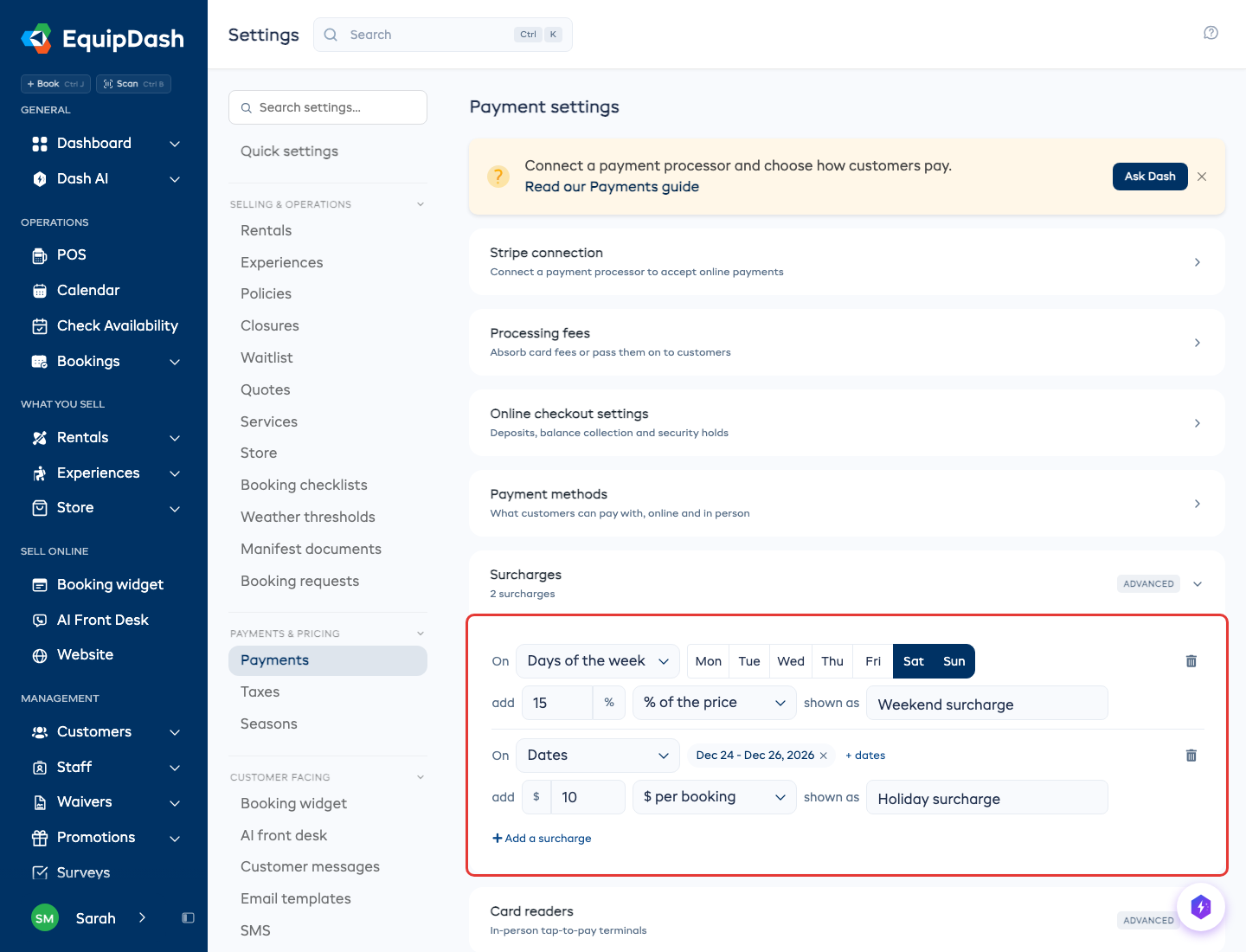
- Click Add a surcharge. A new line appears, already set to Saturday and Sunday.
- Type the amount, and choose how it is charged:
- % of the price - a percent of what the booked items cost.
- per booking - one fixed amount for the whole booking.
- per person - a fixed amount for each person on a session that day, or each item hired that day.
- Change shown as if you want a different name on the booking. This is what your customers see.
Each change saves as you make it.
Holidays and other dates
Switch Days of the week to Dates, pick a day or a range of days, and click Add. You can add as many dates to one surcharge as you need.
How it is charged
- Your calendar days. A booking on a Saturday where your business is pays a weekend surcharge, whatever time zone the customer is in.
- Hires over several days pay the surcharge on the share of days that fall on surcharge days. A Friday-to-Monday hire covering Friday, Saturday, Sunday and Monday pays a weekend percent on half its price.
- Tax and discounts apply to the surcharge like the items it was worked out from.
- Two surcharges on one day (a weekend and a holiday) both apply, each as its own line.
- Bookings already taken keep the surcharge they were sold with. Changing or removing a surcharge only affects new bookings. A surcharge you add later reaches an existing booking only if you change that booking's dates or items.
Taking a surcharge off one booking
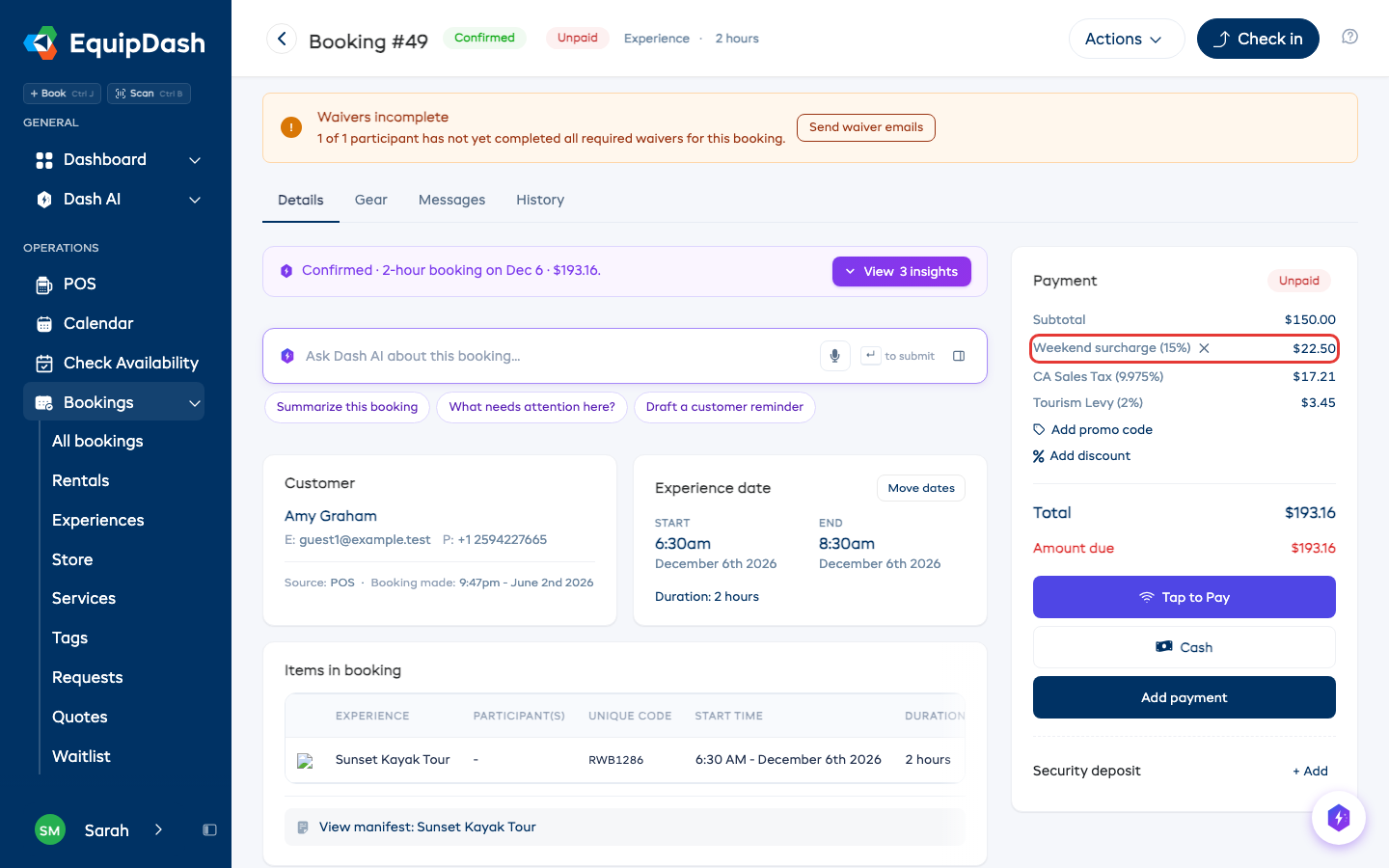
On the booking, the surcharge shows in the Payment card. Click the x beside it to take it off this booking; the total updates straight away. Click Add back to put it back. Both are noted in the booking's history. A cancelled booking keeps its surcharges as they are.
When you edit a booking in POS, a surcharge you took off stays off.
Where your customers see it
The surcharge is its own line on the cart page, checkout, the confirmation page, the confirmation and reminder emails, invoices and quotes. It also goes to Xero and QuickBooks as its own invoice line.