Recording a Payment
EquipDash gives you flexible ways to record payments against bookings. Whether your customer pays with a card, hands you cash, or transfers to your bank account, you can capture it all in one place.
Who Can Record Payments?
Recording a payment requires the Bookings: Payments permission. If you do not see the payment options described below, check your role and permissions.
Opening the Payment Modal
- Open the booking from the bookings table.
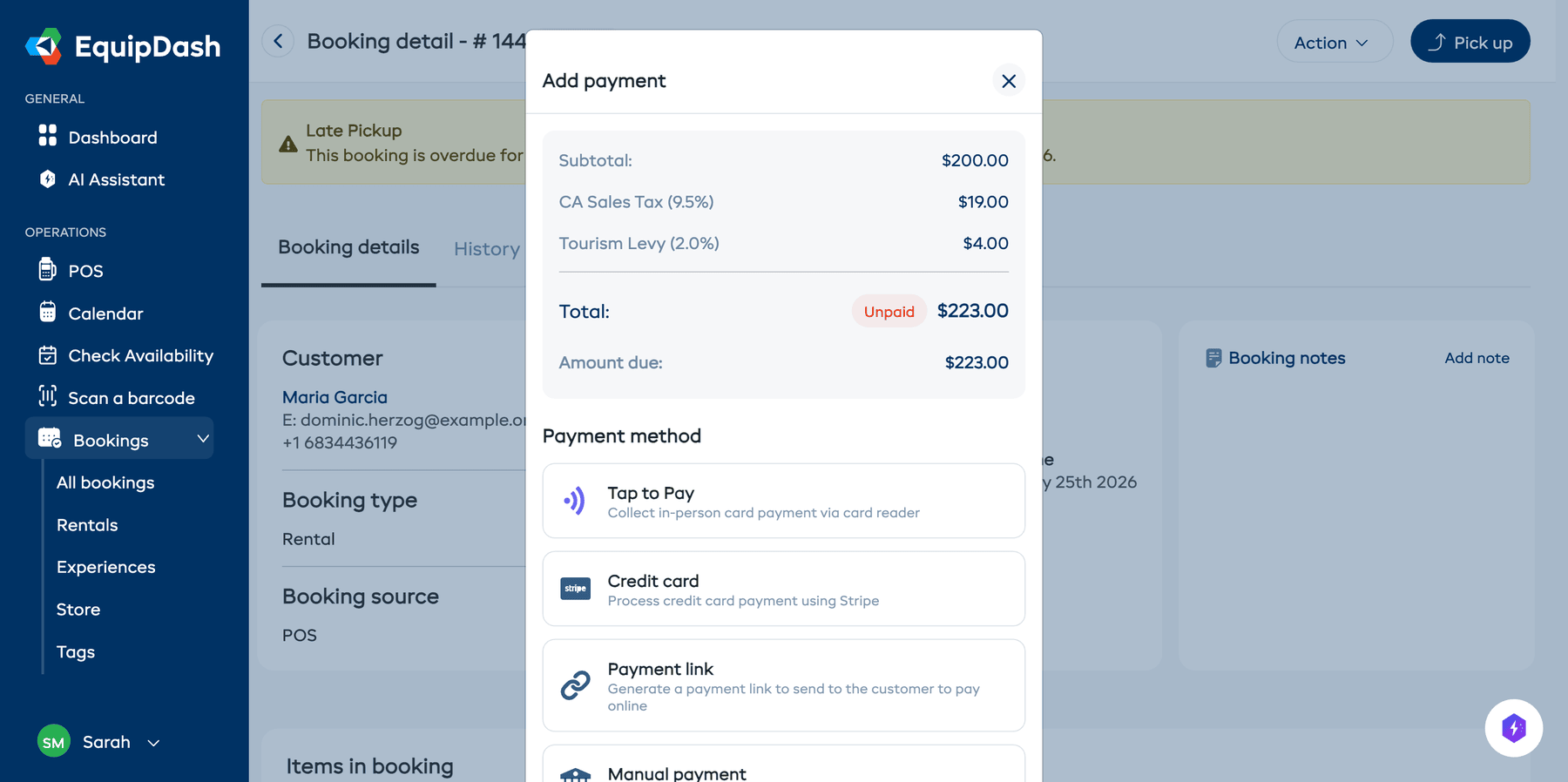
- In the Payment card on the right of the booking detail page, click Add payment.
- The payment modal opens, showing the Amount Due at the top.
The Add payment button only appears when there's a balance to collect. If the booking is fully paid, the right rail shows Process refund instead.
Cash or Card in Two Taps
For money taken at the counter, Cash and Card sit beside Add payment in the Payment card, on the booking page and on Today.
- Click Cash, or Card if the customer paid on your own card machine.
- Check the line (such as £120.00 in cash) and click Record. Click Back to change your mind.
The whole amount due is recorded, the same as a manual payment. For part of the amount, a date or a reference, use Add payment instead.
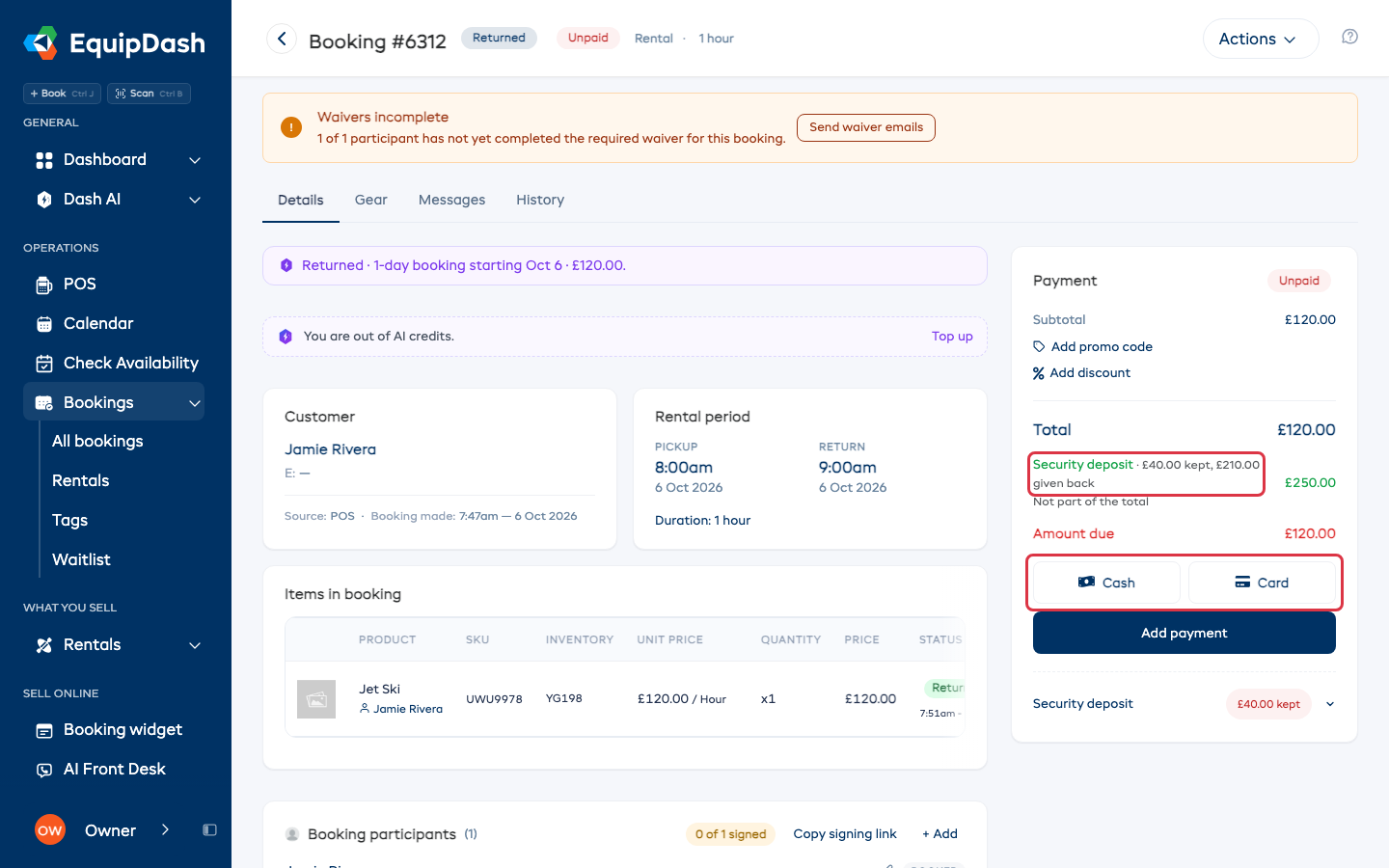
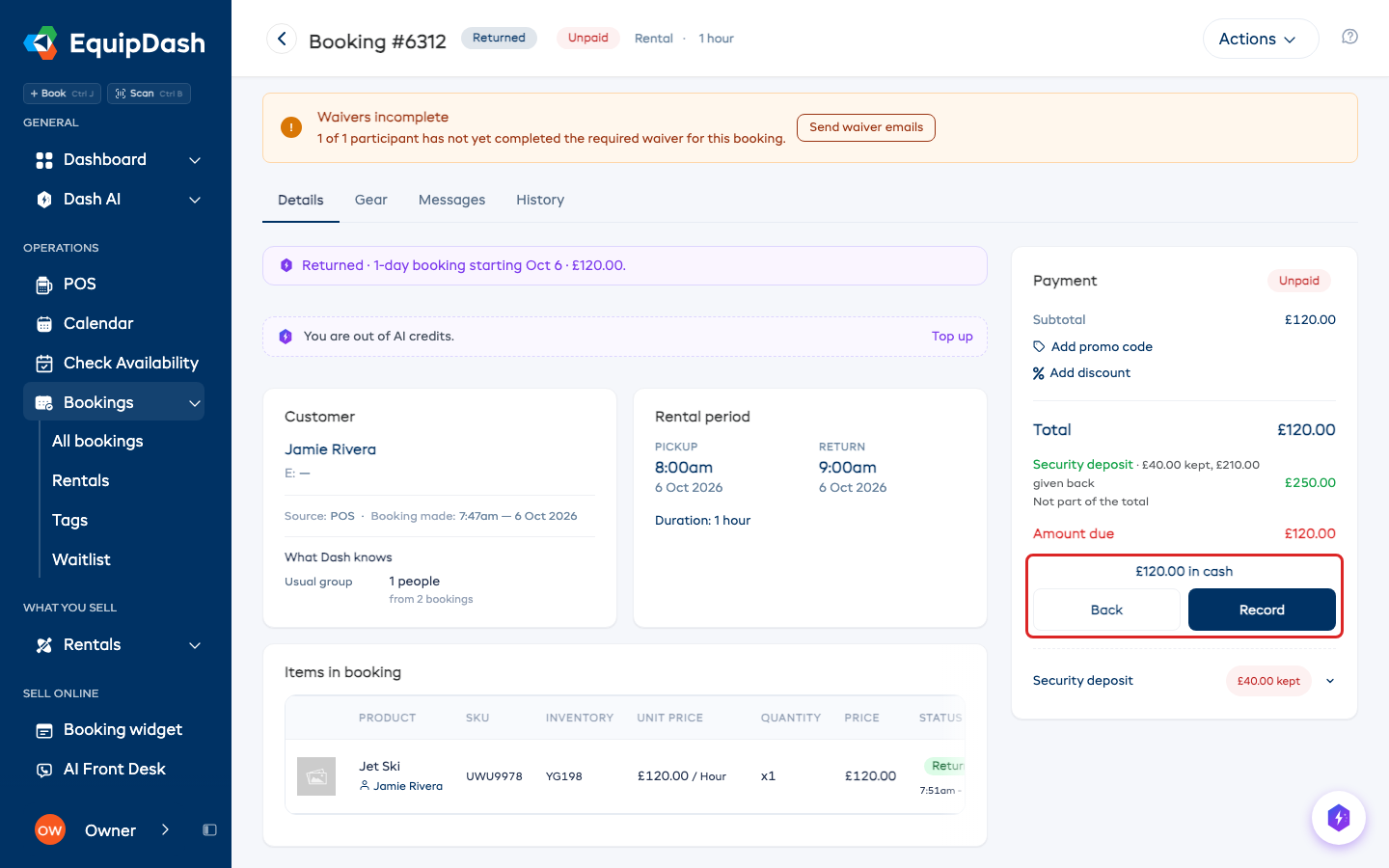
Card only shows when card payments at the counter are switched on in Settings → Payments. If you take cards on a Stripe reader, use Tap to Pay instead and Card is not shown. If you offer a discount for paying a certain way, the line says so before you record it.
Payment Methods
Card Payment (Stripe)
Accept a card payment directly through the booking detail page. This requires Stripe to be connected; without a connected payment provider, the option is not shown.
- In the payment modal, select Credit card.
- The payment amount defaults to the full amount due. You can adjust it for a partial payment.
- Click Continue to payment.
- Have the customer enter their card details in the secure Stripe payment form.
- Complete the payment.
The payment is processed through Stripe and recorded against the booking automatically.
If your business is set to pass on processing fees, the customer will see the fee added to the payment amount.
Card Terminal (Tap to Pay)
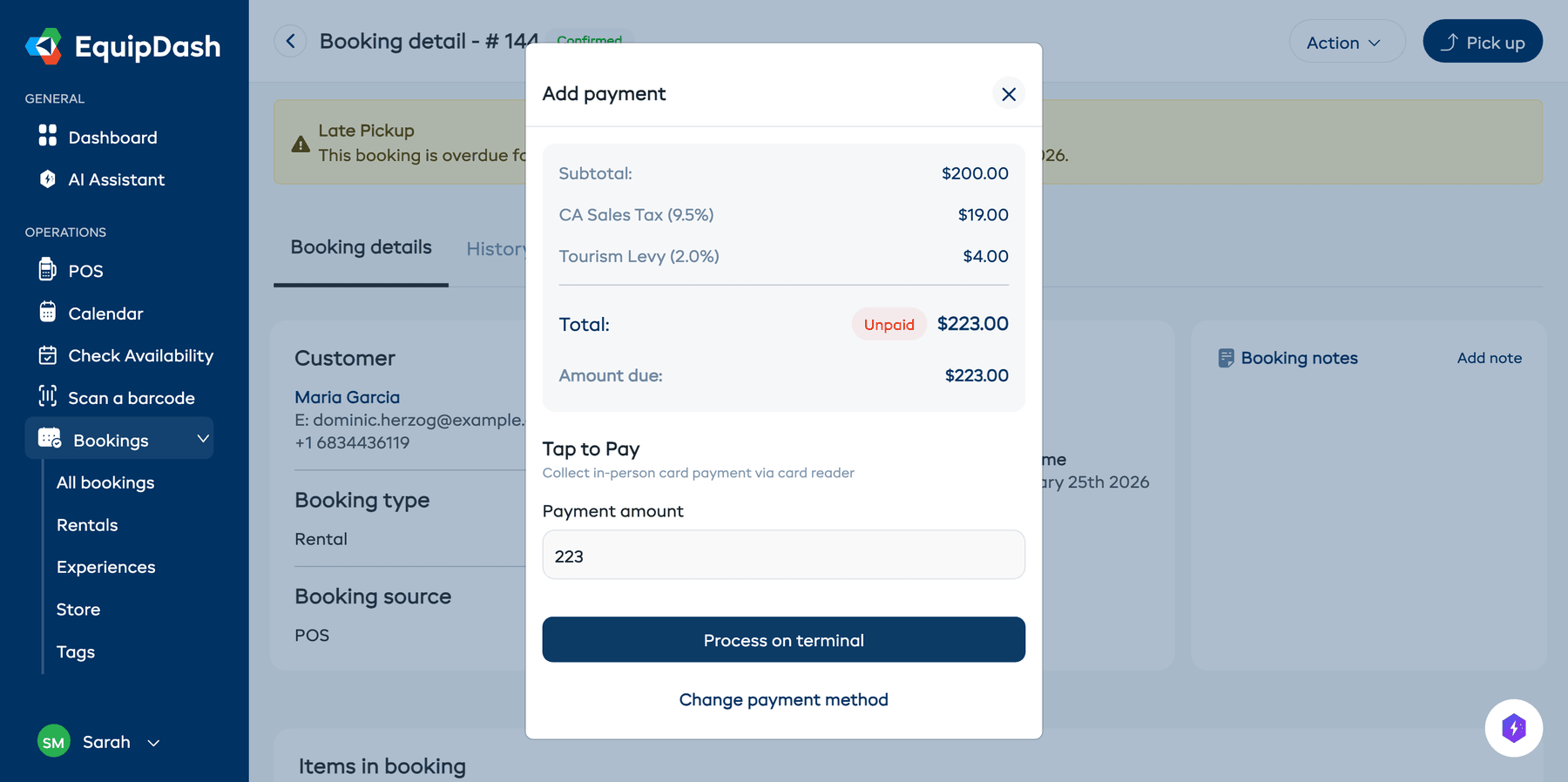
If you have a Stripe card terminal set up, you can process payments in person.
- In the payment modal, select Tap to Pay.
- Enter the payment amount.
- Click Process on terminal.
- The customer taps or inserts their card on the terminal.
- Once the payment is confirmed, the booking is updated automatically.
Manual Payment (Cash, Card on Your Own Machine, Bank Transfer, Other)
Use manual payment to record money taken outside EquipDash, such as cash, a card on your own card machine, or a bank transfer.
- In the payment modal, select Manual payment.
- Enter the payment amount.
- Select a date for the payment.
- Choose the payment method from the dropdown. It opens on Cash; the others are Bank Transfer, Other and Card (own machine).
- Optionally add a reference (e.g. a transaction ID or receipt number).
- Click Record payment.
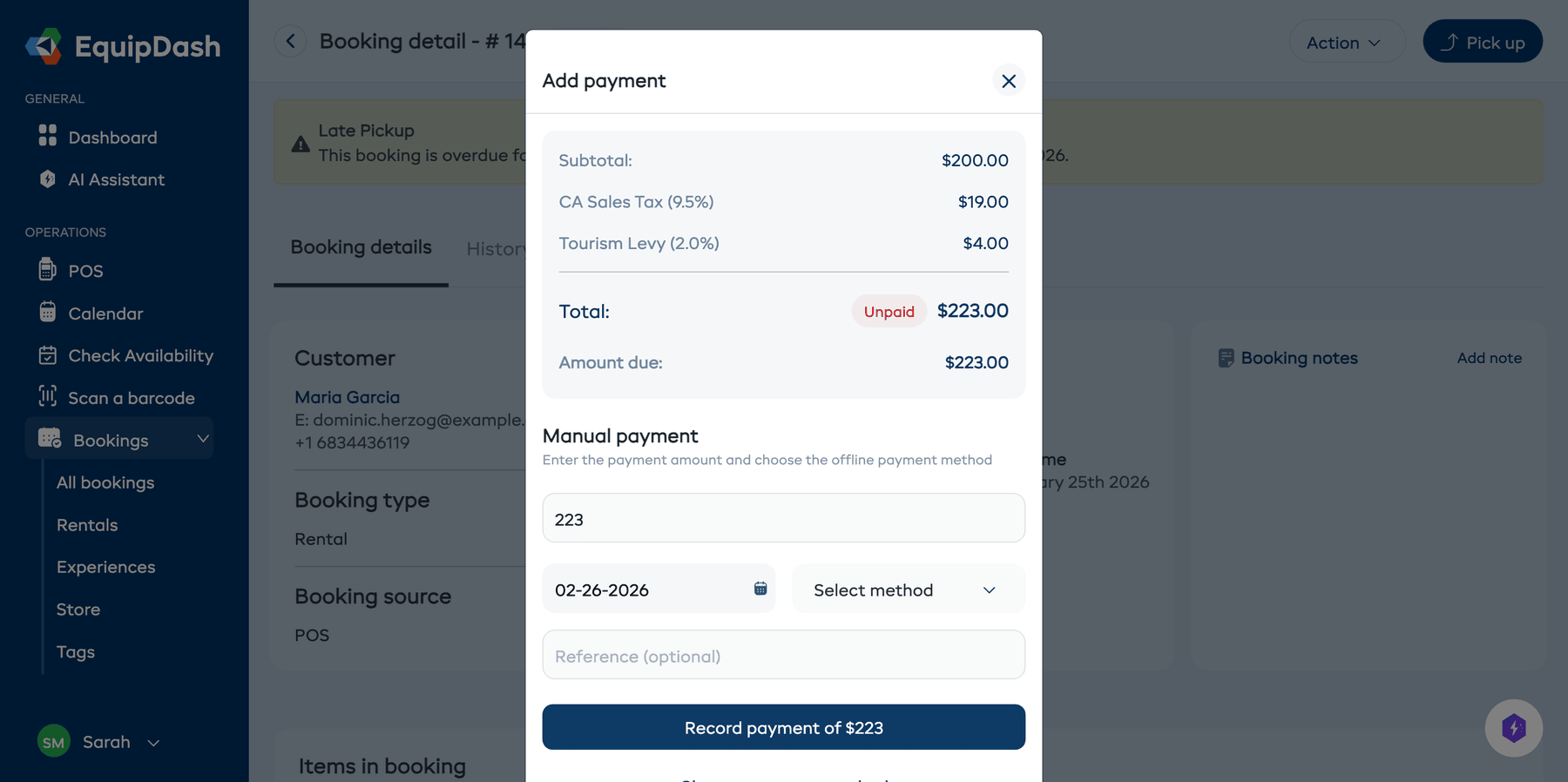
This simply logs that the payment was received. The money is handled outside EquipDash.
Voucher (Gift Card)
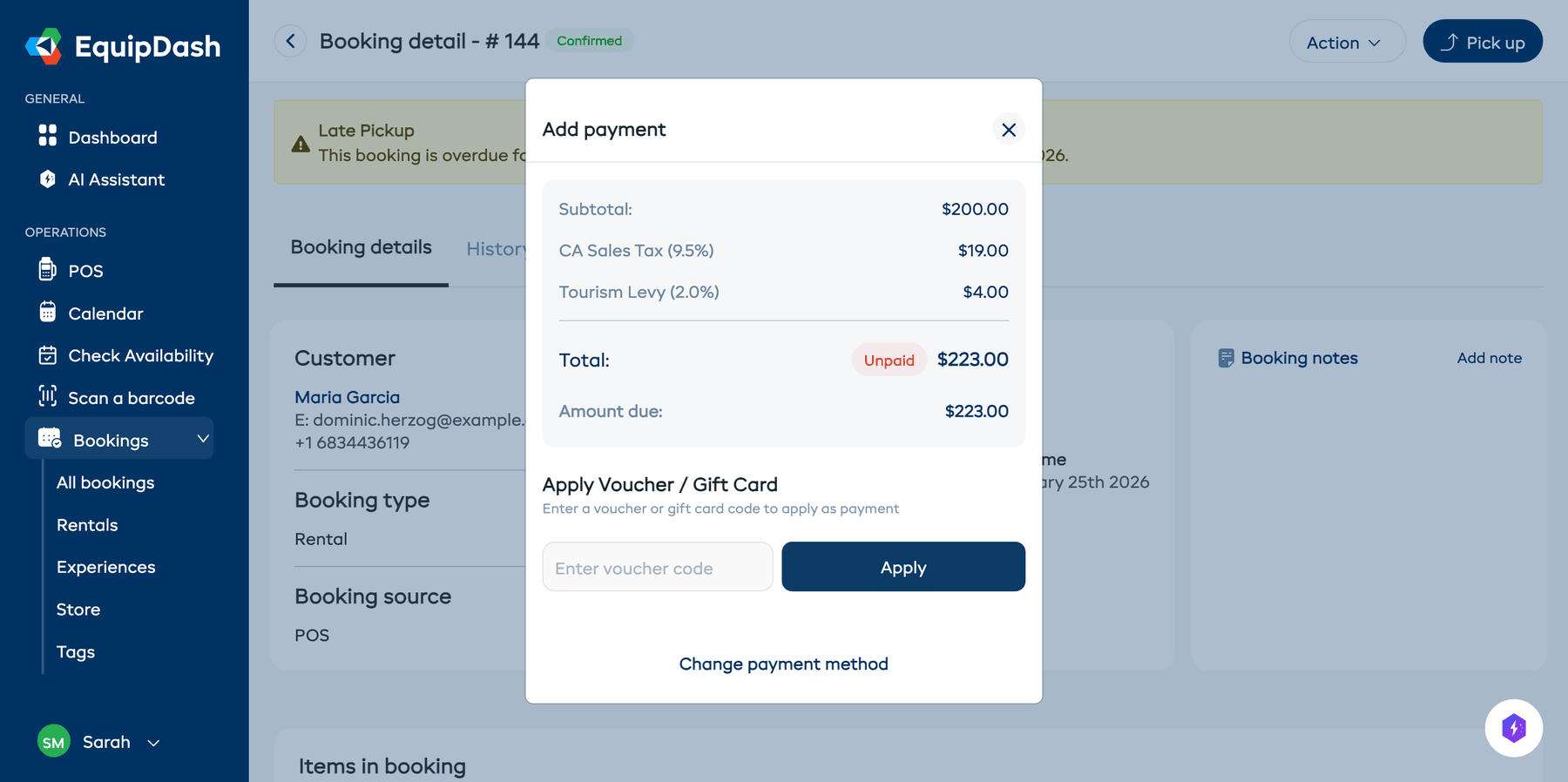
- In the payment modal, select Voucher / Gift card.
- Enter the voucher code.
- Click Apply.
- EquipDash validates the voucher and shows the available balance.
If the voucher does not cover the full amount due, you can record the remaining balance using another payment method.
Partial Payments
You do not need to collect the full amount in one go. To record a partial payment:
- Open the payment modal.
- Change the payment amount to the amount you are collecting.
- Complete the payment using any method.
The booking's payment status updates to Partially Paid, and the remaining Amount due is shown on the booking detail page.
Viewing Payment History
To see all payments recorded against a booking:
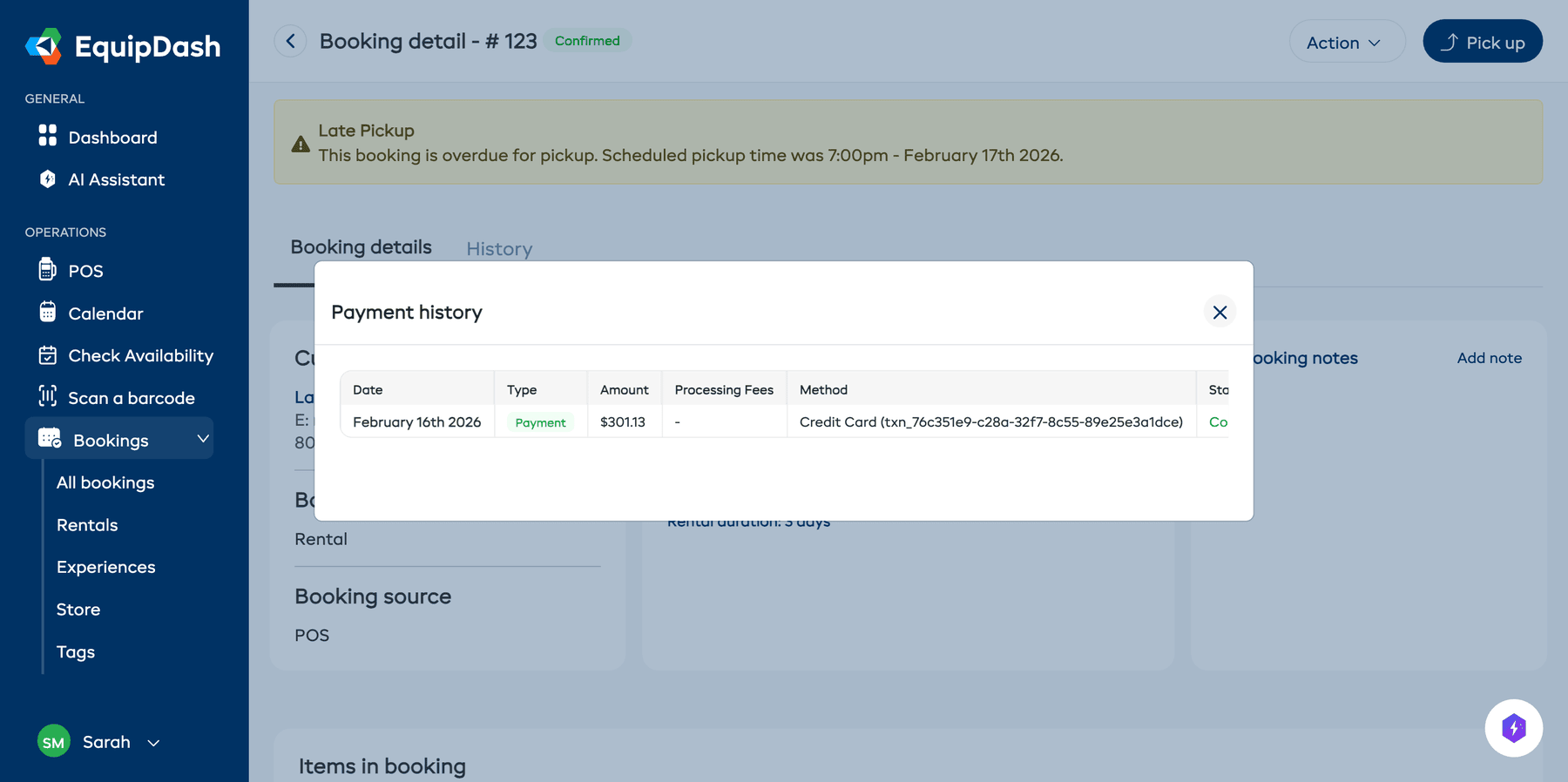
- On the booking detail page, click Amount paid (view transactions) in the Payment card on the right.
- An inline ledger expands directly below, showing each transaction with:
- Date
- Type (payment, refund, deposit hold, deposit charge, deposit release)
- Amount
- Payment method and status
- Voucher uses (if any)
- Click Amount paid (view transactions) again to collapse the ledger.
Payment Statuses
| Status | Meaning |
|---|---|
| Paid | The full amount has been collected. |
| Unpaid | No payment has been recorded. |
| Partially Paid | Some payment has been made but a balance remains. |
| Refunded | The full payment has been refunded. |
| Partially Refunded | Some of the payment has been refunded. |
Related Guides
- Processing a Refund
- Payment Links
- Security Deposits
- Surcharges -- Taking a surcharge off one booking
- Connecting Stripe
- Viewing & Managing Bookings