Set a Minimum Age
Give an experience a minimum age and anyone younger cannot book it. EquipDash checks the date of birth a customer gives at checkout, on a waiver, in the POS or through the app, against the day of the session. Someone who turns that age on the day can join.
Leave it blank and the experience books exactly as before.
Set it on the experience
- Open the experience and go to the Details tab.
- Under Experience settings, click Edit beside Minimum age, type the age and click away. It saves straight away.
- Choose what happens to someone younger:
- Cannot book - they are turned away.
- With an adult - they can book when someone 18 or over is on the same booking.
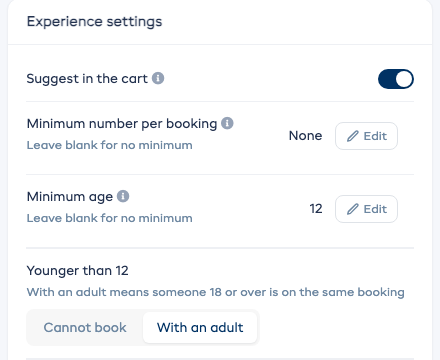
You can set the same two things when you create or edit the experience, under Advanced settings.
What your customers see
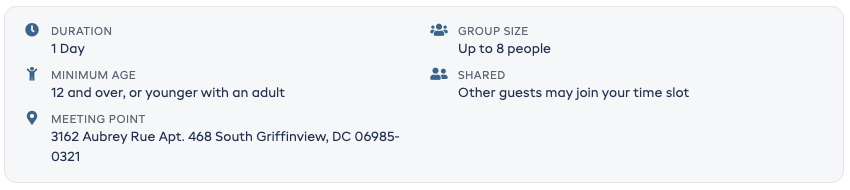
The booking page shows the minimum age beside the duration and group size, for example 12 and over, or 8 and over, or younger with an adult.
When the age is checked
The age is checked wherever a date of birth is given:
- Checkout, when you collect each participant's date of birth (Settings › Booking Widget). A customer whose player is too young sees why under that player's date of birth, before they pay.
- Waivers with a date of birth question. A player who is too young cannot sign.
- The POS, the app, the API and Dash, when someone is added to a session.
A player with no date of birth on file is never turned away: there is nothing to check.
When a returning customer types a different date of birth from the one on file, EquipDash checks the new date and saves it on their customer record. Leaving it blank keeps the saved date.
To check every booking, collect each participant's date of birth at checkout, or add a date of birth question to your waiver.
On the booking
When a player is under the minimum on the session day, the booking shows a note beside their name, such as Under the minimum age of 12, or Under 12, with an adult only. The app shows the same note, so your team can check at the door.
Setting a minimum age later never changes a booking you already have. The note shows on it, and your team decides.