Charging for Damage
Record the item's condition when it comes back. After the return, review the saved report and decide what to charge. Sending the charge adds it to the booking's bill and requests payment from the customer.
Returning items, entering a damage amount, and sending the charge require the Fulfillment permission.
Record the return condition
- Open the booking and choose Return. On a phone, open Actions to find it.
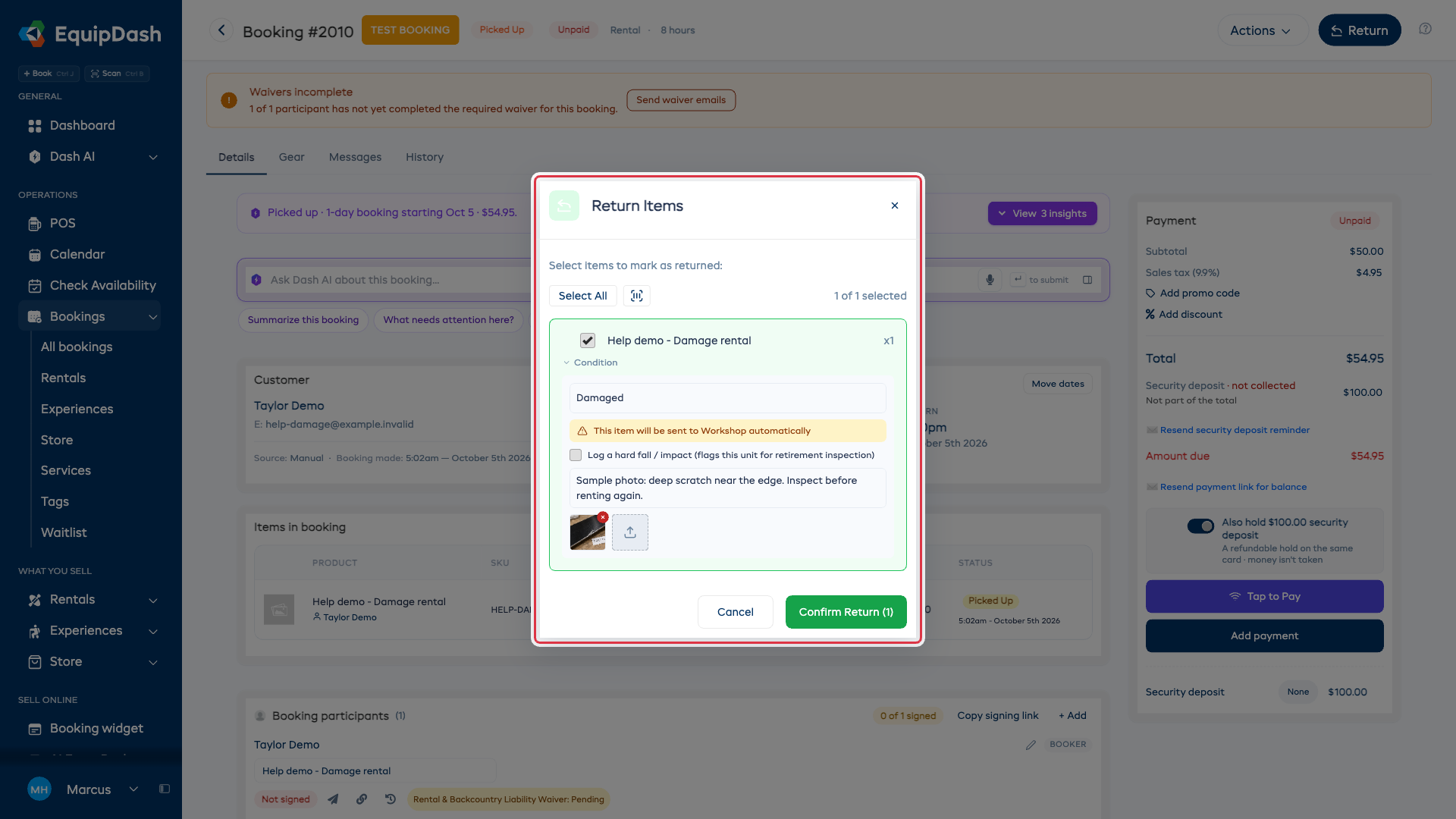
- Check the item being returned, then expand Add condition note below it.
- Choose the condition and describe what you found. Poor and Damaged require at least one photo; you can add up to five.
- Choose Confirm Return.
The booking records the return and saves the condition report. A Damaged item goes to the Workshop. Recording the return does not send a damage charge or change the bill.
Review and send the charge
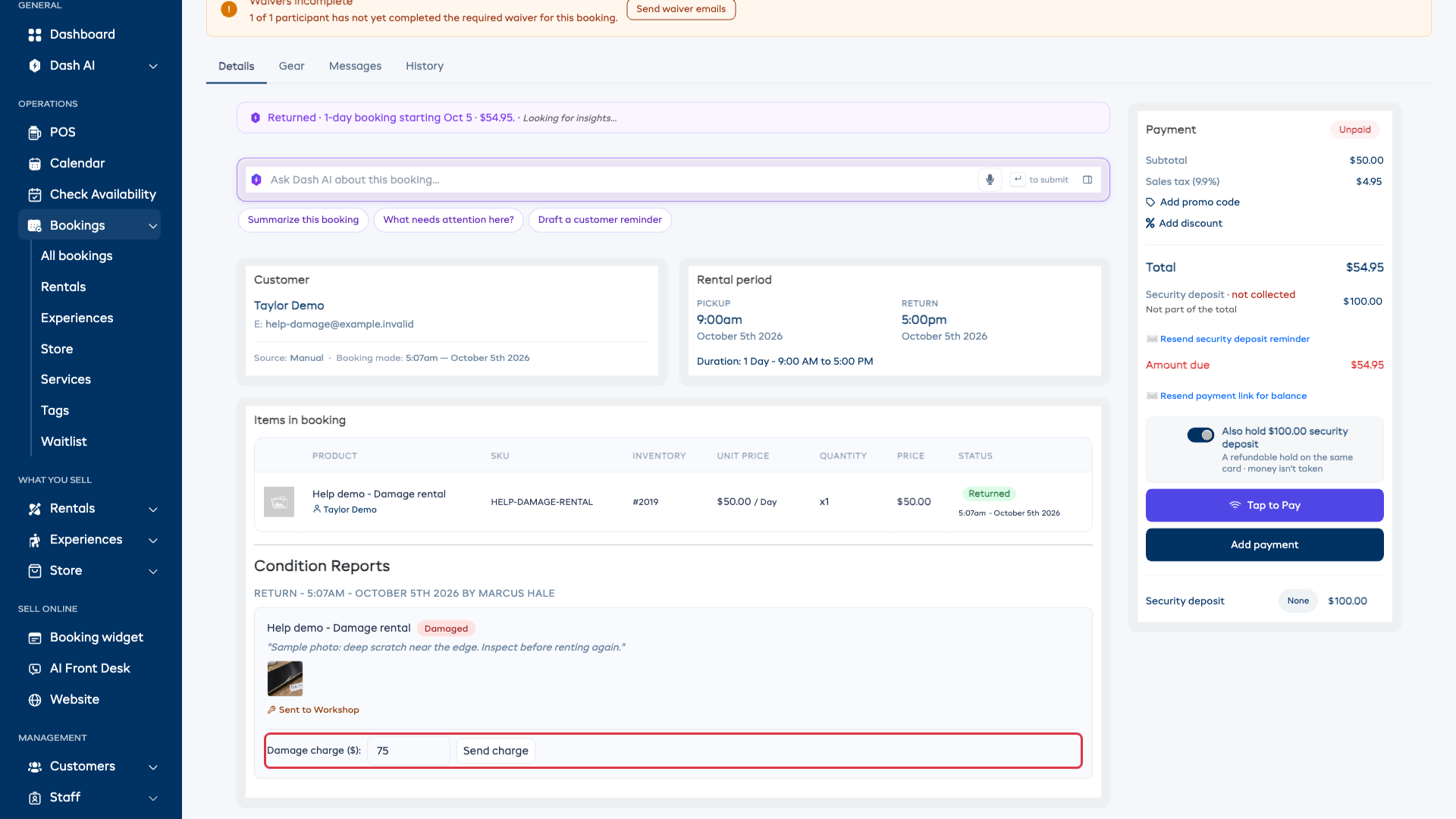
- Find Condition Reports on the booking. Review the item, condition, notes, photos, and recording details.
- Enter the Damage charge amount on the return report. Leaving the field saves the amount.
- Choose Send charge.
- Check the item, customer, and amount in Send damage charge?, then choose Send charge to confirm.
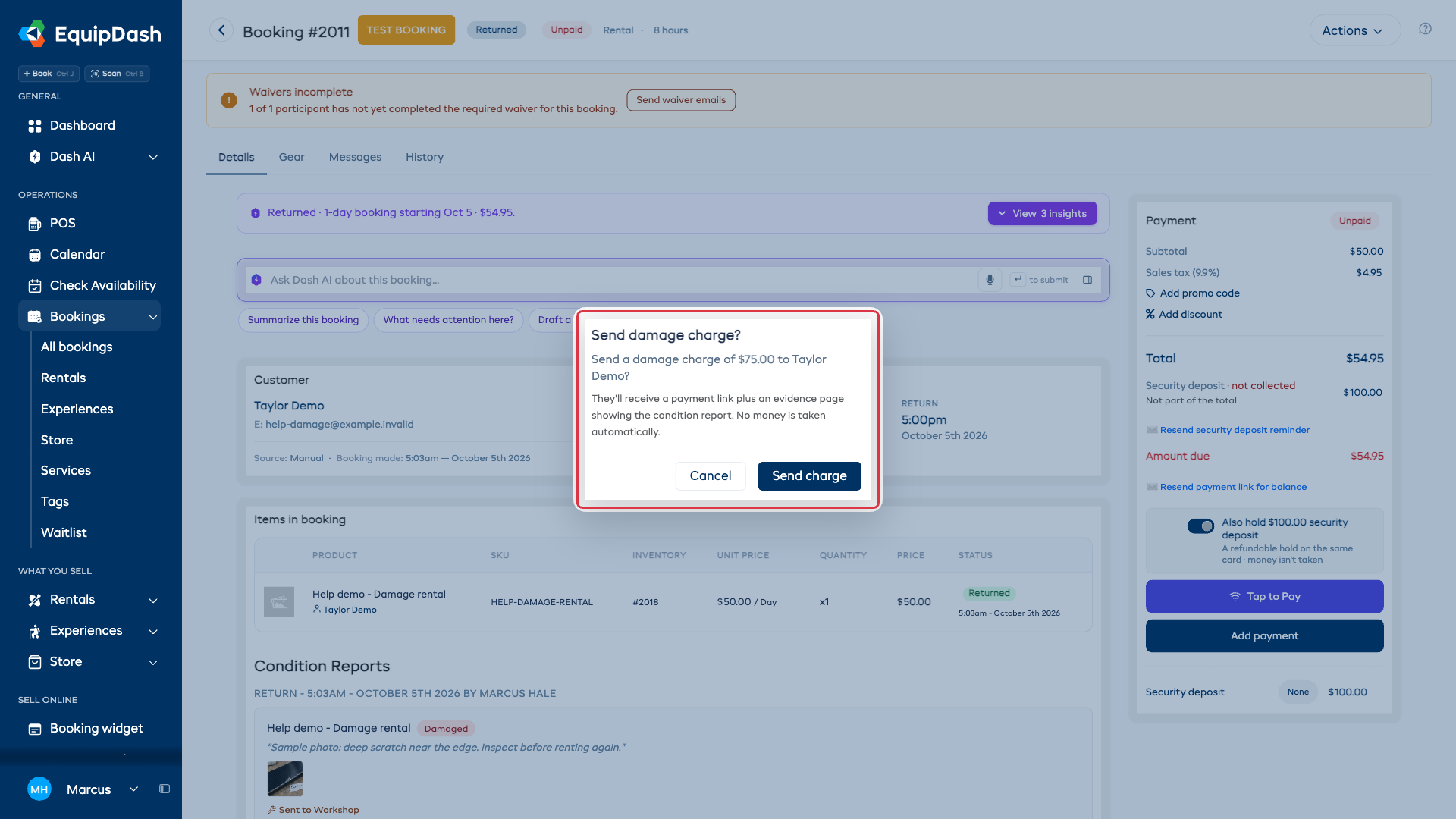
Sending creates a payment link for that amount and adds a separate damage charge to the booking. The total and unpaid balance increase by the same amount, while the original rental charge stays on the bill. The customer email includes payment and evidence links. Text delivery depends on your SMS setup and message settings.
The report shows Sent, awaiting payment until the linked payment is completed. Sending the request does not take payment automatically. Check Messages on the booking to review the customer email.
Check the customer evidence
The evidence link opens a read-only page showing the item, condition, damage amount, recorded date, staff note, and photos. Customers can review it before paying and use your business's contact details to ask about the damage.
The payment link is separate from the evidence page. Keep the evidence link private because anyone who has it can open the page.
When the customer completes the linked payment, EquipDash updates the report to Paid. Security deposits have their own payment controls; see Security Deposits.
Change the email wording
Open Settings > Email templates and find Damage Charge. Edit its subject and message in the email designer, using Personalize for booking details. The charge summary and payment link are added automatically.
Check Send this email before using the template, and use Send test email to review your changes. Reset to default restores the standard wording. Changes affect future damage emails. See Customizing Email Templates for the editor walkthrough.