Move or Reschedule a Booking
Use Move dates when the customer wants different dates but is keeping the same items. Open the booking, choose new dates or an experience session, then check availability and the price before saving.
To add or remove items, change quantities, or choose a different customer, use Editing a Booking.
Who Can Move Bookings?
Moving a booking requires the Bookings: Edit permission, the same permission as editing. If you don't see the Move dates button, ask your account admin to check your role and permissions.
How to Move a Booking
- Open the booking you want to reschedule from the bookings table.
- On the Rental period or Experience date card, click Move dates (or click anywhere in the date block).
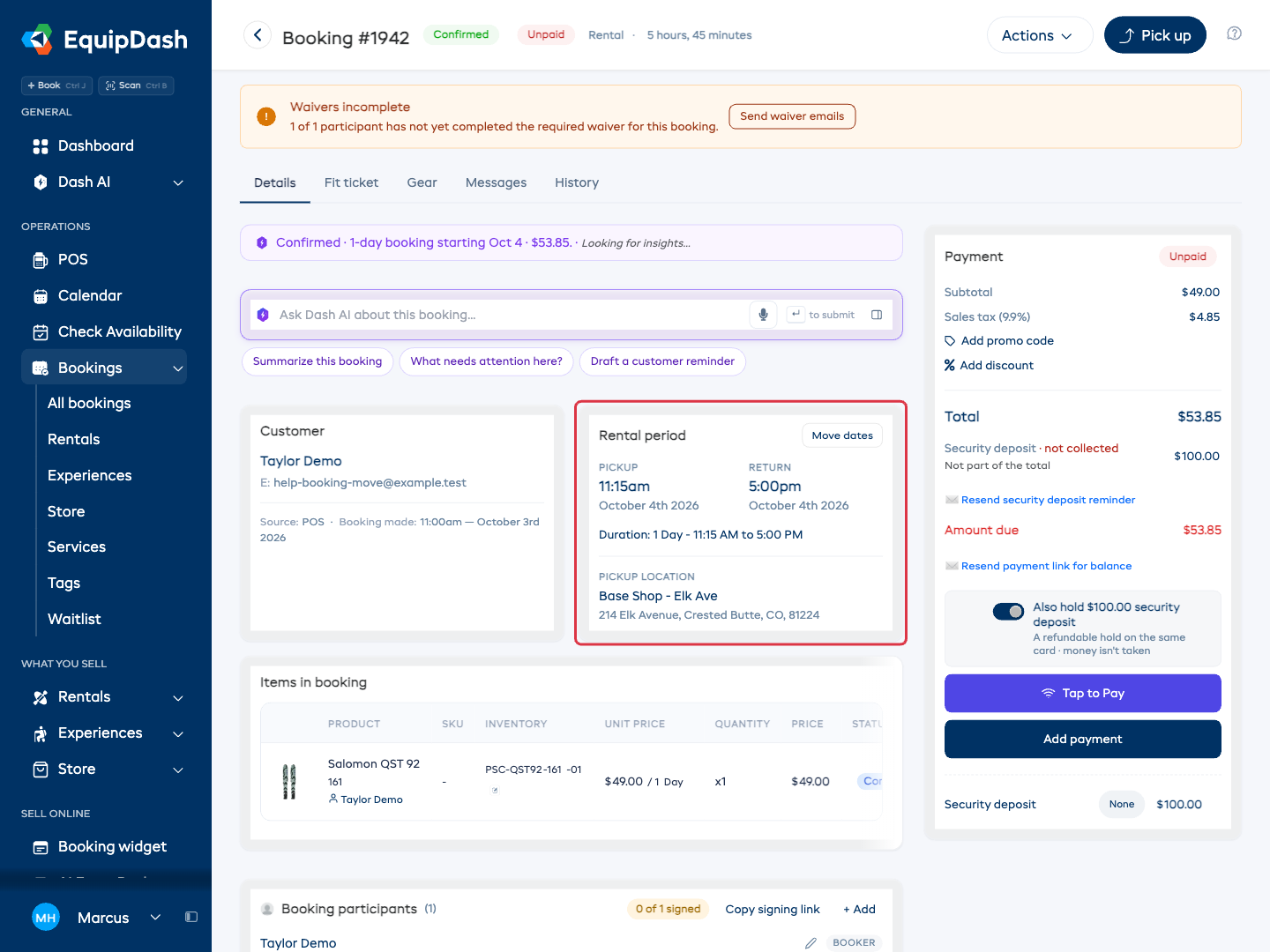
A Move rental dates or Move experience modal opens over the booking page.
Rental Bookings
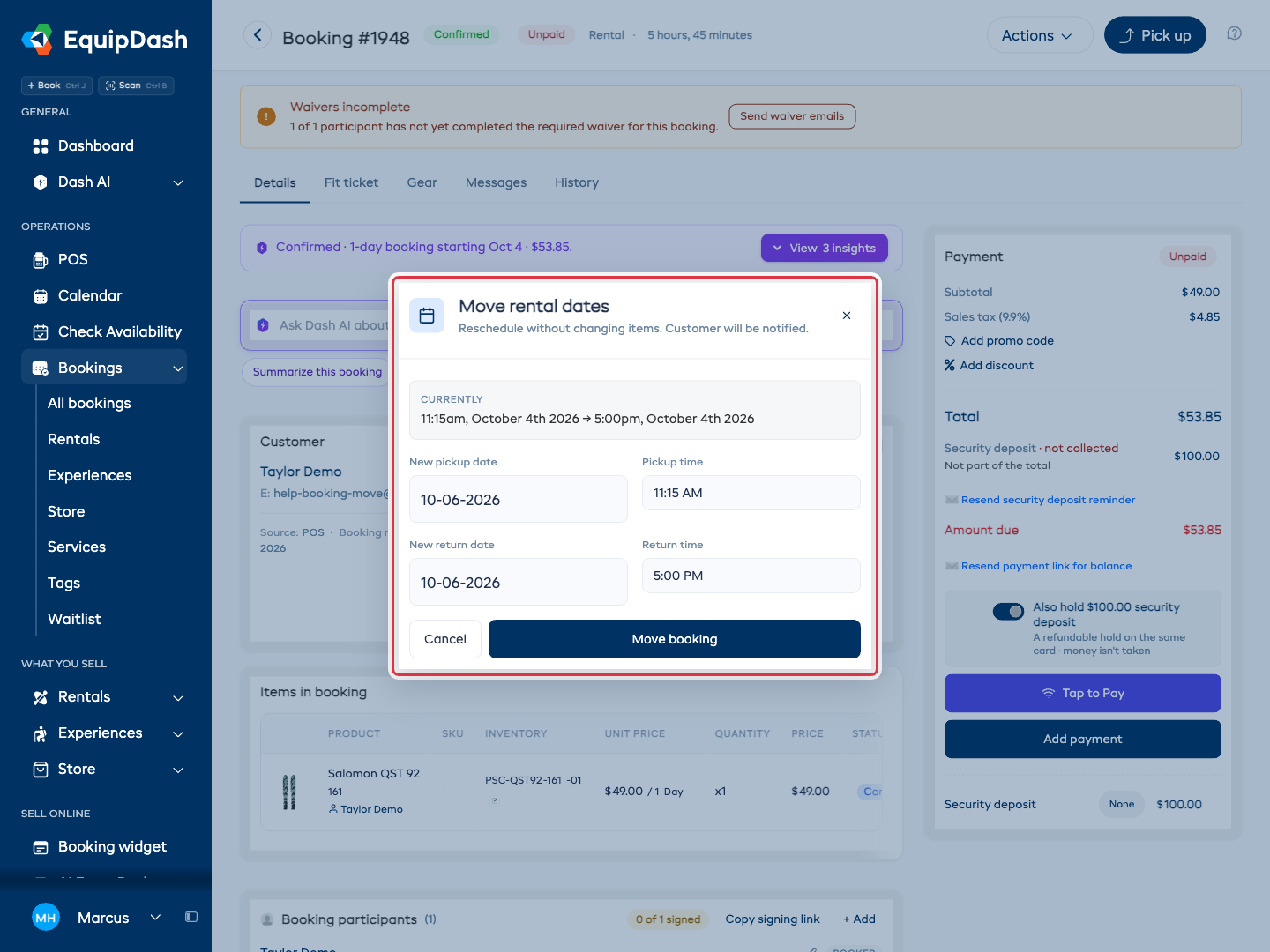
For rental bookings, pick the new pickup and return date and time. If the items have already been picked up, the pickup is locked and you can change only the return:
- Update the New pickup date and Pickup time.
- Update the New return date and Return time.
- EquipDash checks availability for the new dates as you type. If any item lacks stock on the new dates, you'll see a list of conflicts and the Move booking button stays disabled until you pick dates that work.
Experience Bookings
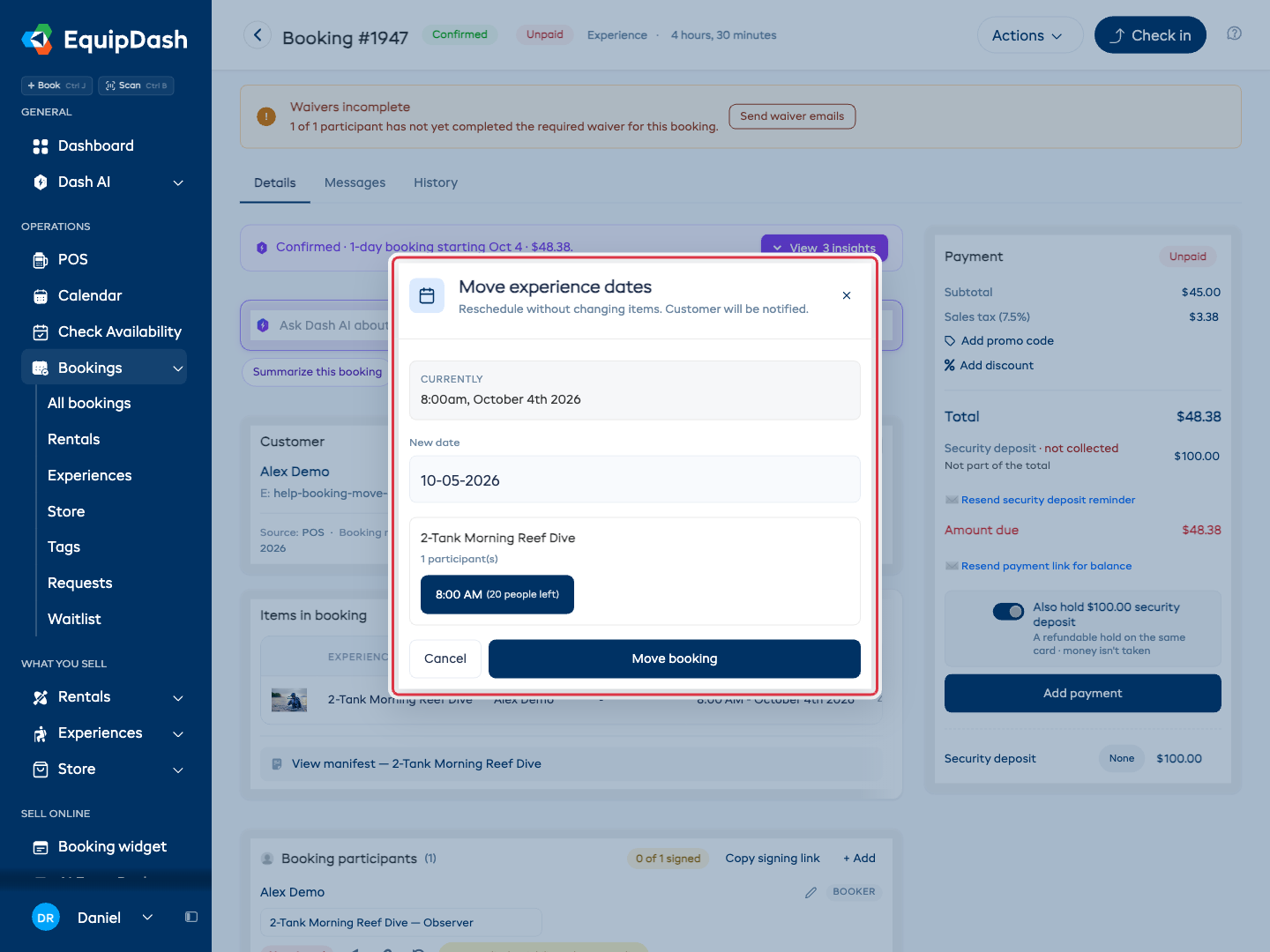
For experience bookings, the modal shows the available schedule slots for that experience:
- Pick the New date.
- Click an available time slot. Slots that are already full appear grayed out with a strikethrough - you can see why they're unavailable (e.g.
8/8participants booked). - If your booking has multiple experiences on it, pick a slot for each one.
Pricing Changes
If your seasonal pricing or schedule rates result in a different total for the new dates, the modal shows the previous total, the new total, and the difference. Select Move booking to save. If a payment or refund is needed, a separate balance modal opens afterward. Choose how to settle it:
- Send payment link to customer - for an increase, sends a payment link by email.
- Take payment in person - opens the payment screen for what is still owed.
- Refund to card - for a decrease where the booking is paid by card, refunds the difference to the original card.
- Skip - leaves the balance or the credit on the booking, to be settled manually.
The figure you are asked to settle is what the customer still owes, not the amount the price moved by. If the new total is already covered by what they have paid - say the booking was moved shorter, you skipped the refund, and then it moved back again - there is nothing to settle and you are not asked. The booking stays Paid.
Changing only the time can still change the price. A day price counts the hours and rounds any part of a day up, so a 2:00 PM pickup returned at 3:00 PM two days later is charged as three days. If you rent by the day and hand gear over outside your opening hours, turn on Charge by calendar days in Rental settings and the time of day stops changing the price.
Confirming the Move
Click Move booking. EquipDash will:
- Update the booking dates (rental) or schedule slot (experience).
- Recalculate pricing if applicable.
- Update inventory reservations to the new dates.
- Send a reschedule email to the customer with the old and new dates.
- Notify supplier admins that the booking has been moved.
The detail page updates with the new dates immediately.
What Doesn't Get Touched
- Items in the booking stay exactly as they were. The customer is keeping the same products / experiences - only the date changes.
- Store products purchased on the booking (sales, not rentals) are unaffected.
- Tags, notes, custom fields, participant details all carry over.
- Payment status is preserved unless the new total differs.
What Cannot Be Moved
The Move dates button is hidden for:
- Store-only bookings, which have no rental period or experience session.
- Returned, completed, canceled, or archived bookings.
- Experience bookings already checked in.
Past dates alone do not block a move. You can reschedule a confirmed booking when the customer has not collected the items or checked in. For an active rental, the pickup stays fixed and only the return can move.
What if the New Dates Aren't Available?
EquipDash checks availability for every item on the booking before allowing the move. If any product or experience slot doesn't have capacity, the modal lists the affected items with how many you're requesting versus how many are actually available, and disables the Move booking button.
The fix is to either pick different dates, or - if you really need to free up capacity - go into edit mode to remove or change the items first.
See Also
- Editing a Booking - for changes to items, quantities, or customer details.
- Cancelling a Booking - when a customer needs to cancel entirely.
- Booking History - to see when a booking was rescheduled.