Archiving Bookings
Once a booking is finished or cancelled, you may not need to see it on your day-to-day bookings list anymore. Archiving moves a booking out of the default list view without deleting it. It also comes off the calendar. It stays available everywhere else (manifest, reports, customer history, search) and can be restored at any time.
Archiving works the same way across All Bookings, Rentals, Experiences, and Store pages.
Who Can Archive Bookings?
Archiving requires the Bookings: Archive permission. By default:
- Admin and Manager roles have it.
- Staff roles do not.
If you can't see the archive option, ask your account admin to check your role and permissions.
What Can Be Archived?
Any booking can be archived.
- A finished booking (end date in the past) or a cancelled, returned or completed one archives straight away.
- An upcoming or unfinished booking asks first. You see Archive this booking? (or Archive N bookings? for several), with a note on how many are not finished yet. Click Archive anyway to go ahead, or Cancel to leave them as they are.
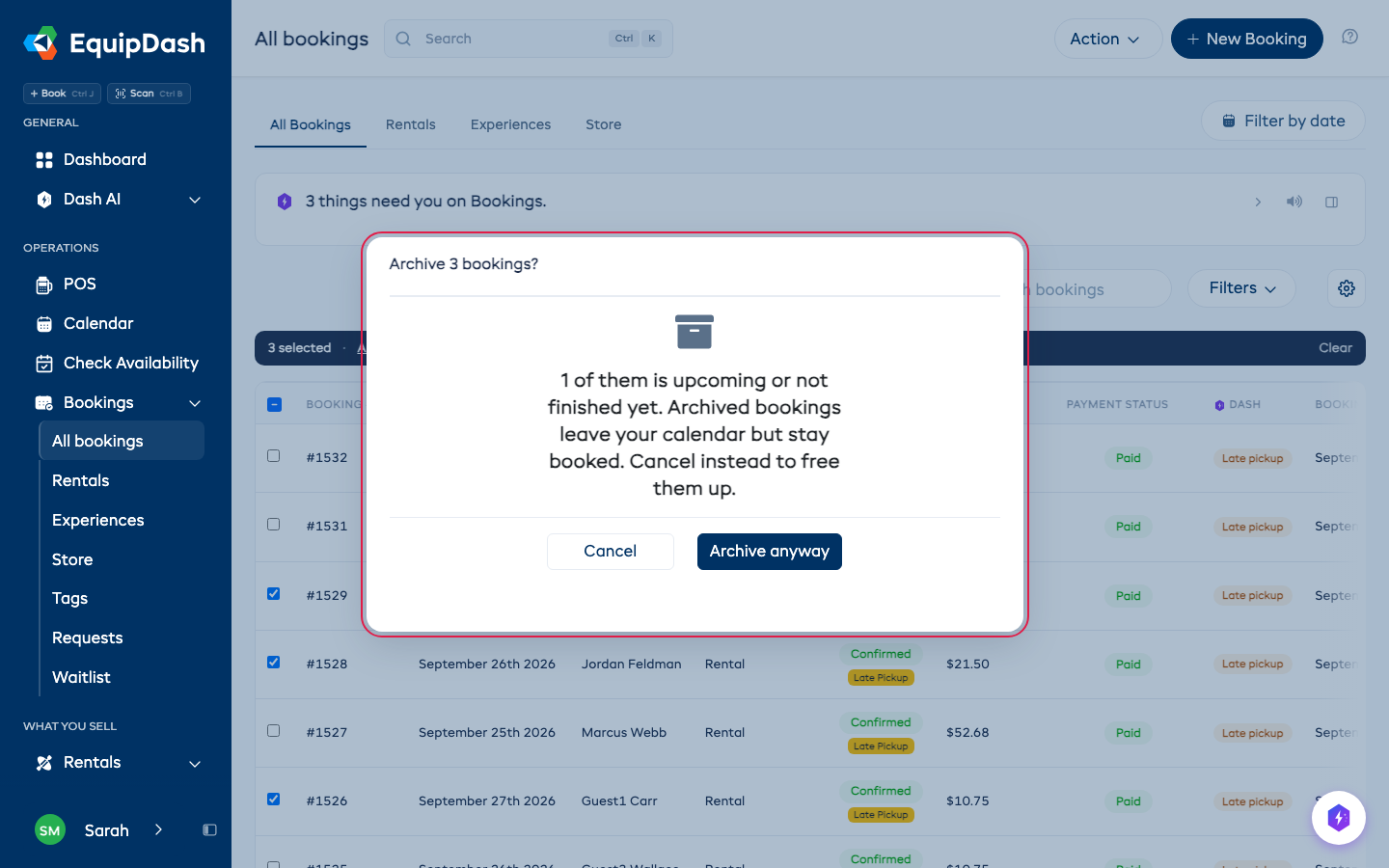
What Archiving Does (and Doesn't Do)
| Where | Archived bookings appear? |
|---|---|
| All Bookings list | Hidden by default (use the Archived filter to view them) |
| Rentals list, All bookings tab | Hidden by default |
| Experiences list, All bookings tab | Hidden by default |
| Store list | Hidden by default |
| Calendar | Hidden, unless you turn on Show archived bookings in Calendar display |
| Manifest | Yes |
| Reports (revenue, rentals, experiences) | Yes |
| Customer detail → bookings tab | Yes |
| Global search | Yes |
| Booking detail page (direct link) | Yes |
| Operational tabs (Upcoming pickups, Next returns, Shortages, etc.) | Yes. These show active operational bookings only and are unaffected by archiving |
Archiving is not deletion. The booking, payments, notes, and history stay intact.
It is not cancelling either. An archived booking still holds its items or seats, so nobody else can book them. To free them, cancel the booking instead.
How to Archive a Single Booking
From any bookings list (All / Rentals / Experiences / Store / Services)
- Open the relevant bookings page.
- Find the booking you want to archive.
- In the Action column, click the archive icon.
- If the booking is upcoming or not finished, click Archive anyway.
- The booking disappears from the Active list and you see Booking archived.
From the booking detail page
- Open the booking.
- Click the Actions dropdown in the top right.
- Select Archive booking. For an upcoming booking, click Archive anyway.
- An Archived badge appears next to the booking status in the header.
How to Archive Multiple Bookings at Once
- On any bookings page, tick the checkboxes in the leftmost column for every booking you want to archive.
- A dark bar appears above the list showing how many you ticked.
- Click Archive on that bar.
- If any ticked booking is upcoming or not finished, click Archive anyway.
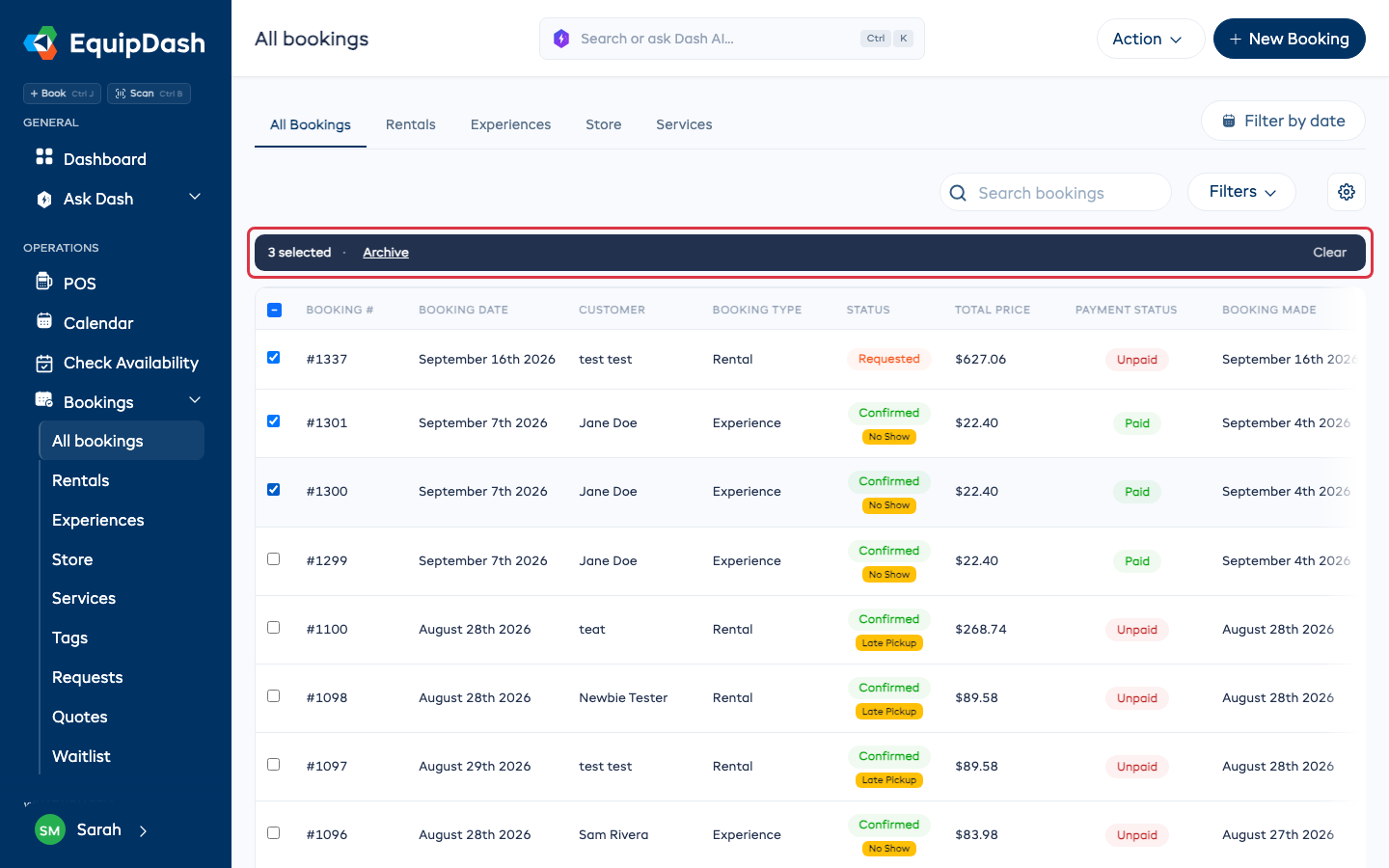
A message tells you how many bookings were archived. Click Clear on the bar to untick everything.
How to View Archived Bookings
- On any bookings page, look for the Active / Archived filter dropdown at the right end of the filter row. (On Rentals and Experiences, this filter only appears on the All bookings tab. Operational tabs like Upcoming pickups and Ongoing experiences always show active bookings.)
- Switch the dropdown to Archived.
- The list now shows only archived bookings. The page URL also updates (
?archived=archived) so you can bookmark or share this view.
How to Restore (Unarchive) a Booking
From the Archived list view
- Click the restore icon in the row's Action column.
From the booking detail page
- Open the booking, click the Actions ▾ dropdown, and select Restore booking.
Bulk restore
- With the Archived filter active, tick the rows you want to restore, then click Restore on the bar above the list.
Tips
- Use it as a "spring clean" tool. Once a busy season ends, bulk-archive completed bookings so your day-to-day list stays focused on what's coming up.
- Reports are unaffected. Your revenue and rental reports continue to include archived bookings. Archiving is purely a list-view convenience, not an accounting action.
- Need to truly remove a booking? Use Cancel instead. Archiving alone won't refund payments or release inventory, and an archived upcoming booking still goes ahead.