Customer Self-Service
Customers can open the private View booking link in their confirmation or reminder to manage an eligible booking without creating an account. They can change dates, extend a picked-up rental, or cancel when your settings and cancellation policy allow it.
Keep this link private. It opens that customer's booking.
How Customers Get the Link
The link is included automatically in:
- The booking confirmation email and SMS
- The booking reminder email and SMS
- The reschedule confirmation email (after a date change)
In emails it appears as a View booking button. In text messages it's the {{booking_url}} link in your SMS templates. You can also send a customer a direct extension link on demand - see Offering an extension below.
The other links a customer can get
View booking is the one everybody gets. Two more can appear underneath it, as quiet text links, depending on what you've switched on:
| Link | What it opens | Switched on by |
|---|---|---|
| View all my bookings | Their whole history with you - upcoming and past - on one page | Customer Portal |
| Submit condition photos | A page to photograph the gear and rate its condition, which can complete the pickup | Customer Condition Photos |
Both are email-only and go to the person who made the booking. Neither is ever sent by text message.
The View Booking Page
Tapping the link opens a clean, branded page showing the booking details, what's been paid, and what's outstanding. The available actions appear as buttons at the bottom.
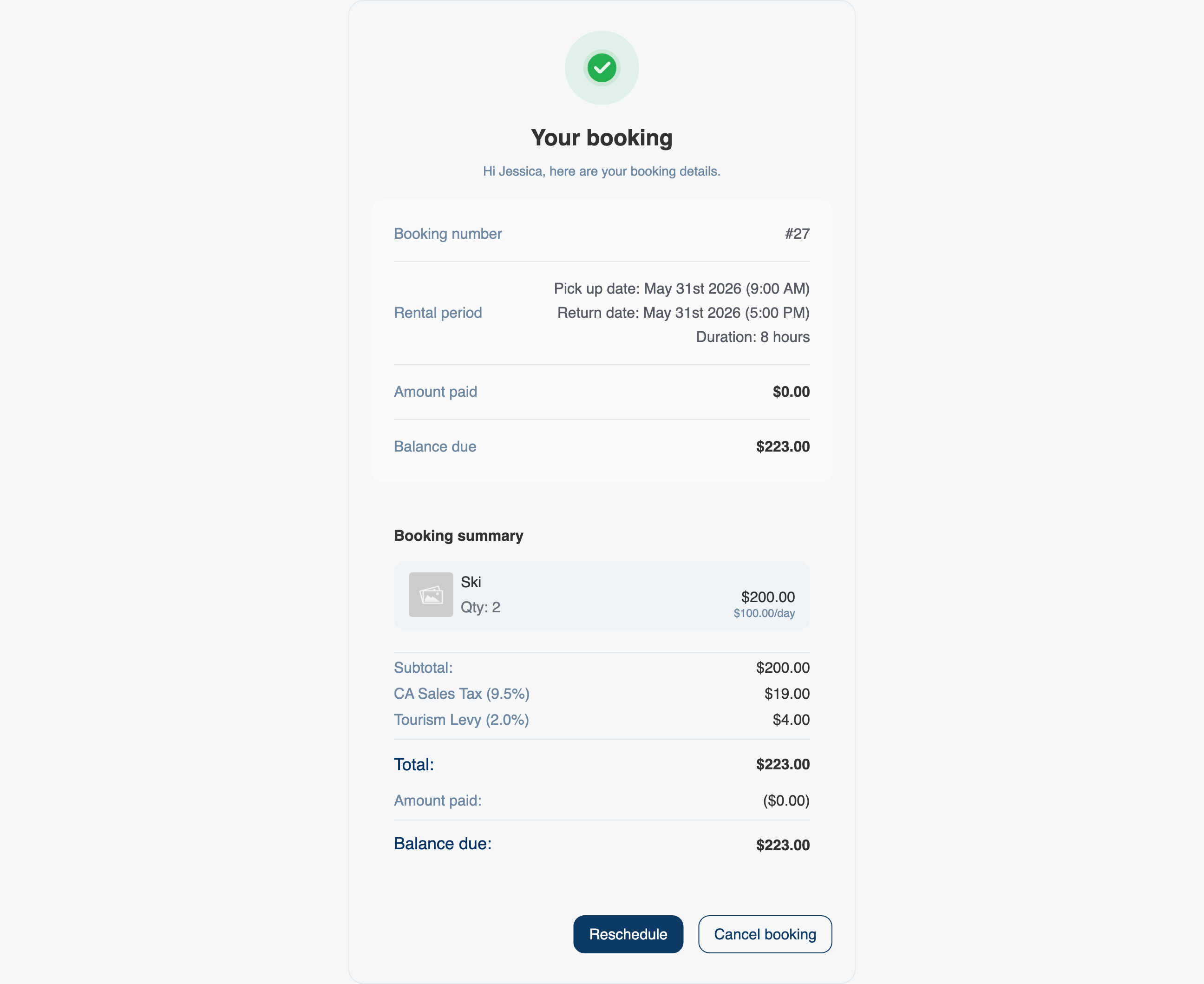
Which buttons appear depends on the booking:
| Action | Shown when |
|---|---|
| Reschedule | The booking hasn't started yet, and you allow online reschedules. |
| Extend | It's a rental the customer has already picked up, and you allow online extensions. |
| Cancel booking | The booking is still active and hasn't started yet. |
Once the start time has passed, the customer can no longer cancel online. Your team still can - open the booking in EquipDash and use Cancel booking from the Actions menu.
Rescheduling a Rental
When the customer taps Reschedule on a rental, they pick a new pickup and return date and time. They select Check availability & price to check stock and the new total before confirming:
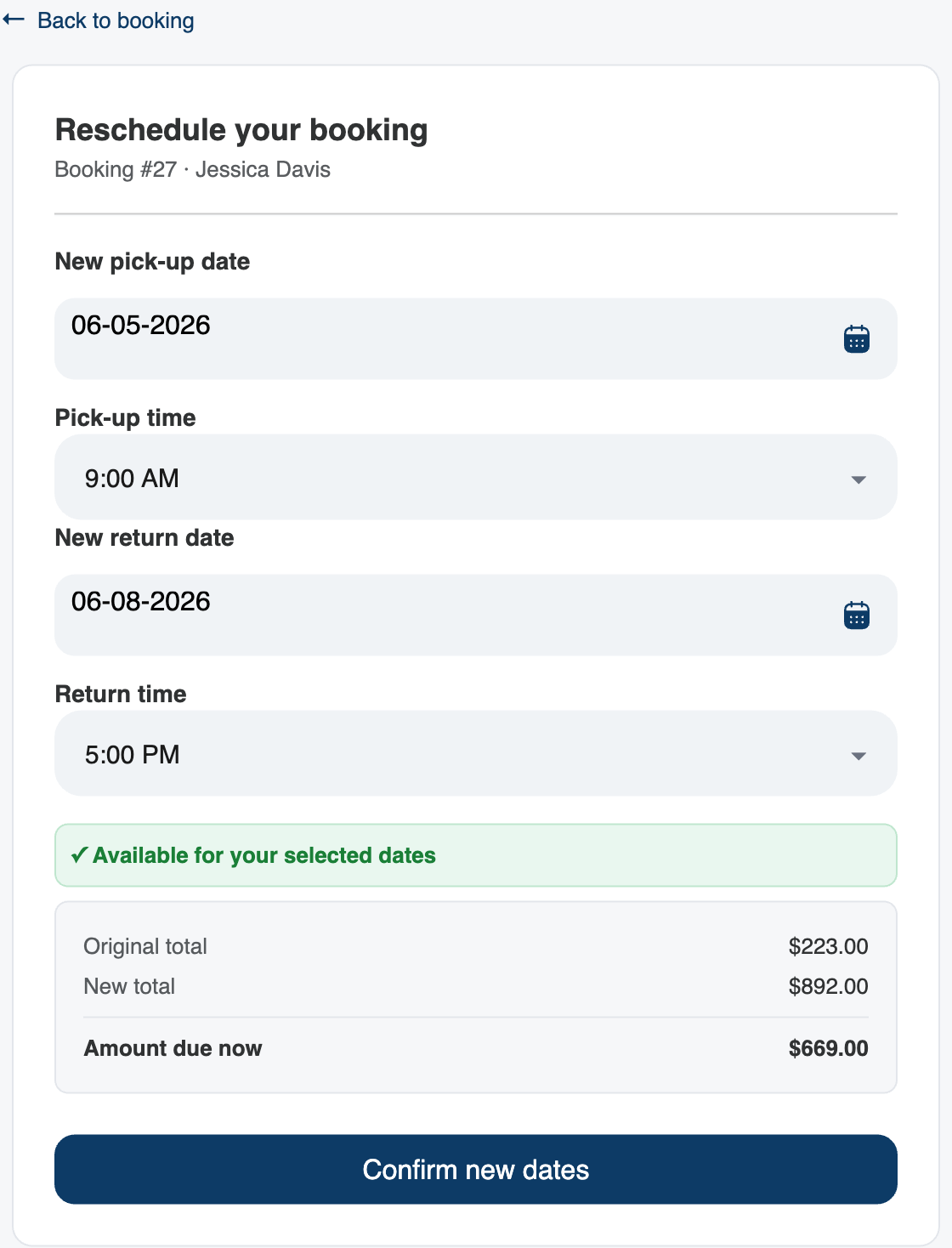
- A green ✓ Available for your selected dates appears when the new dates have stock; a red message appears when they don't.
- If the new dates cost more or less, the customer sees the original total, the new total, and the amount due now (or refund due).
- They tap Confirm new dates to finish.
Rescheduling an Experience
For an experience, the customer picks a new date and then chooses from that day's available start times for the same experience - using the available departures for that experience:
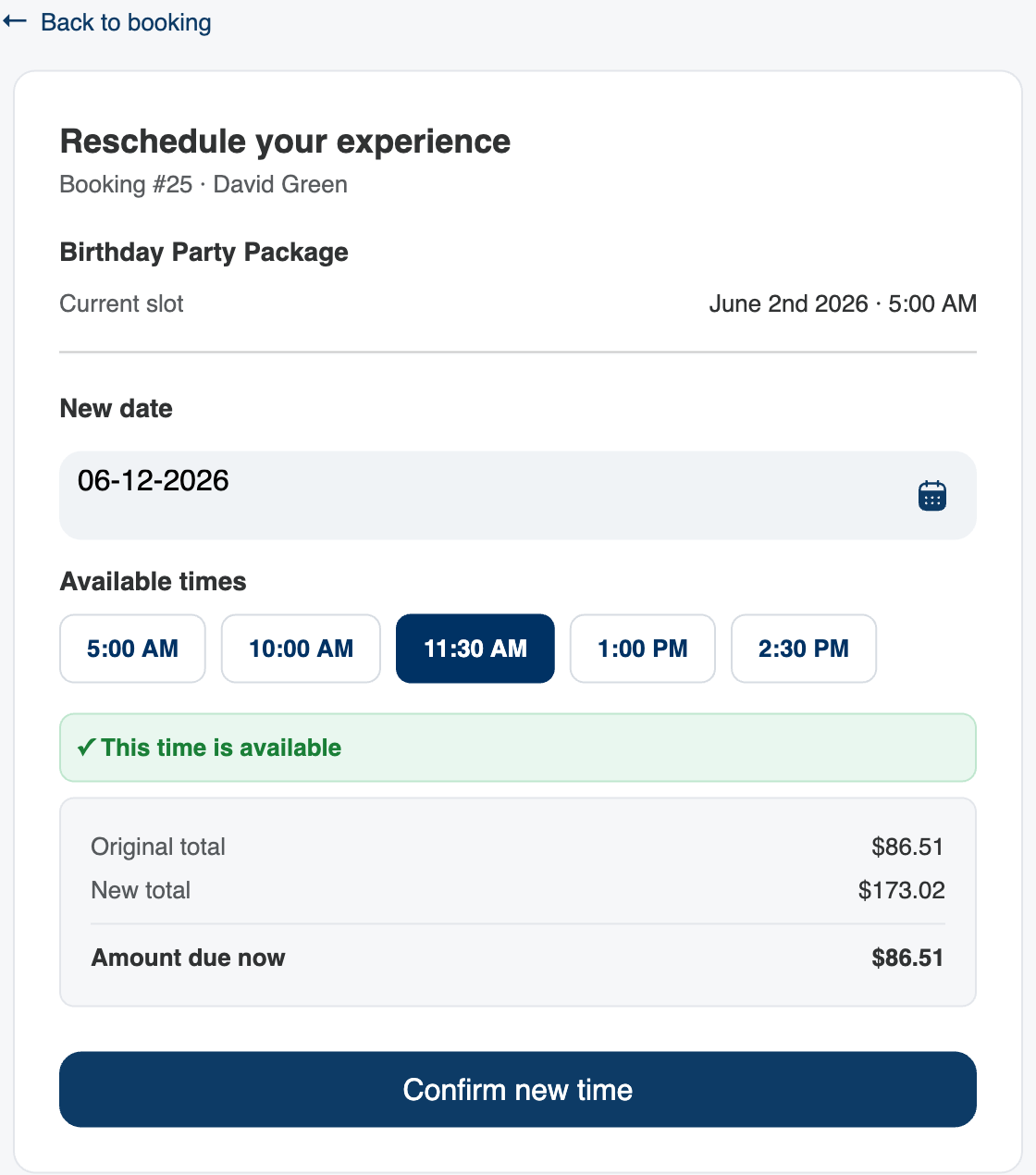
Slots that are in the past, too soon to book, or full are shown but can't be selected. Once they pick a time, any price difference is shown before they confirm.
Extending an Active Rental
If a customer wants more time with gear they've already collected, the Extend action lets them push out the return date themselves. The pickup stays fixed; they only choose a new return:
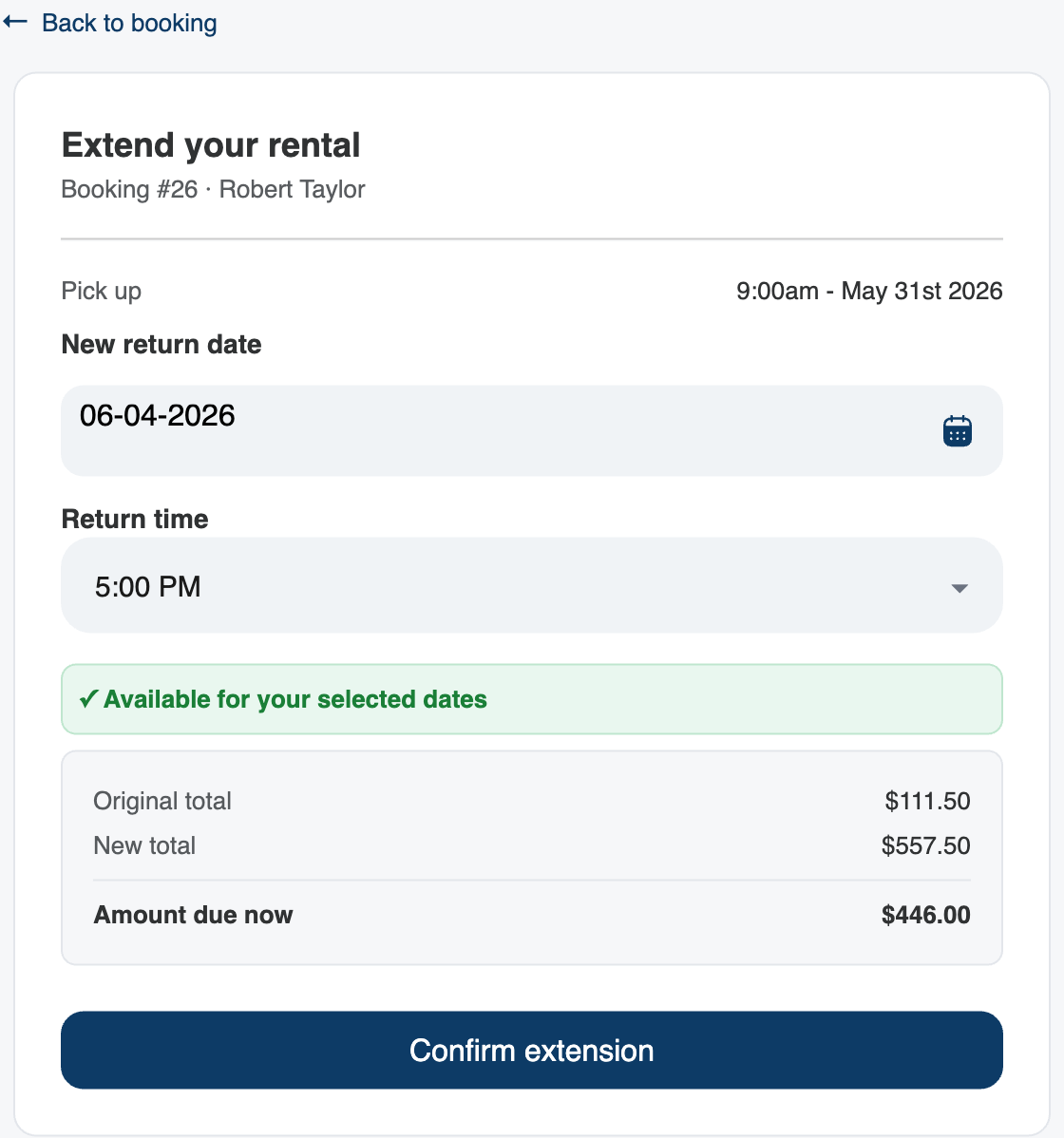
EquipDash checks the gear is free for the extra days and shows the additional charge before the customer confirms.
Paying (or Refunding) the Difference
A reschedule or extension can change the price. How that's settled depends on your online payment setting:
- If you collect full payment online, the customer pays any increase right there by card before the change is confirmed. A decrease is refunded by your shop.
- If you only take a deposit online, the change is confirmed immediately and the extra is simply added to the booking's balance for you to collect your usual way - no card step for the customer.
Either way, the customer always sees the amount before they confirm, and you receive a notification of the change.
The Rules EquipDash Enforces
Self-service never lets a customer do something you wouldn't allow at the counter:
- No past dates. A new pickup or slot must be in the future.
- Minimum booking notice. If a product or experience requires, say, 24 hours' notice, the customer can't reschedule into that window - the same rule your booking widget uses.
- Availability. The new dates or slot must actually have stock or capacity.
- Already-started bookings can't be rescheduled. Once a booking's start time has passed, the Reschedule option disappears (extending an active rental is still allowed).
- Cancellation policy. Cancellations follow the policy attached to the booking, including any refund tier.
Confirmation & Notifications
When a customer completes a self-service action:
- They see an on-screen confirmation and receive a confirmation email (a reschedule sends the reschedule email with the old and new dates).
- You are notified that the booking changed, so your team can check the updated booking.
- The booking's history records the change.
Turning Self-Service On or Off
Both options are on by default. You can turn them off in Settings:
- Online reschedule (rentals and experiences) - go to Settings → Booking widget → Widget settings → Selling & conversion and change Let customers reschedule online.
- Online extensions (active rentals) - go to Settings → Rentals → Advanced and change Allow customers to extend active rental online.
When a setting is off, the matching button simply doesn't appear on the customer's page, and the link shows a friendly "please contact the shop" message instead.
Offering an Extension On Demand
For an active rental, you can also push a customer the extension link yourself - handy when someone calls to ask for more time. On the booking's detail page, the Email actions and Text actions cards include a Send extension option button:
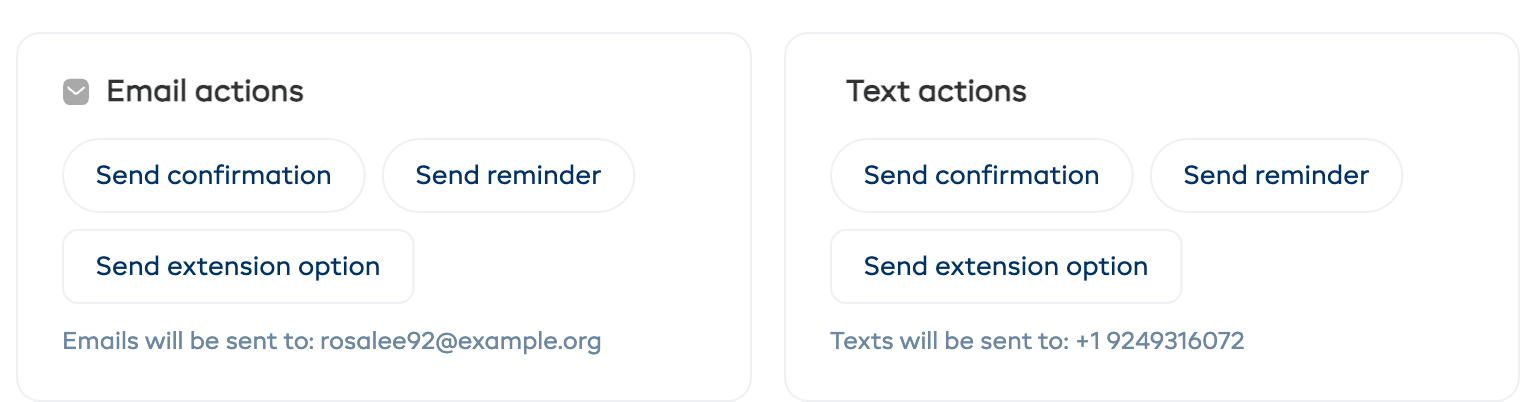
This only appears for picked-up rentals when online extensions are enabled. See Extending an In-Progress Rental for the operator-side workflow.
How Long Do the Links Last?
Each link stays valid through the life of the booking (a booking made far in advance keeps a working link right up to the rental), plus a grace period afterward for viewing receipts. Reschedule, extend, and cancel links are single-use - once an action is completed, that link is spent and a fresh one goes out with the next email.
See Also
- Customer Portal - one link that shows a customer every booking they've made with you.
- Customer Condition Photos - let customers photograph gear at pickup and complete the pickup themselves.
- Move or Reschedule a Booking - doing it yourself from the booking detail page.
- Extending an In-Progress Rental - the operator-side extension workflow.
- Cancelling a Booking - and how cancellation policies apply.
- SMS Templates - the
{{booking_url}}link in your text messages.