Cancelling a Booking
Sometimes a booking needs to be canceled. Review the booking and its cancellation policy before confirming. If the customer has paid, check the refund preview as well.
Who Can Cancel Bookings?
Cancelling a booking requires the Bookings: Cancel permission. If you do not see the cancel option, ask your account admin to check your role and permissions.
When the Cancel Option Appears
Cancel booking shows on any booking that hasn't finished - including one that has already started. A no-show, a customer who calls an hour after their pickup time, an item handed over by mistake: all of these can still be cancelled, and your cancellation policy decides the refund. A cancellation after the start time usually falls past every refund tier, so the modal shows a 0% refund unless your policy says otherwise.
The option is hidden once a booking is Cancelled, Returned, or Completed - there is nothing left to cancel. Use a refund instead if you need to give money back on a finished booking.
Customers can't cancel themselves once the booking has started - that stays blocked on their self-service page. Only your team can.
How to Cancel a Booking
- Open the booking you want to cancel from the bookings table.
- Click the Actions ▾ dropdown in the top-right corner of the booking detail page.
- Select Cancel booking.
- The cancellation modal opens and walks you through the process in steps.
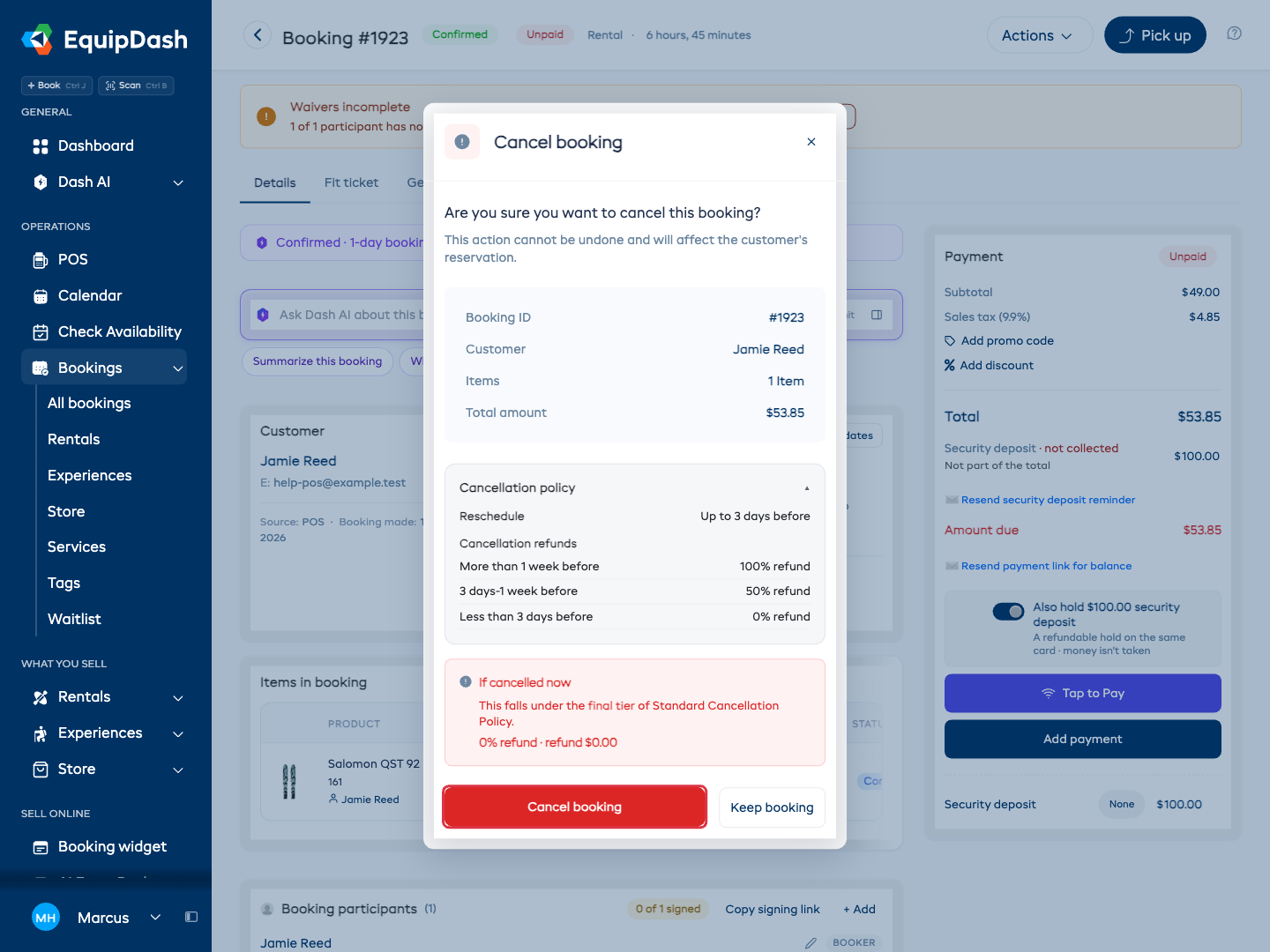
Step 1: Review the Booking and Policy
Check the booking number, customer, items, and total. The first step shows the matching cancellation policy and refund preview.
EquipDash looks for a policy assigned to the product or experience, its category, or all products or experiences. A bundle can also have its own cancellation policy. For a policy with refund tiers, the preview shows the tier that applies at the time of cancellation.
Click Cancel booking to continue, or Keep booking to leave the reservation unchanged.
Step 2: Add a Reason and Review the Refund
You can select a Reason for cancellation and enter Additional notes. The reason is optional, but Other (please specify) requires a note.
| Reason | When to Use |
|---|---|
| Illness or medical emergency | The customer or a participant is unwell. |
| Change in travel plans | The customer's schedule has changed. |
| Bad weather or unsafe conditions | Conditions make the booking unsafe. |
| Personal or family emergency | A personal situation prevents the customer from attending. |
| Minimum participants not reached | Not enough participants signed up. |
| Transportation issues | The customer cannot reach the pickup location or session. |
| Force majeure | An extraordinary event prevents the booking. |
| Other (please specify) | Enter the reason in Additional notes. |
For an unpaid booking, the panel says that no payment has been received. There is no payment to refund.
For a paid booking, review the refund percentage and amount before confirming. Admins can click Override to enter a different percentage, or Use Policy to return to the policy value.
Step 3: Confirm Cancellation
Review the summary and click Confirm cancellation. The booking status changes to Cancelled.
What Happens After Cancellation
When a booking is canceled:
- The booking status is set to Cancelled.
- Reserved inventory is released (rental bookings).
- Held spots on the schedule are freed (experience bookings).
- For a paid booking, EquipDash attempts the refund shown in the cancellation preview. Check the result on the booking page. See Processing a Refund if you need to review or handle a refund separately.
- If the waitlist is enabled, customers on the waitlist for the same item are automatically notified that availability has opened up.
- A cancellation email is sent to the customer (if email notifications are enabled). For multi-tier policies, the email cites the matched tier - "Cancelled 30 hours before departure. Refund: 50% ($42.50)."
Cancellations Without a Policy
Your policy decides the refund, never whether staff can cancel, so a no-show can always be closed off. If no cancellation policy covers the booking, or its policy takes no cancellations, the window says in one line that nothing is refunded automatically, and you can still cancel.
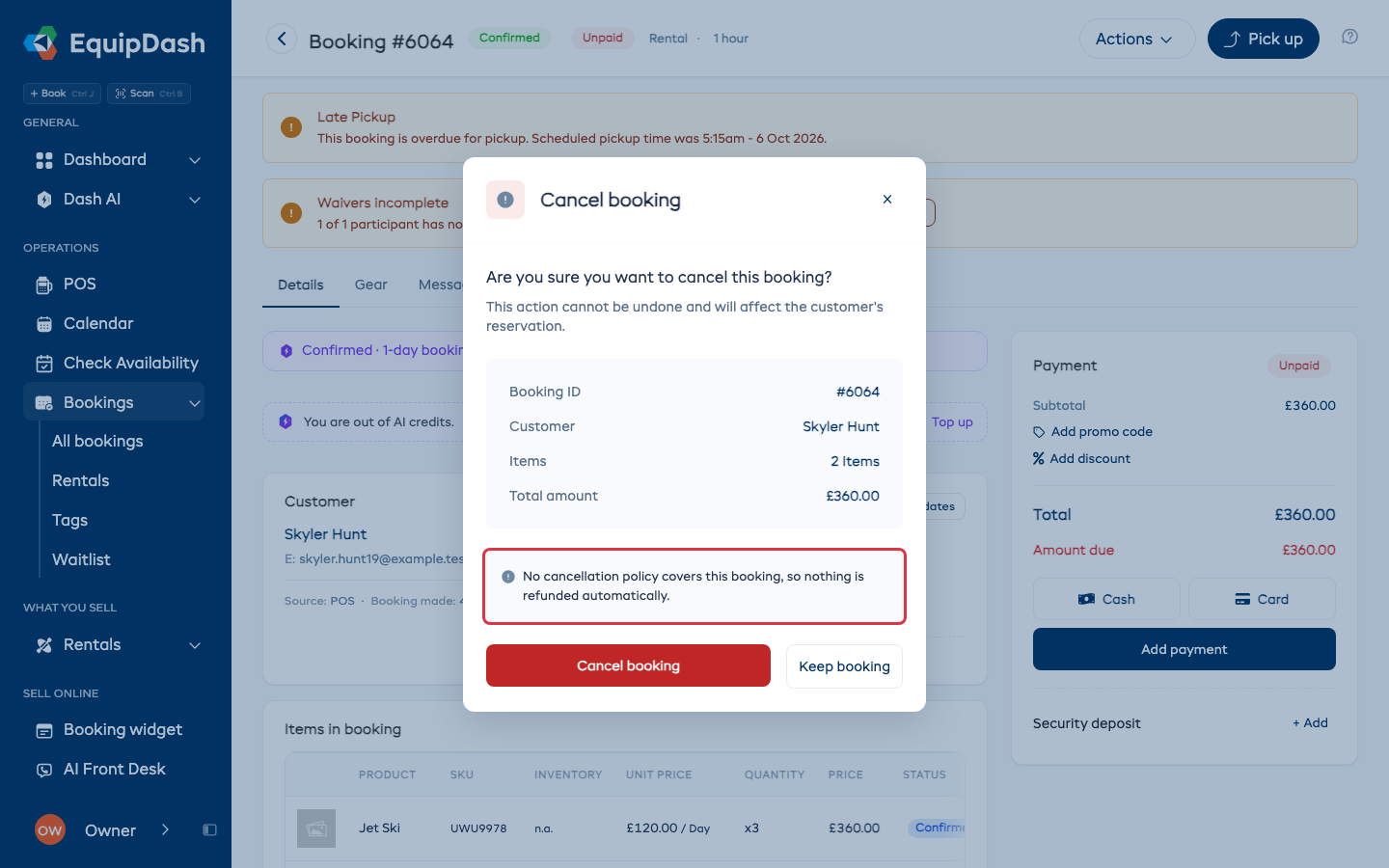
On a paid booking, the summary adds that nothing is refunded automatically. To give money back, use Process refund on the Payment card after you cancel. The same line shows when you cancel from the mobile app. To set refunds for next time, review the policy assignments.
Can I Undo a Cancellation?
Cancellation is a final action and cannot be undone. If the customer wants to rebook, you will need to create a new booking.
Related Guides
- Processing a Refund
- How the Waitlist Works
- Creating Cancellation Policies
- Viewing & Managing Bookings
- Archiving Bookings - once cancelled, you can archive to clean up your list