Extending an In-Progress Rental
A customer wants to keep their gear for an extra day. A surfboard rental needs a leash added mid-trip. EquipDash lets you edit a booking even after items have been picked up — and any extra charge is collected through the same Reconcile Balance step you use for normal paid edits.
What You Can and Can't Change
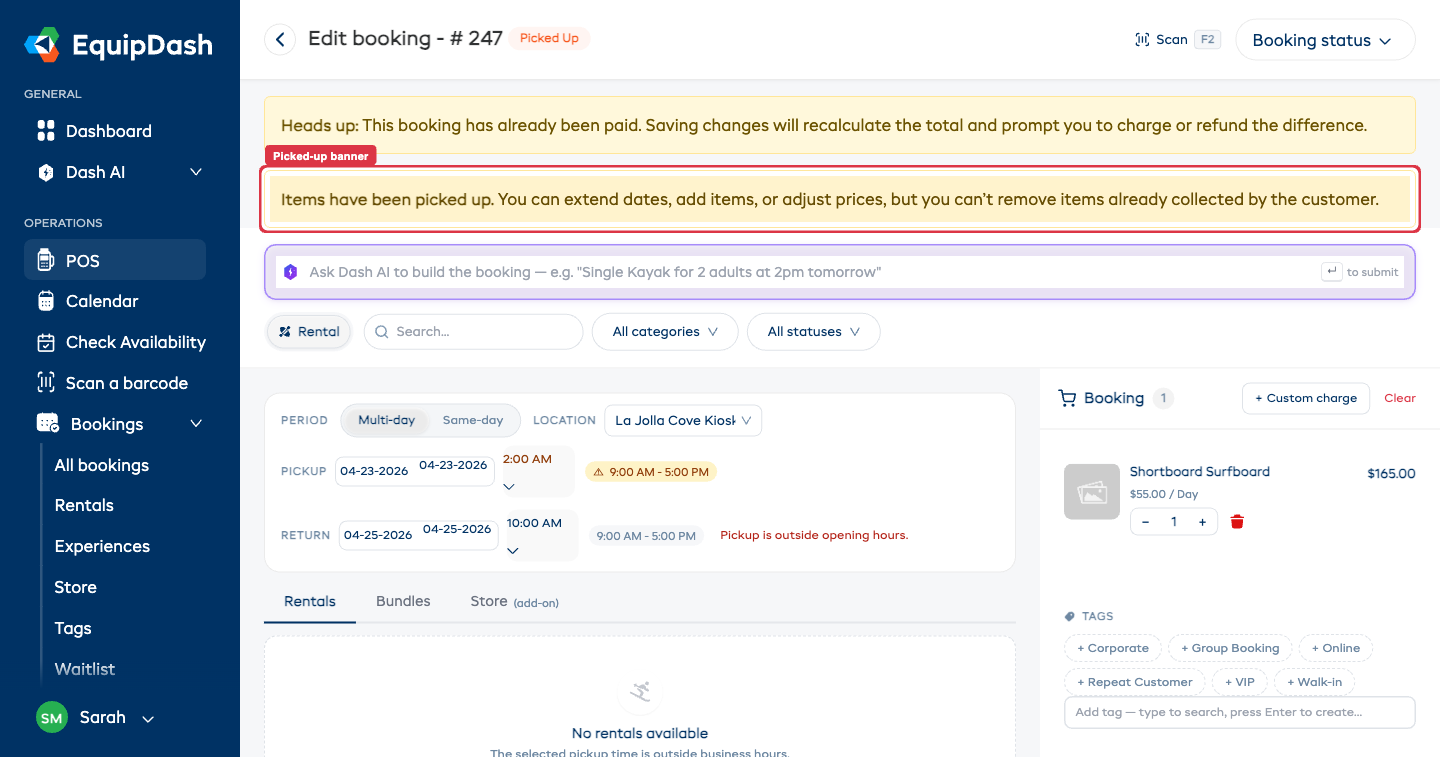
When a booking is in Picked up status, a yellow warning banner appears on the edit page:
Items have been picked up. You can extend dates, add items, or adjust prices, but you can't remove items already collected by the customer.
| Allowed | Blocked |
|---|---|
| Extend the return date or time | Removing items the customer already has |
| Add new items / accessories | Swapping a picked-up item for a different one |
| Adjust line-item prices | Changing the customer |
| Update notes and tags | Cancelling the booking from edit mode |
To remove a picked-up item, mark it as returned first via the returns flow, then edit the booking.
How to Extend a Return Date
- Open the booking from the bookings table.
- Click the Actions ▾ dropdown and select Edit.
- Update the Return date and / or Return time to the new value.
- EquipDash automatically re-checks availability for the extended period. If another booking conflicts on those dates, you'll see a warning and won't be able to save.
- Click Update booking to save.
If the longer rental costs more, the Reconcile Balance modal opens so you can settle the difference.
A planned extension recorded by editing the booking is different from a late return (the customer keeps gear past the end date without telling you). Late fees and the late-return workflow are covered in fulfillment.
How to Add an Accessory Mid-Rental
- Open the booking and click Actions ▾ → Edit.
- Click Add Item and select the new product (e.g. a leash, a helmet, a second day's surfboard).
- Set the quantity and click Add.
- Click Update booking.
The customer is automatically charged for the addition through whichever option you pick on the Reconcile Balance modal:
- Send payment link — customer gets a Stripe payment link for the difference.
- Take payment in person — opens the POS payment screen if the customer is at the counter.
- Skip for now — leaves the new item on the booking with an outstanding balance.
How Pricing Recalculates on an Extension
EquipDash recalculates the total from scratch using your products' pricing rules:
- Daily / hourly products charge per the new duration.
- Schedule pricing picks the appropriate tier for the new total length (e.g. a 3-day tier may be cheaper than 1-day × 3).
- Bundles stay valued at their current bundle price.
- Discounts and promo codes are reapplied to the new subtotal.
The booking's audit trail captures the change with the old total, new total, and delta — visible under the History tab on the booking detail page.
What the Customer Sees
After you save, the customer receives an updated booking summary email that includes:
- The new pickup / return dates (if you changed them).
- Any added items.
- A clear breakdown: previous total, new total, balance owed or refund due.
- Either a payment link, a confirmation that you've taken payment, or a note that they should contact you to settle.
Let the Customer Extend Themselves
You don't have to do every extension by hand. If you turn on Allow customers to extend active rental online (in Settings → Rentals), customers can push out their own return date from the secure link in their booking emails and texts — EquipDash checks the gear is free and collects any extra charge automatically. See Customer Self-Service for the full customer experience.
When someone calls or messages asking for more time, you can also hand them that link on the spot. On the booking's detail page, the Email actions and Text actions cards include a Send extension option button:
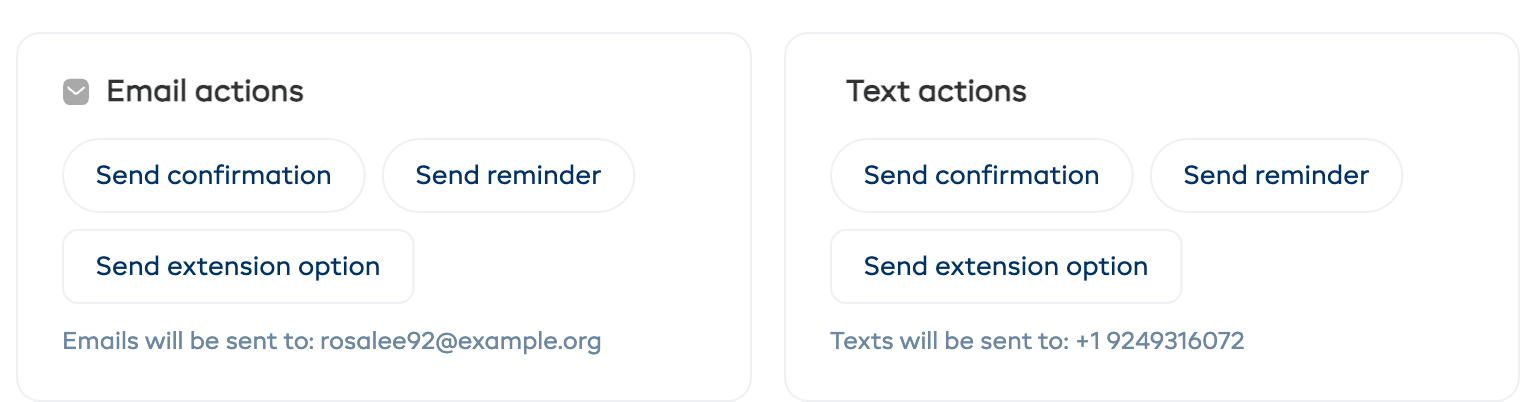
This button only appears for picked-up rentals when online extensions are enabled. Click it and the customer receives a one-tap link to extend their rental — no need to read dates over the phone.
Related Guides
- Customer Self-Service — how customers reschedule, extend, and cancel from their own link.
- Editing a Booking — full guide to the edit flow including paid bookings.
- Recording a Payment — how to take in-person payments.
- Processing a Refund — the manual refund workflow if you skipped reconciliation.
- Fulfillment — pickups, returns, and late returns.