Editing a Booking
You can change the items, quantities, dates, or customer on an existing booking. Review the updated total before saving.
For date-only changes, use Move dates on the booking detail page. You can move the reservation without removing and re-adding its items.
Who Can Edit Bookings?
Editing a booking requires the Bookings: Edit permission. If you do not see the edit options described below, ask your account admin to check your role and permissions.
How to Start Editing
- Open the booking you want to edit by clicking it in the bookings table.
- Click the Actions ▾ dropdown in the top-right corner of the booking detail page.
- Select Edit.
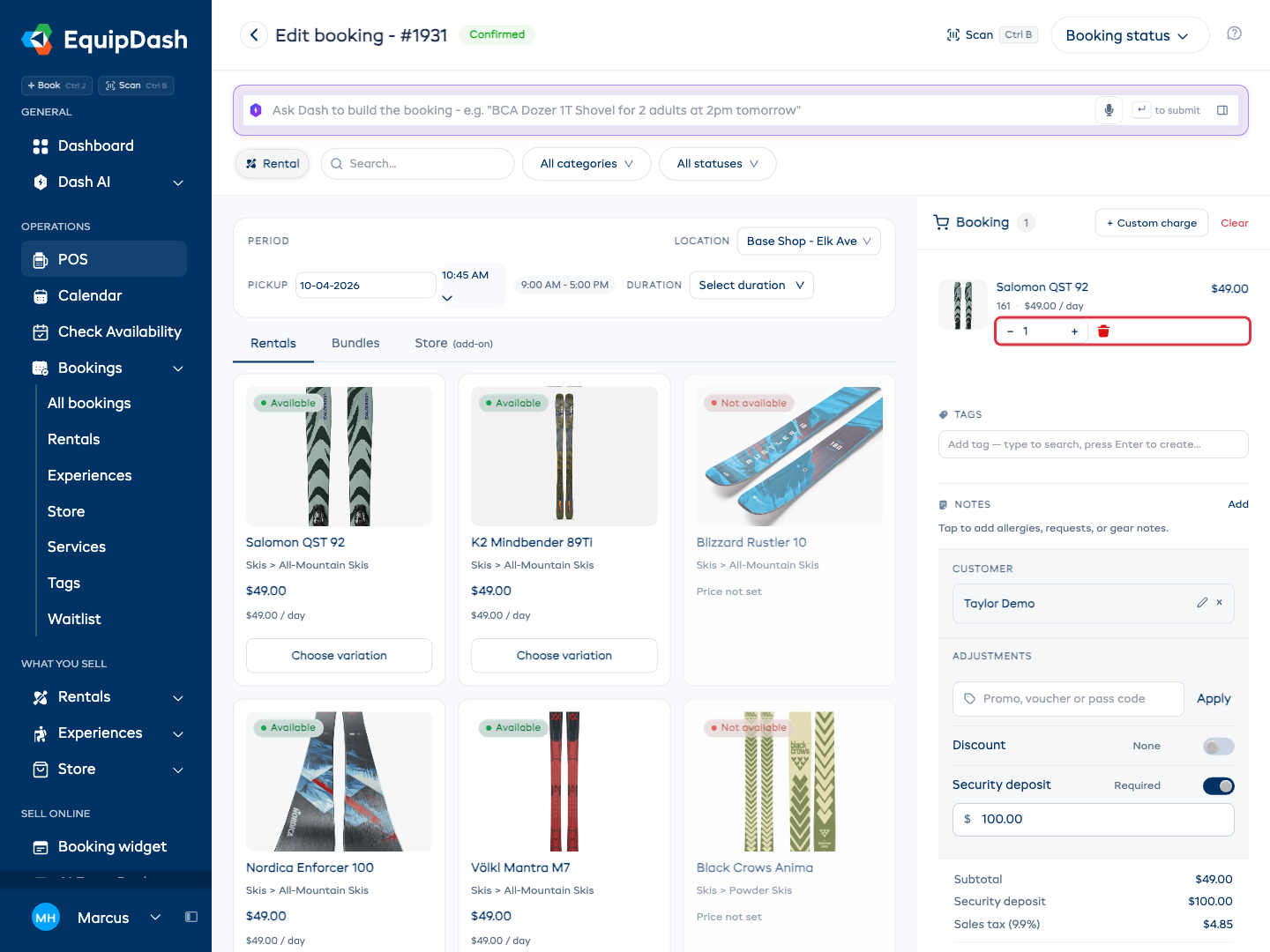
The booking opens in the POS editor. Its customer and existing items are already in the cart.
Changing Dates
- In the Period panel, review the pickup date and time.
- Change the return date and time, or choose a Duration if your shop offers fixed rental lengths.
- Review availability and the updated cart total.
- Click Update booking to save.
A different rental period can change the price. For a date-only change, you can also use Move dates on the booking detail page.
Changing Items and Quantities
Adding an Item
- Search or browse the catalog in the editor.
- Click Choose variation if the product has sizes or other choices, then set the quantity for the variation you need.
- Click Add to booking. Check that the item appears in the cart.
- Click Update booking after reviewing all your changes.
Removing an Item
Click the red trash icon beside the item in the cart. Review the remaining items and total, then click Update booking. Removing an item from the cart does not save the booking by itself.
You cannot remove an item that has already been picked up. Mark it as returned first; see Editing Picked-Up Rentals.
Adjusting Quantity
Use the plus and minus buttons on the cart row, or type a quantity and press Enter. Availability limits still apply. Review the updated item and booking totals, then click Update booking.
Changing the Customer
- In the cart's Customer card, click the × beside the current customer.
- Click Add customer and search by name, email, or phone.
- Select the correct customer and review the booking.
- Click Update booking to save the new customer.
The pencil beside the customer edits that person's profile details. It does not select a different customer for the booking.
Changing the customer does not affect the booking's payment history. Any payments already recorded remain linked to the booking.
Editing Participants (Experience Bookings)
You don't need to enter edit mode to change participants - every participant action is inline on the booking detail page:
- Change a participant's ticket - use the inline ticket-type dropdown on the participant row to assign or move them to a different rate category.
- Edit a participant's name, email, or notes - click the edit pencil on the row, update the fields, edit any participant-scope custom fields, and click Save.
- Remove a non-booker participant - click the × on the row.
- Add a new participant or change a customer link - click + Add at the top of the Booking participants card. The bulk participants form opens with POS-style customer autocomplete (start typing a name or email to link an existing customer).
The booker (the customer who made the booking) cannot be removed - every booking must have at least one anchor participant.
How Edits Affect Pricing
When you make changes to a booking, the pricing is automatically recalculated:
- Date changes may change the rental duration and therefore the total price.
- Adding or removing items updates the subtotal.
- Quantity changes adjust the line item total.
- Promo codes and discounts are reapplied to the updated subtotal.
Editing a Paid Booking
You can edit a booking even after the customer has paid. When you save changes that move the total up or down, EquipDash opens a Reconcile Balance step so you can settle the difference in one place.
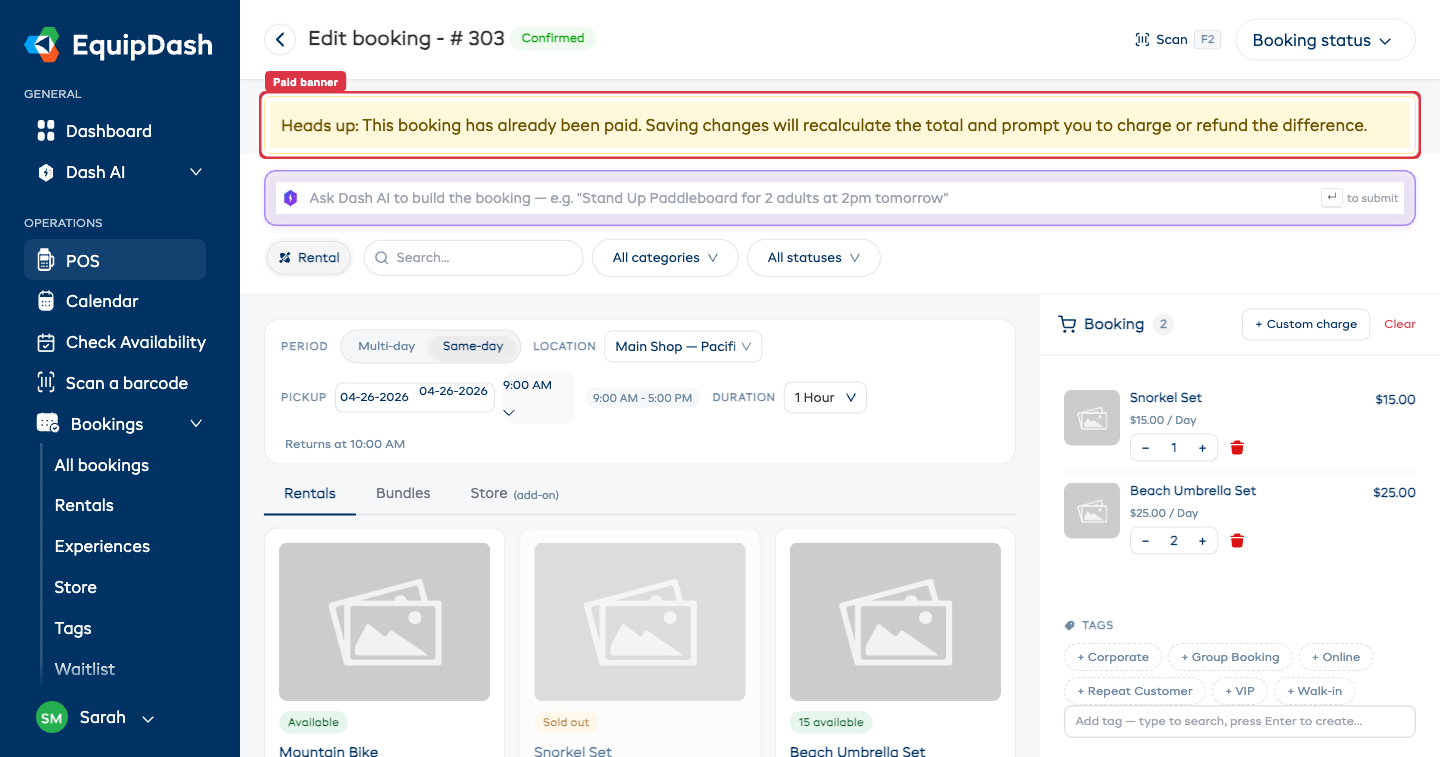
A yellow banner appears at the top of the edit page to remind you the booking is paid:
Heads up: This booking has already been paid. Saving changes will recalculate the total and prompt you to charge or refund the difference.
When the price goes up
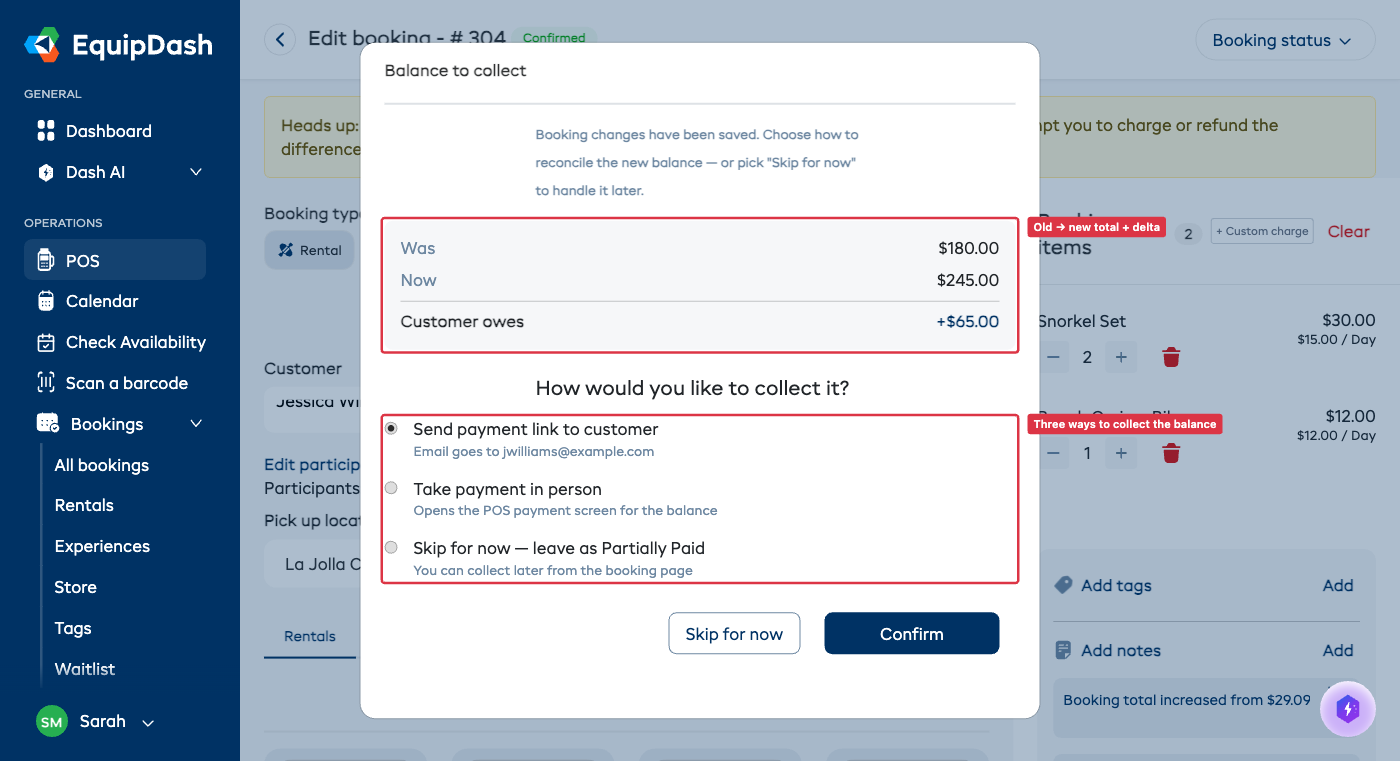
If the total increased, the modal asks how you'd like to collect the extra balance:
- Send payment link to customer - emails the customer a Stripe payment link for what they still owe. The booking reads Partially Paid until they pay it.
- Take payment in person - opens the existing POS payment screen pre-filled with the balance, so you can charge a card or record cash.
- Skip for now - saves the new total without charging. You can collect the balance later from the booking page.
The figure on the card is what the customer still owes, not the amount the price moved by. The card shows Was, Now, Paid so far and Customer owes so you can see how it was worked out. If they have already paid enough to cover the new total, there is nothing to settle and you are not asked - the booking stays Paid.
The customer always receives an updated booking summary email that explains the new total and how the difference will be handled.
When the price goes down
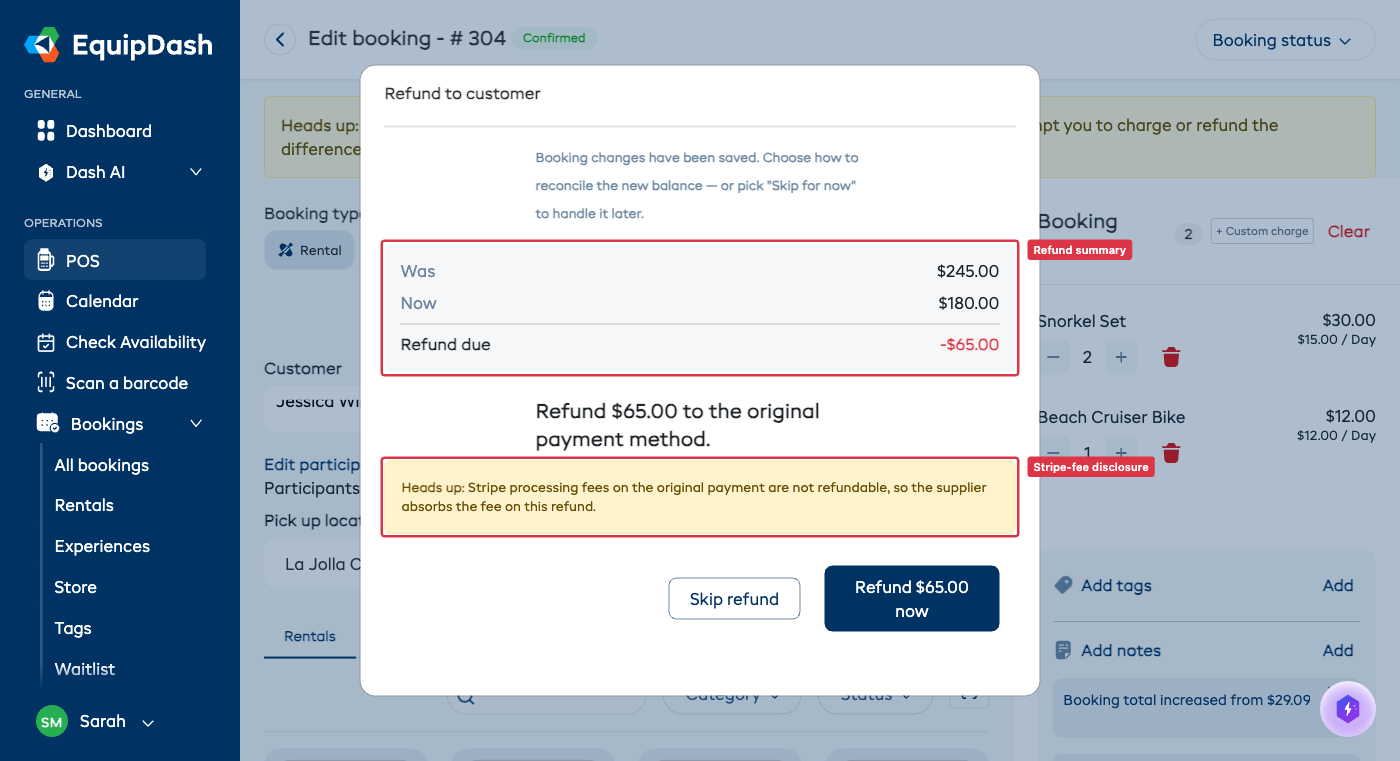
If the total decreased, the modal offers to refund the difference to the customer's original payment method. Refunds use the same plumbing as a normal booking refund, so:
- Stripe and Paystack are both supported automatically.
- Stripe processing fees on the original payment are not refunded by Stripe - your business absorbs that small fee.
- You can choose Skip refund to leave the overpayment as a credit on the booking, then process the refund manually later from the Payments section.
What if I cancel the modal?
The booking edit is committed when you click Update booking - that's before the modal opens. If you click Skip for now, the booking stays in its newly-edited state and the payment status is set from what is actually outstanding: Partially Paid when something is still owed, Unpaid when nothing has been paid yet, Paid when the new total is covered. You can come back at any time and either charge the balance or process a refund.
If the change was a mistake, edit the booking again to return it to the original totals.
Editing Picked-Up Rentals
You can also edit a rental booking after items have been picked up - useful for extending a rental by an extra day or adding an accessory mid-trip. See Extending an in-progress rental for the full walkthrough.
When the booking is in Picked up status, a warning banner appears at the top of the edit page:
Items have been picked up. You can extend dates, add items, or adjust prices, but you can't remove items already collected by the customer.
To remove an item, mark it as returned first via the returns flow.
Edit access shortcut
The Edit option lives in the Actions ▾ dropdown on the booking detail page. If you don't see it, your role might be missing the Bookings: Edit permission - check with your account admin.
Edit History
All edits are logged in the booking's History tab. You can see who made each change and when, giving you a full audit trail. Price changes specifically write a system note recording the old total, new total, and delta.