Processing a Refund
When a booking is canceled or a customer overpays, you may need to issue a refund. EquipDash supports both full and partial refunds, and handles Stripe refunds automatically.
Who Can Process Refunds?
Processing a refund requires the Bookings: Refunds permission. If you do not see the refund option, check your role and permissions.
How to Refund a Booking
- Open the booking from the bookings table.
- In the Payment card on the right of the booking detail page, click Process refund.
- The refund window opens with a suggested Refund amount and optional Reason.
Process refund appears while money paid toward the booking remains available to refund. It can also appear on a canceled booking if money still needs to be returned. The action disappears after the full paid amount has been refunded.
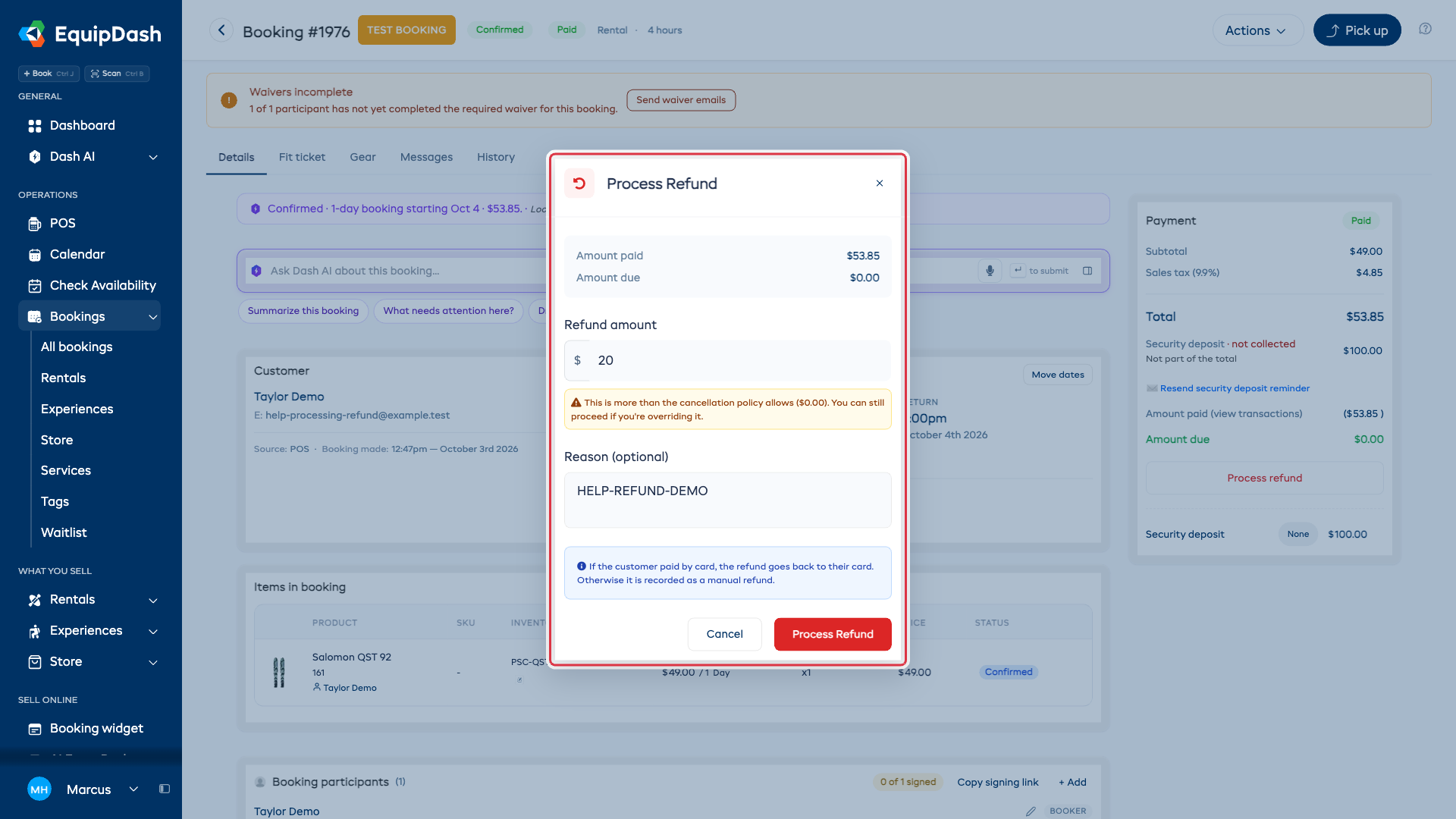
Full Refund
- Keep the suggested remaining amount in the Refund amount field. If an earlier partial refund was issued, this is the amount still paid toward the booking.
- Optionally enter a reason in the Reason field for your records.
- Click Process Refund.
Partial Refund
- Enter the specific amount you want to refund in the Refund amount field.
- Optionally enter a reason in the Reason field.
- Click Process Refund.
How Refunds Are Processed
The refund method depends on how the original payment was made:
| Original Payment Method | Refund Method |
|---|---|
| Card (Stripe) | Refunded automatically to the customer's card through Stripe. |
| Card Terminal | Refunded automatically through Stripe. |
| Cash | Recorded in EquipDash. You handle the cash refund outside the system. |
| Bank Transfer | Recorded in EquipDash. You handle the bank transfer refund outside the system. |
| Voucher | The refunded amount is credited back to the voucher balance. |
For cash and bank transfers, return the money yourself. Recording a manual refund in EquipDash does not move money between accounts.
For Stripe payments, the refund is submitted to Stripe immediately and typically appears on the customer's statement within 5-10 business days (depending on their bank).
Refunds and Cancellation Policies
When you cancel a booking, the cancellation flow automatically calculates the refund amount based on your cancellation policies. You can override the policy's refund percentage during cancellation if needed.
After cancellation, if a refund amount was determined, you can process it from the booking detail page using the steps above.
Viewing Refund History
Open the booking's History tab to see each Payment received and Refund issued entry, including the amount, method, date, and time. After multiple partial refunds, check each refund against the original payment.
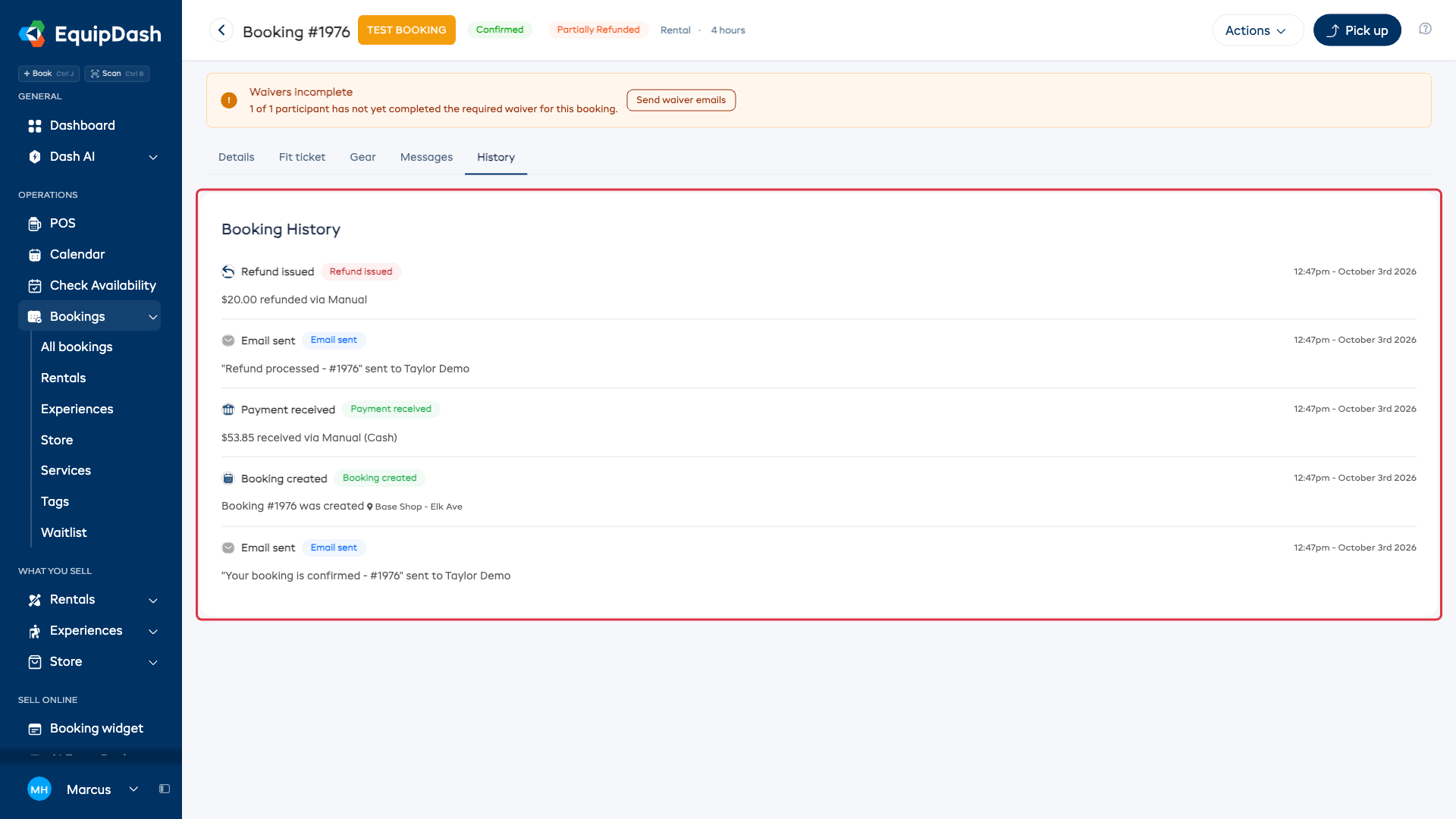
While a paid amount remains, Amount paid (view transactions) in the Payment card also opens the transaction list. Use History to review a fully refunded booking.
Payment Status After Refund
After processing a refund, the booking's payment status updates:
- Refunded - if the entire amount paid has been refunded.
- Partially Refunded - if only part of the amount has been refunded.
Refunding a payment does not cancel the booking. Its rental dates and booking status stay the same unless you change or cancel it separately.
For a fully paid booking with an unchanged price, issuing a refund reduces Amount paid while Amount due stays at zero. It does not ask the customer to repay the refund.
Important Notes
- You can only refund up to the total amount that has been paid on the booking.
- Multiple partial refunds can be issued on the same booking.
- Stripe refunds cannot be reversed once processed. Make sure the amount is correct before confirming.
- Refund actions are logged in the booking's history.