Add a search box to your website
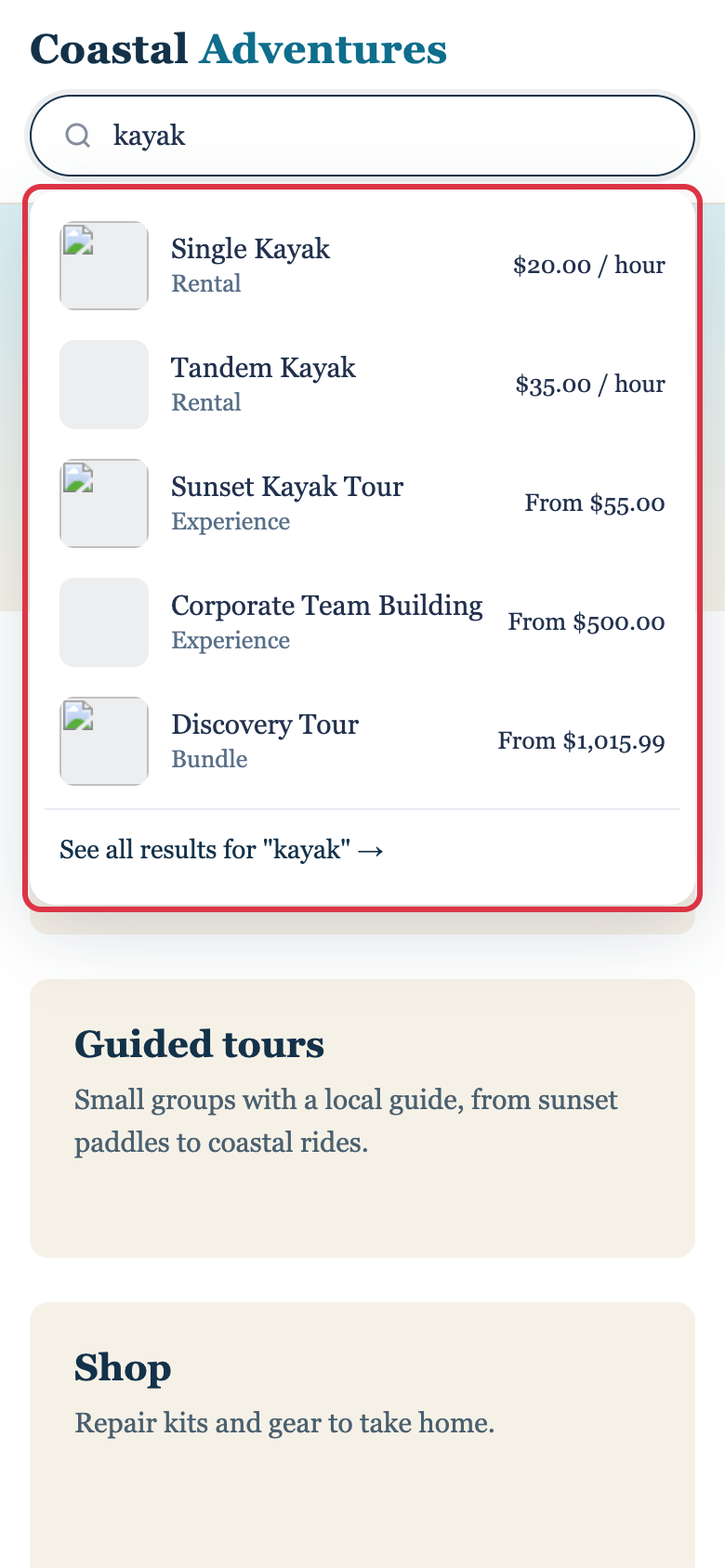
A search box lets customers find anything you sell from any page of your own website: your header, your home page or a sidebar. As they type, up to 6 matching items show under the box with a photo, the name and the price. Clicking one opens it to book.
Get the code
- Go to Settings > Booking widget > Embed options.
- Click Search.
- Placeholder is the text in the empty box. It starts with what you sell, like "Search rentals and experiences". Type your own words, or leave it blank to keep that.
- Search in is Everything unless you want one category. See Search one category.
- Click Copy code and paste it where the box should go on your website.
There's no Save button. Each change saves as you make it, and the code updates to match.
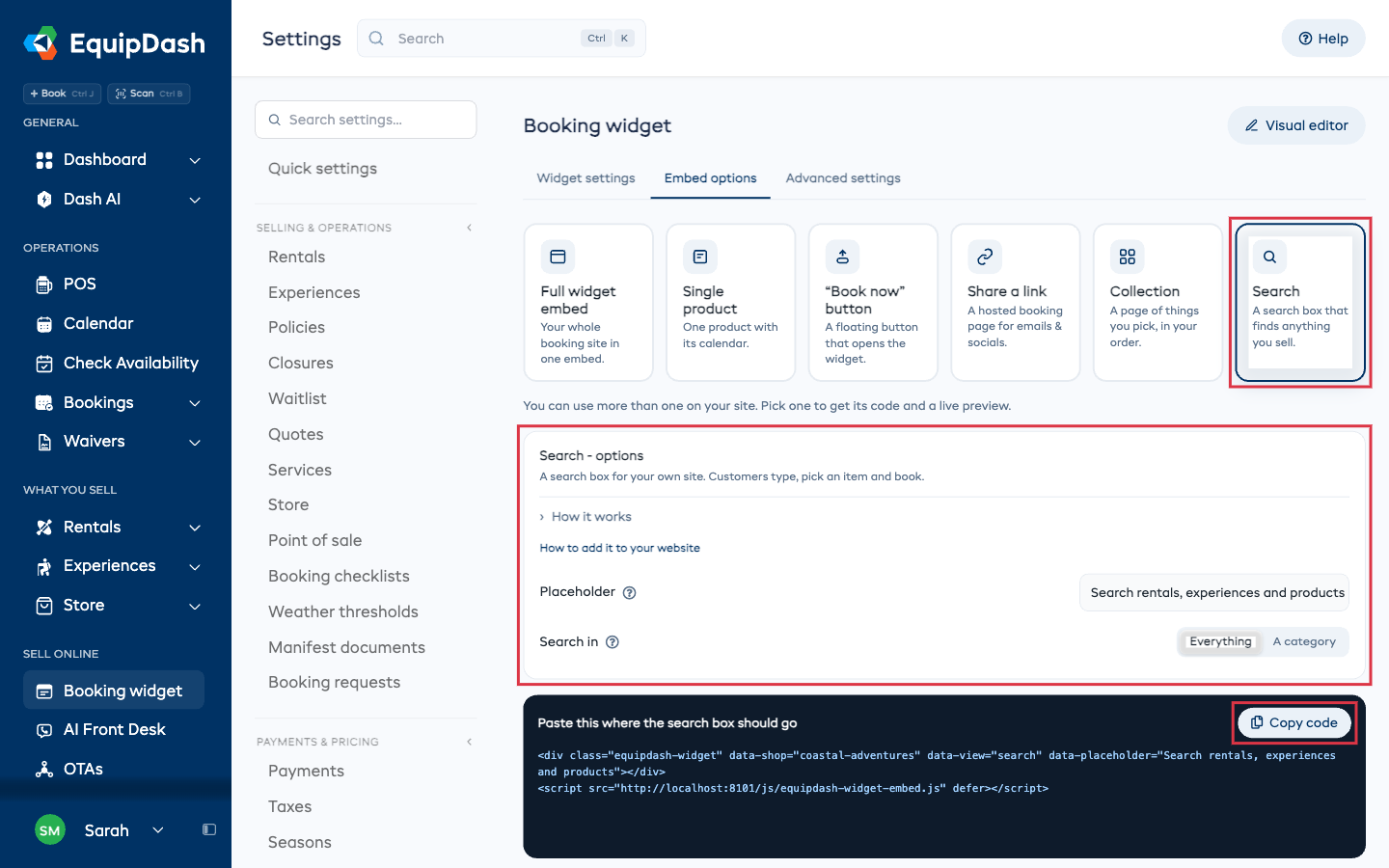
The Live preview under the code shows the box on a sample page. Type in it to try it before you paste anything.
The code is two lines, the box and the EquipDash script:
<div class="equipdash-widget" data-shop="your-shop" data-view="search" data-placeholder="Search rentals and experiences"></div>
<script src="https://app.equipdash.com/js/equipdash-widget-embed.js" defer></script>
Paste both lines together.
The box uses your website's own font. For a bigger box at the top of your home page, add data-size="hero" to the first line, before the closing >.
What customers see
Customers type two or more letters and the matching items show under the box: photo, name, whether it's a rental, experience or product, and the price.
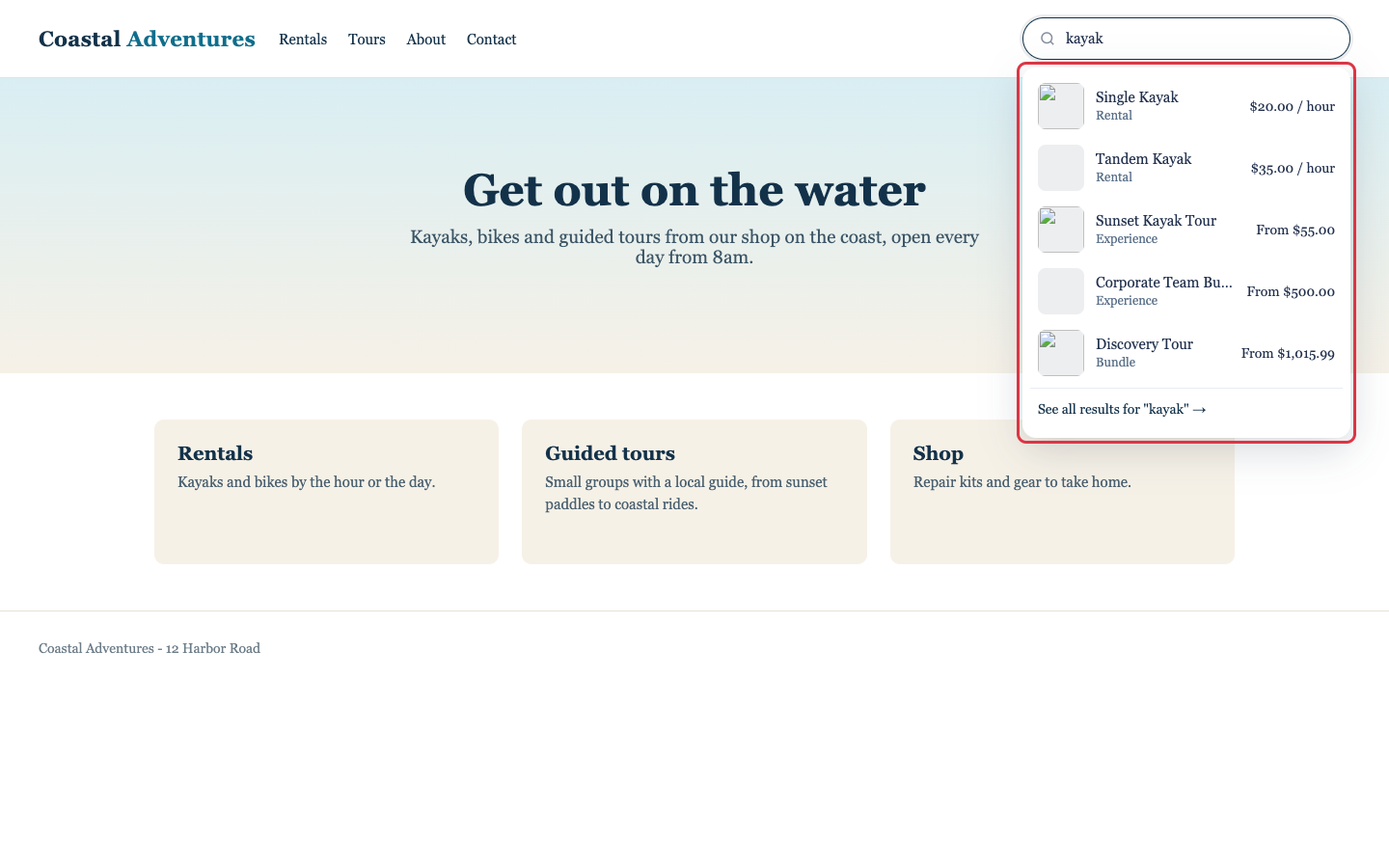
- The box shows only what your booking page shows. Items you hid, or that only some customers can book, never show.
- An item with sizes shows once, not once per size.
- If no item name matches, the closest items still show.
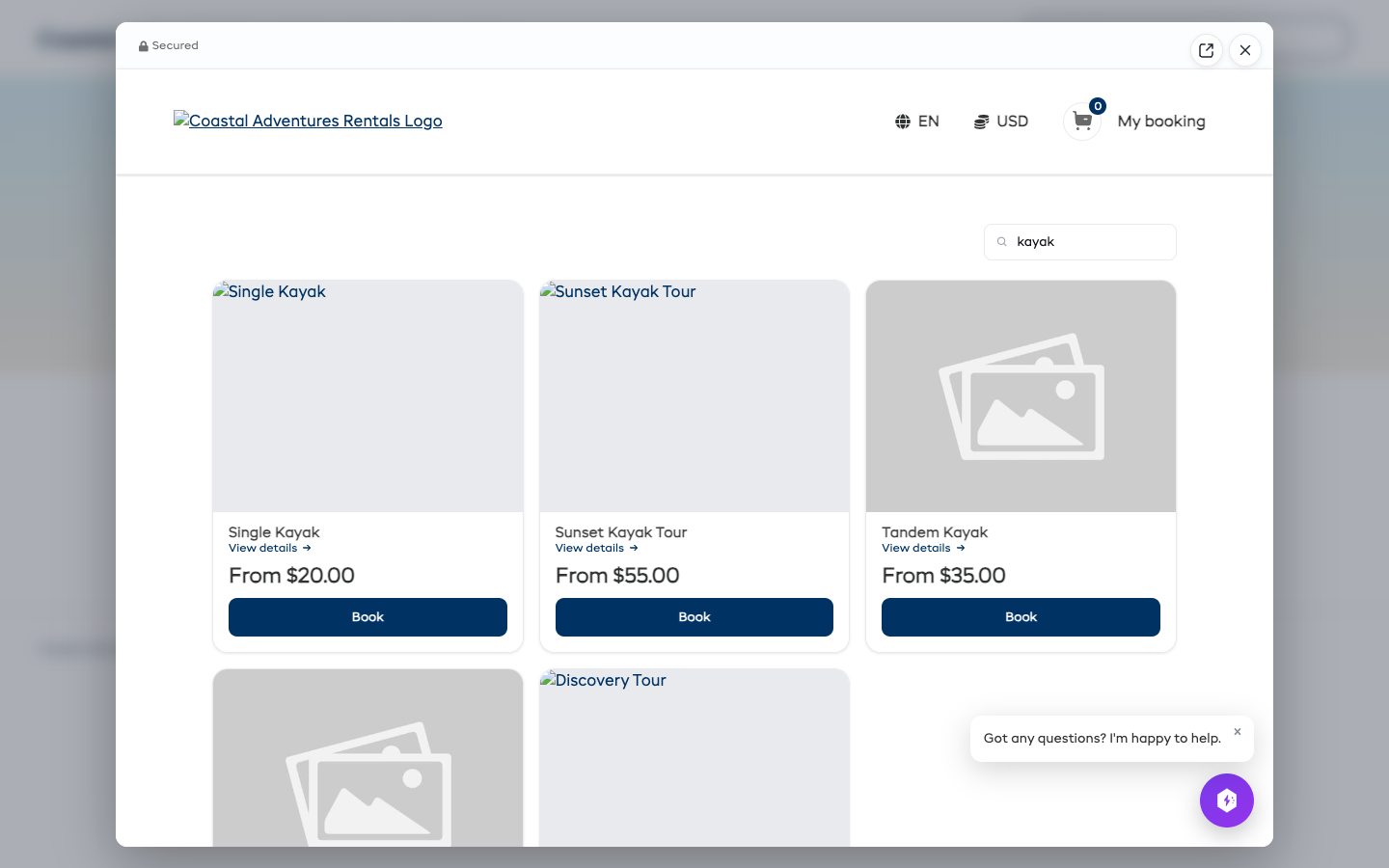
- See all results, or pressing Enter, opens your booking page in a pop-up with the search already done. It lists rentals, experiences and products together.
Where a click goes
When a customer clicks an item, EquipDash checks whether that item has its own page on your website:
- It has a page: the customer goes to that page.
- It has no page: the item opens in a pop-up over the page they're on, like the Book now button. They can book it there and keep browsing.
How item pages are found
There's nothing to set up. If an item's own page on your website has its Single product code from Embed options, or its Button code from the item's Embed tab, EquipDash notes that page the first time someone opens it. From then on, a click on that item in the search box goes to that page.
- Only a page on the same website as the search box is used. A page on another website is never offered.
- Your website needs an address that starts with
https://. Almost every website builder does this for you. - A page that hasn't been opened for 7 days is dropped, and the item opens in a pop-up again.
To see what was found, open the item and click its Embed tab. Page on your website shows the page and when it was found. This works on rentals, experiences, store products, bundles and programs.
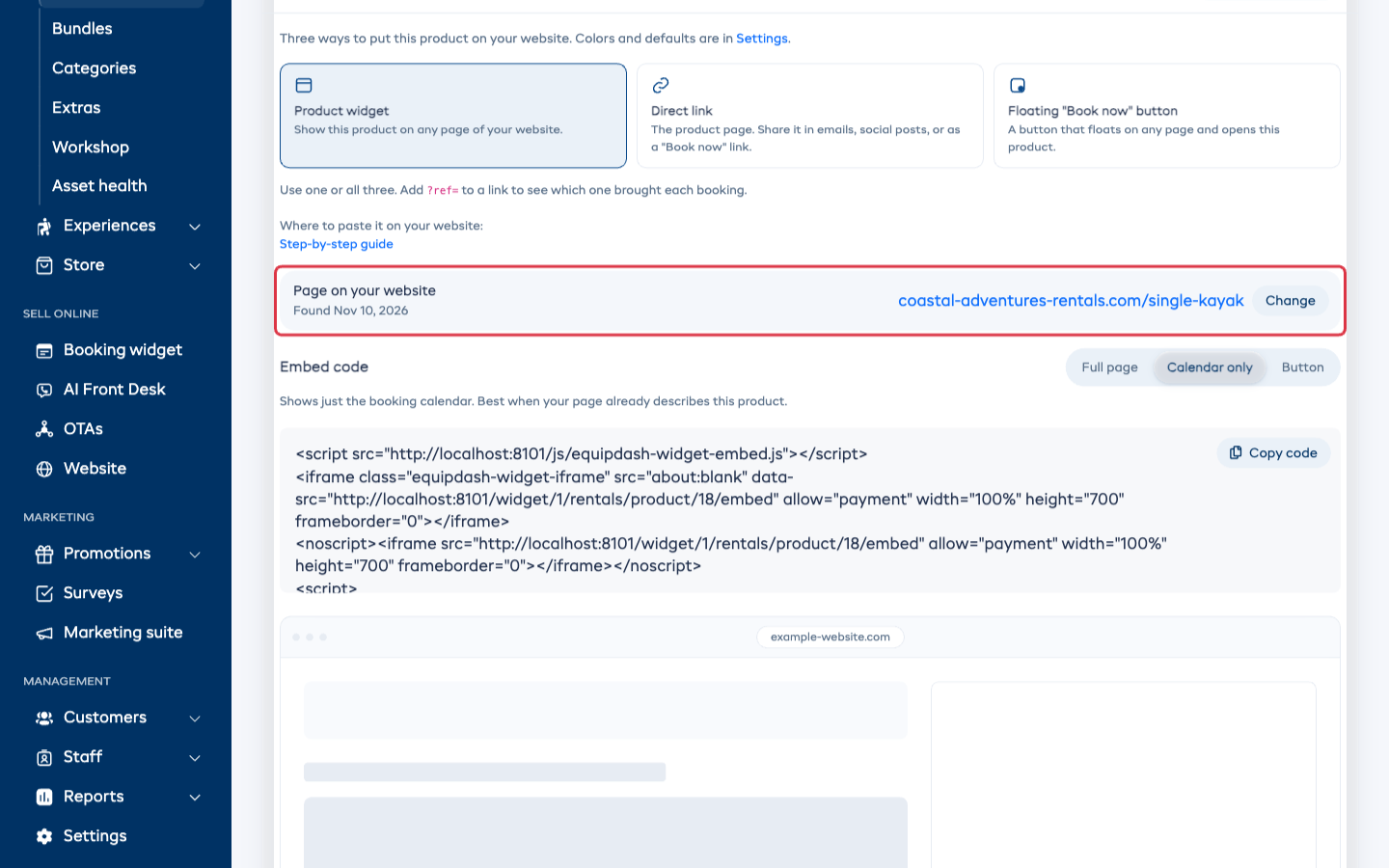
The line under Page on your website says what the search box will do:
| It says | A click on this item |
|---|---|
| Found and a date | Goes to the page shown |
| You picked this page | Goes to the page you typed |
| No page - opens in a pop-up | Opens the pop-up, always |
| Not found yet - opens in a pop-up | Opens the pop-up until a page is found |
Change the page
Click Change to pick the page yourself.
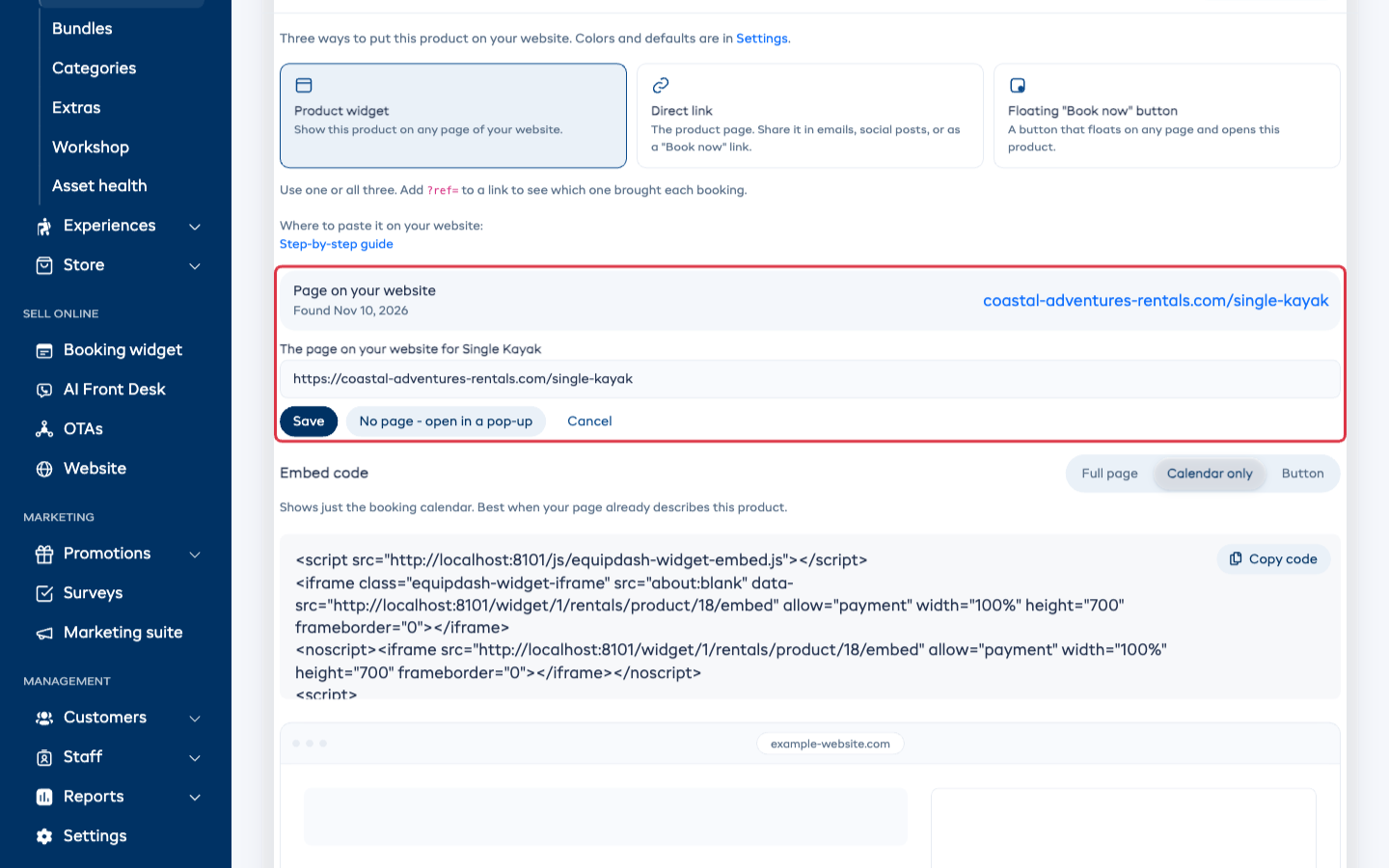
- To use another page, type its address (it starts with
https://) and click Save. - To always open the pop-up, click No page - open in a pop-up.
- To go back to finding the page by itself, click Change, then Find it automatically. This button shows only after you picked a page or chose no page.
A page you pick stays until you change it. A page found later never replaces it.
Search one category
By default the box searches everything you sell. To search one category only, like your lessons or one location:
- In Settings > Booking widget > Embed options > Search, click A category under Search in.
- Pick the category from the list. Your rental, experience and store categories are listed separately.
- Click Copy code again. The new code carries the category.
You can put several boxes on your website, each with its own category. A box you pasted before keeps searching what it did then, so paste the new code where you want the change.
On WordPress
With our free WordPress plugin, you don't need to copy any code:
- Edit the page and add the EquipDash block where the box should go.
- Under Show, pick A search box.
- Optional: type your own Words in the empty box, or switch on Big box for the top of your home page.
The plugin's Elementor widget has the same A search box choice. Anywhere else, like a header or a widget area, paste the shortcode:
[equipdash_search]
It takes three optional settings:
placeholder="Search trips"for the words in the empty boxsize="hero"for a big boxsearch_in="rental-category:5"to search one category. Copy this value from the code under Settings > Booking widget > Search after you pick the category.
For example: [equipdash_search placeholder="Search classes" size="hero"]
On other websites
Paste the code where you want the box, the same way as any other EquipDash code. Under the code on the Search card, Where is your website? shows the steps for your website builder, and each builder has its own guide:
To show the box on every page, paste it into your website's header if your builder lets you.
On a phone
On a phone, the box fills the width of the page. When a customer taps it, the page moves the box to the top of the screen, so the list has room above the keyboard. A long list scrolls inside that space.
Customers using a keyboard can move through the list with the arrow keys, open the highlighted item with Enter, and close the list with Esc.