Mark a No Show
When a customer never turns up, mark the booking No show. It stays paid and on your books, its gear goes back on the shelf for other customers, and the customer gets a We missed you email that you can word yourself.
EquipDash never marks a no show by itself. Someone on your team always presses the button, so a customer whose check-in was forgotten is never emailed by mistake.
Mark a booking as a no show
- Open the booking.
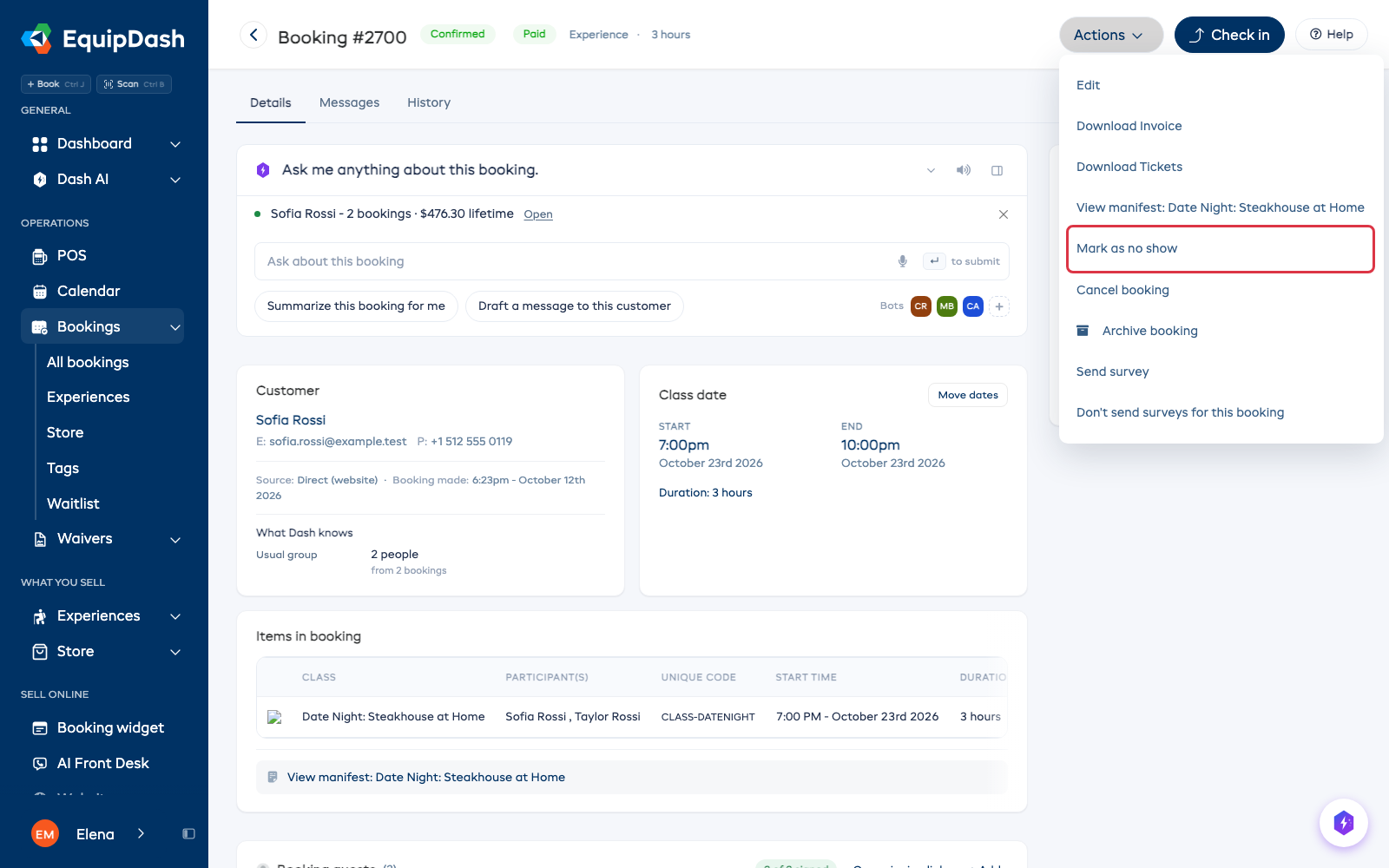
- Click Actions ▾, then Mark as no show.
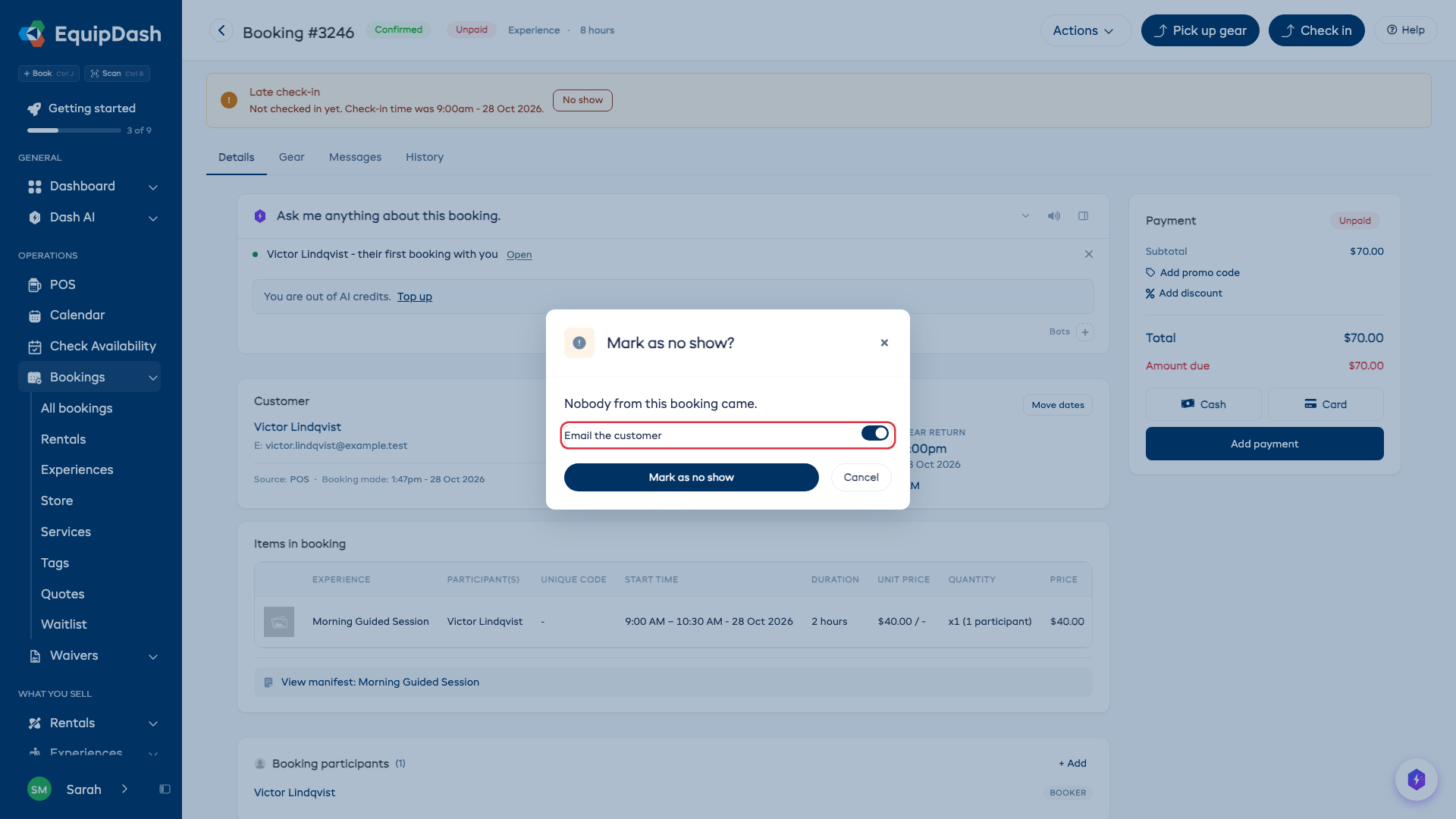
- Leave Email the customer on to send them the We missed you email. Switch it off if they already called to say they couldn't come.
- Click Mark as no show.
You can mark any confirmed booking, even before its start time, for a customer who phones ahead.
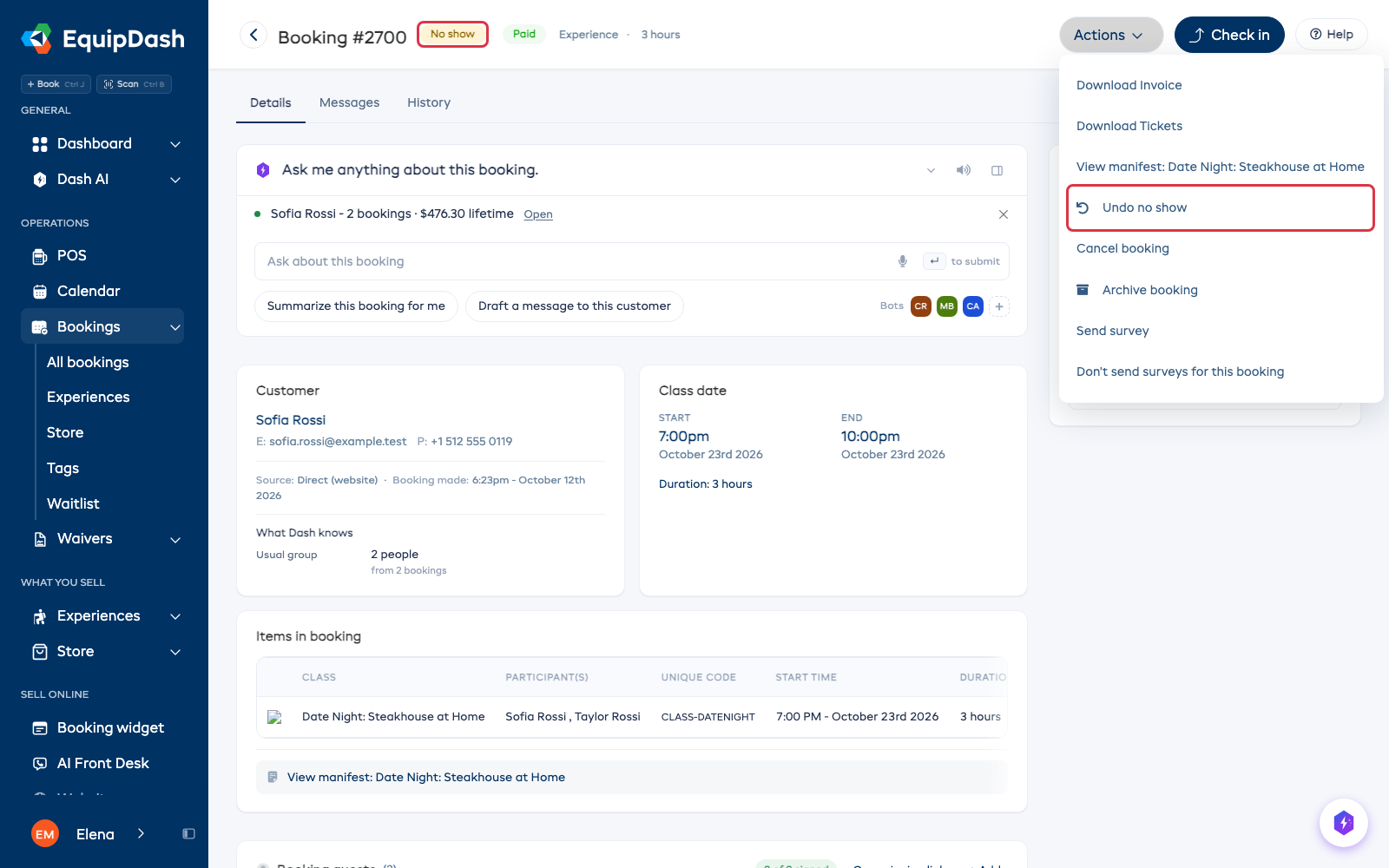
The booking now reads No show. Its History tab says who marked it and when, and Actions ▾ offers Undo no show in place of Mark as no show.
Other places to mark one
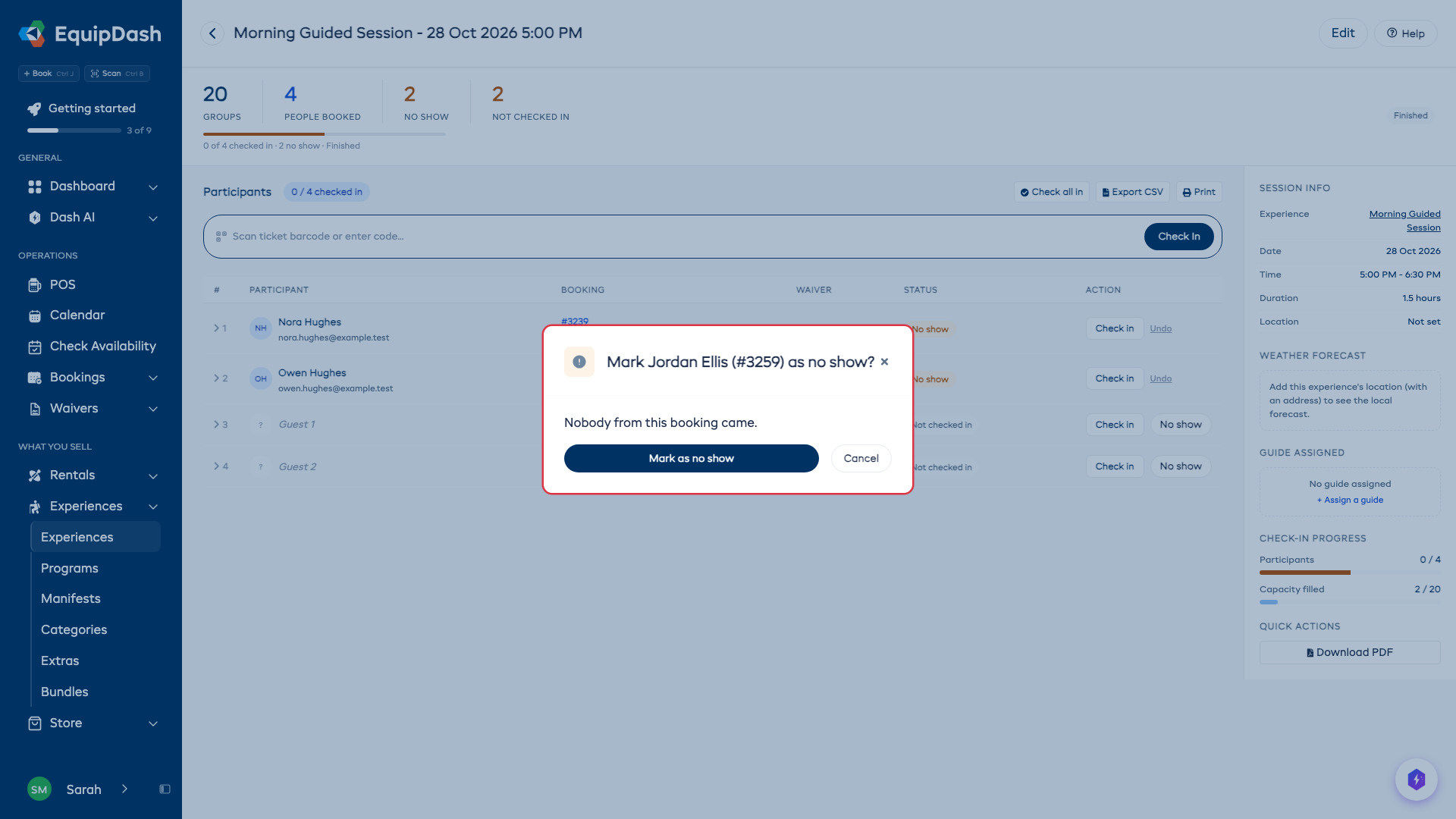
Every one of these opens the same window, with the same Email the customer switch. When the press marks only part of a booking, the switch is hidden. See The We missed you email.
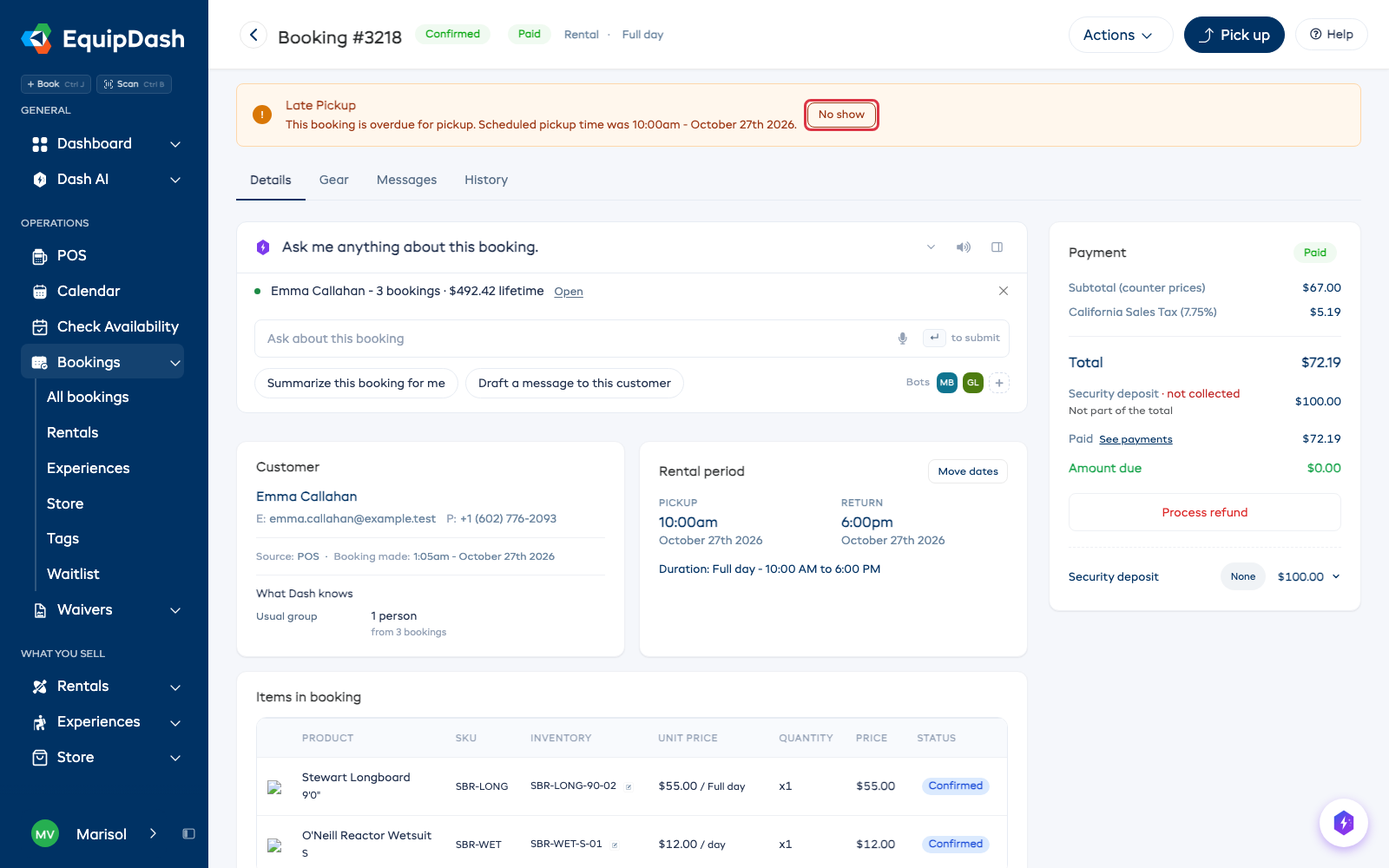
The late banner. A booking that is late for check-in or pickup shows a banner at the top of its page. Click No show on the banner.
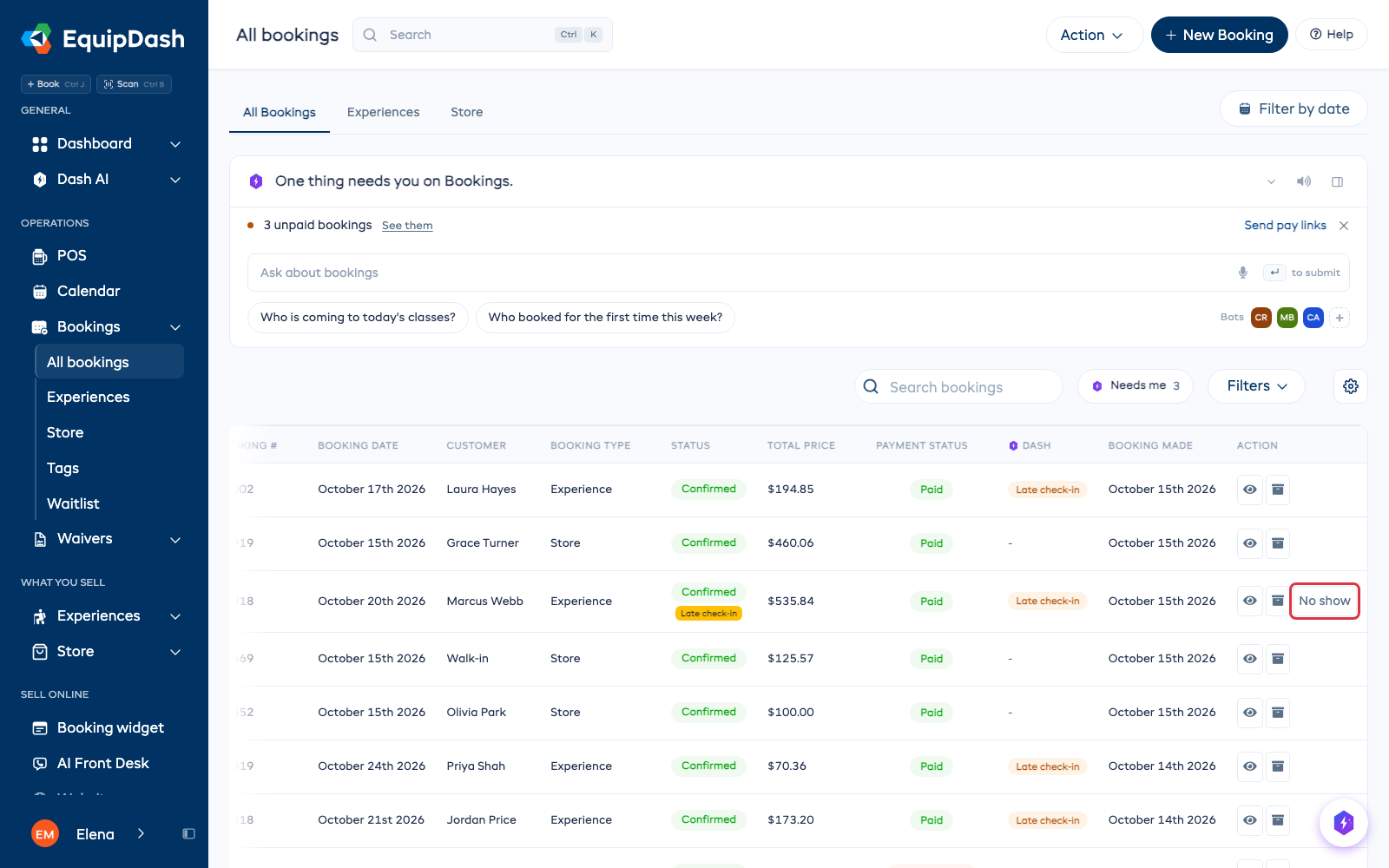
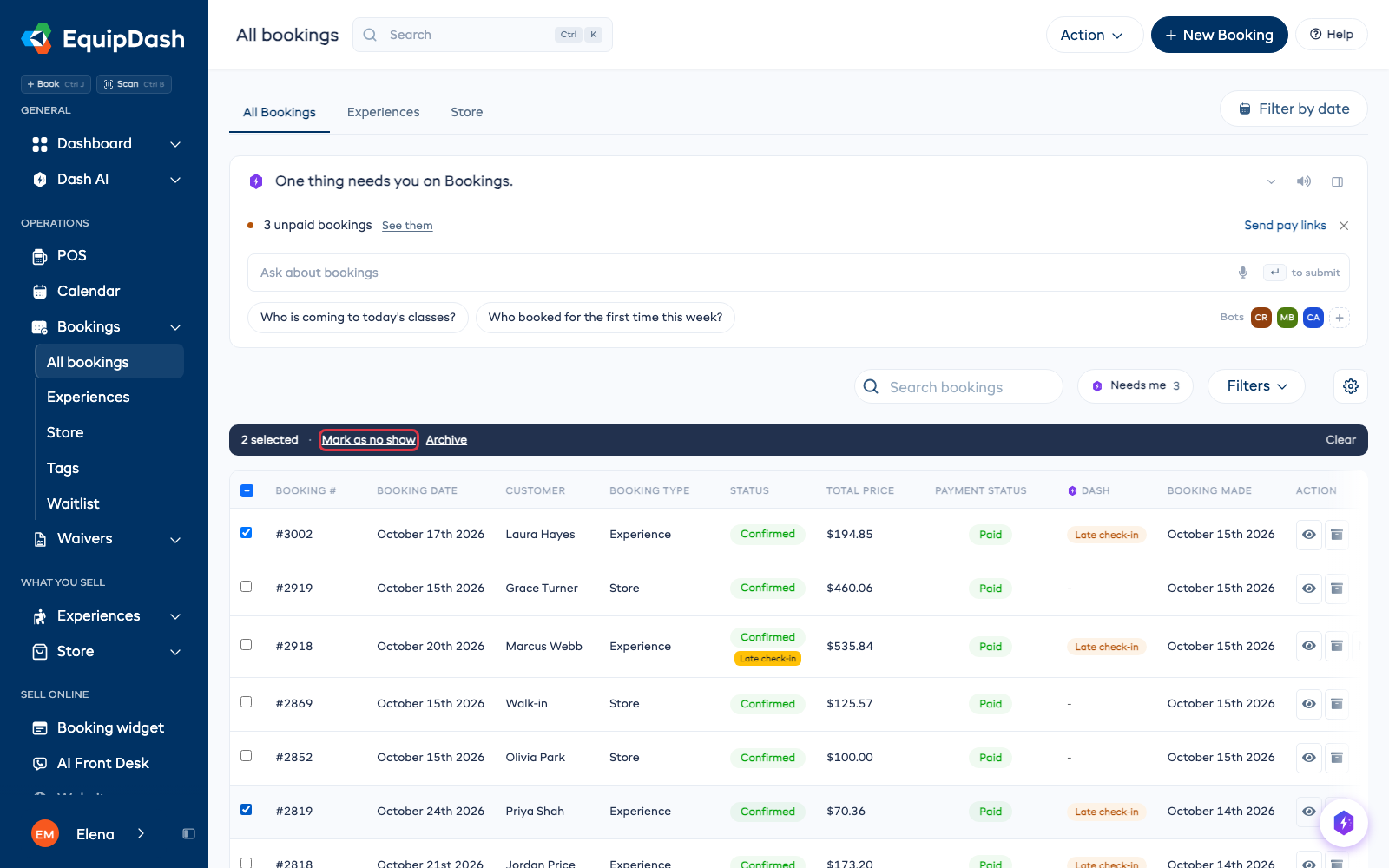
The bookings list. A late booking has a No show button at the end of its row. To mark several at once, tick their boxes and click Mark as no show in the bar above the table.
The session page. Once a session has started, each person not checked in has No show beside Check in. See Some of a group came.
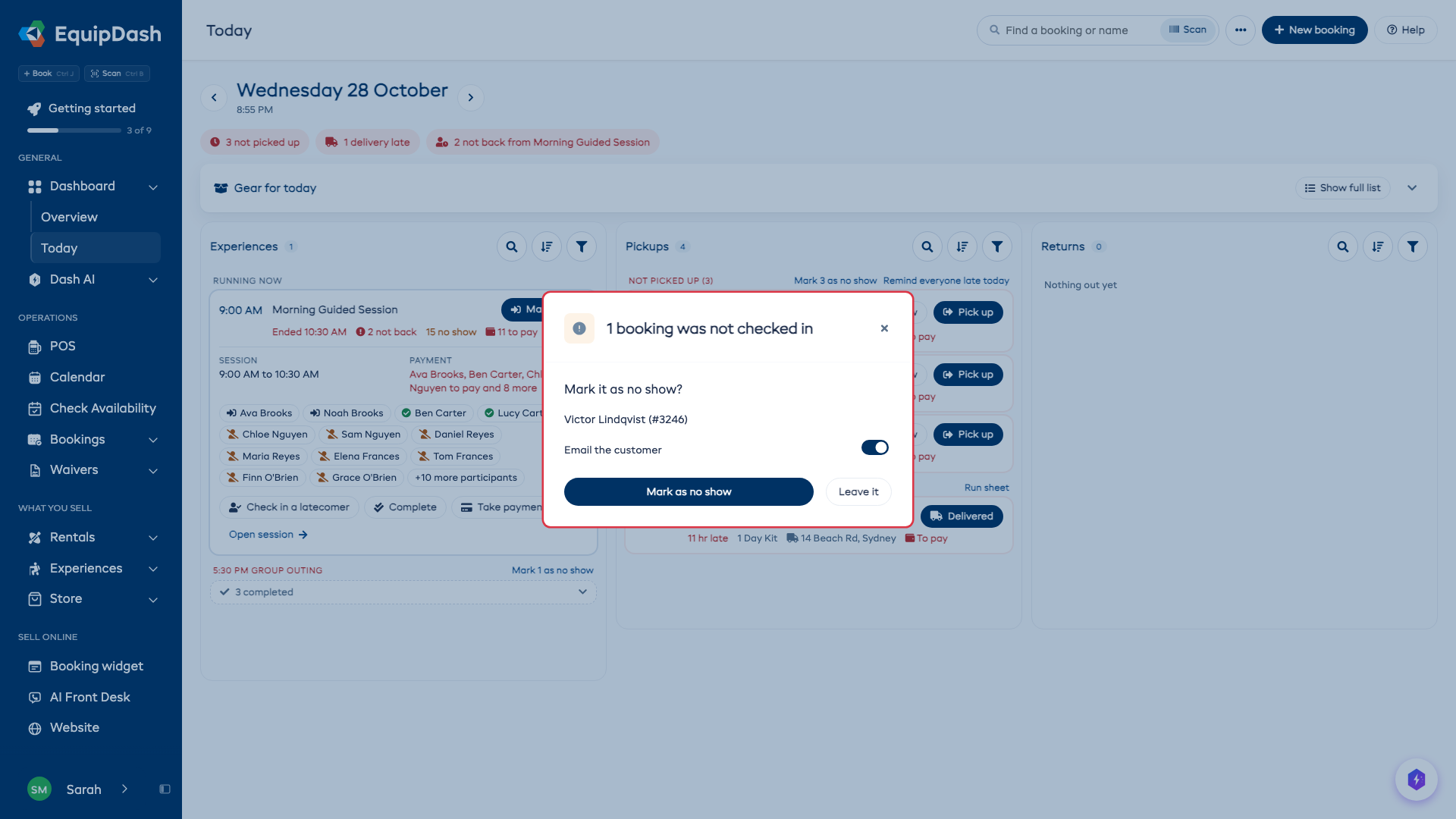
Complete session. When you press Complete session and some bookings have nobody checked in, EquipDash lists them and asks whether to mark them as no show. Click Mark as no show, or Leave it (Leave them for several bookings) to complete the session without marking them.
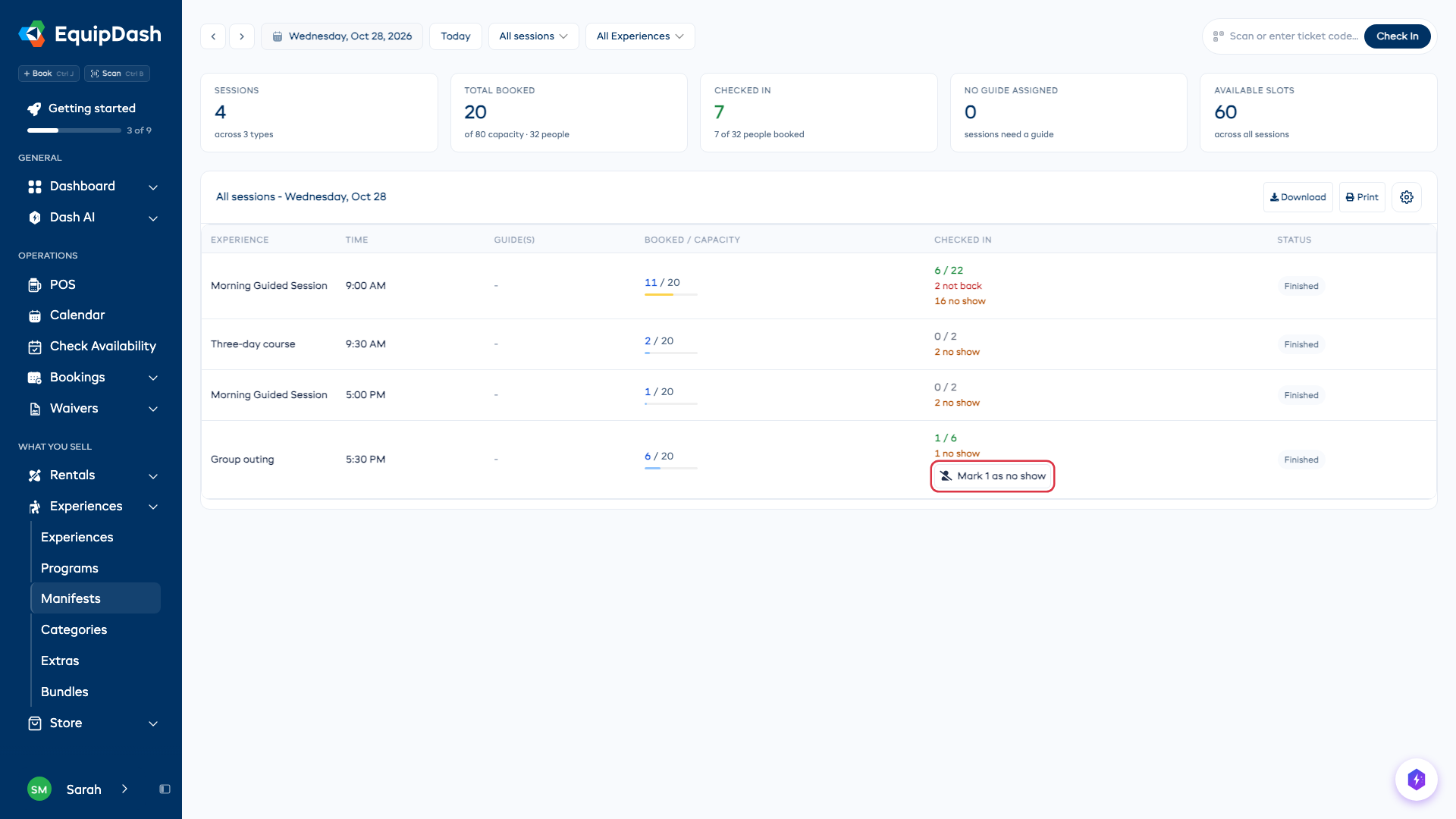
Manifests. Once a session has started, its Checked in cell on Experiences → Manifests offers Mark 1 as no show, with the number of bookings nobody came on. It opens the same window, listing them.
Today. A late pickup has No show beside Pick up, and a session's booking has No show beside Check in once the session has started. When a hire's whole time is over and nobody collected it, the Not picked up heading offers Mark 3 as no show (with the number of those hires), to mark them all in one go. A session that has finished with bookings nobody came on shows Mark 1 as no show (with the number of those bookings) on its line in the folded list of sessions.
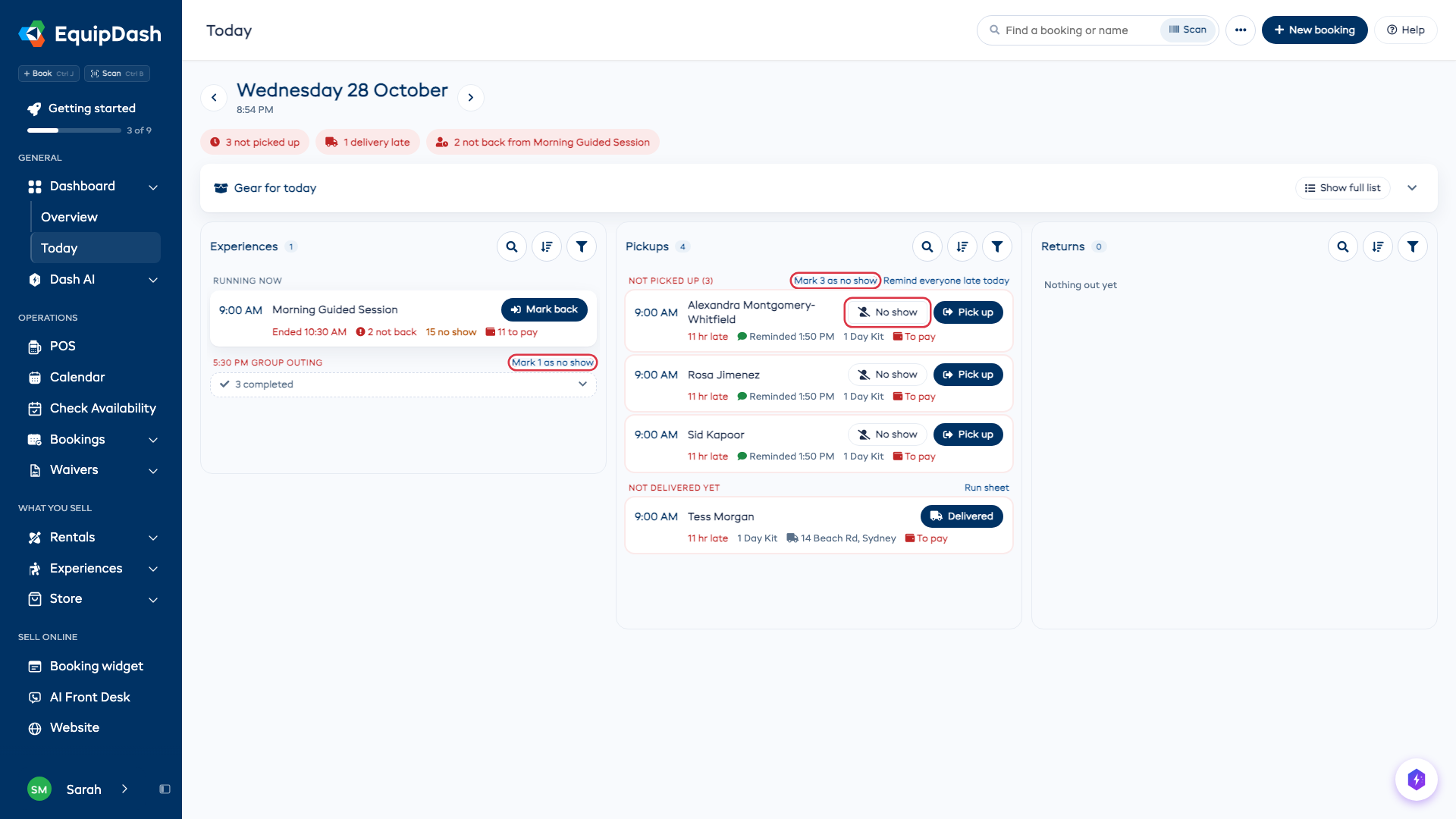
Press Complete on a session card and Today first lists the bookings nobody came on, as the session page does. Click Mark as no show, or Leave it (Leave them for several) to complete the session without marking them.
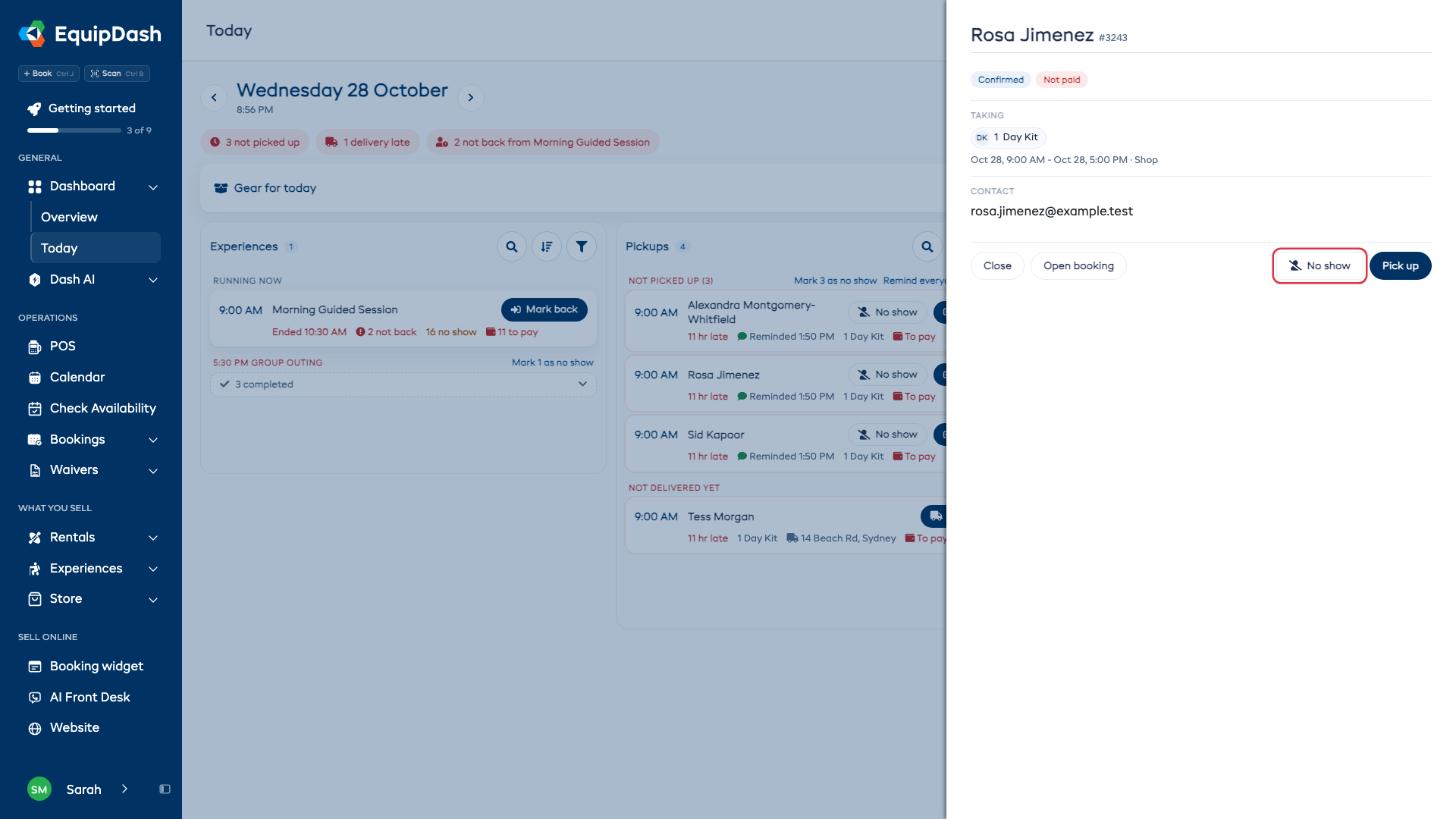
Type a name into Find a booking or name and press a match to open its quick view. It has No show beside Check in once the session has started, and beside Pick up once the pickup is late.
Anywhere else. The POS booking status menu, the phone app and Dash ("Mark booking 2700 as a no-show") all mark it the same way.
What a no show changes
| What happens | |
|---|---|
| Money | The payment stays and the booking still counts as sales. Nothing changes in QuickBooks or Xero. |
| Balance owed | Still due, and collected the same way as any other booking. |
| The seat on a session | Stays sold. Nobody else can take it. |
| Gear on a rental | Goes back on the shelf, so another customer can book it for the rest of the time. |
| Security deposit | A held deposit is released. |
| Messages | Reminders, waiver requests, weather alerts and the automatic Late check-in or Late pickup email stop. No survey or review request is sent. |
| Thank-you codes | The booking doesn't count as a visit. |
| Editing | The booking is locked, like a completed one. Edit and Move dates are gone. |
You can still cancel a no show with Actions ▾, then Cancel booking, for example to give money back as a goodwill gesture. Your cancellation policy decides the refund, as usual.
When the customer turns up after all
Check in (or Pick up for a rental) stays the main button on a no show. Press it as normal: the customer is checked in and the No show goes.
Undo a no show
If it was marked by mistake, click Actions ▾, then Undo no show. The booking goes back to Confirmed. No email is sent.
If someone else has booked the gear since, EquipDash says so and leaves the booking marked. A finished booking has to be undone first.
Some of a group came
On a session, each person has their own No show. Check in the people who came, and press No show beside each one who didn't.
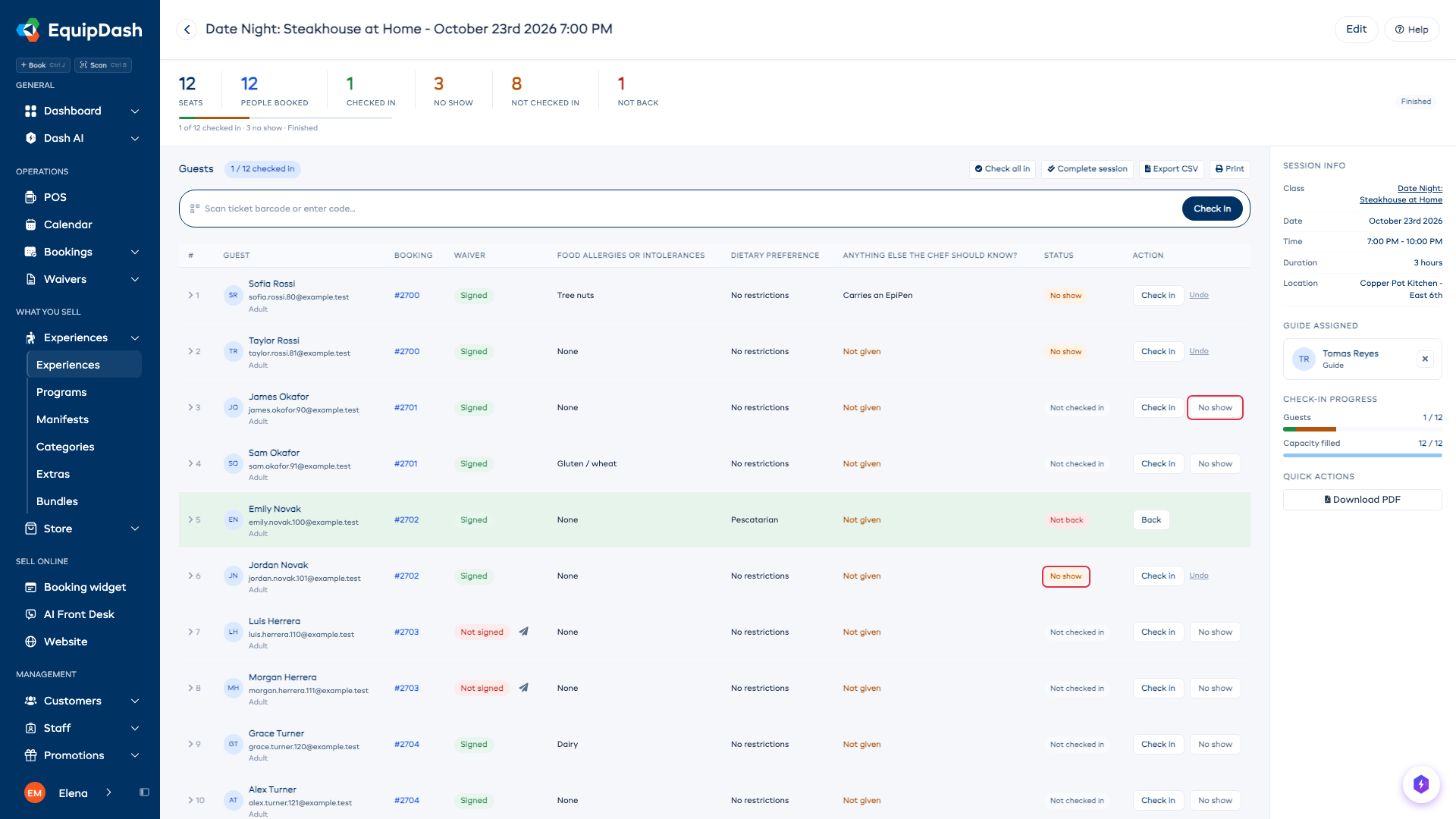
The booking reads No show only when nobody on it came. If anyone came, it reads Checked in, and the session's No show count shows how many people missed it. Marking one person never sends an email.
A rental is always marked as a whole booking, because gear isn't tracked per person.
A booking with gear and an activity
Each part is marked on its own. The bookings list shows a chip for each part, such as Gear: no show or Activity: no show. When both parts are no shows, the booking reads No show. When one part is a no show and the other is done, it reads Completed. Gear from a no-show part goes back on the shelf once the whole booking is settled. See Mixed Bookings.
A booking on several days
A missed day stays a no show for that day only, and the other days stay booked. The booking reads No show only when every day was missed. See Multi-Day Experiences.
The We missed you email
The email goes once, when the whole booking is marked and Email the customer is on. It never goes for one person in a group, and never when you undo.
When a press marks only part of a booking (the activity on a booking that also has gear, one day of a booking on several days, or one person in a group), the window has no Email the customer switch and no email goes.
To change its wording or switch it off, go to Settings → Customer messages. The We missed you card sits under They come in, beside Late check-in.
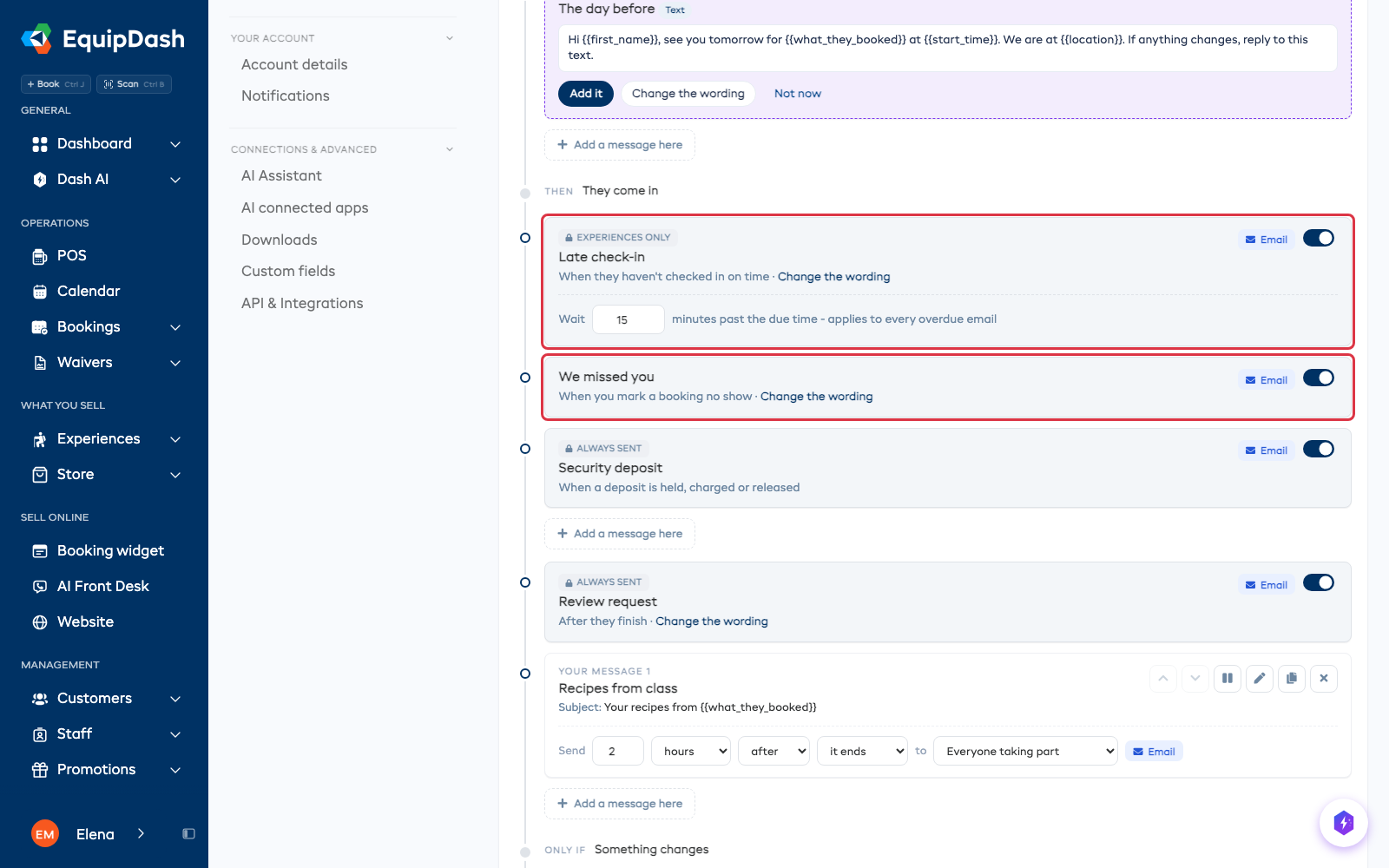
If you send texts, a short text can go with it. Switch it on in Settings → SMS. See SMS Notifications.
Late check-in (or Late pickup for a rental) goes by itself when a customer is late, before anyone decides whether they are coming. It used to be called No show. Once you mark the booking, it stops.
Report no shows to a booking site
Booking sites such as Viator and GetYourGuide ask you to report no shows on their own site, often within 24 hours. They have no way for EquipDash to send it for you, so EquipDash gives you the list:
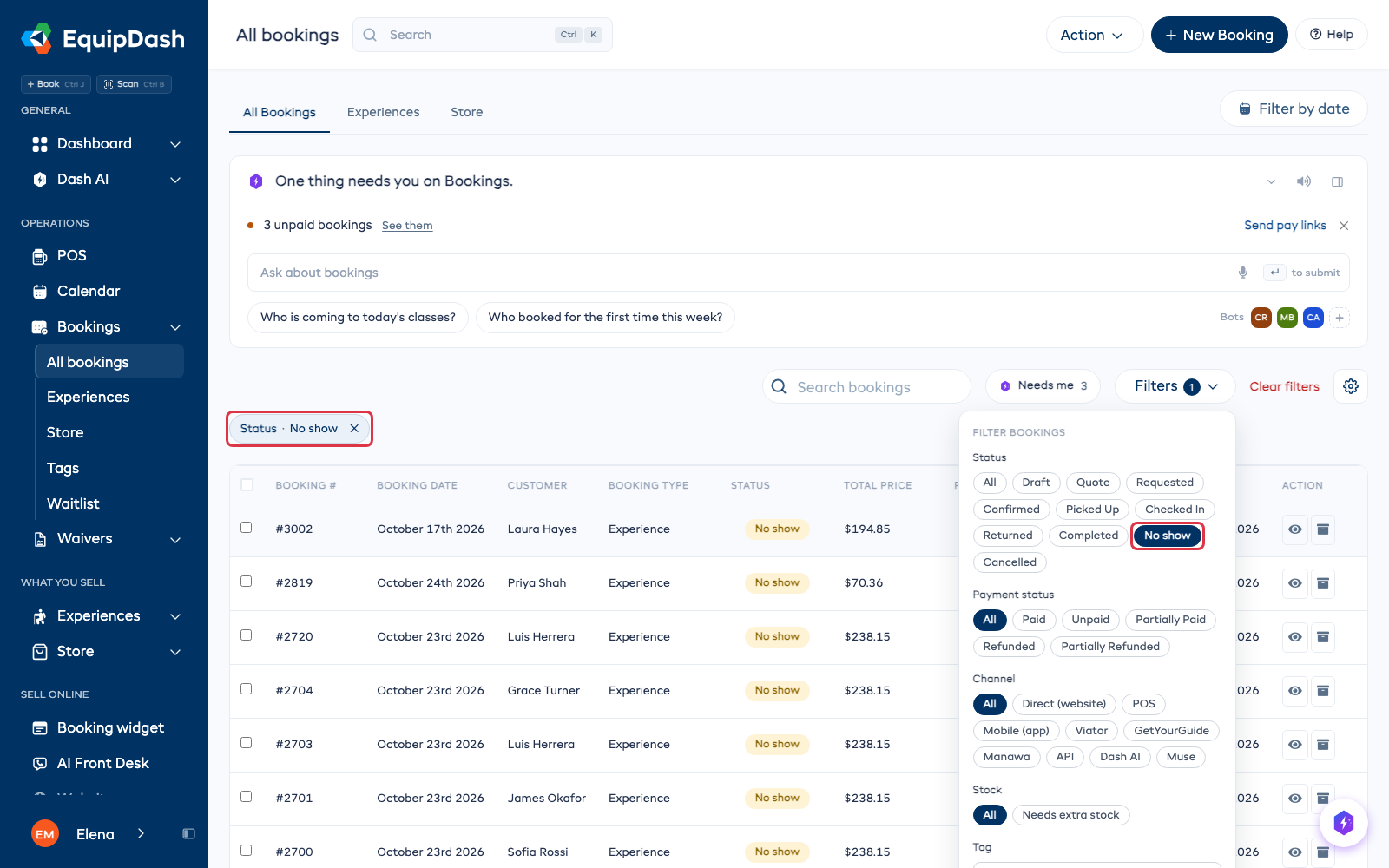
- Go to Bookings → All bookings.
- Click Filters, then No show under Status.
- To see one site's bookings only, pick it under Channel as well.
- Open each booking for the site's own reference, then report it on that site.
Action ▾, then Export, downloads the list with a Marked no show column that says when each one was marked.
See who keeps missing
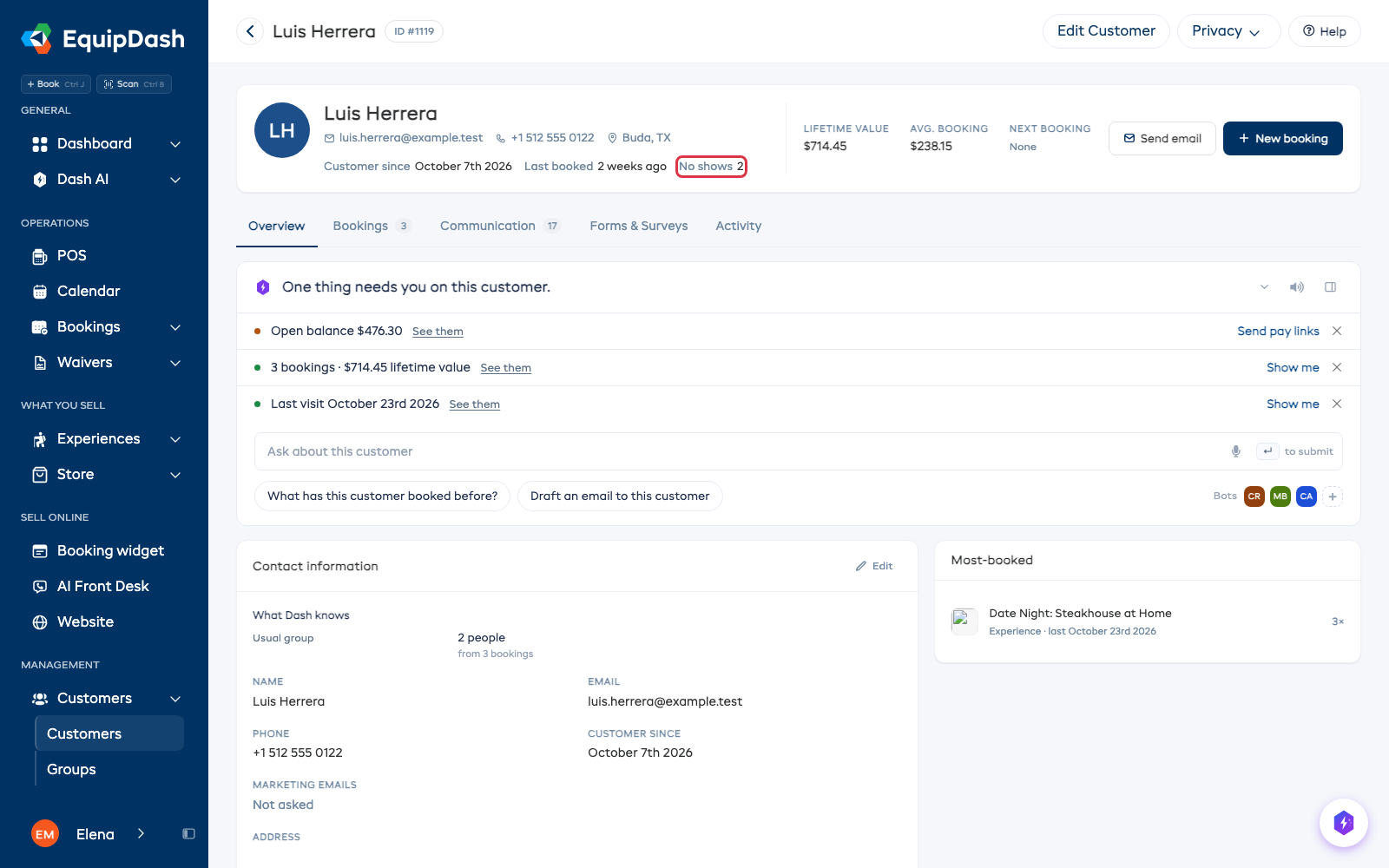
A customer's page shows No shows and how many, beside Last booked. Click it to see their bookings.
Who can mark a no show
Anyone who can check customers in and hand out gear. That's the Access fulfillment permission. See Roles Explained.