Till Style POS
The POS comes in two screen styles:
- Booking workspace - the full POS, with rentals, experiences and store on one screen. Best when most sales start from a booking. See Creating a POS Booking.
- Till - product tiles, a keypad and a Pay now button. Best for quick sales at the counter. Bookings are still one tap away.
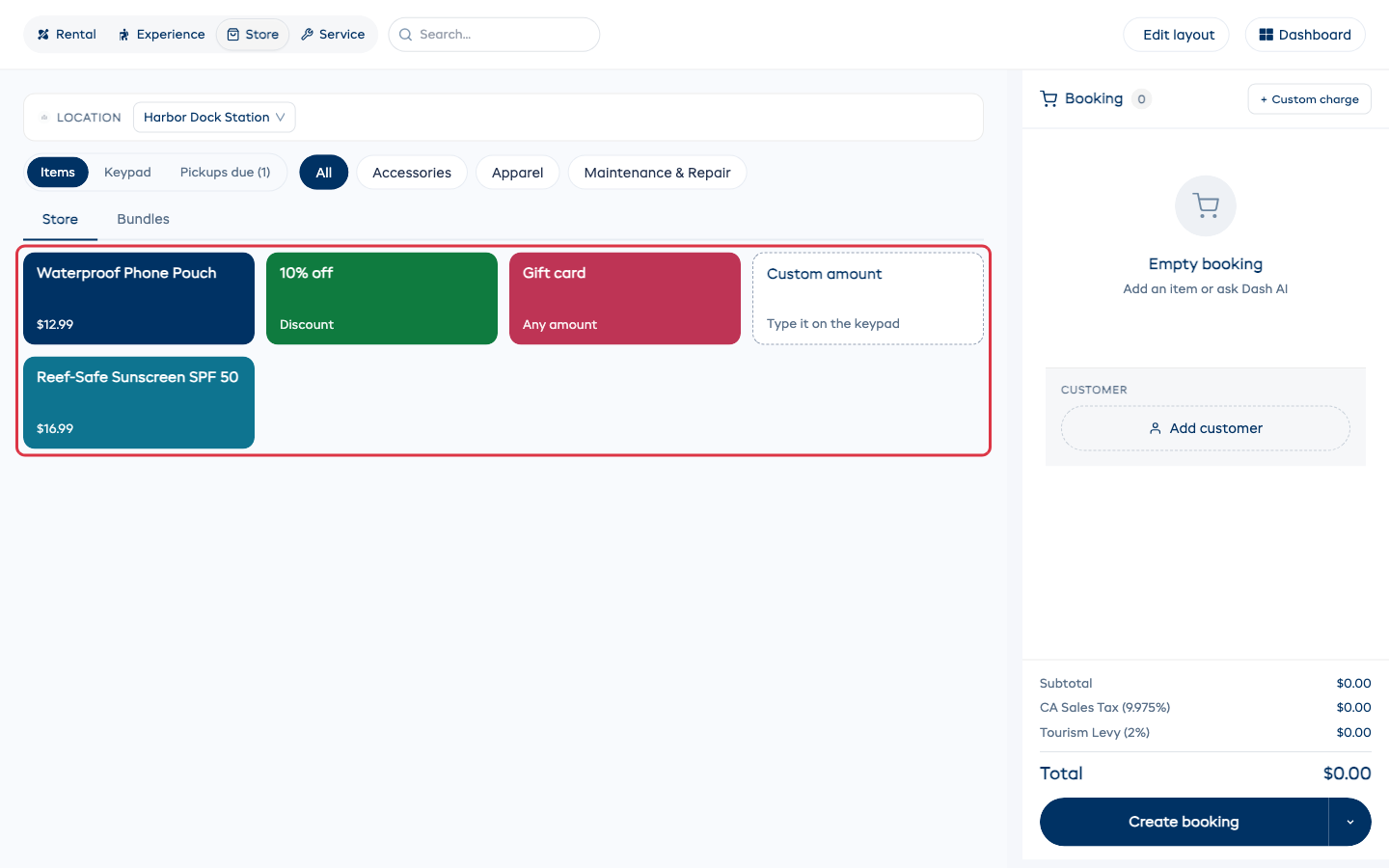
The till fills the whole screen. Tap Dashboard at the top right to go back to the rest of EquipDash.
Turn on the till
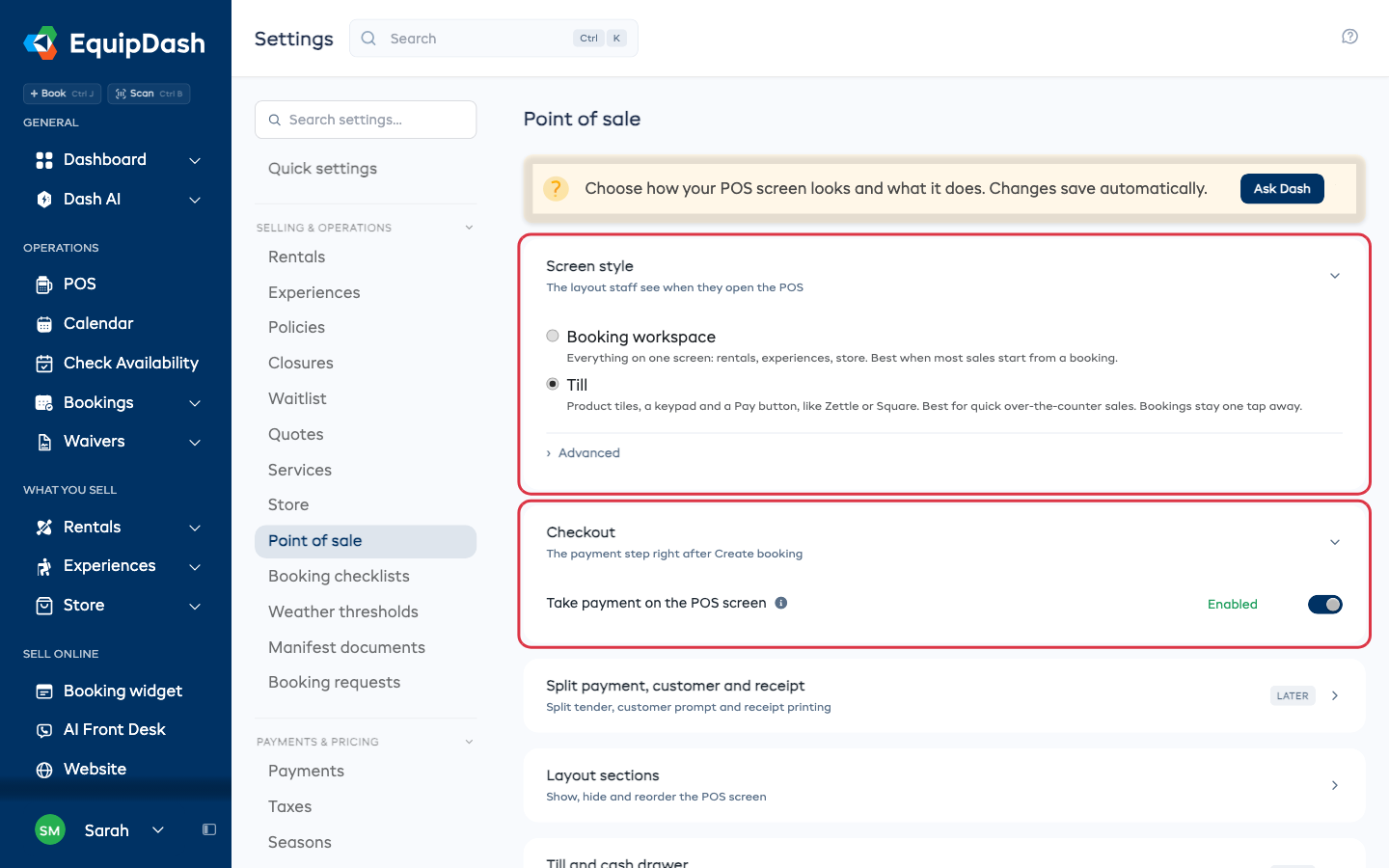
- Go to Settings > Point of sale.
- Under Screen style, pick Till.
Changes save on their own. The next time anyone opens POS, they see the till.
You need at least one active store product before you can pick Till. If you have none, the page tells you to add some in Store first.
More than one location? The style you pick here is the default for every location. If a location has a style of its own, open Advanced under Screen style and switch on Use this style at every location before you pick. Every location then uses the style you picked.
Take payment right on the POS
Under Checkout, switch on Take payment on the POS screen. After Create booking, the payment step opens on the POS, so staff never leave the screen. It offers every way you take money:
- Tap to Pay
- Credit card
- Payment link
- Manual payment (cash or any other method you record yourself)
- Voucher / Gift card
Not ready to take payment yet? Tap Add payment later at the bottom. The booking is saved and the balance stays open.
Set up your quick keys
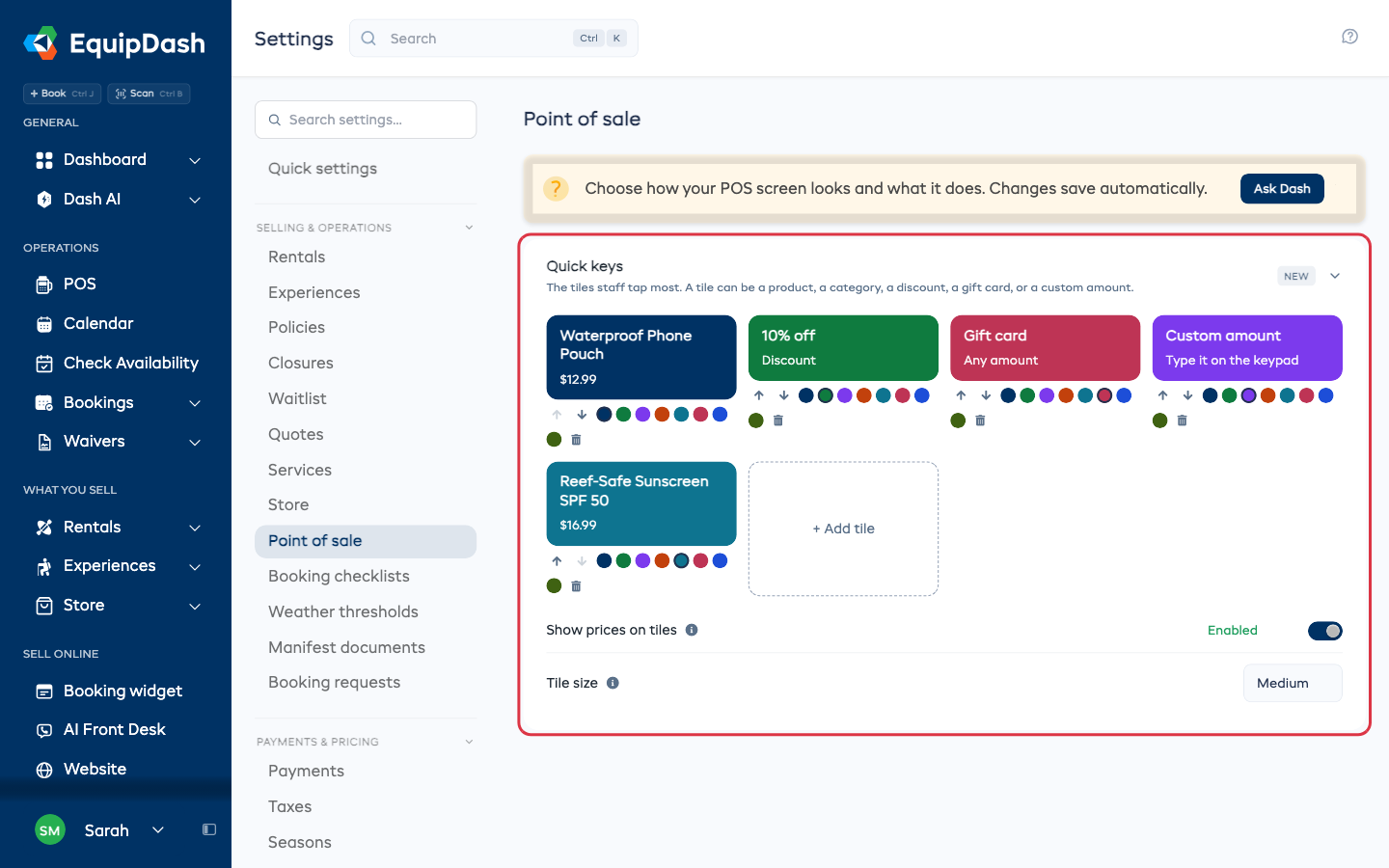
Quick keys are the tiles staff tap most. Go to Settings > Point of sale > Quick keys.
A tile can be:
- a store product
- a category (tap it to see what is in it)
- a discount, such as 10% off
- a gift card
- a custom amount (typed on the keypad)
- Click + Add tile, then pick Product, Category, Discount %, Gift card or Custom amount.
- Pick a color under the tile.
- Use the arrows to move a tile, or the bin to remove it.
Below the tiles, Show prices on tiles and Tile size set how the grid looks.
Ring up a sale
- Tap a tile. The item goes on the ticket on the right.
- Tap Pay now. This saves the sale and opens the payment step in one tap.
- Pick a payment method and finish the payment.
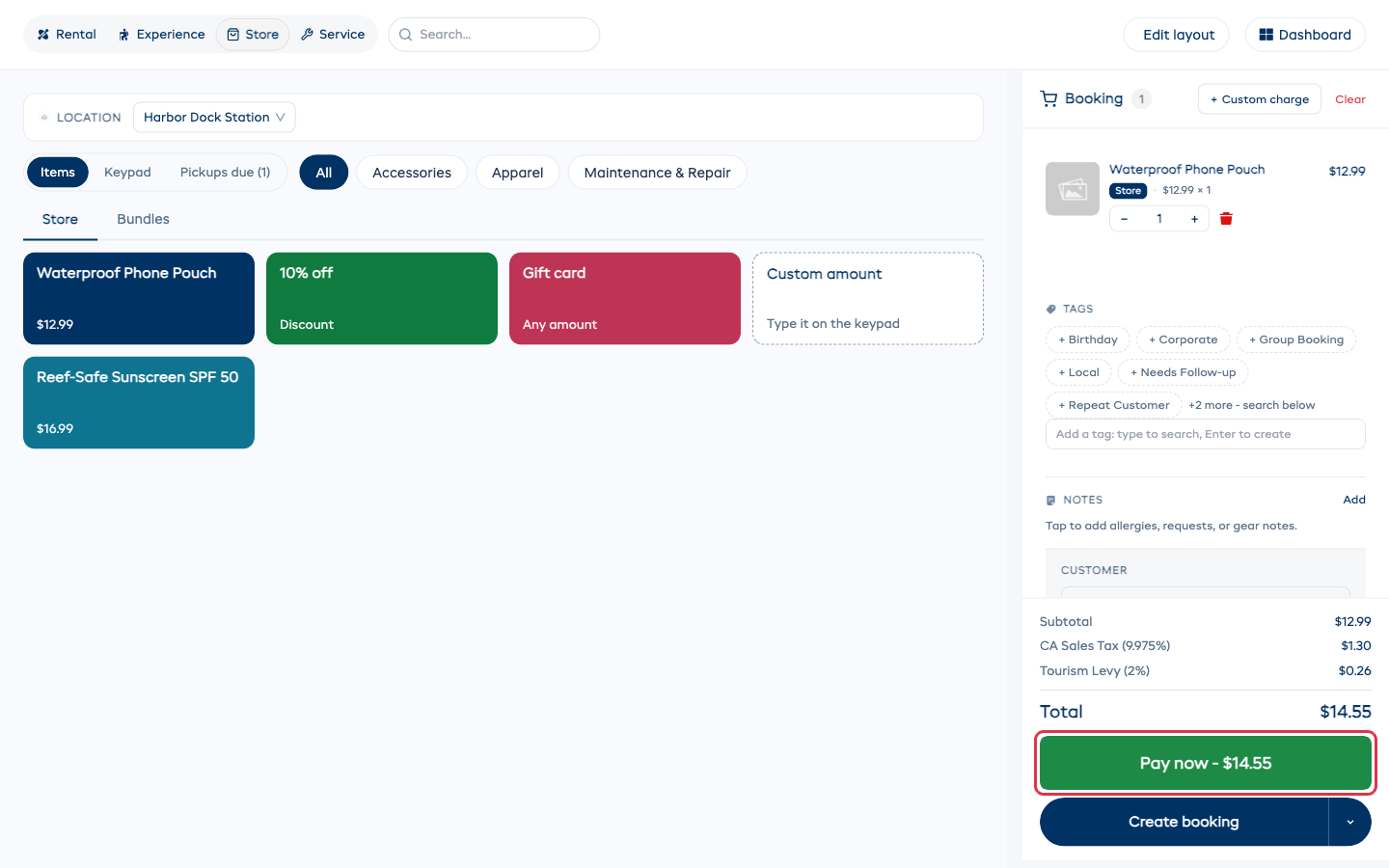
A cash sale to a walk-in takes four taps: the tile, Pay now, Manual payment (Cash), then Record payment.
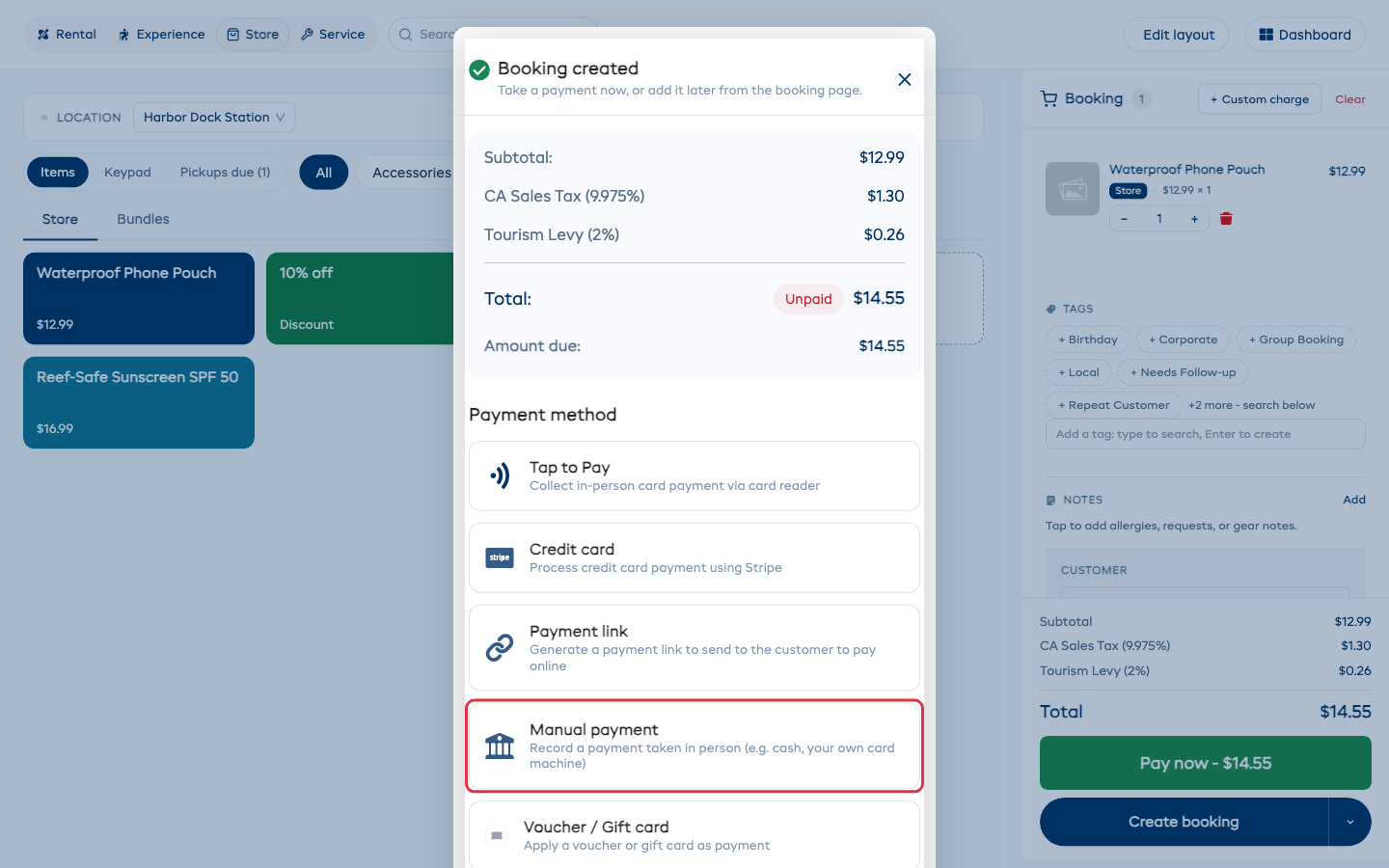
Create booking still works too. It saves the sale, and opens the payment step only when Take payment on the POS screen is on.
Clear empties the whole ticket for the next customer: the items, and any discount, promo code or tax exemption on it.
Finding items
- Category tabs above the tiles narrow the grid to one category.
- Search at the top finds any store item, even one without a tile.
The keypad
Tap Keypad to sell something by amount instead of by item.
- Type the amount. Digits build up like a card terminal: 1, 5, 0, 0 gives 15.00 in your currency.
- Add a Label if you want one, for example "Gift wrap". It shows on the ticket.
- Tap Add to booking.
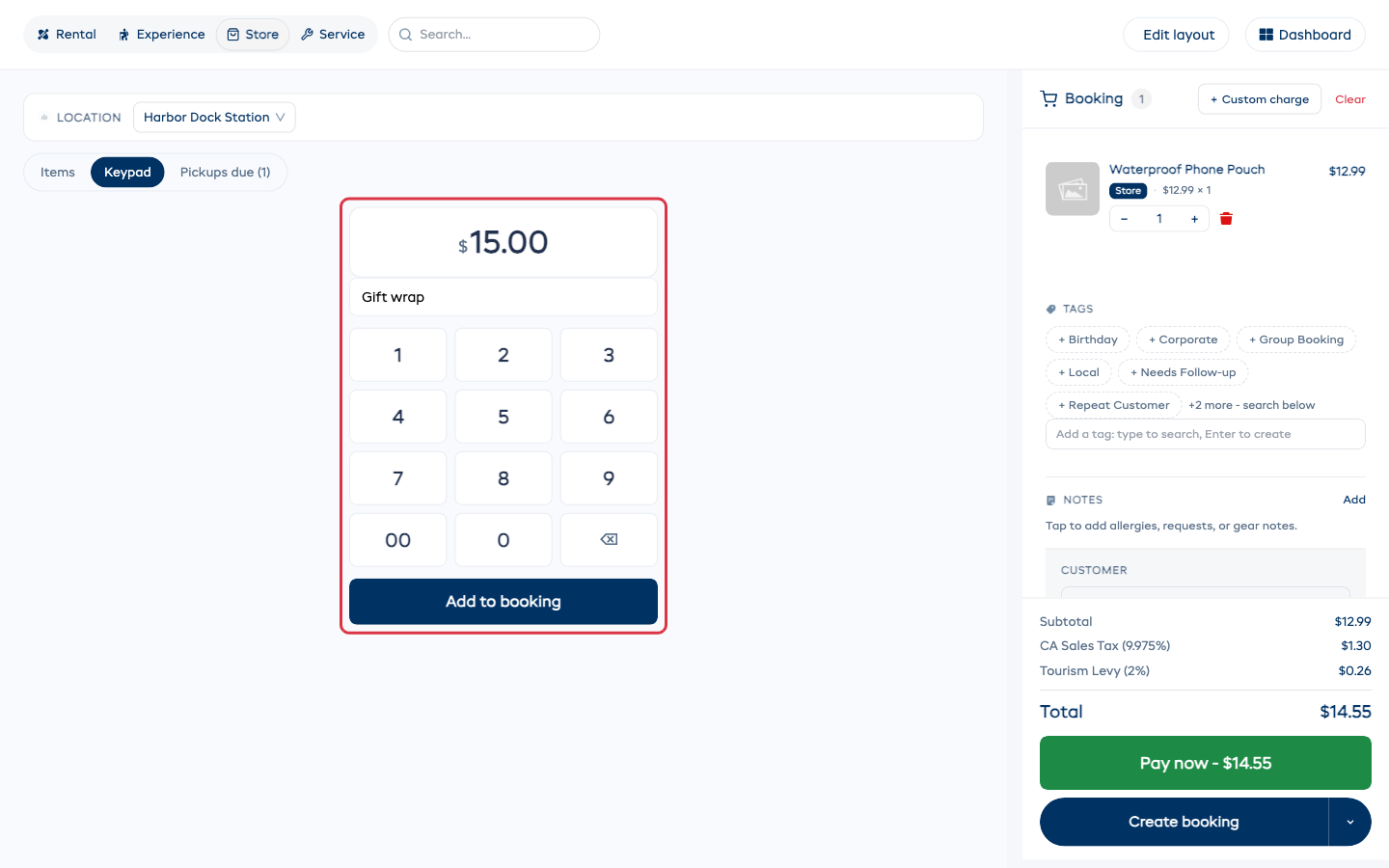
A keyboard works too: type the digits, use Backspace to fix a mistake, and press Enter to add the amount.
Tap Items to go back to the tiles.
Pickups due
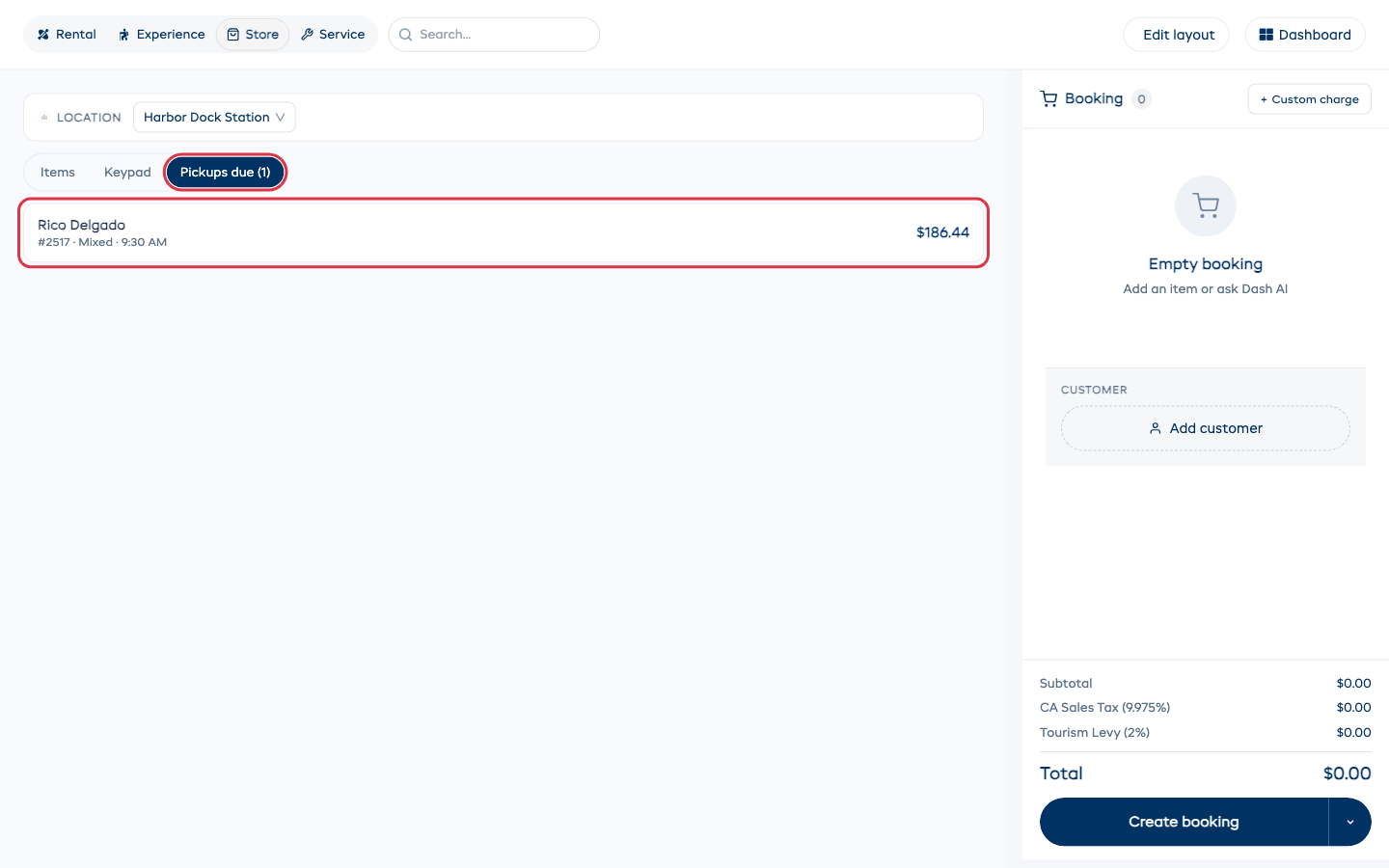
Pickups due lists today's bookings at this location that still owe money. The number on the tab is how many there are. Tap a booking to take its balance on the till.
Open and close the till
Count the cash in your drawer at the start and end of the day. The till does the sum for you from the cash payments it already records, so nothing is typed twice.
It is on for every shop that takes cash at the counter. To switch it off, see Turn it on or off below.
Open the till
The first time anyone opens the POS each day, it asks for the cash in the drawer. The amount you left at the last close is filled in, so most days it is one tap: Open the till.
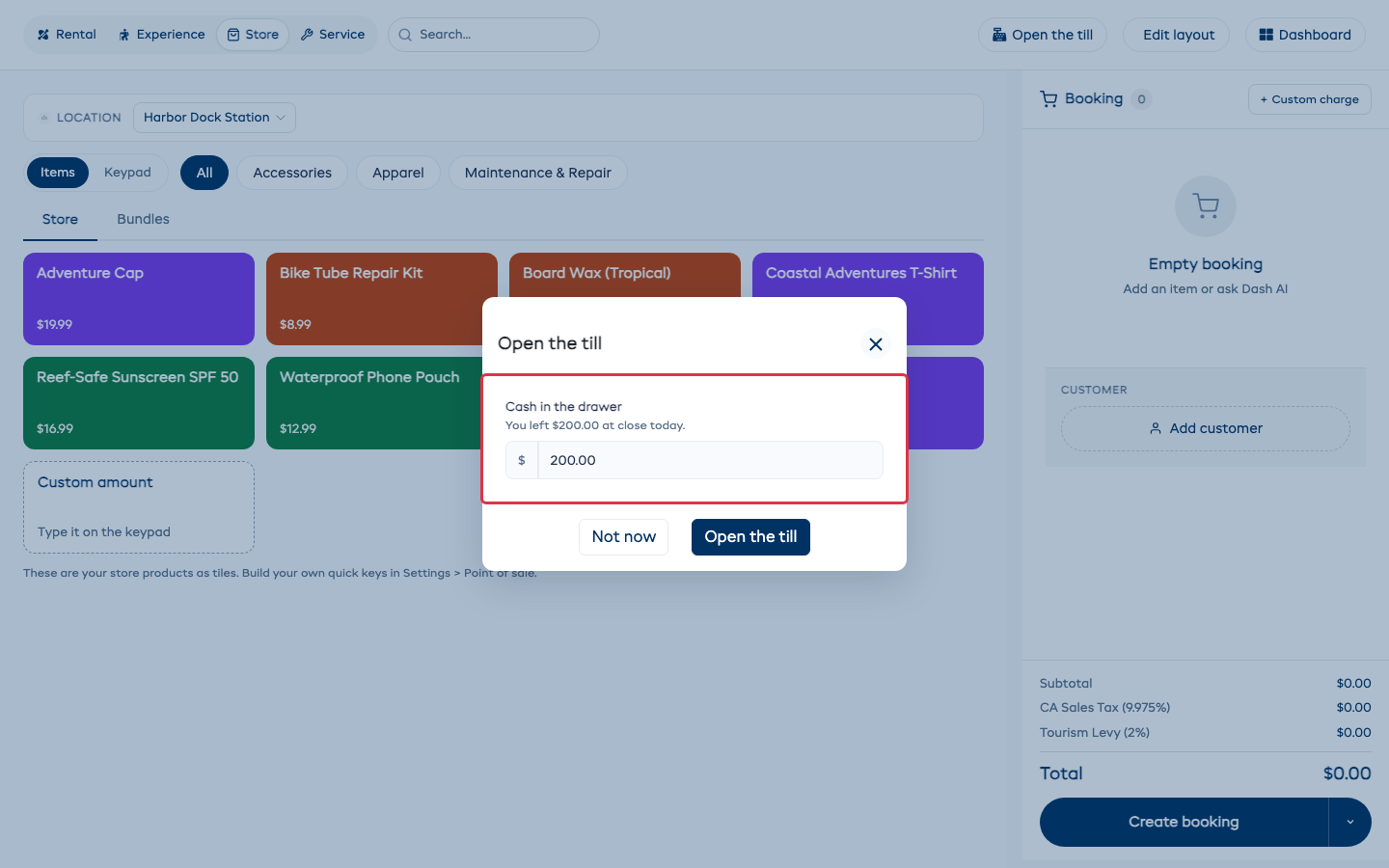
Busy? Tap Not now and keep selling. The button at the top then reads Open the till until you do.
Each location has its own till. Two iPads at one counter share the same till.
Cash in or out
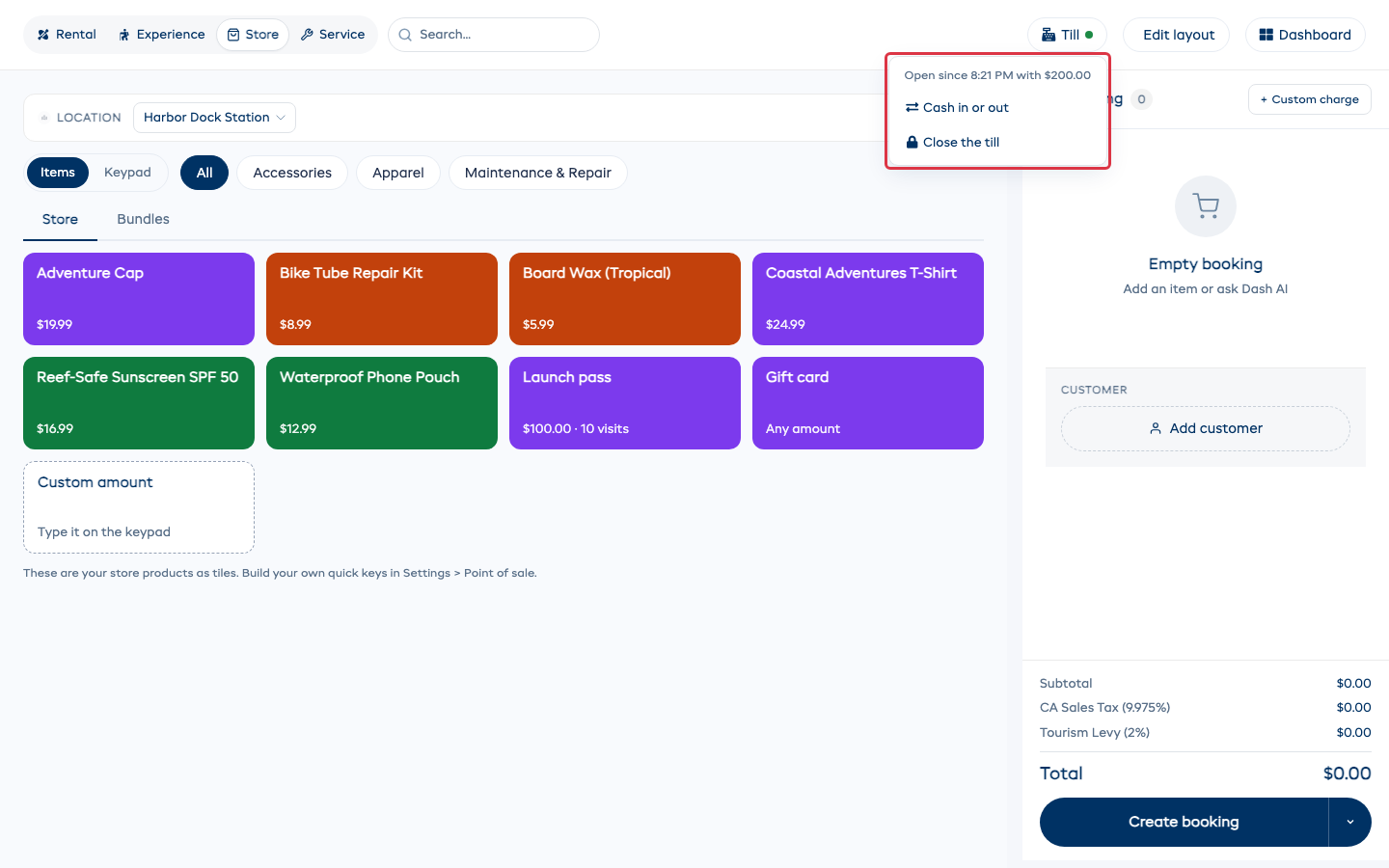
Taking cash out for postage, or putting in change from the bank? Tap Till at the top (the green dot means it is open), then Cash in or out.
Pick Take out or Put in, type the amount and what it was for, then tap the button.
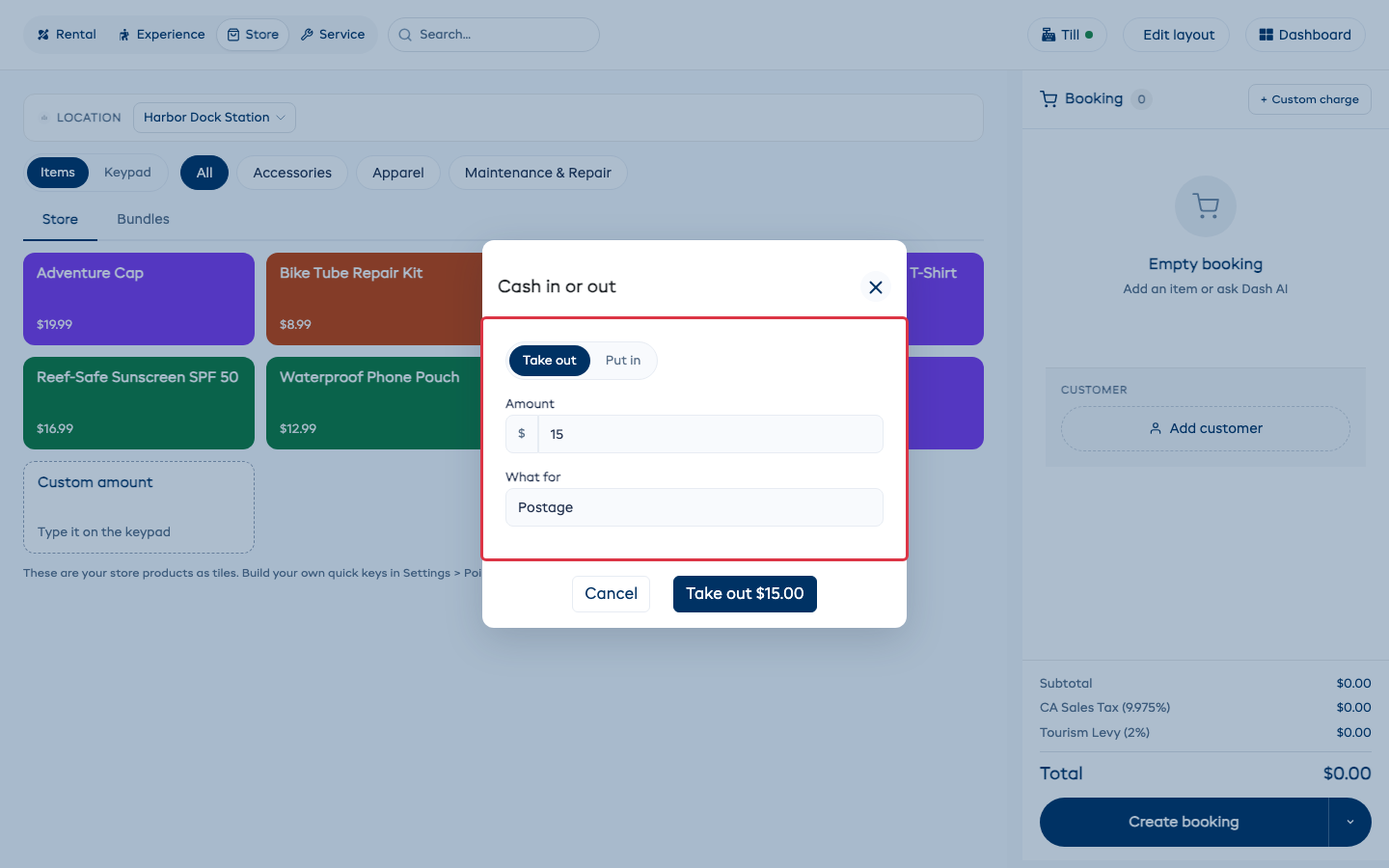
Cash sales, cash refunds and cash deposits are never entered here. They come from the payments you record with Manual payment > Cash.
Cash counts at the till that took it. Cash taken at one location for a booking picked up at another counts in the drawer where it was taken. A payment recorded on a booking's page counts at the till open where you last used the POS, or at your one open till.
Close the till
At the end of the day tap Till > Close the till.
-
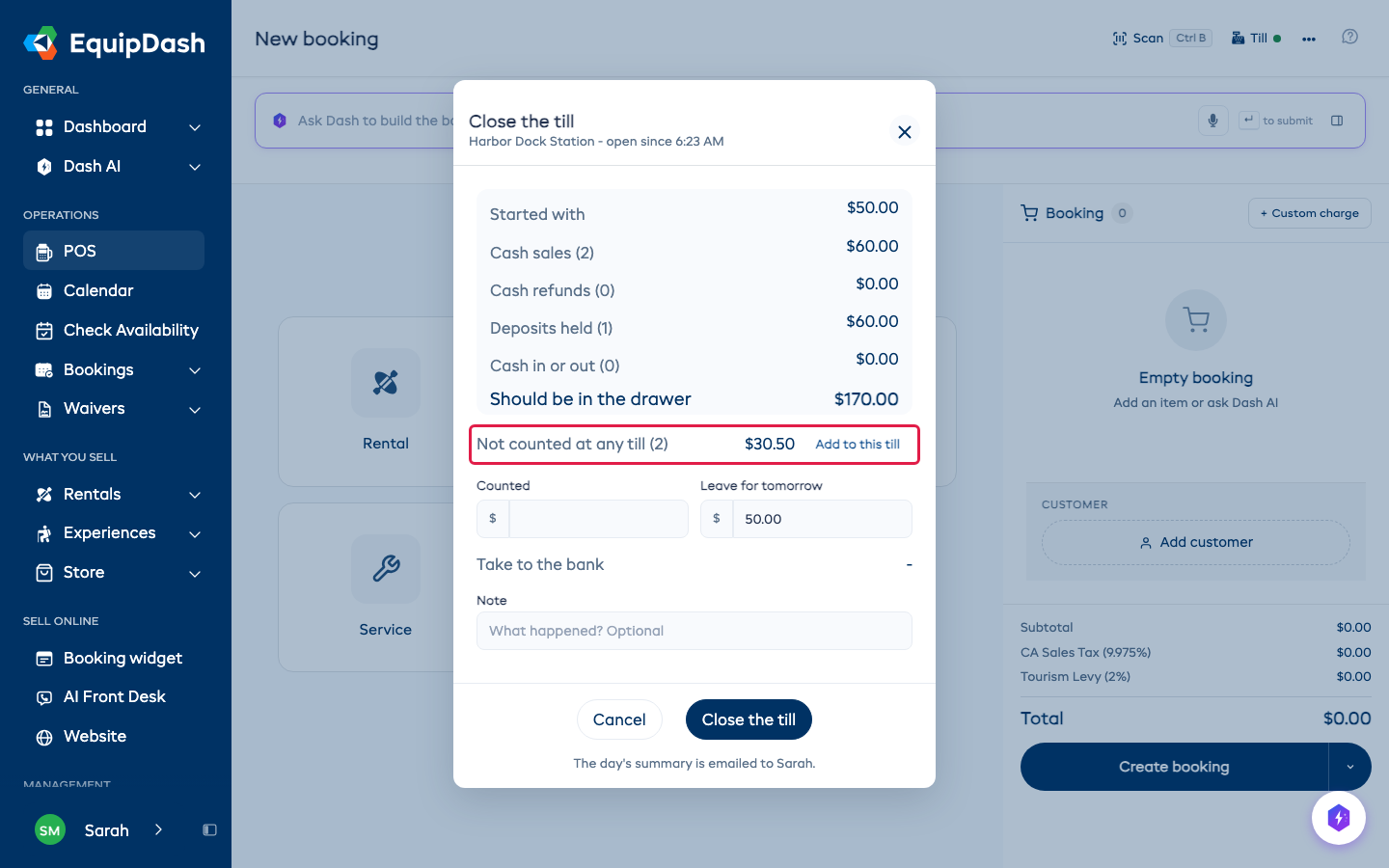
The top box shows what should be in the drawer: what you started with, plus cash sales, minus cash refunds, plus or minus cash in or out. A security deposit taken in cash shows as Deposits held, and one handed back as Deposits returned. The part of a deposit you keep for damage stays in the drawer. Cash taken today that no till counted shows below it as Not counted at any till. That happens when cash was taken before the till was open, or when several tills were open and nothing said which one. If that cash is in this drawer, tap Add to this till and it counts here.
-
Count the drawer and type the total under Counted. As you type it says Short by or Over by, or Matches.
-
Leave for tomorrow is filled in with your opening float. Change it if you leave a different amount. Take to the bank is the rest.
-
Add a Note if something happened, then tap Close the till.
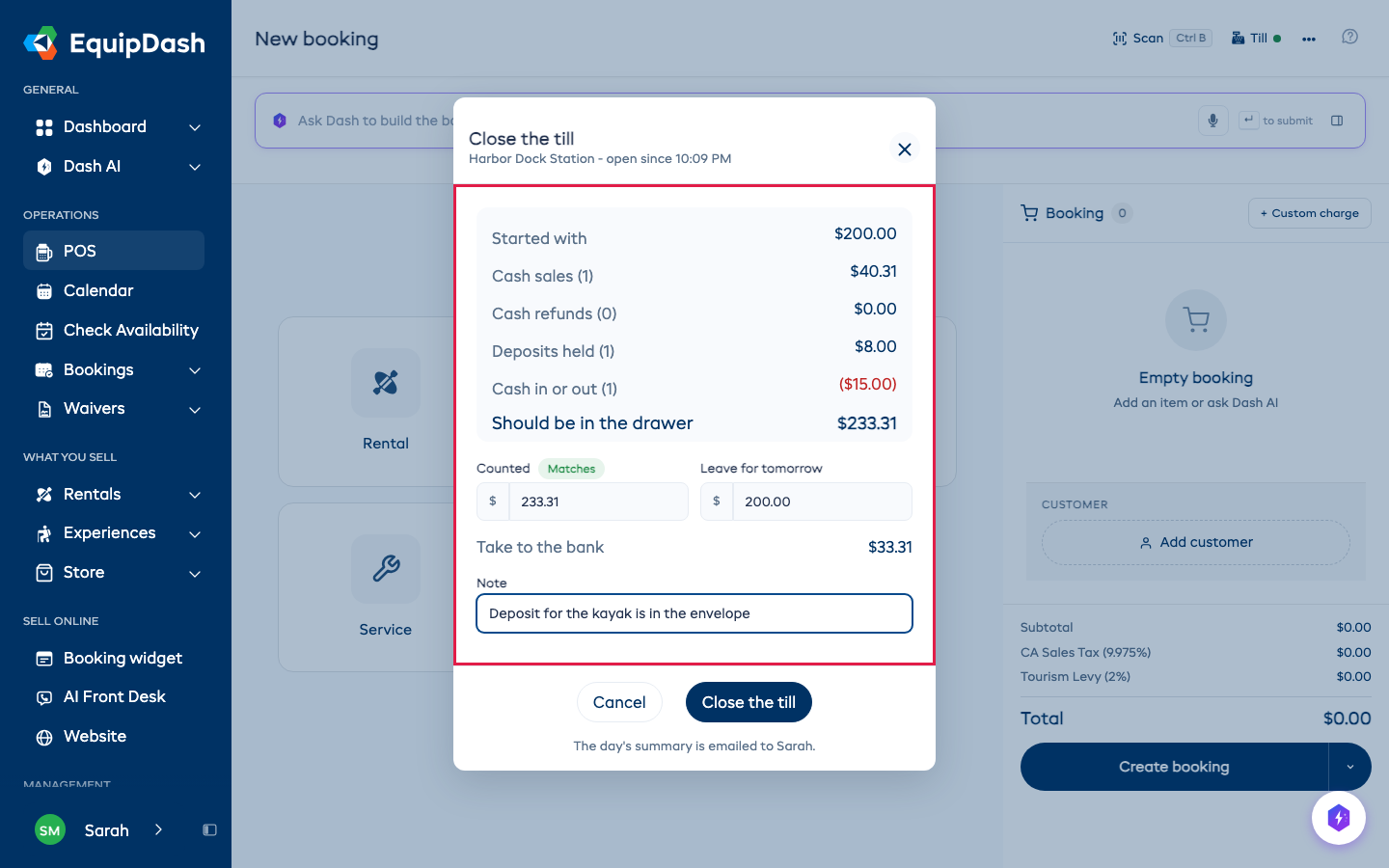
The day's summary is emailed when the till closes: over or short, the cash lines, any cash no till counted, and every way you got paid at this till. Tomorrow's opening is filled in with what you left.
The staff app does the same on a phone or iPad: Open the till and Till sit beside Scan at the top of POS.
Turn it on or off
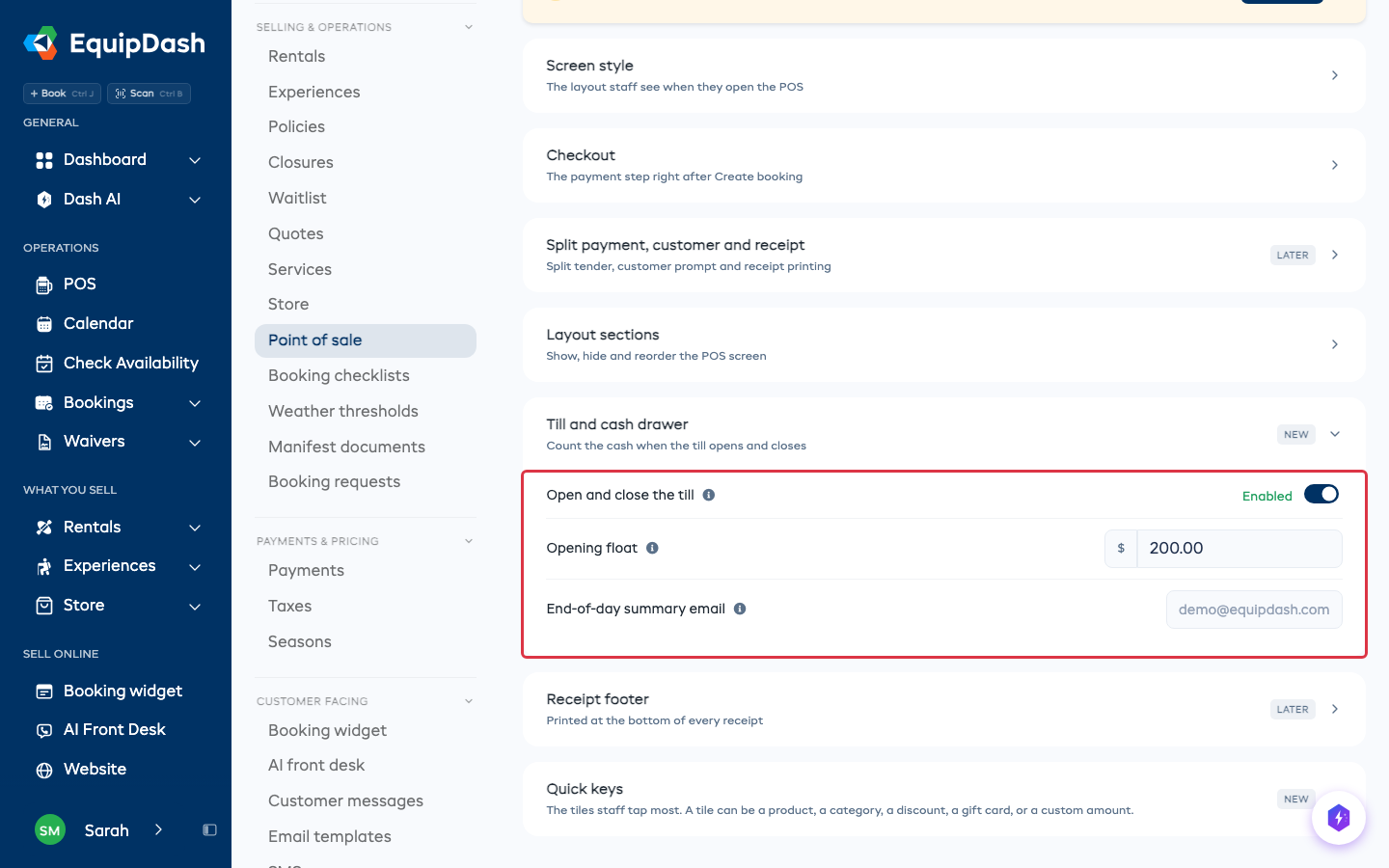
Go to Settings > Point of sale > Till and cash drawer.
- Open and close the till switches it on or off for the whole shop.
- Opening float is the cash a day starts with when nothing was left at the last close, and what Leave for tomorrow fills in.
- End-of-day summary email is who gets the summary. Leave it empty to send it to the account owner.
Rentals, experiences and services
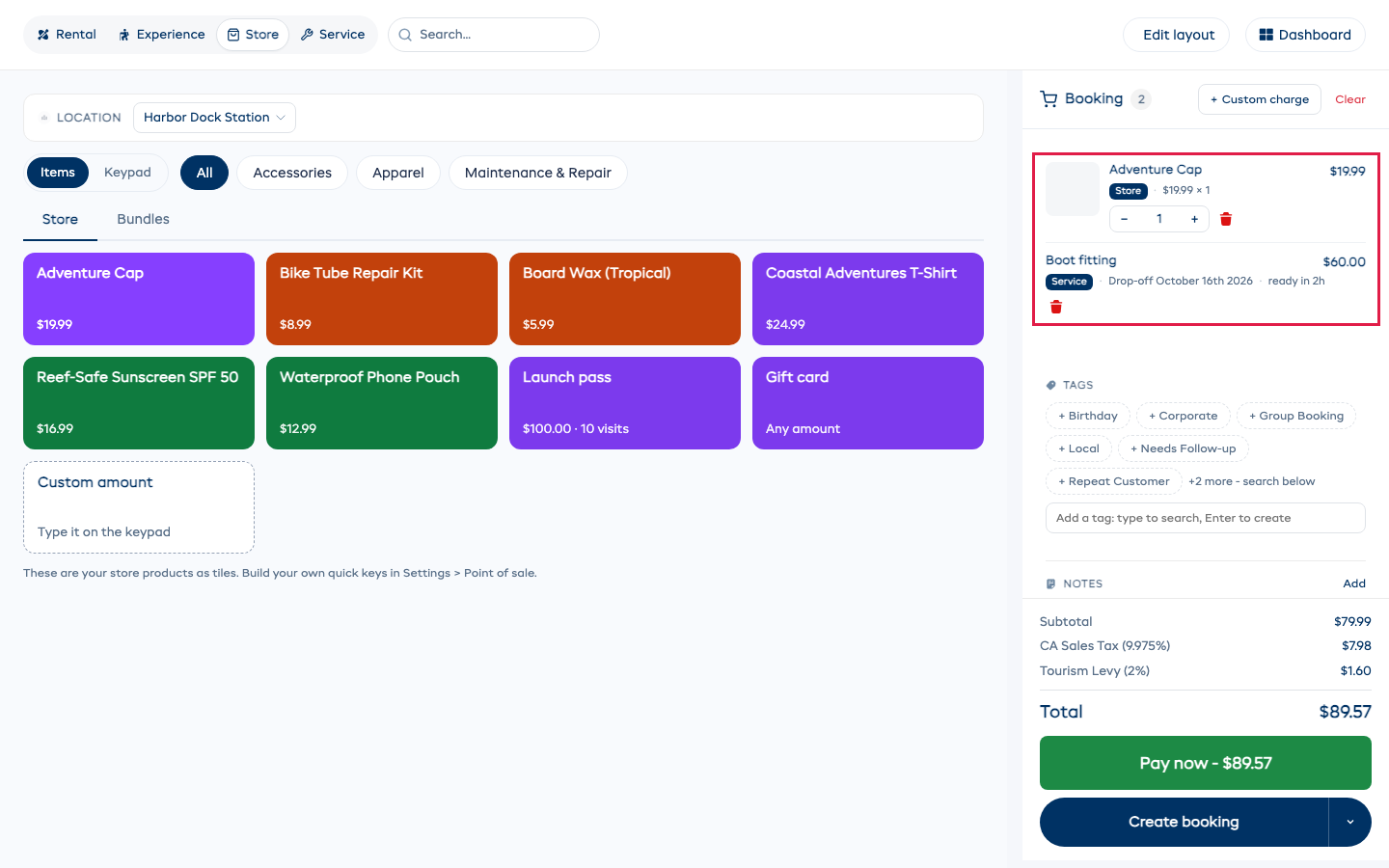
The Rental, Experience and Service tabs at the top still work in till style. Rental items show as tiles too.
Store items stay on the ticket when you switch tabs, so a service and the parts sold with it are one sale.
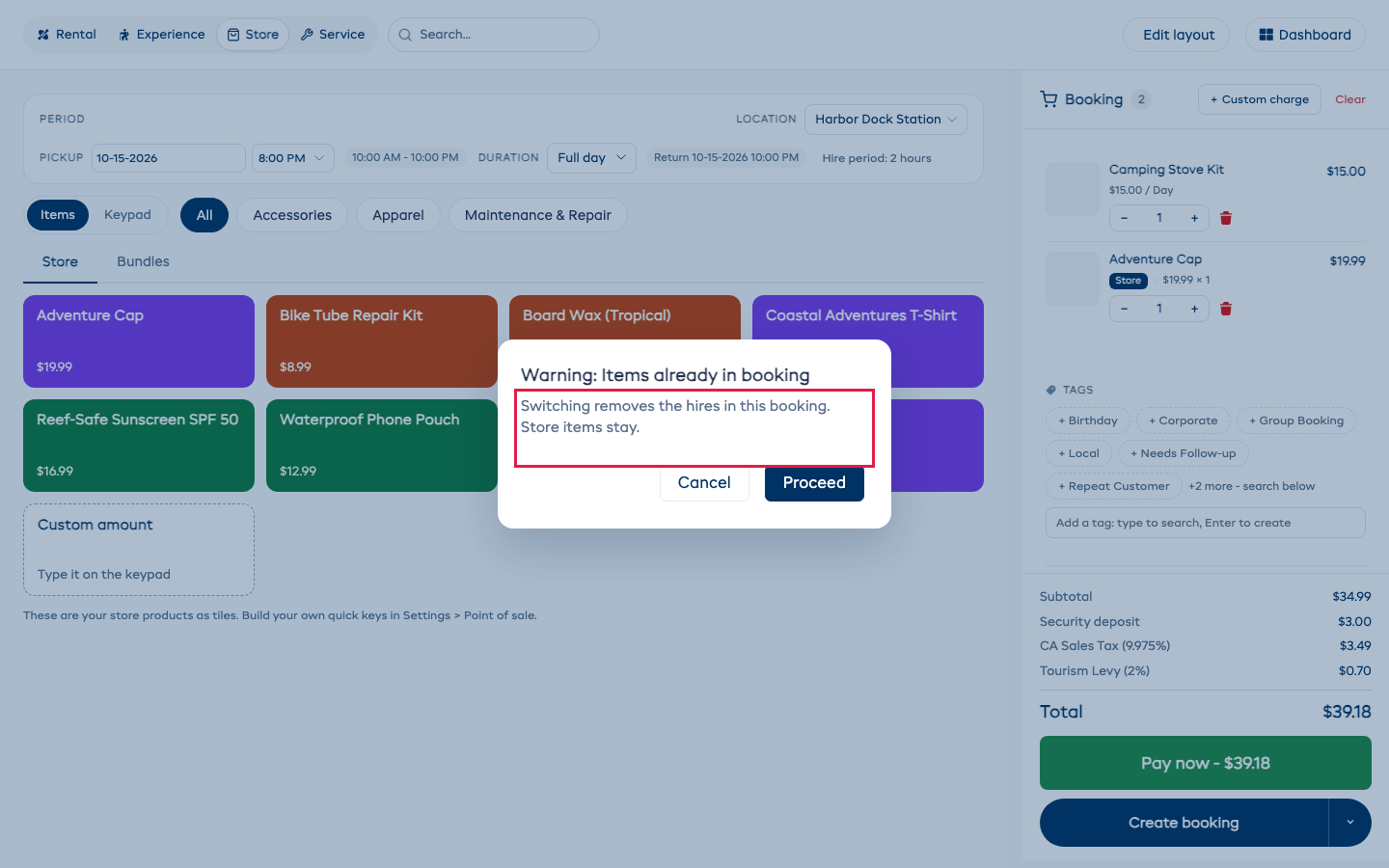
A service is its own booking, though: switching to Service removes any rentals and experiences, and switching to Rental or Experience removes the service. The POS tells you what it will remove before it does.
Change the layout
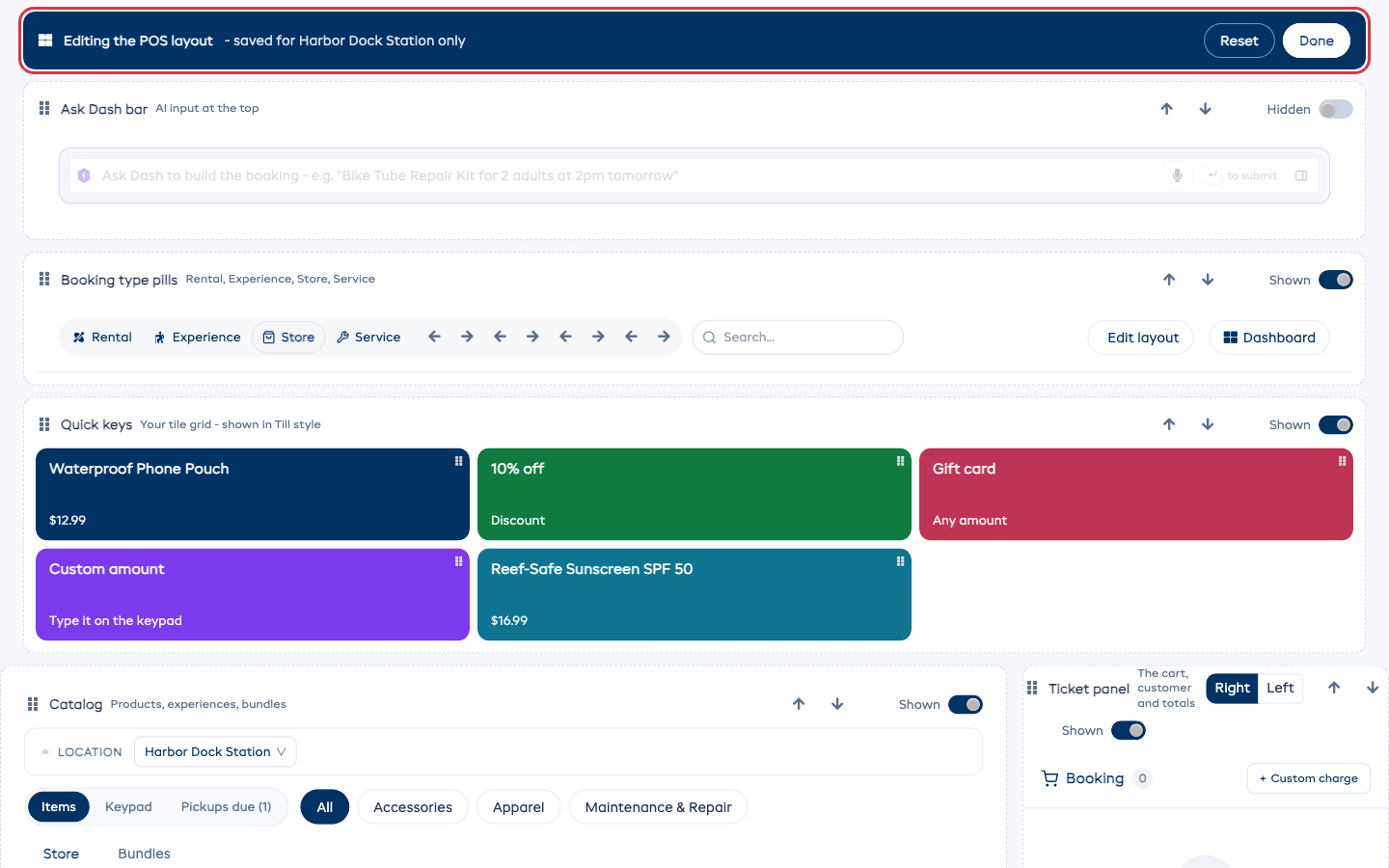
Tap Edit layout at the top of the POS, or open Layout sections in Settings > Point of sale.
- Drag a section or a tile to move it, or use the arrows.
- Use the switch on each section to show or hide it.
- The bar at the top says whether you are saving for this location only or for every location.
- Reset puts the arrangement back. It does not change the screen style or your tiles.
- Tap Done when you finish.
On an iPad
The till fills the screen on an iPad. Held upright, the ticket turns into a bar along the bottom: swipe it up to open it.
For a till that opens like an app, open POS in Safari, tap Share, then Add to Home Screen.
On your phone
The EquipDash mobile app has the same till on its POS tab: tiles, the keypad and Pickups due.