The Today Screen
The Today screen is the counter's view of the day. Across the top is what needs someone right now. Below it is the gear to get out, then three columns side by side: Experiences, Pickups and Returns. Each booking has one button for its next step, so staff can run the day from here without opening a booking.
Where to find it
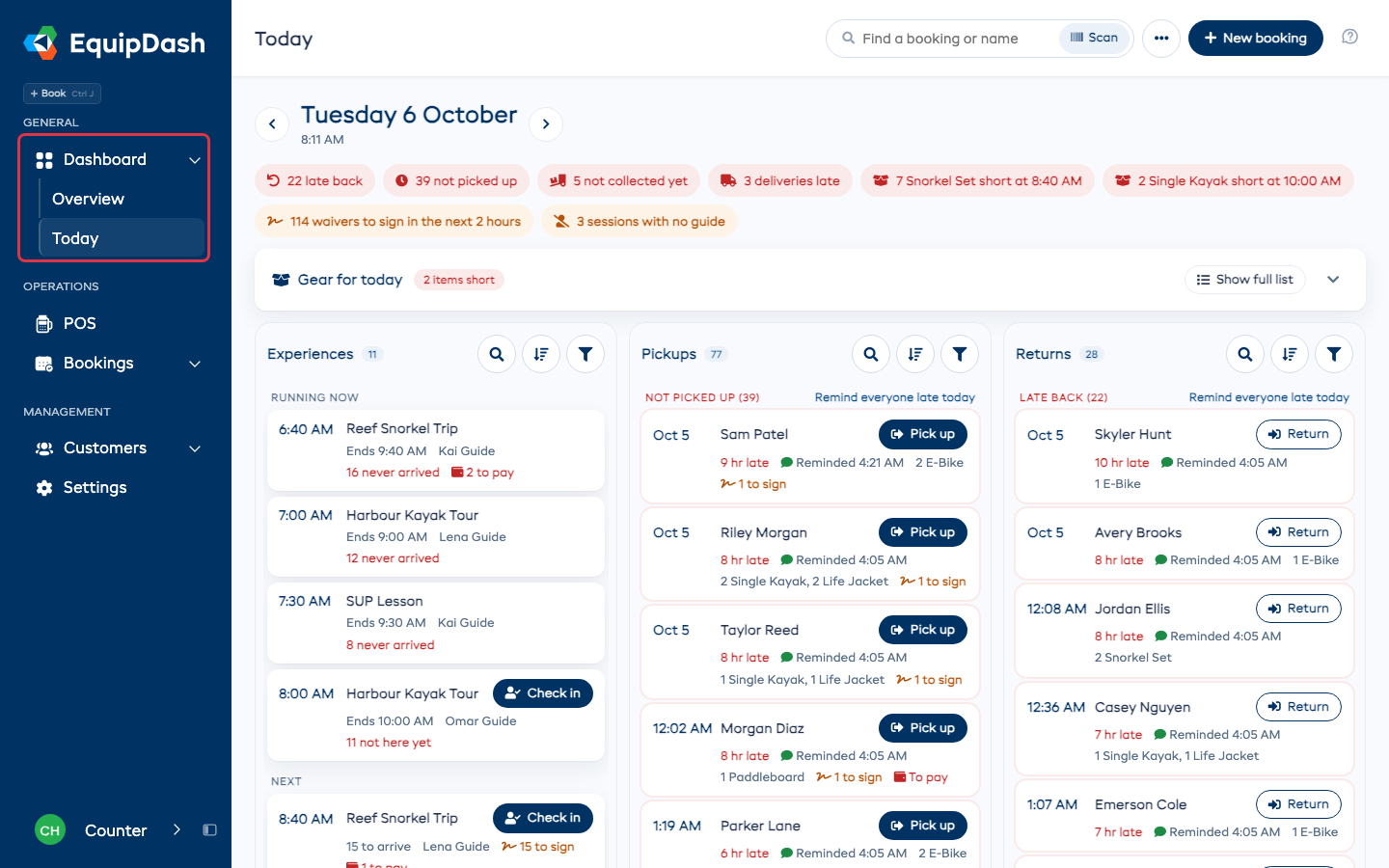
In the sidebar, click Dashboard, then Today. Overview under it is the dashboard you already know. You can also click Open Today at the top right of the dashboard.
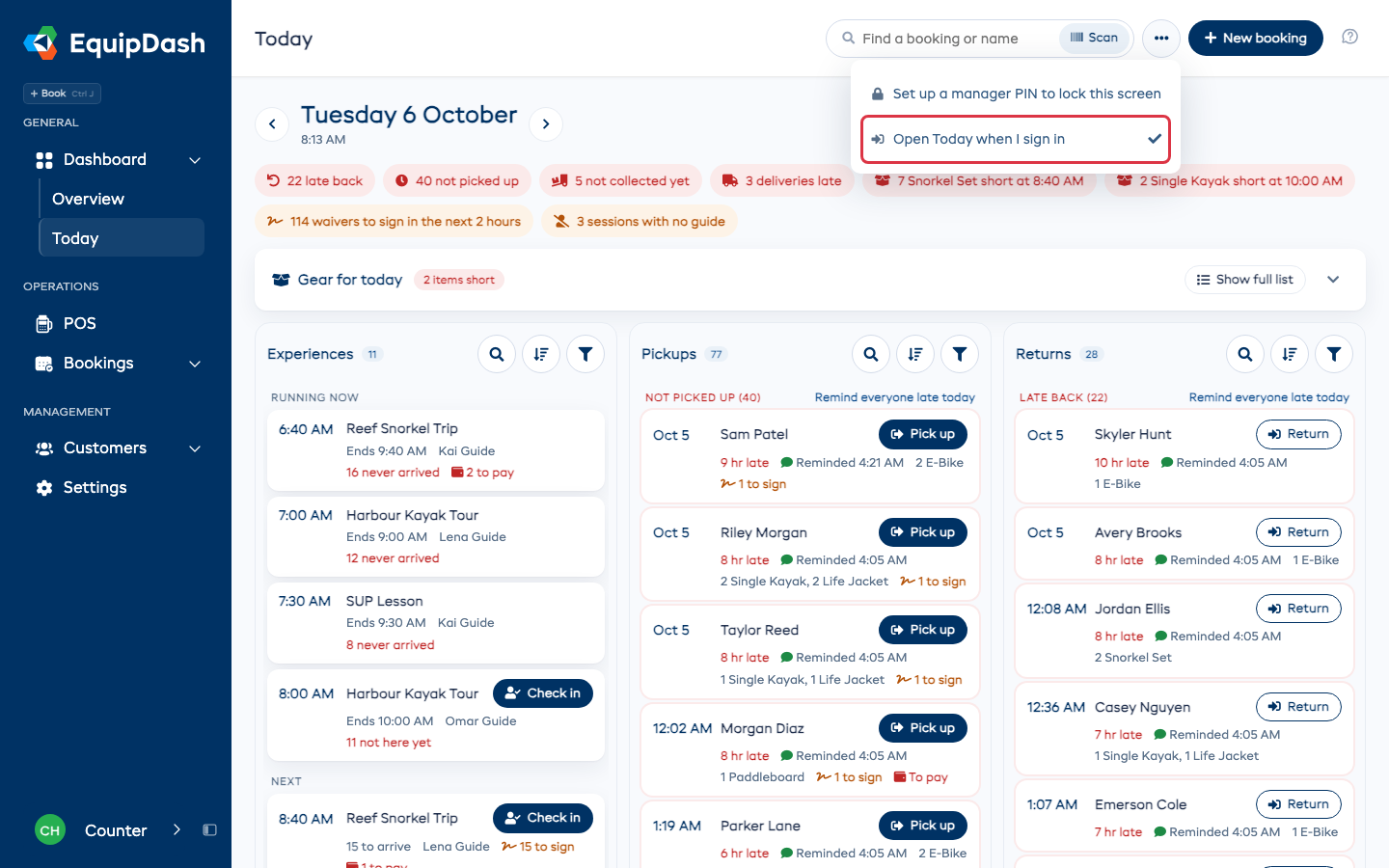
Staff who can't see your takings on the dashboard start on Today when they sign in. Anyone can change where they start with Open Today when I sign in: staff find it in the ⋯ menu, and managers in the bar at the top of Edit layout. It only changes your own sign-in.
The first time someone opens Today, a short guide shows them around. To see it again, open the ? menu at the top right and choose Show me how Today works.
Needs you
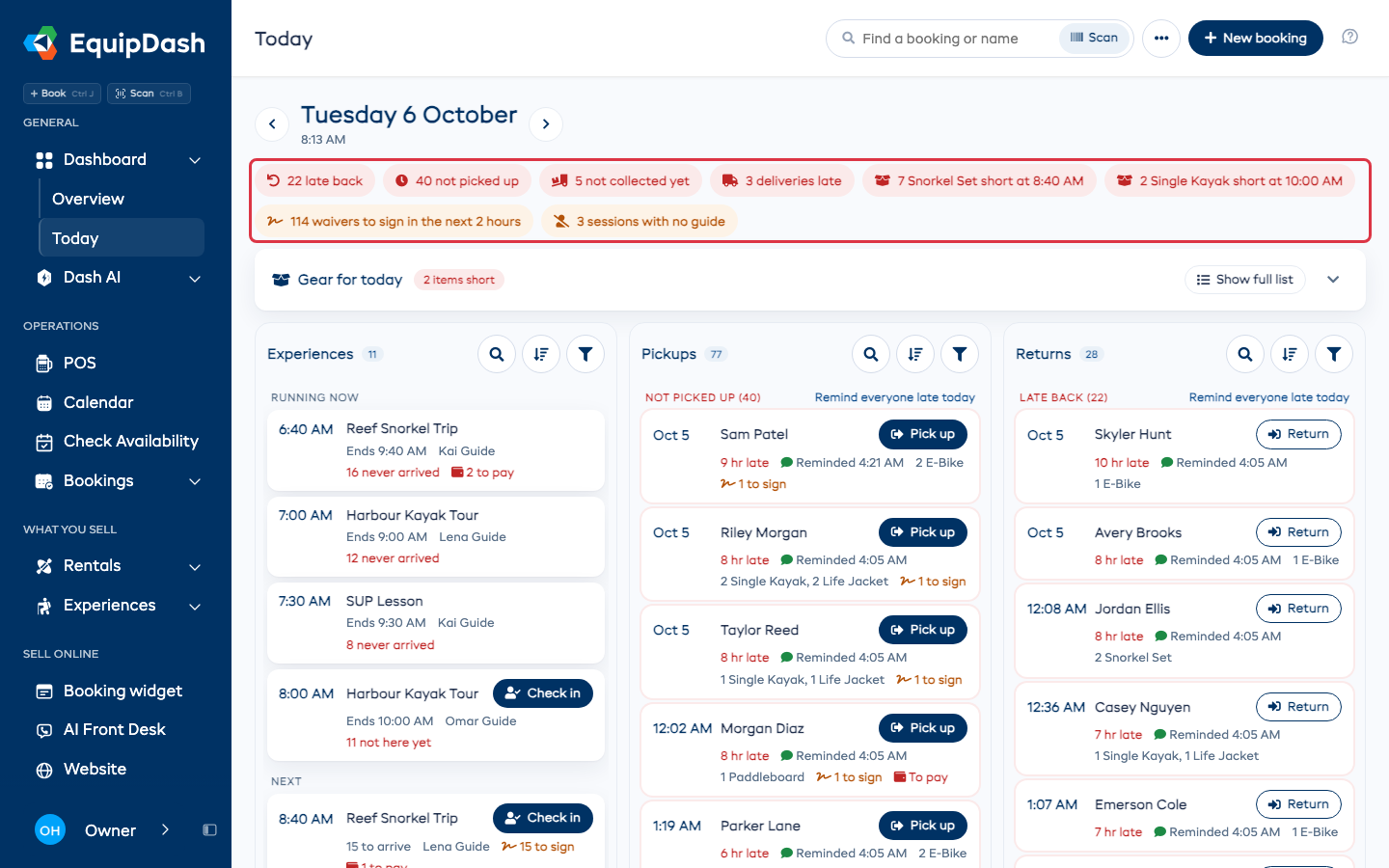
The row at the top names only what someone has to sort out: hires late back, pickups nobody collected, an item you need more of than you have, waivers to sign in the next 2 hours, a session with no guide (only for activities that take guides), or a guide missing a certificate the activity needs.
Click one to see just those bookings in the column it is about. Click it again to see everything. An item that is short opens its bookings, so you can see who has them. Send them the link beside the waivers sends the signing link to everyone still to sign in the next 2 hours.
It only appears for today, and nothing shows when nothing needs you.
Gear for today
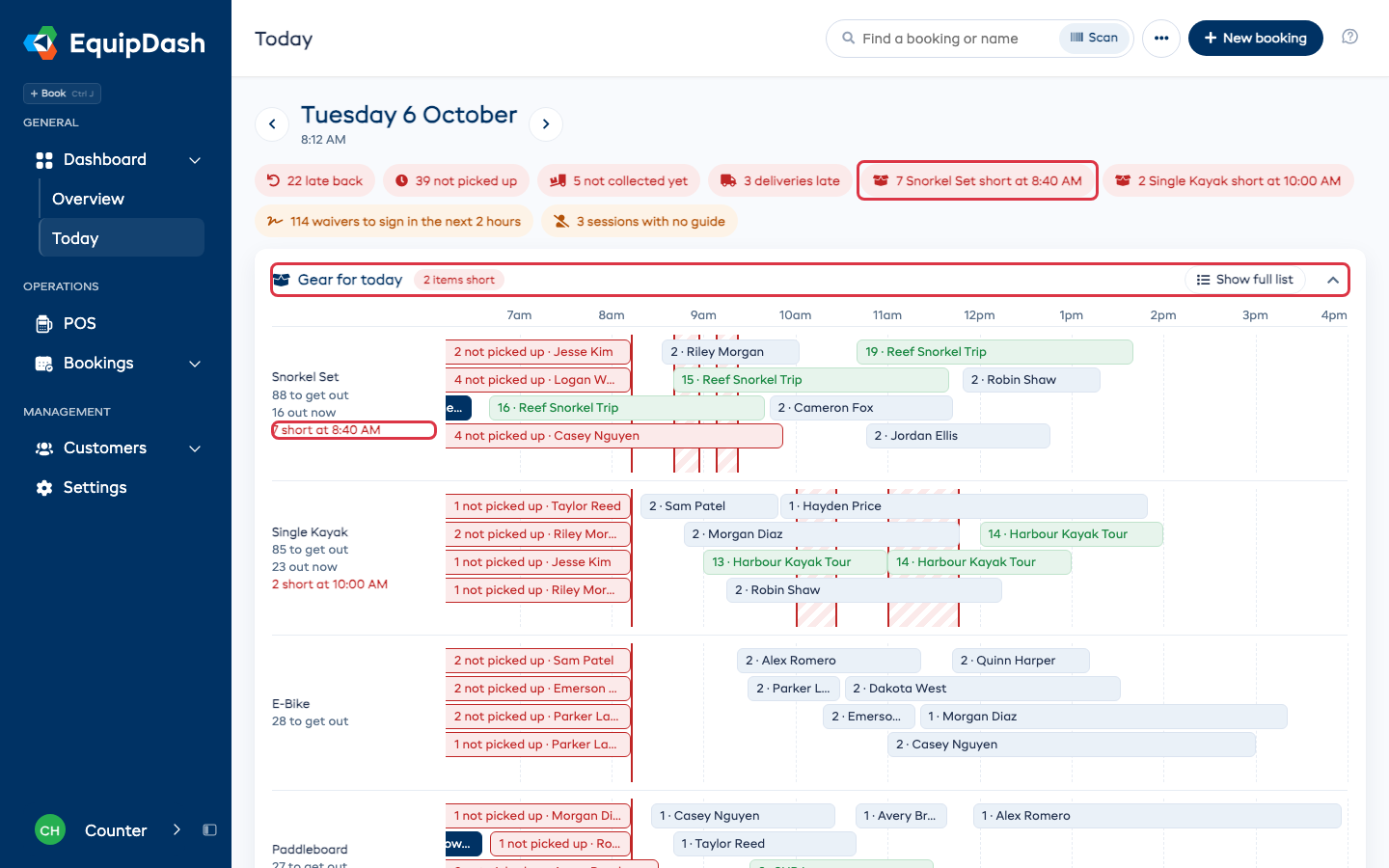
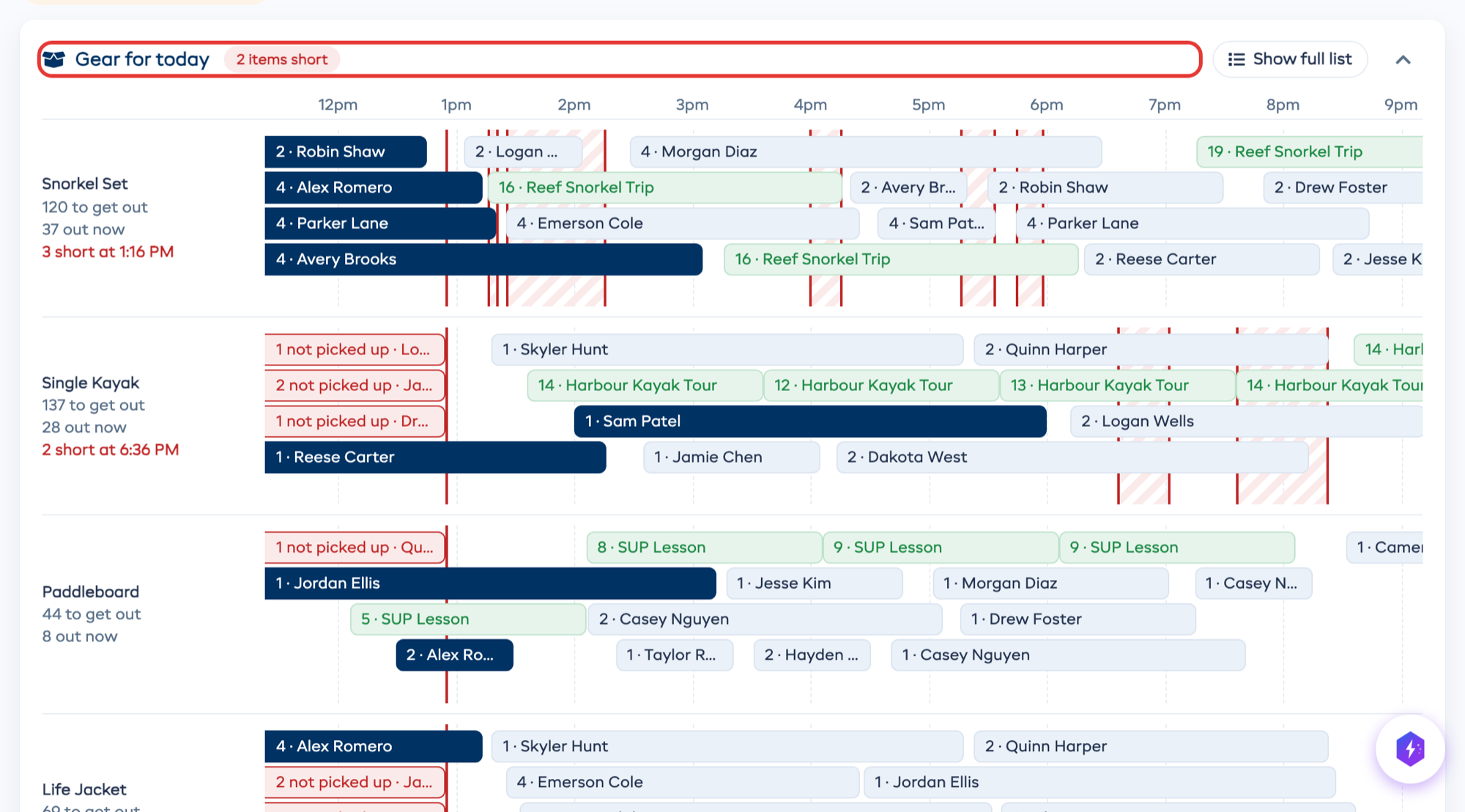
The gear card names any item that is short. Click anywhere on its header to open the timeline of the day, and again to fold it. Each bar is a booking or session using an item, from when it goes out to when it is due back. Bars that stack are out at the same time. A striped band marks when you need more than you own. The red line is now, and the timeline moves with the clock. Click a bar to open that booking or session, or an item's name to see its bookings in a list.
A short item reads the same in both places: the chip at the top (such as 7 Snorkel Set short at 8:40 AM) names the first time it runs short from now, and the timeline gives the same time beside the item, where its striped band starts.
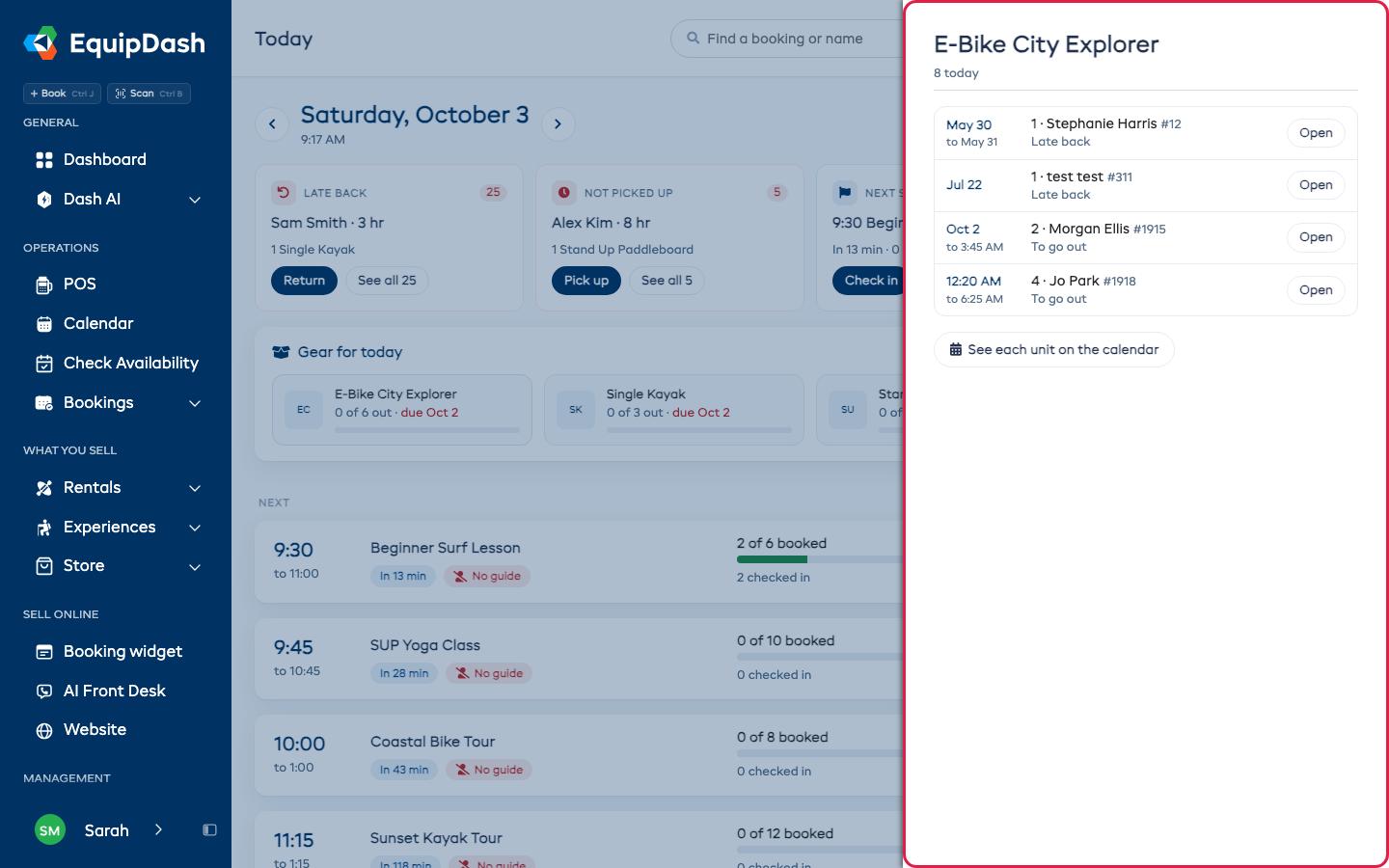
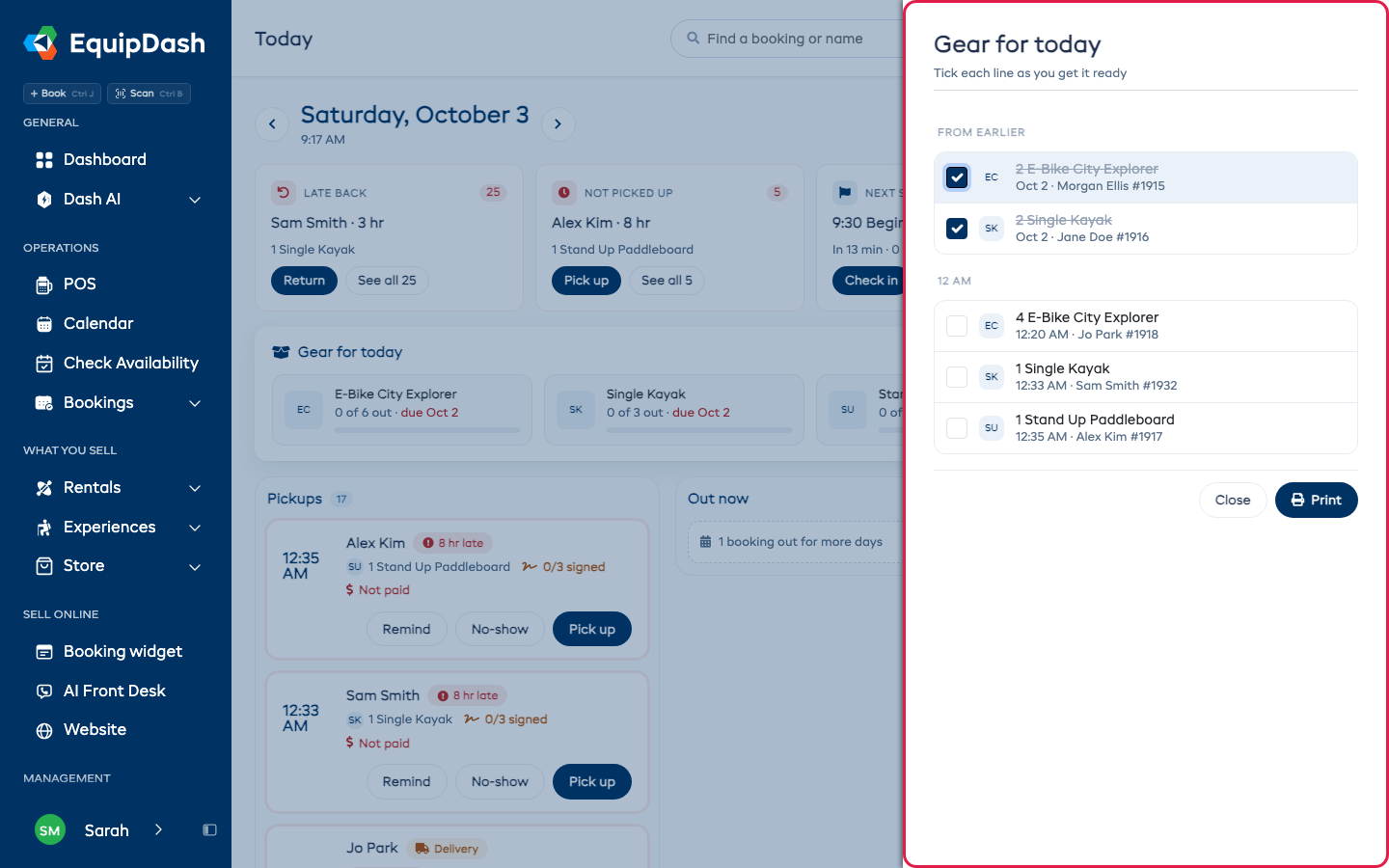
Click Show full list for every item by hour, with who it is for. Tick each line as you get it ready; everyone at the counter sees the ticks, and a line reads Out once its booking is picked up. Click Print for a sheet to work from.
The three columns
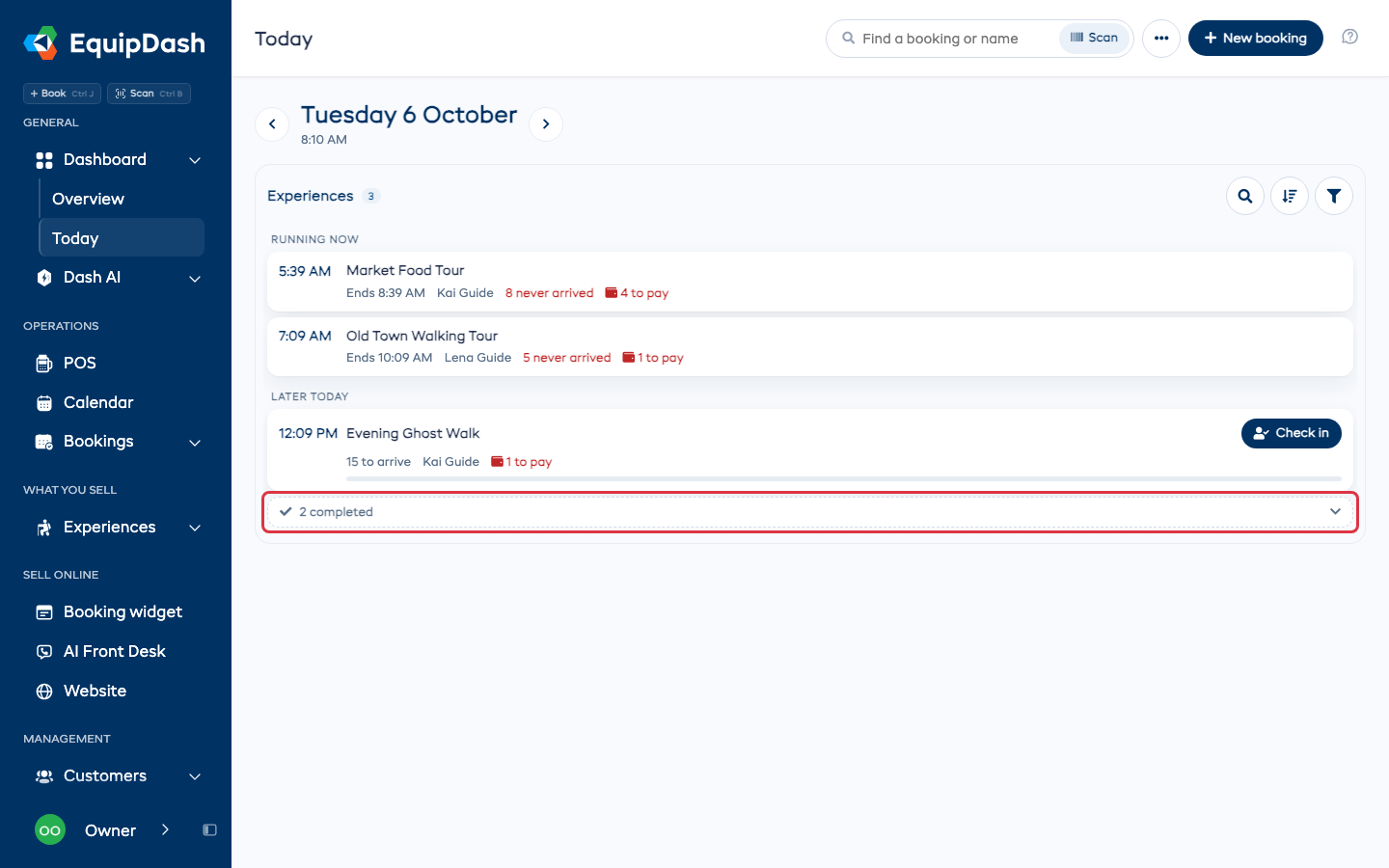
Experiences lists each session as one card: running now, next and later today. A session you complete folds into the line at the bottom, such as 2 completed; click it to see them. Pickups lists every rental going out, and Returns every rental coming back. Both read earliest first: Pickups by pickup time, Returns by what is due back first, with late ones on top. Workshop drop-offs and repairs ready to hand back sit among them by their time. Rentals out for more days are folded at the bottom of Returns, with the date they are due.
Each card shows only what matters right now. Before a session starts, it shows who is still to arrive, sign and pay, and its guide. While it runs, it shows when it ends, anyone who did not arrive and who still has to pay. A pickup shows what is still to sign and pay. A return shows any balance to take and a deposit to give back.
Each card has one button: Check in, Pick up, Return, Delivered, Collected, Settle up or, near the end of a session, Complete. Pick up and Return open the same windows as on the booking page, so checklists, unit swaps, deposits and Add a charge work exactly as they do there.
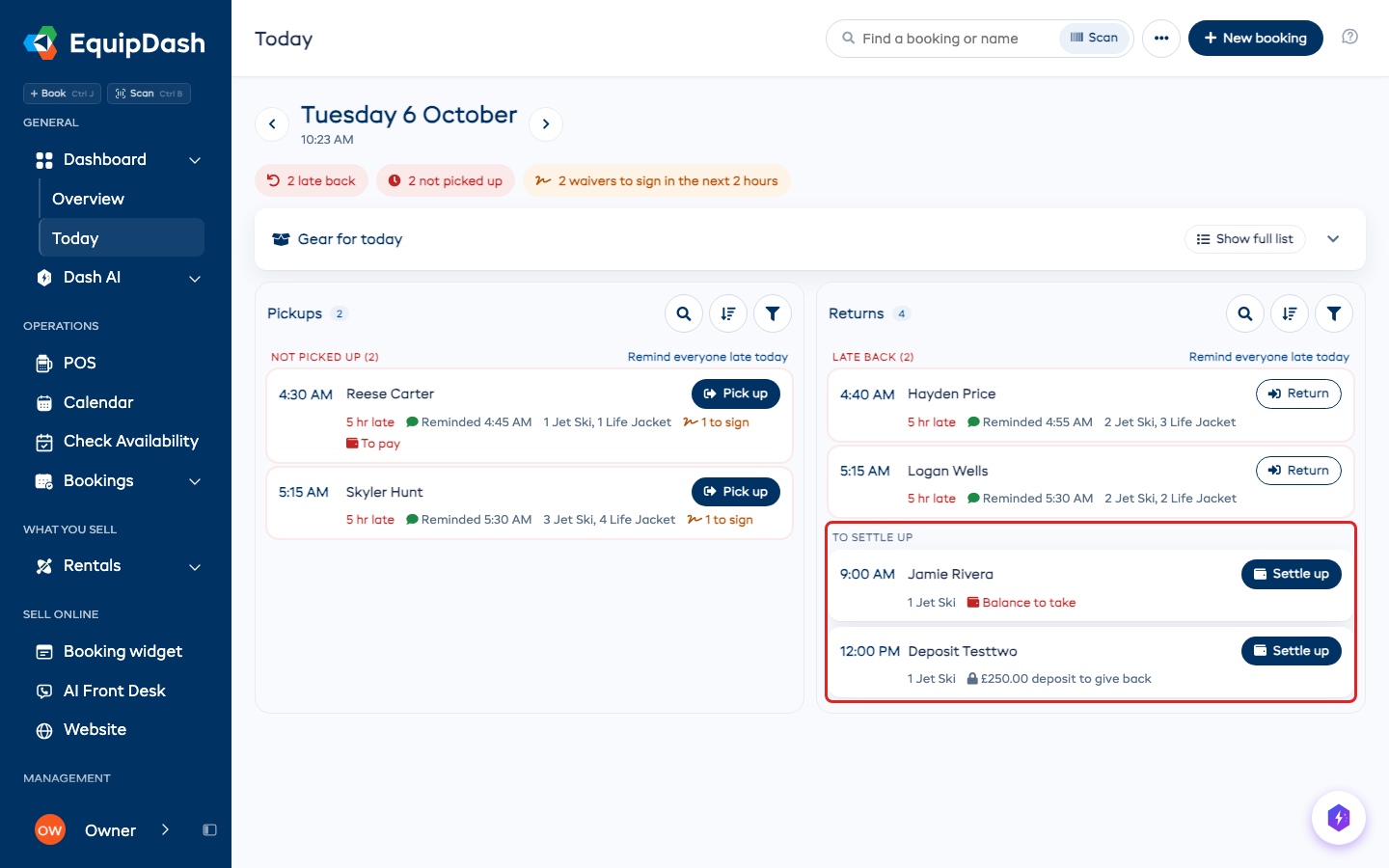
Returns that still owe money
Return settles the money in the same window: what is still to pay, and the deposit to give back or keep some of. See Settle up when the gear comes back. If the customer still owes money, Take payment opens straight after.
A booking that is back but still has money to sort out stays in Returns under To settle up, with a Settle up button. It opens the booking's payment, so you can take what is owed or give the deposit back. Once nothing is left, it drops off the list.
Deliveries and collections
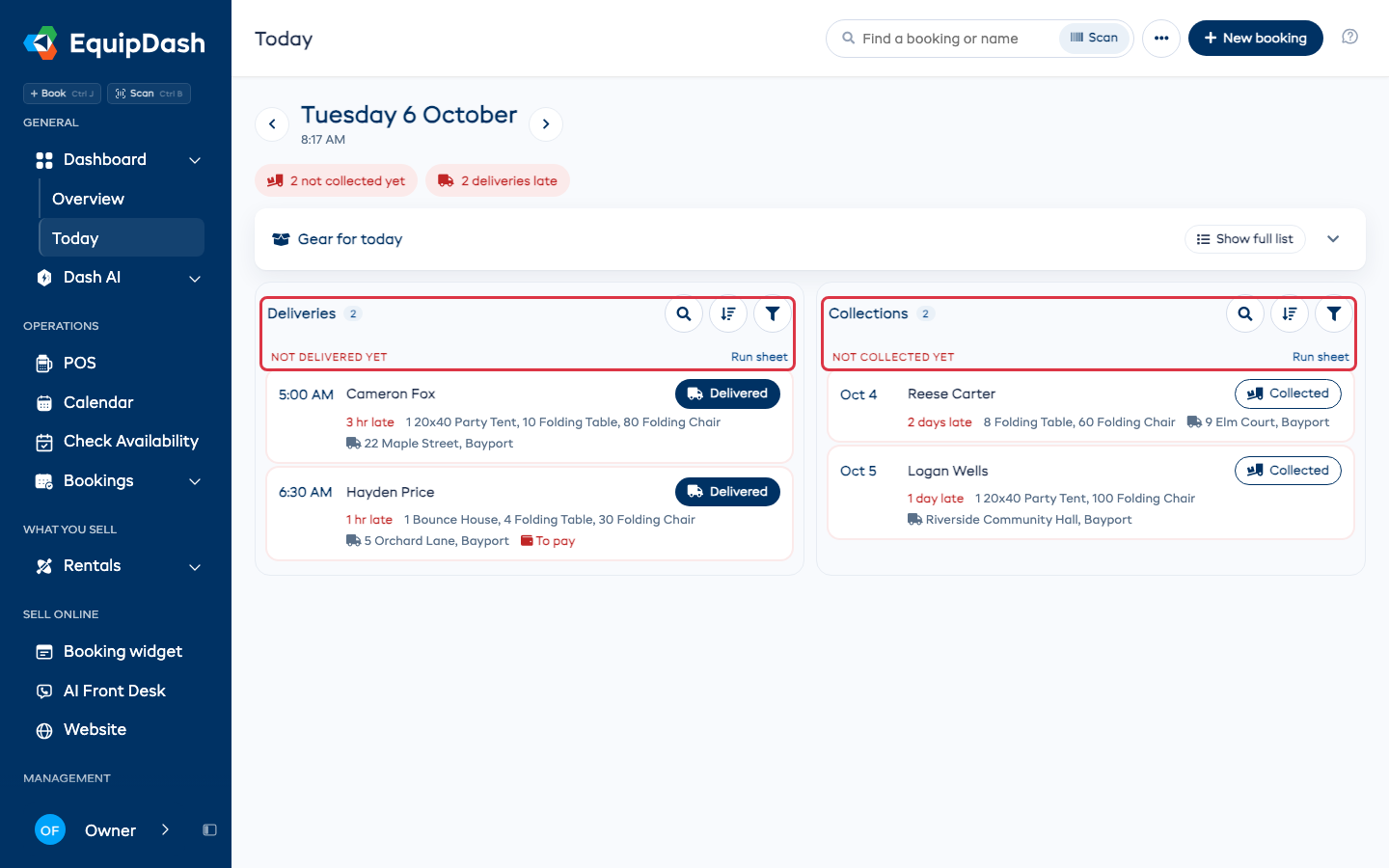
If you deliver, a van booking's button reads Delivered on the way out and Collected on the way back, never Pick up. When every booking in a column is a van trip, the column is called Deliveries or Collections.
A delivery or collection that is running late sits under Not delivered yet or Not collected yet, with a Run sheet link to the day's stops. Getting it there is your van's job, so nobody reminds the customer to bring it back.
Open a card
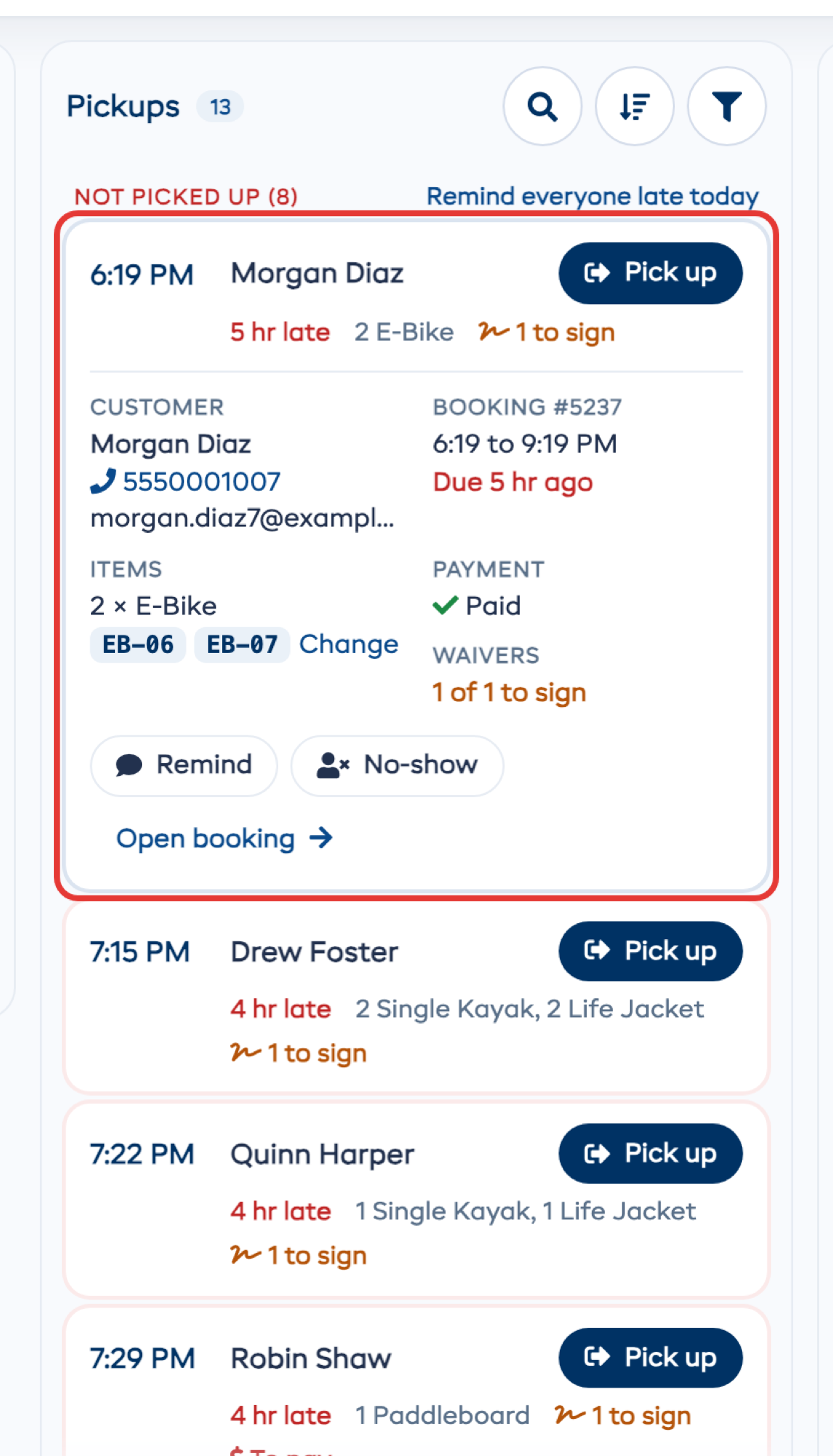
Click a card to open it in place. Click the customer's name, Open booking or the waivers line to open the whole booking on the right: who and when, the items, each participant with their waiver (send or copy each person's link from there) and the payment, with its next step at the top. Open the booking page at the bottom goes to the full page.
- A rental shows the customer's phone and email, the booking times, each item with the units it holds (such as KY-03), payment and waivers. Before pickup, click a unit to swap it for another; the swap window opens on Today. It also offers Take payment, Send the waiver link, Remind, Cancel and Open booking. Cancel opens the same window as on the booking page, with your cancellation policy.
- A session shows its guide, the free seats, its gear, waivers, who is still to pay and its participants. Click a participant to open the check-in list. It also offers Send everyone the waiver link, Add participants, Assign a guide and Complete. Assign a guide opens the session's edit window on Today, the same one as on the session page.
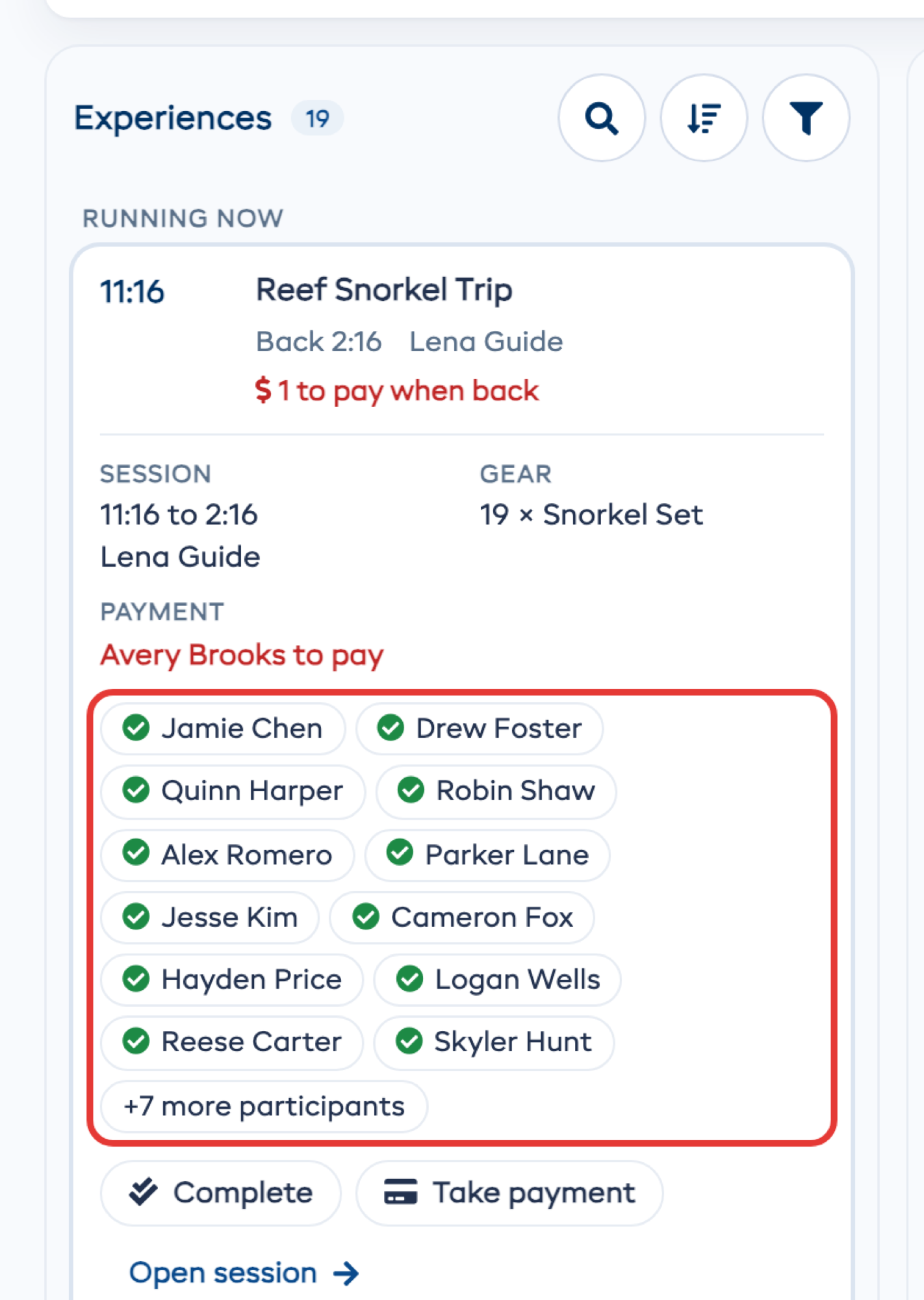
In the check-in list, tick each person as they arrive, or click Check in all for everyone who is left. Someone late for a session that has started is checked in from its card with Check in a latecomer. When the session is over, click Complete: everyone you ticked is completed, however they were checked in. Complete waits until the session has started, and says so if you press it too early.
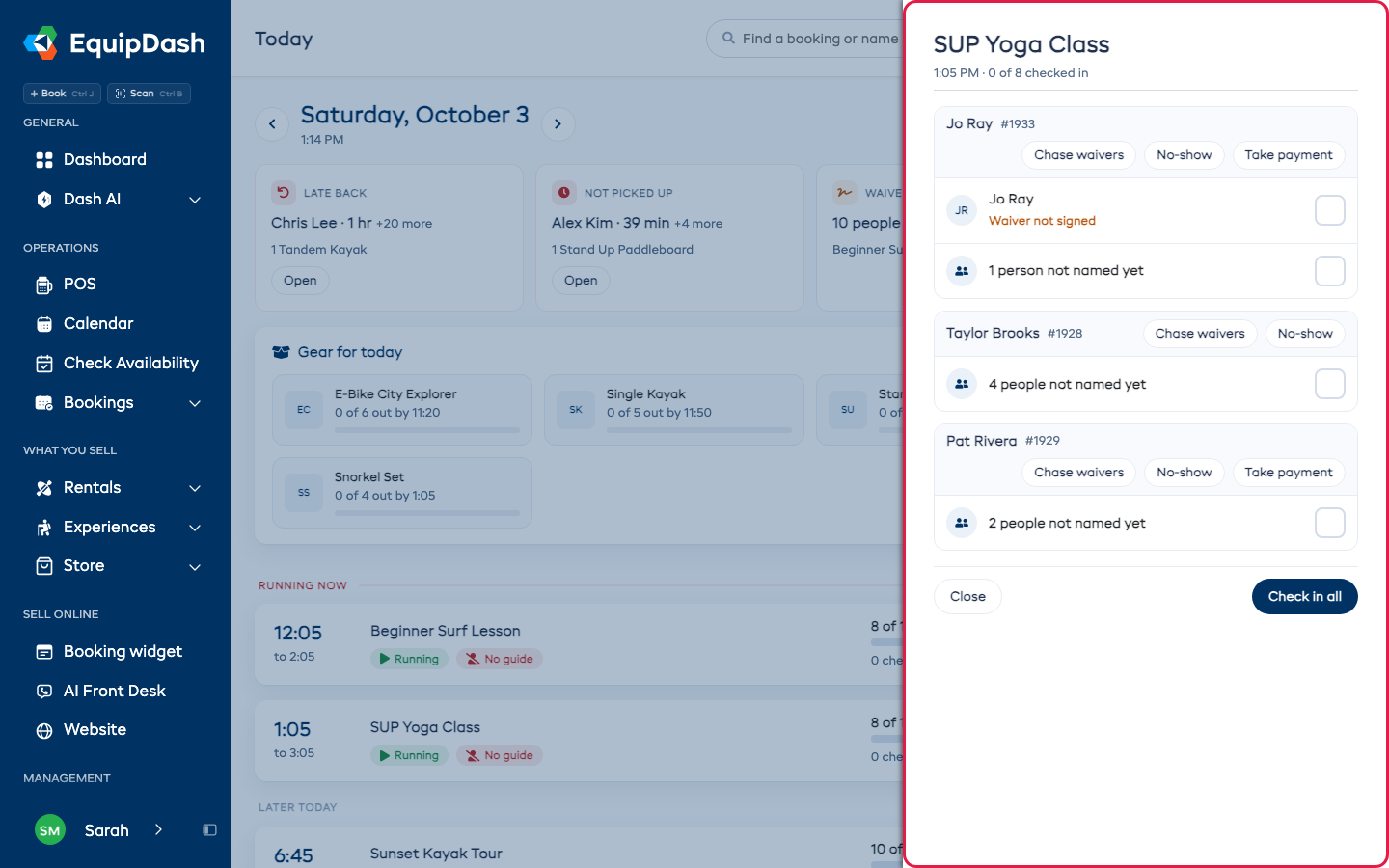
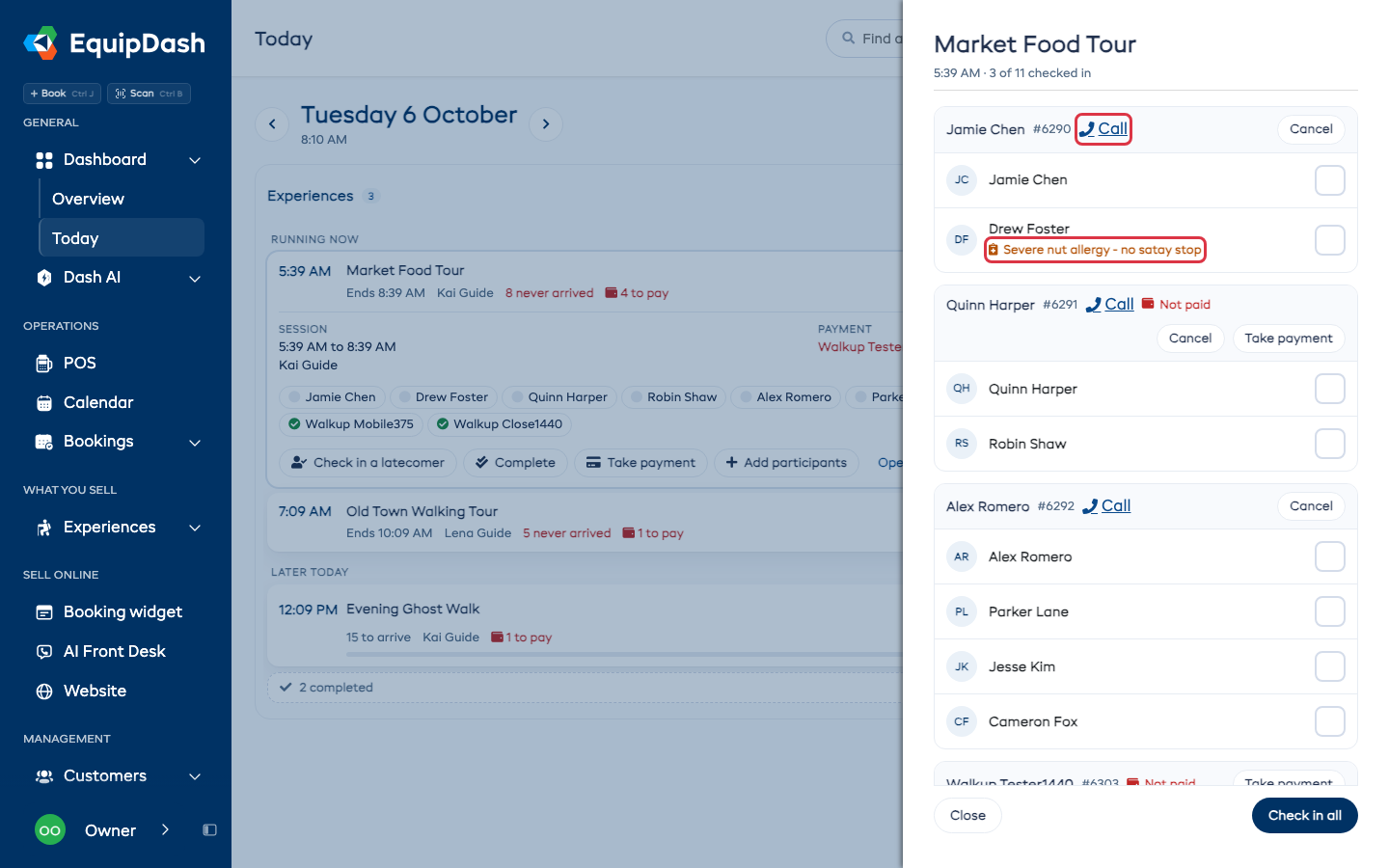
The list also shows each person's notes, such as an allergy or a first-timer, under their name. A group where nobody has arrived yet has a Call link beside the booker's name, for staff who can see customer details.
A session that is already running still takes a walk-up while it has room: open its card and click Add participants. They are checked in as soon as they are booked.
Take a payment
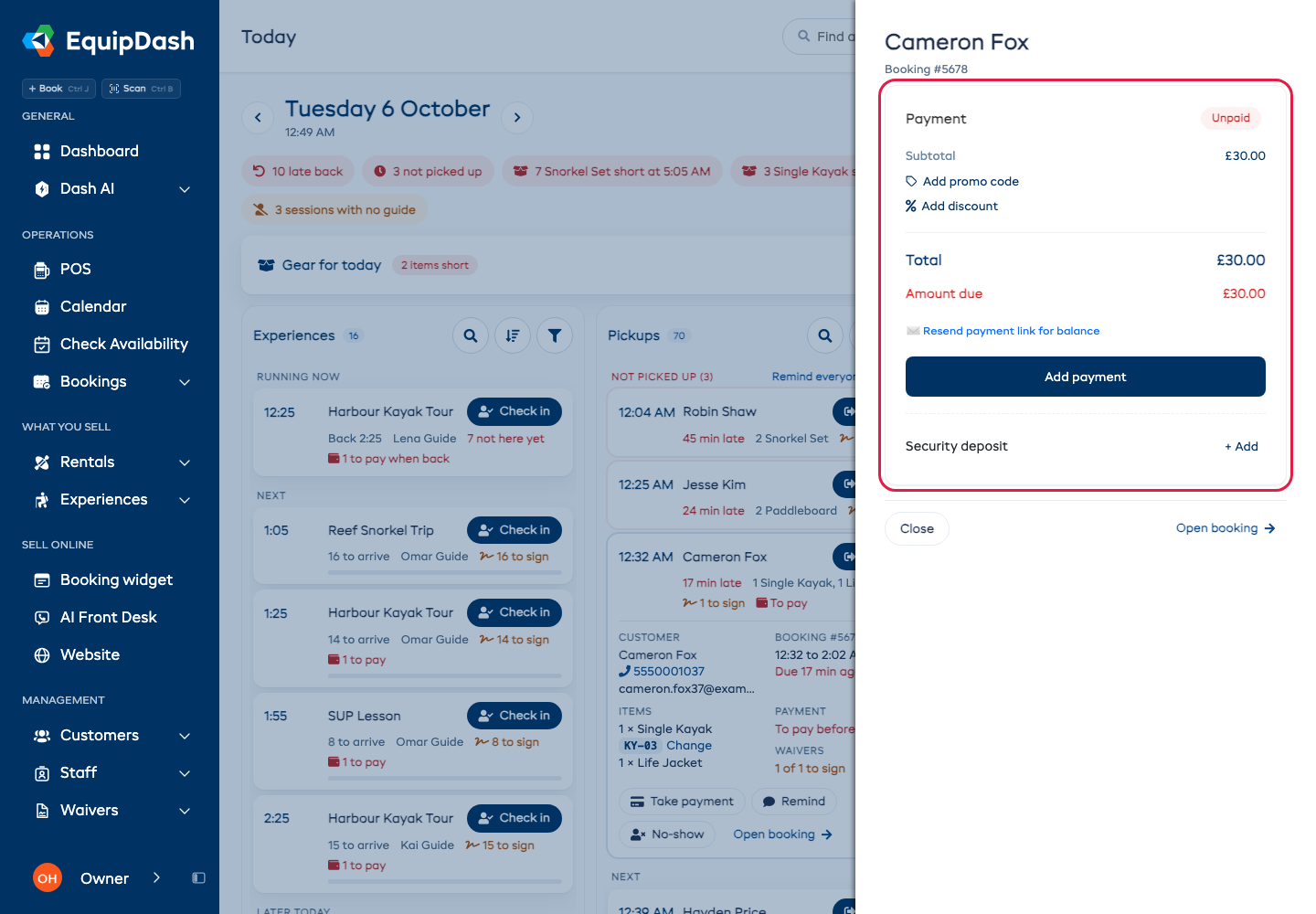
Click Take payment on a card, or beside a booking in a session's check-in list. The booking's payment opens on the right, the same as on its booking page: the total, a promo code or discount, Cash and Card for the amount due, Add payment and the security deposit. See Cash or card in two taps. Once a payment is in, the card behind it updates. Click Close to go back to Today. A session with several people still to pay opens its check-in list first, so you can pick who is paying.
Search, sort and filter a column
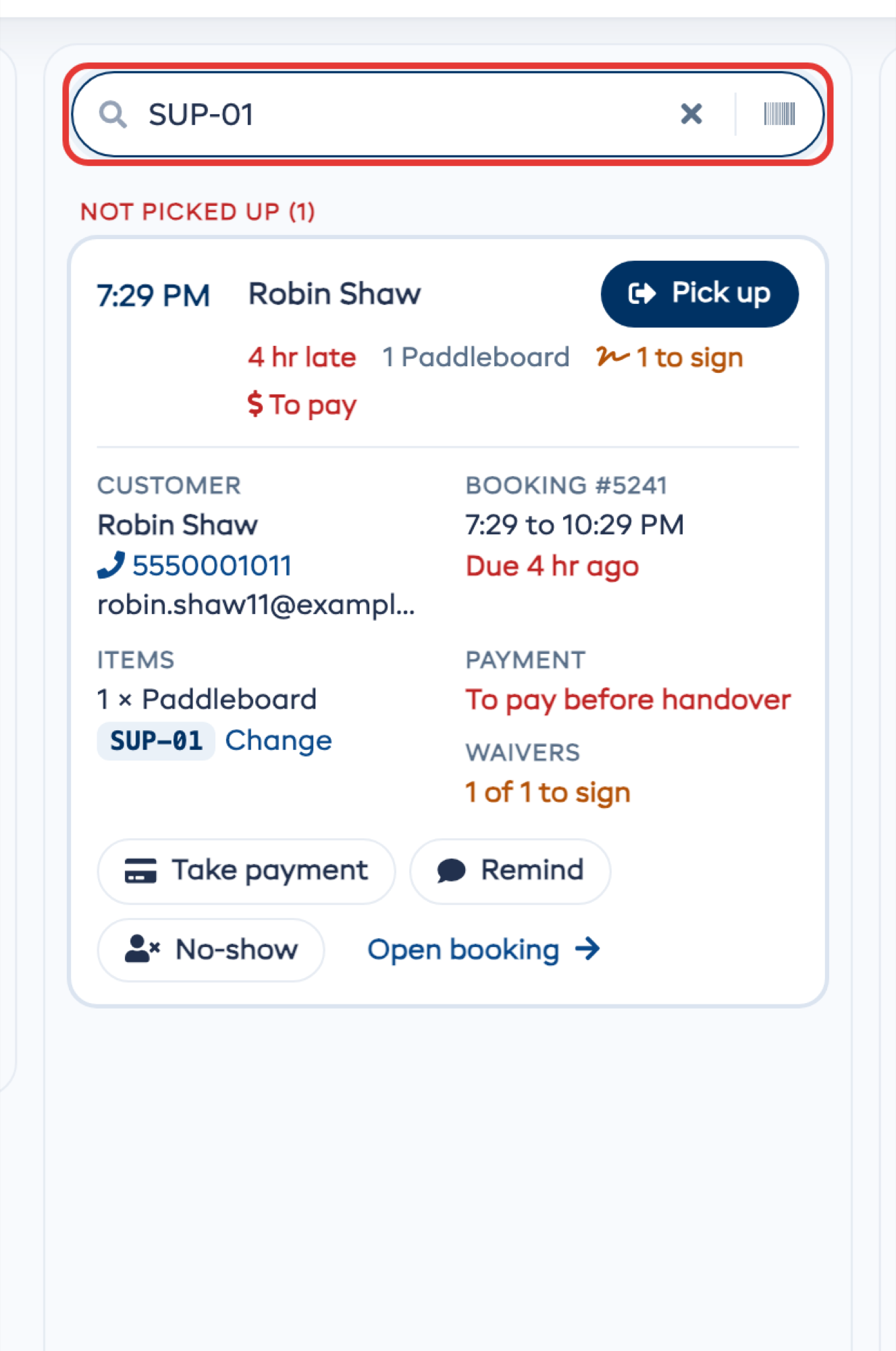
Each column has its own search, sort and filter. Click the magnifier and type a name, a booking number or a unit's tag, or scan it; the column shows only what matches. Sort puts names in order. Filter opens the same panel as the bookings list: pick a status, payment, waivers, how it goes out or comes back, an item, or for experiences the experience and the guide. Choices in different rows combine, and the button shows how many are on. None of these reloads the page.
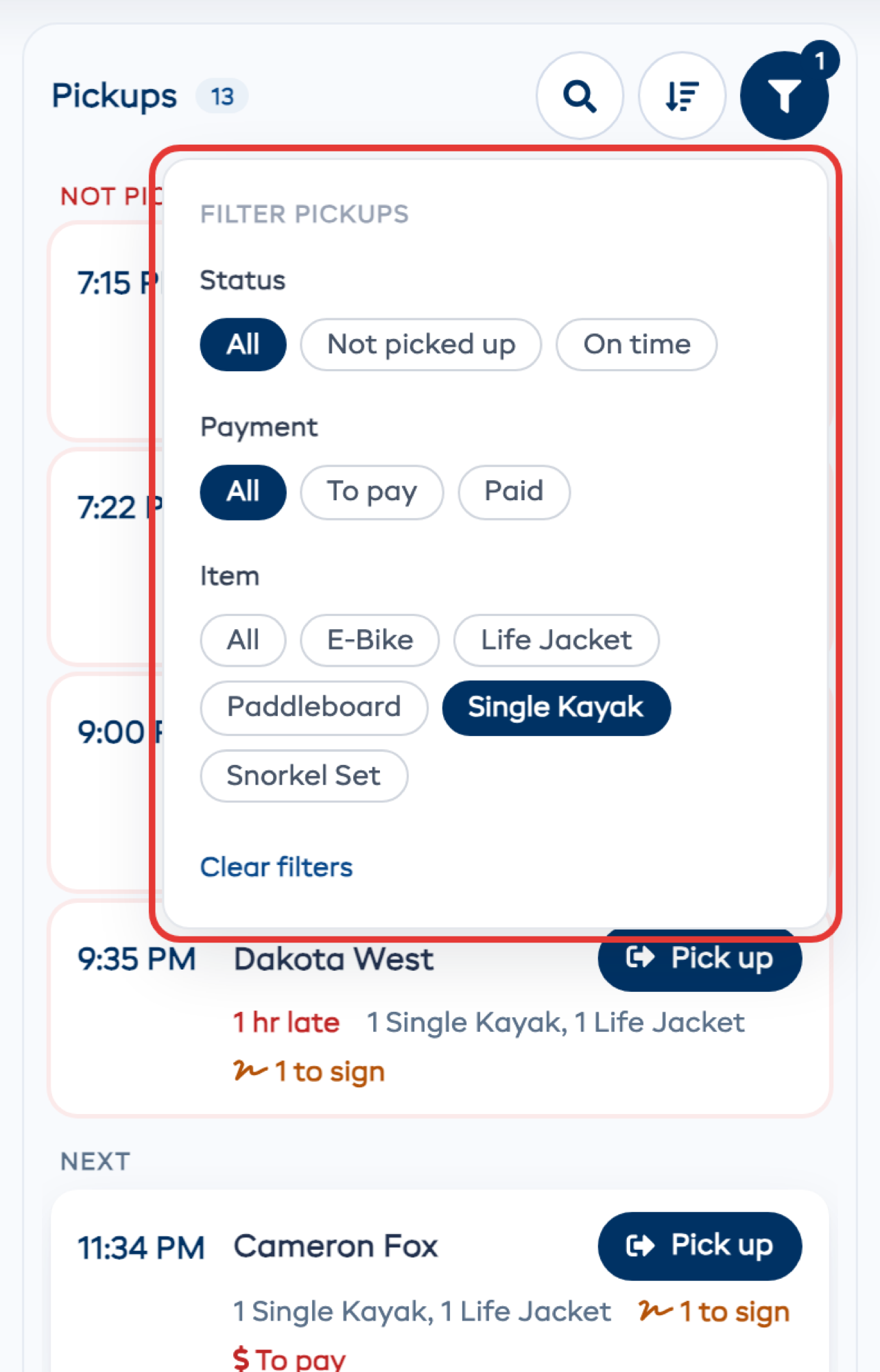
When more than one booking in a column is late, Remind everyone late today on its late heading sends them all a reminder at once. Once someone has been reminded, their card shows when (such as Reminded 3:12 PM) and the button reads Remind again. This includes the automatic late message, so they are never sent two by mistake.
On a phone
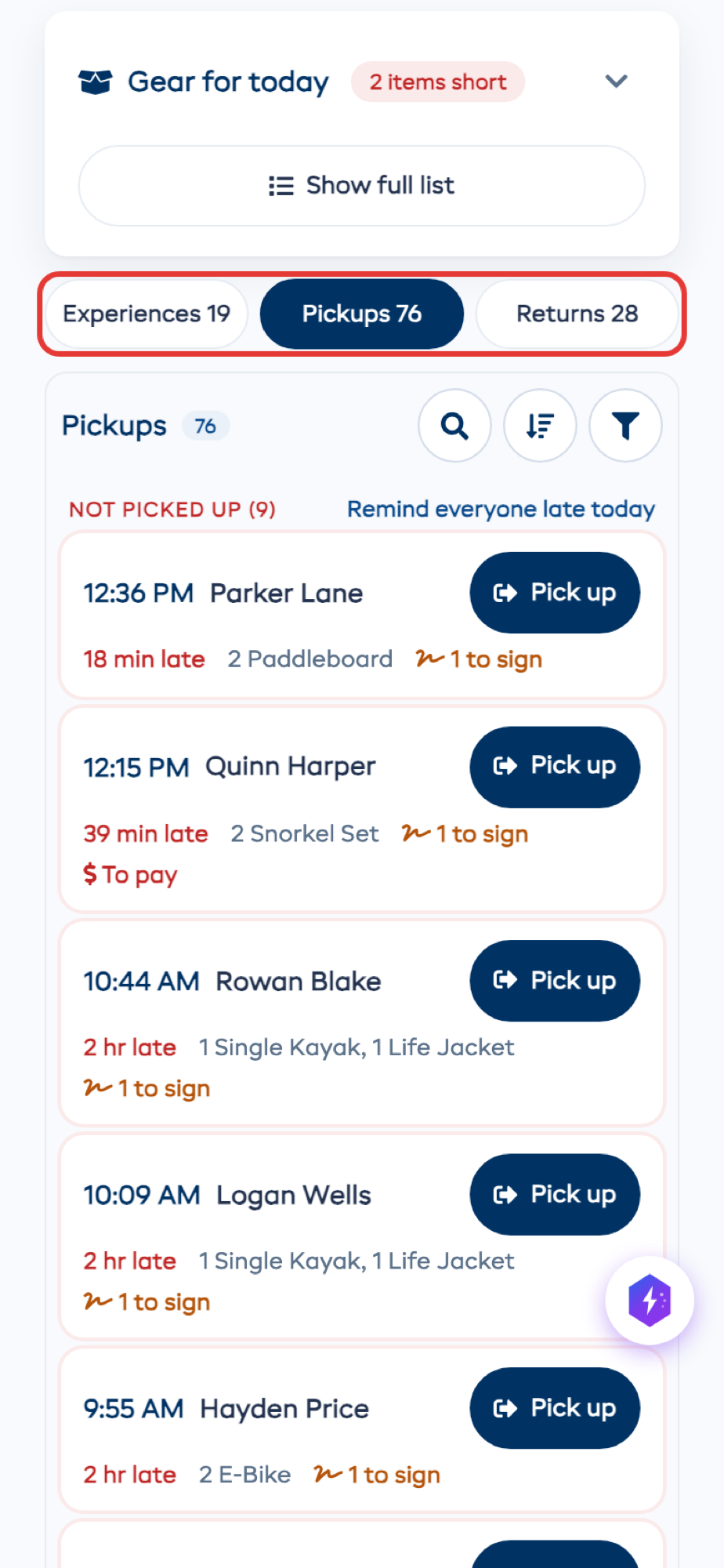
On a phone, the three columns become tabs: Experiences, Pickups and Returns. The row of things that need you scrolls sideways.
Find a booking or scan
Type a name, a booking number, an email or a phone number into Find a booking or name. Matches are split into Today, Upcoming and Past, nearest first, with See more under each. Click Scan to read a ticket, a unit's tag or a booking number with a barcode scanner. Either one opens the booking with its next step ready.
New booking
Click New booking (or press Ctrl+J on any page) to book someone at the counter. It opens the same Quick Book window as everywhere else in EquipDash. When you create the booking, you stay on Today and its payment opens, ready to take. If you deliver, Quick Book asks Pick up or Deliver; choose Deliver to add the address and a note for the driver. To add people to a session that still has seats, open its card and click Add participants: Quick Book opens on that session.
Change the layout
Open the ⋯ menu and click Edit layout. Show or hide each section, and move them up or down. The bar at the top also has Open Today when I sign in, which is yours alone and saves as soon as you switch it. Two sections have a choice of their own:
- Gear for today: turn on Open by default to show the timeline every time, rather than folded to its title.
- Experiences: By session shows one card per session; By booking shows each booking as its own row, with its own Check in.
Click Done to save.
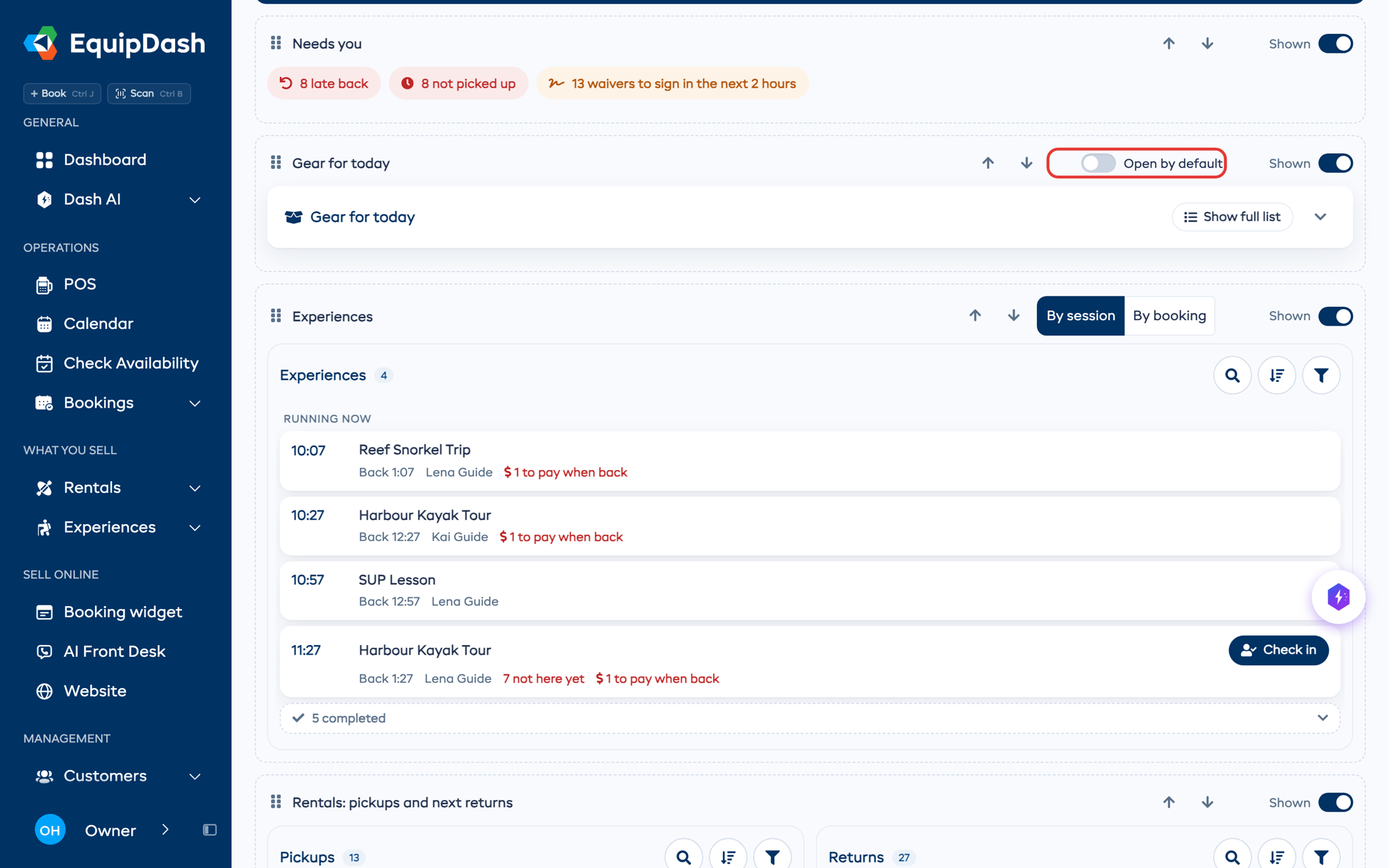
The layout is saved for the location you are looking at. To use it at every location, open Advanced at the bottom and turn on Use this layout at every location.
Lock a screen to Today
For a till or tablet at the counter, open the ⋯ menu, click Lock this screen to Today and enter a manager's time clock PIN. The same PIN unlocks it. The screen then only shows Today: no menu, no settings and no reports. Staff can still open a booking, the bookings list and the manifests, with a Back to Today button at the top.
The first time it locks, it asks who is at the counter. Each person taps their name once per shift, and every booking they change shows their name in its history. Tap the name at the top to switch.
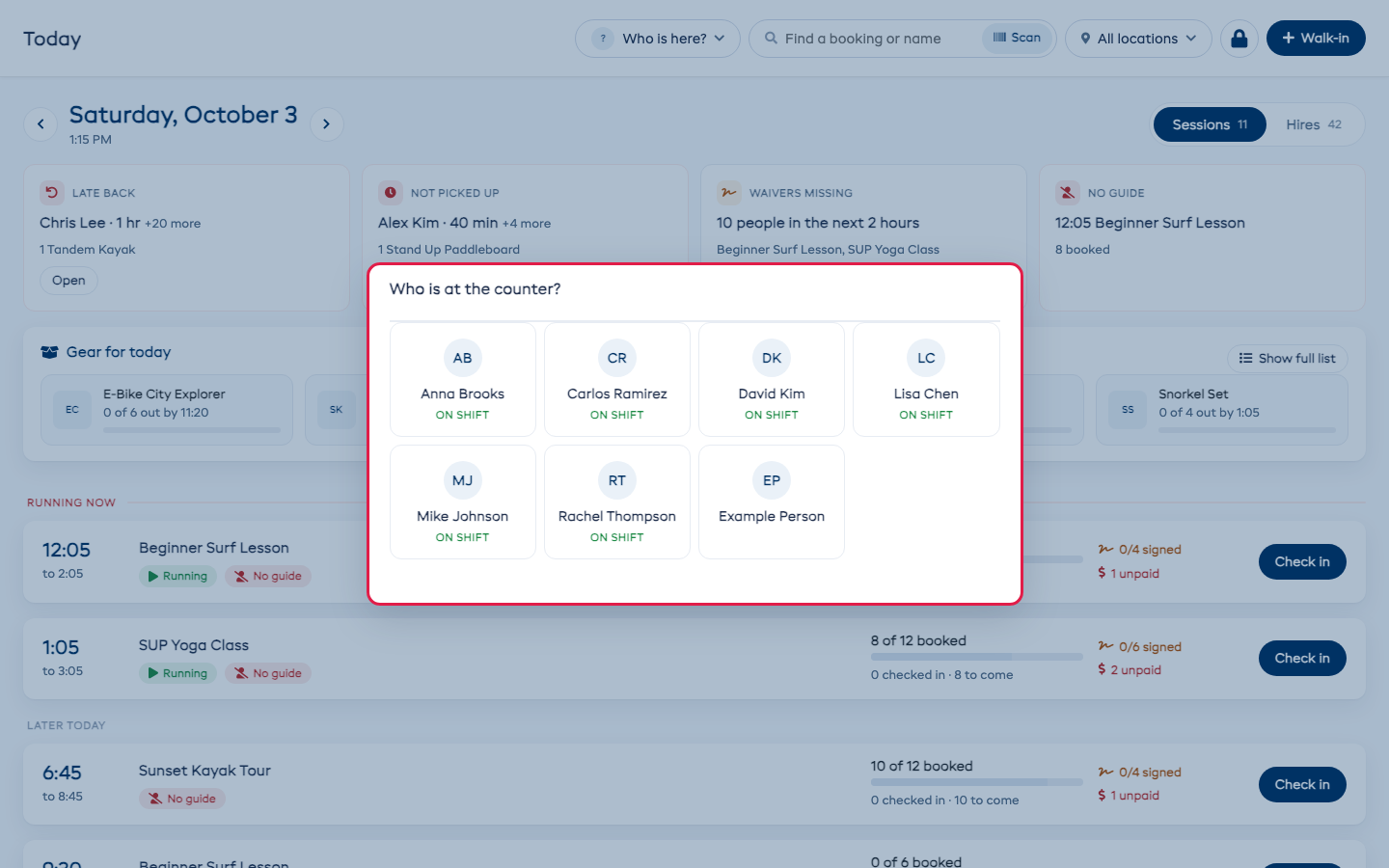
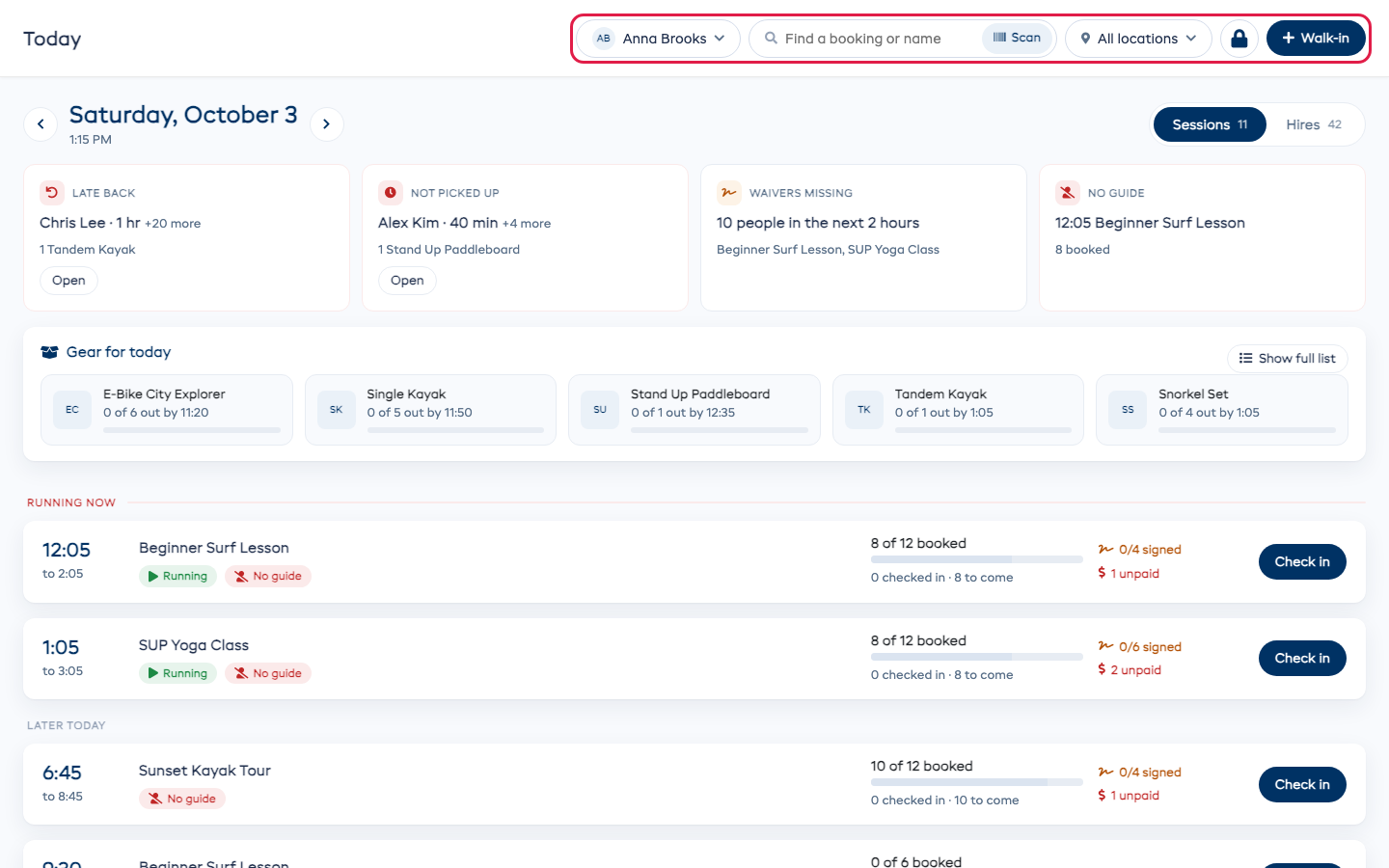
To unlock, click the lock and enter a manager's time clock PIN.
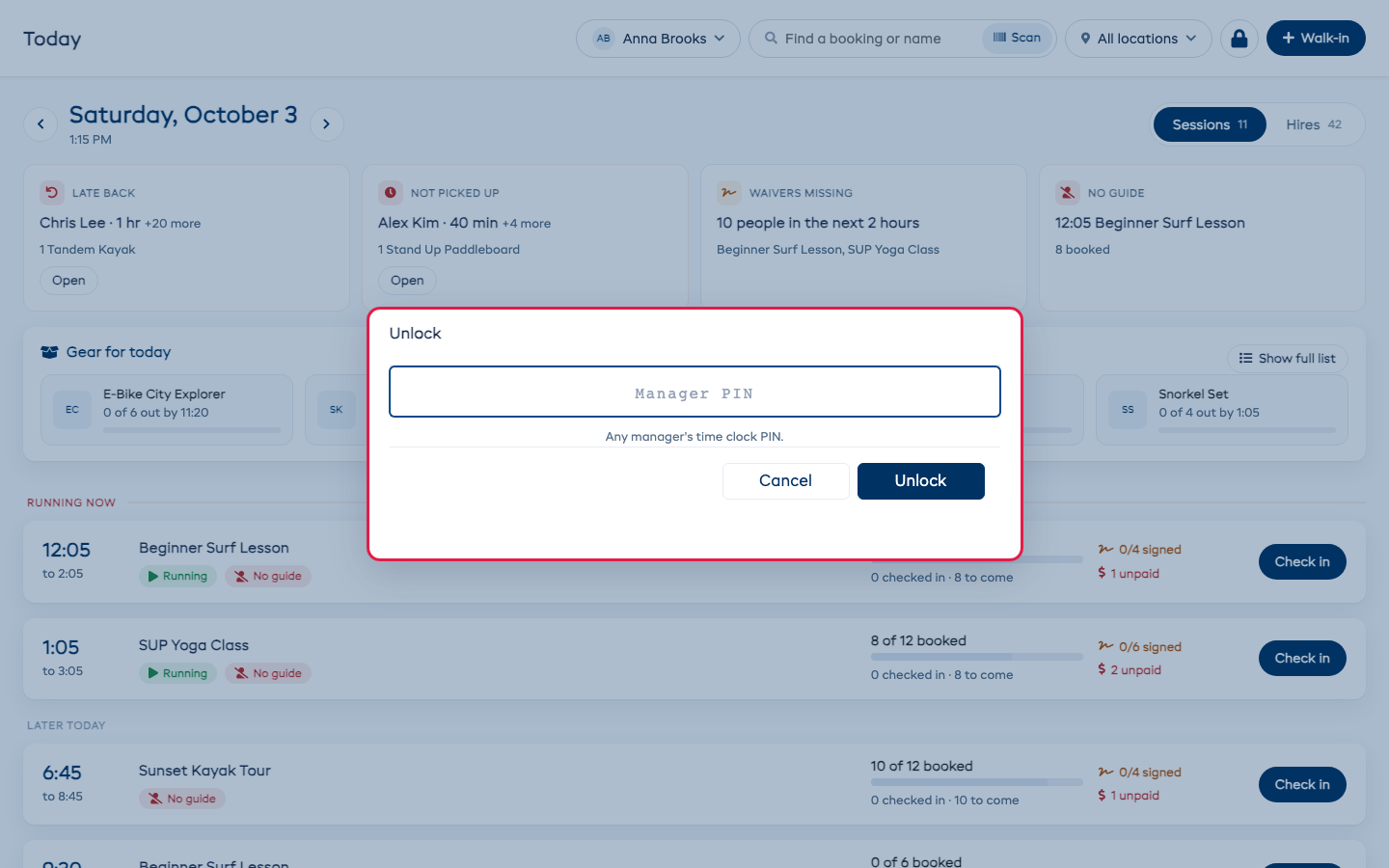
Locking needs at least one manager or admin with a time clock PIN. Add one on their page under Staff. Locking only affects the screen it was turned on at.
Today screen only
To give a sign-in nothing but Today, open Settings → Team, edit the person (or their role on the Roles tab), and tick Today screen only. They always land on Today and cannot unlock it. Admins are never held to it.