Recording a Payment
EquipDash gives you flexible ways to record payments against bookings. Whether your customer pays with a card, hands you cash, or transfers to your bank account, you can capture it all in one place.
Who Can Record Payments?
Recording a payment requires the Bookings: Payments permission. If you do not see the payment options described below, check your role and permissions.
Opening the Payment Modal
- Open the booking from the bookings table.
- In the Payment card on the right of the booking detail page, click Add payment.
- The payment modal opens, showing the Amount Due at the top.
The Add payment button only appears when there's a balance to collect. If the booking is fully paid, the right rail shows Process refund instead.
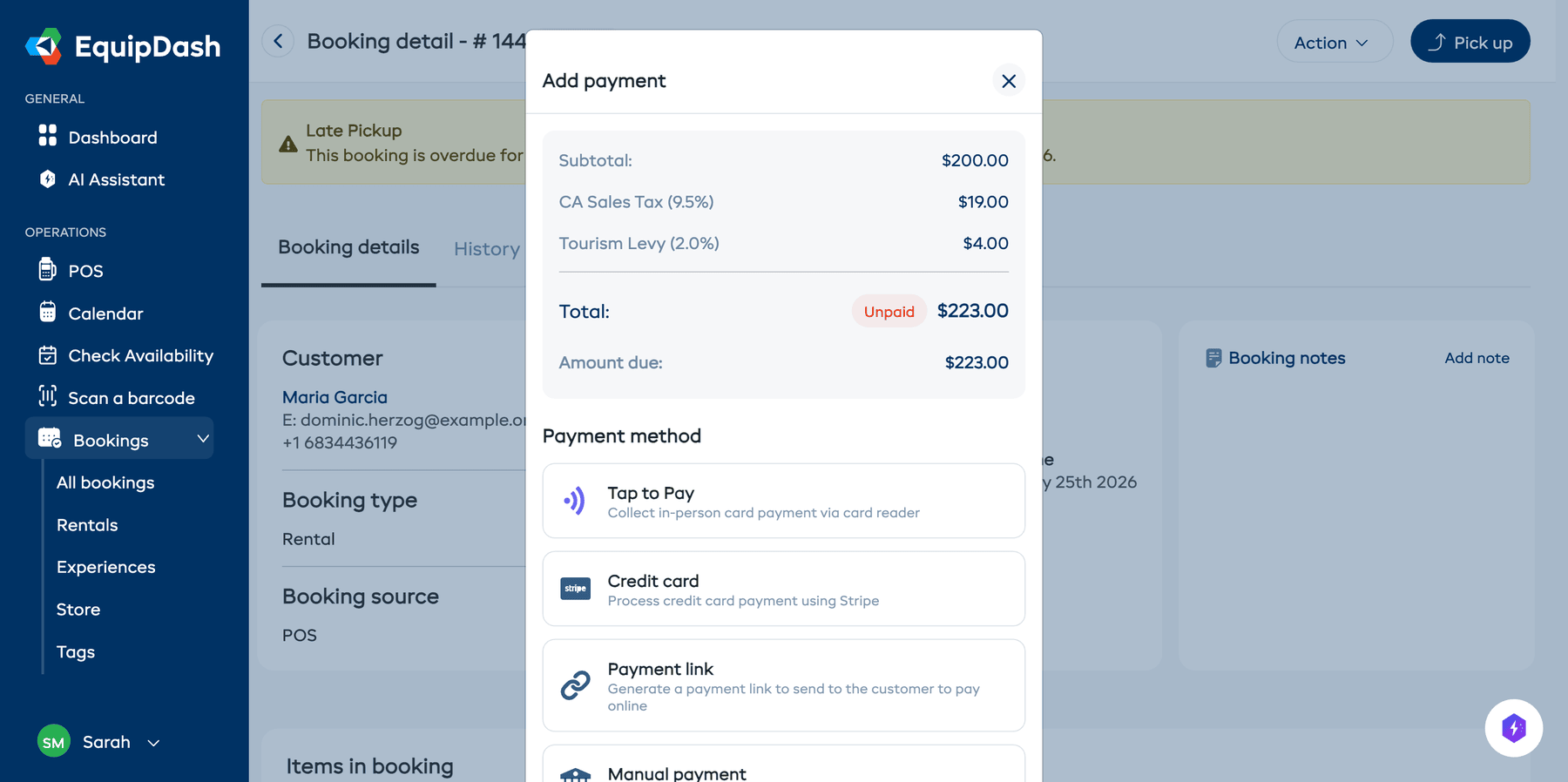
Payment Methods
Card Payment (Stripe)
Accept a card payment directly through the booking detail page. This requires Stripe to be connected.
- In the payment modal, select Credit card.
- The payment amount defaults to the full amount due. You can adjust it for a partial payment.
- Click Continue to payment.
- Have the customer enter their card details in the secure Stripe payment form.
- Complete the payment.
The payment is processed through Stripe and recorded against the booking automatically.
If your business is set to pass on processing fees, the customer will see the fee added to the payment amount.
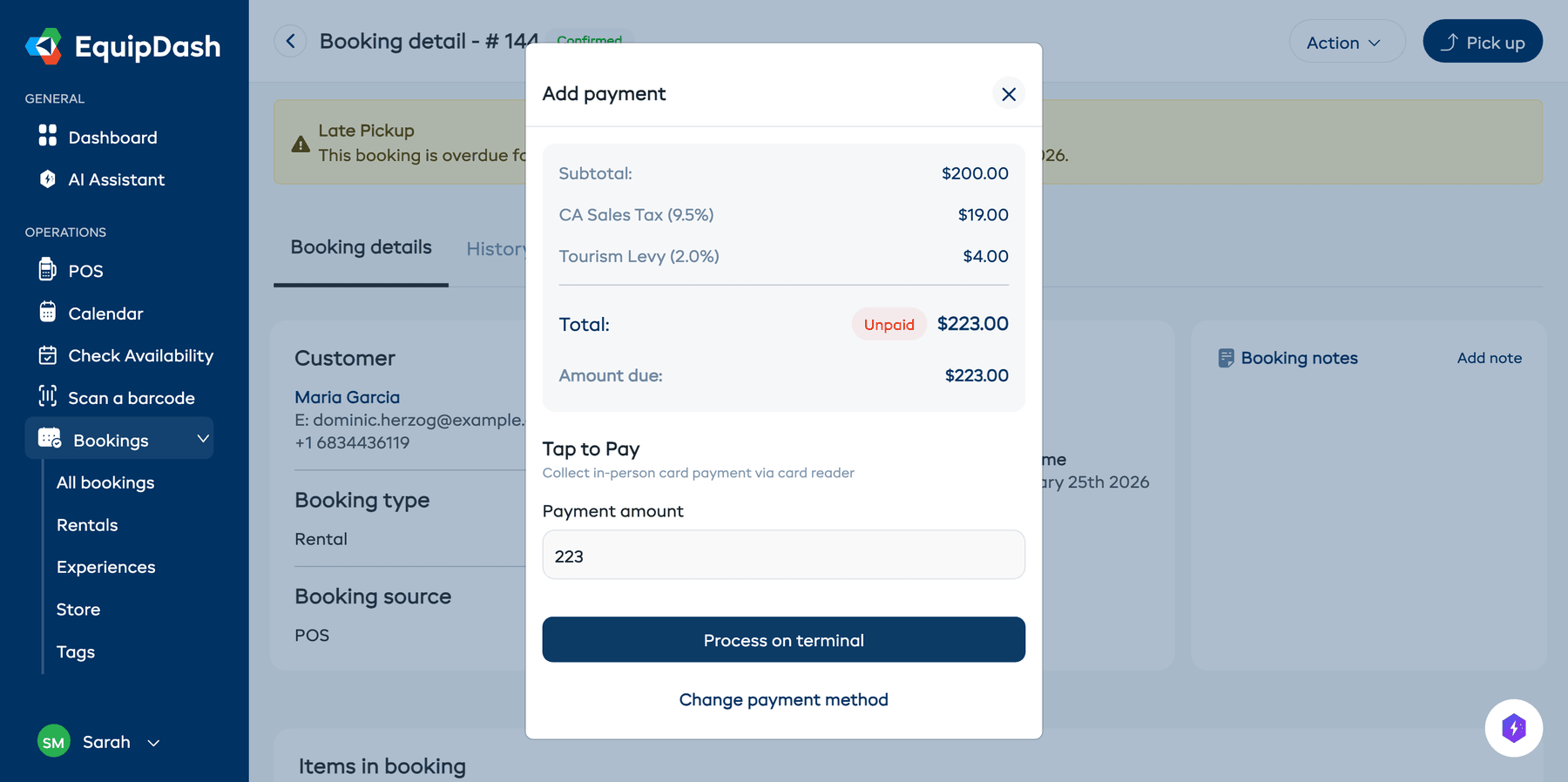
Card Terminal (Tap to Pay)
If you have a Stripe card terminal set up, you can process payments in person.
- In the payment modal, select Tap to Pay.
- Enter the payment amount.
- Click Process on terminal.
- The customer taps or inserts their card on the terminal.
- Once the payment is confirmed, the booking is updated automatically.
Manual Payment (Cash, Bank Transfer, Other)
Use manual payment to record offline payments such as cash, bank transfers, or other methods.
- In the payment modal, select Manual payment.
- Enter the payment amount.
- Select a date for the payment.
- Choose the payment method from the dropdown: Cash, Bank Transfer, or Other.
- Optionally add a reference (e.g. a transaction ID or receipt number).
- Click Record payment.
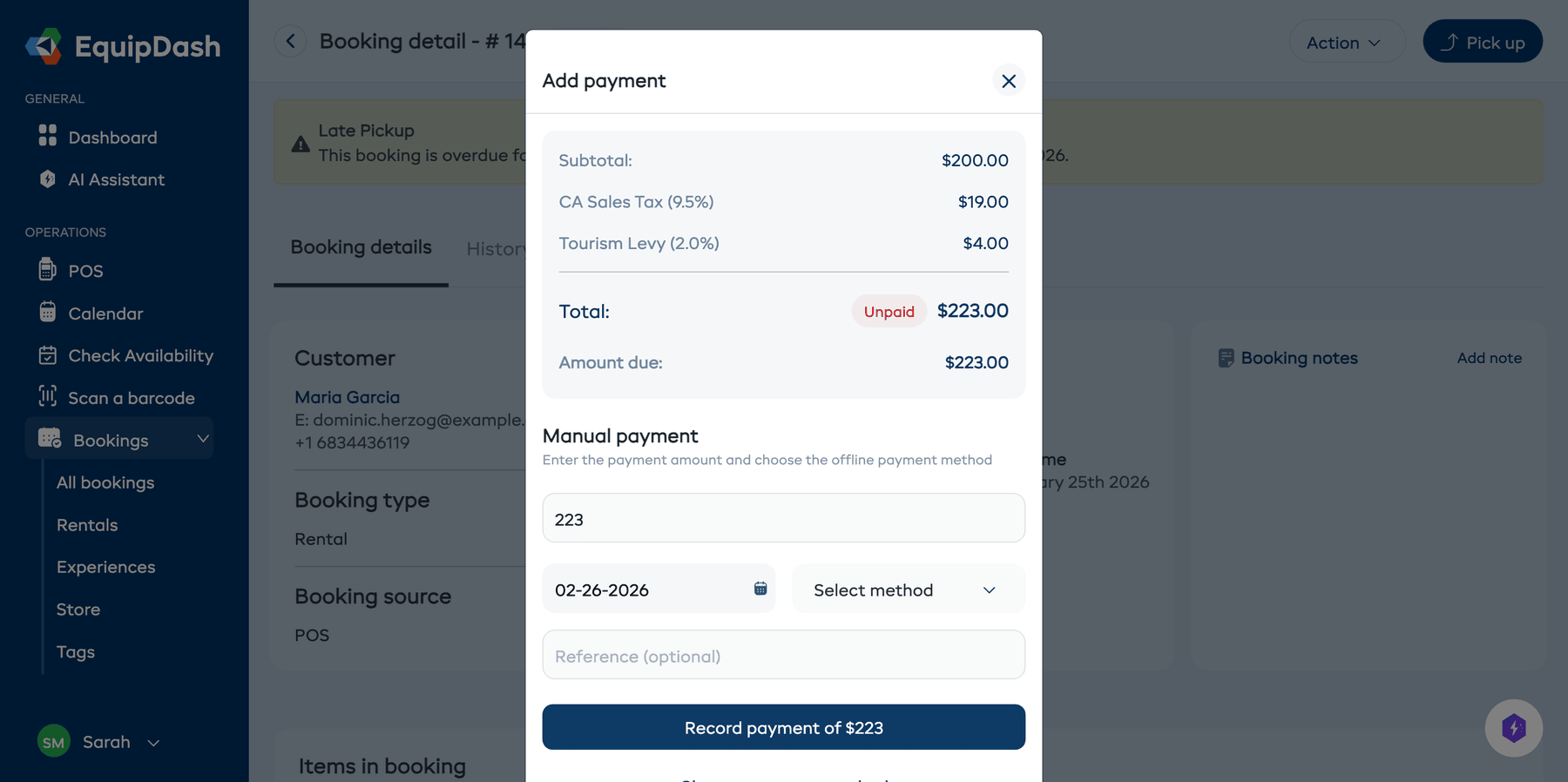
This simply logs that the payment was received. The money is handled outside EquipDash.
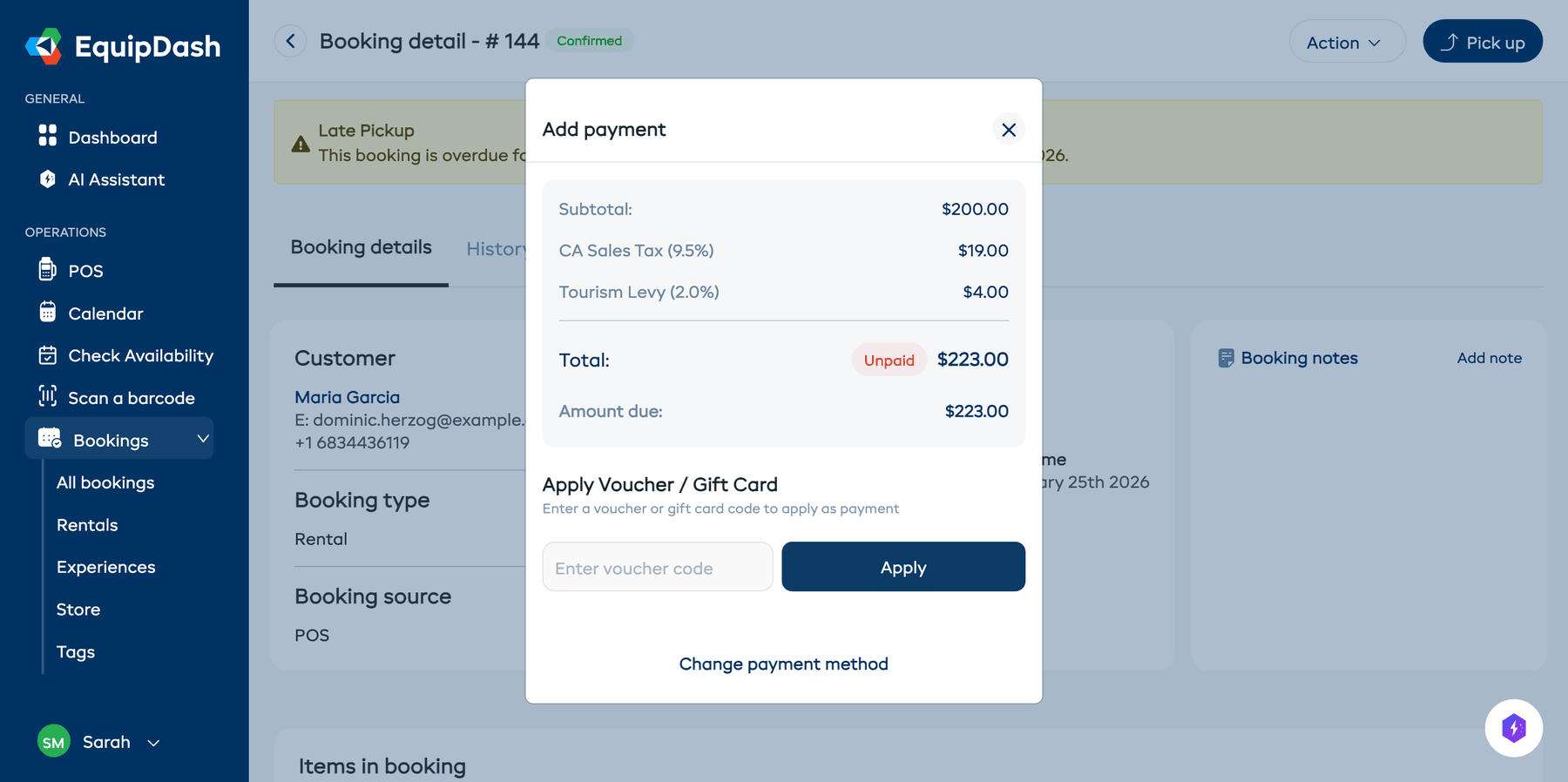
Voucher (Gift Card)
- In the payment modal, select Voucher / Gift card.
- Enter the voucher code.
- Click Apply.
- EquipDash validates the voucher and shows the available balance.
If the voucher does not cover the full amount due, you can record the remaining balance using another payment method.
Partial Payments
You do not need to collect the full amount in one go. To record a partial payment:
- Open the payment modal.
- Change the payment amount to the amount you are collecting.
- Complete the payment using any method.
The booking's payment status updates to Partially Paid, and the remaining Amount due is shown on the booking detail page.
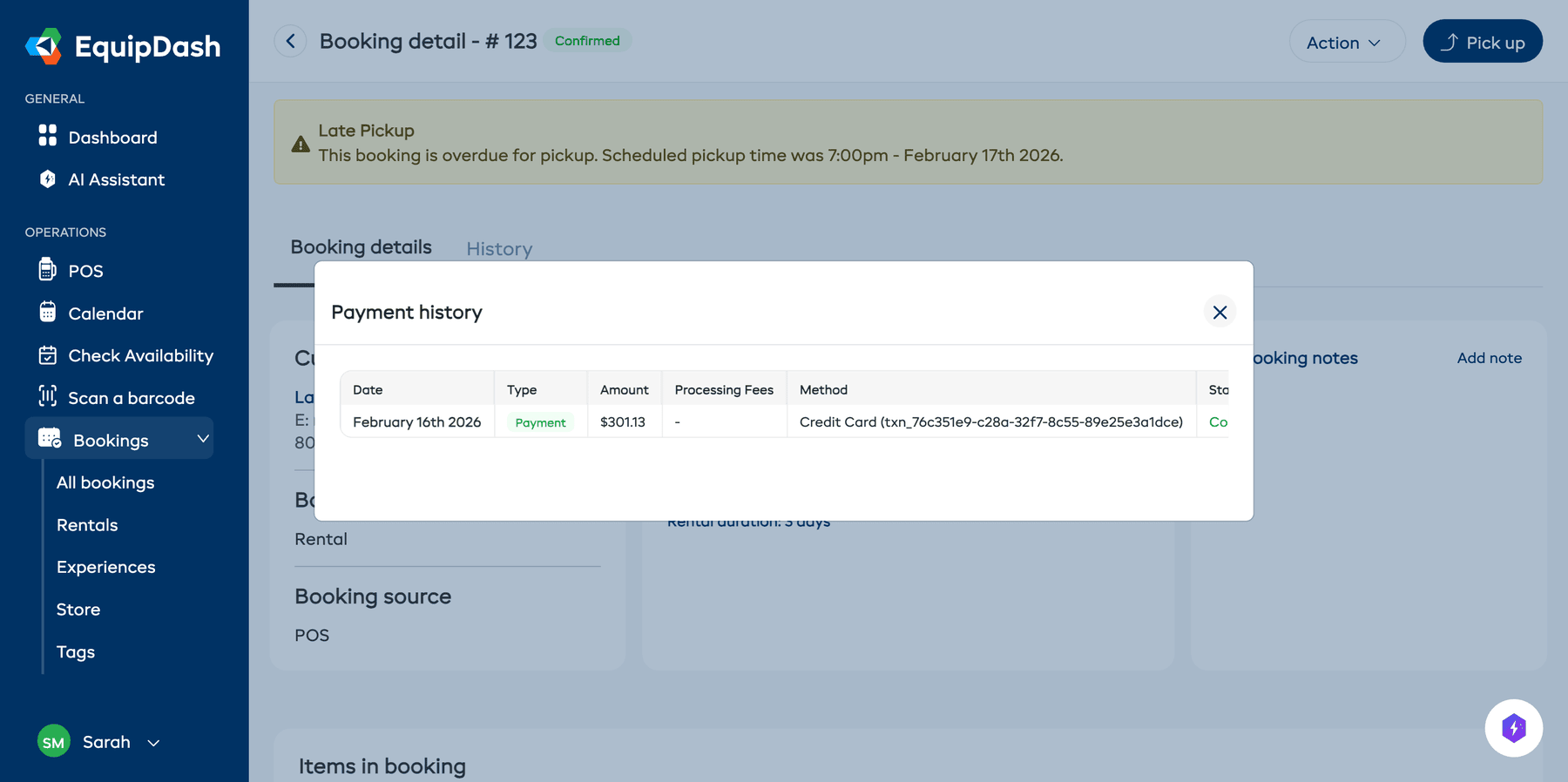
Viewing Payment History
To see all payments recorded against a booking:
- On the booking detail page, click Amount paid (view transactions) in the Payment card on the right.
- An inline ledger expands directly below, showing each transaction with:
- Date
- Type (payment, refund, deposit hold, deposit charge, deposit release)
- Amount
- Payment method and status
- Voucher uses (if any)
- Click Amount paid (view transactions) again to collapse the ledger.
Payment Statuses
| Status | Meaning |
|---|---|
| Paid | The full amount has been collected. |
| Unpaid | No payment has been recorded. |
| Partially Paid | Some payment has been made but a balance remains. |
| Refunded | The full payment has been refunded. |
| Partially Refunded | Some of the payment has been refunded. |