Bookings Overview
Bookings are the heart of EquipDash. Every time a customer reserves a rental product or signs up for an experience, a booking is created. This guide walks you through the key concepts and how to navigate your bookings.
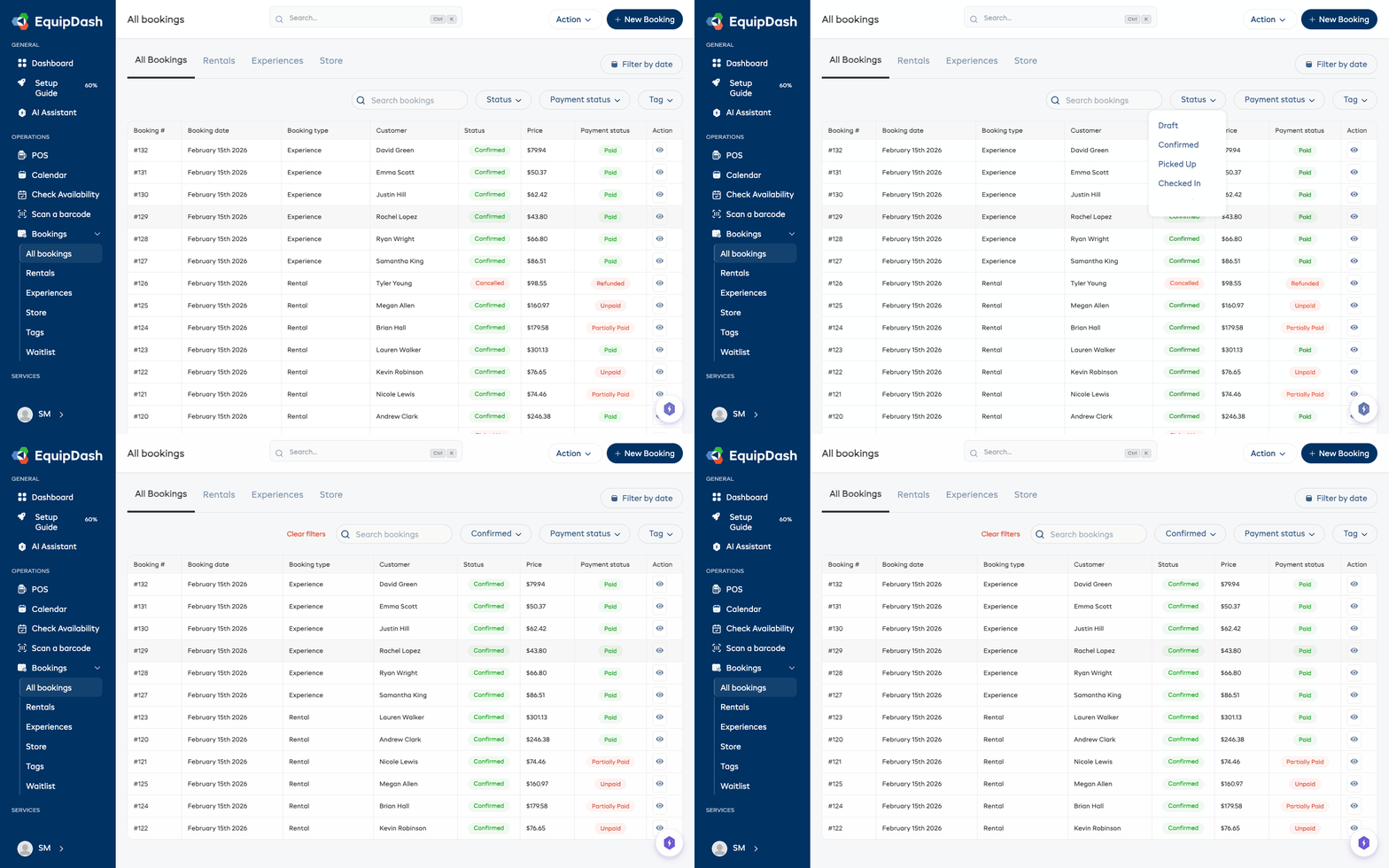
What Is a Booking?
A booking is a reservation that ties together a customer, one or more items (rental products, store products, or experiences), dates, and payment information. Bookings can be created from several places:
- Point of Sale (POS) -- when you create a booking in person
- Booking Widget -- when a customer books online through your website
- API -- when an external system creates a booking on your behalf
Booking Types
EquipDash has two main booking types:
| Type | Description |
|---|---|
| Rental | A customer borrows one or more products for a date range (e.g. a kayak for the weekend). |
| Experience | A customer books a spot on a scheduled activity (e.g. a guided hike at 9 AM). |
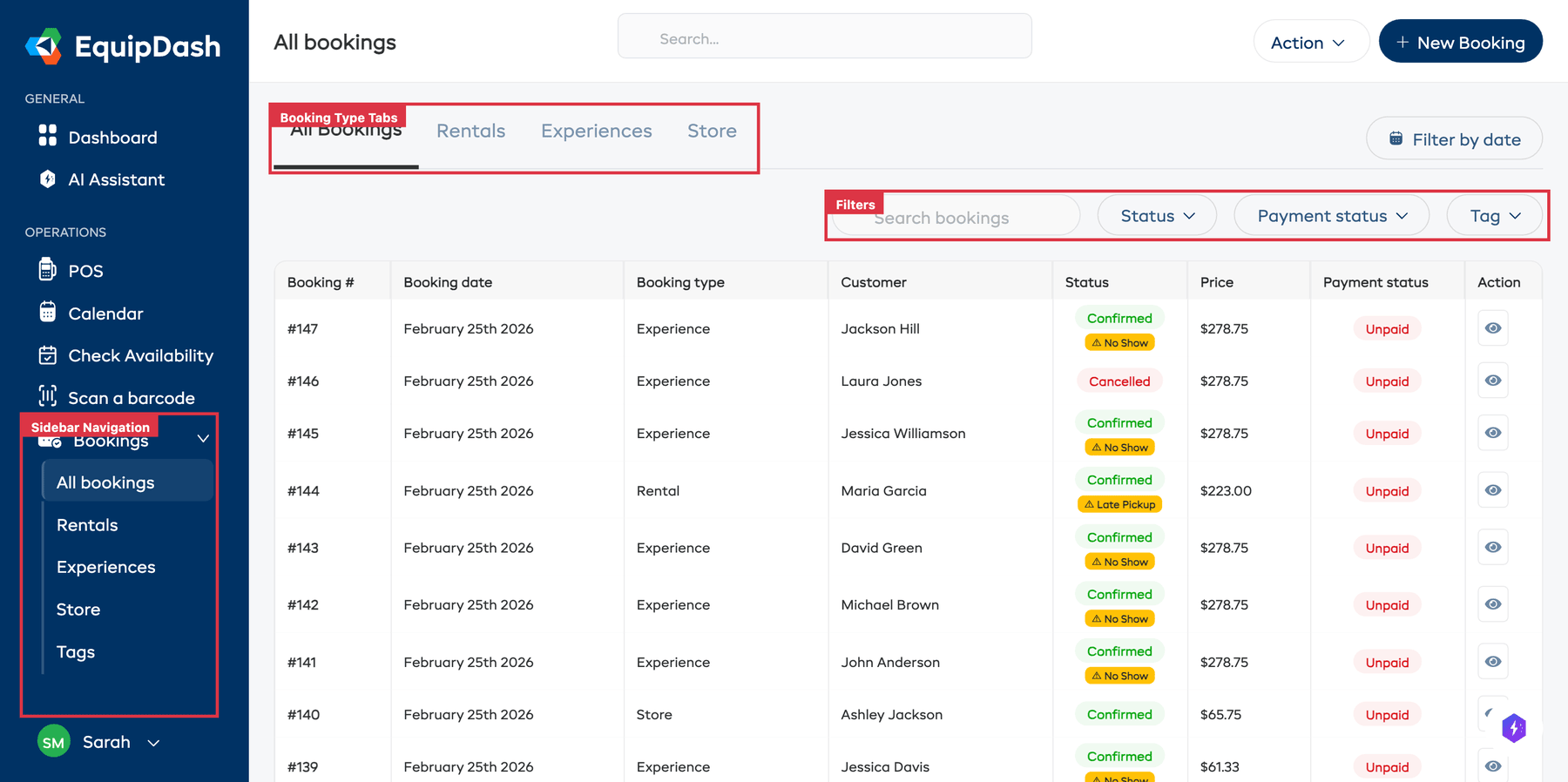
Each type has its own bookings table, accessible from the sidebar under Bookings > Rentals or Bookings > Experiences. You can also view all bookings together via Bookings > All bookings.
Additionally, store products (such as accessories, merchandise, or replacement parts) can be added to bookings as line items alongside rental or experience items. Store-only bookings are listed under Bookings > Store.
The Rentals, Experiences, and Store tabs in the Bookings menu only appear when their module is enabled. See Modules.
Booking Statuses
Every booking moves through a series of statuses as it progresses:
| Status | What It Means |
|---|---|
| Draft | The booking has been started but not yet confirmed. |
| Confirmed | The booking is locked in and the customer is expected. |
| Picked Up | (Rentals only) The customer has collected the items. |
| Checked In | (Experiences only) The customer has arrived for the activity. |
| Returned | (Rentals only) The customer has returned all items. |
| Completed | The booking is finished. Experience bookings are auto-completed one day after the activity ends. |
| Cancelled | The booking has been canceled. |
Navigating the Bookings Table
To view your bookings:
- Click Bookings in the sidebar.
- Choose Rentals, Experiences, or Store depending on the booking type you want to see (or All bookings to see everything).
- The bookings table loads with your most recent bookings first.
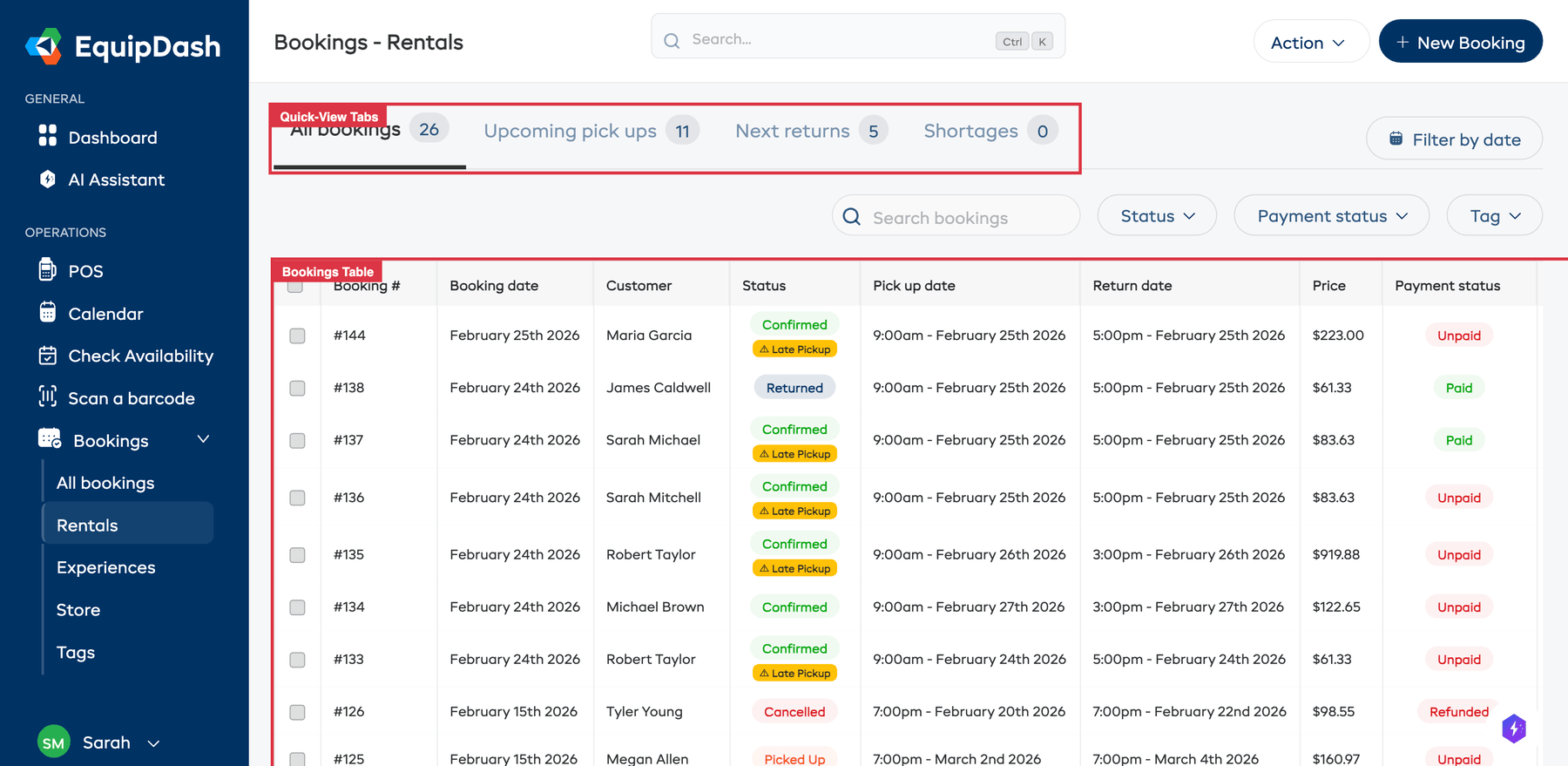
Quick-View Tabs
Above the table, you will find tabs that give you quick views into different booking states:
- All bookings -- every booking, with a total count
- Upcoming pick ups -- bookings with upcoming pickup dates
- Next returns -- bookings due to be returned soon
- Shortages -- bookings with inventory shortage issues
Each tab shows a count so you can see at a glance how many bookings need attention.
Table Columns
The bookings table shows the following information at a glance:
- Booking # -- the unique booking reference number
- Booking date -- when the booking was created
- Customer -- the name of the customer who made the booking
- Status -- the current booking status (color-coded badge)
- Pick up date -- the scheduled pickup date and time
- Return date -- the scheduled return date and time
- Price -- the total booking price
- Payment status -- whether payment is Paid, Unpaid, Partially Paid, or Refunded (color-coded)
- Action -- quick action buttons for pickup and return
You can click any column header to sort the table by that column.
Searching Bookings
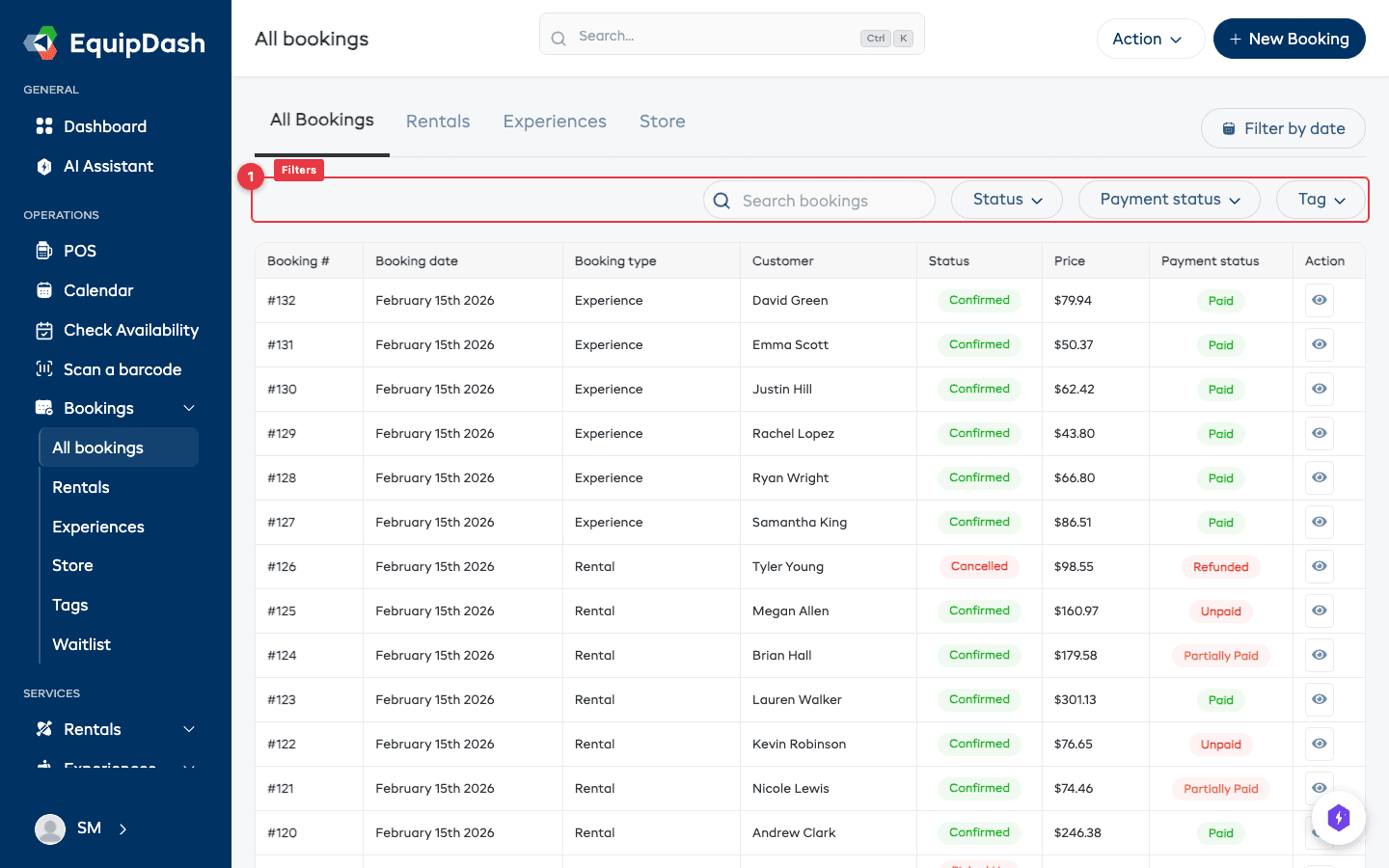
Use the Search bookings bar above the table to quickly find a booking. You can search by:
- Booking ID
- Customer name
- Customer email
Simply type your search term and the table will filter in real time.
Filtering Bookings
Narrow down the bookings table using the filter dropdowns above the table:
- Status -- Use the Status dropdown to filter by a specific booking status (e.g. Confirmed, Picked Up, Returned, Cancelled).
- Payment status -- Use the Payment status dropdown to filter by Paid, Unpaid, Partially Paid, Refunded, or Partially Refunded.
- Tag -- If you use booking tags, select a tag from the Tag dropdown.
- Date filter -- Click the Filter by date button to filter bookings by a date range.
Viewing a Booking
Click any row in the bookings table to open the Booking detail page. From there you can view all the information about the booking, add payments, manage fulfillment, add notes, and more.
The booking detail page is organized into two tabs:
- Details — customer info, rental period (or experience date), items, participants (with their consent status and timeline), notes, tags, email actions, and a sticky Payment card in the right rail
- History — a chronological timeline of everything that has happened on the booking
At the top of the page you will see the booking number, status pill, payment pill, an Actions ▾ dropdown (Edit, Download Packing Slip, Download Invoice, Cancel, Archive), and a primary action button that adapts to where the booking is in its lifecycle (Pick up, Check in, Return, or Mark as completed).
For a deeper walk-through of the page, see Viewing & Managing Bookings.