Rent Gear on Two or More Dates in One Booking
A customer can book gear on different dates in one booking, for example one item this Saturday and another next Saturday. They check out once and pay once. You get one booking number, and they get one confirmation email.
Each date is priced on its own, so two single days cost two day rates, never the whole span between them. Stock is held only on the booked dates, and the days in between stay free for other customers.
There is no setting. A booking with gear on one date looks and works as it always has.
How a customer books a second date
- On your booking page, the customer adds gear for their first date.
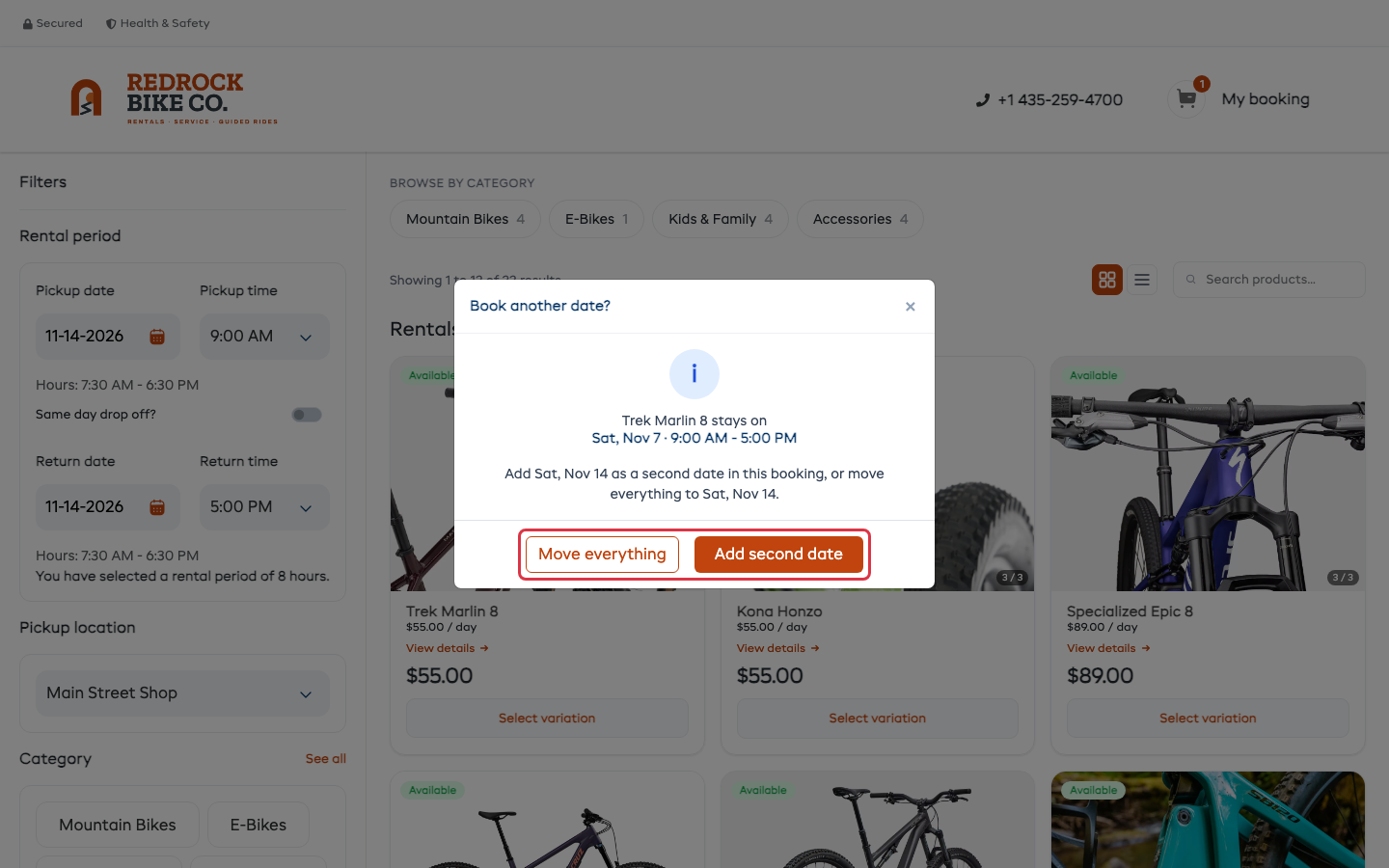
- They pick a new date. A Book another date? popup shows the gear already in the cart and its date.
- They choose one:
- Add second date keeps that gear on its date. Anything they add now goes on the new date.
- Move everything moves the whole cart to the new date. See changing dates with items in the booking.
- They add the gear for the new date.
The cart lists each date as its own group, with that date's gear under it. Change dates beside a date moves only that group. The customer then checks out and pays once.
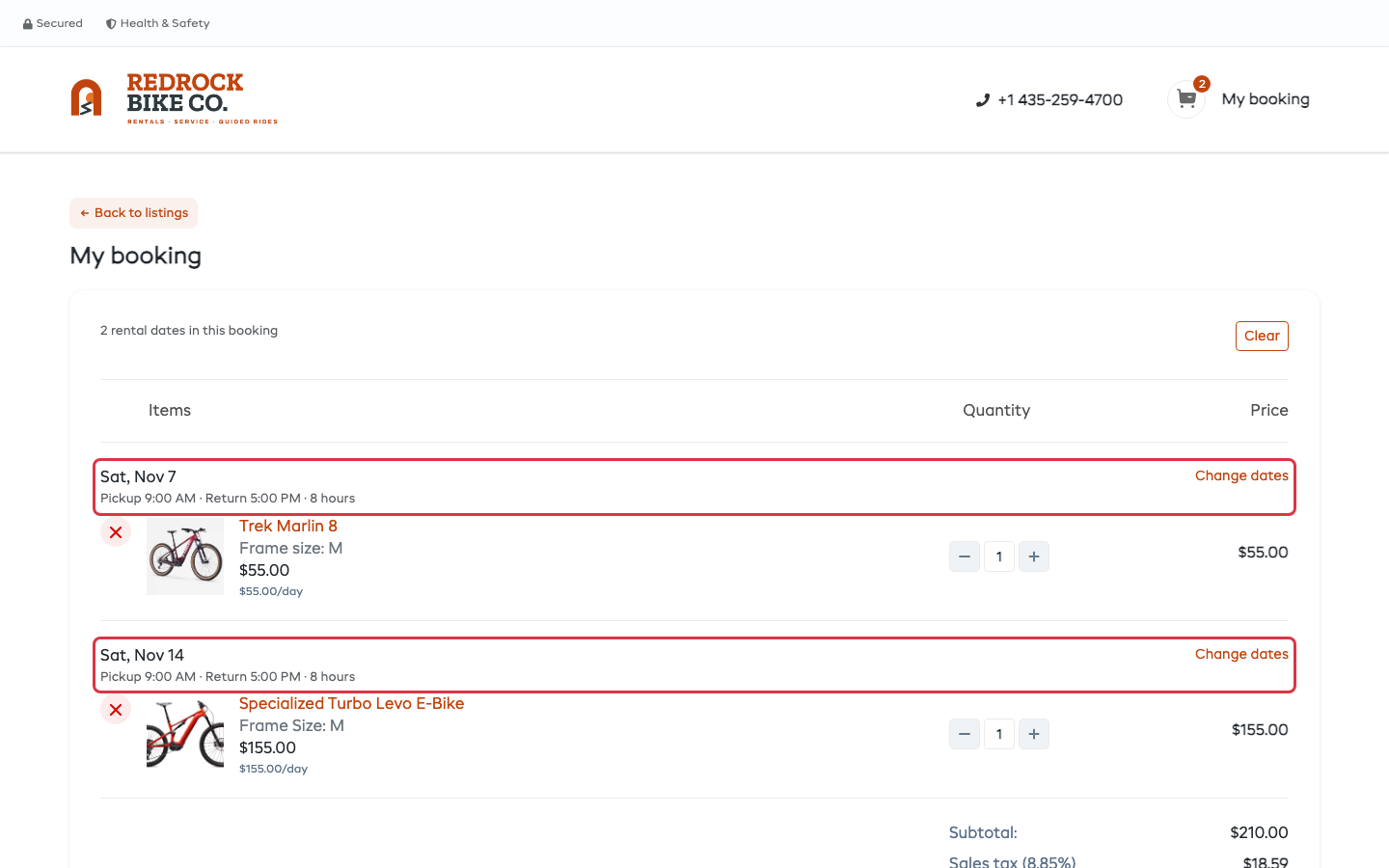
The same item can go on both dates. It shows as two lines, one under each date. If an item is sold out on one date, the customer can't add it for that date, and the other date is not affected.
Book two dates at the counter (POS)
- Open POS and add the gear for the first date.
- Change the pickup date. The same Book another date? popup opens.
- Click Add second date, then add the gear for that date.
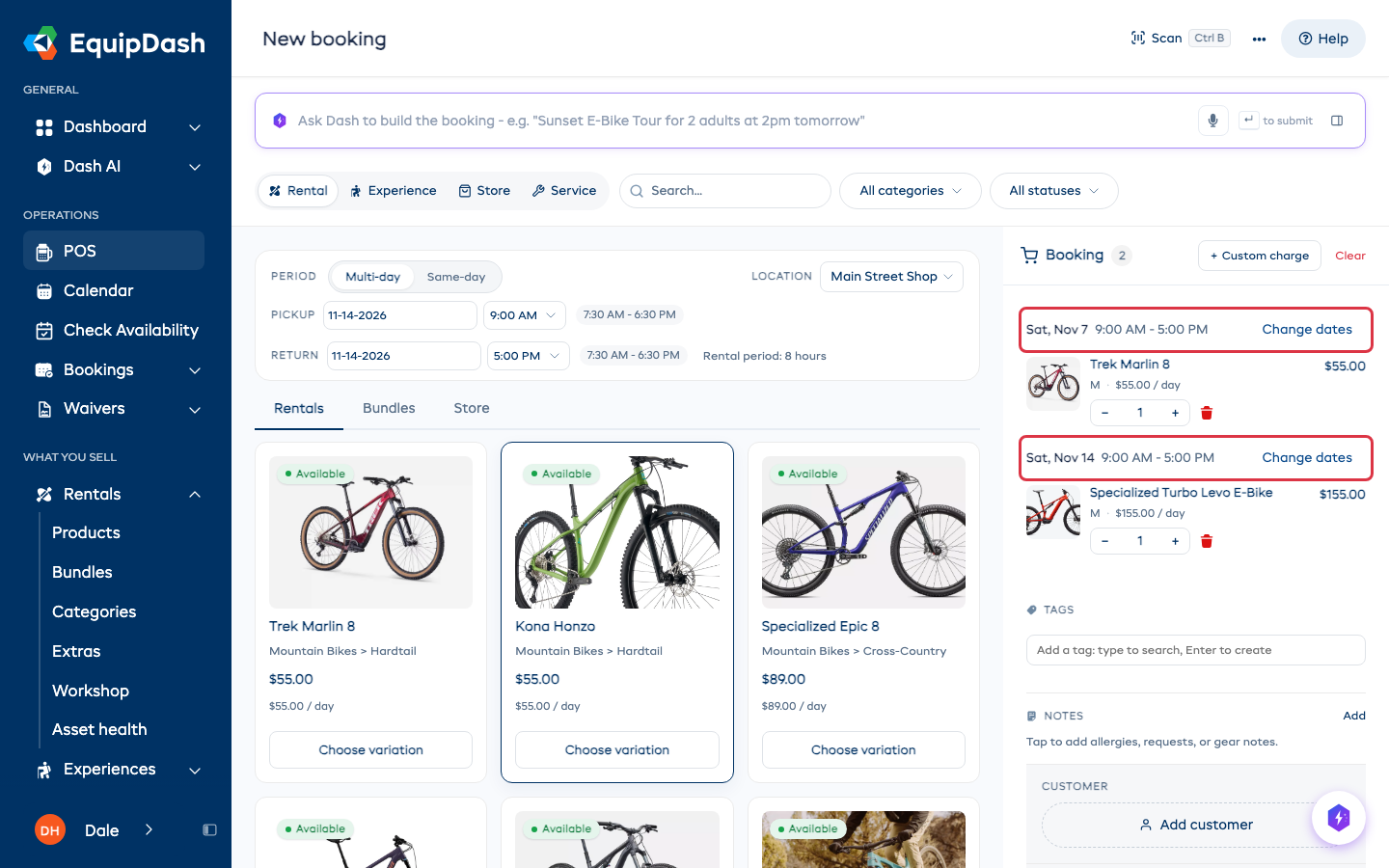
- The cart shows each date as a heading over its gear, with Change dates beside it. Add the customer and create the booking as usual.
What you see on the booking
Open the booking. The Rental period card lists each date with the gear booked on it.
- Change dates beside a date moves only that date's gear.
- Move dates moves every date by the same amount, so the gap between them stays the same. Moving the booking one day later turns Saturday and next Saturday into Sunday and next Sunday.
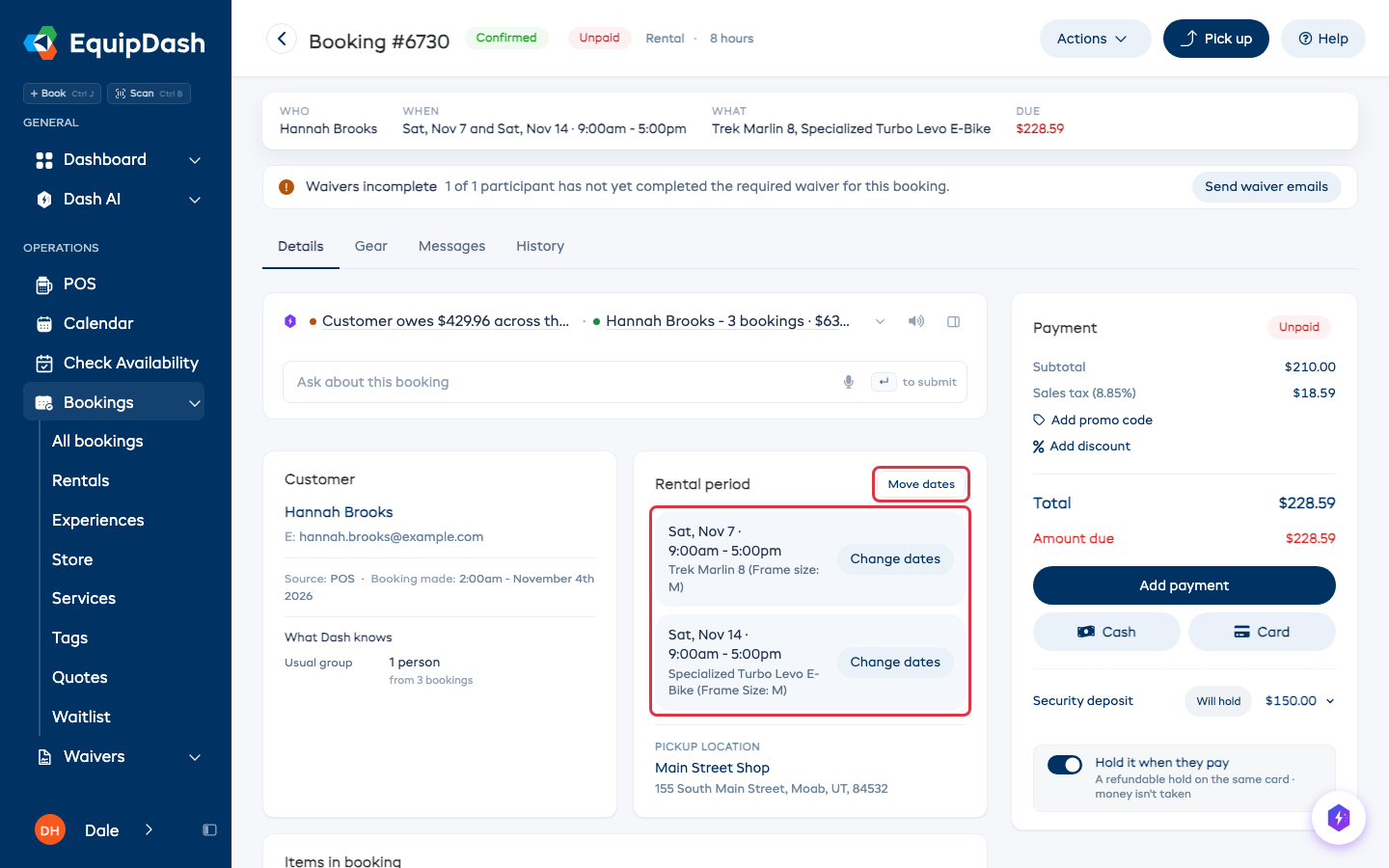
Both ways check stock on the new dates and show any price change before you save. See Move or Reschedule a Booking.
Pickups and returns
Each date appears on Today and the pickups and returns lists on its own day, with only that date's gear. Pick up selects only the gear for the next date, and each item shows its date.
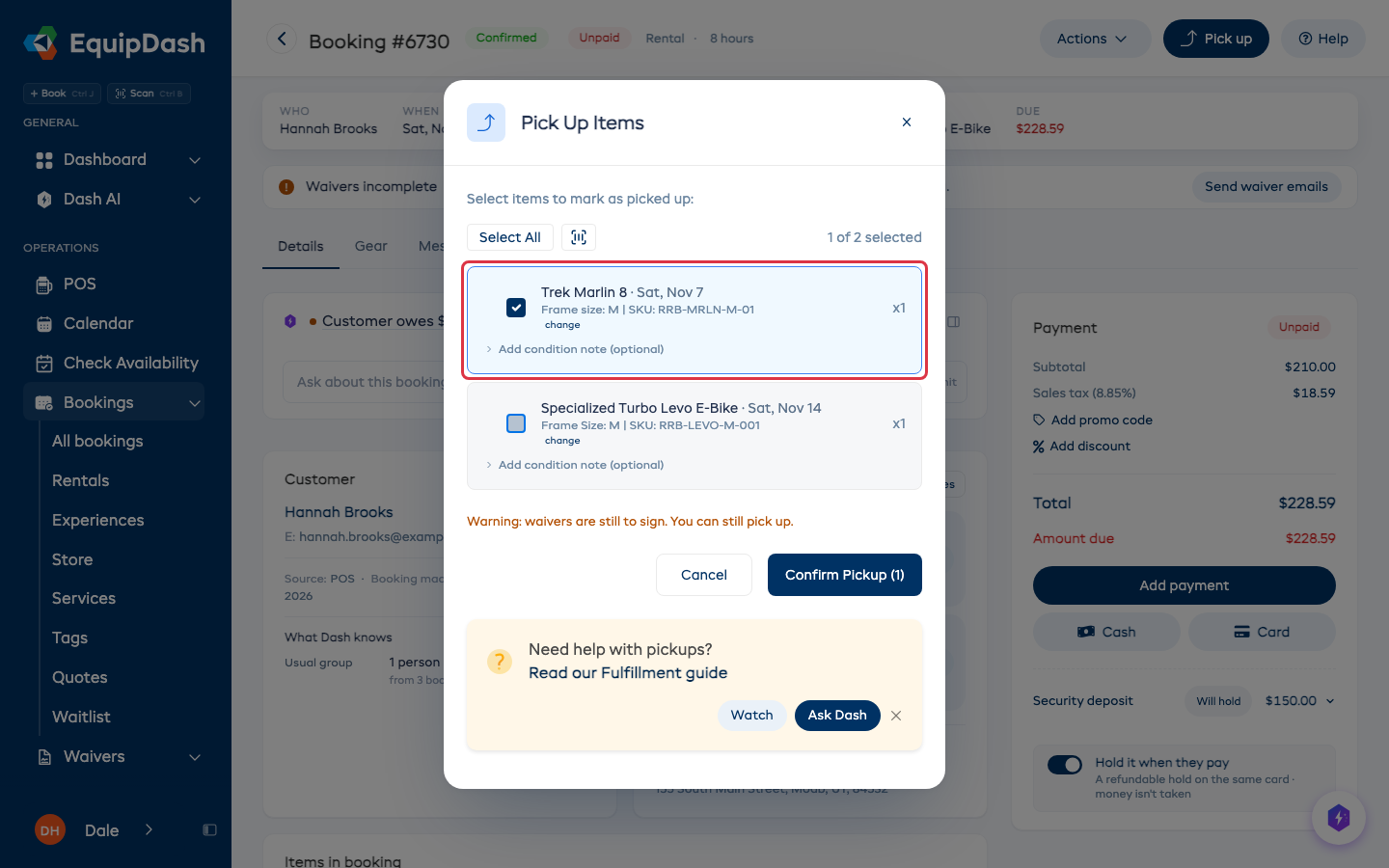
Once the first date's gear is back, the booking reads Confirmed · next pickup with the day of the next pickup, for example Confirmed · next pickup Sat. It is never shown as out or late on the days in between.
If the customer doesn't come for one date, mark No show as usual. It marks that date only, and the other date stays booked. See Mark a No Show.
Security deposit
The booking has one security deposit. It is taken at the first pickup and released after the last return.
A card hold lasts about 7 days. If the hold will have run out before the next pickup, the Pick up window and Today show Deposit hold expired with a Take deposit button. Take the deposit again before you hand over the gear.
Delivery
If you deliver the gear, the delivery fee is charged once for each date. Each date is its own drop-off and collection on your delivery run, to the same address.
Emails and reminders
The confirmation email and the invoice list each date with its gear. The customer gets a pickup reminder before each date, listing only that day's gear.
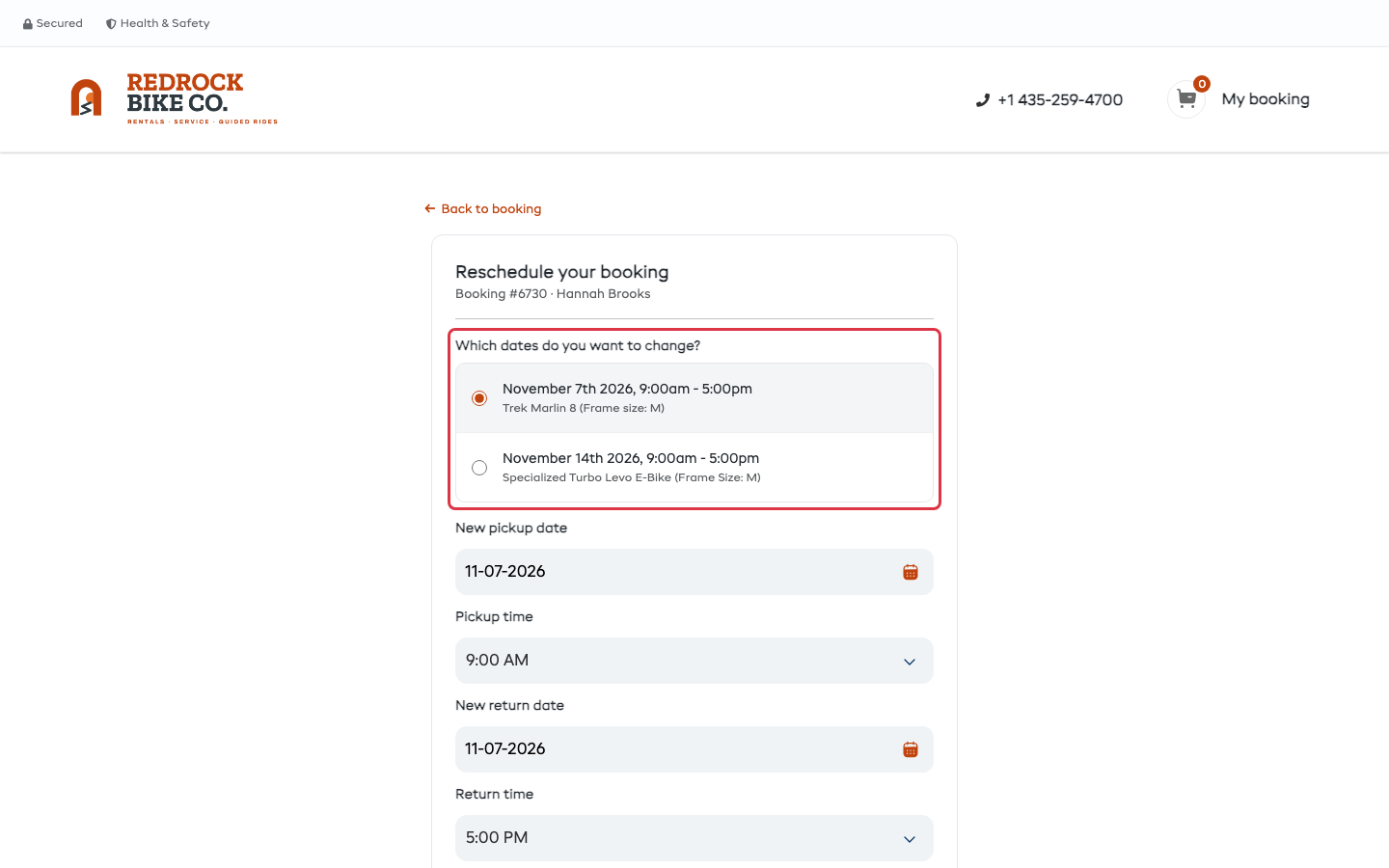
When the customer changes their dates
If you let customers change their own booking, the link in their confirmation email asks Which dates do you want to change? They pick one date, and only that date's gear moves. See Customer Self-Service.