Contact Support
If you have worked through the relevant troubleshooting guides and still need help, the EquipDash support team is here for you. This page explains how to reach us and what information to include so we can resolve your issue as quickly as possible.
How to Reach Us
Email Support
The best way to contact support is by email:
Email is ideal for most issues because you can include screenshots, describe the problem in detail, and we can investigate without needing you to be online at the same time.
In-App Support
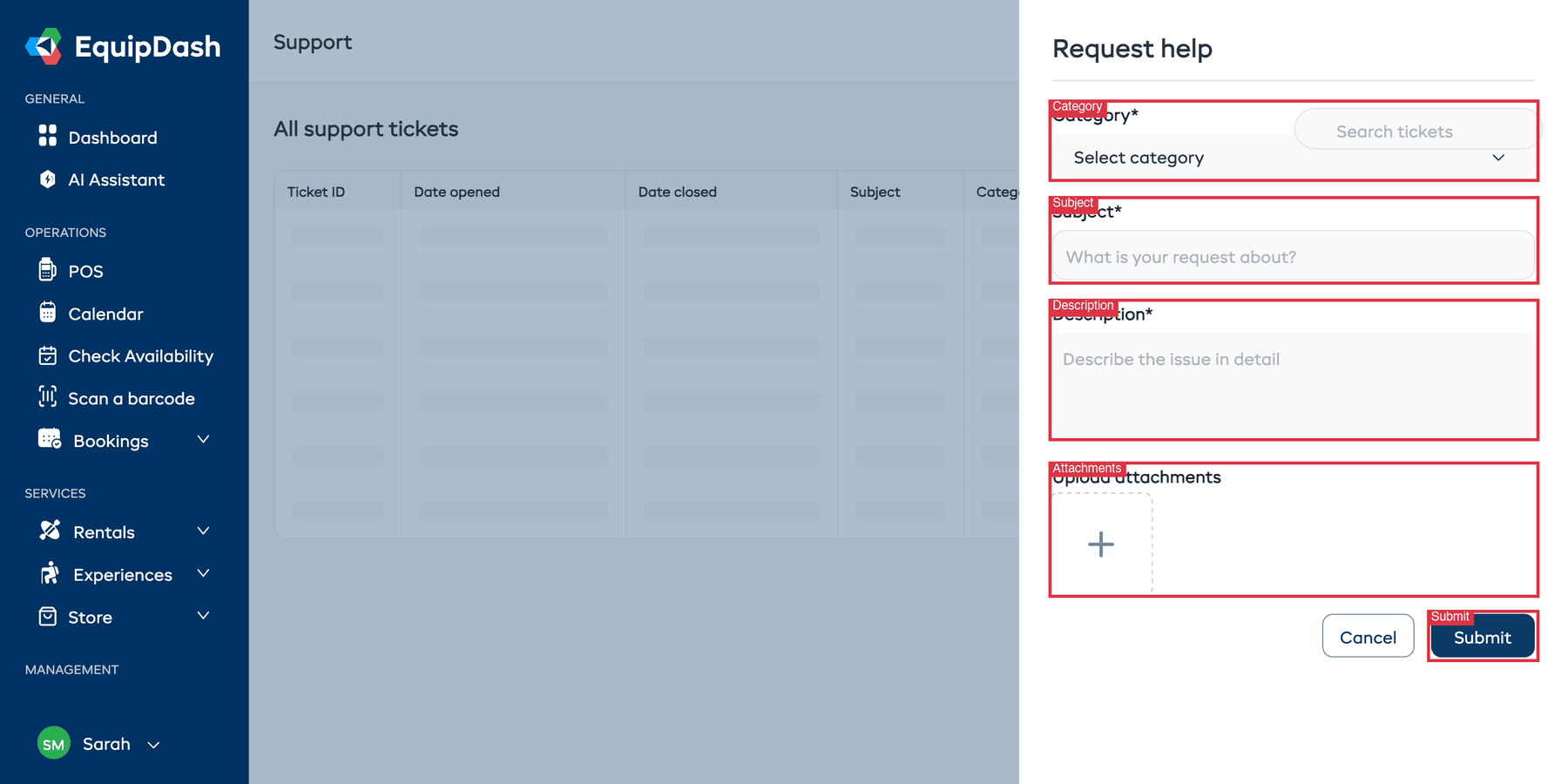
You can also submit a support ticket directly from inside EquipDash:
- Click Help Center in the sidebar (under the Support section near the bottom).
- Click the + New Ticket button in the top-right corner.
- Select a Category from the dropdown (e.g., Technical Support, Account & Billing, How to Use, Training, or Feature Requests).
- Enter a Subject and Description explaining your issue.
- Optionally attach screenshots or files using the Upload attachments area.
- Click Submit.
Your ticket will appear in the All support tickets table where you can track its status and view responses.
What to Include in Your Support Request
The more detail you provide upfront, the faster we can help. Here is what to include:
Always Include
- Your business name as it appears in EquipDash
- A clear description of the problem — what you expected to happen and what actually happened
- Steps to reproduce — what you were doing when the issue occurred
When Relevant
| Situation | What to include |
|---|---|
| Payment issue | Booking reference number, error message, customer email |
| Widget issue | The URL of the page where the widget is embedded, browser and device |
| Email issue | The email address that is not receiving emails, the type of notification, booking reference |
| Login issue | The email address you are trying to log in with, the error message |
| Permission issue | Your role, the page or action you cannot access |
| Display or layout issue | Browser name and version, device type (desktop, tablet, phone), a screenshot |
Screenshots and Screen Recordings
A screenshot is worth a thousand words — especially for visual bugs, error messages, or console errors. If you can, include:
- A screenshot of the error message or unexpected behavior
- A screenshot of the browser console if you see errors there (press
F12to open Developer Tools, then click the Console tab)
On most computers, you can take a screenshot with Cmd + Shift + 4 (Mac) or Windows + Shift + S (Windows). You can paste screenshots directly into your email.
What to Expect After Reaching Out
- Acknowledgement. You will receive an automatic confirmation email so you know your request was received.
- Response time. We aim to respond to all support requests within one business day. Most requests are answered much sooner.
- Follow-up. If we need more information, we will reply to your email with specific questions.
- Resolution. Once the issue is identified, we will either provide a solution, walk you through a fix, or let you know if a fix is being worked on.
Check your spam folder if you do not see a reply from us within one business day. Our responses come from support@equipdash.com.
Before You Contact Support
To save time, try these quick steps first:
- Search this help centre. Use the search bar at the top to find guides on your topic.
- Check the Common Issues page. Your problem may already have a step-by-step solution.
- Try the basics. Refresh the page, clear your browser cache, or try a different browser. These simple steps resolve a surprising number of problems.
- Ask the AI Assistant. If your question is about your data (bookings, availability, customers), the AI Assistant inside EquipDash may be able to answer instantly.
Feature Requests and Feedback
Have an idea for a new feature or an improvement to an existing one? We would love to hear it. Send your suggestion to:
Include a description of what you would like to see and how it would help your business. We read every piece of feedback and use it to shape the EquipDash roadmap.