Payment Issues
Most businesses process payments through Stripe, and this guide is written for that. If your shop is on Paystack, Rapyd or Authorize.net instead, the steps below still apply but the word "Stripe" means your own gateway, and you check its own dashboard rather than Stripe's.
Stripe Is Not Connected
If you see a message in EquipDash saying that Stripe is not connected, or if customers cannot complete payments through your widget, follow these steps:
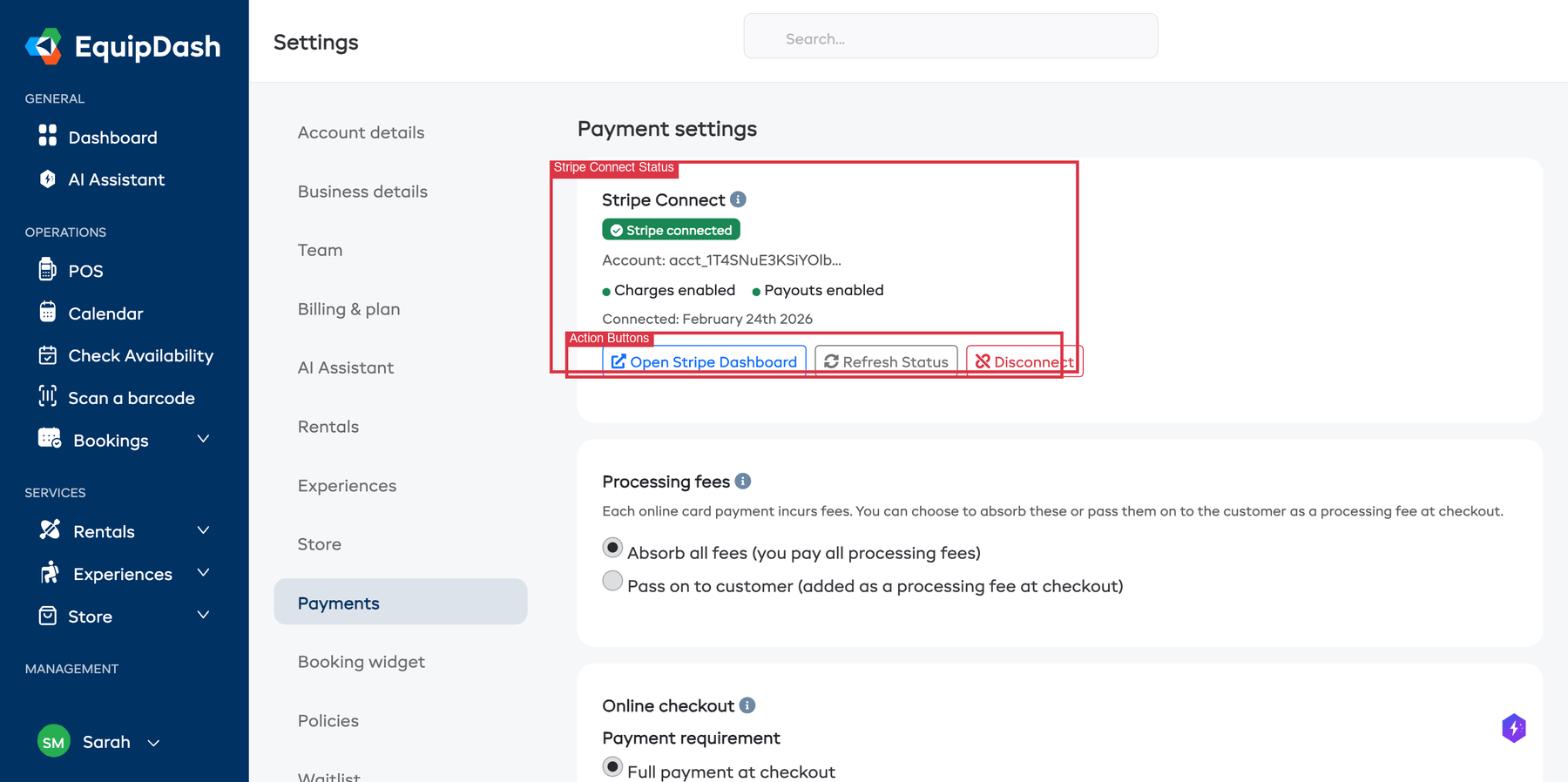
- Go to Settings in the sidebar and select Payments.
- Check the Stripe Connect status at the top of the page.
- If it says Not Connected, click Connect with Stripe and follow the prompts to link your Stripe account.
- If it shows a green Stripe connected badge with Charges enabled and Payouts enabled, your connection is working.
- If it shows a warning, there may be an issue with your Stripe account that needs attention (see below).
- If your Stripe connection seems stale, click Refresh Status to re-check. If the connection has been lost, click Disconnect and then reconnect from scratch.
You must have a fully activated Stripe account to accept payments. If your Stripe account is still in test mode or has incomplete verification, payments will not go through. Log in to your Stripe Dashboard and check for any pending requirements under Settings > Account details.
Stripe Keeps Disconnecting
If your Stripe connection drops repeatedly:
- Log in to your Stripe Dashboard at dashboard.stripe.com.
- Go to Settings > Installed apps and check that EquipDash is listed as a connected application.
- If EquipDash is not listed, the connection was revoked on the Stripe side. Go back to EquipDash and reconnect.
- If the problem persists, contact support — there may be an issue that needs investigation on our end.
A Customer's Payment Failed
When a customer's payment fails during checkout, they will see an error message. Here are the most common reasons and what to do:
Card Declined
This is the most frequent cause of failed payments. The customer's bank has declined the transaction.
- Ask the customer to double-check their card details — card number, expiry date, and CVC.
- Ask them to try a different card if possible.
- Suggest they contact their bank — sometimes banks block online transactions that look unfamiliar, and the customer may need to approve it.
Insufficient Funds
The customer's card does not have enough funds to cover the booking total. Ask them to try a different payment method or card.
Authentication Required (3D Secure)
Some banks require an extra verification step called 3D Secure (a pop-up asking the customer to approve the payment via their banking app or a one-time code).
- If the 3D Secure pop-up did not appear, the customer should try again — it may have been blocked by a pop-up blocker.
- Ask the customer to allow pop-ups for your website and retry the payment.
- If the customer's bank does not support 3D Secure, they may need to use a different card.
Expired Card
The customer's card has passed its expiry date. Ask them to update their card details or use a different one.
You can also create bookings on behalf of customers through the Point of Sale or New Booking form in EquipDash. If a customer is struggling with online payment, you can take payment in person and record it manually.
Refund Not Appearing in the Customer's Account
After you issue a refund in EquipDash, it can take some time to appear in the customer's account.
How Long Do Refunds Take?
- Credit and debit cards: 5 to 10 business days, depending on the customer's bank.
- Some banks: May take up to 14 business days in rare cases.
Steps to Check a Refund
- In EquipDash, open the booking detail page and scroll down to the payment summary section.
- Check the Total line — it will show the payment status (e.g., Unpaid, Paid, Refunded, or Partially Refunded).
- If the refund status is still processing, give it a day and check again.
- You can also verify the refund in your Stripe Dashboard under Payments. Find the original payment and check its refund status.
If the refund shows as completed in both EquipDash and Stripe but the customer still has not received it after 10 business days, ask the customer to contact their bank directly. Once Stripe has processed the refund, the timing is in the bank's hands.
Refund Button Is Grayed Out or Missing
If you cannot find the refund option on a booking:
- Check your permissions. Only users with the Process refunds permission can issue refunds. Ask your account admin to check your role under Settings > Team.
- Check the payment status. You can only refund payments that have a status of Paid. If the payment is still Pending or has already been fully refunded, the refund option will not be available.
- Check the booking status. Some booking statuses may restrict refund actions depending on your business settings.
"Payment Method Not Supported" Error
If a customer sees this error during checkout:
- Check which payment methods you have enabled in Stripe. Log in to your Stripe Dashboard, go to Settings > Payment methods, and review which methods are active.
- Check your EquipDash payment settings. Go to Settings > Payments in EquipDash and confirm the payment methods you want to accept are enabled.
- The customer may be trying to use a payment method (such as a specific digital wallet) that is not enabled for your Stripe account or is not available in their region.
Payments Are Going to the Wrong Stripe Account
If you manage multiple businesses or have changed Stripe accounts:
- Go to Settings > Payments in EquipDash.
- Check which Stripe account is currently connected. The account ID is displayed on the page (e.g.,
acct_1234...). - If it is the wrong account, click the red Disconnect button and then Connect with Stripe to link the correct account.
Disconnecting a Stripe account does not affect past transactions. Historical payment and refund records remain in EquipDash. However, new payments will go to whichever Stripe account is currently connected.
Still Having Payment Problems?
If you have worked through the steps above and the issue is not resolved, please contact support with the following details:
- The booking reference number
- The error message the customer saw (a screenshot is ideal)
- Whether the issue affects all payments or just a specific one
- Any recent changes to your Stripe account or EquipDash payment settings
Related Guides
Rapyd Connection Problems
- Check that Account mode matches the keys you copied from Rapyd. Both keys must come from the same account and mode.
- If new card payments are unavailable after an older Rapyd setup, open Settings > Payments > Rapyd connection and connect your own account keys.
- If payments or refunds stay pending, check that the exact Webhook URL shown in EquipDash is configured in the same Rapyd account and mode, with the events in Connecting Rapyd.
- If replacement keys are refused, use keys from the account that processed your previous payments. Saved cards and refunds cannot move to another account.